
Selecting directories/files made a lot easier.
The project is no longer being maintained.
FilePicker
Super Lite Android Library to select files/directories from Device Storage.Developed by
Angad Singh (@angads25)Benchmark:


Where to Find:



Read all about internal classes and functions in the wiki.
Features
- Easy to Implement.
- No permissions required.
- Files, Directory Selection.
- Single or Multiple File selection.
Installation
- Library is also Available in MavenCentral, So just put this in your app dependencies to use it:
compile 'com.github.angads25:filepicker:1.1.1'Usage
FilePickerDialog
- Start by creating an instance of
DialogProperties.
DialogProperties properties = new DialogProperties();Now 'DialogProperties' has certain parameters.
- Assign values to each Dialog Property using
DialogConfigclass.
properties.selectionmode = DialogConfigs.SINGLEMODE;
        properties.selectiontype = DialogConfigs.FILESELECT;
        properties.root = new File(DialogConfigs.DEFAULT_DIR);
        properties.errordir = new File(DialogConfigs.DEFAULTDIR);
        properties.offset = new File(DialogConfigs.DEFAULT_DIR);
properties.extensions = null;- Next create an instance of
FilePickerDialog, and passContextandDialogPropertiesreferences as parameters. Optional: You can change the title of dialog. Default is current directory name. Set the positive button string. Default is Select. Set the negative button string. Defalut is Cancel.
FilePickerDialog dialog = new FilePickerDialog(MainActivity.this,properties);
dialog.setTitle("Select a File");- Next, Attach
DialogSelectionListenertoFilePickerDialogas below,
dialog.setDialogSelectionListener(new DialogSelectionListener() {
            @Override
            public void onSelectedFilePaths(String[] files) {
                //files is the array of the paths of files selected by the Application User.
            }
});select button.
- Use <pre><code class="lang-dialog">.show()</code></pre> method to show dialog.
NOTE:
Marshmallow and above requests for the permission on runtime. You should override onRequestPermissionsResult in Activity/AppCompatActivity class and show the dialog only if permissions have been granted.
<pre><code class="lang-java">//Add this method to show Dialog when the required permission has been granted to the app. @Override public void onRequestPermissionsResult(int requestCode,@NonNull String permissions[],@NonNull int[] grantResults) { switch (requestCode) { case FilePickerDialog.EXTERNALREADPERMISSION_GRANT: { if (grantResults.length > 0 && grantResults[0] == PackageManager.PERMISSION_GRANTED) { if(dialog!=null) { //Show dialog if the read permission has been granted. dialog.show(); } } else { //Permission has not been granted. Notify the user. Toast.makeText(MainActivity.this,"Permission is Required for getting list of files",Toast.LENGTH_SHORT).show(); } } } }</code></pre>
That's It. You are good to proceed further.
FilePickerPreference
- Start by declaring FilePickerPreference in your settings xml file as:
<pre><code class="lang-xml"><com.github.angads25.filepicker.view.FilePickerPreference
xmlns:app="http://schemas.android.com/apk/res-auto"
android:key="yourpreferencekey"
android:title="Pick a Directory"
android:summary="Just a Summary"
android:defaultValue="/sdcard:/mnt"
app:titleText="Select Directories"
app:error_dir="/mnt"
app:root_dir="/sdcard"
app:selecti
app:selecti
app:extensi/></code></pre>
- Implement Preference.OnPreferenceChangeListener to class requiring selected values and
Override onPreferenceChange(Preference, Object) method. Check for preference key using Preference reference.
<pre><code class="lang-java">@Override
public boolean onPreferenceChange(Preference preference, Object o)
{ if(preference.getKey().equals("yourpreferencekey"))
{ ...
}
return false;
}</code></pre>
- Typecast
Object o into String Object and use split(String) function in String class to get array of selected files.
<pre><code class="lang-java">@Override
public boolean onPreferenceChange(Preference preference, Object o)
{ if(preference.getKey().equals("yourpreferencekey"))
{ String value=(String)o;
String arr[]=value.split(":");
...
...
}
return false;
}</code></pre>
That's It. You are good to move further.
Important:
defaultValue, errordir, rootdir, offset_dir must have valid directory/file paths.
defaultValue paths should end with ':'.
defaultValue can have multiple paths, there should be a ':' between two paths.
extensions must not have '.'.
extensions should end with ':' , also have ':' between two extensions.
eg. /sdcard:/mnt:
Note:
FilePickerPreference stores selected directories/files as a String. It delimits multiple files/directories using ':' char`.
Read more on implementation here.
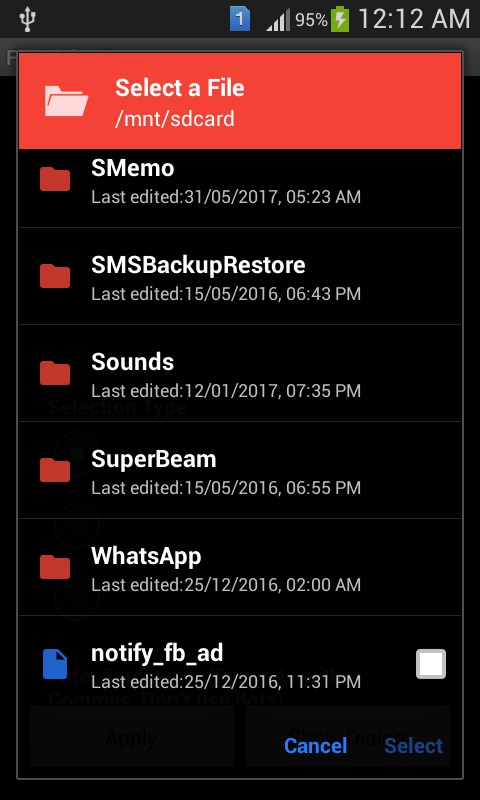
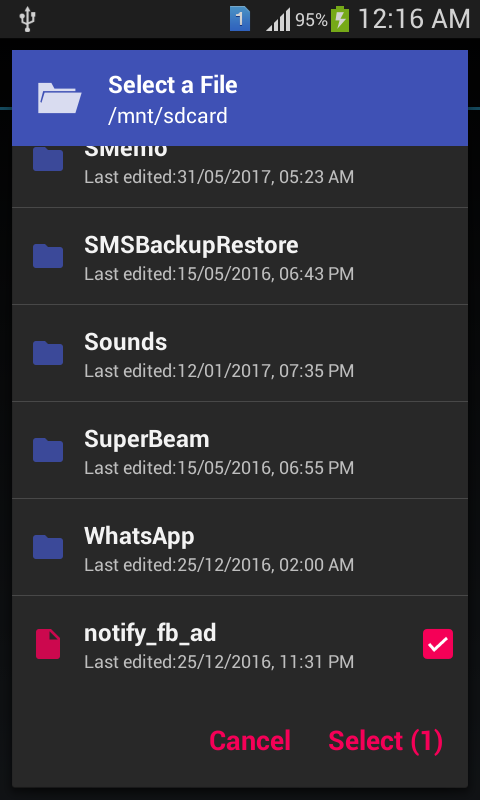
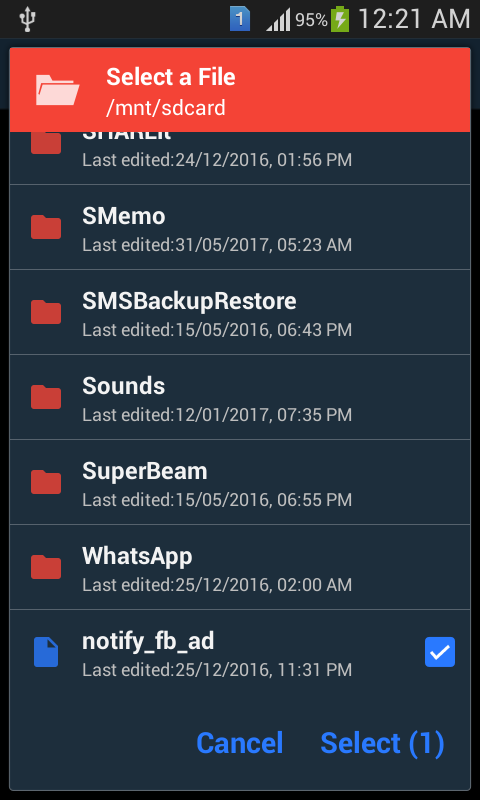
Screenshot
Theme.Black
Theme.Holo
Theme.Holo.Light

Theme.Material
Theme.DeviceDefault

Performance
GPU Overdraw
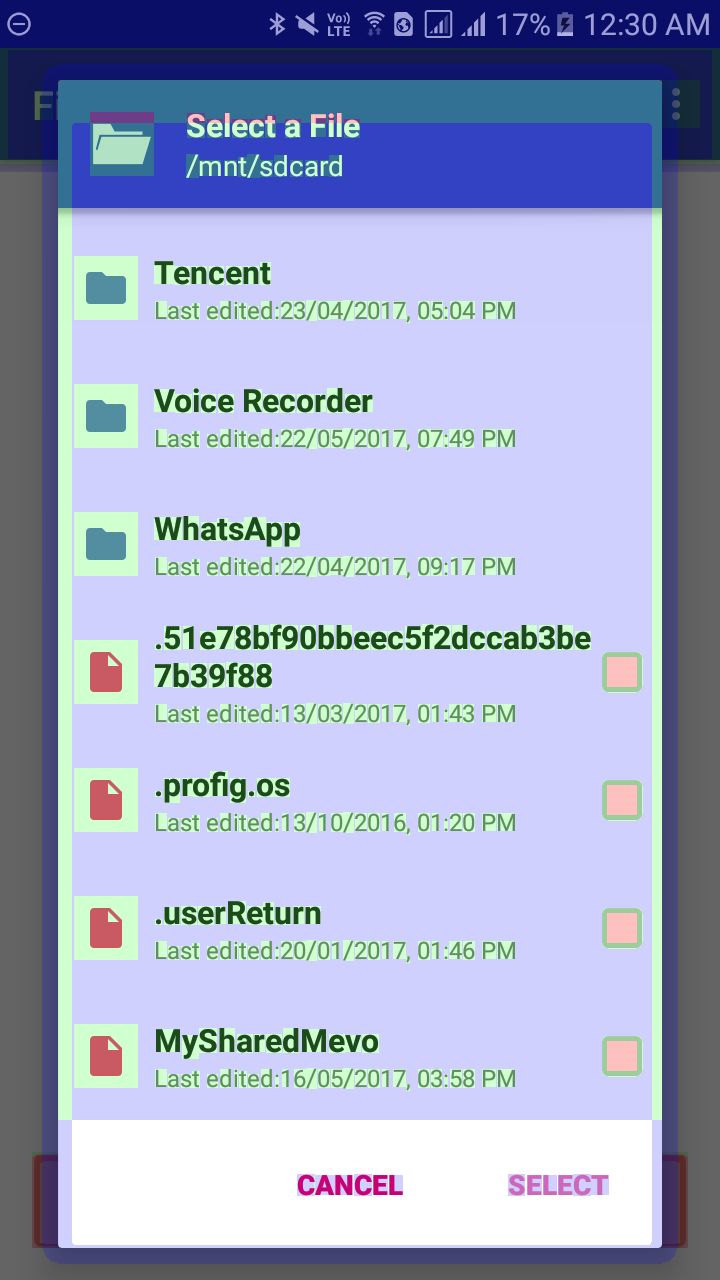
GPU Rendering

Buy me a Coffee
If this project helped you reduce the development time, please consider donating :D

License
Copyright (C) 2016 Angad SinghLicensed under the Apache License, Version 2.0 (the "License"); you may not use this file except in compliance with the License. You may obtain a copy of the License at
http://www.apache.org/licenses/LICENSE-2.0
Unless required by applicable law or agreed to in writing, software distributed under the License is distributed on an "AS IS" BASIS, WITHOUT WARRANTIES OR CONDITIONS OF ANY KIND, either express or implied. See the License for the specific language governing permissions and limitations under the License.


