
Firebase OTP Verification in Android using Kotlin
Firebase OTP Verification in Android using Kotlin
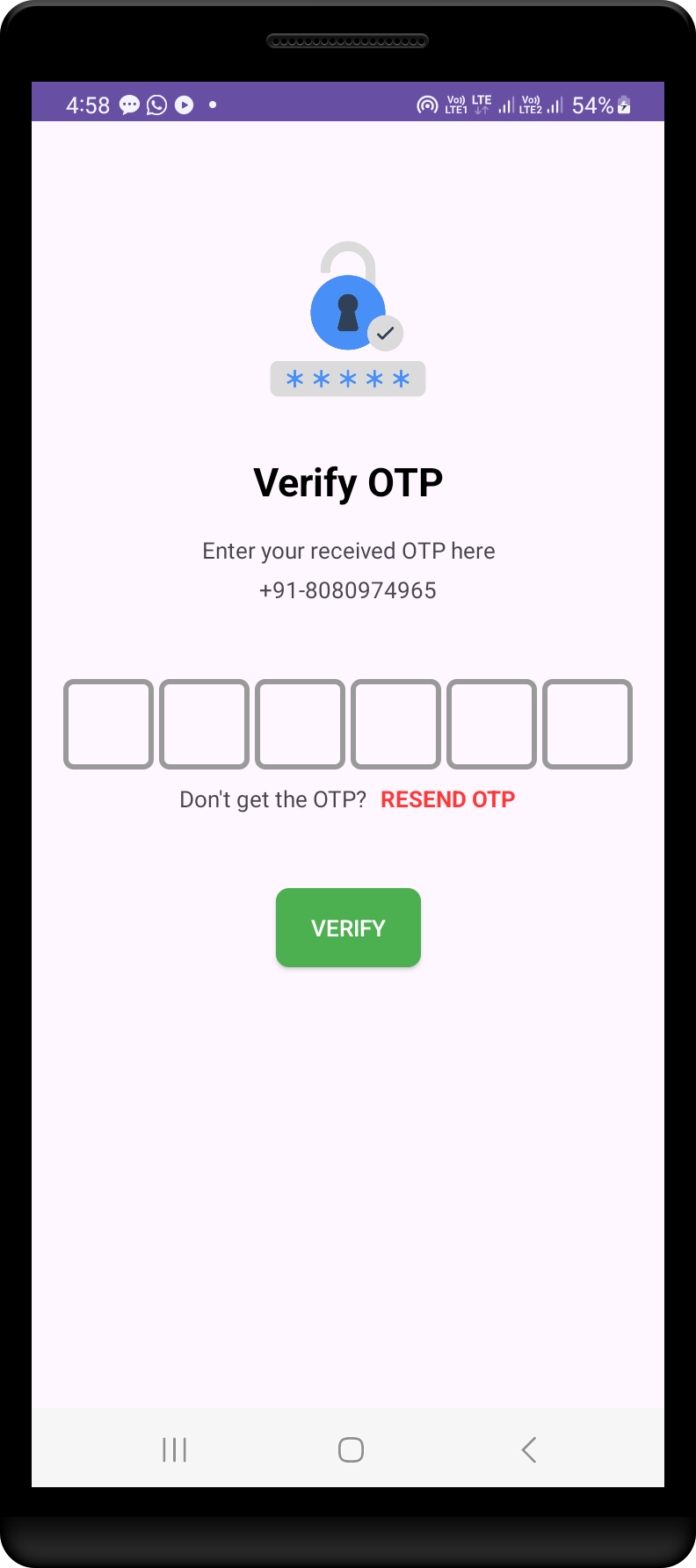
A robust Android application that integrates Firebase for OTP (One-Time Password) verification. This project provides a seamless experience for phone number authentication with auto-retrieval of OTP, resend functionality, and a user-friendly interface.
Features
- Phone Number Authentication: Secure user authentication via OTP sent to their phone number.
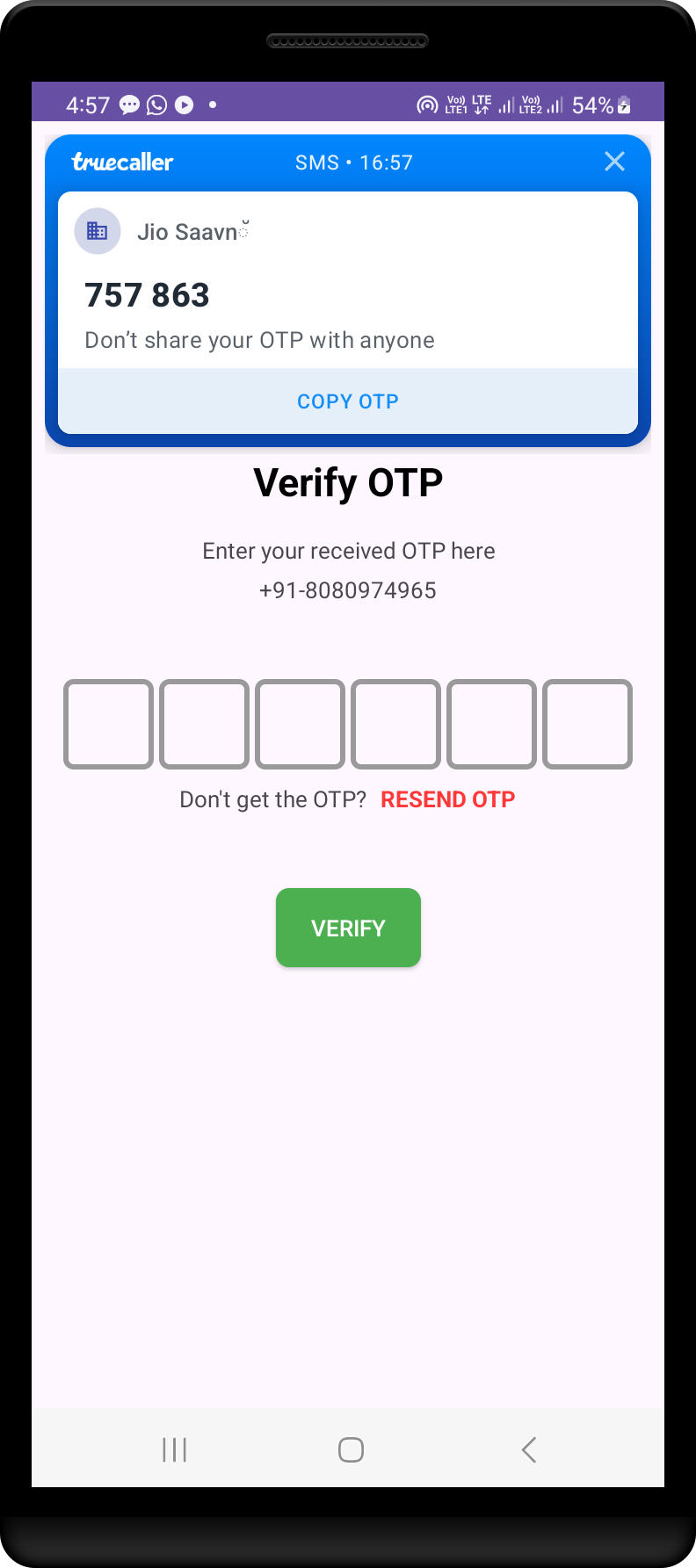
- Auto OTP Retrieval: Automatically retrieves the OTP from SMS for a smoother user experience.
- Resend OTP: Option to resend OTP in case the original message is missed.
- Firebase Integration: Utilizes Firebase Authentication for managing phone number verification.
- Kotlin Implementation: Entire app built using Kotlin, following best practices and clean code architecture.
Screenshots
 |
 |
 |
 |
 |
|
Prerequisites
- Android Studio: Latest version recommended.
- Firebase Project: You need to have a Firebase project set up.
- Google Play Services: Ensure that Google Play Services is updated on the device.
Getting Started
Follow these steps to set up the project locally:
1. Clone the Repository
https://github.com/samyak2403/Firebase-OTP-Verifaction.git
cd Firebase-OTP-Verifaction-repository
Firebase OTP Verification in Android (Kotlin)
This project demonstrates how to implement OTP (One-Time Password) verification in an Android application using Firebase Authentication.
Table of Contents
- Prerequisites
- Setup Firebase in Your Project
- Add Required Dependencies
- Implement OTP Verification
- Project Structure
- License
Prerequisites
- Android Studio (latest version)
- A Firebase account
- Basic knowledge of Kotlin and Android development
Setup Firebase in Your Project
- Create a Firebase Project:
- Add Your Android App to Firebase:
google-services.json file and place it in the app/ directory of your Android project.
- Generate SHA-256 Key:
keytool -list -v -alias androiddebugkey -keystore ~/.android/debug.keystoreandroid (default password).
- Copy the SHA-256 key from the output.
- In the Firebase Console, navigate to Project Settings > General. Under the Your apps section, click on Add Fingerprint and paste the SHA-256 key.
- Enable Phone Authentication:
Authentication > Sign-in method.
- Enable the Phone sign-in provider.
Add Required Dependencies
- Add Google services classpath:
build.gradle file, add the following:
buildscript {
         repositories {
             google()
             mavenCentral()
         }
         dependencies {
             classpath 'com.google.gms:google-services:4.3.15' // Check for the latest version
         }
}- Add Firebase dependencies:
build.gradle file, add the Firebase dependencies:
plugins {
         id 'com.android.application'
         id 'kotlin-android'
         id 'com.google.gms.google-services'
     }
dependencies {          implementation platform('com.google.firebase:firebase-bom:32.0.0') // Check for the latest version          implementation 'com.google.firebase:firebase-auth-ktx'      }
## Modify AndroidManifest.xml Add the following permissions and receivers:
<uses-permission android:name="android.permission.RECEIVE_SMS"/> <uses-permission android:name="android.permission.READ_SMS"/>
<application>     ...     <receiver         android:name=".OTP_Receiver"         android:exported="true"         android:permission="com.google.android.gms.auth.api.phone.permission.SEND"/> </application>
- Sync your project: After adding the dependencies, sync your project in Android Studio.
Implement OTP Verification
Follow the steps below to implement OTP verification in your Android app:
- Request OTP:
- Verify OTP:
For detailed code examples, refer to the official Firebase documentation or the project’s source code.
Project Structure:
app/
├── src/main/java/app/my/otpverification/
│   ├── OtpSendActivity.kt       # Handles sending OTP
│   ├── OtpVerifyActivity.kt     # Handles OTP verification
│   ├── OTP_Receiver.kt          # BroadcastReceiver for SMS retrieval
│   └── MainActivity.kt          # Post-authentication main screen
└── src/main/res/layout/         # XML layouts for activities
License
This project is licensed under the MIT License - see the LICENSE file for details.


