
An iOS Image cropping library, which mimics the Photo App written in Swift.






Mantis — Image Cropping Library for iOS (Swift · UIKit · SwiftUI)
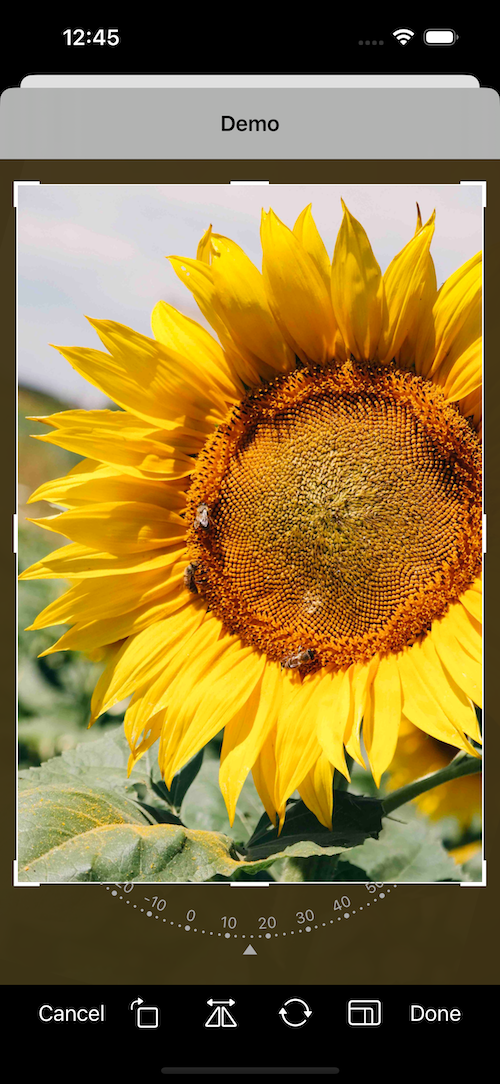
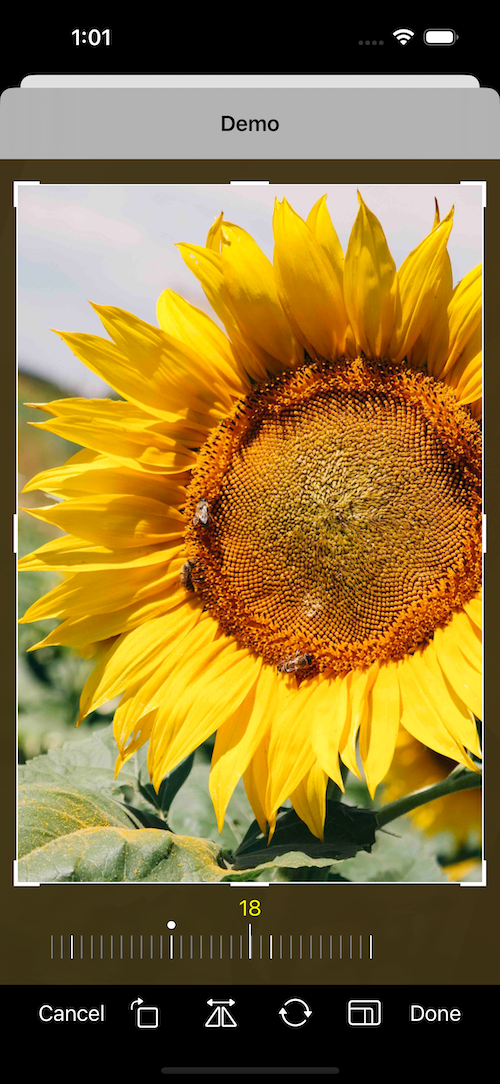
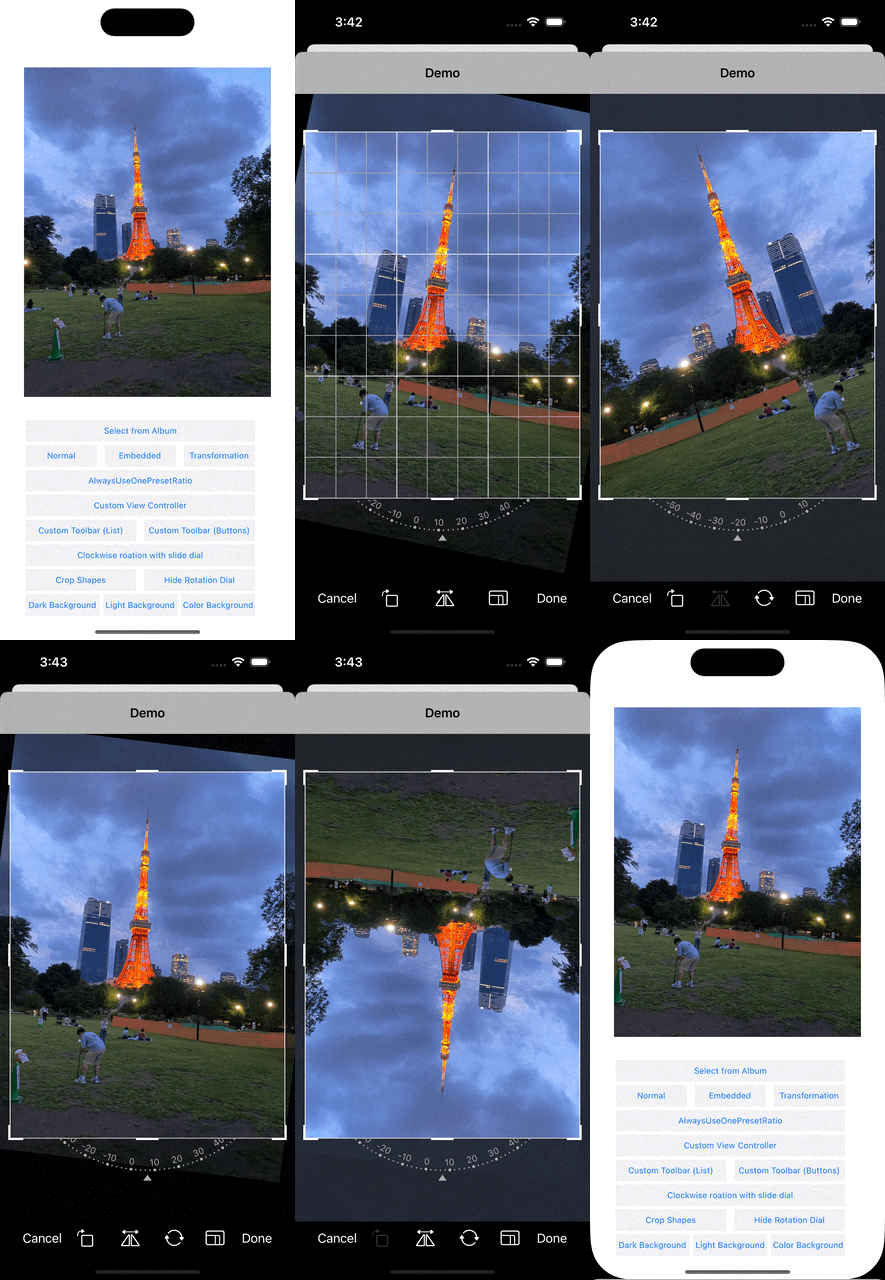
Mantis is an open-source iOS image cropping library written in Swift, with both UIKit and SwiftUI APIs. It gives your app an Apple Photos–style photo crop and edit experience: crop with rotation, flip, free or fixed aspect ratios, rich crop shapes (circle, ellipse, rounded rectangle, polygon, heart, arbitrary paths), perspective correction (skew), and full undo/redo — on iOS and Mac Catalyst.
Features
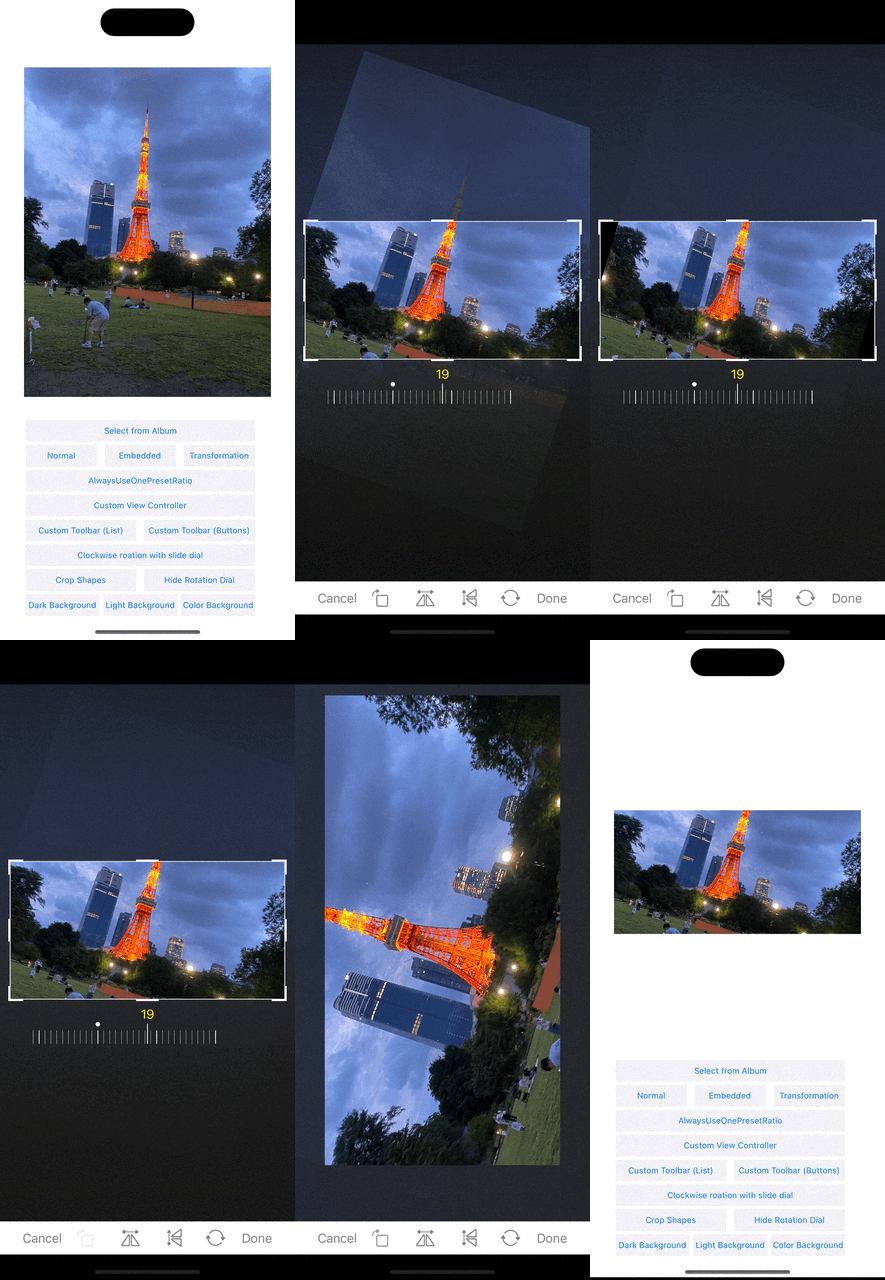
- ✂️ Photos-app-style cropping UI — pan, zoom, resize the crop box, rotate 90°, flip, and straighten with a rotation dial or slide dial
- 🖼 Free or fixed aspect ratios — built-in presets (original, square, 16:9, …) plus your own custom ratios
- 🟣 Rich crop shapes — rectangle, square, circle, ellipse, rounded rectangle, diamond, polygon, heart, or any custom path (with optional mask-only mode)
- 📐 Perspective correction (skew) — Apple Photos–style vertical/horizontal perspective adjustment with real-time 3D preview
- ↩️ Undo / Redo / Revert to original — independent history per cropper, with localized Mac Catalyst menus
- 🧩 Two SwiftUI APIs — a modern declarative
ImageCropperview with modifiers and an observableCropSession, plus a binding-basedImageCropperView - 💾 Persist and restore crops —
CropInfoisCodable(3.1+); re-crop the original image offline in a later session, or reopen the editor at the saved state - 🌗 Light / dark / system appearance modes
- 🌍 Localized into 14 languages (Arabic, Chinese, English, French, German, Italian, Japanese, Korean, Dutch, Portuguese, Russian, Spanish, Turkish, …) with custom localization support
- 🧱 Highly customizable — embed the cropper in your own view controller, build a custom toolbar, subclass
CropViewController, tweak colors, borders, dial styles, and more - 🐘 Large-image support — async crop mode and pixel-count limiting for very large photos
- 🔒 Privacy manifest included (
PrivacyInfo.xcprivacy)
Demos
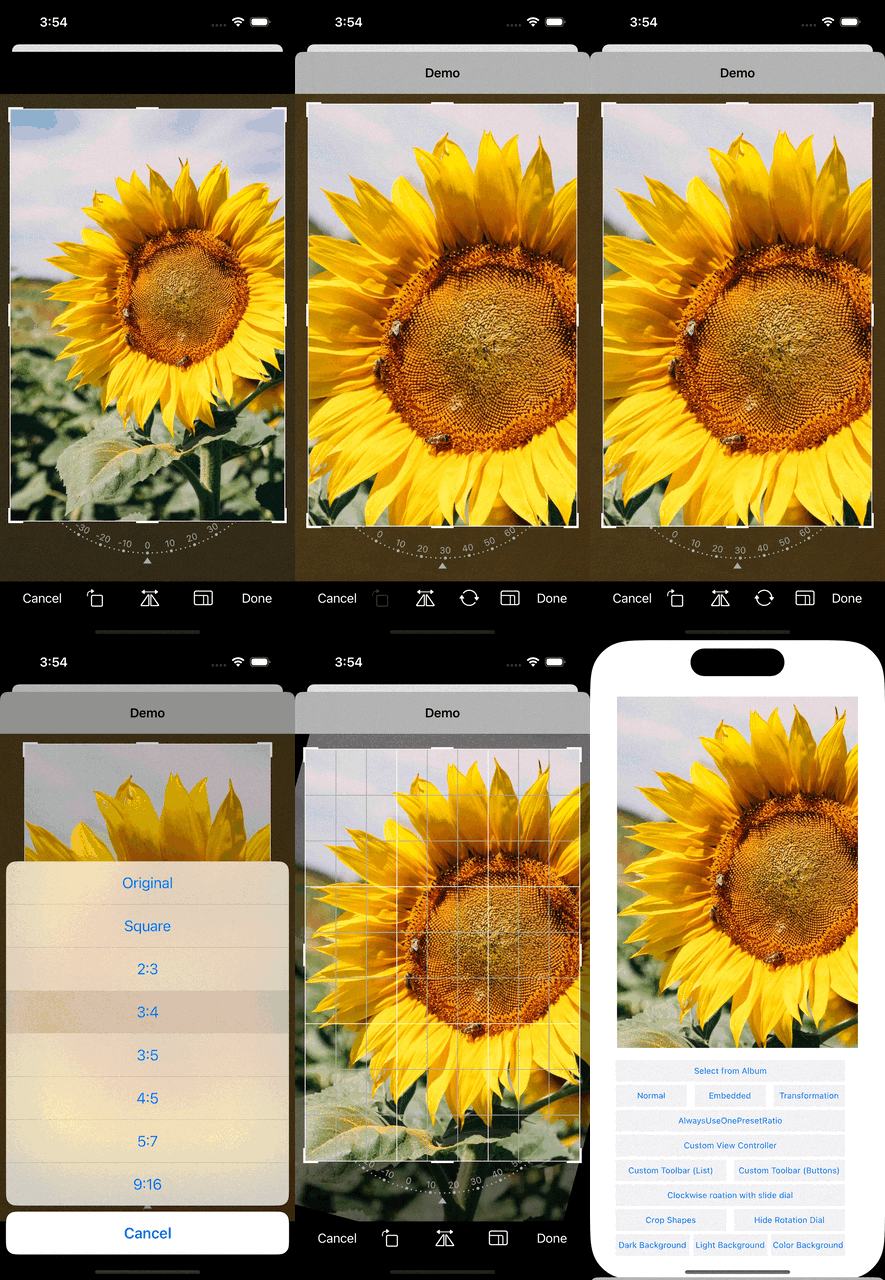
Mantis provides rich crop shapes, from basic circle/square to polygons to arbitrary paths (we even provide a heart shape ❤️ 😏).
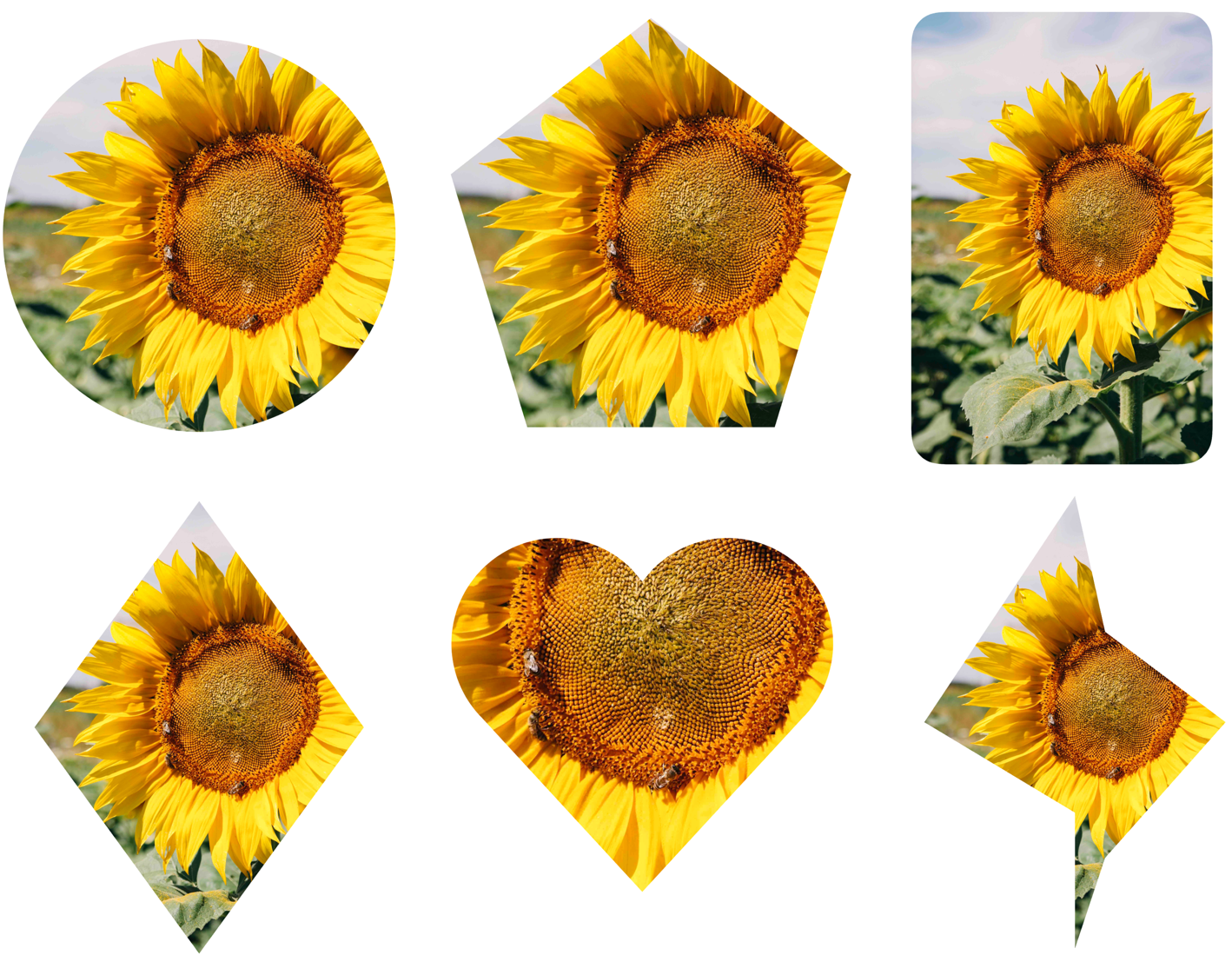
Table of Contents
- Quick Start
- Requirements
- Installation
- What's New in Mantis 3.x
- Usage
- Migrating from 2.x
- Demo Projects
- FAQ
- Apps Using Mantis
- Credits
- License
Quick Start
SwiftUI
import Mantis
import SwiftUI
struct AvatarCropView: View {     let image: UIImage     @State private var croppedImage: UIImage?
var body: some View {         ImageCropper(image: image)             .cropShape(.circle)             .aspectRatio(.fixed(1))             .onCrop { result in                 croppedImage = result.croppedImage             }     } }
UIKit
import Mantis
let cropViewController = Mantis.cropViewController(image: yourImage) cropViewController.delegate = self cropViewController.modalPresentationStyle = .fullScreen // required when presenting present(cropViewController, animated: true)
// Receive the result: extension YourViewController: CropViewControllerDelegate {     func cropViewControllerDidCrop(_ cropViewController: CropViewController,                                    cropped: UIImage,                                    transformation: Transformation,                                    cropInfo: CropInfo) {         // Use the cropped image     }
func cropViewControllerDidCancel(_ cropViewController: CropViewController,                                      original: UIImage) {         // Handle cancel     } }
See Usage below for aspect ratios, crop shapes, undo/redo, persistence, and full customization.
Requirements
- iOS 15.0+
- macOS 12.0+ (Mac Catalyst)
- Xcode 13.0+ (Xcode 15+ recommended — enables the iOS 17 Observation-based fine-grained tracking in
CropSession)
Installation
Swift Package Manager (recommended)
In Xcode: File → Add Package Dependencies… and enter:
https://github.com/guoyingtao/Mantis.gitRule: Version — Up to Next Major — 3.1.0
Or in Package.swift:
.package(url: "https://github.com/guoyingtao/Mantis.git", from: "3.1.0")CocoaPods
pod 'Mantis', '~> 3.1.0'Carthage
github "guoyingtao/Mantis"What's New in Mantis 3.x
For the complete history see the CHANGELOG.
Declarative SwiftUI API (3.0)
Mantis 3.0 introduced a modern, declarative SwiftUI API:
ImageCropper— a SwiftUI view configured with modifiers:
ImageCropper(image: myImage)
    .cropShape(.circle)
    .aspectRatio(.fixed(16/9))
.onCrop { result in croppedImage = result.croppedImage }CropSession— an observable handle to a live crop session. It exposescanUndo,canRedo,isResettableand the livetransformationas observable state, and drives the cropper with plain methods (rotate(),flip(),crop(),undo(),redo(),reset(),setAspectRatio()) instead of the old enum-binding action pattern. On iOS 17+ it participates in the Observation framework for fine-grained, per-property updates; on iOS 15/16 it behaves as a plainObservableObject.- Independent undo history per cropper — the internal transform stack is no longer a global singleton, so two croppers shown at the same time (e.g. iPad multi-window) keep separate undo/redo histories.
ImageCropperView API remains fully supported. See the SwiftUI usage section for the full API and the MantisSwiftUIExample project for working demos.
Codable crop persistence (3.1)
CropInfo now conforms to Codable, so you can save a user's exact crop and reproduce it offline in a later app session — including rotated, fixed-ratio, perspective-skewed, and large-image crops. See Persisting and restoring crops.
Perspective correction (skew)
Mantis supports Apple Photos–style perspective correction, letting users adjust horizontal and vertical skew in addition to straightening. When enabled, the slide dial displays three circular icon buttons — Straighten, Vertical, and Horizontal — so users can switch adjustment modes with a single tap.
- Real-time 3D perspective preview powered by
CATransform3D - Accurate image export using
CIPerspectiveCorrection - Full integration with existing features: undo/redo, flip, 90° rotation, and preset transformations
Appearance mode
Mantis supports light, dark, and system appearance modes. By default Mantis uses a dark appearance (backward compatible).
var config = Mantis.Config()
config.appearanceMode = .forceLight   // or .forceDark (default), .system
let cropViewController = Mantis.cropViewController(image: yourImage, config: config)
Usage
Basic
Important: set modalPresentationStyle = .fullScreen on the crop view controller (or its navigation controller) when presenting it.
UIKit
let cropViewController = Mantis.cropViewController(image: yourImage)
cropViewController.delegate = self
cropViewController.modalPresentationStyle = .fullScreen
present(cropViewController, animated: true)
The caller conforms to CropViewControllerDelegate:
public protocol CropViewControllerDelegate: AnyObject {
    func cropViewControllerDidCrop(_ cropViewController: CropViewController, cropped: UIImage, transformation: Transformation, cropInfo: CropInfo)
    func cropViewControllerDidCancel(_ cropViewController: CropViewController, original: UIImage)

    // The implementation of the following functions are optional
    func cropViewControllerDidFailToCrop(_ cropViewController: CropViewController, original: UIImage)
    func cropViewControllerDidBeginResize(_ cropViewController: CropViewController)
    func cropViewControllerDidEndResize(_ cropViewController: CropViewController, original: UIImage, cropInfo: CropInfo)
}
SwiftUI
Declarative API (Mantis 3.0+)
ImageCropper is a declarative SwiftUI view configured with modifiers:
struct MyView: View {
    @State private var croppedImage: UIImage?
var body: some View {         ImageCropper(image: myImage)             .cropShape(.circle)             .aspectRatio(.fixed(16/9))             .onCrop { result in                 croppedImage = result.croppedImage             }     } }
To build your own controls, attach a CropSession. It exposes canUndo, canRedo, isResettable and the live transformation as observable state (fine-grained Observation tracking on iOS 17+, ObservableObject on iOS 15/16), and drives the cropper with plain methods instead of enum bindings:
struct MyCropperView: View {
    @StateObject private var session = CropSession()
    @State private var croppedImage: UIImage?
var body: some View {         VStack {             ImageCropper(image: myImage, session: session)                 .builtInToolbarVisible(false)                 .onCrop { result in croppedImage = result.croppedImage }
HStack {                 Button("Undo") { session.undo() }                     .disabled(!session.canUndo)                 Button("Redo") { session.redo() }                     .disabled(!session.canRedo)                 Button("Reset") { session.reset() }                     .disabled(!session.isResettable)                 Button("Rotate") { session.rotate(.clockwise) }                 Button("Flip") { session.flip(.horizontal) }                 Button("Done") { session.crop() }             }         }     } }
Available modifiers: .cropShape(:), .aspectRatio(:), .builtInToolbarVisible(_:), .appearance(_:), .configure { $0... } (escape hatch to the full Mantis.Config), .onCrop(:), .onCancel(:), .onCropFailed(_:).
Binding-based API
Kept for backward compatibility and fully supported; new code should prefer the declarative ImageCropper above.
struct MyView: View {
    @State private var image: UIImage?
    @State private var transformation: Transformation?
    @State private var cropInfo: CropInfo?
var body: some View {         ImageCropperView(             image: $image,             transformation: $transformation,             cropInfo: $cropInfo         )     } }
Note:
- To start a crop operation programmatically, use theactionbinding (forImageCropperView):
>> action = .crop
- To receive the result of the crop (success or failure), use the onCropCompleted callback.
This is especially useful because cropping may not complete instantly in all cases, so relying on this callback ensures you update your UI only after the operation finishes.
CropToolbar mode
CropToolbar has two modes:
- normal mode
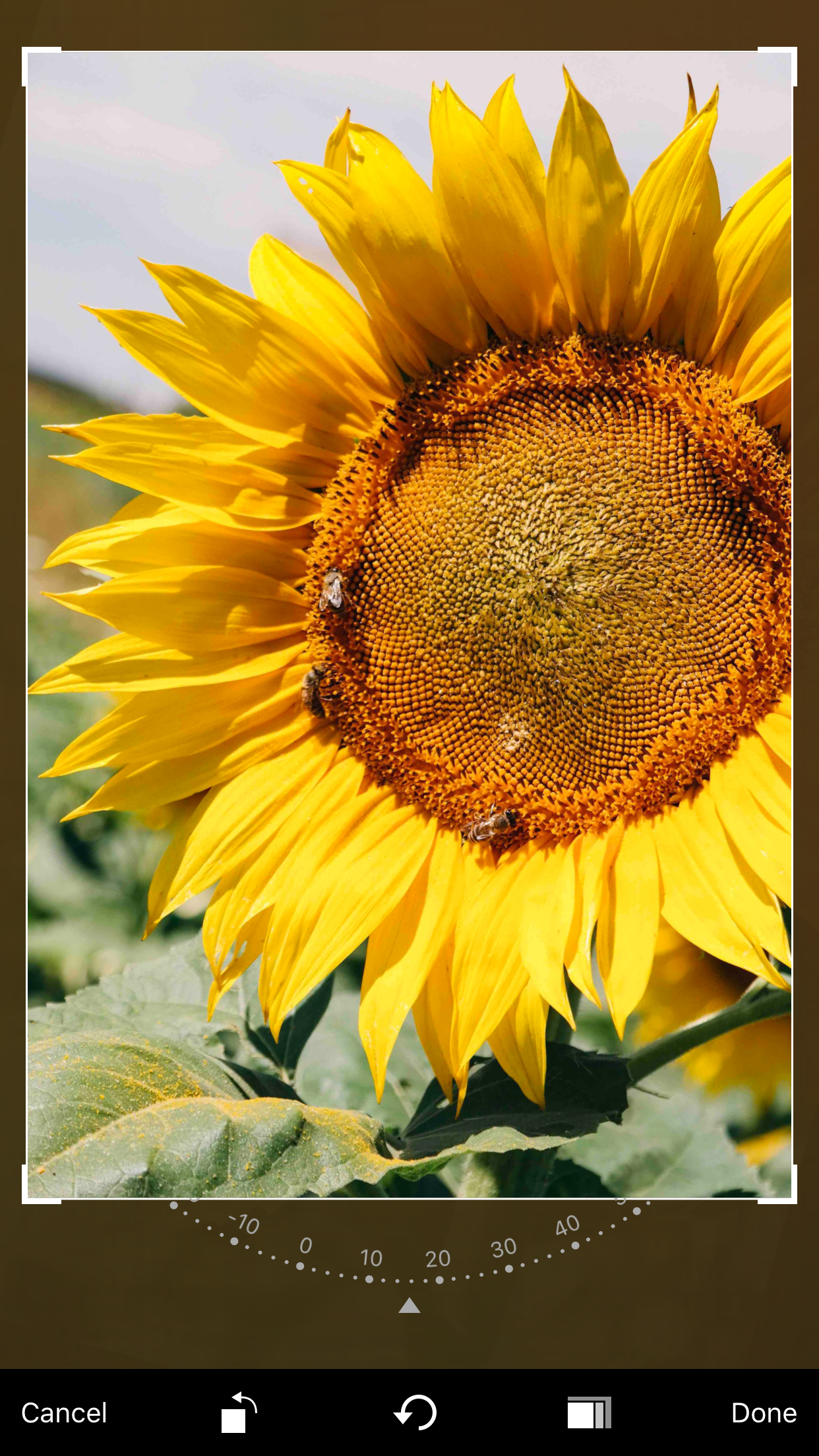
let cropViewController = Mantis.cropViewController(image: yourImage)- embedded mode
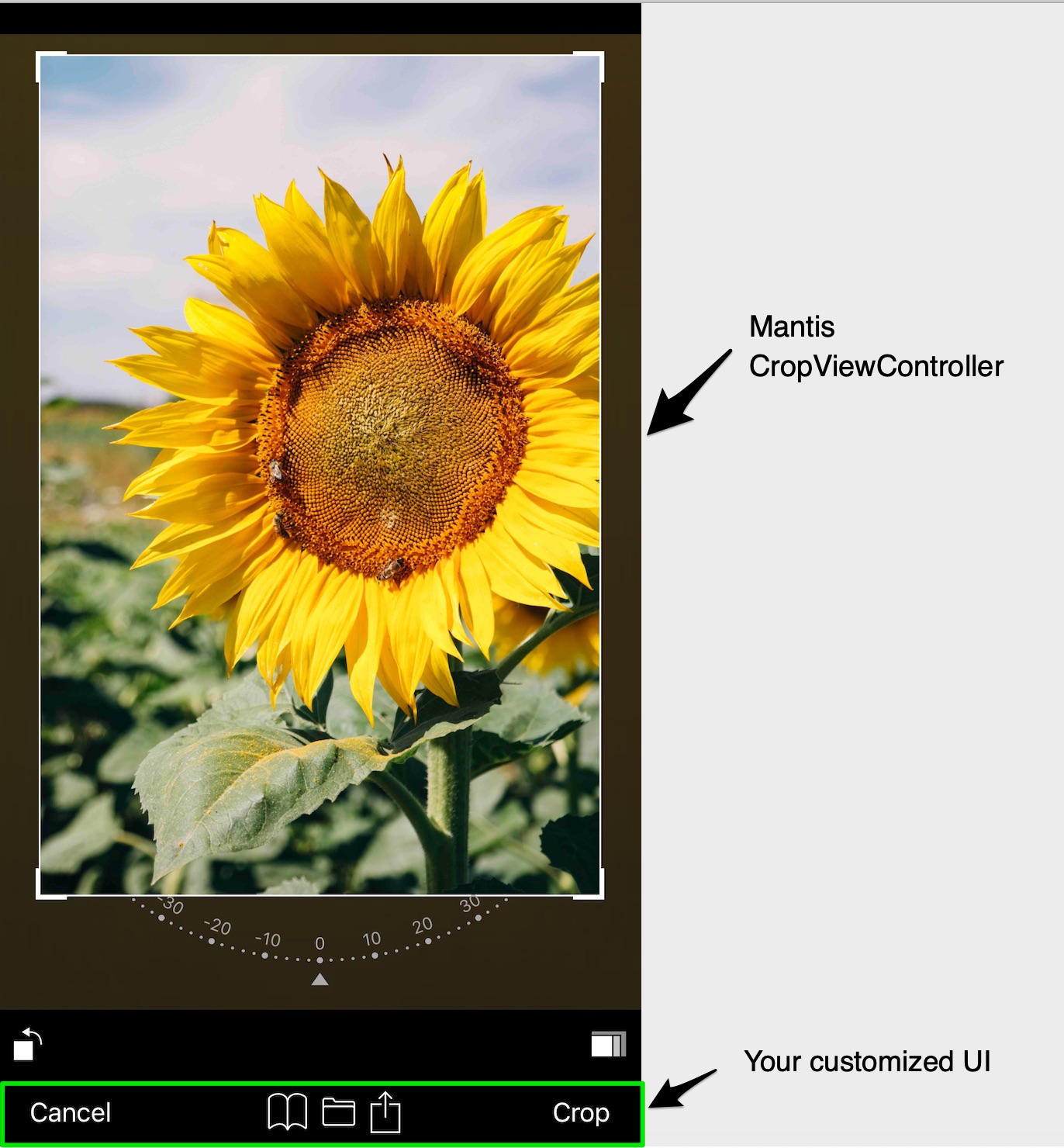
var config = Mantis.Config()
config.cropToolbarConfig.mode = .embedded
let cropViewController = Mantis.cropViewController(image: yourImage, config: config)
Custom aspect ratios
// Add a custom ratio 1:2 for portrait orientation
var config = Mantis.Config()
config.addCustomRatio(byVerticalWidth: 1, andVerticalHeight: 2)
let cropViewController = Mantis.cropViewController(image: yourImage, config: config)
// Set the ratioOptions of the config if you don't want to keep all default ratios var config = Mantis.Config()  //config.ratioOptions = [.original, .square, .custom] config.ratioOptions = [.custom] config.addCustomRatio(byVerticalWidth: 1, andVerticalHeight: 2)             let cropViewController = Mantis.cropViewController(image: yourImage, config: config)
- If you always want to use only one fixed ratio, set
presetFixedRatioTypetoalwaysUsingOnePresetFixedRatio:
config.presetFixedRatioType = .alwaysUsingOnePresetFixedRatio(ratio: 16.0 / 9.0)When choosing alwaysUsingOnePresetFixedRatio, the fixed-ratio setting button does not show. (In the declarative SwiftUI API this is .aspectRatio(.fixed(16/9)).)
- If you want to hide the rotation control view, set
config.cropViewConfig.showAttachedRotationControlView = false - If you want to use a ratio list instead of a presenter, set
config.cropToolbarConfig.ratioCandidatesShowType = .alwaysShowRatioList
public enum RatioCandidatesShowType {
    case presentRatioList
    case alwaysShowRatioList
}- If you build your own custom toolbar you can add your own fixed ratio buttons:
// set a custom fixed ratio
cropToolbarDelegate?.didSelectRatio(ratio: 9 / 16)
Crop shapes (circle, polygon, heart, custom path …)
To use a different crop shape — for example a circular avatar crop — set config.cropViewConfig.cropShapeType:
public enum CropShapeType {
    case rect
    case square
    case ellipse(maskOnly: Bool = false)
    case circle(maskOnly: Bool = false)
    case roundedRect(radiusToShortSide: CGFloat, maskOnly: Bool = false)
    case diamond(maskOnly: Bool = false)
    case heart(maskOnly: Bool = false)
    case polygon(sides: Int, offset: CGFloat = 0, maskOnly: Bool = false)
    case path(points: [CGPoint], maskOnly: Bool = false)
}
With maskOnly: true, the shape is used only as a visual mask and the exported image stays rectangular; with the default maskOnly: false, the exported image is cut to the shape with a transparent background.
In the declarative SwiftUI API the same type is used: .cropShape(.circle) (the cases whose associated values all have defaults can be written without parentheses).
Preset transformations
If you want to apply transformations when showing an image (for example to reopen the editor at a previously saved state), set config.cropViewConfig.presetTransformationType:
public enum PresetTransformationType {
    case none
    case presetInfo(info: Transformation)
    case presetNormalizedInfo(normalizedInfo: CGRect)
}
Please use the transformation information obtained previously from the delegate method cropViewControllerDidCrop(_:cropped:transformation:cropInfo:), or — in the declarative SwiftUI API — from CropResult.transformation delivered by .onCrop.
Persisting and restoring crops (
Codable) 🆕
As of Mantis 3.1.0, CropInfo conforms to Codable, so you can save a user's exact crop and reproduce it offline in a later session — including rotated, fixed-ratio, perspective-skewed, and large-image crops.
// Save the CropInfo delivered by the delegate (or CropResult.cropInfo in SwiftUI).
func cropViewControllerDidCrop(_ cropViewController: CropViewController,
                               cropped: UIImage,
                               transformation: Transformation,
                               cropInfo: CropInfo) {
    let data = try? JSONEncoder().encode(cropInfo)
    // ...persist data (UserDefaults, a file, a database, etc.)
}
// Later — even in a new app session — re-crop the original image offline, no UI: let cropInfo = try JSONDecoder().decode(CropInfo.self, from: data) let recropped = Mantis.crop(image: originalImage, by: cropInfo)
- A decoded
CropInfocrops identically to the same-session value: the opaque view-reconstruction state needed by the perspective-skew andmaxImagePixelCount(large-image) paths is encoded alongside the public fields. - Persist a
CropInfothat Mantis produced (from the delegate orgetCropInfo()). ACropInfoyou build by hand via the publicinitcarries no view-reconstruction state, so the perspective and large-image paths still returnnilfor it — exactly as before. - If you only need to reopen the editor at the previous state (rather than crop offline), persisting the
Transformationand restoring it viapresetTransformationType = .presetInfo(info:)remains the lighter option.
Compatibility: addingCodableis purely additive — existing code needs no changes. The one exception: if you previously wrote your ownextension CropInfo: Codableas a workaround, remove it after upgrading to avoid a duplicate-conformance error. The encoded JSON mirrorsCropInfo's fields, so treat versioning of your own persisted data as your app's responsibility.
Undo / Redo support
- Mantis offers full support for Undo, Redo, and Revert to Original on both iOS and Mac Catalyst.
- To enable this feature, set
config.enableUndoRedo = true.
- In the declarative SwiftUI API, attaching a
CropSessionenables undo/redo automatically and exposescanUndo/canRedo/isResettableas observable state.
- Each crop view controller keeps its own undo history, so multiple croppers can be shown at the same time (Mantis 3.0+).
- Catalyst menus for this feature are localized.
Perspective correction (skew) 🆕
Enable perspective correction to let users adjust horizontal and vertical skew, similar to the Apple Photos app.
var config = Mantis.Config()
config.cropViewConfig.enablePerspectiveCorrection = true
let cropViewController = Mantis.cropViewController(image: yourImage, config: config)
When enablePerspectiveCorrection is true, the slide dial is used by default (no need to set builtInRotationControlViewType explicitly) and automatically switches to withTypeSelector mode, showing three circular icon buttons (Straighten / Vertical / Horizontal) above the ruler. Users can tap each button to switch adjustment modes.
- The skew values are included in the
TransformationandCropInforeturned by the delegate, so you can persist and restore them viapresetTransformationType.
- You can optionally customize the appearance of the type selector buttons through
SlideDialConfig:
typeButtonSize — diameter of each circular button (default: 48)
- typeButtonSpacing — spacing between buttons (default: 16)
- activeColor — color for the selected button ring and value text
- inactiveColor — color for unselected buttons
- pointerColor — color of the center pointer on the ruler
- skewLimitation — maximum skew angle in degrees (default: 30)
Appearance mode (light / dark / system) 🆕
Set the appearance mode to control the overall look of the crop UI:
var config = Mantis.Config()
config.appearanceMode = .forceLight   // or .forceDark (default), .system
let cropViewController = Mantis.cropViewController(image: yourImage, config: config)
public enum AppearanceMode {
/// Always use dark appearance (default, backward compatible)
case forceDark
/// Always use light appearance
case forceLight
/// Follow system light/dark mode setting
case system
}.forceDarkis the default, keeping the existing dark-themed behavior..forceLightuses a light color scheme similar to Apple Photos in light mode..systemdynamically adapts to the user's system-wide light/dark mode setting.
Localization
Mantis ships with built-in localizations for Arabic, Chinese (Simplified and Traditional), Dutch, English, French, German, Italian, Japanese, Korean, Portuguese, Russian, Spanish, and Turkish.
- UIKit project: add the languages you support to the Localizations section of the Project Info tab.

fig 1
- SwiftUI project: please check this discussion.
- Static frameworks: if you use static frameworks in CocoaPods, you need to add the code below in order to find the correct resource bundle.
Mantis.locateResourceBundle(by: Self.self)- Custom localization tables and bundle
Important: first create a strings file with these keys:
"Mantis.Done" = "";
"Mantis.Cancel" = "";
"Mantis.Reset" = "";
"Mantis.Original" = "";
"Mantis.Square" = "";
"Mantis.Straighten" = "";
"Mantis.Horizontal" = "";
"Mantis.Vertical" = "";
Then configure Mantis:
let config = Mantis.Config()
config.localizationConfig.bundle = // a bundle where the strings file is located
config.localizationConfig.tableName = // the localized strings file name within the bundle
Custom view controller
If needed you can subclass CropViewController:
class CustomViewController: CropViewController {
    override func viewDidLoad() {
        super.viewDidLoad()
// Do your custom logic here.         // The MantisExample project also has a showcase for a CustomViewController.     } }
To get an instance, Mantis provides a factory method:
let cropViewController: CustomViewController = Mantis.cropViewController(image: image, config: config)Migrating from 2.x
Mantis 3.0 contains a small set of breaking changes; most apps only need the renames below. Everything else — including the binding-based SwiftUI ImageCropperView — is source compatible.
Removed deprecated
CropViewConfig properties
These four properties had been deprecated forwarding shims; use the replacements:
| Removed in 3.0 | Use instead | |---|---| | cropViewConfig.cropBoxHotAreaUnit | cropViewConfig.cropAuxiliaryIndicatorConfig.cropBoxHotAreaUnit | | cropViewConfig.disableCropBoxDeformation | cropViewConfig.cropAuxiliaryIndicatorConfig.disableCropBoxDeformation | | cropViewConfig.cropAuxiliaryIndicatorStyle | cropViewConfig.cropAuxiliaryIndicatorConfig.style | | cropViewConfig.showRotationDial | cropViewConfig.showAttachedRotationControlView |
Slimmed public
CropInfo
Five view-reconstruction fields (skewSublayerTransform, scrollContentOffset, scrollBoundsSize, imageContainerFrame, scrollViewTransform) moved out of the public struct and its init; they were pure view-hierarchy plumbing for the perspective and large-image crop paths.
- Passing a Mantis-provided
CropInfoback intoMantis.crop(image:by:)(from the delegate orgetCropInfo()): no change, including across value copies. - Rebuilding a
CropInfofrom persisted semantic fields via the publicinitfor offline re-cropping: no change for the standard path. The perspective-skew andmaxImagePixelCountoverflow paths returnnilfor a rebuiltCropInfo— the same outcome the previous zero-value guards produced. As of 3.1, prefer persisting theCodableCropInfoMantis produced — see Persisting and restoring crops. - Tip: for save-and-restore flows, persist the
Transformationand feed it back viapresetTransformationType = .presetInfo(info:)— that path is unchanged.
Behavior changes (not source breaking)
- Undo/redo bookkeeping is now per crop view controller instead of shared globally. If your app shows two croppers at once, each keeps its own undo history (previously they polluted each other's).
- The
Mantis.cropViewController(image:config:)factory now correctly wires up undo/redo whenconfig.enableUndoRedo = true; previously only thesetupCropViewControllerpath did.
Demo Projects
Mantis provides two demo projects:
- MantisExample (UIKit, using Storyboard)
- MantisSwiftUIExample (SwiftUI)
ImageCropper + CropSession API (Mantis 3.0+): normal crop with restore, crop shapes, fixed ratio, slide dial, perspective correction, and a custom toolbar driven by session state.
- Also includes a "Legacy Binding API" entry showing the binding-based ImageCropperView, kept as a 2.x migration reference.
FAQ
The crop UI looks broken or is partially covered when presented. Why?
Set modalPresentationStyle = .fullScreen on the crop view controller (or its navigation controller) before presenting it. On iOS 13+ the default sheet presentation style does not work with the crop UI.
How do I crop a circular avatar with a transparent background?
Use config.cropViewConfig.cropShapeType = .circle() (UIKit) or .cropShape(.circle) (SwiftUI). The exported UIImage is cut to the circle with a transparent background. If you want the exported image to stay rectangular and only show a circular mask in the UI, use .circle(maskOnly: true).
How do I save a crop and restore it later?
Two options:
- Re-crop offline (no UI): persist the
CodableCropInfo(Mantis 3.1+) and pass it toMantis.crop(image:by:)later. - Reopen the editor at the saved state: persist the
Transformationand restore it viaconfig.cropViewConfig.presetTransformationType = .presetInfo(info:).
Does Mantis work on macOS or iPad?
Yes — Mantis supports iOS and Mac Catalyst, including localized Catalyst menus for undo/redo and independent undo histories for multiple croppers (e.g. iPad multi-window).
How do I handle very large images?
Set config.cropMode = .async to crop off the main thread, and/or set config.cropViewConfig.maxImagePixelCount to cap the output pixel count for very large photos.
Apps Using Mantis
Below are apps that use the Mantis framework. If your app also uses Mantis and you'd like it showcased here, please submit a PR following the existing format.
| 
Pictopoem
Where Images Whisper Poems | 
Text Behind Me
Add Depth to Your Photos | |---|---|
Backers & Sponsors
If Mantis saves you time, consider becoming a sponsor through GitHub Sponsors.
Credits
- The crop feature is strongly inspired by TOCropViewController
- The rotation feature is inspired by IGRPhotoTweaks
- The rotation dial is inspired by 10clock
- Thanks Leo Dabus for helping me to solve the problem of cropping an ellipse image with transparent background https://stackoverflow.com/a/59805317/288724
License
Mantis is released under the MIT License.


