
🪐 🔧 Jupyter MCP Tools.


🪐✨ Jupyter MCP Tools


This extension is composed of a Python package named jupytermcptools for the server extension and a NPM package named @datalayer/jupyter-mcp-tools for the frontend extension.
It enables the use of JupyterLab commands as MCP tools.
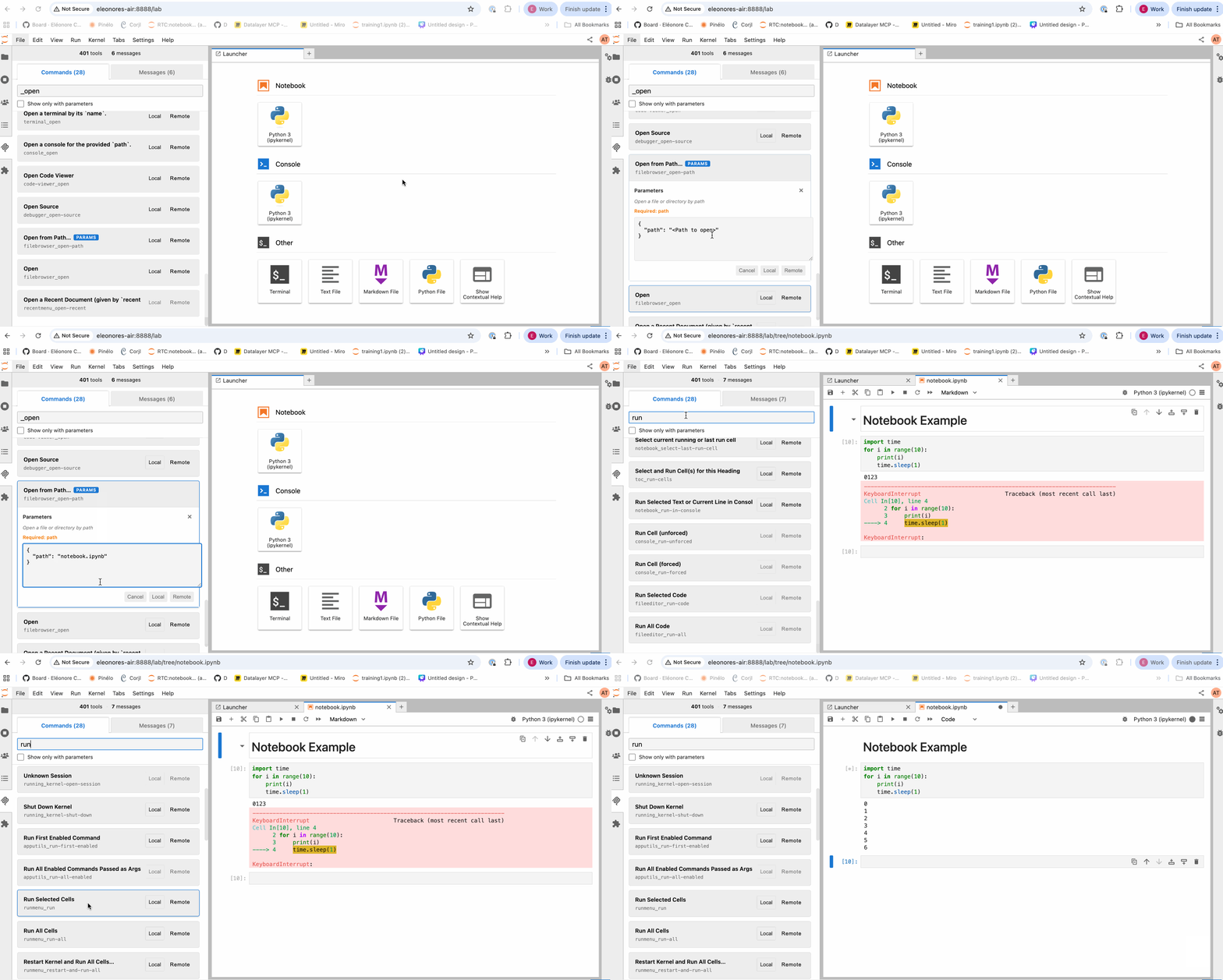
This extension is used by jupyter-mcp-server to enable JupyterLab commands such as opening notebooks through MCP tools.
Execution Modes
The extension supports two execution modes for JupyterLab commands:
Local Mode
- Direct Execution: Commands are executed directly within the JupyterLab frontend using the built-in command registry
- No Network Required: Immediate execution without WebSocket communication
- Use Case: Testing commands and direct UI interaction within JupyterLab itself
- Implementation: Calls
app.commands.execute()directly in the browser
Remote Mode
- WebSocket Communication: Commands are sent via WebSocket to the backend server extension
- External Access: Enables external MCP clients to execute JupyterLab commands remotely
- Use Case: Integration with AI agents and MCP clients like jupyter-mcp-server
- Implementation: Messages are transmitted through WebSocket protocol to backend handlers
Available Tools
The jupyter-mcp-tools extension dynamically registers all available JupyterLab commands as MCP tools. The exact list of available tools depends on the installed JupyterLab extensions and the current context, but here are some commonly available tools :
Note: This extension automatically discovers and makes available all JupyterLab commands as MCP tools. Command IDs are converted fromnamespace:commandformat tonamespace_commandfor MCP compatibility. The list below represents commonly available commands but is not exhaustive.
Core Notebook Commands
| Tool ID | Description | Parameters | |---------|-------------|-------------| |notebook_run-all-cells | Execute all cells in the current notebook sequentially | None |
| notebook_get-selected-cell | Get information about the currently selected cell | None |
| notebook_append-execute | Append a new cell at the end of notebook with source code and execute it | source (string), type (code/markdown/raw) |
| notebook_insert-cell-below | Insert a new cell below the current cell | activate (boolean) |
| notebook_insert-cell-above | Insert a new cell above the current cell | activate (boolean) |
| notebook_delete-cell | Delete the currently selected cell | None |
| notebook_cut-cell | Cut the currently selected cell | None |
| notebook_copy-cell | Copy the currently selected cell | None |
| notebook_paste-cell-below | Paste cell below the current cell | None |
| notebook_paste-cell-above | Paste cell above the current cell | None |
| notebook_select-next | Select the next cell | None |
| notebook_select-previous | Select the previous cell | None |
| notebook_extend-selection-below | Extend selection to cell below | None |
| notebook_extend-selection-above | Extend selection to cell above | None |
| notebook_move-cell-up | Move current cell up | None |
| notebook_move-cell-down | Move current cell down | None |
| notebook_split-cell | Split current cell at cursor position | None |
| notebook_merge-cell-above | Merge current cell with the one above | None |
| notebook_merge-cell-below | Merge current cell with the one below | None |
| notebook_run-cell | Execute the currently selected cell | None |
| notebook_run-cell-and-select-next | Execute cell and move to next | None |
| notebook_run-cell-and-insert-below | Execute cell and insert new cell below | None |
Console Commands
| Tool ID | Description | Parameters | |---------|-------------|-------------| |console_create | Create a new console | activate (boolean), insertMode (string), path (string) |
| console_clear | Clear the console output | None |
| console_restart-kernel | Restart the console kernel | None |
| console_interrupt-kernel | Interrupt the console kernel | None |
| console_inject | Inject code into console | code (string), activate (boolean) |
File/Document Management
| Tool ID | Description | Parameters | |---------|-------------|-------------| |docmanager_open | Open a document by path | path (string), factory (string), kernel (object) |
| docmanager_new-untitled | Create a new untitled document | type (string), path (string) |
| docmanager_save | Save the current document | None |
| docmanager_save-as | Save document with a new name | None |
| docmanager_rename | Rename the current document | newName (string) |
| docmanager_delete | Delete a document | path (string) |
| docmanager_duplicate | Duplicate a document | path (string) |
File Browser Commands
| Tool ID | Description | Parameters | |---------|-------------|-------------| |filebrowser_go-to-path | Navigate to a specific path | path (string) |
| filebrowser_refresh | Refresh the file browser | None |
| filebrowser_toggle-hidden-files | Toggle showing hidden files | None |
| filebrowser_create-new-directory | Create a new directory | path (string) |
| filebrowser_upload | Upload files | path (string) |
| filebrowser_download | Download files | path (string) |
Kernel Management
| Tool ID | Description | Parameters | |---------|-------------|-------------| |kernel_restart | Restart the current kernel | None |
| kernel_interrupt | Interrupt the current kernel | None |
| kernel_shutdown | Shutdown the current kernel | None |
| kernel_reconnect | Reconnect to kernel | None |
| kernel_change | Change to a different kernel | kernel (object) |
UI/Layout Commands
| Tool ID | Description | Parameters | |---------|-------------|-------------| |application_toggle-left-area | Toggle the left sidebar | None |
| application_toggle-right-area | Toggle the right sidebar | None |
| application_toggle-presentation-mode | Toggle presentation mode | None |
| application_set-theme | Change the UI theme | theme (string) |
| mainmenu_open-edit | Open the Edit menu | None |
| mainmenu_open-file | Open the File menu | None |
| mainmenu_open-help | Open the Help menu | None |
Cell Type Conversion
| Tool ID | Description | Parameters | |---------|-------------|-------------| |notebook_change-cell-to-code | Convert cell to code cell | None |
| notebook_change-cell-to-markdown | Convert cell to markdown cell | None |
| notebook_change-cell-to-raw | Convert cell to raw cell | None |
Search and Replace
| Tool ID | Description | Parameters | |---------|-------------|-------------| |documentsearch_start | Start document search | query (string), caseSensitive (boolean), wholeWord (boolean), regex (boolean) |
| documentsearch_highlightNext | Highlight next search result | None |
| documentsearch_highlightPrevious | Highlight previous search result | None |
Terminal Commands
| Tool ID | Description | Parameters | |---------|-------------|-------------| |terminal_create-new | Create a new terminal | cwd (string) |
| terminal_refresh | Refresh terminal | None |
To see all available tools in your specific JupyterLab installation, you can open the MCP Tools panel in the left sidebar to browse available tools.
Additional Commands
This extension provides custom JupyterLab commands specifically designed for MCP integration:
notebook:append-execute
Appends a new cell at the end of the current notebook with the given source code and optionally executes it.
Parameters:
source(string, required): The source code to insert in the celltype(string, optional): The cell type -'code','markdown', or'raw'(default:'code')
{ success: true, cellType: 'code', cellIndex: 5 // 0-based index of the new cell }Example usage:
app.commands.execute('notebook:append-execute', { source: 'print("Hello from MCP!")', type: 'code' });notebook:get-selected-cell
Gets information about the currently selected/active cell in the notebook without executing it.
Parameters: None
Returns:
{ success: true, cellType: 'code', // 'code', 'markdown', or 'raw' cellIndex: 3, // 0-based index source: 'print("hello")', // cell content metadata: {...}, // cell metadata executionCount: 5 // execution count (code cells only, null otherwise) }Example usage:
const cellInfo = await app.commands.execute('notebook:get-selected-cell'); console.log(Cell ${cellInfo.cellIndex}: ${cellInfo.source});Note: The command is only enabled when a notebook is open and returns an error object if no cell is selected:
{ success: false, error: 'No active cell' }Visual Cell Indexing
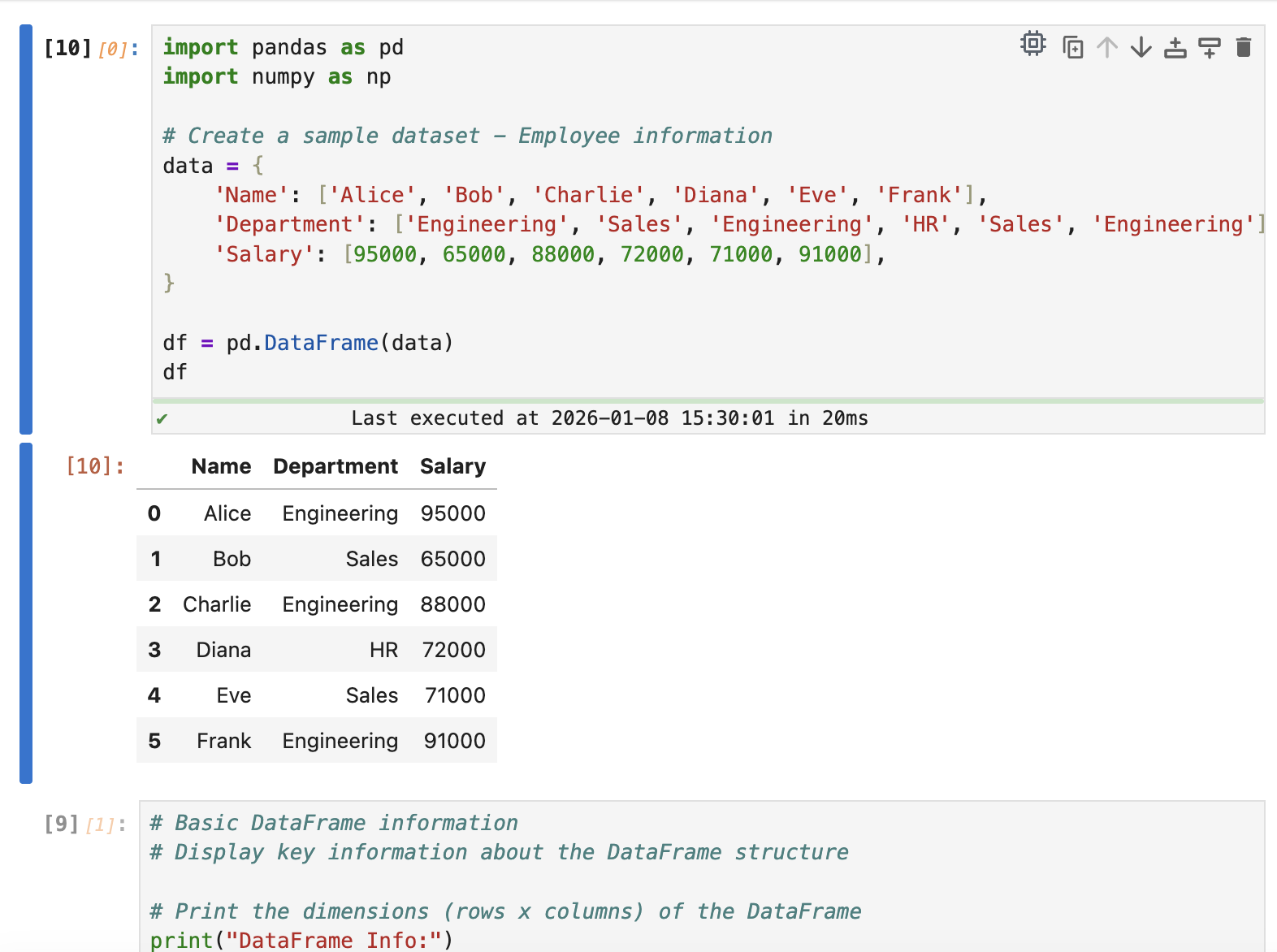
Installing this extension enhances your JupyterLab experience by displaying cell indices to the left of each cell in orange italics. The goal is to provide a clear and consistent way to reference cells, especially useful when interacting with AI agents through MCP with the jupyter-mcp-server. The tools of the jupyter-mcp-server identify the cells by their index, so having these indices visible helps you when instructing the AI to interact with specific cells.
Requirements
- JupyterLab >= 4.0.0
Install
To install the extension, execute:
pip install jupytermcptoolsUse
make startUninstall
To remove the extension, execute:
pip uninstall jupytermcptoolsTroubleshoot
If you are seeing the frontend extension, but it is not working, check that the server extension is enabled:
jupyter server extension listIf the server extension is installed and enabled, but you are not seeing the frontend extension, check the frontend extension is installed:
jupyter labextension listContributing
Development install
Note: You will need NodeJS to build the extension package.
The jlpm command is JupyterLab's pinned version of yarn that is installed with JupyterLab. You may use yarn or npm in lieu of jlpm below.
# Clone the repo to your local environment
Change directory to the jupytermcptools directory
Install package in development mode
pip install -e ".[test]"
Link your development version of the extension with JupyterLab
jupyter labextension develop . --overwrite
Server extension must be manually installed in develop mode
jupyter server extension enable jupytermcptools
Rebuild extension Typescript source after making changes
jlpm build
You can watch the source directory and run JupyterLab at the same time in different terminals to watch for changes in the extension's source and automatically rebuild the extension.
# Watch the source directory in one terminal, automatically rebuilding when needed
jlpm watch
Run JupyterLab in another terminal
jupyter lab
With the watch command running, every saved change will immediately be built locally and available in your running JupyterLab. Refresh JupyterLab to load the change in your browser (you may need to wait several seconds for the extension to be rebuilt).
By default, the jlpm build command generates the source maps for this extension to make it easier to debug using the browser dev tools. To also generate source maps for the JupyterLab core extensions, you can run the following command:
jupyter lab build --minimize=FalseDevelopment uninstall
# Server extension must be manually disabled in develop mode
jupyter server extension disable jupytermcptools
pip uninstall jupytermcptools
In development mode, you will also need to remove the symlink created by jupyter labextension develop command. To find its location, you can run jupyter labextension list to figure out where the labextensions folder is located. Then you can remove the symlink named @datalayer/jupyter-mcp-tools within that folder.
Testing the extension
Server tests
This extension is using Pytest for Python code testing.
Install test dependencies (needed only once):
pip install -e ".[test]"
Each time you install the Python package, you need to restore the front-end extension link
jupyter labextension develop . --overwrite
To execute them, run:
pytest -vv -r ap --cov jupytermcptoolsFrontend tests
This extension is using Jest for JavaScript code testing.
To execute them, execute:
jlpm
jlpm test
Integration tests
This extension uses Playwright for the integration tests (aka user level tests). More precisely, the JupyterLab helper Galata is used to handle testing the extension in JupyterLab.
More information are provided within the ui-tests README.
Packaging the extension
See RELEASE


