
🎞️ Subtitles generation tool (Web-UI + CLI + Python package) powered by OpenAI's Whisper and its variants 🎞️
️🎞️ Subs AI 🎞️
Subtitles generation tool (Web-UI + CLI + Python package) powered by OpenAI's Whisper and its variants
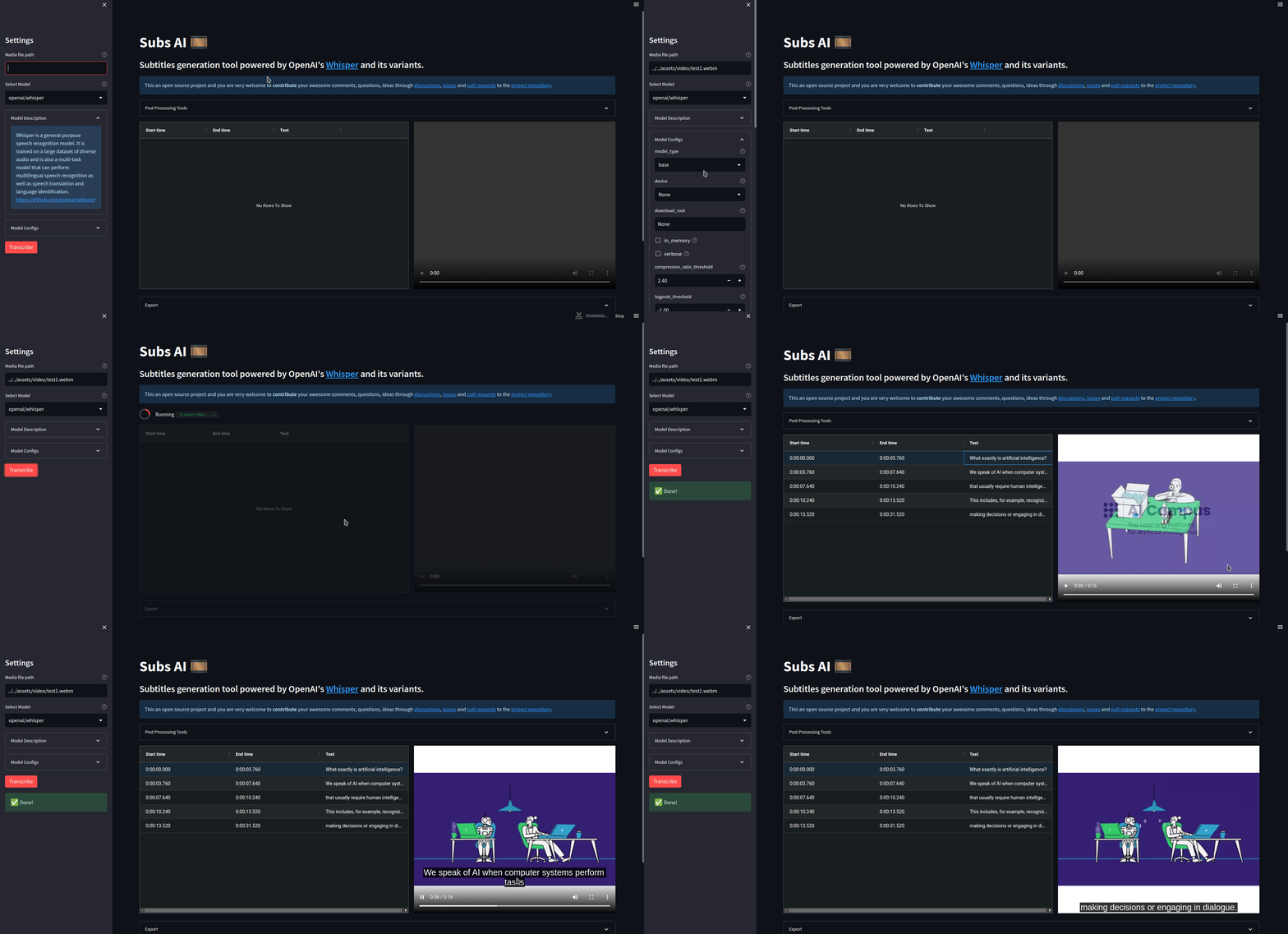
* Web-UI * CLI * From Python * Examples
Features
- Supported Models
- Web UI
- Command Line Interface
- Python package
- Supports different subtitle formats thanks to tkarabela/pysubs2
- Supports audio and video files
Installation
- Install ffmpeg
It requires the command-line tool ffmpeg to be installed on your system, which is available from most package managers:
> sudo apt update && sudo apt install ffmpeg > > # on Arch Linux >sudo pacman -S ffmpeg > > # on MacOS using Homebrew (https://brew.sh/) > brew install ffmpeg > > # on Windows using Chocolatey (https://chocolatey.org/) > choco install ffmpeg > > # on Windows using Scoop (https://scoop.sh/) > scoop install ffmpeg > >You may need> # on Ubuntu or Debian
rust installed as well, in case tokenizers does not provide a pre-built wheel for your platform. If you see installation errors during the pip install command above, please follow the Getting started page to install Rust development environment. Additionally, you may need to configure the PATH environment variable, e.g. export PATH="$HOME/.cargo/bin:$PATH". If the installation fails with No module named 'setuptoolsrust', you need to install setuptools_rust, e.g. by running:
>>pip install setuptools-rust
>- Once ffmpeg is installed, install
subsai
pip install git+https://github.com/absadiki/subsai[!NOTE]
* It is recommended to use Python 3.10 or 3.11. Versions 3.12 or later may have compatibility issues.
* If torch is unable to detect your GPU devices during your usage of subsai, assuming you have a supported GPU device, there is a chance that pip installed the CPU version of torch. You can install a torch version with CUDA support by following the get started locally guide on pytorch.
For more information, see https://github.com/absadiki/subsai/issues/162.
Usage
Web-UI
To use the web-UI, run the following command on the terminal
subsai-webuiYou can also run the Web-UI using Docker.
CLI
usage: subsai [-h] [--version] [-m MODEL] [-mc MODELCONFIGS] [-f FORMAT] [-df DESTINATIONFOLDER] [-tm TRANSLATION_MODEL]
              [-tc TRANSLATIONCONFIGS] [-tsl TRANSLATIONSOURCELANG] [-ttl TRANSLATIONTARGET_LANG]
              mediafile [mediafile ...]
positional arguments:   media_file            The path of the media file, a list of files, or a text file containing paths for batch processing.
options:   -h, --help            show this help message and exit   --version             show program's version number and exit   -m MODEL, --model MODEL                         The transcription AI models. Available models: ['openai/whisper', 'linto-ai/whisper-timestamped']   -mc MODELCONFIGS, --model-configs MODELCONFIGS                         JSON configuration (path to a json file or a direct string)   -f FORMAT, --format FORMAT, --subtitles-format FORMAT                         Output subtitles format, available formats ['.srt', '.ass', '.ssa', '.sub', '.json', '.txt', '.vtt']   -df DESTINATIONFOLDER, --destination-folder DESTINATIONFOLDER                         The directory where the subtitles will be stored, default to the same folder where the media file(s) is stored.   -tm TRANSLATIONMODEL, --translation-model TRANSLATIONMODEL                         Translate subtitles using AI models, available models: ['facebook/m2m100418M', 'facebook/m2m1001.2B',                         'facebook/mbart-large-50-many-to-many-mmt']   -tc TRANSLATIONCONFIGS, --translation-configs TRANSLATIONCONFIGS                         JSON configuration (path to a json file or a direct string)   -tsl TRANSLATIONSOURCELANG, --translation-source-lang TRANSLATIONSOURCELANG                         Source language of the subtitles   -ttl TRANSLATIONTARGETLANG, --translation-target-lang TRANSLATIONTARGETLANG                         Target language of the subtitles
Example of a simple usage
subsai ./assets/test1.mp4 --model openai/whisper --model-configs '{"model_type": "small"}' --format srtNote: For Windows CMD, You will need to use the following :
subsai ./assets/test1.mp4 --model openai/whisper --model-configs "{\"model_type\": \"small\"}" --format srtYou can also provide a simple text file for batch processing (Every line should contain the absolute path to a single media file)
subsai media.txt --model openai/whisper --format srtFrom Python
To install:
git clone https://github.com/absadiki/subsaicd subsaiuv pip install -e .
requirements.txt.
from subsai import SubsAI
file = './assets/test1.mp4' subs_ai = SubsAI() model = subsai.createmodel('openai/whisper', {'model_type': 'base'}) subs = subs_ai.transcribe(file, model) subs.save('test1.srt')
Examples
Simple examples can be found in the examples folder- VAD example: process long audio files using silero-vad.

- Translation example: translate an already existing subtitles file.
Docker
- Make sure that you have
dockerinstalled. - Prebuilt image
pull absadiki/subsai:mainrun --gpus=all -p 8501:8501 -v /path/to/your/mediafiles/folder:/mediafiles absadiki/subsai:main- Build the image locally
cd to the repository
2. compose buildcompose run -p 8501:8501 -v /path/to/your/mediafiles/folder:/mediafiles subsai-webui # subsai-webui-cpu for cpu only- You can access your media files through the mounted
media_filesfolder.
Notes
- If you have an NVIDIA graphics card, you may need to install cuda to use the GPU capabilities.
- AMD GPUs compatible with Pytorch should be working as well. #67
- Transcription time is shown on the terminal, keep an eye on it while running the web UI.
- If you didn't like Dark mode web UI, you can switch to Light mode from
settings > Theme > Light.
Contributing
If you find a bug, have a suggestion or feedback, please open an issue for discussion.License
This project is licensed under the GNU General Licence version 3 or later. You can modify or redistribute it under the conditions of these licences (See LICENSE for more information).


