
D3 block magic for Jupyter notebook.
pyd3 

Deprecation notice
The py_d3 package has been retired. This package was only ever intended to work in the classical Jupyter Notebook environment, this has been replaced pretty much all applications by the more advanced and more feature-complete Jupyter Lab. Jupyter Lab has a completely different SDK for notebook extensions, which this package neither uses nor supports.
As such this package is now unmaintained.
For users looking for an interactive environment for building D3.JS visualizations in, I recommend Observable Notebooks.
For users looking to embed D3.JS visualizations in their Jupyter Lab notebooks, check out this Gist.
Happy plotting!
About
py_d3 is an IPython extension which adds D3 support to the Jupyter Notebook environment.
D3 is a powerful JavaScript data visualization library, while Jupyter is an intuitive browser-hosted Python development environment. Wouldn't it be great if you could use them together? Now you can.
Quickstart
You can install pyd3 by running pip install pyd3. Then load it into a Jupyter notebook by running%loadext pyd3.
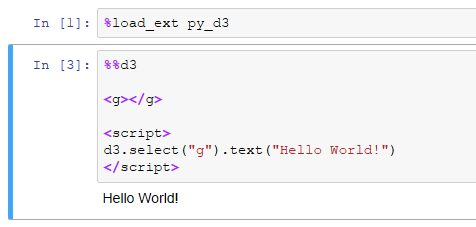
Use the %%d3 cell magic to define notebook cells with D3 content.
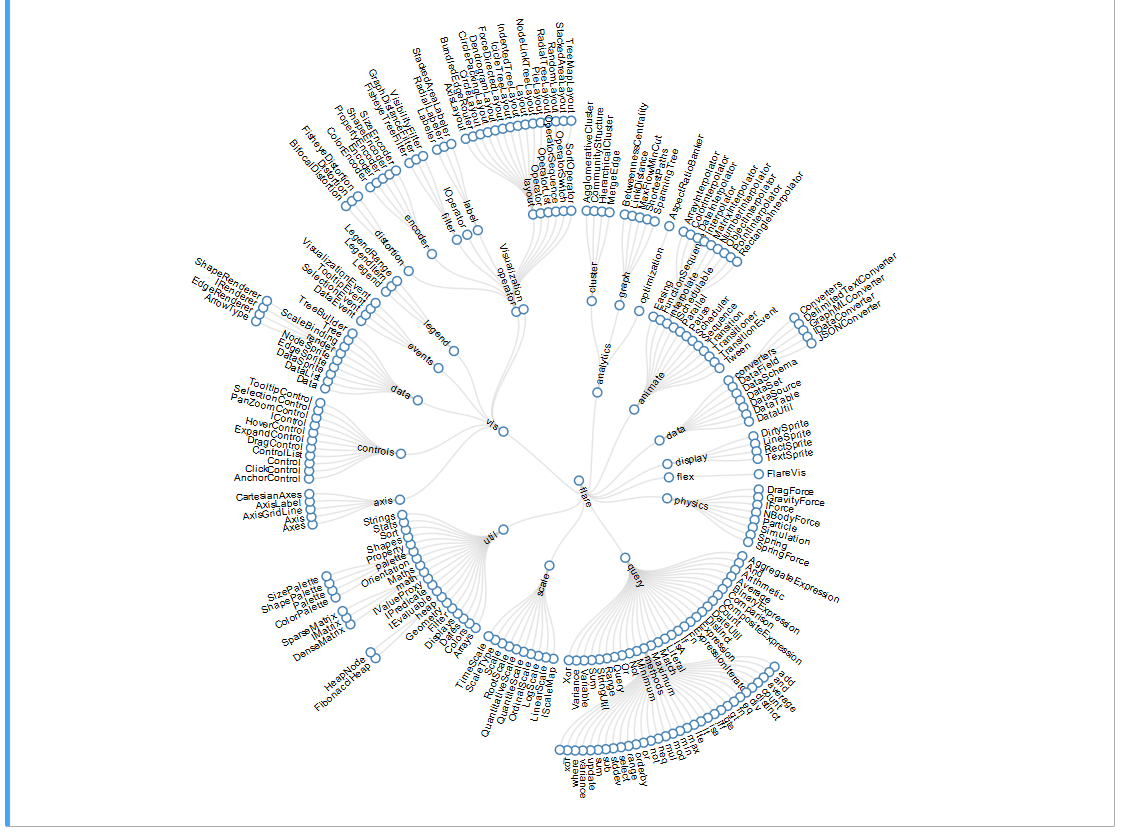
py_d3 allows you to express even very complex visual ideas within a Jupyter Notebook without much difficulty. A Radial Reingold-Tilford Tree, for example:
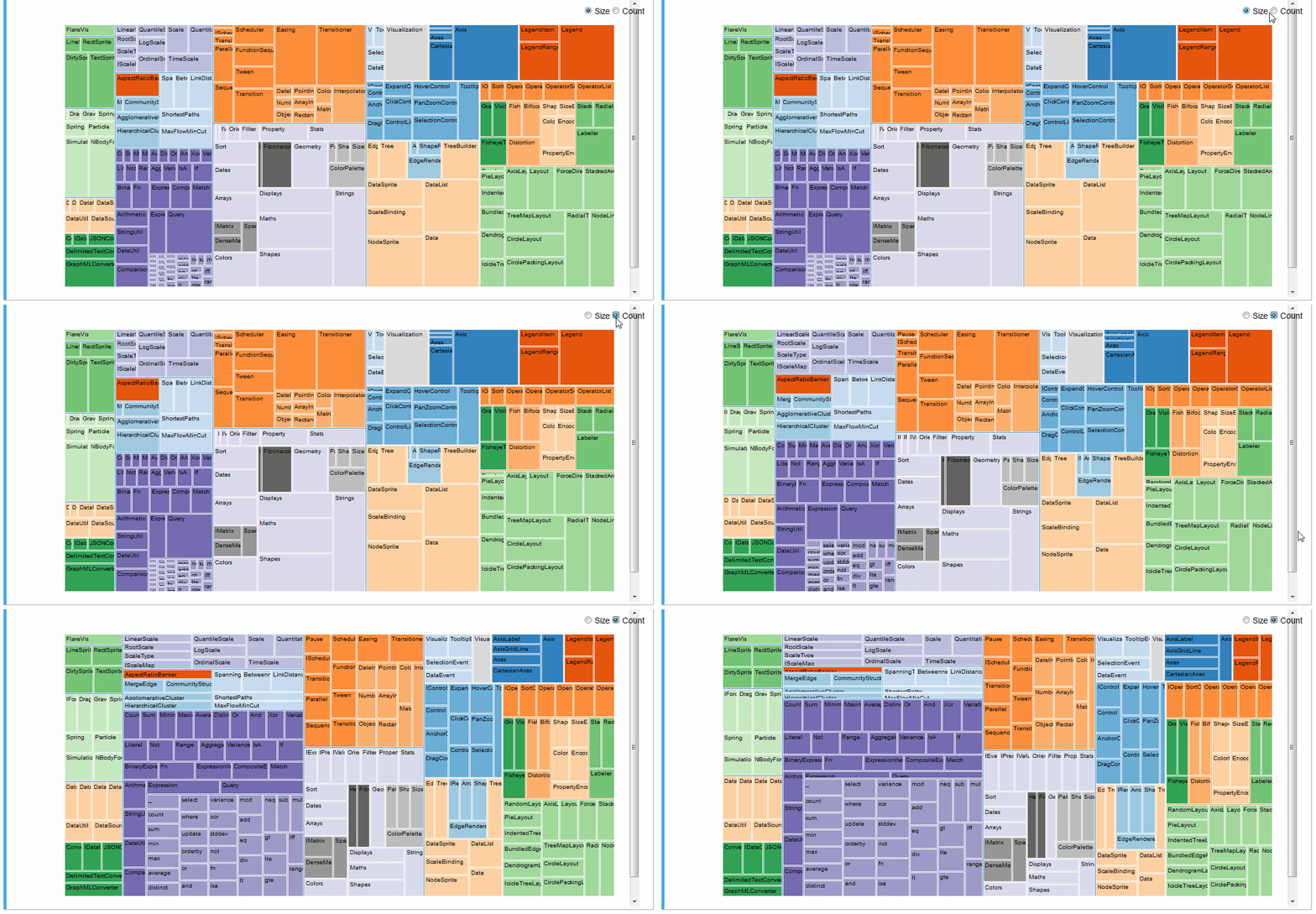
An interactive treemap (original):
Or even the entire D3 Show Reel animation:

For more examples refer to the examples notebooks.
Features
Configuration
The cell magic will default to loading the latest stable version of D3.JS available online (via CDNJS; d3@4.13.0 at time of writing). To load a specific version, append the version name to the command, e.g. %%d3 "3.5.17". To load D3.JS from a local file pass the filepath, e.g. %%d3 "d3.v5.min.js".
Only one version of D3.JS may be loaded at a time. Both 3.x and 4.x versions of D3 are supported, but you may only run one version of D3 per notebook. You can check which versions are available by running %d3 versions, and check which version is loaded in the current notebook using %d3 version.
Documentation
Pages from the D3 API Reference may be rendered in-notebook using %d3 doc. For example, you can render the d3-array reference by running %d3 doc "d3-array".
Verbose Mode
You can view code to-be-rendered using verbose mode: %d3 -v. This is helpful for debugging your application.
Technical
How it works
Jupyter notebooks allow executing arbitrary JavaScript code using IPython.display.JavaScript, however it makes no effort to restrict the level of DOM objects accessible to executable code. py_d3 works by restricting d3 scope to whatever cell you are running the code in, by monkey-patching the d3.select and d3.selectAll methods (see here for why this works).
Porting
Most HTML-hosted D3 visualizations, even very complex ones, can be made to run inside of a Jupyter Notebook %%d3 cell with just two modifications:
- Remove any D3 imports in the cell (e.g. `
). - Make sure to create and append to a legal HTML document sub-element. d3.select("body").append("g")
won't work.
Contributing
See CONTRIBUTING.md` for instructions on how to contribute.


