
📱Android Library to implement animated, 😍beautiful, 🎨stylish Material Dialog in android apps easily.







Material Dialogs for Android 📱
📱Android Library to implement animated, 😍beautiful, 🎨stylish Material Dialog in android apps easily.
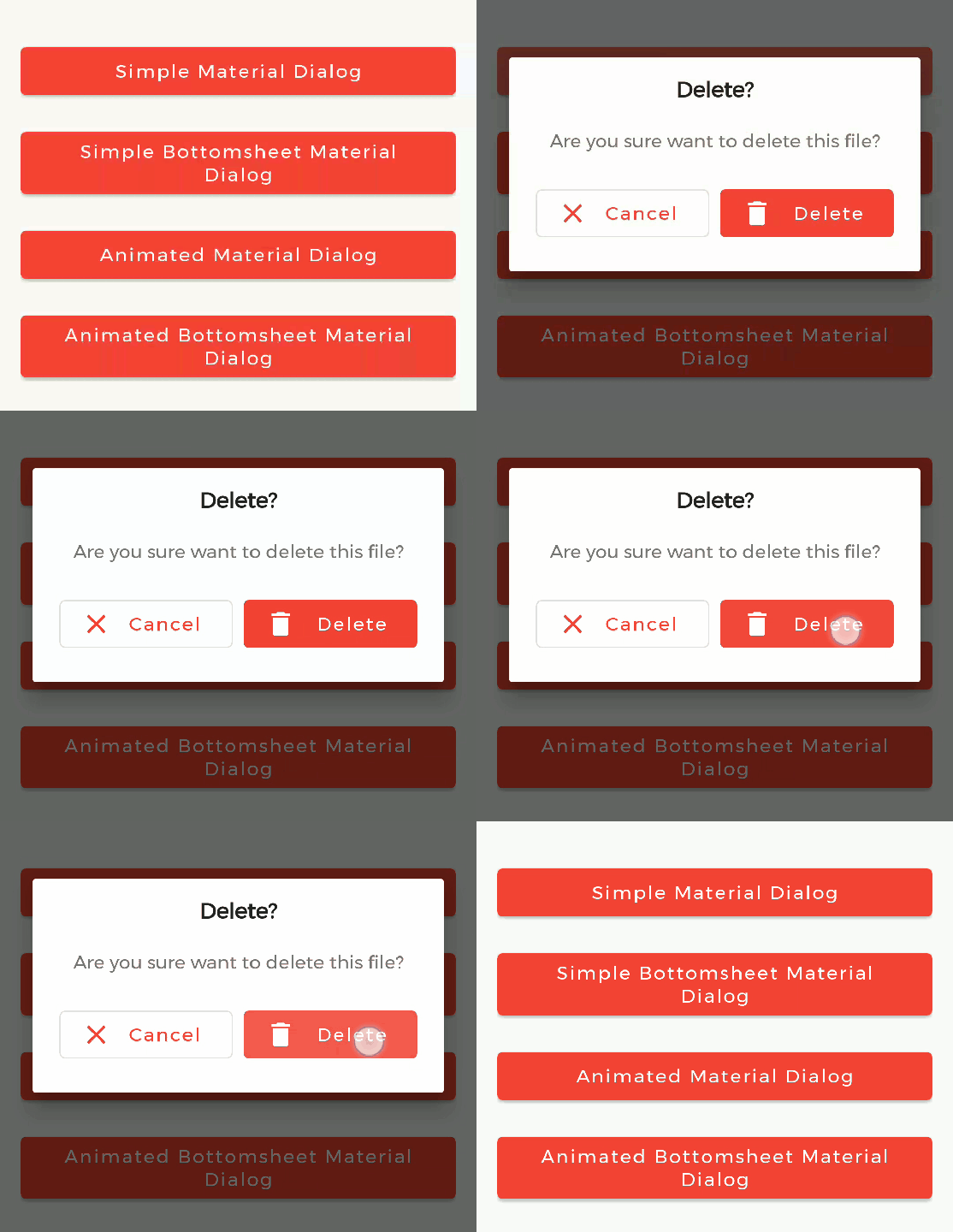
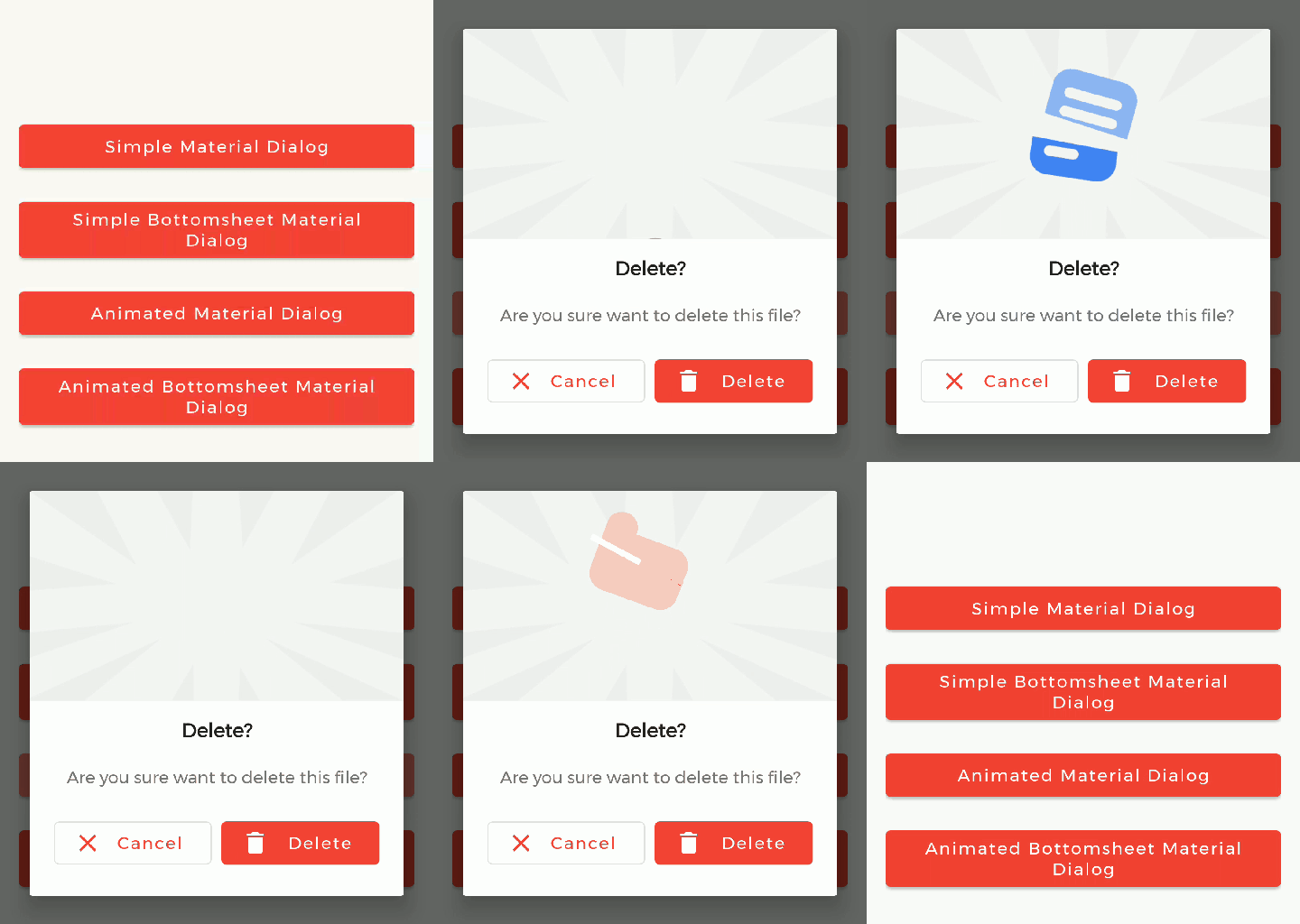
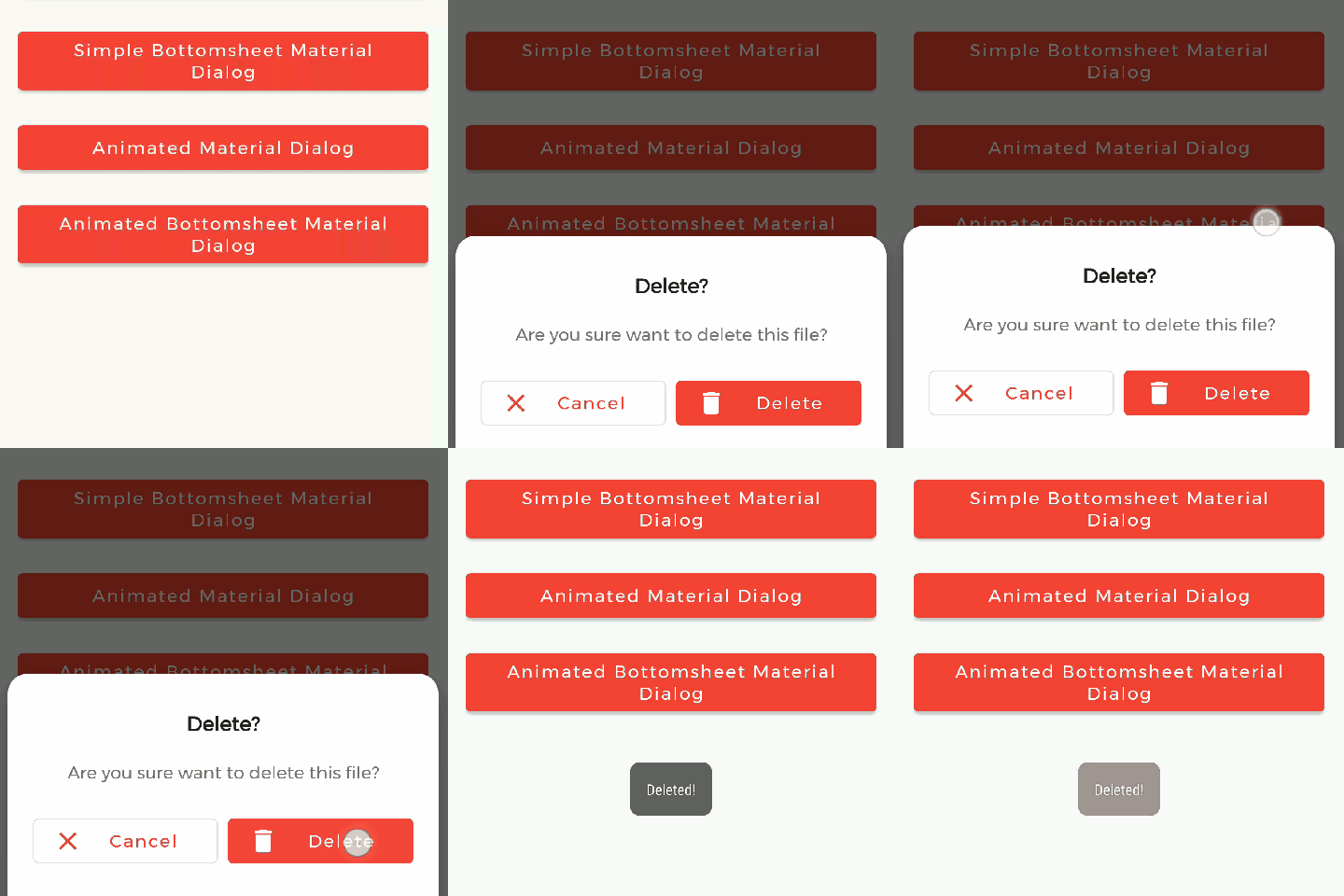
| 1. Material Dialog | 2. Animated Material Dialog | 3. Bottom Sheet Material Dialog | 4. Animated Bottom Sheet Material Dialog |
|---|---|---|---|
 |
 |
 |
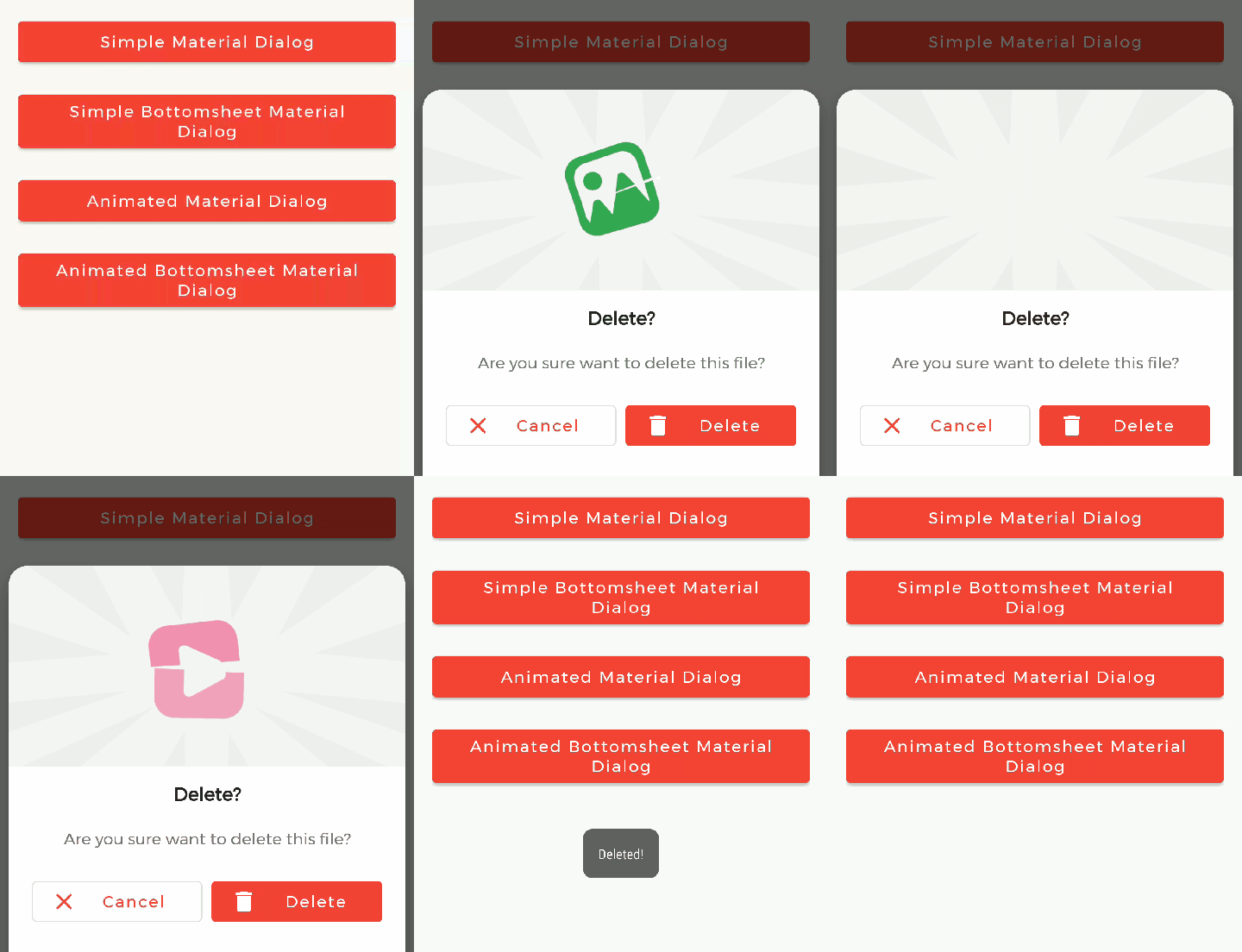 |
Table of Contents:
- Introduction
- Types of Dialog
- Implementation
- Prerequisite
- Create Dialog Instance
- Material Dialog
- Bottom Sheet Material Dialog
- Text Alignment
- HTML formatting for Message
- Show Animations
- Using Resource File
- Using Asset File
- Getting LottieAnimationView
- Dialog State Listeners
- Contribute
- Credits
Introduction
MaterialDialog library is built upon Google's Material Design library. This API will be useful to create rich, animated, beautiful dialogs in Android app easily. This library implements Airbnb's Lottie library to render After Effects animation in app. Refer this for Lottie documentation.Types of Dialog
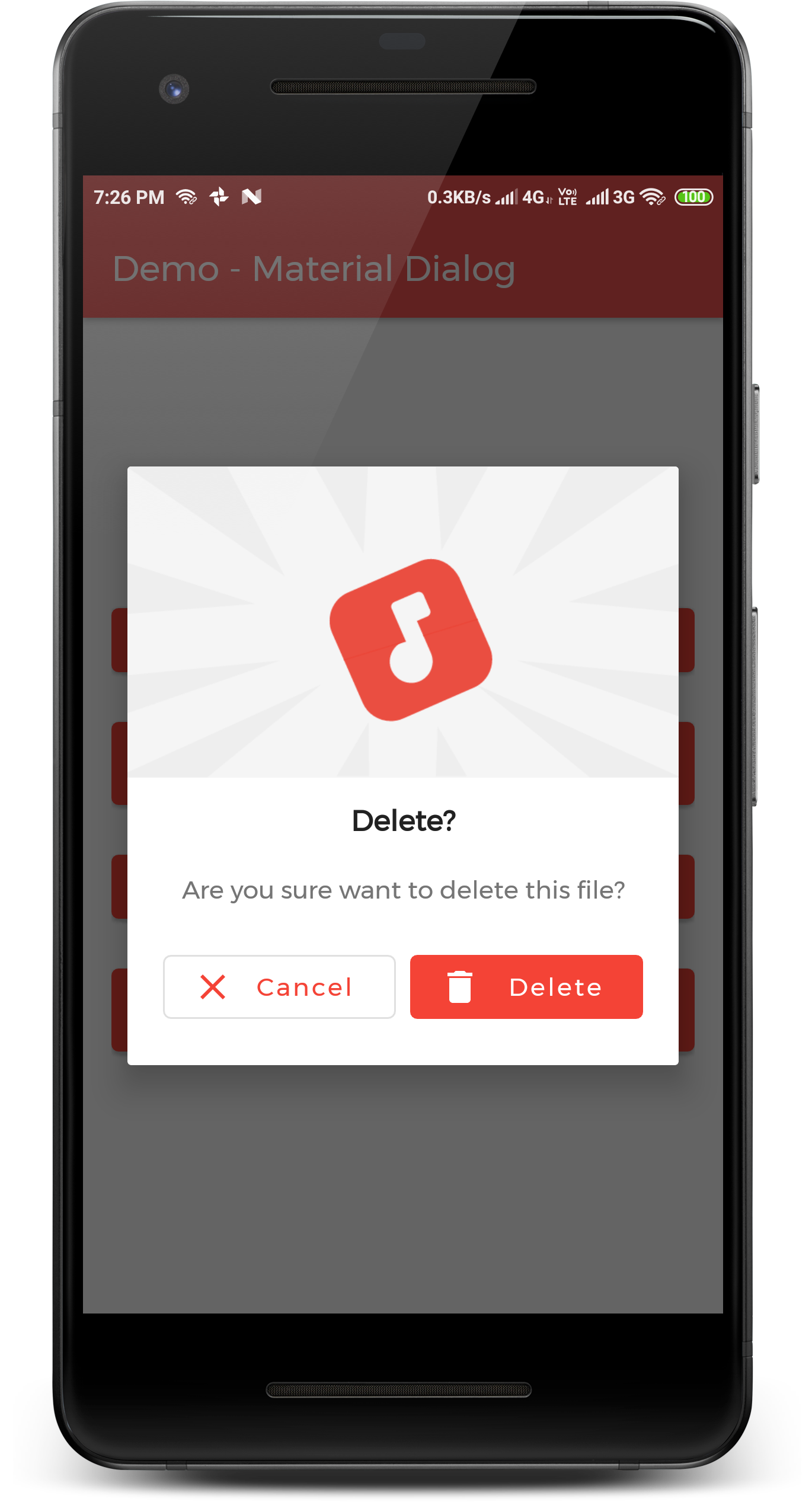
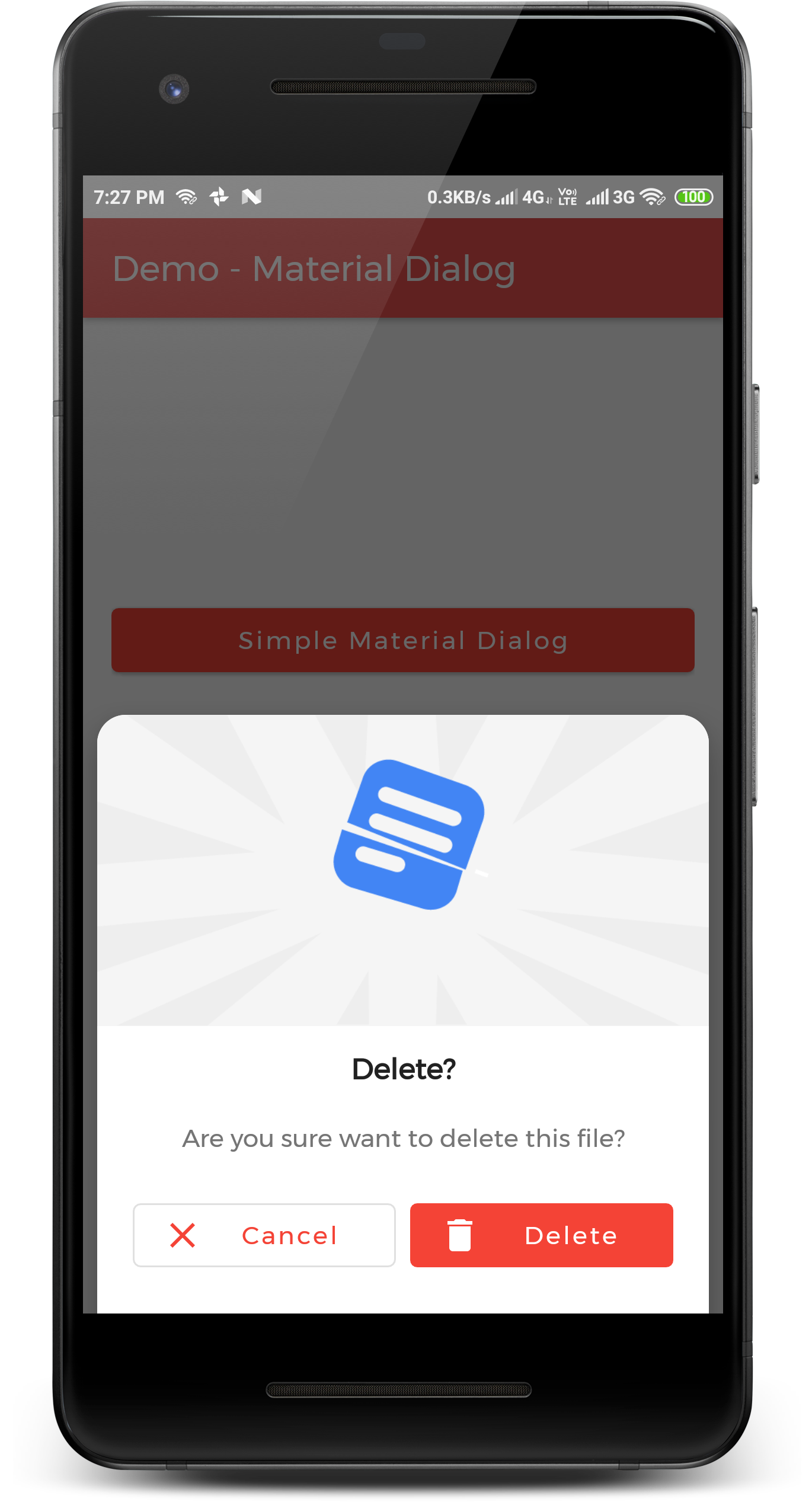
MaterialDialog library provides two types of dialog i.e.| 1. Material Dialog | 2. Bottom Sheet Material Dialog |
|---|---|
| This is basic material dialog which has two material buttons (Same as Android's AlertDialog) as you can see below. | This is Bottom Sheet material dialog which has two material buttons which is showed from bottom of device as you can see below. |
 |
 |
Implementation
Implementation of Material Dialog library is so easy. You can check /app directory for demo. Let's have look on basic steps of implementation.Prerequisite
i. Gradle
InBuild.gradle of app module, include these dependencies. If you want to show animations, include Lottie animation library.
This library is available on MavenCentreal
repositories {
    mavenCentral()
}
dependencies {
// Material Dialog Library     implementation 'dev.shreyaspatil.MaterialDialog:MaterialDialog:2.2.3'
// Material Design Library     implementation 'com.google.android.material:material:1.0.0'
// Lottie Animation Library     implementation 'com.airbnb.android:lottie:3.3.6' }
ii. Set up Material Theme
Setting Material Theme to app is necessary before implementing Material Dialog library. To set it up, updatestyles.xml of values directory in app. <resources> <style name="AppTheme" parent="Theme.MaterialComponents.Light"> <!-- Customize your theme here. --> ... </style> </resources>iii. Customize Dialog Theme (Optional)
If you want to customize dialog view, you can override style instyles.xml as below.
<!-- Base application theme. -->
    <style name="AppTheme" parent="Theme.MaterialComponents.Light.DarkActionBar">
        <item name="colorPrimary">@color/colorPrimary</item>
        <item name="colorPrimaryDark">@color/colorPrimaryDark</item>
        <item name="colorAccent">@color/colorAccent</item>
        <item name="android:fontFamily">@font/montserrat</item>
<!-- Customize your theme here. -->         <item name="materialdialogbackground">#FFFFFF</item>         <item name="materialdialogtitletextcolor">#000000</item>         <item name="materialdialogmessagetextcolor">#5F5F5F</item>         <item name="materialdialogpositivebuttoncolor">@color/colorAccent</item>         <item name="materialdialogpositivebuttontext_color">#FFFFFF</item>         <item name="materialdialognegativebuttontext_color">@color/colorAccent</item>     </style>
Create Dialog Instance
As there are two types of dialogs in library. Material Dialogs are instantiated as follows.i. Material Dialog
MaterialDialog class is used to create Material Dialog. Its static Builder class is used to instantiate it. After building, to show the dialog, show() method of MaterialDialog is used. MaterialDialog mDialog = new MaterialDialog.Builder(this) .setTitle("Delete?") .setMessage("Are you sure want to delete this file?") .setCancelable(false) .setPositiveButton("Delete", R.drawable.ic_delete, new MaterialDialog.OnClickListener() { @Override public void onClick(DialogInterface dialogInterface, int which) { // Delete Operation } }) .setNegativeButton("Cancel", R.drawable.ic_close, new MaterialDialog.OnClickListener() { @Override public void onClick(DialogInterface dialogInterface, int which) { dialogInterface.dismiss(); } }) .build();
// Show Dialog mDialog.show();
ii. Bottom Sheet Material Dialog
BottomSheetMaterialDialog class is used to create Bottom Sheet Material Dialog. Its static Builder class is used to instantiate it. After building, to show the dialog, show() method of BottomSheetMaterialDialog is used. BottomSheetMaterialDialog mBottomSheetDialog = new BottomSheetMaterialDialog.Builder(this) .setTitle("Delete?") .setMessage("Are you sure want to delete this file?") .setCancelable(false) .setPositiveButton("Delete", R.drawable.ic_delete, new BottomSheetMaterialDialog.OnClickListener() { @Override public void onClick(DialogInterface dialogInterface, int which) { Toast.makeText(getApplicationContext(), "Deleted!", Toast.LENGTH_SHORT).show(); dialogInterface.dismiss(); } }) .setNegativeButton("Cancel", R.drawable.ic_close, new BottomSheetMaterialDialog.OnClickListener() { @Override public void onClick(DialogInterface dialogInterface, int which) { Toast.makeText(getApplicationContext(), "Cancelled!", Toast.LENGTH_SHORT).show(); dialogInterface.dismiss(); } }) .build();
// Show Dialog mBottomSheetDialog.show();
Text Alignment
Text alignment is supported for title and message of a dialog. It's configurable while building a dialog. If it's not provided in builder, TextAlignment.CENTER is considered by default i.e. it'll be always aligned in a center.
Following Alignment Enum Values are allowed to be used for Dialog text alignment:
TextAlignment.START: Aligns text at start / left.TextAlignment.CENTER: Aligns text at center.TextAlignment.END: Aligns text at end / right.
MaterialDialog mDialog = new MaterialDialog.Builder(this)
                .setTitle("Lorem Ipsum Title", TextAlignment.START)
                .setMessage("Lorem Ipsum Message", TextAlignment.START)
HTML formatting for Message
HTML spanned text is supported only for dialog's message. While setting a message, you can directly provide Spanned instance as shown in following example.
MaterialDialog mDialog = new MaterialDialog.Builder(this)
                .setMessage(Html.fromText("<b>Lorem <i>Ipsum</i></b>. <br> Click <a href=\"https://example.com\">here</a> for more information"))
Show Animations
| Material Dialog | Bottom Sheet Material Dialog |
|---|---|
| |
Animations in this library are implemented using Lottie animation library. You can get free animations files here. You can find varieties of animation files on https://lottiefiles.com. .json file downloaded from LottieFiles should be placed in android project. There are two ways to place animation file (.json).
For example, here delete_anim.json animation file is used to show file delete animation.
i. Using Resource File
Downloaded json file should placed in raw directory of res.
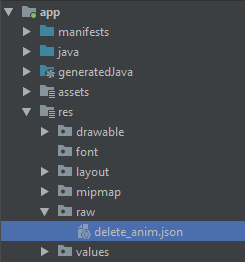
In code, setAnimation() method of Builder is used to set Animation to the dialog.
Prototype :
setAnimation(int resourceId)
Resource file should be passed to method. e.g. R.raw.delete_anim.
MaterialButton mDialog = new MaterialDialog.Builder(this) .setAnimation(R.raw.delete_anim)ii. Using Asset File
Downloaded json file should placed in asset directory.
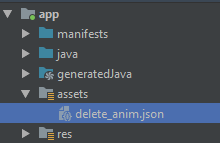
In code, setAnimation() method of Builder is used to set Animation to the dialog.
Prototype:
setAnimation(String fileName)
Only file name with extensions should passed to method.
MaterialButton mDialog = new MaterialDialog.Builder(this) // Other Methods to create Dialog........ .setAnimation("delete_anim.json") //...iii. Getting LottieAnimationView
To get View of Animation for any operations, there is a method in Material Dialogs which returns LottieAnimationView of dialog. // Get Animation View LottieAnimationView animationView = mDialog.getAnimationView(); // Do operations on animationViewDialog State Listeners
There are three callback events and listeners for Dialog.Following are interfaces for implementations:
OnShowListener()- Listens for dialog Show event. ItsonShow()is invoked when dialog is displayed.OnCancelListener()- Listens for dialog Cancel event. ItsonCancel()is invoked when dialog is cancelled.OnDismissListener()- Listens for dialog Dismiss event. ItsonDismiss()is dismiss when dialog is dismissed.
...         mDialog.setOnShowListener(this);        mDialog.setOnCancelListener(this);        mDialog.setOnDismissListener(this);     }          @Override     public void onShow(DialogInterface dialogInterface) {         // Dialog is Displayed     }
@Override     public void onCancel(DialogInterface dialogInterface) {         // Dialog is Cancelled     }
@Override     public void onDismiss(DialogInterface dialogInterface) {         // Dialog is Dismissed     } }


