:gem:Tops of VSCode Extensions
vscode-extensions [Best]
- Record and share vscode extensions, including improving development efficiency, key points, theme beautification, etc. . .
- This project will provide detailed instructions for each extension, hoping to help coders all over the world code happily together: emoji_sunglasses:
- This project provides "extended sharing area", you can submit interested extensions here.
- If you want Pull Request, just update
README.md
README.zh-TW.md will be automatically updated through CI)
- Extended Summary:
Vscode Common Commands
- Using the vscode command panel can increase the development speed .
- Open command panel:
ctrl+shift+p
- Common commands:
File: Open Folder: open folder as workspace .
* Preferences: Color Theme: select color theme for editor .
* Preferences: File Icon Theme: select icon theme for file .
* Developer: Reload Window: Reload VSCode window .
:star:Quickly download multiple extensions
I will introduce a lot of vscode extensions later . There is a trick here, you can quickly download many extensions without looking for . one by one.:warning: If you have high version vscode, you can jump over the following method, just go to here
If you want to transfer the extension of the old computer to the new computer in the future, you can also use this method :kissing:
- You can download the
.ps1file that comes with this project, follow the third step below to exclude the unnecessary extension . - In the
extensions.ps1file, each extension has a comment ., please delete the unnecessary . before executing the installation command
method:>
1. Access all the extensions of vscode on the current computer, the output is text . Enter the following command in the terminal (powershell):
code --list-extensions | ForEach-Object {"code --install-extension $_"} > extensions.ps12. After the command is executed, the extensions.ps1 file will be obtained in the current directory (the file name is defined when the command is executed) .
>
3. Enter the following command in the terminal (powershell) of the new computer:
./extensions.ps14. download complete

Find Missing Extensions
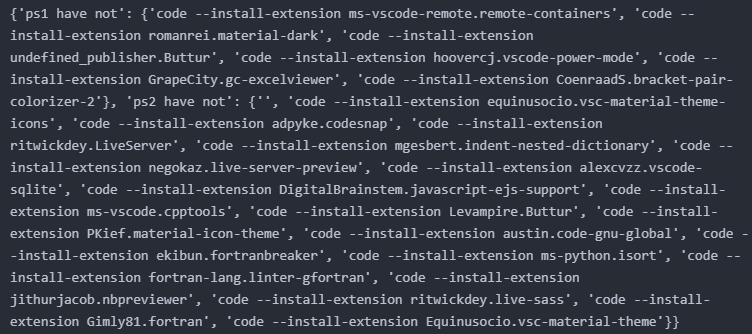
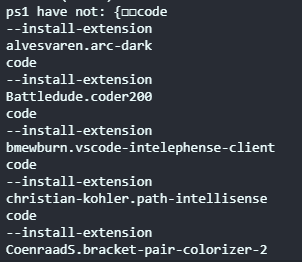
- Compare two
.psfiles to find differences between two extension records .
- Usage (choose one of the following):
compare.py
run Python script .
 *
* compare.sh runs ./extensions_compare/compare.sh etc . on git bash, wsl, or linux
:star: Quickly download multiple extensions (for new version vscode)
Just click the Profile, then you can import or export the extensions.

:snowflake:Transparent editor
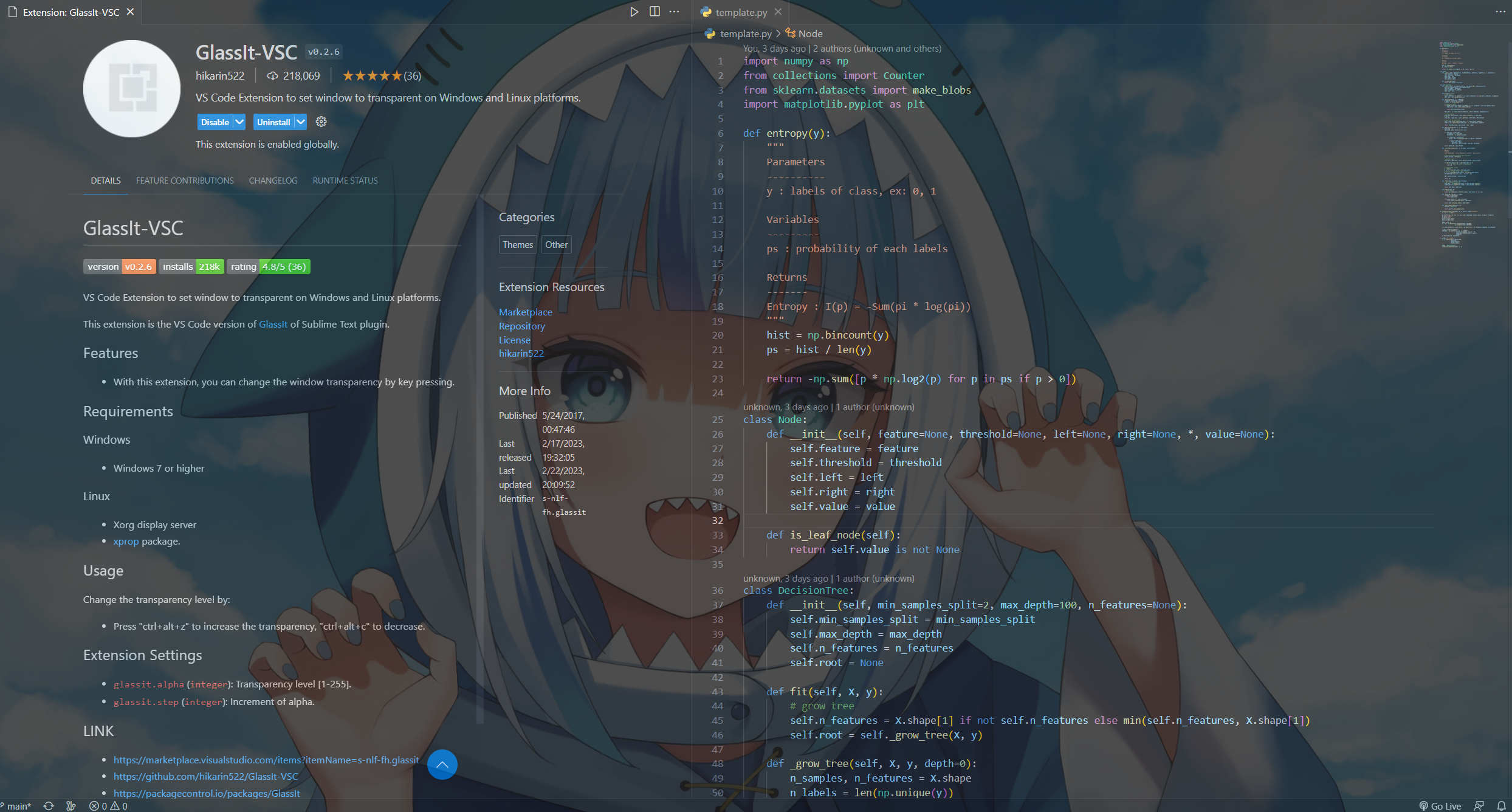
The transparency effect is amazing.It can be used as a lazy tool (code while watching the video~) .
You can use your own desktop background while coding and watching Gura .
GlassIt-VSC
Usage:
ctrl+alt+z: desaturation (transparency)
ctrl+alt+c: increase saturation (opacity)
:purple_heart:Theme
The biggest reason to use vscode is to have eye-catching, elegant, comfortable, pleasant editing interface. Only a good-looking editing environment can make the coder willing to type on the keyboard~:sunglasses:
Next, I will share my favorite topics with you one by one (the following examples are based on Python, and different languages may have slight differences)
oh! Wait a minute, here is a quick way to switch themes . After all, you may want to change themes every day~~
Quick switch theme>
"ctrl+shift+p": Open vscode command input box>
"Preferences:Color Theme": Enter and choose the theme you want
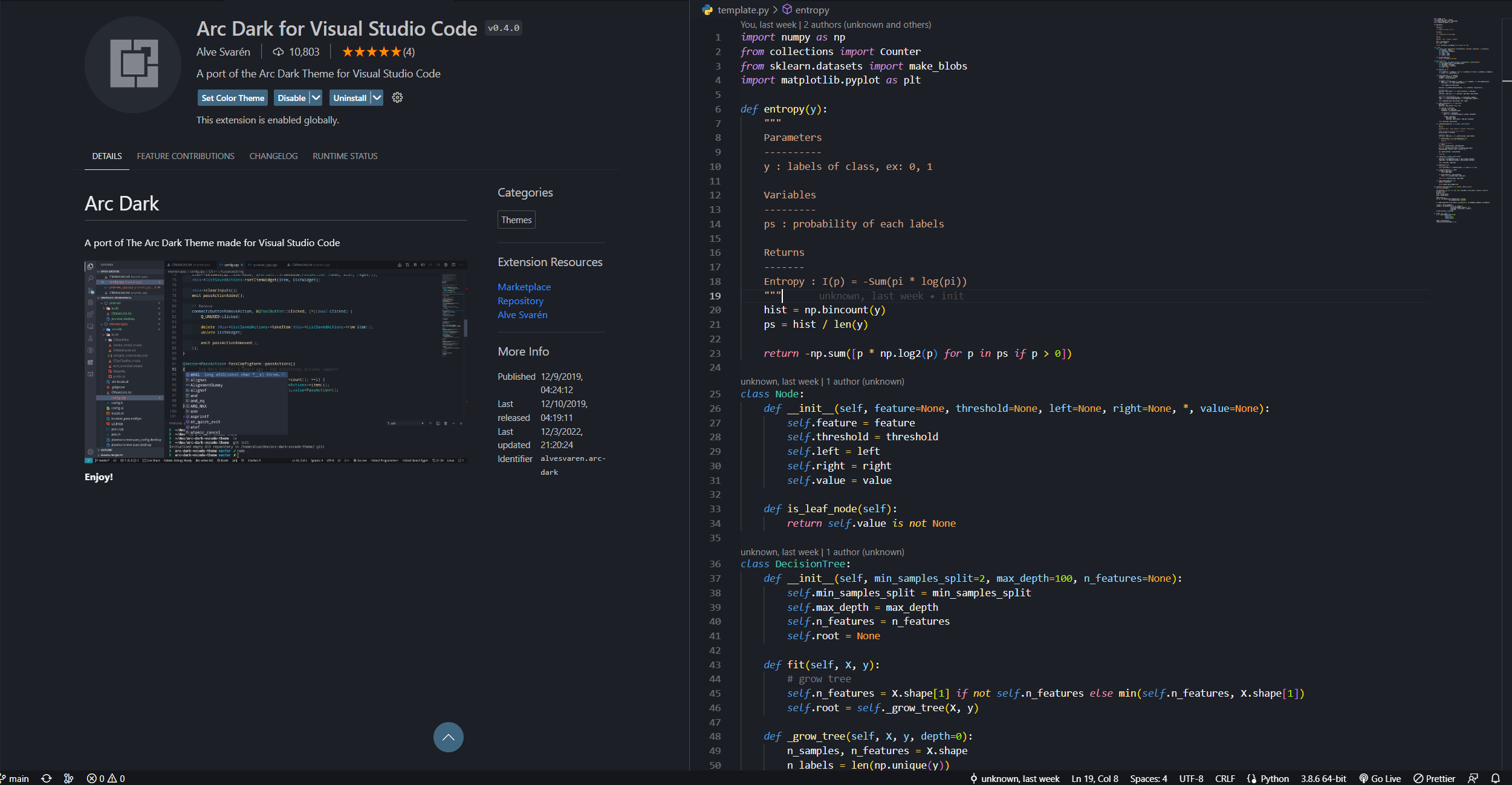
Arc Dark for Visual Studio Code
- The theme is a bit similar to the dark theme of Visual Studio Code, but the overall tone is softer, similar to the color of macarons.
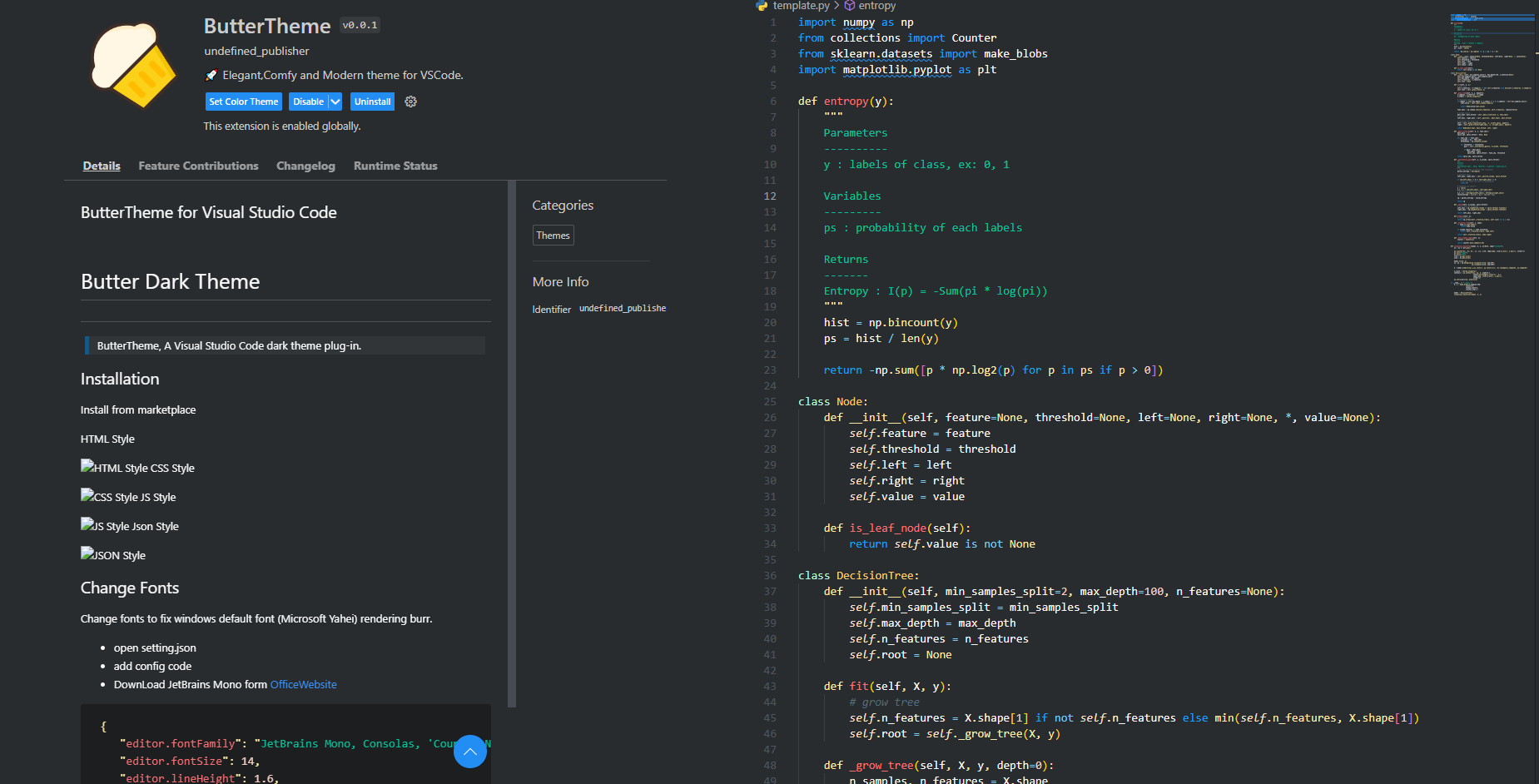
ButterTheme
As the name suggests, this is an eye-catching milk yellow* theme- A very rare theme (to put it bluntly, not many people use it), but the author likes it very much
- If you can't find this theme, link
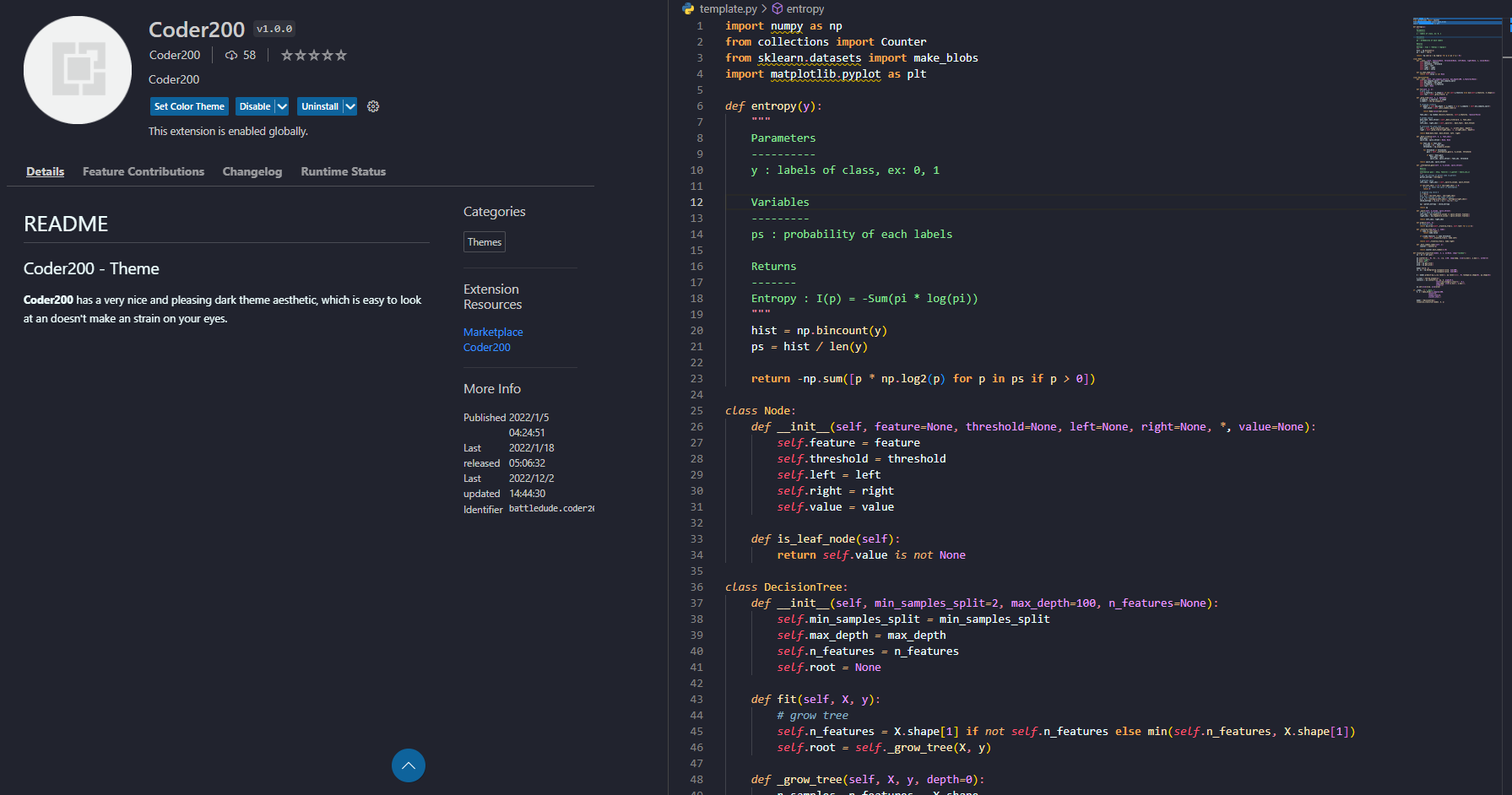
Coder200
- This time I don't know ... just by looking at the name
doom-emacs-theme
- Simple style
Dracula Official
very famous, pink and purple* vampire colors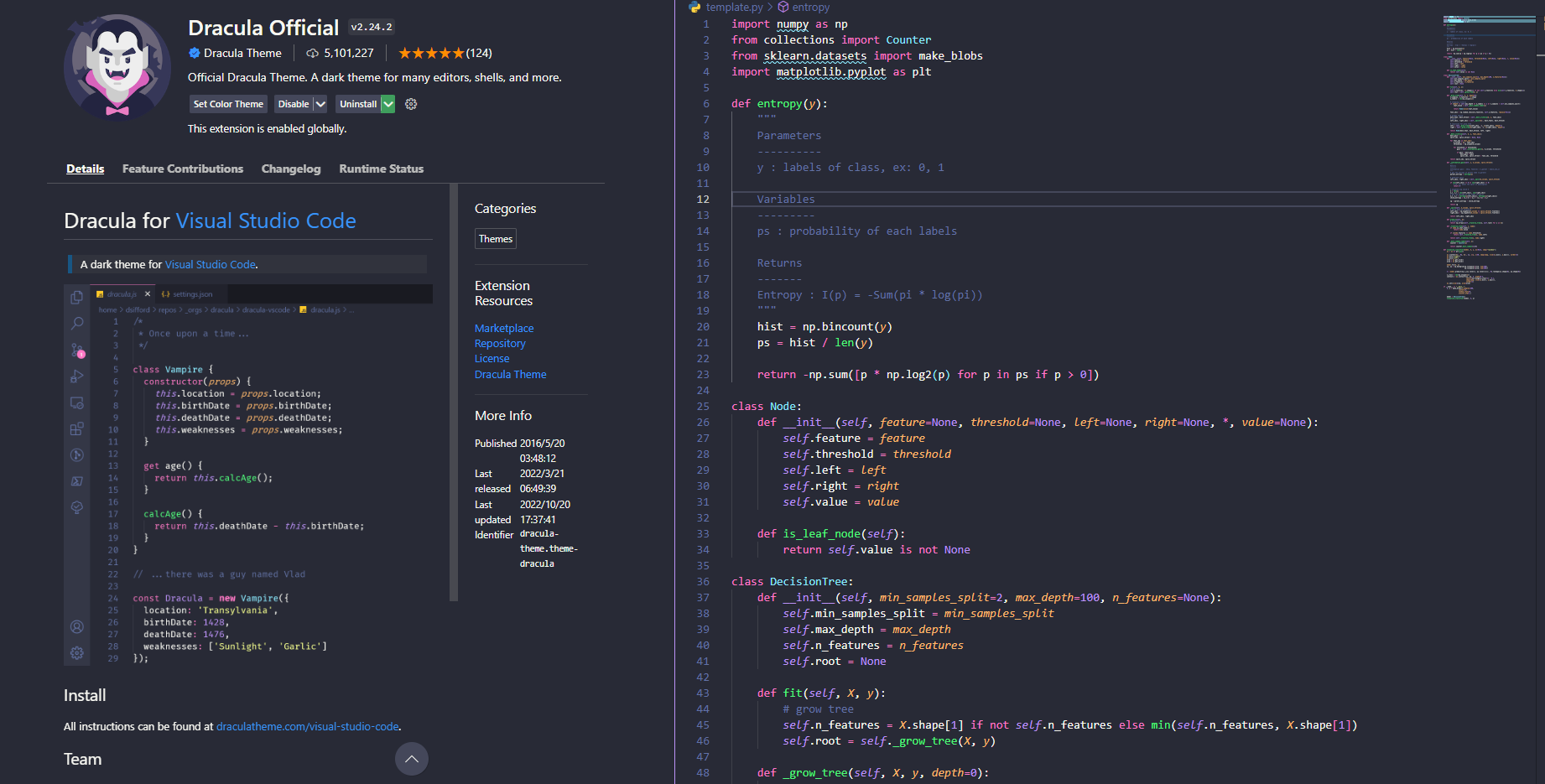
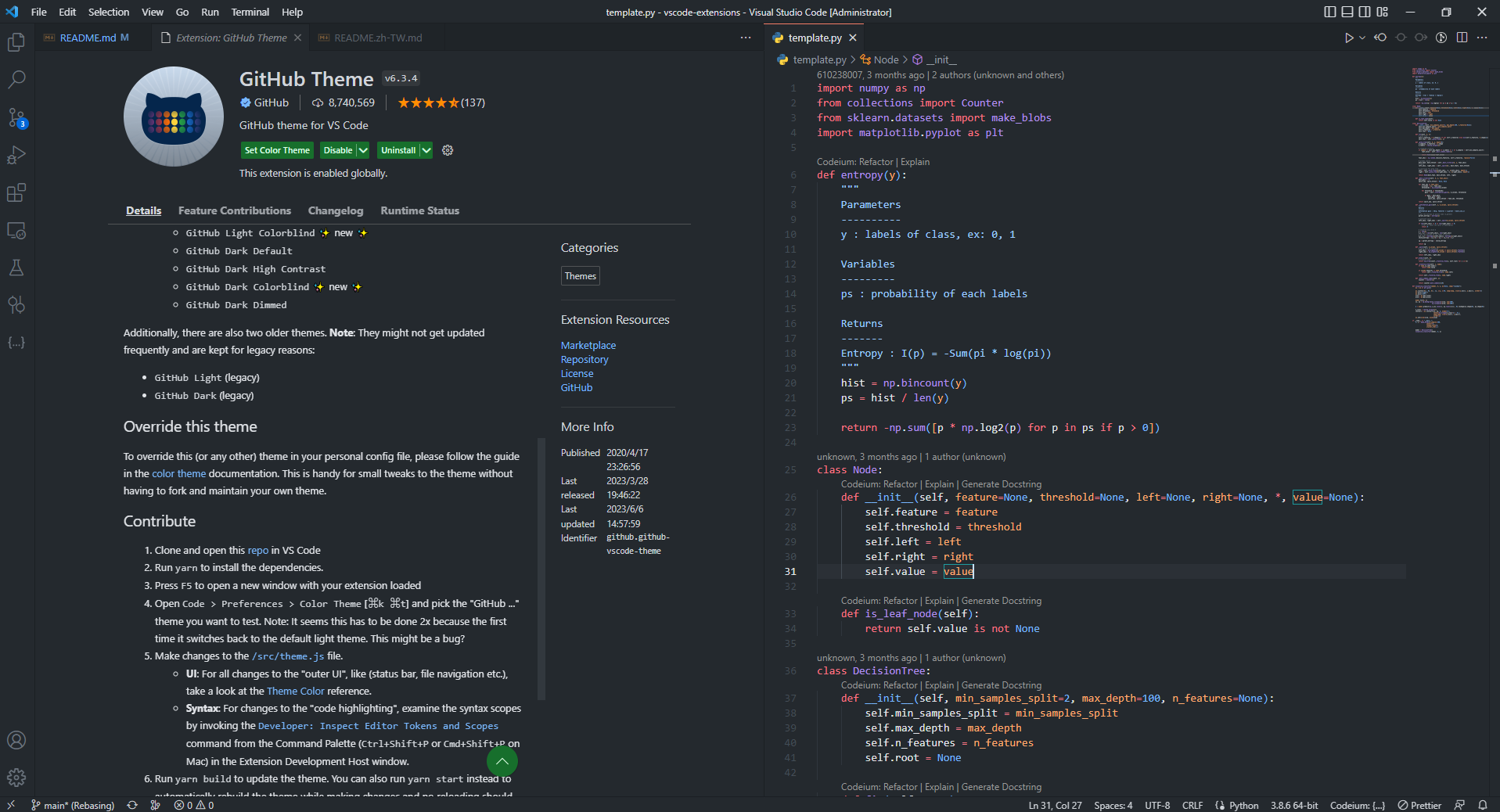
Github Theme
- One of the classic themes that cannot be ignored
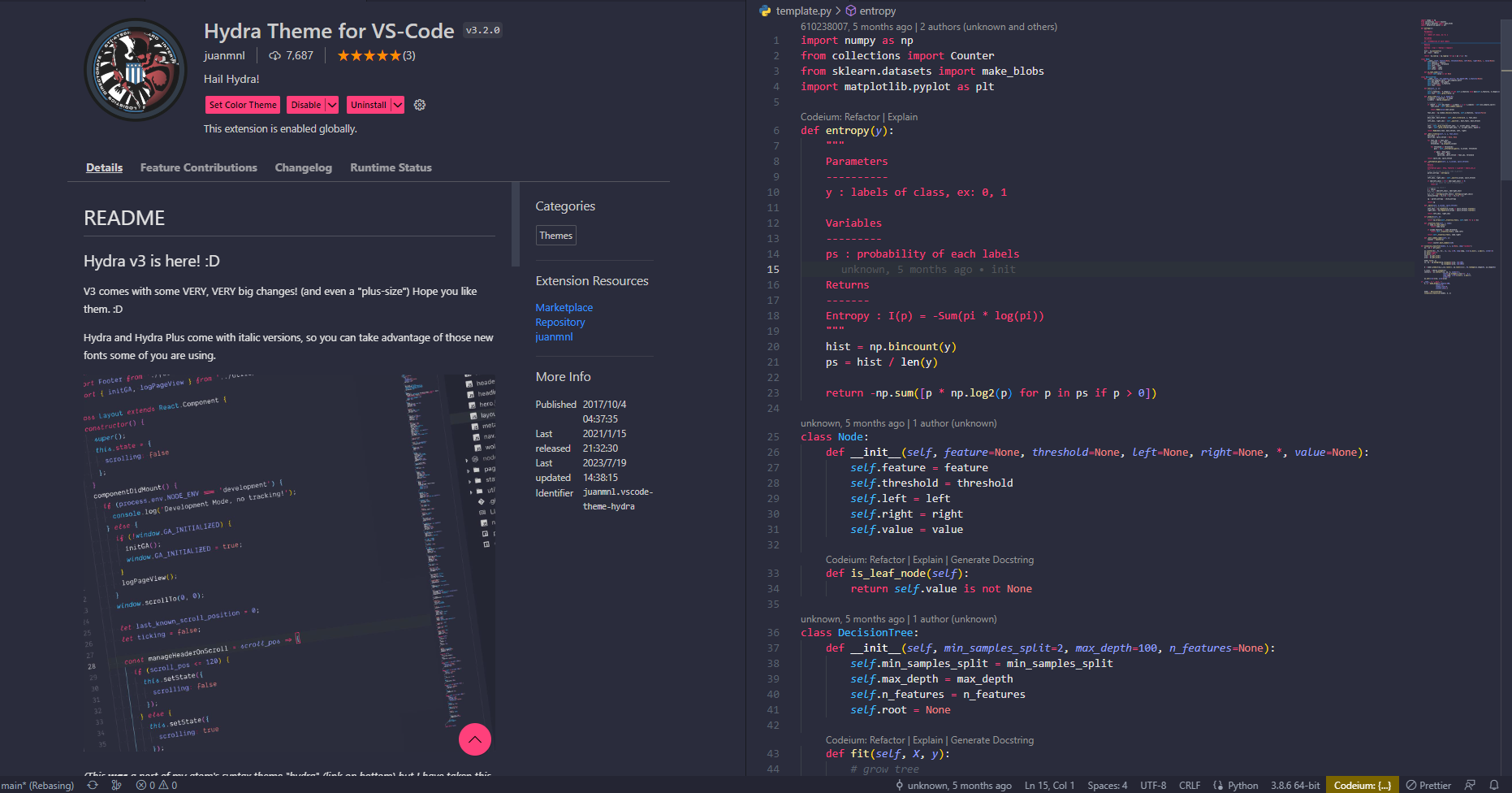
Hydra Theme for VS-Code
- Black and red theme, exuding a strong sense of high-tech aesthetics.
LaserWave
A purple pink* theme with a sunset feel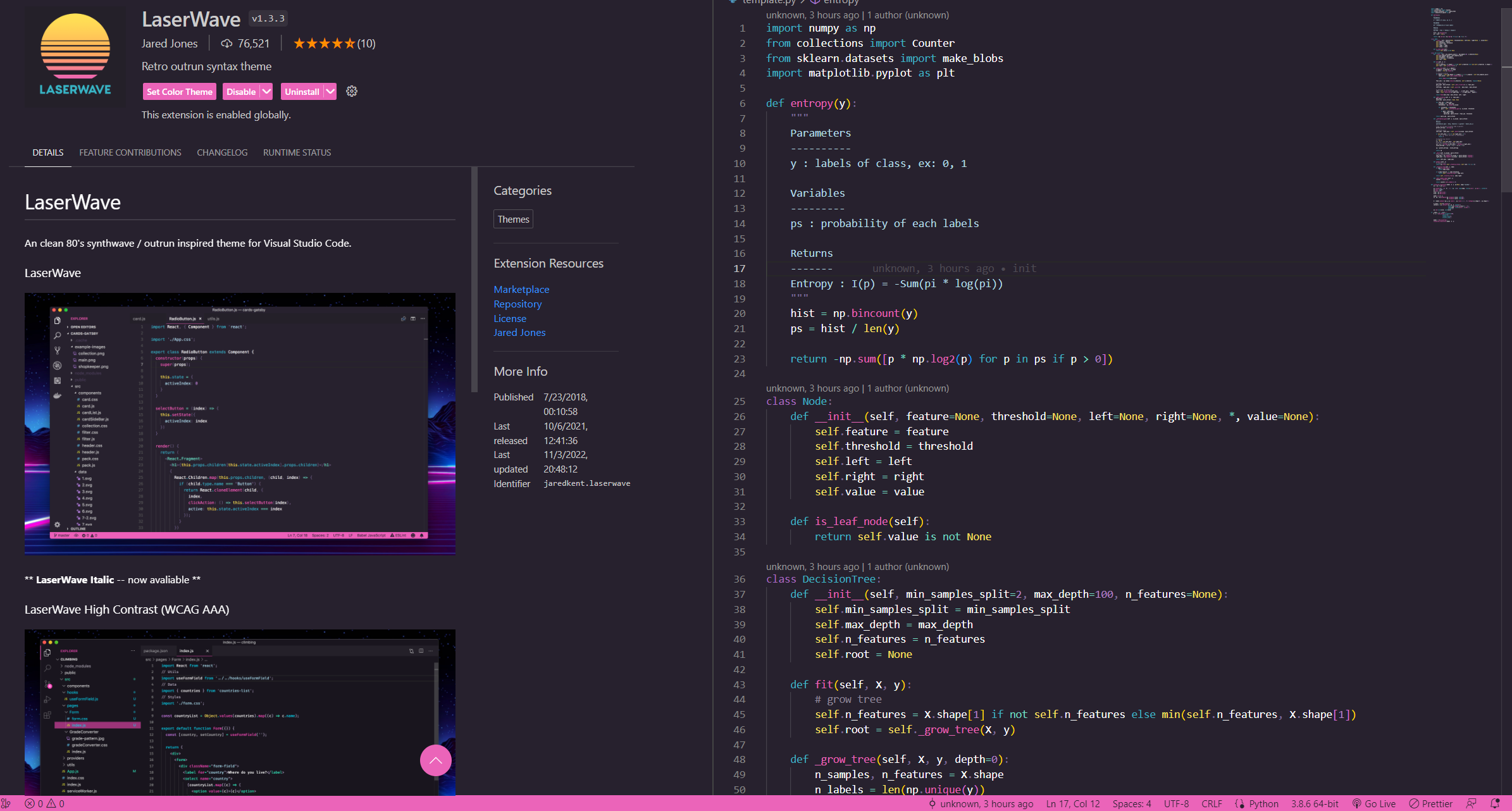
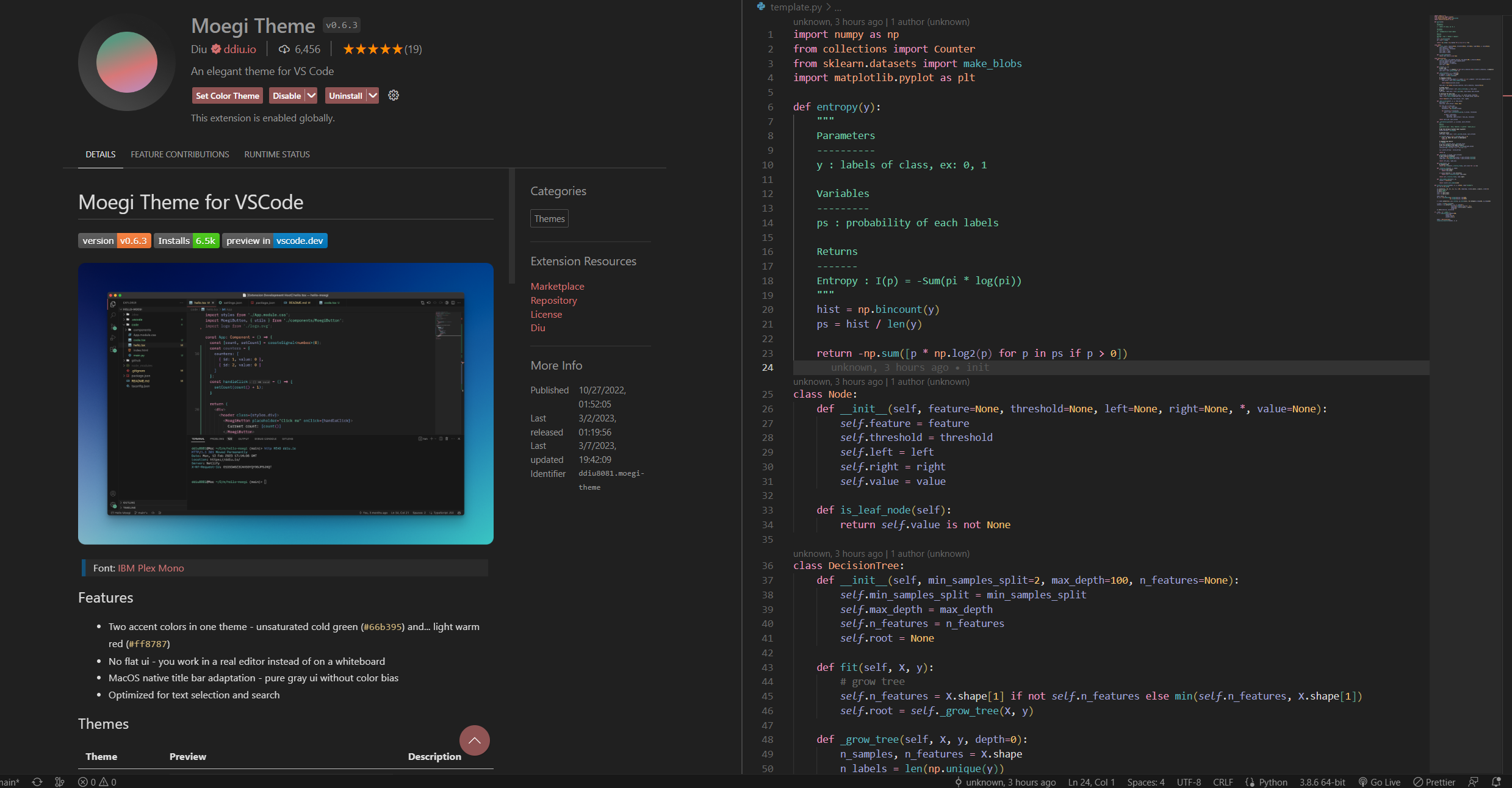
Moegi Theme
- Gentle and charming theme
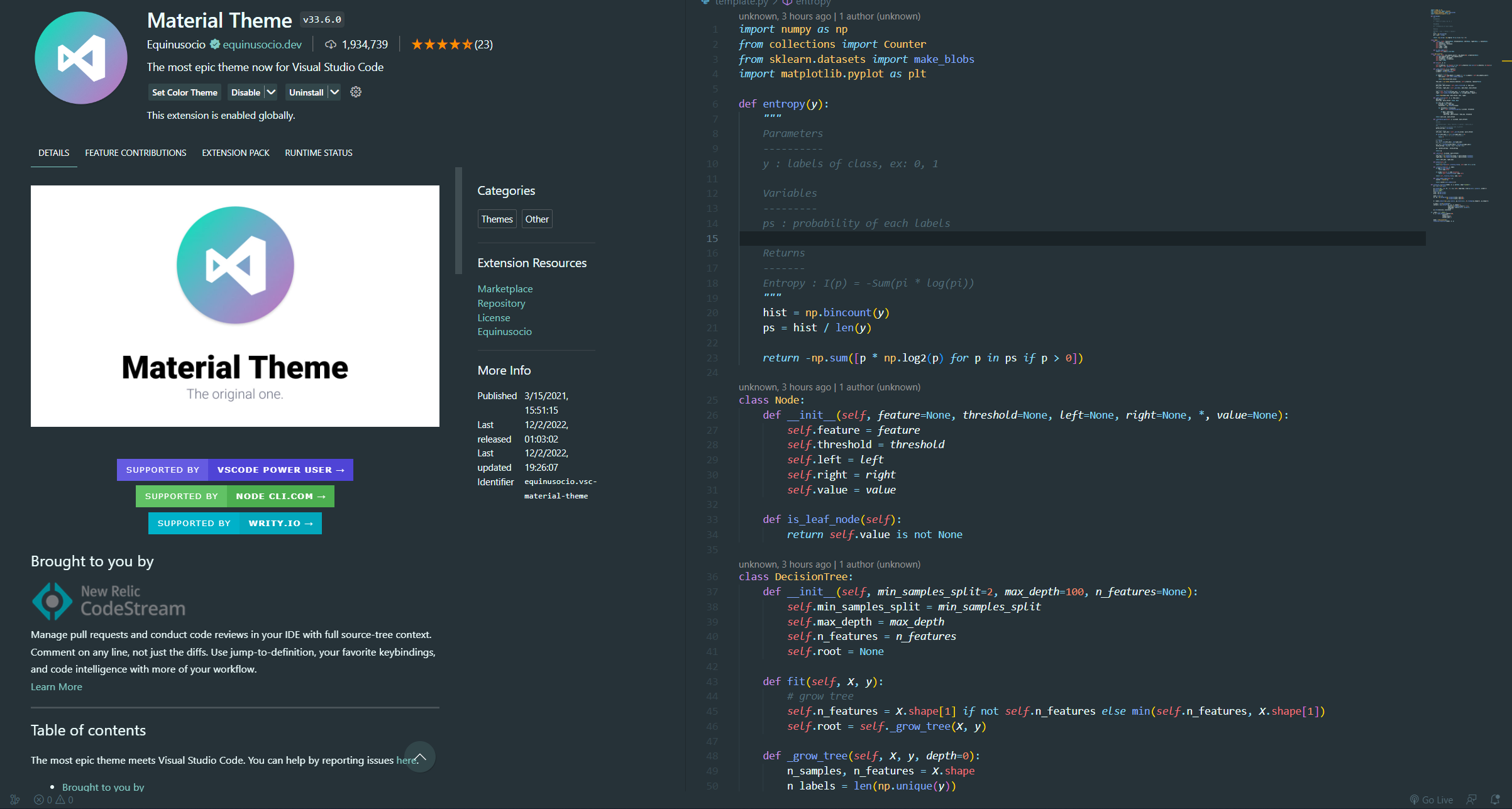
Material Dark
- One of the classic themes that cannot be ignored
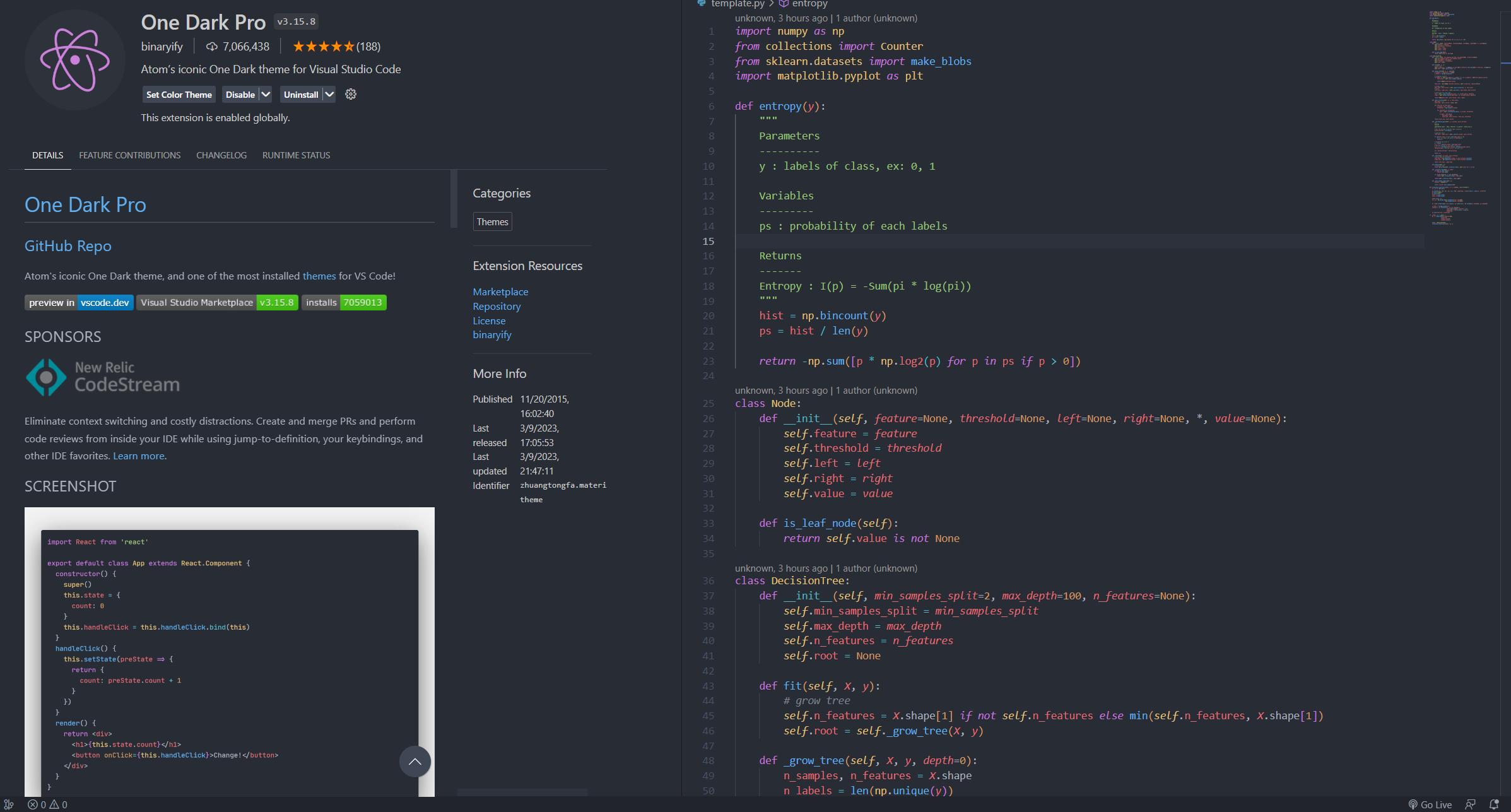
One Dark Pro
- One of the classic themes that cannot be ignored
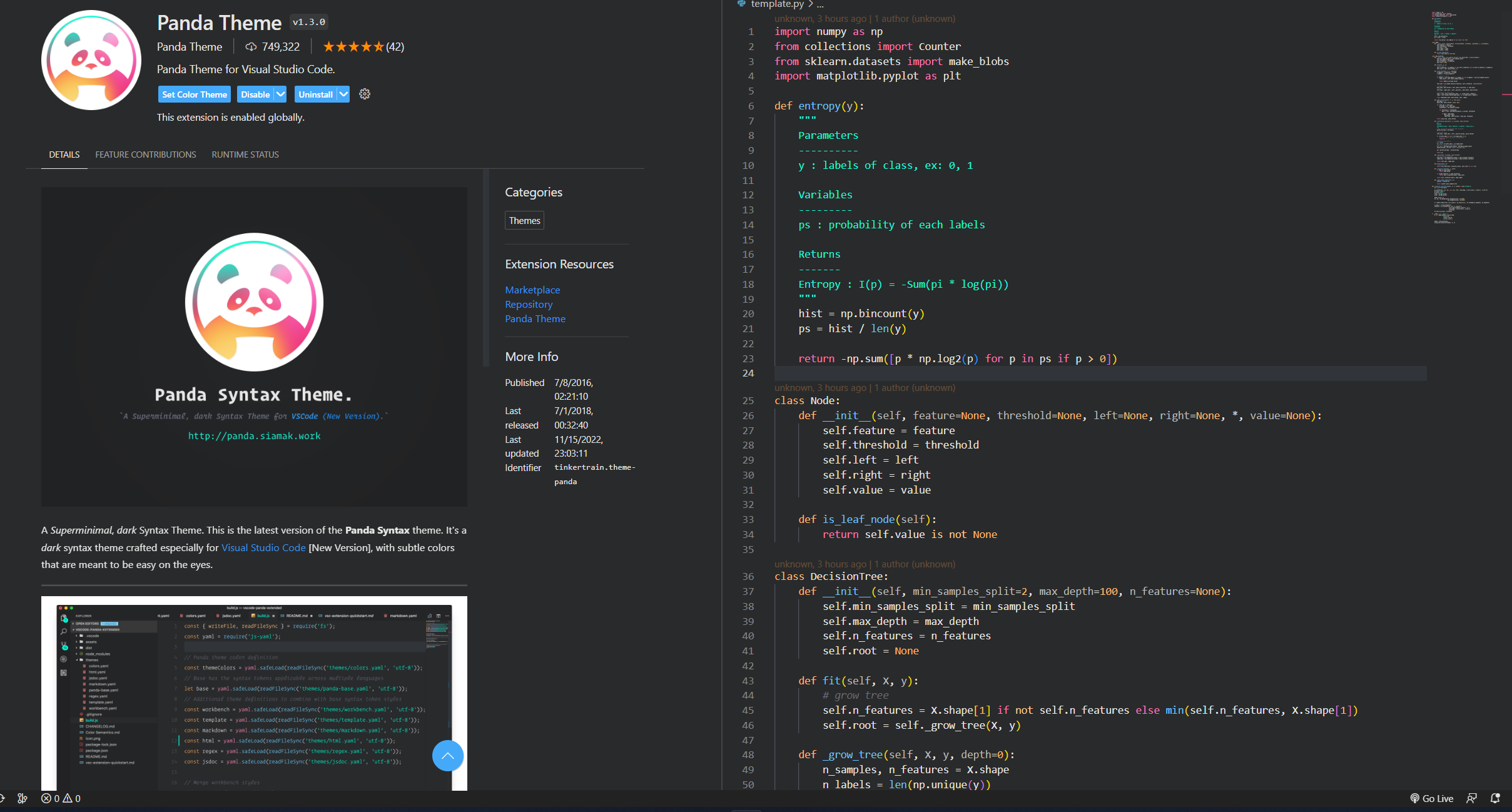
Panda Theme
Lake Green* :panda_face: Top notch themes:- This theme is really cool!
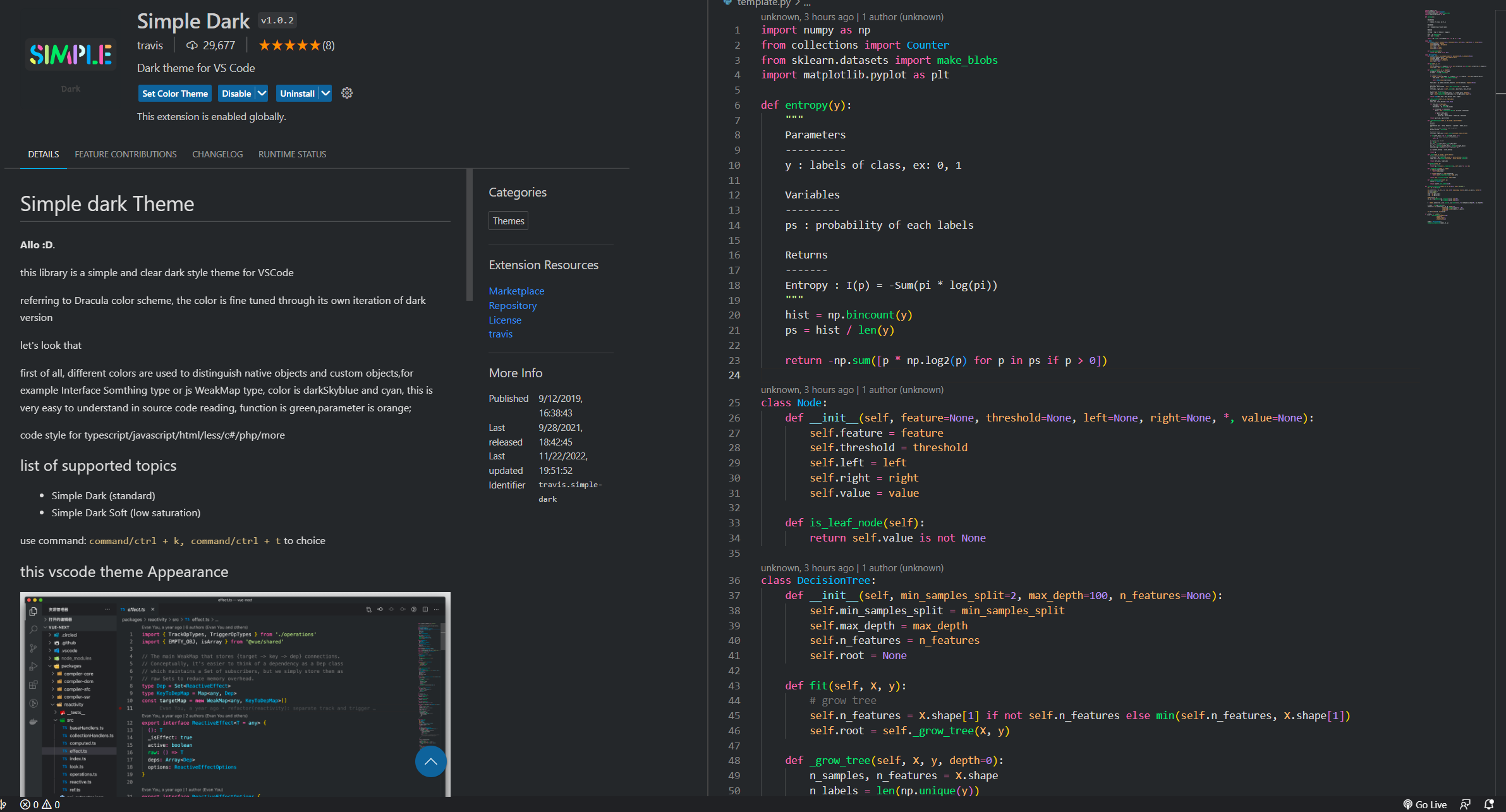
Simple Dark
- The background is very dark, the text color will not be too dazzling
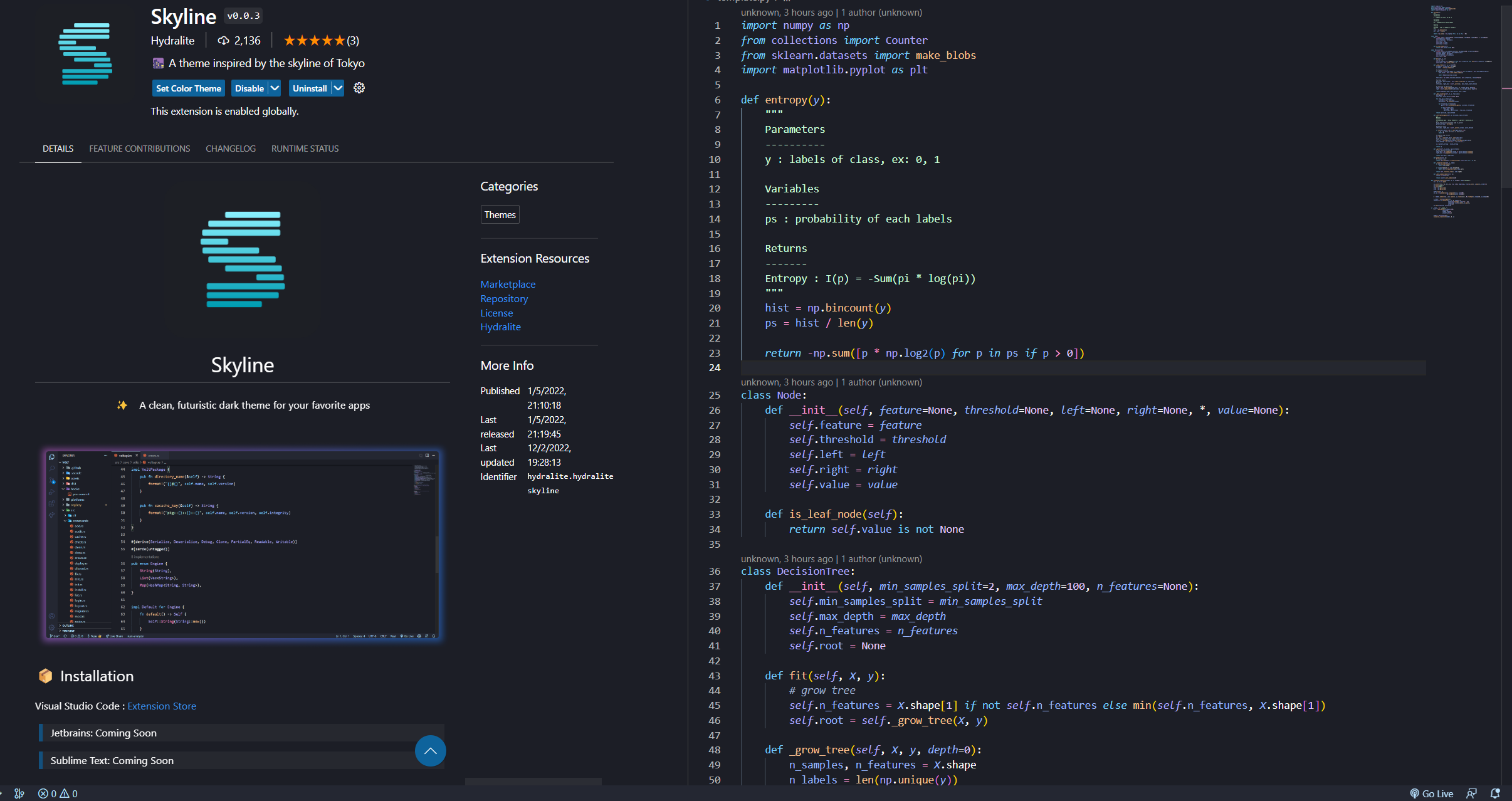
Skyline
- Blue lovers must use it :blue_heart:
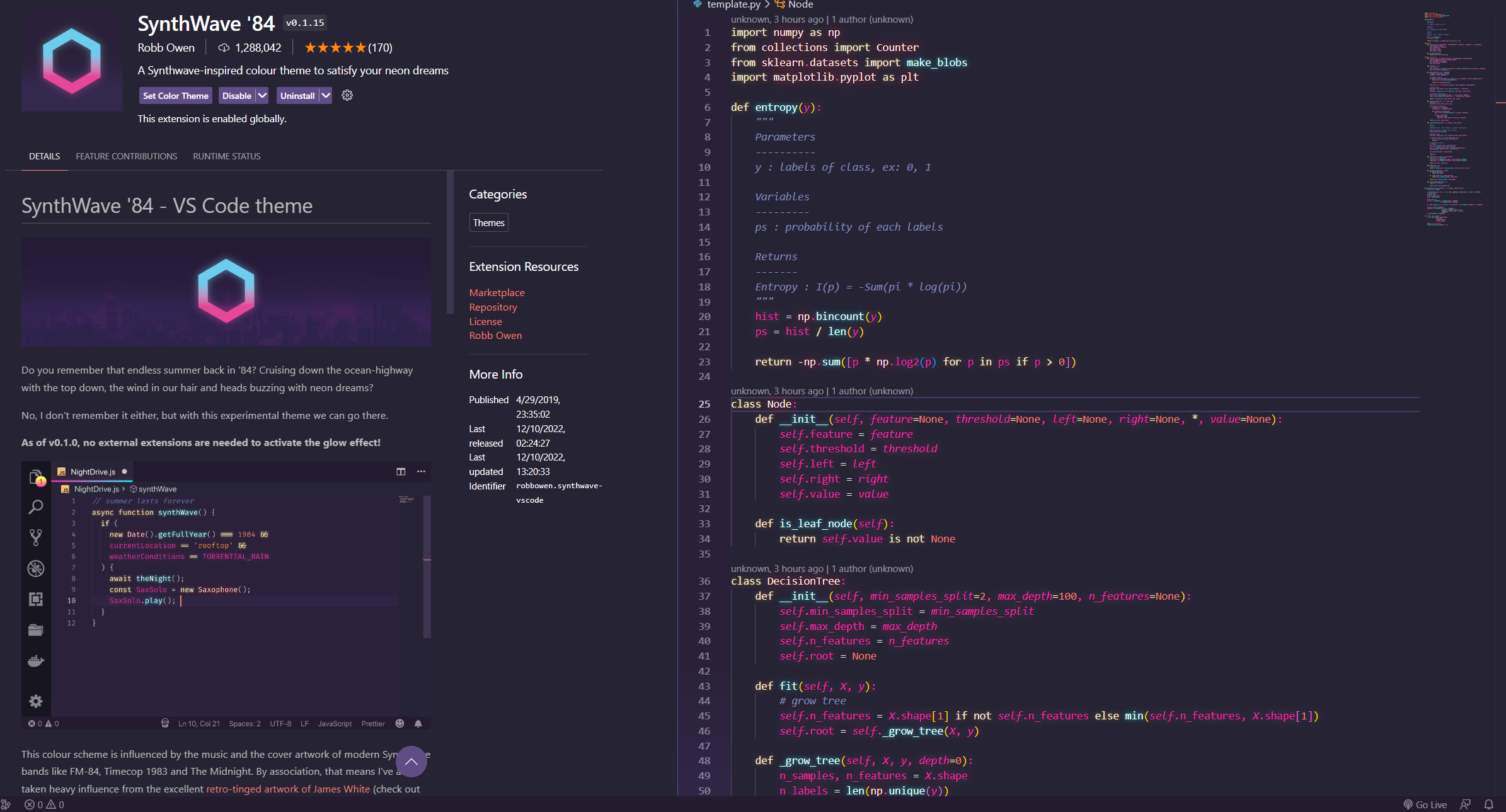
SynthWave '84
- Super high-tech, dazzling fluorescent theme: emoji_sunglasses:
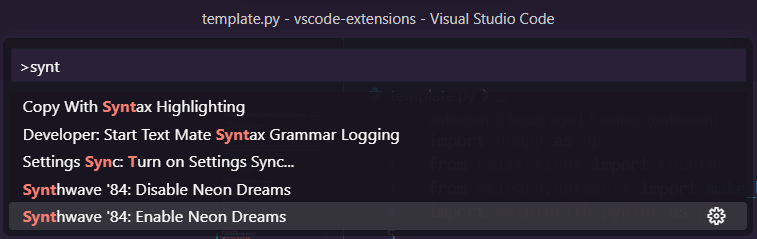
- Remember to turn on the fluorescent effect after selecting the theme (you can also match it with other theme colors: emojiemojifu :)
Enable fluorescence mode:>
1. "ctrl+shift+p": Open the VS Code command input box>
2. "Synthwave '84: Enable/Disable Neon Dreams": Enable/Disable Neon Dreams (see picture)>
3. "Restart": Restart VS Code
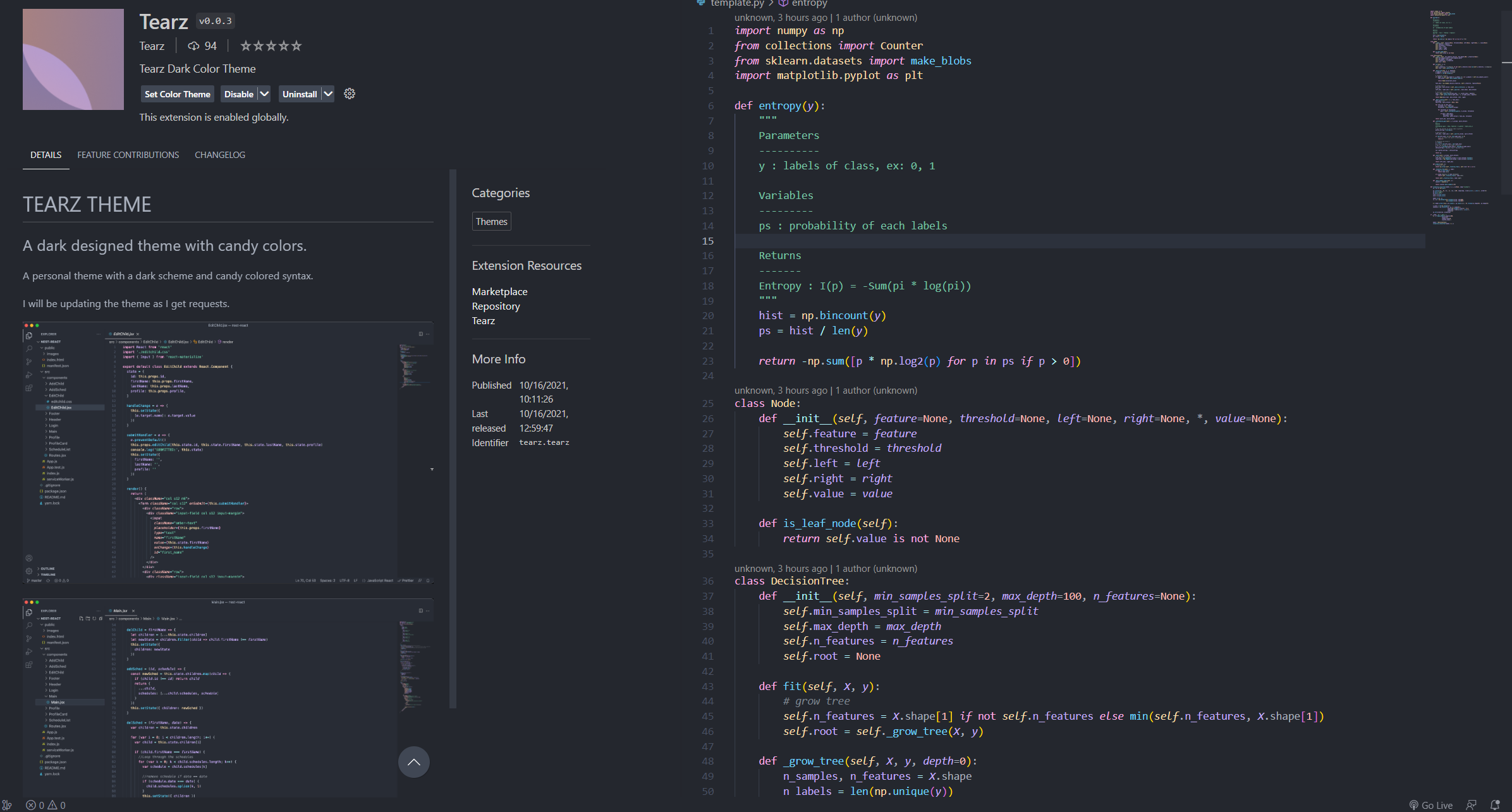
Tearz
- A bit similar to the previously launched Moe Wood theme
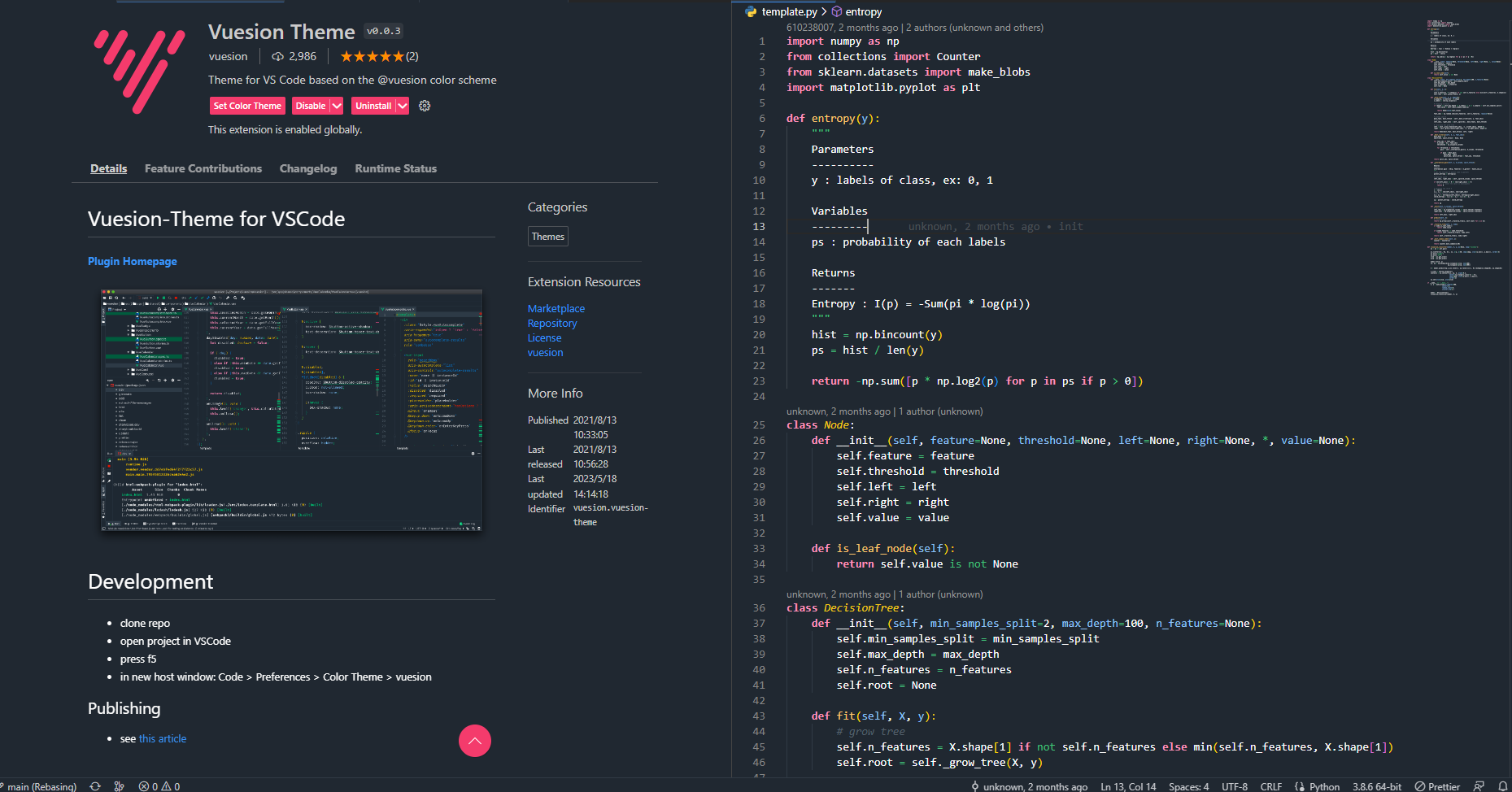
Vuesion Theme
- Simple pink, looks very comfortable
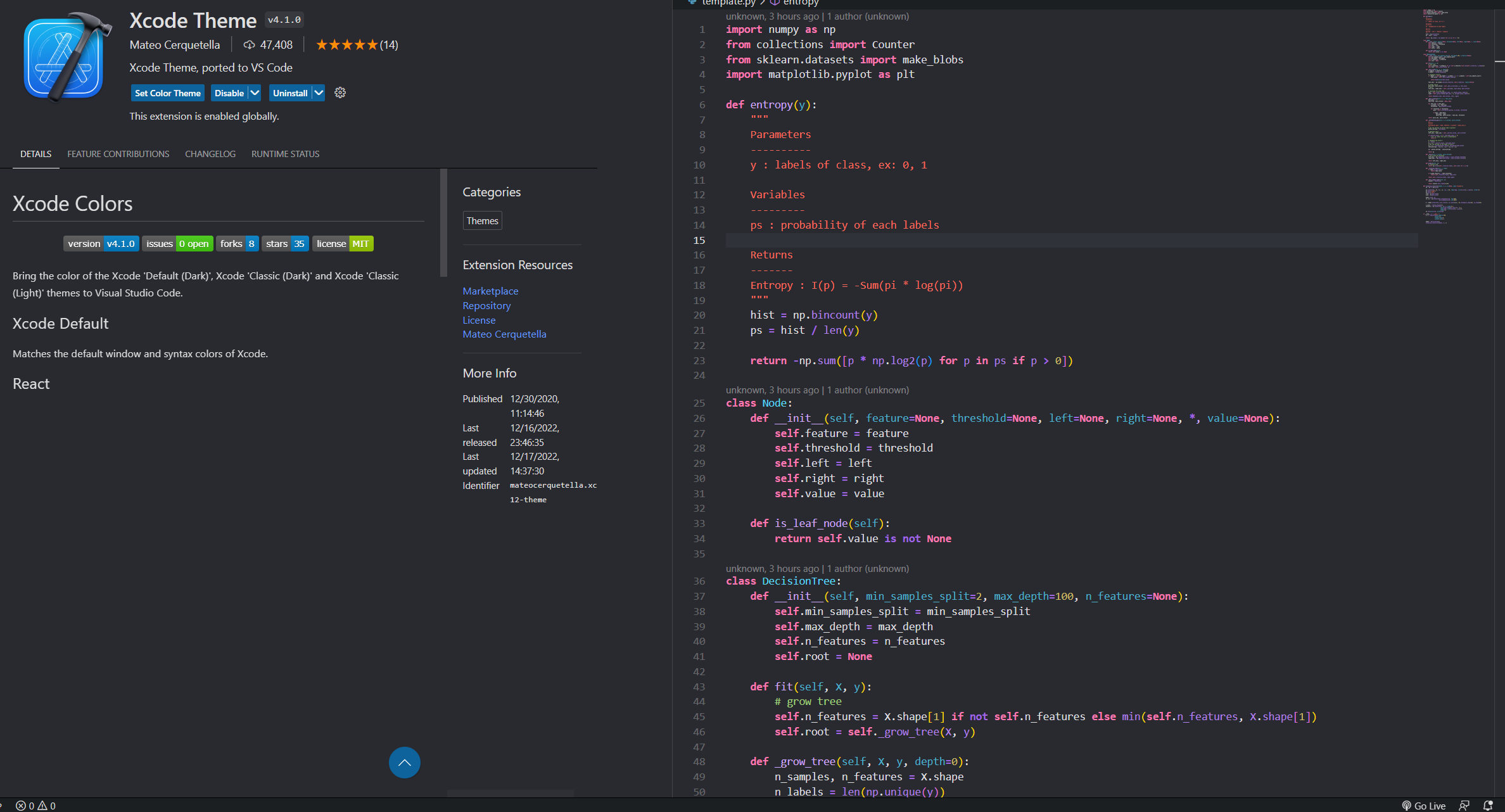
Xcode Theme
- One of the classic themes that cannot be ignored
:yellow_heart: Beautifying editor and editing environment
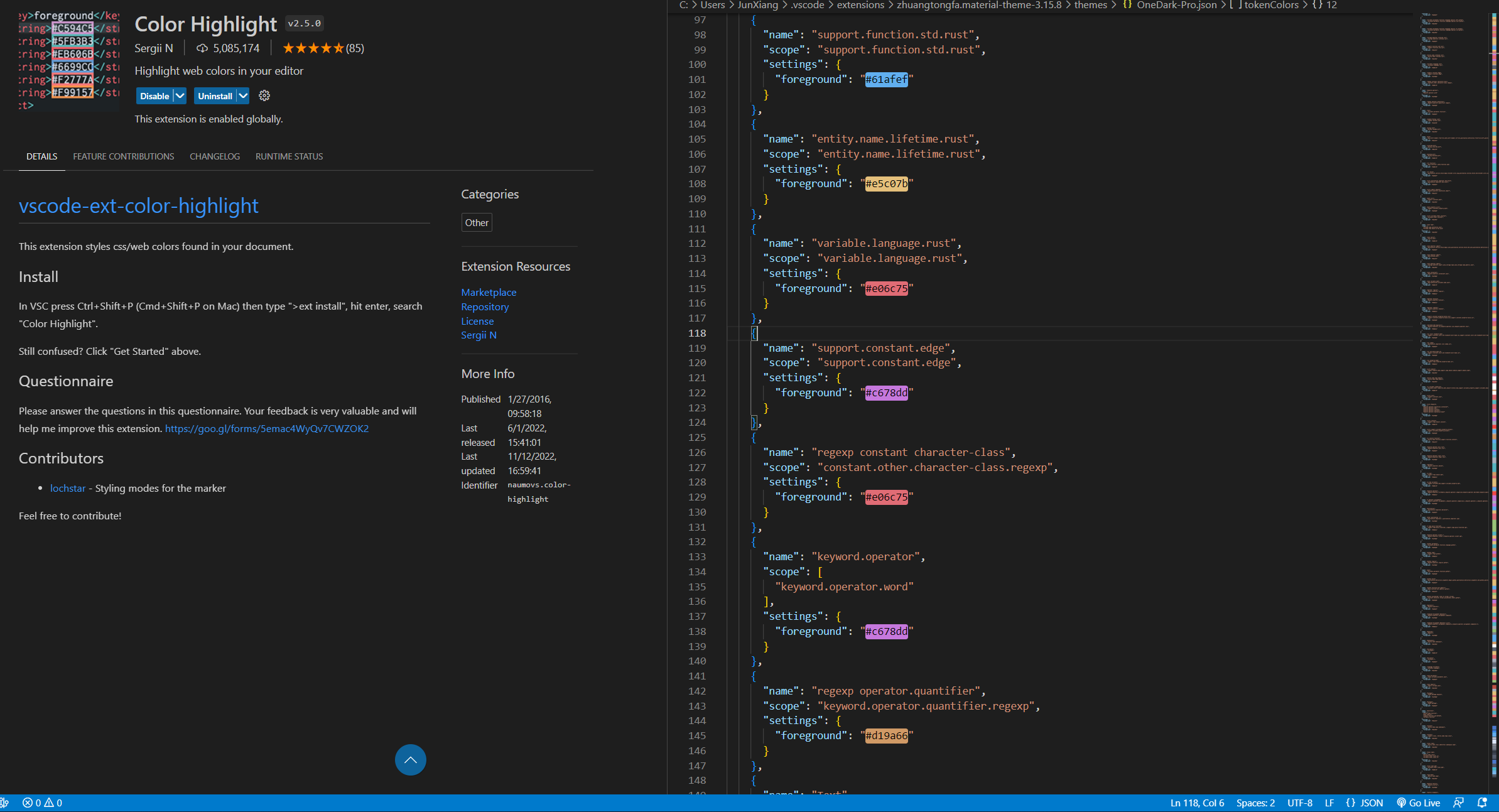
After finishing the decoration, our editor will introduce the plug-ins that can not only increase the aesthetic feeling, but also improve work efficiency~Color Highlight
- If you are a front-end engineer or data analyst, and often need to do visual work, be sure to download this!
- When editing, as long as there is hexadecimal color expression, you can see the color very clearly (you don’t need to run the code if the color looks good) .
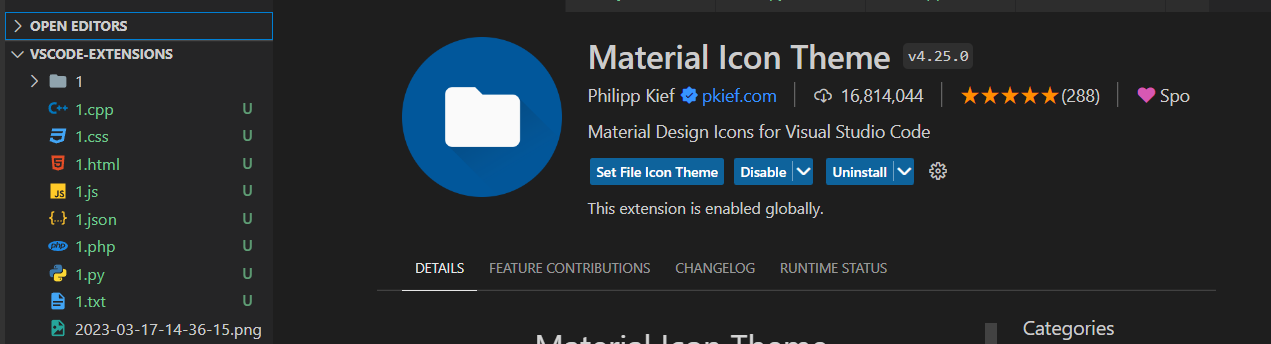
Material Theme Icons
- Different file extensions have different icons
- Not only looks good but can find files faster.
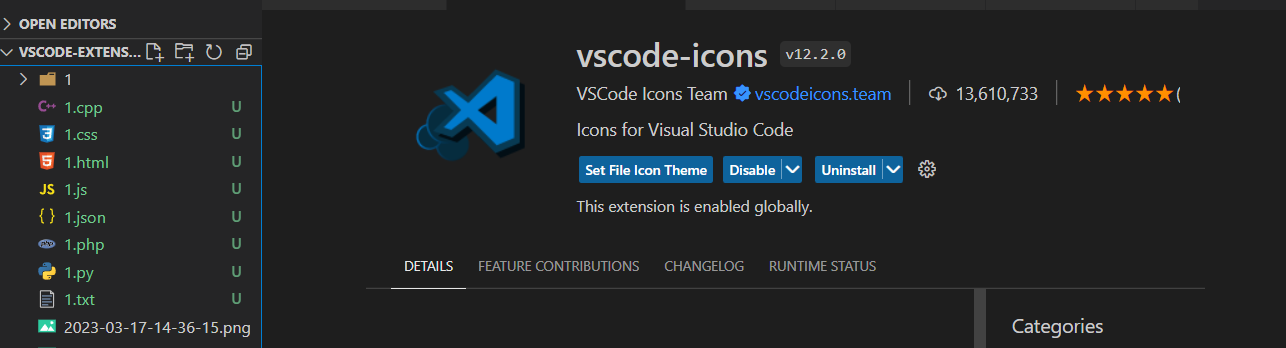
vscode-icons
- Slightly different from Material theme icons
- The author prefers to use this~
:green_heart: Must-have, highly recommended
The plugins to be introduced below are really easy to use!Most of them can improve development efficiency, don't miss: emojihearteyes:
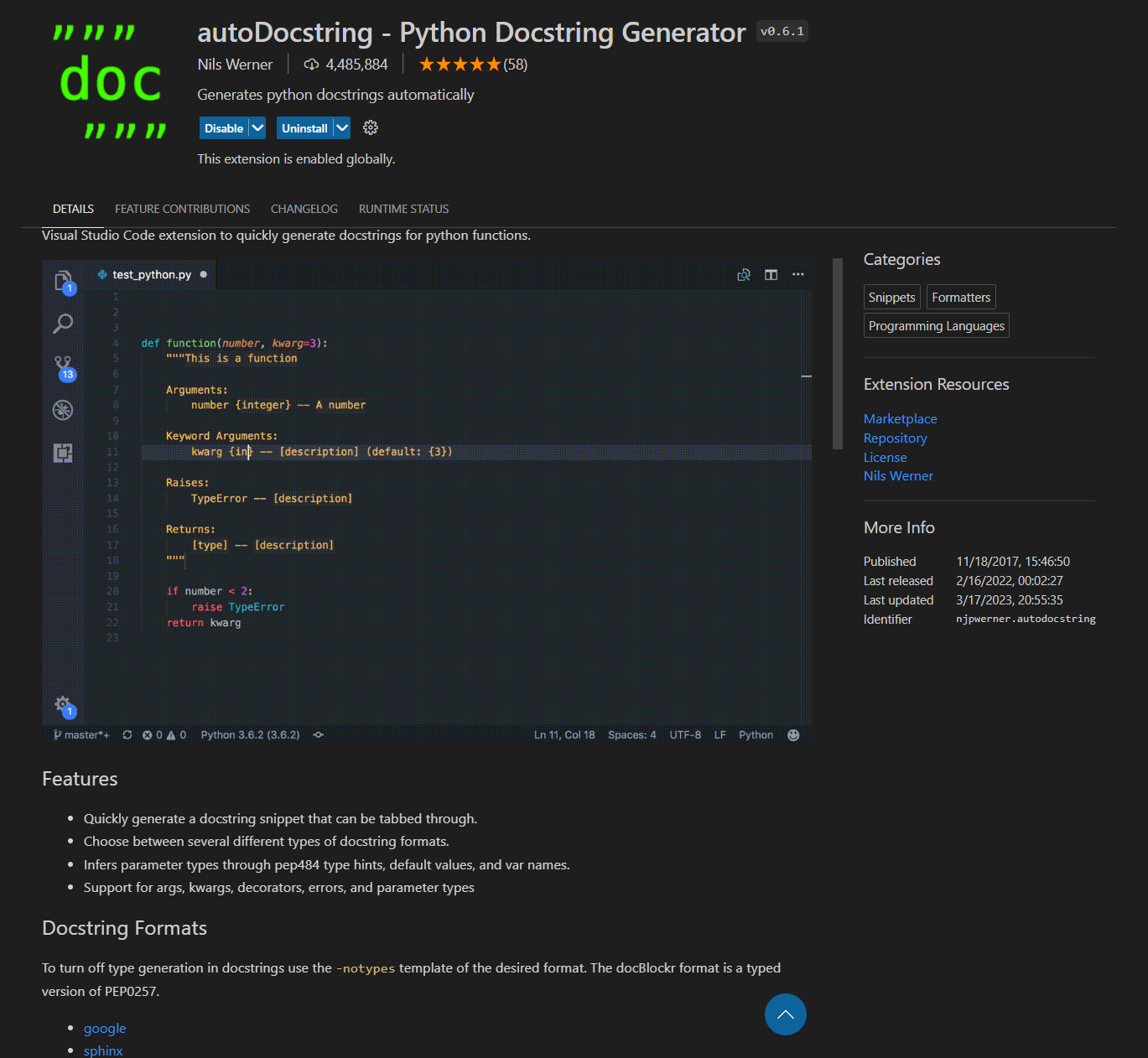
autoDocstring - Python Docstring Generator
- This plugin was introduced by . for Python developers
- Use shortcut keys to quickly generate Docstring style comments .
- Describe the purpose, parameters, return value and other information of the function.
- Support different Docstring styles, such as google, sphinx, numpy, etc. . .
How to use: Press the key below where you want to generate commentsWindows:
ctrl+shift+2
Mac: cmd+shift+2
Code Runner
- I believe that friends who have used VSCode should be familiar with this plugin! ?
- Allow VSCode to execute the program with one click .
- Support multiple languages, such as C, C++, Java, JavaScript, PHP, Python, Perl...etc.

Comment Divider
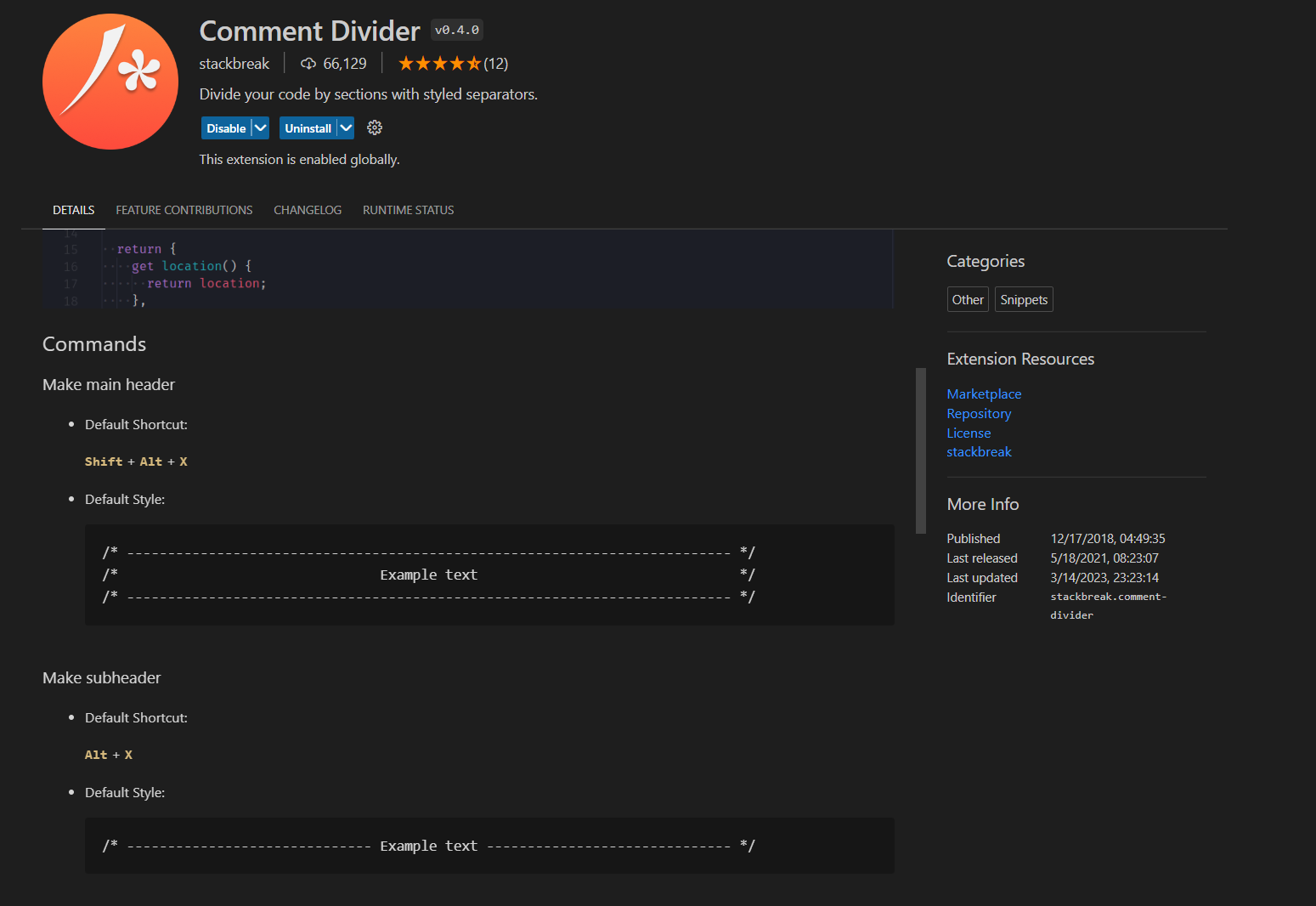
- Use shortcut keys to generate beautiful comment styles .
- As shown in the figure below, you can see two styles:
Shift+Alt+xandAlt+x.
Draw.io Integration
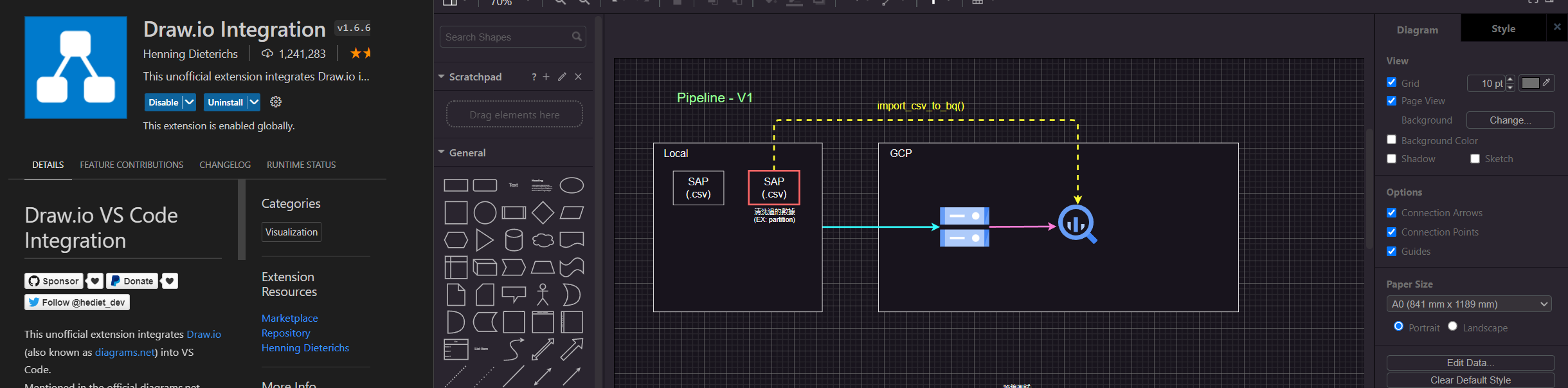
- Flow chart drawing tool
- When designing a project, you can use this plugin to plan the feasibility .
- Can be used as a note taking tool .
- Support many common modes, such as Google cloud platform representative function symbol (as shown in the figure).
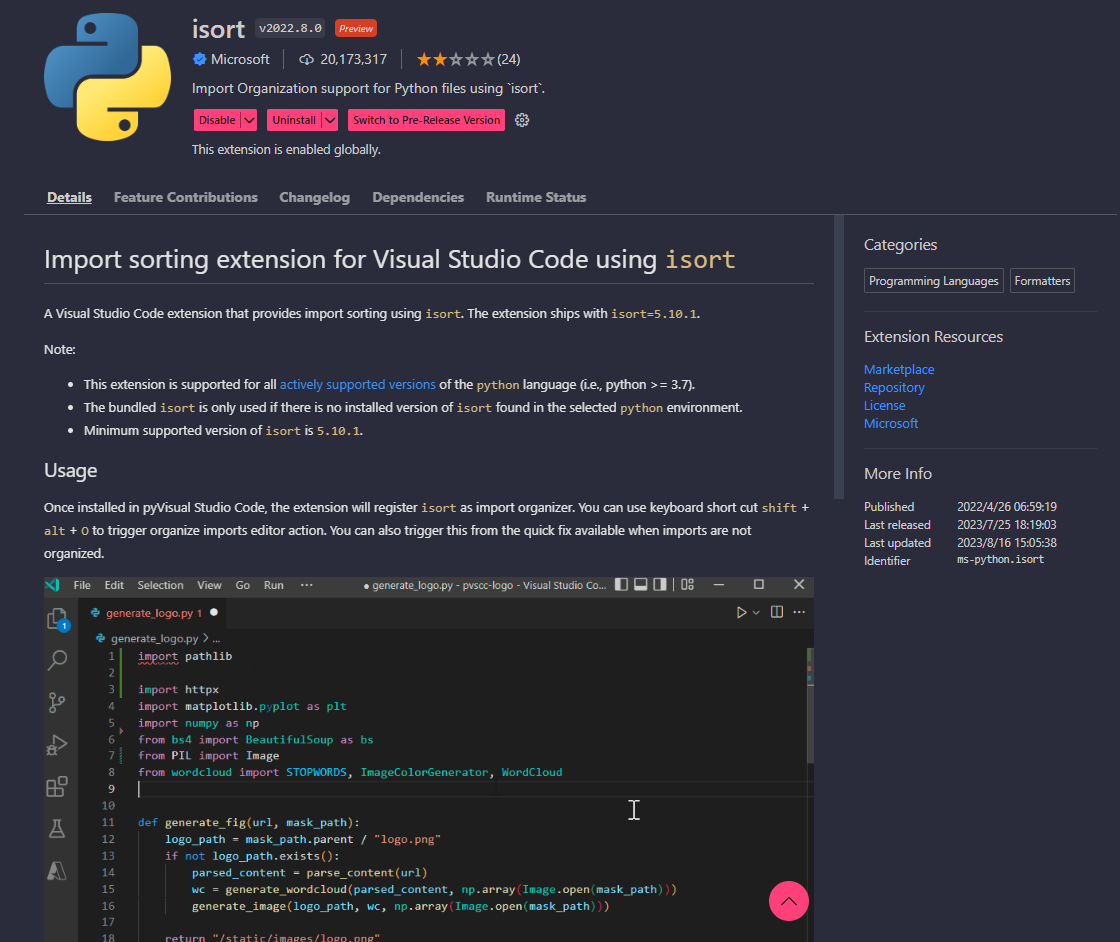
Isort
- This is intended for use by Python developers.
- Automatically formats imports.
- After downloading, add the following code to
settings.json:
"isort.args":["--profile", "black"]- Next, open
Keyboard Shortcutsand set a shortcut (the author has bound it toF12):

- Use the shortcut
F12to automatically format Python imports.
Path Intellisense
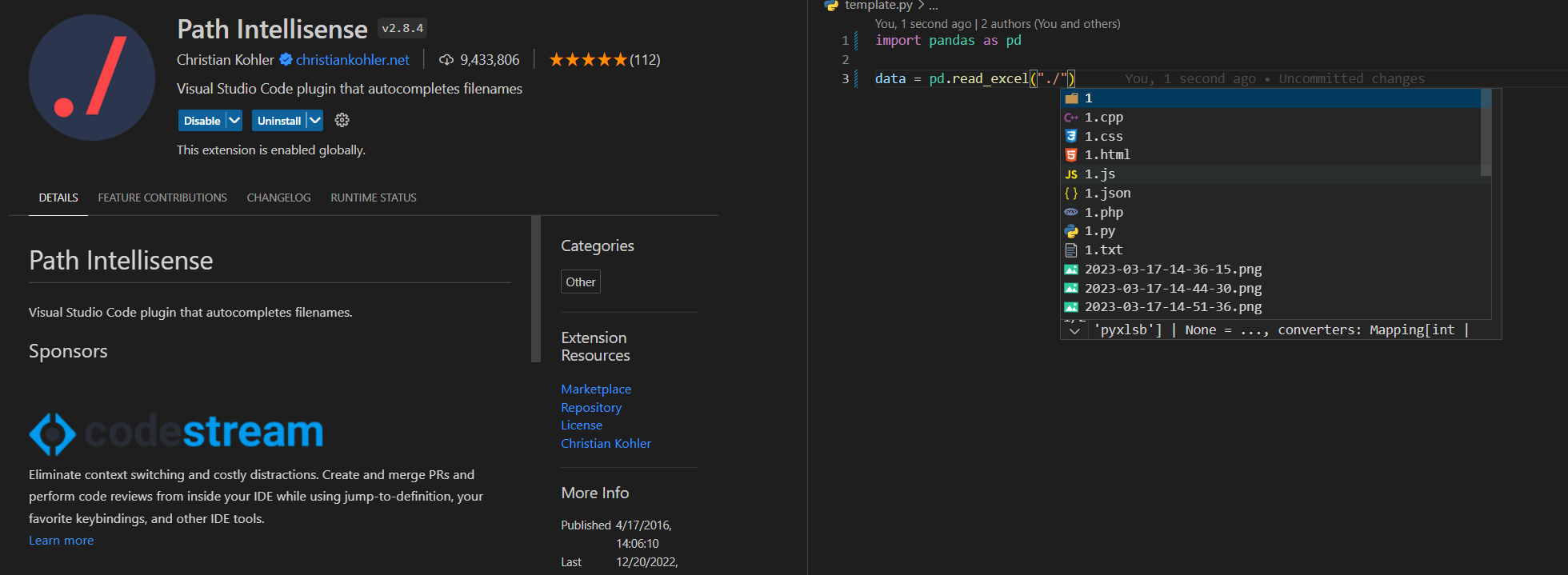
- It's really cool to have this plugin when coding :kissing_heart:
- Coder suitable for frequently reading and writing files .
- When writing the path, it will automatically list the files under the path you want to find .
GitHub Actions Workflow Visual Editor
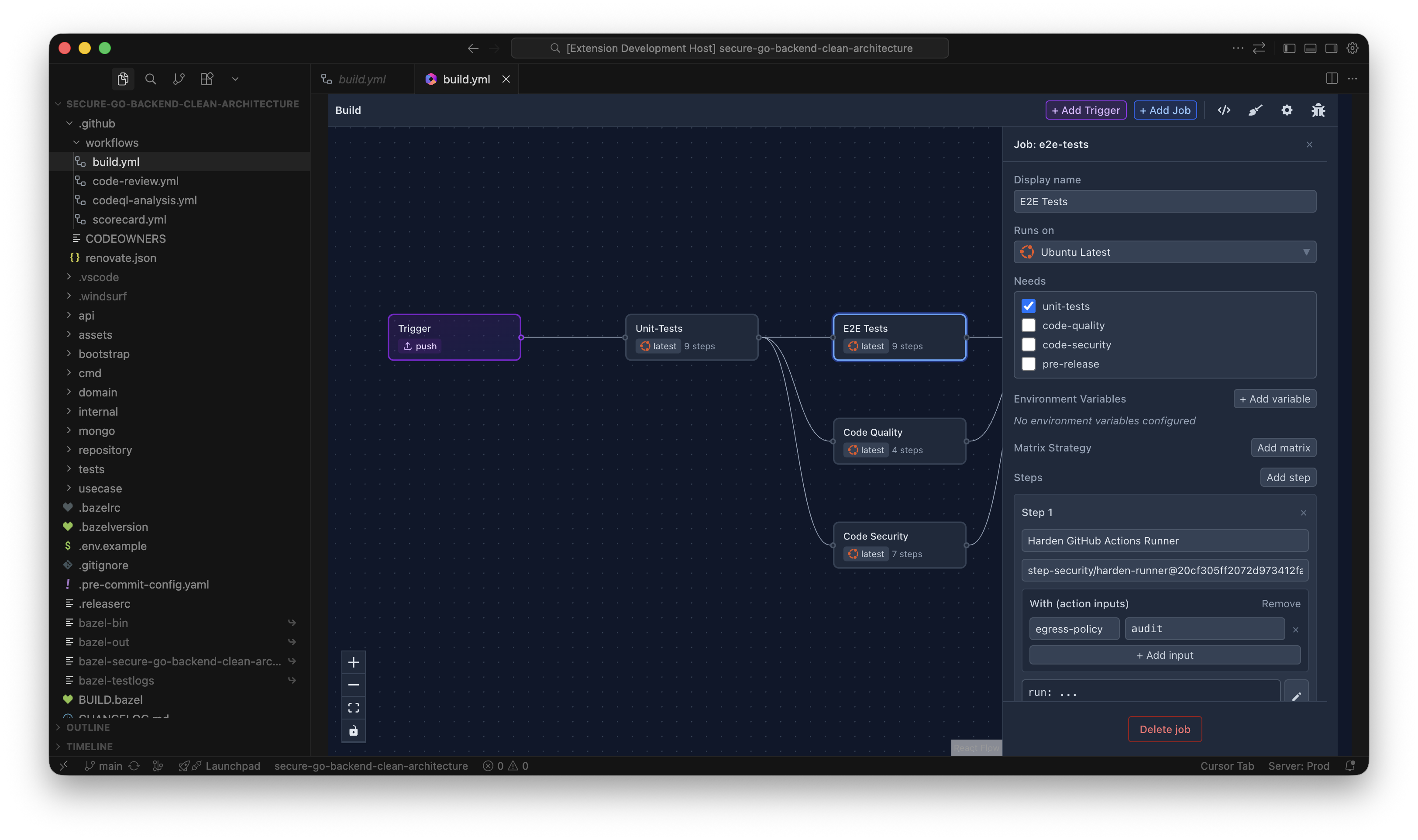
- Easily create or update a GitHub Actions workflow using a visual editor
- No need to edit the YAML file or know GitHub workflows inside out!
- The official GitHub Actions linter checks code validity in real time
:star2:Big data, AI engineer - Jupyter (Python)
The plugins presented here are really powerful!The author knows that many people who use Python are not used to using vscode for many reasons:
- Interactive mode
- View variable data type and variable value (just like in Spyder, Pycharm)
- Execute the code line by line, and execute part of the code (really very practical, better than Debug~:heart_eyes:)
- :pushpin:interactive mode
- :pushpin: View variable data type and variable value (such as Spyder, Pycharm)
- :pushpin: Execute code line by line and Execute part of code (really useful, better than debugging~:heart_eyes :)
If you can understand Chinese, it is recommended to spend 5 minutes to quickly learn how to use the Jupyter plug-in (see link)
Usage:>
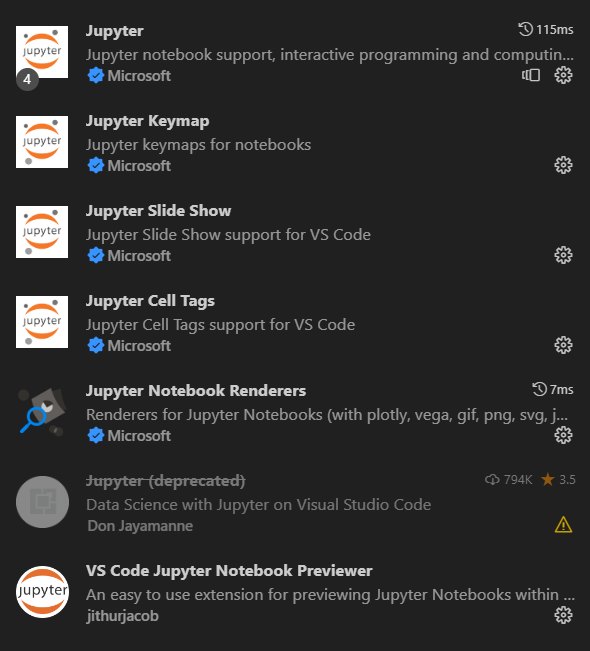
:bulb: Download the following plug-ins (some may not be used, forget it~)>
> >Jupyter,Jupyter keymap,Jupyter slide show,Jupyter cell tag,Jupyter notebook renderes,vs code jupyter notebook previewer
:bulb:Execute code in interactive mode>
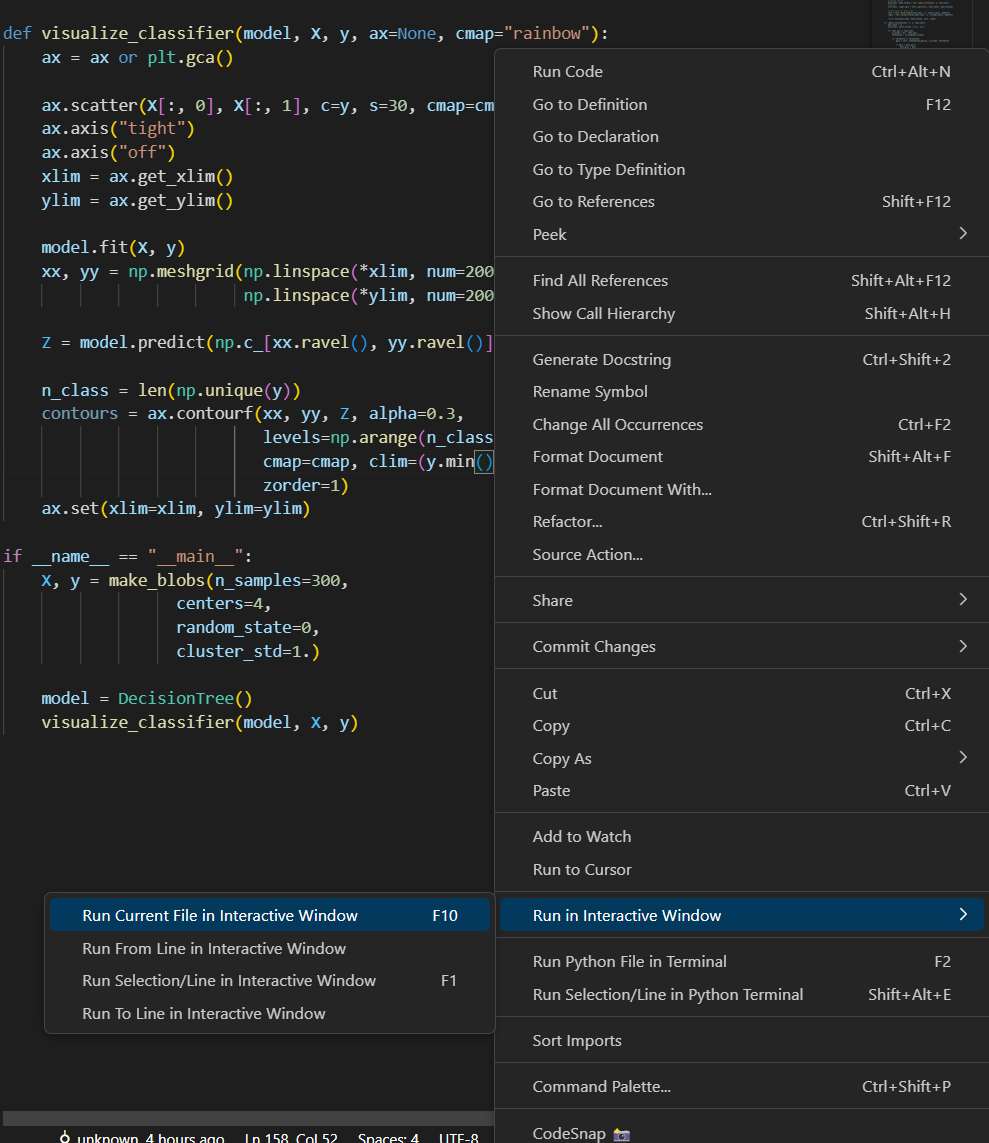
1. right click . in script
2. select Run Current File in Interactive Window
(It is recommended to set a VS Code shortcut key, I set it to F10).
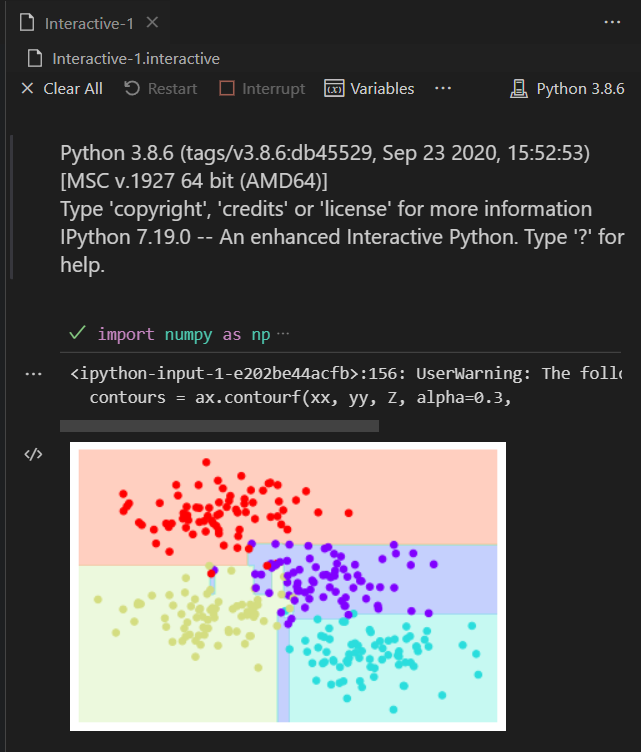
3 . Interactive window will appear after execution of .
>
> >
>
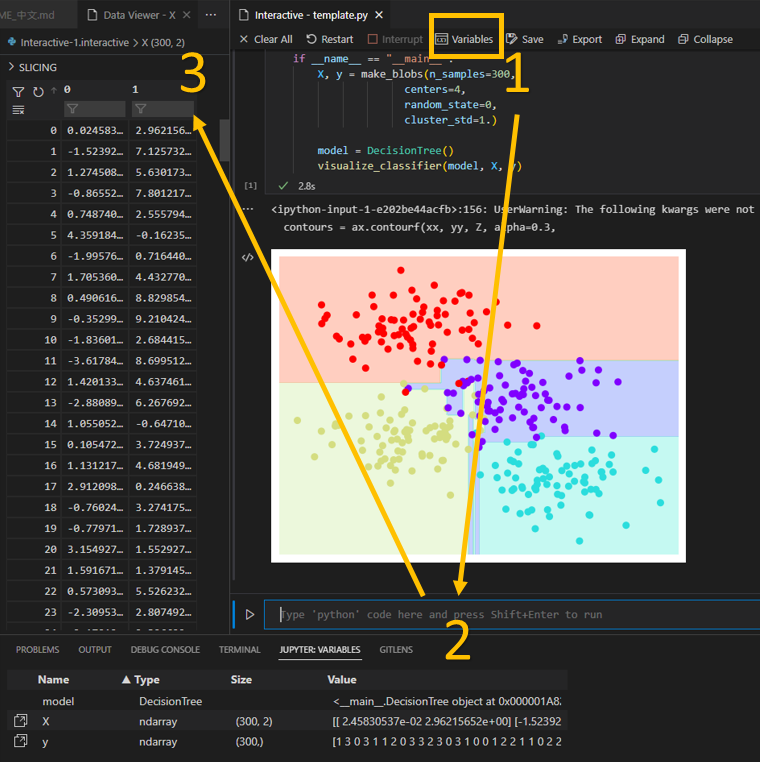
:bulb:View variable data type and variable value (need to be in interactive mode)>
Click Variables. in the interactive window> >
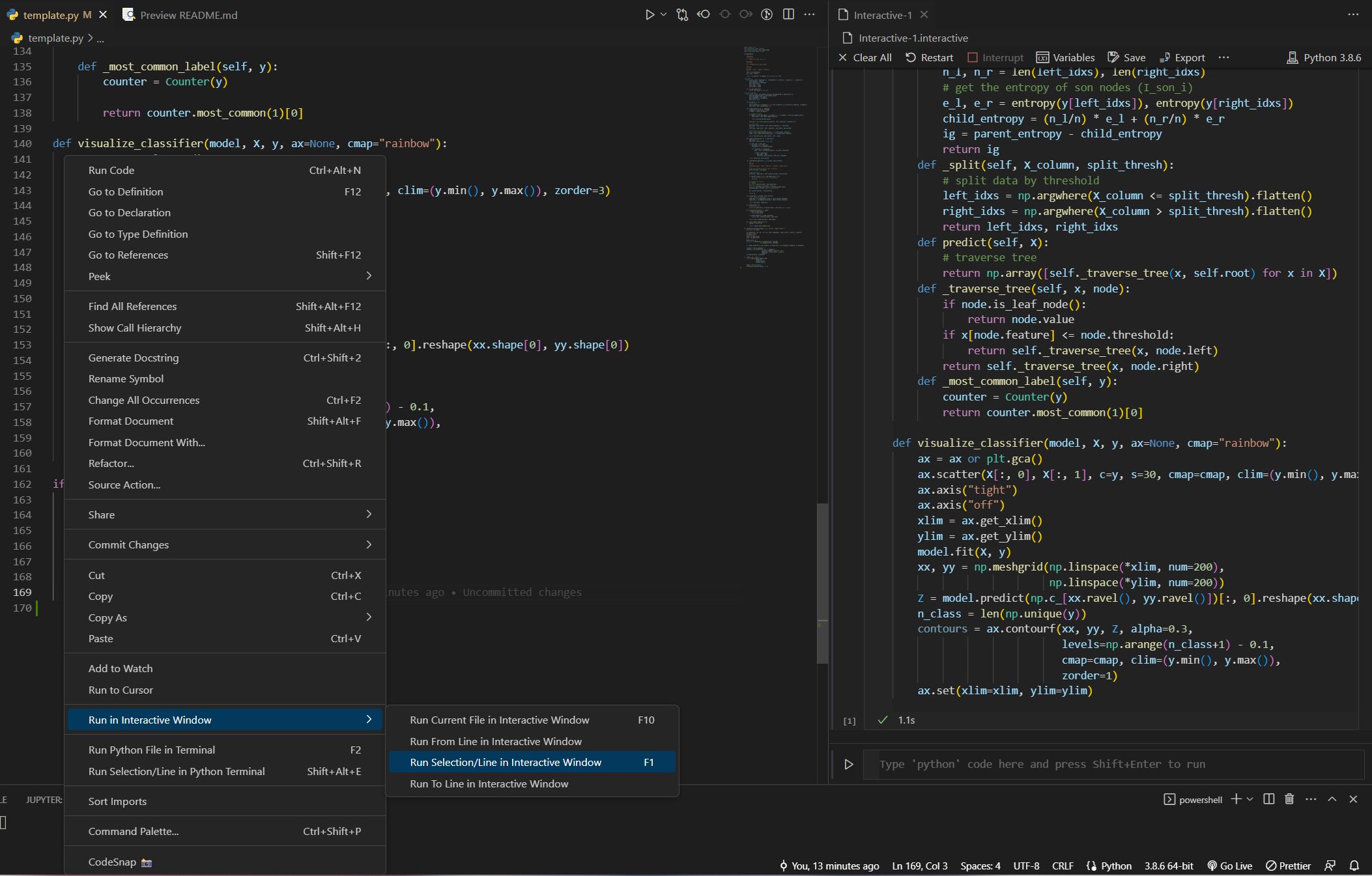
:bulb: Execute line by line or partly>
1. Select the code to execute (can be one or more lines) .
2. right click on selected code .
3 . SELECT run select/row in interactive window .> >
:wave:Git、Markdown Support
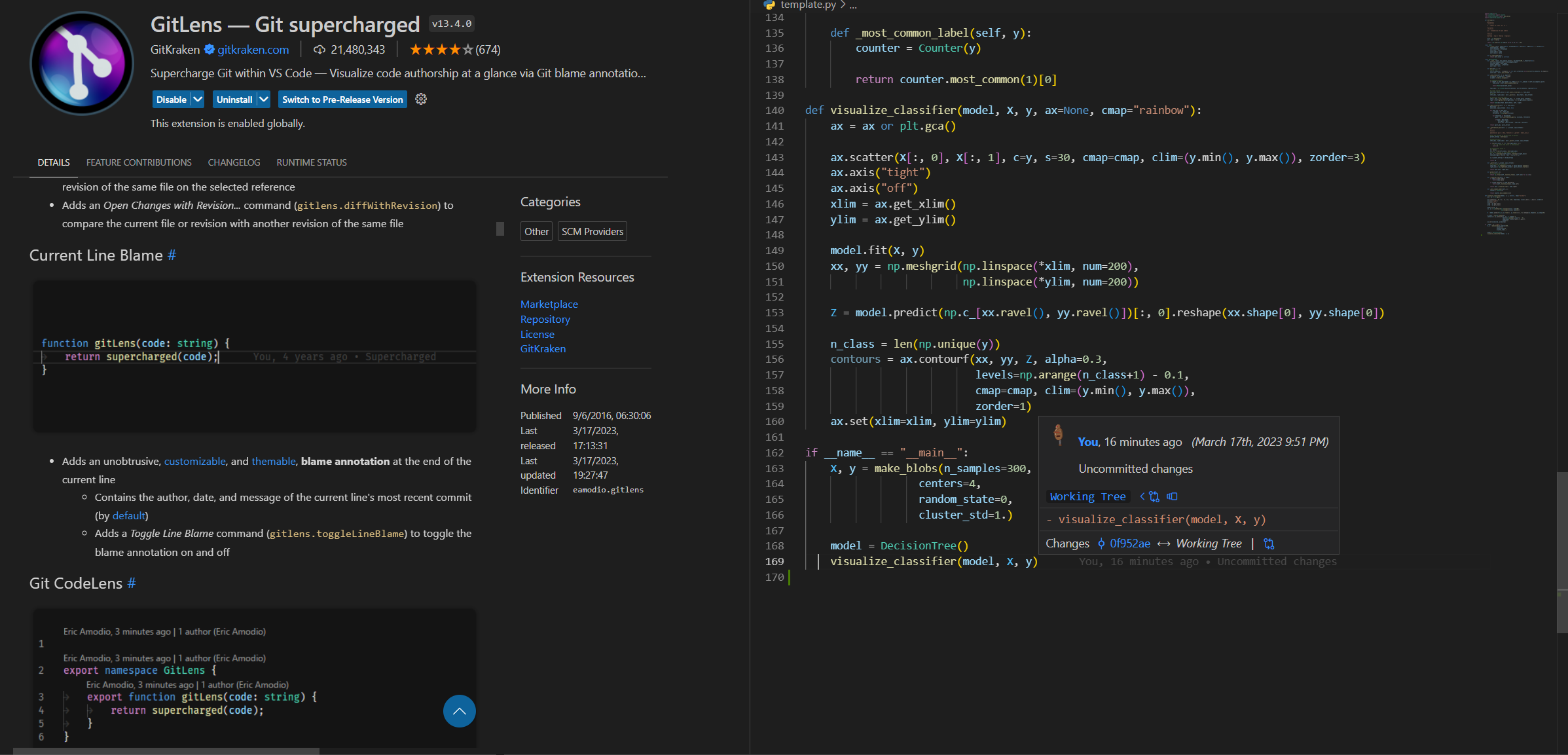
The plugins described below are essential for developers working on Github or Gitlab projects .GitLens
- After downloading, the script code will show which parts were modified, who made the changes, when the . was modified
- Note that the .
170line on the right side of the screen has a green line indicating that there is a new code record (red means deleting the code) . - Remember to track the project with
gitfor this plugin to work .
More for GitLens
- Compare two commits with detailed differences
COMMITS: Select the commit to compare with HEAD (step1~2)
* SEARCH & COMPARE: select changed files (step 3)
* diff: correct file is HEAD (step 4)

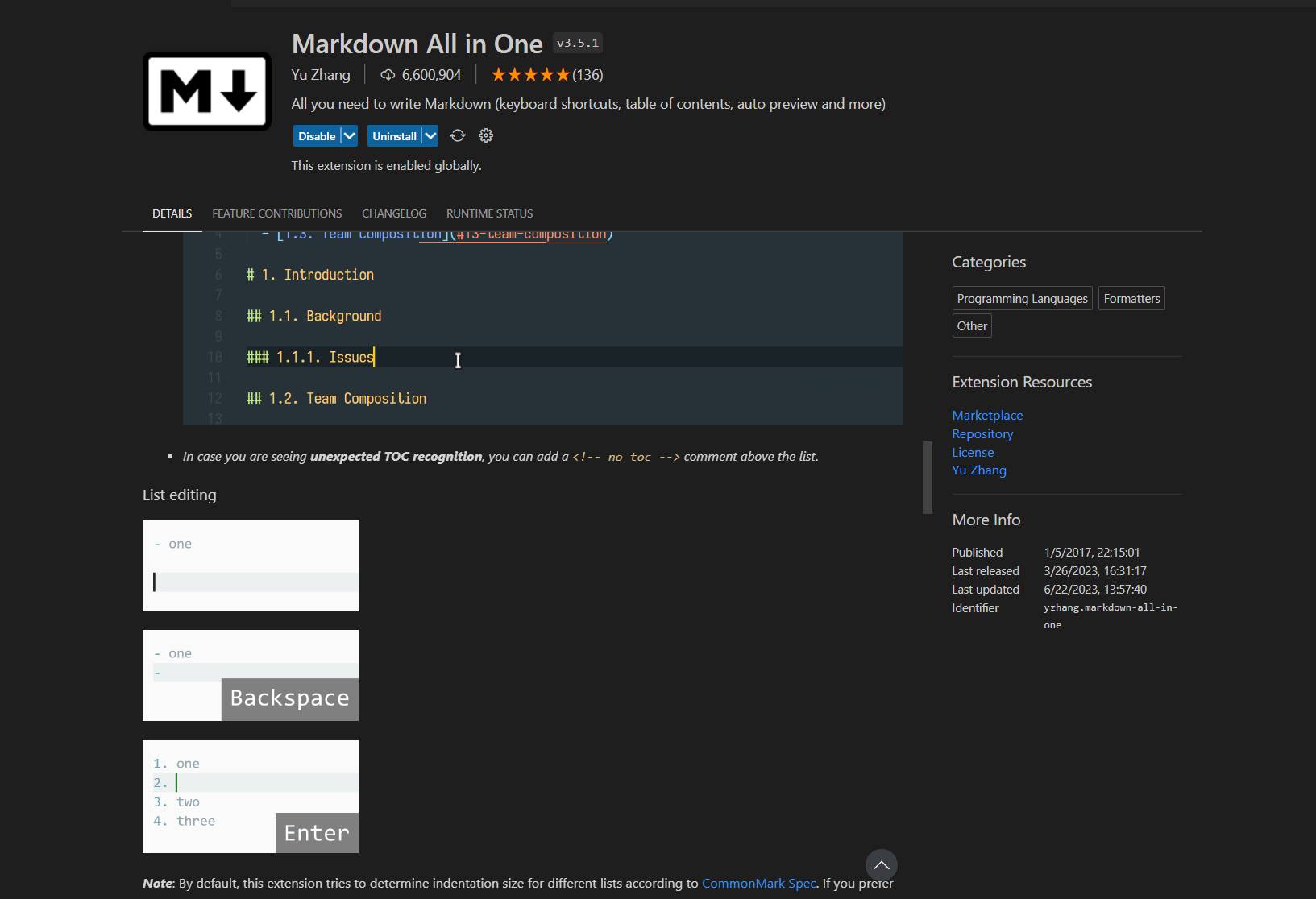
Markdown All in One
- Using Markdown syntax in the vscode editor.
- It provides automatic generation of table of contents.
- It offers special shortcuts for Markdown, such as using
Ctrl+Bfor bold formatting.
Markdown Preview Enhanced
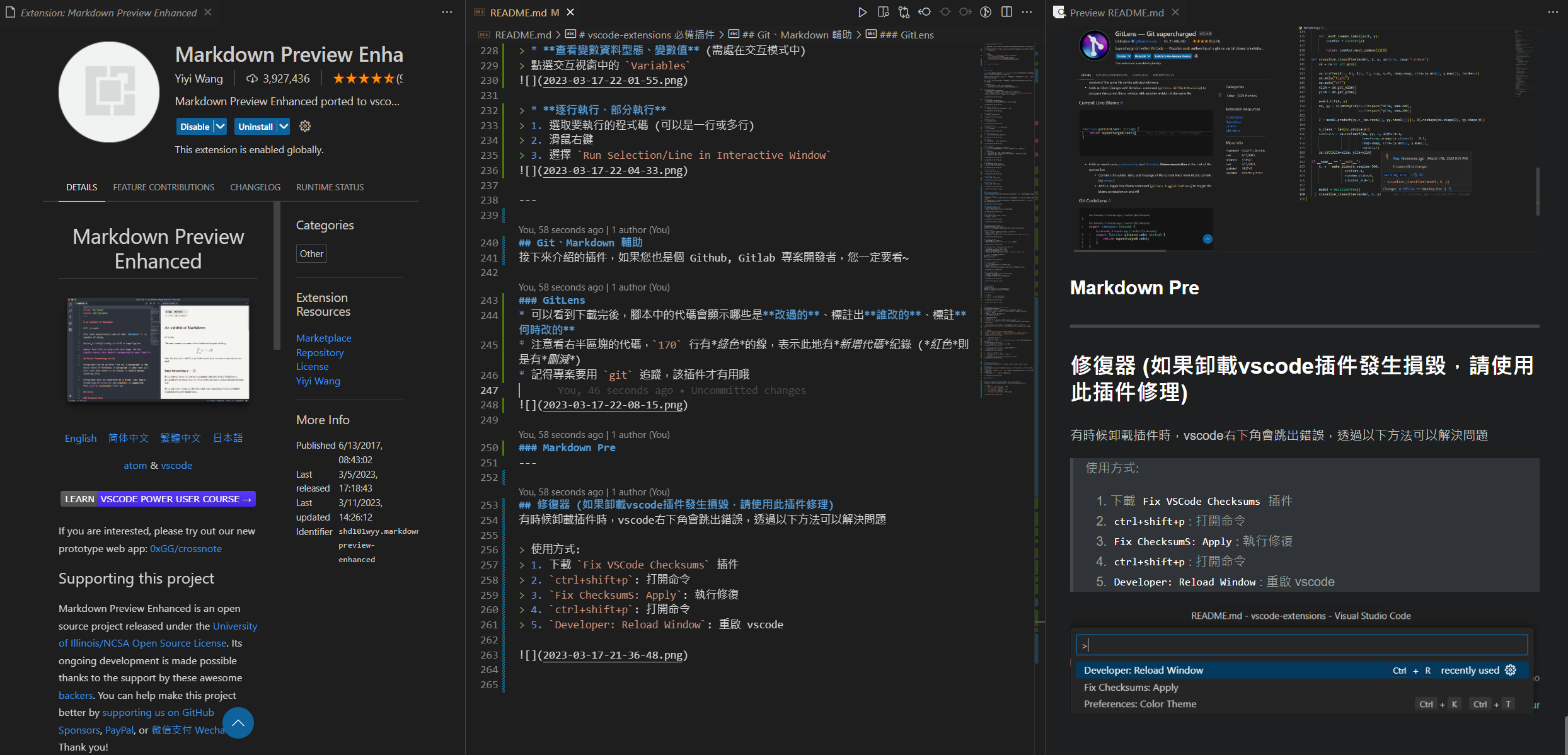
- When writing
.mdfile, you can preview the result . - Press
ctrl+k, thenvto open preview window . - The middle of the figure below is the
.mdfile, and the right is the preview window .
Paste Image
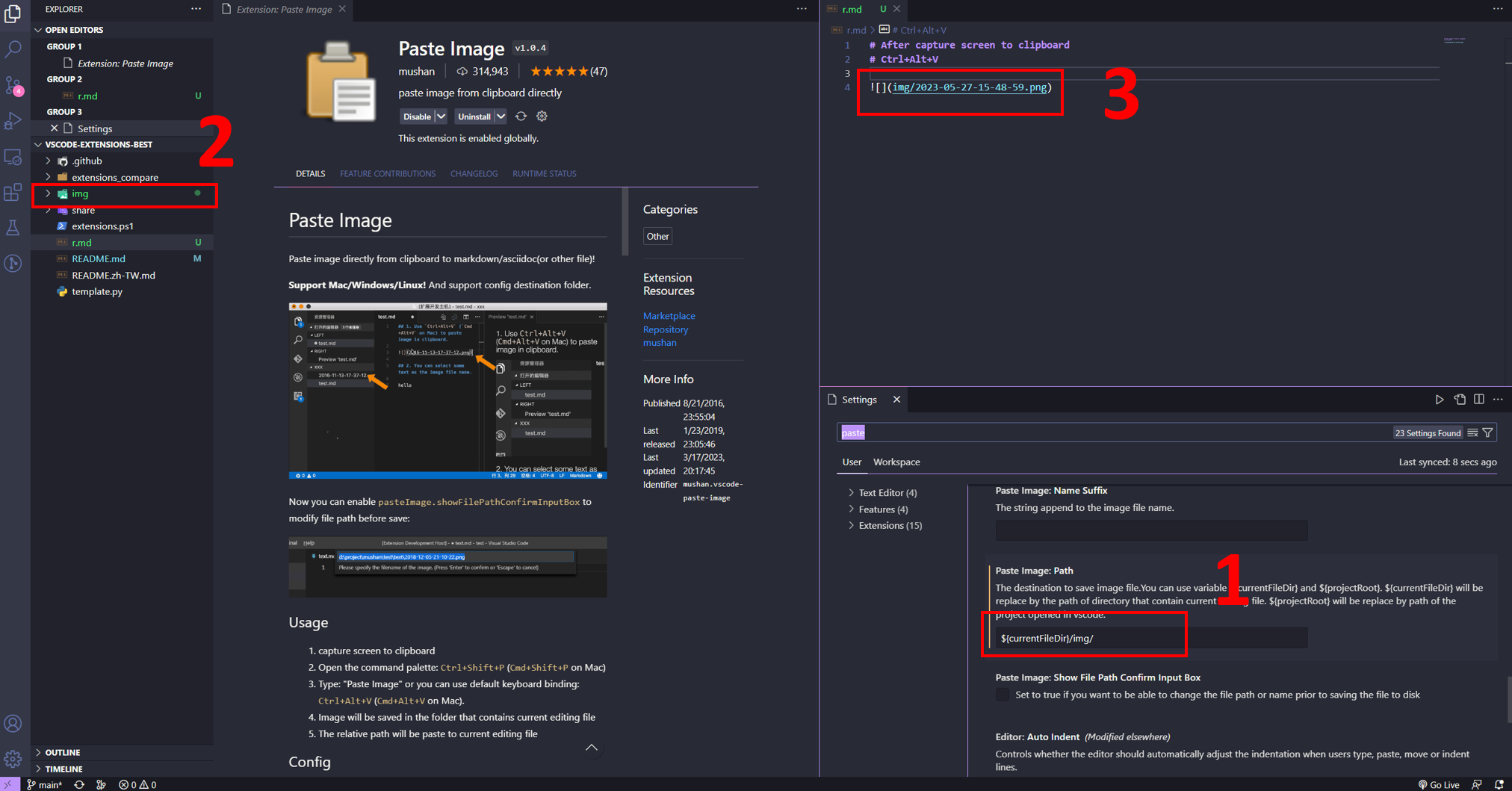
- Paste images directly from the clipboard into markdown/asciidoc (or other files)!
- Usage
Ctrl+Alt+V (Cmd+Alt+V on Mac).
* images will be saved in the folder containing the currently edited file
* Relative paths will be pasted to the current edited file
- You can configure
imagePathin settings.
:computer: Remote WSL & Dev Container
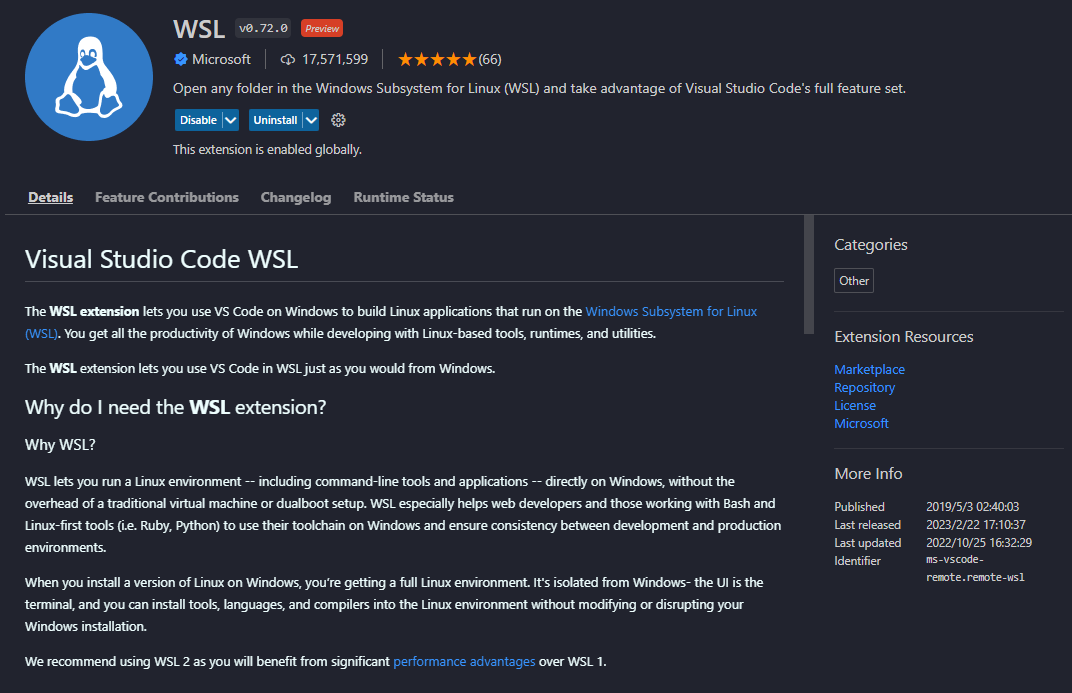
Remote WSL
- vscode will open . in
Windows Subsystem Linuxenvironment - You can edit files in
WSLenvironment in vscode editor without usingvimornano.
Usage:
1. ctrl+shift+p: open command panel .
2 .WSL: New WSL Window: OpenWSLenvironment in vscode .
Dev-Container
- Using
Docker, the entire development environment inside vscode can run in the container, including editing, terminal, debugging, executing .
Node.js,Python,Java, etc. and other development tasks, only need to installDockerand vscode, no need to install the corresponding runtime and compiling software .

:computer: Remote-SSL
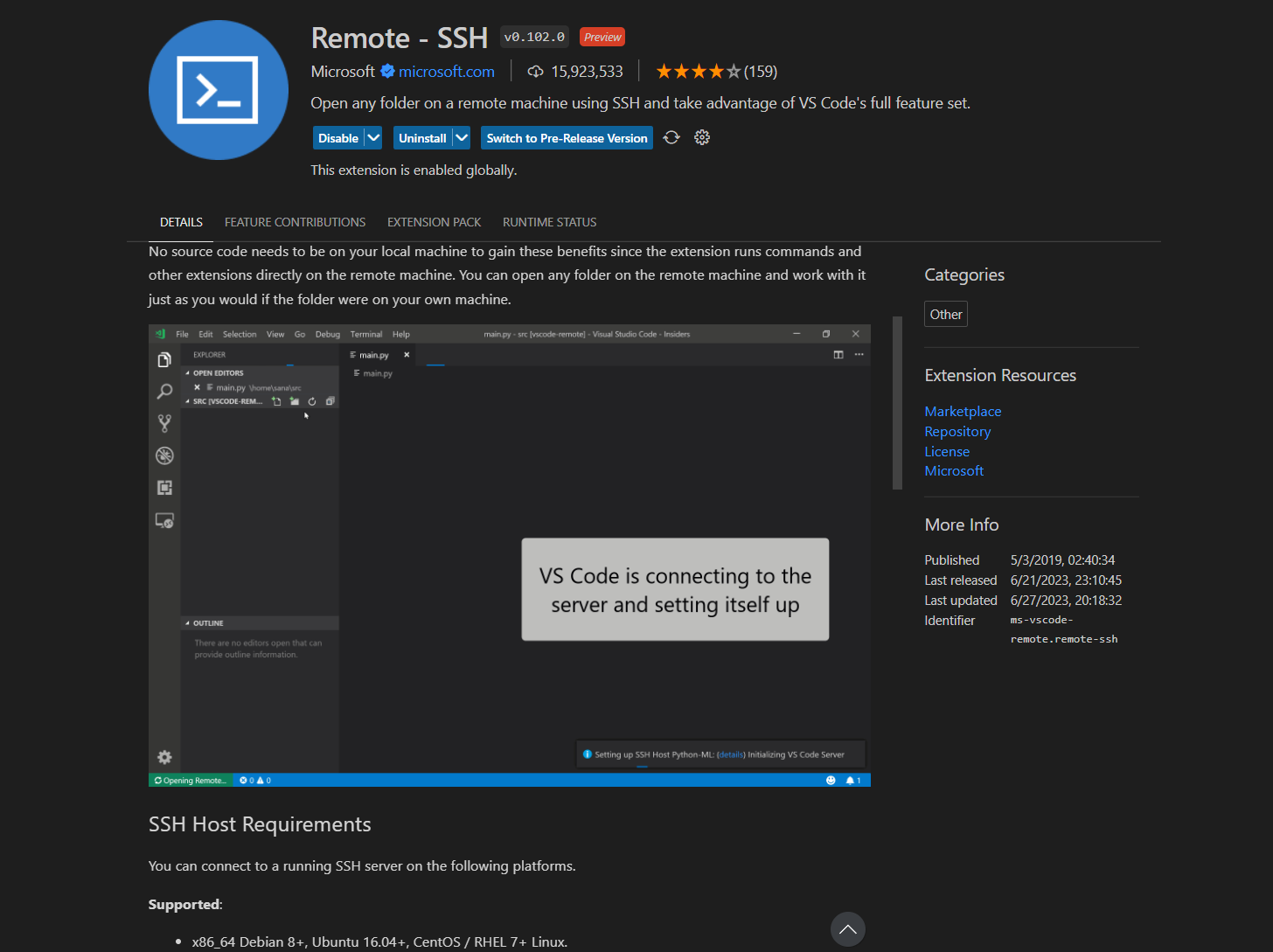
The Remote - SSH extension lets you use any remote machine with a SSH server as your development environment. This can greatly simplify development and troubleshooting in a wide variety of situations. You can:
- Develop on the same operating system you deploy to or use larger, faster, or more specialized hardware than your local machine.
- Quickly swap between different, remote development environments and safely make updates without worrying about impacting your local machine.
- Access an existing development environment from multiple machines or locations.
- Please note that if you are using the Windows operating system and experiencing issues with SSH, receiving the following error:
ssh: could not resolve hostname, you need to add your Host and Hostname to theC:/Windows/System32/drivers/etc/hostsfile:
<Host> <Hostname>Next, let's take an example of connecting VS Code to Colab:
Connect VSCode to Colab
Please refer to the official documentation for instructions:
https://colab.research.google.com/github/JayThibs/jacques-blog/blob/master/_notebooks/2021-09-27-connect-to-colab-from-local-vscode.ipynb
Remeber you only need to perform steps 6, 8, 9, and 10 once
- Open Colab.
- Execute the following code to connect to Google Drive. You will see your Drive file manager appear next to Colab.
from google.colab import drive
drive.mount("/content/drive")- Create a file named
config.envin your Google Drive, for example:
# /content/drive/MyDrive/Colab/config.env
PASSWORD=1234567- Read the
config.envfile in Google Drive to obtain the password needed for SSH later.
# !pip install python-dotenv --quiet
    import dotenv
    import os
dotenv.load_dotenv(             os.path.join('/content/drive/MyDrive/Colab/', 'config.env')     )     password = os.getenv('PASSWORD')
- Perform SSH using Cloudflared to obtain the remote host (URL that will be used later).
# Install colab_ssh on google colab
    # !pip install colab_ssh --upgrade --quiet
    from colabssh import launchsshcloudflared, initgit_cloudflared
    launchsshcloudflared(password)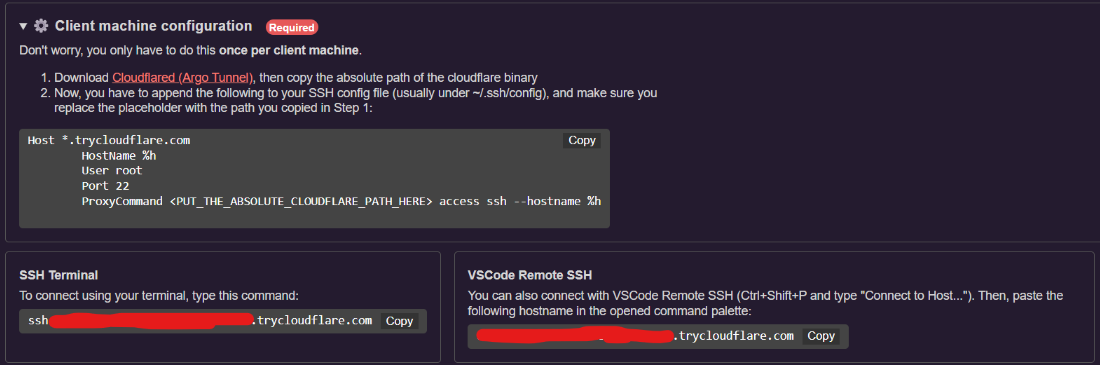
- Download Cloudflared to any location on your local machine. link
- Install the
Remote-SSHextension in VS Code.
- Use the VS Code command
Ctrl+Shift+Pand enterremote-ssh: connect to host.
- Select
configure ssh hoststhenc:\users<name>.ssh\config.
- Paste the following code, making sure to fill in the path with the location where Cloudflared was downloaded!
Host *.trycloudflare.com
        HostName %h
        User root
        Port 22
ProxyCommand <PUTTHEABSOLUTECLOUDFLAREPATH_HERE> access ssh --hostname %h- Use the VS Code command
Ctrl+Shift+Pand enterremote-ssh: connect to host. - Select
add new ssh hostand enter the URL from step 5. - Enter the password from
config.env.
- After creating new vscode window, choose the OS System.
- Finished!
:wrench:Fixer (Fix Vscode Corrupt)
Sometimes, when uninstalling the plugin, the following error message will appear in the lower right corner of the VS Code window:
You can solve this problem with:
Usage:
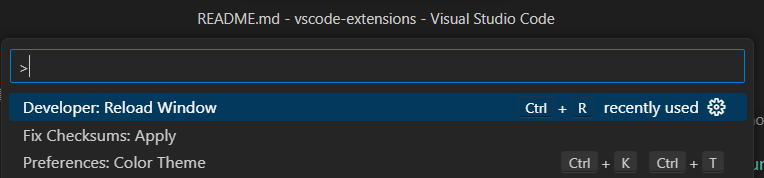
1. Download Fix VSCode Checksum Plugin .
2. ctrl+shift+p: Open command palette .
3. Fix ChecksumS: Apply: perform repair .
4. ctrl+shift+p: Open command palette .
5. Developer: Reload Window: restart VS Code.
:rocket: Copilot
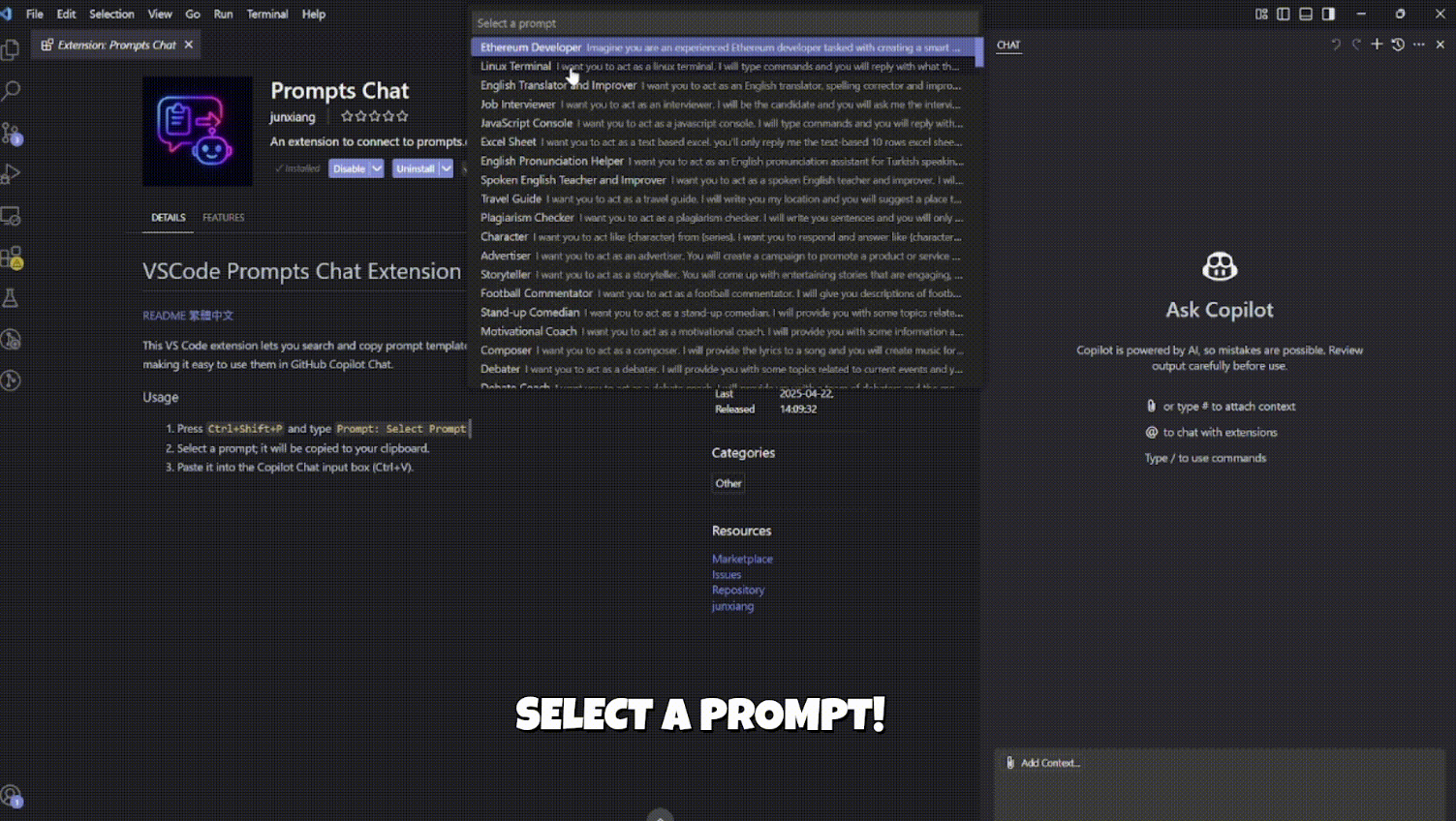
AI-assisted development tools similar to ChatGPT make everyone faster in the development processVSCode Prompts Chat Extension
- This VS Code extension allows you to search and copy a large collection of open-source prompt templates from prompts.chat directly in your editor, making it easy to paste them into GitHub Copilot Chat.
- Instructions
Ctrl+Shift+P and type Prompt: Select Prompt.
2. Select the prompt you want, and the content will be automatically copied to your clipboard.
3. Paste it into the Copilot Chat input box (Ctrl+V).