
JavaScript dataflow graph editor
blocks.js
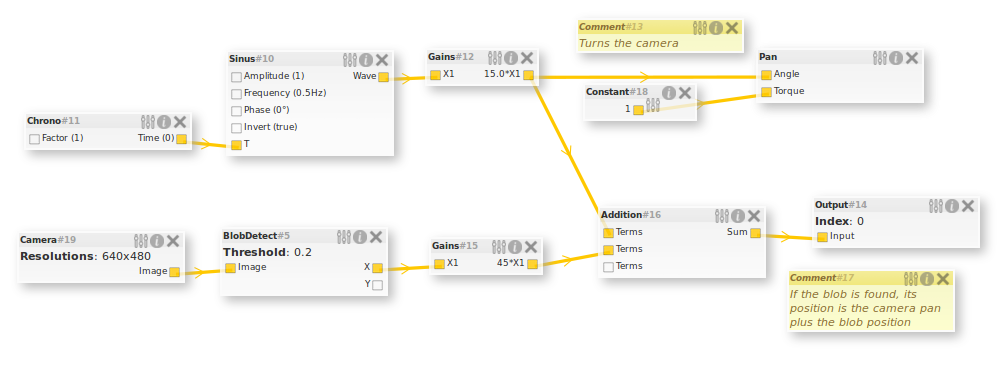
JavaScript dataflow graph editor
blocks.js is a JavaScript visual editor for editing dataflow graph, it can be used to edit processes graphs.
Note that this is just a flexible front-end editor, there is no back-end here.
You can try a live demo.
Overview
blocks.js is feeded using blocks specifications, using meta informations explaining its fields, name and behaviour.
It allow the user to edit the blocks scene.
Then, thanks for instance to the export(), method, you can get back the edited scene. When you load the blocks, you can also load back a scene.
Using blocks.js
Downloading
If you want to use it, you'll have to fetch the code, either by cloning this repository, or by downloading it.
Requirements
blocks.js uses:
- jQuery
- jquery-json for JSON export
- jquery-mousewheel for scrolling zoom
- jquery-svg for edges rendering
- jquery-formserialize for forms serialization
- jquery-fancybox for modal parameters edition
<!-- Third party libraries -->


<link rel="stylesheet" type="text/css" href="build/fancybox/jquery.fancybox.css" />
Then, you'll have to load blocks.js and blocks.css:
<!-- blocks.js -->

<link rel="stylesheet" type="text/css" href="build/blocks.css" />
Running it
Here is a simple example:
// Instanciate Blocks
var blocks = new Blocks();
// Registering a simple block, with an input // and an output blocks.register({     name: "Test",     fields: [         {             name: "Input",             attrs: "input"         },         {             name: "Output",             attrs: "output"         }     ] });
// Running blocks on the div with the name "blocks" blocks.run("#blocks");
Have a look at simple.html.
Blocks
The blocks is an object containing:
name: the name of the blockfamily: the block family, this will be used to put it in the right
module: the block module, act like a namespace and avoid name collisionsdescription: a description of what the block does, to help the usersize: the size of the block, can be ̀small,normalor a certain
class: additionals CSS classes that will be added to the blockfields: an array listing of the block fields, see below
Fields
A field can be an input, output and/or an editable parameter of the block. It is an object containing:
name: the name of the field, should not contain special charslabel: the label of the field, which will be printed in
attrs: a string containg field attributes, can containinput,output
editable. For instance: "editable input"
type: the field type. See typing.defaultValue: the default value of the field, that will be used if it's
hide: do not display the editable field in the block informationhideLabel: do not display the editable field label in the block informationcard: the cardinality of the input/output. This can be a string like"0-3"
[0,3], it represents the minimum and the maximum edges that
can be connected to the I/O.
dimension: the number of connection on the same field can depend on another
Do not hesitate to have a look at the repository demo, in the demo/̀ directory.
Scene
The scene is an easy-to-parse object containing:
- blocks
: the scene blocks - edges
: the scene edges
Scene blocks
All scene block is represented with:
- id
: its numeric ID - x
andy, the position of the block in the scene - type
: the block type name - module
: the block type module name - values
: an array containing the values of all its editable fields
Scene edges
A scene edge is represented with:
- id
: its numeric ID - block1
: the ID of the block where the edge starts - connector1
: the connector of the block where the edge starts - block2
: the ID of the block where the edge ends - connector2
: the connector of the block where the edge ends
Scene connectors
A connector is an array containing 2 or 3 elements:
- A string, input
oroutput, explaining if the connector is outgoing of
- The name of the block field, in lower case
- Optionally, the index for variadic fields
Typing
Each field can be typed. Basic types (string, choice, longtext, bool, int) are rendered as form inputs, all other unknown types are rendered as a simple text input. (Note: for choice type, you can define choices adding a ̀choices entry in the block field).
If the type ends with [], it is considered as an array, the Add & Remove buttons will be added when editing.
By default, the different types are not compatibles, and thus can't be linked together. You can however tell blocks.js that some types are compatible using:
<pre><code class="lang-js">// Tells blocks.js that string and number are compatible and can be linked blocks.types.addCompatibility('string', 'number');
// Tells blocks.js that an image can be converted to a string, however, the // string can't be converted to an image blocks.types.addCompatibilityOneWay('image', 'string');</code></pre>
Variadic I/Os
Some I/Os can be variadic, think of a block that would output the n first users of a database, you could define it this way:
<pre><code class="lang-js">blocks.register({ name: "TopUsers", description: "Outputs the n first users of the database", fields: [ { name: "n", type: "int", hide: true, defaultValue: 3, attrs: "editable" }, { name: "users", label: "User #", dimension: "n", attrs: "output" } ] });</code></pre>
Here, the number of outputed users will be editable, using the n editable field. Note that the # will be replaced by the number of the output.
Example
Here is an example that uses blocks.js:
Contributing & hacking
The development takes places in the src/ directory. There is a Makefile using uglifyjs command line to create the build.
You can use index-dev.html to test blocks.js using its sources, and index.html to try it in build mode.
The build/` directory of this repository will not be updated on every commit, but must contain a recent snapshot of the repository.
License
blocks.js is under MIT license. Have a look at the LICENSE file for more information.


