
Setup AI Telegram Bot miễn phí bằng OpenClaw + Google Gemini + Docker
🦞 OpenClaw Setup
One Web UI to scaffold, deploy & run free multi-bot AI assistants — zero terminal required
Run one command → open the dashboard → your bot is live. Windows · macOS · Linux · VPS — Docker-powered, auto-installed for you.




 Tiếng Việt ·
  English
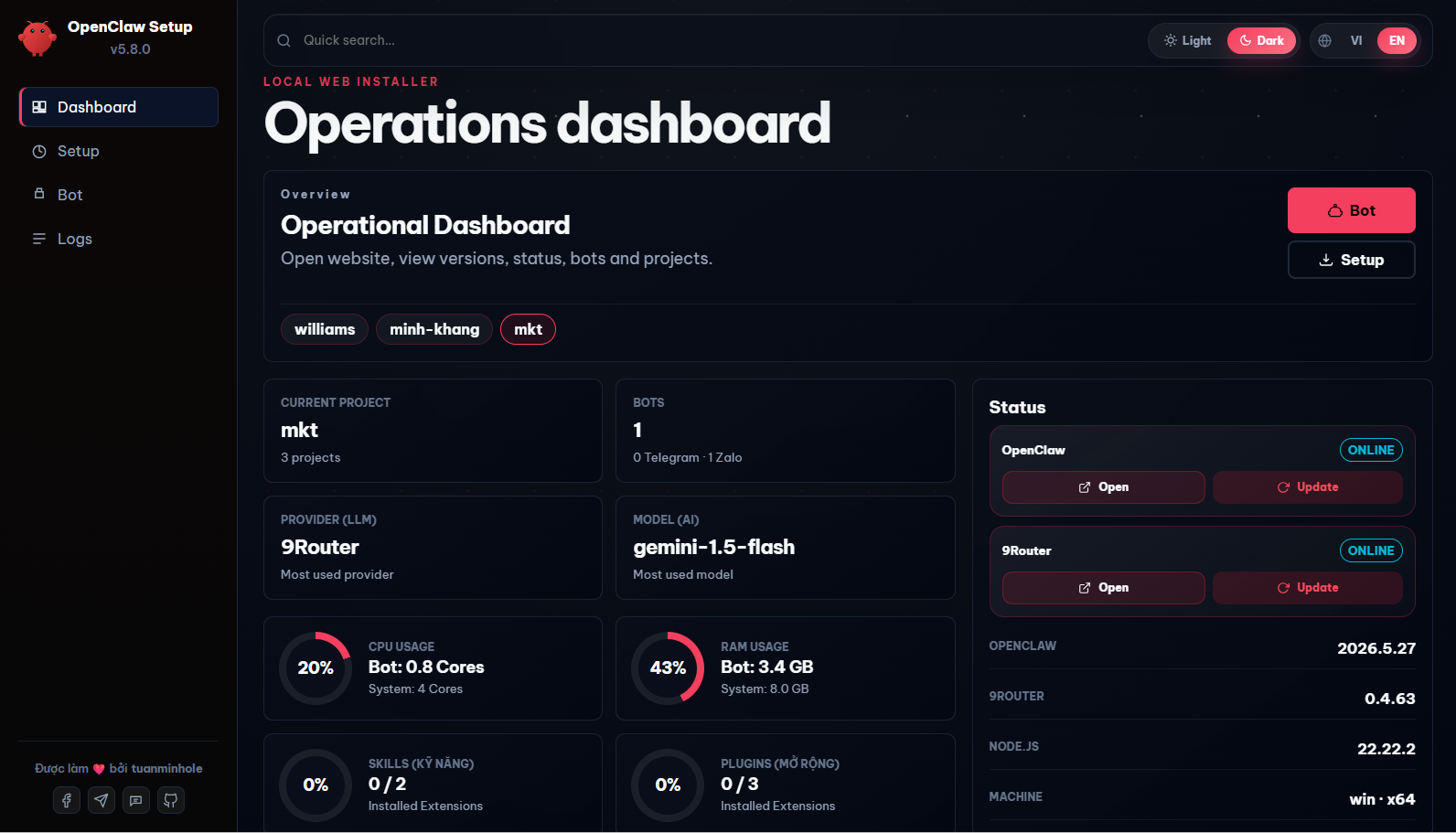
💡 Open-source & free. A management dashboard that automates 100% of project scaffolding, deployment, and control for AI bots on Telegram · Zalo · Facebook Messenger (Discord & Lark soon) — set up in minutes, no coding needed.
🆕 What's New in v5.11.0
- 🚀 Facebook Messenger, 1-click: the
fb-messengerplugin is now public on ClawHub and installs straight from the dashboard — create a Messenger bot, open Bot → Plugins, and hit Install on theopenclaw-fb-messengercard. Webhook + Graph API, auto User→Page token, HMAC verify. - 🐳 Docker-only, rock-solid: dropped the native (non-Docker) install path to focus on the Docker flow that runs flawlessly and stably across Windows / macOS / Linux / VPS, with cross-OS Docker auto-install.
- 🖥️ Chrome-debug on headless VPS: the browser-automation Chrome-debug relay now works on a headless VPS (bridge-IP-scoped, auto-opens ufw); the bot file editor also saves non-
.mdtext files.
Previous: What's new in v5.10.1
- 🔧 Docker fixes: plugin updates keep the zalo-mod dashboard port, and granted disk/folder mounts (including whole Windows drives like
D:\) now survive a rebuild instead of being dropped. - 🔄 Native auto-restart (process supervision): native installs now register the gateway + 9router as OS services (macOS launchd, Linux systemd, Windows detached) that restart on crash/reboot — mirroring Docker's
restart: always. Best-effort, falls back to a plain detached process. - 🔐 9router first-install sync — fixed: no longer permanently disables "Require login". The generated
sync.jslogs in with 9router's default password123456, builds thesmart-routecombo from active providers once, then stops. Require login stays ON (change the password later);/v1model calls are unaffected. - 📁 Native workspace path — fixed: agent
workspaceis now relative, so persona/memory/skills resolve correctly on native installs (previously a container-absolute path pointing nowhere on the host). - 🧩 Config
metano longer clobbered: the generator stops seedingmeta, so OpenClaw owns it — prevents config parse failures from a version-rangelastTouchedVersion. - 💅 Dashboard UI polish: Bot/Setup hero shortcuts, plugin version badges, cleaner feature-toggle layout, responsive/mobile fixes, and no more duplicate page title on the dashboard tab.
Previous: What's new in v5.9.0
- 🧠 TencentDB Agent Memory — 1-click install: New memory plugin in the UI. A 4-tier (L0–L3) layered-memory + context-compression engine that keeps long sessions coherent and cuts token usage by up to ~61%. Fully local (SQLite), no API key, Docker-ready.
- ⚡ Token-lean defaults for every new bot: Ships with context pruning (cache-TTL) +
safeguardcompaction — cheaper & sharper long conversations with zero tuning. - 🎯 Per-bot & per-channel Skills/Plugins: Install/enable/disable a skill for one bot only (no more leaking across bots); the panel shows only what fits each channel (Zalo / Telegram / Messenger).
- 📤 Reliable file sending on Zalo & Telegram: Bots now know the correct outbound ritual (
media/outbound+messagetool) and to use modern formats like.xlsx— no more "the file won't send". - 🐳 One-click Docker controls: Restart / Rebuild the bot container and grant it disk access (mount any host folder at
/mnt/<name>, cross-OS) right from the dashboard — restart your bot without touching the command line. - ⚡ Faster Dashboard & Bot pages: Runtime/version detection now probes once and is cached instead of re-running on every page load — bot status dropped from ~4s to ~3ms on repeat loads. Cache auto-invalidates on update/rebuild/restart/install.
Previous: What's new in v5.8.24 (Launcher Auto-Update)
- Fix: Cached Launcher Out-of-Sync: Automatically detects if the running launcher (e.g. downloaded via
npx) has a newer/different version than the cached installation inside~/.openclaw-setup, and automatically triggers an upgrade to match.
Previous: What's new in v5.8.23 (Memory Skill Integration)
- New: Long-Term Memory & Skill Auto-Evolution (learning-memory): Pre-integrates the autonomous memory and learning skill from ClawHub.
MEMORY.md in real-time.
- Enables agents to self-package and compile newly acquired behaviors and workflows into reusable .js and SKILL.md files directly within the ./skills/ folder, allowing the bot to organically evolve its capabilities.
- Implements OS-agnostic post-install triggers on all platforms (Docker, Windows, macOS, Linux) without requiring manual setup.
- New: UI Skill Toggle: Added the "Siêu Trí Nhớ Dài Hạn" (learning-memory) toggle option directly to the Setup Wizard interface with full installation logic support.
Previous: What's new in v5.8.22
- Infographic Poster Generator Skill: Integrates automatic infographic and poster generation via 9Router API. Automatically generates the helper script
image-generator.js(synchronizing API credentials fromopenclaw.json) and a comprehensiveSKILL.mdguiding agents on styling rules, Vietnamese font support, layouts, and image generation syntax. - Zalo Sticker & Auto-Tag Skill:
@Name anymore, the system handles it).
- Enables agents to dynamically send Zalo stickers by appending [Sticker: <keyword>] at the end of their text responses.
- Automatically maps emotional keywords (such as love, haha, ca khia, angry, thank you, etc.) to Zalo sticker IDs.
- Generates the patch script mentions.js and a dedicated SKILL.md inside the agent's workspace.
- Polish: Simplified TOOLS.md generation: Streamlined the
TOOLS.mdgenerator to output a concise, static guide focusing on general principles and referencing the./skills/directory. - Polish: Standardized Reference Docs list in AGENTS.md: Updated the reference docs list in the generated
AGENTS.md(for both single and relay variants in Vietnamese and English) to match the new structure, removing obsolete files (TEAMS.mdfor single-bot,BROWSER.md) and standardizing descriptions to keep exactly 9 core documents.
✨ Features
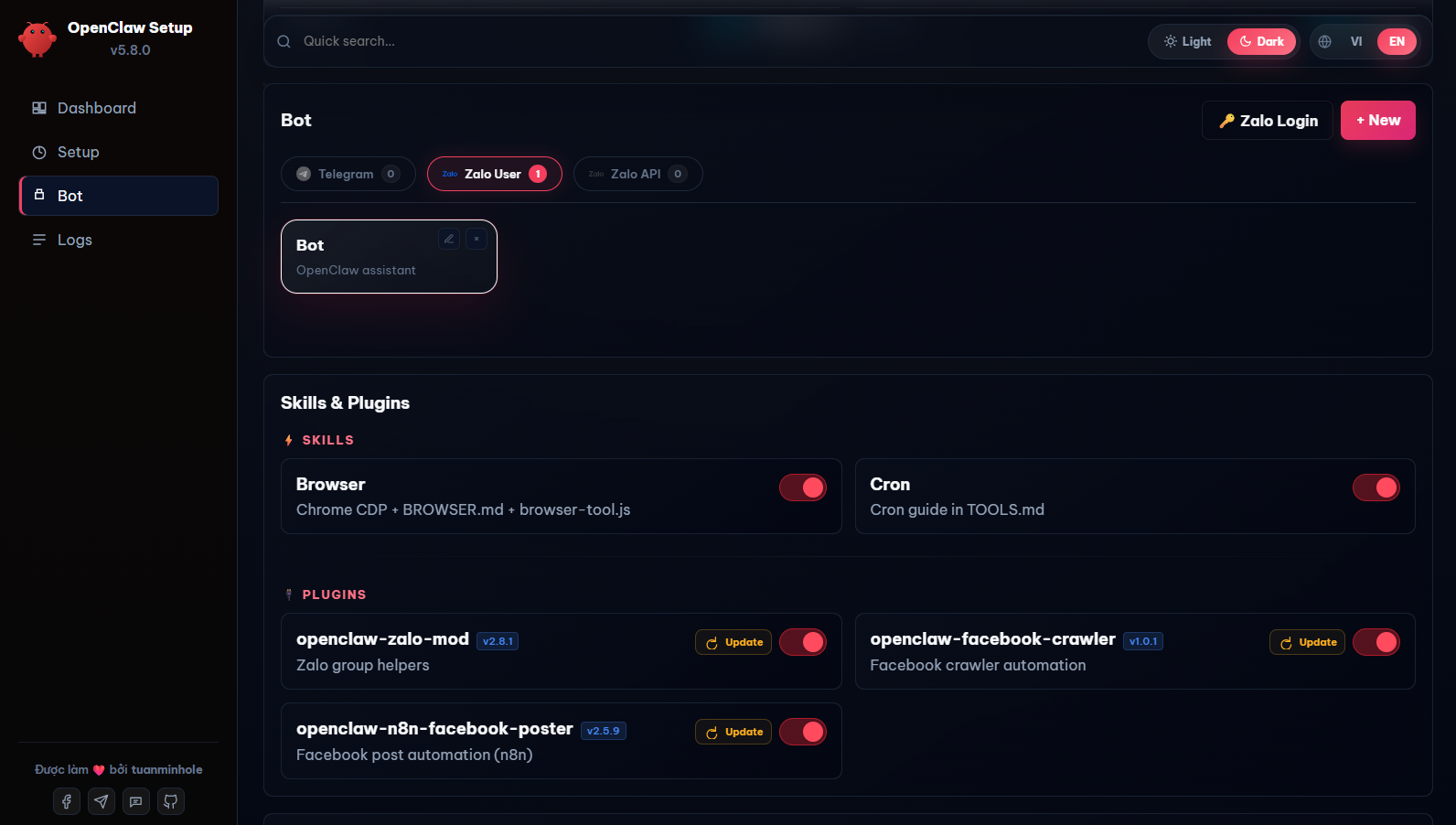
- 🤖 Multi-Channel — Telegram (single or multi-bot relay), Zalo Bot API, Zalo Personal, and Facebook Messenger (Discord & Lark coming soon).
- 🧑🤝🧑 Multi-Bot Team — Run multiple Telegram/Zalo bots simultaneously with synchronized workspaces and teamwork.
- 🧠 Unified AI Routing via 9Router — Easily route messages to Google Gemini, Claude, GPT-4o, OpenRouter, and Ollama (local offline models).
- 🧩 Built-in Skills — Web Search, Browser Automation (Chrome CDP), and Cron/Scheduler tasks.
- 🔌 Integrated Marketplace — Install advanced plugins (like
openclaw-zalo-mod, Facebook Crawler...) with a single click. - 🔀 9Router Integration — Open-source OAuth-based AI proxy that gets you up and running for free without individual API keys.
- 🔒 Safe & Private — All configurations and API keys are stored locally on your own machine.
🗺️ Quick Start
1️⃣ Method 1 — Quick install (Recommended)
Open your terminal and run this single command (works on macOS, Linux & Windows — needs Node.js ≥ 22):
npx github:tuanminhhole/openclaw-setupIt downloads the wizard, starts the local server, and opens the Setup UI in your browser at http://127.0.0.1:51789.
2️⃣ Method 2 — Manual clone (for developers)
For contributors who want the full source. Run each line in order:
git clone https://github.com/tuanminhhole/openclaw-setup.git
cd openclaw-setup
npm install
npm start
Then open http://127.0.0.1:51789 if the browser doesn't open by itself.
⚠️npm install/npm startonly work inside the clonedopenclaw-setupfolder. If you used Method 1 (npx), you did not clone the repo — use the reopen command below instead.
🔁 Reopen the UI later
The first launch automatically creates a short openclaw-ui command for your OS (zsh/bash on macOS & Linux, PowerShell on Windows). Next time, just open a new terminal and run:
openclaw-uiManual command (fallback — also no re-download)
# macOS / Linux
OPENCLAWSETUPWIZARD=true node ~/.openclaw-setup/node_modules/create-openclaw-bot/dist/cli.js
# Windows (PowerShell)
$env:OPENCLAWSETUPWIZARD="true"; node "$env:USERPROFILE\.openclaw-setup\node_modules\create-openclaw-bot\dist\cli.js"⬆️ Update to the newest version
Click Update in the dashboard — it pulls the latest and auto-restarts the UI for you (the tab reconnects on its own). Or from the terminal, just re-run the command — it always fetches the latest from GitHub:
npx github:tuanminhhole/openclaw-setup📋 System Prerequisites
- Node.js 24 LTS (required) — the Setup wizard itself runs on Node, so it's needed for both Docker and Native modes. Download Node.js.
- Git: Installed and available in your environment PATH.
- Docker Desktop (recommended, for the bot runtime): Docker Compose V2. Download Docker.
🚀 Step-by-step Setup Guide
First time? Follow these in order — no terminal needed beyond opening the UI.
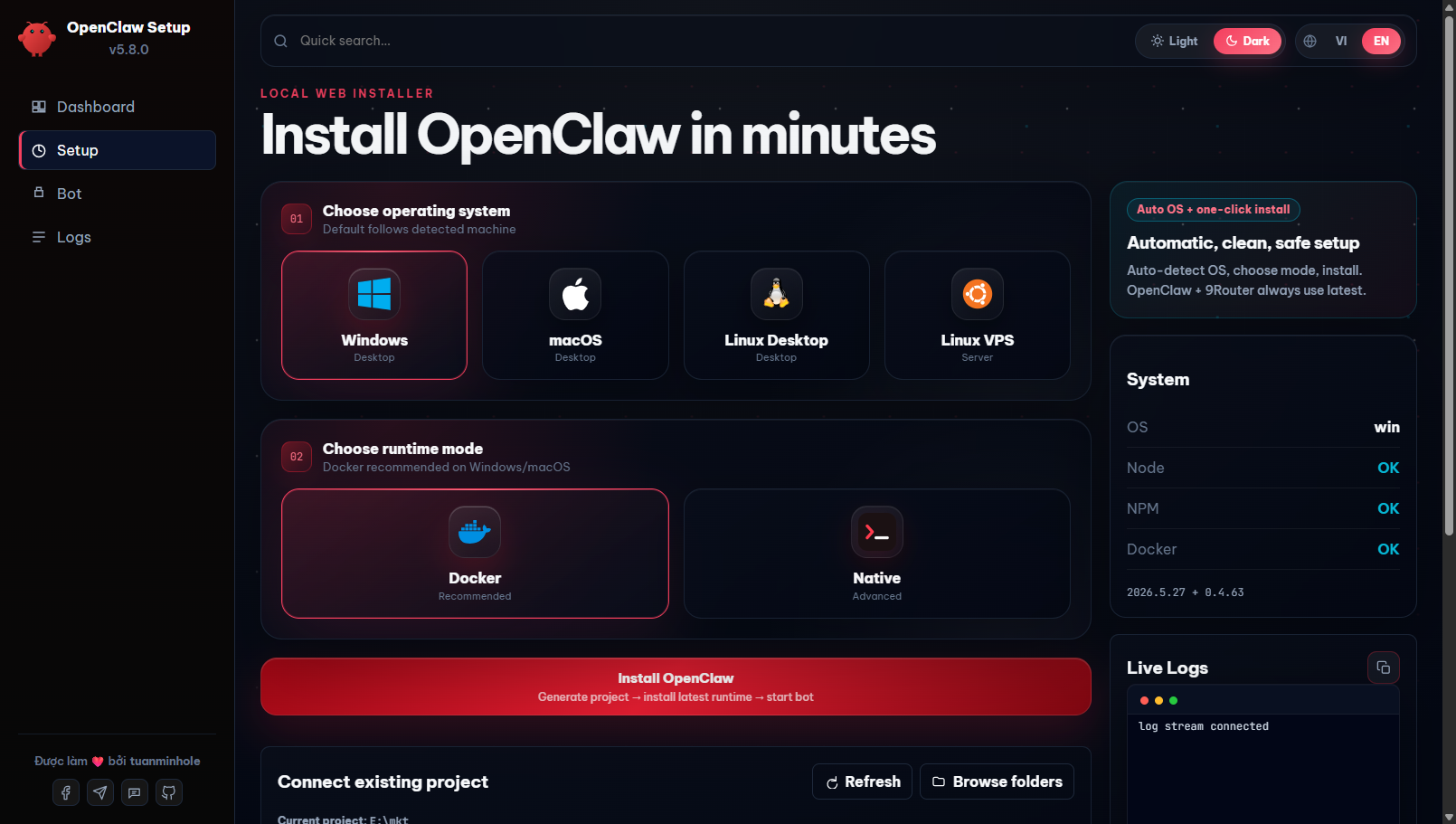
1. Open the Setup UI — run the install command above; the dashboard opens in your browser.
2. Pick OS & run mode — first make sure Node.js 24 LTS is installed (the wizard runs on Node — needed for both modes). Then open the Setup tab, choose your OS and the run mode:
- Docker (recommended) — isolated, and lets you create multiple projects/bots. Also install Docker Desktop.
- Native — lighter, runs the bot directly on the host (no Docker needed).
bot), then click Install. Example paths: - Windows:
D:\bot - macOS:
/Users/<you>/bot - Linux:
/home/<you>/bot
123456.
5. Create an API key (9Router) — in Endpoints, create a new API key. Then open your project folder → openclaw.json → scroll to the models section → paste the key into the empty apiKey field and save.
6. Connect a provider (9Router) — go to Providers, pick the provider you want; it connects automatically.
7. Create the routing combo (9Router) — go to Combos, create a combo named exactly smart-route and add the models it should route to.
8. Create your bot — back in the Setup UI, choose a channel, fill in the bot info + your personal info, then click Create bot.
9. Restart & test — restart the bot container, then message your bot to test it. 🎉
🧠 Supported AI Providers (via 9Router)
🔌 Supported Channels
- Telegram: Acquire your official Bot Token from
@BotFather. - Zalo Bot API: Obtain credentials from developers.zalo.me.
- Zalo Personal: Scan the QR authorization image displayed on the OpenClaw Dashboard.
- Facebook Messenger: Via the
fb-messengerplugin (public on ClawHub, installable from the Setup UI) — just provide a Page token. - Discord: Coming soon.
- Lark: Coming soon.
📁 Repository Structure
openclaw-setup/
|-- README.md ← English documentation (You are here)
|-- README.vi.md ← Vietnamese documentation
|-- package.json ← NPM entry and runner scripts
|-- dist/ ← Compiled Web UI and CLI bundles
-- src/ ← Source code (UI, local API backend, build tools)</code></pre>
❓ FAQ
<details> <summary><b>How do I start or stop the bot?</b></summary> You no longer need to type terminal commands! Simply access the Setup Web UI, navigate to the <b>Bot</b> tab, and use the interactive <b>Start / Stop / Recreate</b> buttons to manage your bot lifecycle. </details>
<details> <summary><b>Where do I edit the bot's persona and instructions?</b></summary> You can edit them directly in your browser. Go to the <b>Bot</b> tab, scroll down to the <b>Bot file tree</b> section, and select the file you want to edit (e.g.,
SOUL.md or AGENTS.md`). Click Save to apply changes instantly.
Can I change the AI model configuration later?
Yes. You can edit the config JSON directly via the integrated File Editor in the Web UI, or re-run the setup script pointing to your existing project folder.
🔗 Useful Links
- OpenClaw Docs
- 9Router GitHub
- Google AI Studio
- Telegram BotFather
- Zalo Developer Platform
- Docker Desktop
- ClawHub (Skills)
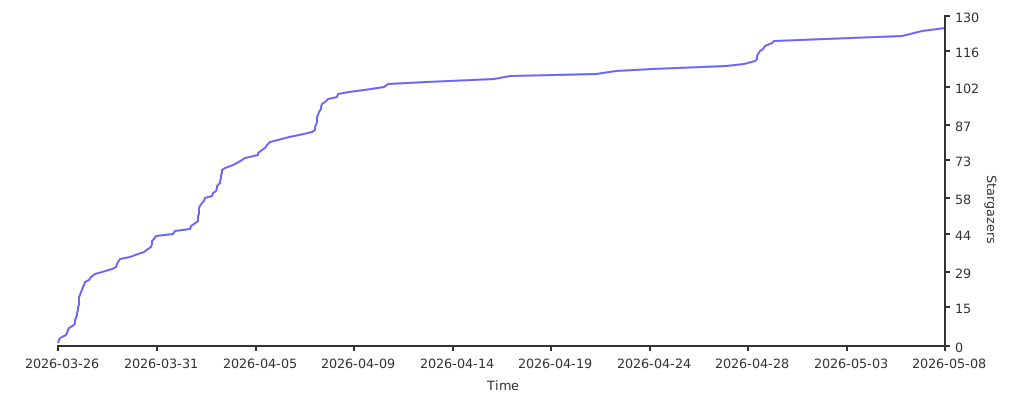
📈 Star History
🙏 Acknowledgments
- OpenClaw — Core AI Gateway framework
- 9Router — Open-source AI proxy (OAuth-based, no API keys)
- ClawHub — Bot skills registry
- TheSVG — High-quality SVG brand icons
🙌 Author & Contributing
Built by tuanminhhole (Kent) as an open gift for the community. Suggestions and PRs are always welcome. If this saved you time, please ⭐ the repo so more people can find it!
🦞 OpenClaw Ecosystem (same author)
Companion repos to build a complete, self-running AI assistant:
🚀 Setup & framework
- openclaw-setup — (this repo) Set up free AI bots with OpenClaw + 9Router (Telegram/Zalo/Messenger, Docker)
- vietbrain — Vietnamese "Second Brain" framework for Obsidian (AI-ready)
🔌 Plugins (runtime) - openclaw-fb-messenger — Facebook Messenger channel (webhook + Graph API), installable from the Setup UI
- openclaw-telegram-multibot-relay — Multibot Telegram relay, delegation & native cron reminders
- openclaw-zalo-mod — Zero-token Zalo group management (slash commands, anti-spam, warn, memory)
- openclaw-browser-automation — Smart Search & Browser Automation
- openclaw-facebook-crawler — Facebook data crawler
- openclaw-n8n-facebook-poster — Auto-post to Facebook via n8n
🧩 Skills - openclaw-skill-learning-memory — Self-evolving long-term memory for agents
- openclaw-skill-infographic — Infographic generation
- openclaw-skill-zalo-sticker-mention — Stickers & mentions on Zalo
🦞 openclaw-setup · part of the tuanminhhole (Kent) ecosystem · MIT License 


