
Group your commands and aliases in a nice place
cl
cl (short for Command List) is a way to group all your aliases, once in a while commands or multiple commands with a lot of args in an organized and human readable place
how to install
macOs (intel and silicon) and Linux using homebrew:
bash
$ brew tap rvigo/cl
$ brew install cl
If you use ZSH, an autocomplete script will be installed with the application.
usage
Using the application interface to add, edit, and run commands:
$ cl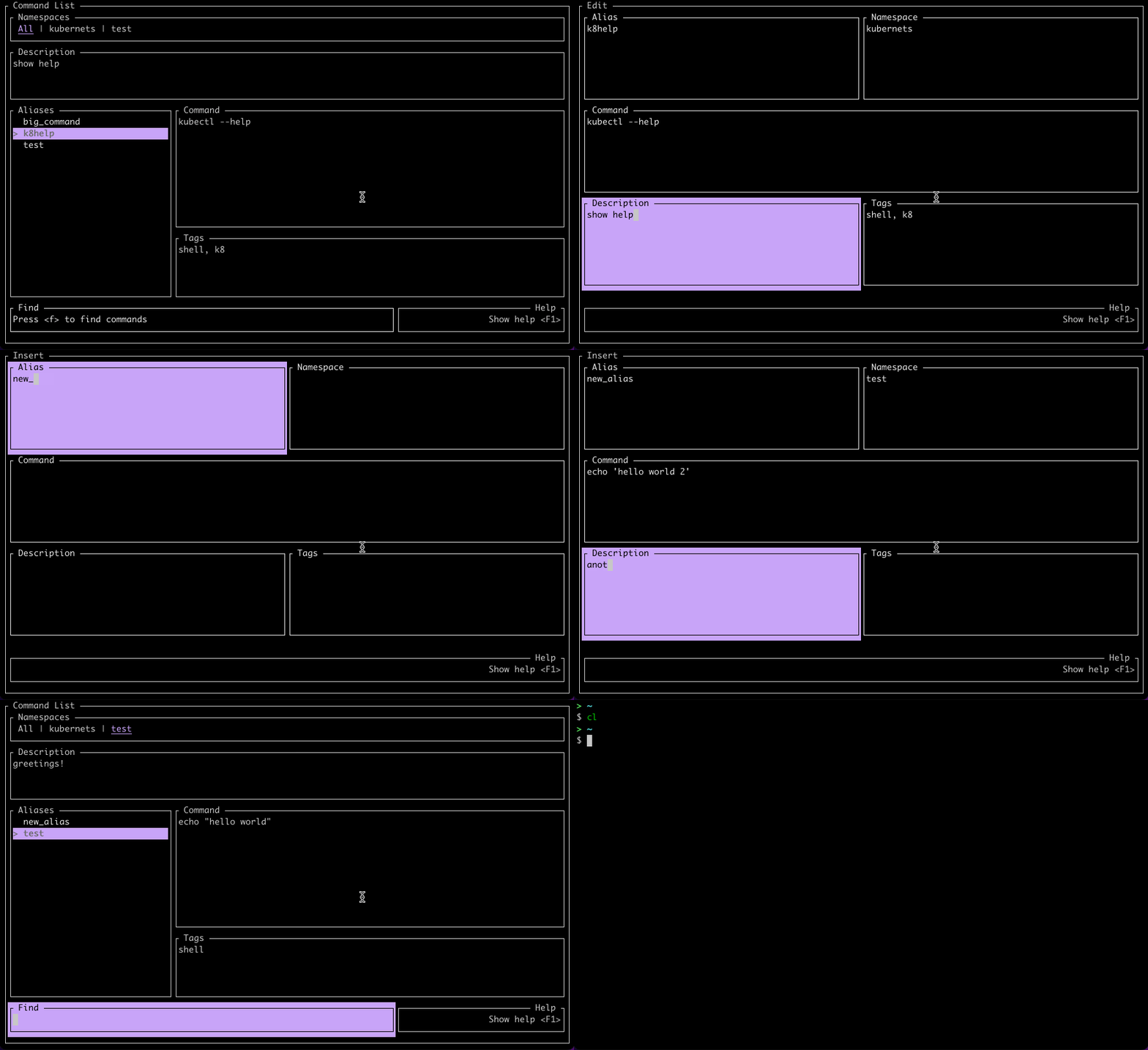
Using the application's CLI to execute stored commands:
$ cl exec <your command alias>If you are using the ZSH shell and fzf, a widget can be installed with cl config zsh-widget --install. After that, you can call the exec function (with some cool autocomplete features) pressing CTRL+O You can pass args and flags to the stored command:
# the stored command is docker and the alias is d $ cl exec d -- ps # same as docker ps $ cl exec d -- ps --help # same as docker ps --helpYou can also set variables in your command and pass them as named parameters:
# the stored command is echo "hello #{name}, #{greetings}" and the alias is echo the parameters names should match the variables names in your command
$ cl exec echo -- --name="John Doe" --grettings "welcome!" > "hello John Doe, welcome!"A more real world example:
# the stored command is aws-vault exec #{awsaccount} -- #{command} and the alias is avexec note that you can mix the program flags and args with the named parameters
$ cl exec avexec -- --awsaccount="dev" --command="aws s3 ls" --duration=2hImporting/exporting your aliases is possible using the share subcommand:
# the command bellow will generate the file shared.toml in the current working directory by default, with all aliases present in the git namespace as provided $ cl share export --namespace git the command bellow will import all aliases from a file in the specified location.
you can also choose which namespace will be imported
$ cl share import -f path/to/shared.toml


