
A new kind of Progress Bar, with real-time throughput, ETA, and very cool animations!



alive-progress





Have you ever wondered where your lengthy processing was at, and when would it finish? Do you usually hit RETURN several times to make sure it didn't crash, or the SSH connection didn't freeze? Have you ever thought it'd be awesome to be able to pause some processing without hassle, return to the Python prompt to manually fix some items, then seamlessly resume it? I did...
I've started this new progress bar thinking about all that, behold the alive-progress! 😃
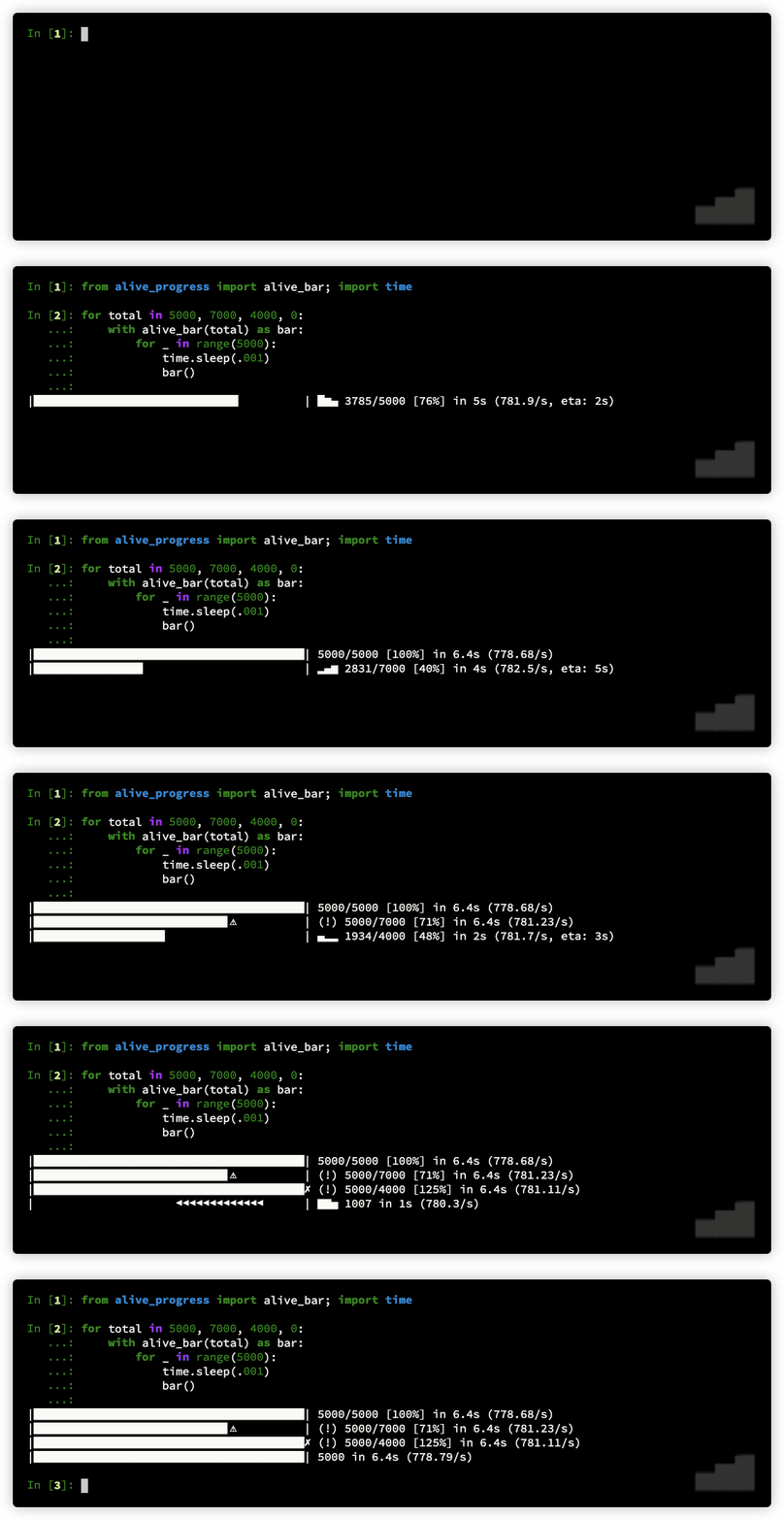
Introducing the newest concept in progress bars for Python! alive-progress is in a class of its own, with an array of cool features that set it apart. Here are a few highlights:
- A mesmerizing live spinner that reacts to your actual processing speed, i.e., it dynamically gets faster or slower with your throughput, and clearly shows a lengthy task is in progress, i.e., did not crash even if taking too long (and your SSH connection did not freeze if remote).
- An efficient multithreaded bar that updates itself at a fraction of the actual processing speed to keep CPU usage low and avoid terminal spamming (1,000,000 iterations per second equates to roughly 60 updates per second), and you can also calibrate it to your liking.
- An accurate ETA (Expected Time of Arrival) with an intelligent Exponential Smoothing Algorithm that shows the time to completion, allowing you to plan your time and manage your workload more effectively.
- Automatic print and logging hooks that provide seamless and efortless integration with any code, even enriching these outputs with the current bar position when they occurred.
- It prints a nice final receipt when your processing ends, including the total items, the elapsed time, and the observed throughput.
- It detects under and overflows, enabling you to track hits, misses, or any desired counts, not necessarily the actually performed iterations.
- You can suspend it! That's right, you heard it here first! No other progress bar anywhere in any language has this feature! You can suspend your processing and get back to the Python prompt, adjust or fix some items, and then get back into the same processing as if it had never stopped!
- It is highly customizable, with a smorgasbord of ready-to-use spinner and bar styles, as well as several factories to easily create yours! There's even a super powerful
check()tool that helps you design your own animations! You can see how the generated frames and animation cycles will look like, exploded on your screen, and even see it alive before installing inalive-progress! It's the coolest tool in the world! Unleash your creativity!
Table of contents
This README is always evolving, so do take a more comprehensive look from time to time... You might find great new details in other sections! 😊
* Table of contents * 📌 What's new in 3.3 series * Previous releases * Using
alive-progress * Get it * Try it * Awake it * Master it * The bar handler * Auto-iterating * Modes of operation * Auto and Unknown: Counter * Manual: Percentage * Widgets available * The different bar() handler semantics * Styles * Configuration * Create your own animations * Intro: How do they work? * A Spinner Compiler, really? * Spinner Factories * Bar Factories * Advanced * The Pause Mechanism * Loop-less use * FPS Calibration * Forcing animations on PyCharm, Jupyter, etc. * Interesting facts * To do * Python End of Life notice * For Python 2.7 and 3.5 * For Python 3.6 * For Python 3.7 and 3.8 * License
📌 What's new in 3.3 series
The latest alive-progress release is finally here, and it brings some exciting improvements! 🎉
Here's a summary of the most notable changes:
- Now the final receipt is available in the alive_bar handle, even after the bar has finished!
- You can change the bar title and text even after it has finished, so you can update the final receipt with new information or context.
- Included the elapsed time in the alive_bar handle, with full precision, so you can access the exact time it took to complete your processing.
- Changed the
graphemedependency which was no longer maintained tographemeu, which is a maintained fork of the original one. - Added
py.typedin the distribution to satisfy mypy and other type checking tools. - Included Python 3.14 support (in CI for now).
Previous releases
New in 3.2 series
After about a year of reassuring stability, the new alive-progress has finally landed!
The main features and improvements are:
- The print/logging hooks now support multithreading => a highly requested feature: everything is synchronized now so you can print from different threads without issues! No more queues to send messages to the main thread!
- Rounded ETAs for long tasks => now the ETA automatically decreases its precision the higher it gets, making it smoother and easier to read!
- Support for zero and even negative bar increments => now on par with the manual mode, you can call
bar()with0and even-Nto make it go backwards! Useful when you couldn't make any progress in an iteration or had to roll back something!
- Custom offset for the enriched print/logging messages => now you can specify a custom
enrich_offsetto use for printed or logged messages, allowing you to start withon 1:or continue where you left from previous computations! - Improved compatibility with PyInstaller => now custom bars, unknown bars, and spinners work when bundled!
- Improved compatibility with Celery => it will just work within Celery tasks!
- drop python 3.7 and 3.8, hello 3.12 and 3.13!
New in 3.1 series
A very cool update here! In addition to polishing things up and improving terminal support, now alive-progress supports resuming computations!
When processing huge datasets or things that take a long time, you might either use batches or cache partial results. Then, in case it stops and is restarted, you end up skipping all those already done items very quickly, which makes the alive_bar think you're processing thousands of items per second, which in turn completely ruins the ETA... But not anymore! Just tell bar() that you've skipped items... 👏
You can use it in two ways:
1. If you do know where you've stopped:
with alive_bar(120000) as bar:
    bar(60000, skipped=True)
    for i in range(60000, 120000):
        # process item
        bar()
Yep, just call bar(N, skipped=True) once, with the number of items.
2. If you do not know or the items are scattered:
with alive_bar(120000) as bar:
    for i in range(120000):
        if done(i):
            bar(skipped=True)
            continue
# process item         bar()
Yep, it's as simple as that! Just call bar(skipped=True) when an item is already done, or bar() as usual otherwise. You could also share a single bar(skipped=?) call at the end, with a bool saying whether you did skip that item or not. Cool, huh?
Also in this version:
- new
max_colsconfig setting, the number of columns to use if not possible to fetch it, like in jupyter and other platforms which doesn't support size - fix fetching the size of the terminal when using stderr
- officially supports Python 3.11
- included ruff linter before building
New in 3.0 series
Yep, I could finally get this version out! These are the new goodies:
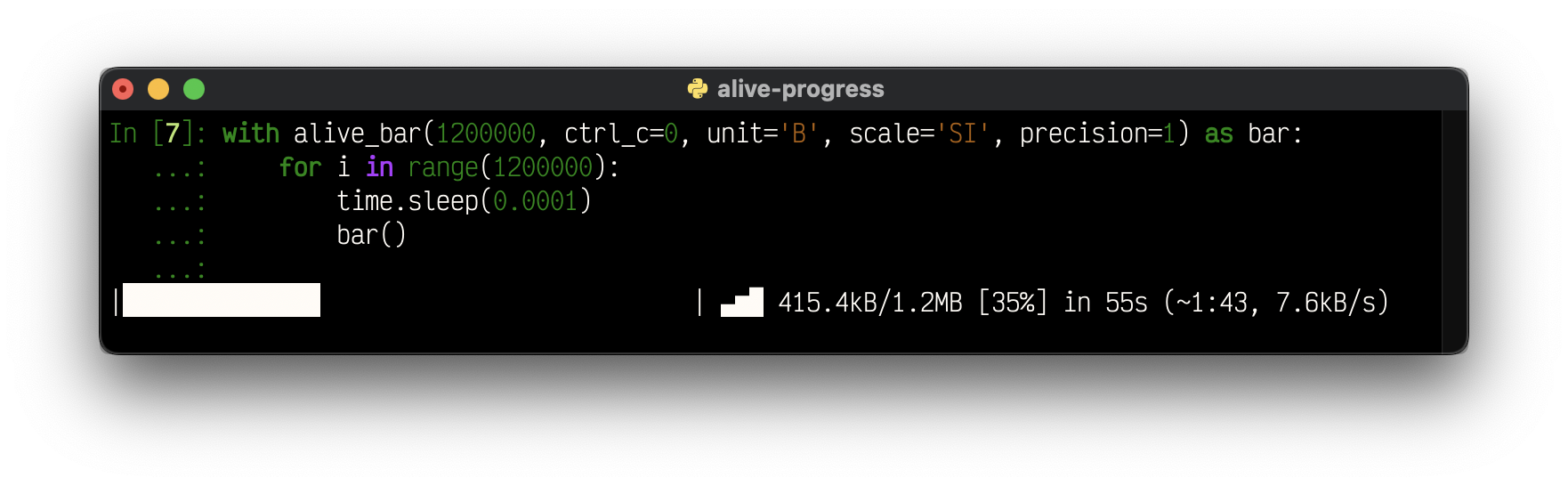
- Units support! You can now label the data you're processing, like
B,bytes, or even°C! - Automatic scaling! With support for SI (base 1000), IEC (base 1024), and even an alternate SI with base 1024, you'll be well served!
- Configurable precision! When your numbers are scaled, you get to choose how many decimals they display!
- Automatic stats scaling for slow throughputs! If your processing takes minutes or more, now you'll see rates per minute, per hour, and even per day! (It works within the auto-scaling system!)
- Support for using
sys.stderrand other files instead ofsys.stdout! - Smoothed out the rate estimation with the same Exponential Smoothing Algorithm that powers the ETA, so the bar returns a more realistic ETA!
- Query the currently running widgets' data, like the monitor, rate, and ETA!
- New help system on configuration errors, which explains why a value was not accepted, and what were the expected ones!
- Support for reusing logging handlers! No more
TypeError: unhashable type: 'types.SimpleNamespace'. - Support for logging when using
RotatingFileHandlers! Yep, seek support is here. - Fix unknown mode always ending with a warning (!)
New in 2.4 series
Now, alive_bar supports Dual Line text mode!
If you ever wanted to include longer situational messages within the bar, you probably felt squeezed into one line. You had to shrink the beautifully animated bar or, even worse, remove widgets (!) to be able to see what you needed...
Not anymore!! You can now make the bar Dual Line, and put text below it!
Yes, there's a message below the whole bar, and any other print/logging messages scroll above it!
letters = [chr(ord('A') + x) for x in range(26)]
with alivebar(26, dualline=True, title='Alphabet') as bar:
    for c in letters:
        bar.text = f'-> Teaching the letter: {c}, please wait...'
        if c in 'HKWZ':
            print(f'fail "{c}", retry later')
        time.sleep(0.3)
        bar()
Output:
on 7: fail "H", retry later
on 10: fail "K", retry later
Alphabet |███████████████████████████▊            | ▃▅▇ 18/26 [69%] in 6s (3.2/s, eta: 3s)
-> Teaching the letter: S, please wait...
There's also a new finalize function parameter in alive_it which enables you to set the title and/or text of the final receipt, and improved logging support which detects customized loggers.
New in 2.3 series
This is all about customization; the core widgets can now be changed:
- send a string to the
monitor,elapsed, andstatswidgets to make them look anyway you want!
It's incredible that these strings support all Python format features, so you can e.g., {percent:.1%} 😉.
They can be further customized when on the final receipt!
- new
monitorend,elapsedend, andstats_end, with dynamic formats inherited from the standard ones!
If you've hidden some widgets before, just so they wouldn't appear on the receipt, now you can see them in all their running glory, and hide just the receipt ones! Or the other way around 😜
Another addition, now alive-progress beautifully renders its cool final receipt whenever it is stopped, even if you CTRL+C it prematurely! I don't know why I haven't thought about that before...
Download |██████████████████⚠︎ | (!) 45/100 [45%] in 4.8s (9.43/s)And finally, you can choose to disable CTRL+C at all! The default is the safer ctrl_c=True, which does make CTRL-C work as usual.
Disable it ctrlc=False, to make your interactive alivebar much smoother to use (there are no stack traces if you stop it), and/or if it is at the top-level of your program!
Beware: If it is e.g. inside a for-loop, it will just continue to the next iteration, which may or may not be what you want...
for i in range(10):
    with alivebar(100, ctrlc=False, title=f'Download {i}') as bar:
        for i in range(100):
            time.sleep(0.02)
            bar()
Output:
Download 0 |████████▊⚠︎                              | (!) 22/100 [22%] in 0.6s (36.40/s)
Download 1 |████████████████▊⚠︎                      | (!) 42/100 [42%] in 1.0s (41.43/s)
Download 2 |██████▍⚠︎                                | (!) 16/100 [16%] in 0.4s (39.29/s)
Download 3 |█████▋⚠︎                                 | (!) 14/100 [14%] in 0.4s (33.68/s)
Download 4 |█████████████▎⚠︎                         | (!) 33/100 [33%] in 0.8s (39.48/s)
Download 5 |███████▎⚠︎                               | (!) 18/100 [18%] in 0.5s (37.69/s)
Download 6 |█████▎⚠︎                                 | (!) 13/100 [13%] in 0.3s (37.28/s)
Download 7 |████████████⚠︎                           | (!) 30/100 [30%] in 0.8s (38.43/s)
Download 8 |██████⚠︎                                 | (!) 15/100 [15%] in 0.4s (36.26/s)
...
New in 2.2 series
Some major new features, often requested, have finally landed!
- bar title can be dynamically set, changed, or even removed after being displayed
- new custom fps system, which enables very slow refresh rates (to let it run on those k8s for long periods)
- the final receipt can be totally hidden (great for special effects, like using the cool spinners standalone)
- new support for
click.echo()printing - terminal columns detection is safer for exotic environments
- requires Python 3.7+
New in 2.1 series
YES! Now alive-progress has support for Jupyter Notebooks and also includes a Disabled state! Both were highly sought after, and have finally landed!
And better, I've implemented an auto-detection mechanism for jupyter notebooks, so it just works, out of the box, without any changes in your code!!
See for yourself:

It seems to work very well, but at this moment, it should be considered experimental.
There were instances in which some visual glitches have appeared, like twoalive_barrefreshes being concatenated together instead of over one another... And it's something I think I can't possibly work around: it seems Jupyter sometimes refresh the canvas at odd times, which makes it lose some data. Please let me know on the issues if something funnier arises.
New in 2.0 series
This is a major breakthrough in alive-progress!
I took 1 year developing it, and I'm very proud of what I've accomplished \o/
- now, there's complete support for Emojis 🤩 and exotic Unicode chars in general, which required MAJOR refactoring deep within the project, giving rise to what I called "Cell Architecture" => now, all internal components use and generate streams of cells instead of characters, and correctly interpret grapheme clusters — those so-called wide chars, which are encoded with a variable number of chars, but always take two cells on screen!! This has enabled us to render complex multi-chars symbols as if they were one, thus making them work on any spinners, bars, texts, borders and backgrounds, even when fractured!!! Pretty advanced stuff 🤓
- new super cool spinner compiler and runner, which generates complete animations ahead of time, and plays these ready-to-go animations seamlessly, with no overhead at all! 🚀
- the spinner compiler also includes advanced extra commands to generate and modify animations, like reshape, replace, transpose, or randomize the animation cycles!
- new powerful and polished
.check()tools that compile and beautifully render all frames from all animation cycles of spinners and bars! they can even include complete frame data, internal codepoints, and even their animations! 👏 - bars engine revamp, with invisible fills, advanced support for multi-char tips (which gradually enter and leave the bar), borders, tips and errors of any length, and underflow errors that can leap into the border if they can't fit!
- spinners engine revamp, with standardized factory signatures, improved performance, new types, and new features: smoother bouncing spinners (with an additional frame at the edges), optimized scrolling of text messages (which go slower and pause for a moment at the edges), new alongside and sequential spinners, nicer effect in alongside spinners (which use weighted spreading over the available space), smoother animation in scrolling spinners (when the input is longer than the available space)
- new builtin spinners, bars, and themes, which make use of the new animation features
- new showtime that displays themes and is dynamic => it does not scroll the screen when it can't fit vertically or horizontally, and can even filter for patterns!
- improved support for logging into files, which gets enriched as the print hook is!
- several new configuration options for customizing appearance, including support for disabling any
alive-progresswidgets! - includes a new iterator adapter,
alive_it, that accepts an iterable and callsbar()for you! - requires Python 3.6+ (and officially supports Python 3.9 and 3.10)
Since this is a major version change, direct backward compatibility is not guaranteed. If something does not work at first, just check the new imports and functions' signatures, and you should be good to go. All previous features should still work here! 👍
Using alive-progress
Get it
Just install with pip:
❯ pip install alive-progressTry it
If you're wondering what styles are builtin, it's showtime! ;)
from alive_progress.styles import showtime
showtime()
Note: Please disregard the path in the animated gif below, the correct one is above. These long gifs are very time-consuming to generate, so I can't make another on every single change. Thanks for your understanding.
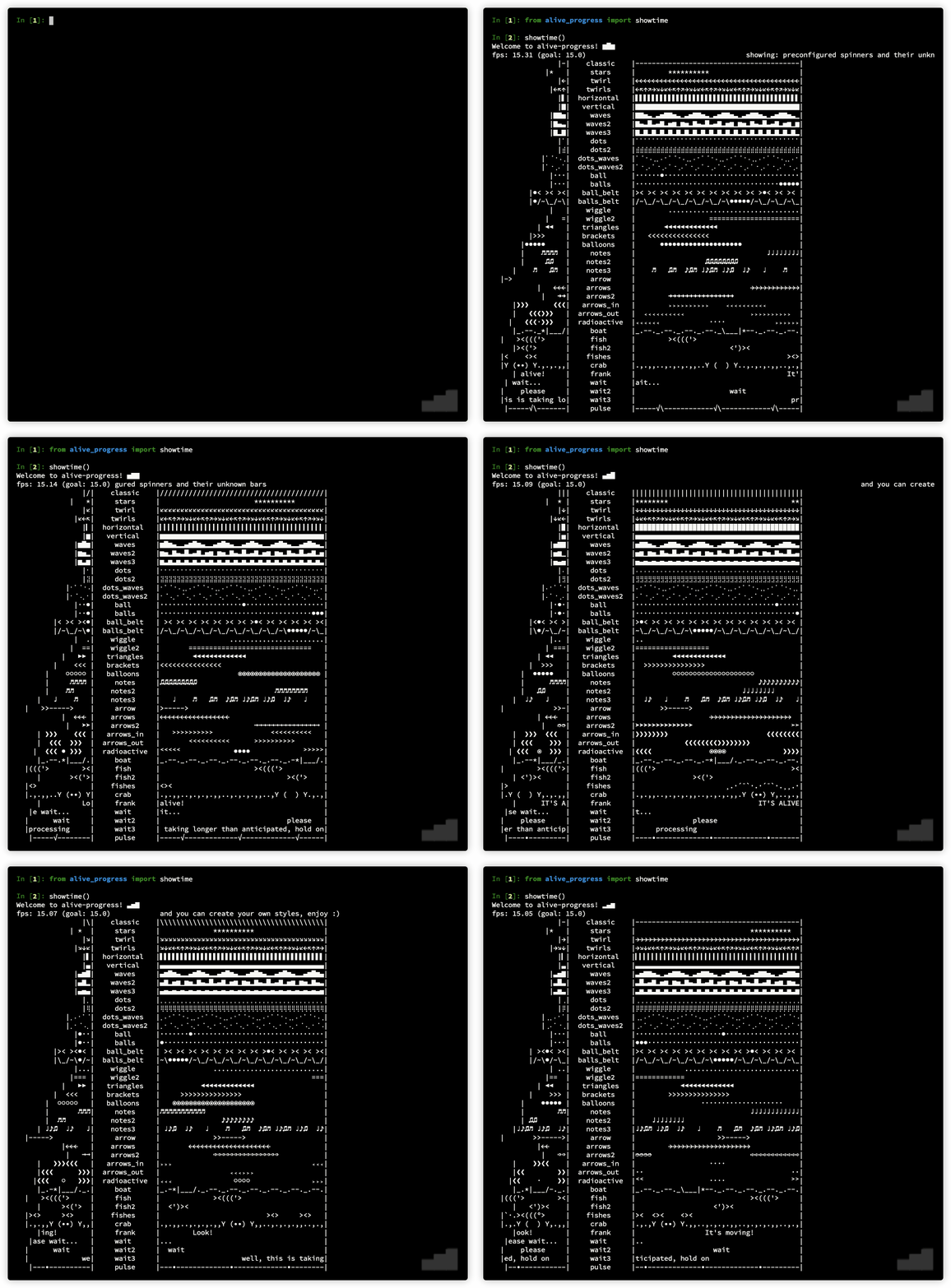
I've made these styles just to try all the animation factories I've created, but I think some of them ended up very, very cool! Use them at will, and mix them to your heart's content!
Do you want to see actual alive-progress bars gloriously running in your system before trying them yourself?
❯ python -m alive_progress.tools.demo
Awake it
Cool, huh?? Now enter an ipython REPL and try this:
from aliveprogress import alivebar
import time
for x in 1000, 1500, 700, 0:     with alive_bar(x) as bar:         for i in range(1000):             time.sleep(.005)             bar()
You'll see something like this, with cool animations throughout the process 😜:
|████████████████████████████████████████| 1000/1000 [100%] in 5.8s (171.62/s)
|██████████████████████████▋⚠︎            | (!) 1000/1500 [67%] in 5.8s (172.62/s)
|████████████████████████████████████████✗︎ (!) 1000/700 [143%] in 5.8s (172.06/s)
|████████████████████████████████████████| 1000 in 5.8s (172.45/s)
Nice, huh? Loved it? I knew you would, thank you 😊.
To actually use it, just wrap your normal loop in an alive_bar context manager like this:
with alive_bar(total) as bar:  # declare your expected total
    for item in items:  # <<-- your original loop
        print(item)  # process each item
        bar()  # call bar() at the end
And it's alive! 👏
So, in a nutshell: retrieve the items as always, enter the alive_bar context manager with the number of items, and then iterate/process those items, calling bar() at the end! It's that simple! :)
Master it
- The
itemsargument can be any iterable, like for example, a queryset. - The first argument of the
alive_baris the expected total, likeqs.count()for querysets,len(items)for bounded iterables, or even some static number. - Calling
bar()is what makes the bar go forward — you usually call it once in every iteration, just after finishing an item. - If you call
bar()too much or too few, the bar will graphically render that deviation from the expectedtotal, making it very easy to notice under and overflows. - The usual Python
print()is automatically hooked, so you can effortlessly display messages tightly integrated with the current progress bar on display! It won't break the fast bar refreshes in any way and will even enrich your message! The bar nicely cleans up the line, prints the current bar position alongside your message, and continues refreshing right below it! - The standard Python
loggingframework is also automatically hooked and enriched, exactly like theprint()above! - If you're using the
clickCLI lib, you can even useclick.echo()to print styled text.

You can get creative! Since the bar goes forward only when you call bar(), it is independent of the loop it is in! So you can use it to monitor unrelated things like pending transactions, broken items, etc., or even call it more than once in the same iteration! That way, you'll get to know how many of these "special" events there were, including their percentage relative to the total!
Awesome right? And everything work the same both in real terminals and in Jupyter notebooks!
The bar handler
After a bar has finished (or even while running), you have a plethora of methods available to grab information about the bar, and to control it. Here are they:
bar.text('message')orbar.text = 'message': set a situational message at the end of the bar, where you can display information about the current item or the phase the processing is in.bar.title('Title')orbar.title = 'Title': set a title at the beginning of the bar; can be set right when starting it or while it's running or even after finished to affect the receipt on demand — mix it withtitle_lengthconfig to keep the bar from changing its length while running.bar.current: retrieve the current bar count or percentage — more details below on Modes of Operation.bar.monitorreturns the current monitor widget text, which is the current bar position formatted according to the current configuration.bar.eta: returns the current ETA widget text, formatted according to the current configuration.bar.rate: returns the current throughput widget text, formatted according to the current configuration.bar.elapsed: returns the current elapsed time in seconds, with full precision.bar.receipt: returns an on-demand receipt, which can be used however you want in your code, such as logging or displaying it in a custom way.bar.pause(): pauses the bar without losing its state — more details below on the Pause Mechanism.
Auto-iterating
You now have a quicker way to monitor anything! Here, the items are automatically tracked for you!
Behold the aliveit => the alivebar iterator adapter!
Simply wrap your items with it, and loop over them as usual!
The bar will just work; it's that simple!
from aliveprogress import aliveit
for item in alive_it(items):  # <<-- wrapped items     print(item)  # process each item
HOW COOL IS THAT?! 😜
All alivebar parameters apply but total, which is smarter (if not supplied, it will be auto-inferred from your data using len or lengthhint), and manual that does not make sense here.
Note there isn't any bar handle at all in there. But what if you do want it, e.g. to set text messages or retrieve the current progress?
You can interact with the internal alivebar by just assigning aliveit to a variable like this:
bar = alive_it(items)  # <<-- bar with wrapped items
for item in bar:  # <<-- iterate on bar
    print(item)  # process each item
    bar.text(f'ok: {item}')  # WOW, it works!
Note that this is a slightly special bar, which does not support bar(), since the iterator adapter tracks items automatically for you. Also, it supports finalize, which enables you to set the title and/or text of the final receipt:
alive_it(items, finalize=lambda bar: bar.text('Success!'))
...
In a nutshell:
- full use is alwayswith alive_bar() as bar, where you iterate and callbar()whenever you want;
- quick adapter use is for item in alive_it(items), where items are automatically tracked;
- full adapter use isbar = aliveit(items), where in addition to items being automatically tracked, you get a special iterablebarable to customize the inneraliveprogresshowever you want.
Modes of operation
Auto and Unknown: Counter
The default modes are auto and unknown, which use internally a counter to track the progress. They count the number of items processed, and use it to update the progress bar accordingly.
The total argument is optional. If you do provide it, the bar enters in auto mode. In this mode, the progress of the operation is automatically tracked, and all the widgets alive-progress has to offer are available: precise bar, spinner, percentage, counter, throughput, and ETA.
If you don't provide total, the bar enters in unknown mode. In this mode, the progress is indeterminable, and therefore the ETA, so the whole progress bar is continuously animated. The widgets available are: animated bar, spinner, counter, and throughput.
The cool spinner runs completely independently of the animated bar, both running their own animations concurrently, rendering a unique show in your terminal! 😜
Last but not least, the auto mode has a unique ability: mark items as skipped, making the throughput and ETA much more accurate! More on that later.
Manual: Percentage
The manual mode, manually activated by the manual=True argument, uses internally a percentage to track the progress. It enables you to get complete control of the bar position. It's usually used to monitor processes that only feed you a percentage of completion, or to generate some random special effects.
You can use it directly with alivebar or via confighandler, and it allows you to send percentages to the bar() handler! For example, to set it to 15% completion, just call bar(0.15) — which is 15 / 100.
You can also provide total here. If you do, alive-progress will automatically infer an internal counter, and will thus be able to offer you all the same widgets available in auto mode!
If you don't provide total, you'll at least get rough versions of the throughput and ETA widgets, computed as "%/s" (percentage per second) and until 100%, respectively. Neither of them are very accurate, but they are better than nothing.
Widgets available
When total is provided all is cool:
| mode | counter | percentage | throughput | ETA | over/underflow | |:------:|:-------------:|:------------:|:----------:|:---:|:--------------:| | auto | ✅ (user tick) | ✅ (inferred) | ✅ | ✅ | ✅ | | manual | ✅ (inferred) | ✅ (user set) | ✅ | ✅ | ✅ |
When it isn't, some compromises have to be made:
| mode | counter | percentage | throughput | ETA | over/underflow | |:-------:|:-------------:|:------------:|:------------:|:----------:|:--------------:| | unknown | ✅ (user tick) | ❌ | ✅ | ❌ | ❌ | | manual | ❌ | ✅ (user set) | ⚠️ (simpler) | ⚠️ (rough) | ✅ |
But it's actually simple to understand: you do not need to think about which mode you should use!
- Just always send the
totalif you have it, and usemanualif you need it!
The different bar() handler semantics
The bar() handlers support either relative or absolute semantics, depending on the mode:
- auto and unknown modes use optional relative positioning, so you can just call
bar()to increment the counter by one, or send any other increment likebar(200)to increment by 200 at once;
bar(0) and bar(-5) to hold or decrement if needed!
- manual mode uses mandatory absolute positioning, so you can call
bar(0.35)to make the bar instantly jump to 35% progress.
Both modes enable you to get creative! Since you can just make the bar go instantly to whatever position you want, you can:
- make it go backwards — e.g. to graphically display the timeout of something;
- create special effects — e.g. to mimic a real-time analog gauge of some sort.
You can call bar() as many times as you want! The terminal refresh rate will always be asynchronously computed according to the current throughput and progress, so you won't risk spamming the terminal with more updates than needed.
In any case, to retrieve the current counter/percentage, just call: bar.current:
- in auto and unknown modes, this provides an integer — the actual internal counter;
- in manual mode, this provides a float in the interval [0, 1] — the last percentage set.
bar() handler in auto mode leverages a unique ability: skip items! Just call bar(skipped=True) or bar(10, skipped=True) to exclude those items from the throughput calculations, and thus preventing them from inaccurately affecting the ETA.
Maintaining an open source project is hard and time-consuming, and I've put much ❤️ and effort into this.
If you've appreciated my work, you can back me up with a donation! Thank you 😊
Styles
The showtime exhibit has an optional argument to choose which show to present, Show.SPINNERS (default), Show.BARS or Show.THEMES, do take a look at them! ;)
from alive_progress.styles import showtime, Show
showtime(Show.BARS) showtime(Show.THEMES)
Note: Please disregard the path in the animated gif below, the correct one is above. These long gifs are very time-consuming to generate, so I can't make another on every single change. Thanks for your understanding.
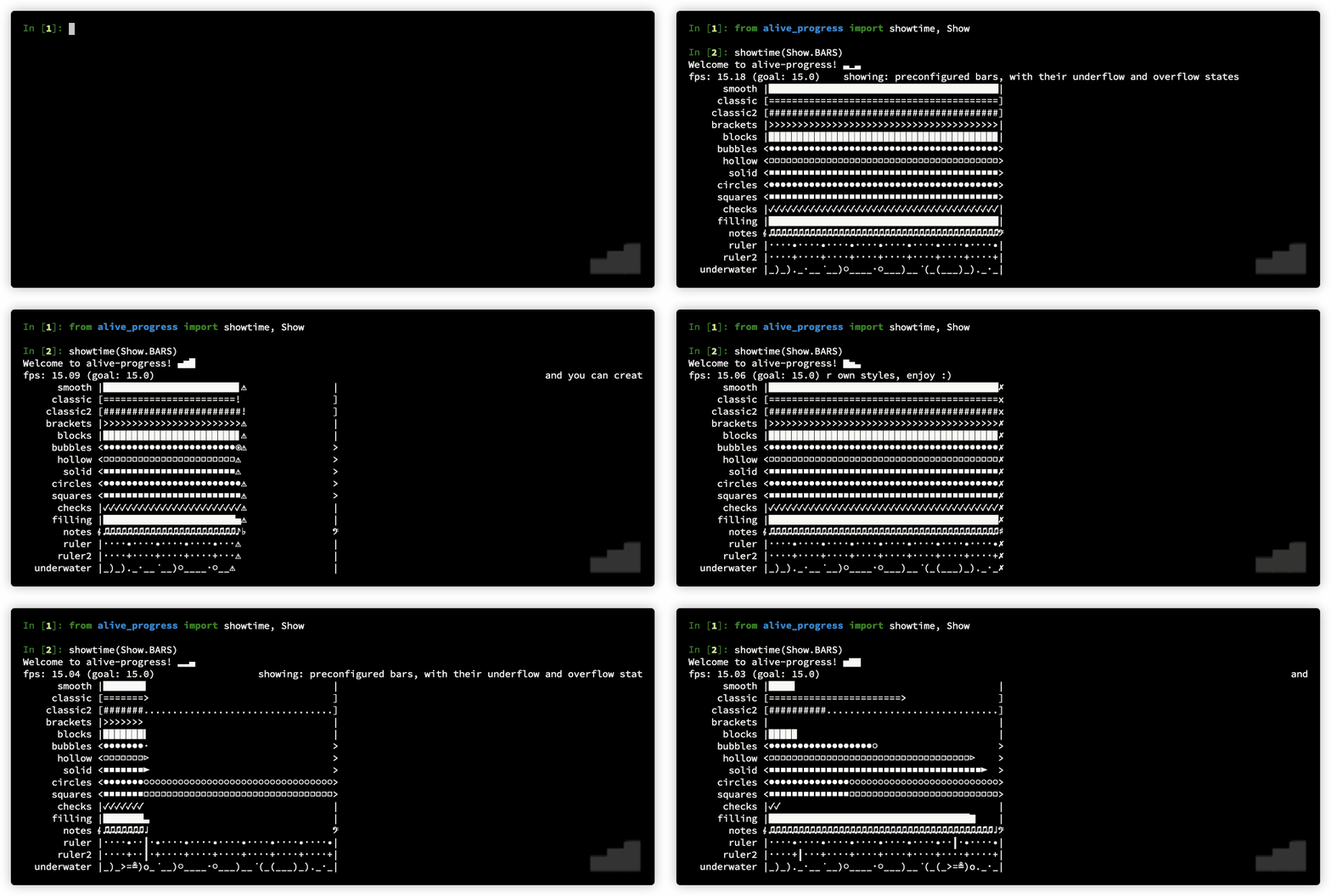
And the themes one (📌 new in 2.0):
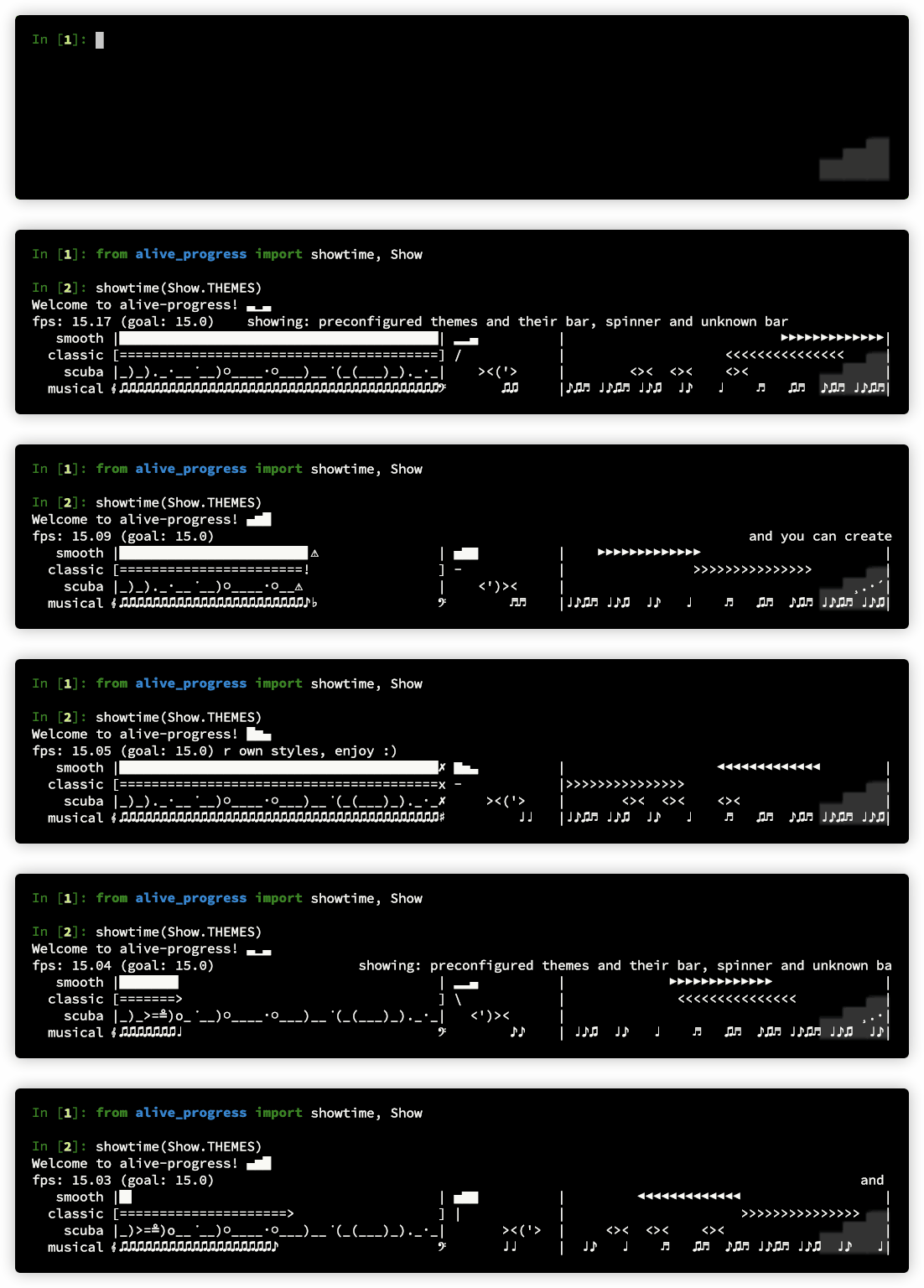
The showtime exhibit also accepts some customization options:
- fps: the frames per second rate refresh rate, default is 15;
- length: the length of the bars, default is 40;
- pattern: a filter to choose which ones to display.
showtime(pattern='boat|fish|crab'):

You can also access these shows with the shorthandsshowbars(),showspinners(), andshow_themes()!
There's also a small utility called print_chars(), to help find that cool character to put in your customized spinners and bars, or to determine if your terminal does support Unicode characters.
Configuration
There are several options to customize both appearance and behavior!
All of them can be set both directly in the alivebar or globally in the confighandler!
These are the options - default values in brackets:
title: an optional, always visible bar titlelength: [40] the number of cols to render the animated progress barmax_cols: [80] the maximum cols to use if not possible to fetch it, like in jupyterspinner: the spinner style to be rendered next to the bar
↳ accepts a predefined spinner name, a custom spinner factory, or None
bar: the bar style to be rendered in known modes
↳ accepts a predefined bar name, a custom bar factory, or None
unknown: the bar style to be rendered in the unknown mode
↳ accepts a predefined spinner name, or a custom spinner factory (cannot be None)
theme: ['smooth'] a set of matching spinner, bar, and unknown
↳ accepts a predefined theme name
force_tty: [None] forces animations to be on, off, or according to the tty (more details here)
↳ None -> auto select, according to the terminal/Jupyter
↳ True -> unconditionally enables animations, but still auto-detects Jupyter Notebooks
↳ False -> unconditionally disables animations, keeping only the final receipt
file: [sys.stdout] the file object to use:sys.stdout,sys.stderr, or a similarTextIOWrapperdisable: [False] if True, completely disables all output, do not install hooksmanual: [False] set to manually control the bar positionenrich_print: [True] enriches print() and logging messages with the bar positionenrichoffset: [0] the offset to apply to enrichprintreceipt: [True] prints the nice final receipt, disables if Falsereceipt_text: [False] set to repeat the last text message in the final receiptmonitor(bool|str): [True] configures the monitor widget152/200 [76%]
↳ send a string with
{count}, {total} and {percent} to customize it
elapsed(bool|str): [True] configures the elapsed time widgetin 12s
↳ send a string with
{elapsed} to customize it
stats(bool|str): [True] configures the stats widget(123.4/s, eta: 12s)
↳ send a string with
{rate} and {eta} to customize it
monitor_end(bool|str): [True] configures the monitor widget within final receipt
↳ same as monitor, the default format is dynamic, it inherits
monitor's one
elapsed_end(bool|str): [True] configures the elapsed time widget within final receipt
↳ same as elapsed, the default format is dynamic, it inherits
elapsed's one
stats_end(bool|str): [True] configures the stats widget within final receipt
↳ send a string with
{rate} to customize it (no relation to stats)
title_length: [0] fixes the length of titles, or 0 for unlimited
↳ title will be truncated if longer, and a cool ellipsis "…" will appear at the end
spinner_length: [0] forces the spinner length, or0for its natural onerefresh_secs: [0] forces the refresh period to this,0is the reactive visual feedbackctrl_c: [True] if False, disables CTRL+C (captures it)dual_line: [False] if True, places the text below the barunit: any text that labels your entitiesscale: the scaling to apply to units:None,SI,IEC, orSI2
↳ supports aliases:
False or '' -> None, True -> SI, 10 or '10' -> SI, 2 or '2' -> IEC
precision: [1] how many decimals do display when scaling
alive_bar context:
calibrate: maximum theoretical throughput to calibrate the animation speed (more details here)
alive_bar:
with alive_bar(total, title='Processing', length=20, bar='halloween') as bar:
    ...
To use them globally, send them to confighandler, and any alivebar created after that will include those options! And you can mix and match them, local options always have precedence over global ones:
from aliveprogress import confighandler
confighandler.setglobal(length=20, spinner='wait')
with alive_bar(total, bar='blocks', spinner='twirls') as bar:     # the length is 20, the bar is 'blocks' and the spinner is 'twirls'.     ...
Create your own animations
Yes, you can assemble your own spinners! And it's easy!
I've created a plethora of special effects, so you can just mix and match them any way you want! There are frames, scrolling, bouncing, sequential, alongside, and delayed spinners! Get creative! 😍
Intro: How do they work?
The spinners' animations are engineered by very advanced generator expressions, deep within several layers of meta factories, factories and generators 🤯!
- the meta factory (public interface) receives the styling parameters from you, the user, and processes/stores them inside a closure to create the actual factory => this is the object you'll send to both
alivebarandconfighandler; - internally it still receives other operating parameters (like for instance the rendition length), to assemble the actual generator expression of the animation cycles of some effect, within yet another closure;
- this, for each cycle, assembles another generator expression for the animation frames of the same effect;
- these generators together finally produce the streams of cycles and frames of the cool animations we see on the screen! Wow! 😜👏
And there's more, I think one of the most impressive achievements I got in this animation system (besides the spinner compiler itself)... They only yield more animation frames until the current cycle is not exhausted, then they halt themselves! Yep, the next cycle does not start just yet! This behavior creates natural breaks in exactly the correct spots, where the animations are not disrupted, so I can smoothly link with whatever other animation I want!!
This has all kinds of cool implications: the cycles can have different frame counts, different screen lengths, they do not need to be synchronized, they can create long different sequences by themselves, they can cooperate to play cycles in sequence or alongside, and I can amaze you displaying several totally distinct animations at the same time without any interferences whatsoever!
It's almost like they were... alive!! 😄
==> Yes, that's where this project's name came from! 😉
A Spinner Compiler, really?
Now, these generators of cycles and frames are fully consumed ahead of time by the Spinner Compiler! This is a very cool new processor that I made inside the Cell Architecture effort, to make all these animations work even in the presence of wide chars or complex grapheme clusters! It was very hard to make these clusters gradually enter and exit frames, smoothly, while keeping them from breaking the Unicode encoding and especially maintain their original lengths in all frames! Yes, several chars in sequence can represent another completely different symbol, so they cannot ever be split! They have to enter and exit the frame always together, all at once, or the grapheme won't show up at all (an Emoji for instance)!! Enter the Spinner Compiler......
This has made possible some incredible things!! Since this Compiler generates the whole spinner frame data beforehand:
- the grapheme fixes can be applied only once;
- the animations do not need to be calculated again!
So, I can just collect all that ready to play animations and be done with it, no runtime overhead at all!! 👏
Also, with the complete frame data compiled and persisted, I could create several commands to refactor that data, like changing shapes, replacing chars, adding visual pauses (frame repetitions), generating bouncing effects on-demand over any content, and even transposing cycles with frames!!
But how can you see these effects? Does the effect you created look good? Or is it not working as you thought? YES, now you can see all generated cycles and frames analytically, in a very beautiful rendition!!
I love what I've achieved here 😊, it's probably THE most beautiful tool I've ever created... Behold the check tool!!

It's awesome if I say so myself, isn't it? And a very complex piece of software I'm proud of, take a look at its code if you'd like.
And the check tool is much more powerful! For instance, you can see the codepoints of the frames!!! And maybe have a glimpse of why this version was so, so very hard and complex to make...
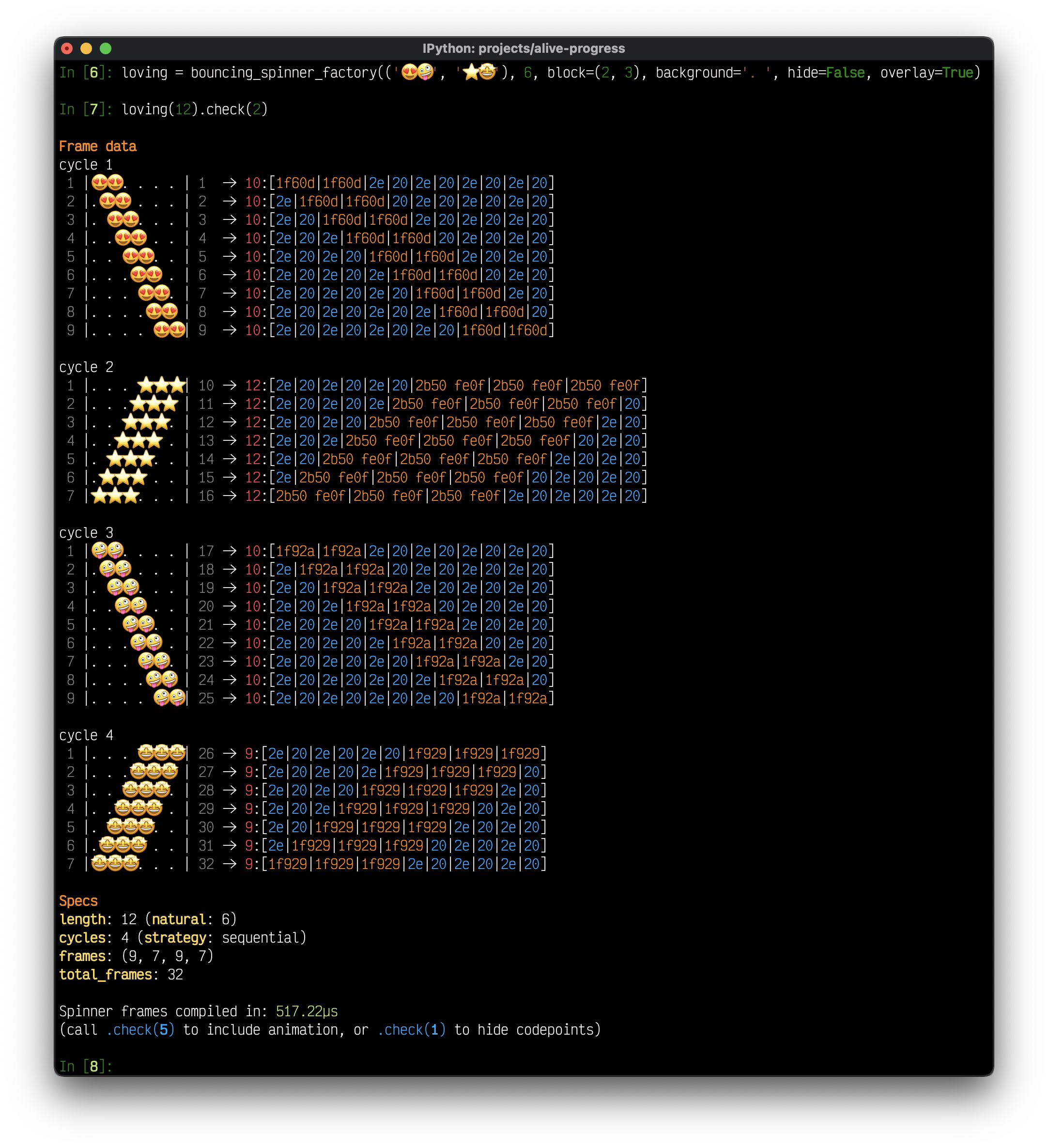
In red, you see the grapheme clusters, that occupy one or two "logical positions", regardless of their actual sizes... These are the "Cells" of the new Cell Architecture...
Look how awesome an Emoji Flag is represented:

The flag seems to move so smoothly because it uses "half-characters"! Since it is a wide char, alive-progress knows it will be rendered with "two visible chars", and the animations consider this, but compose with spaces, which occupy only one. When one uses mixed backgrounds, the situation is much more complex...
Spinner Factories
The types of factories I've created are:
frames: draws any sequence of characters at will, that will be played frame by frame in sequence;scrolling: generates a smooth flow from one side to the other, hiding behind or wrapping upon invisible borders — allows using subjects one at a time, generating several cycles of distinct characters;bouncing: similar toscrolling, but makes the animations bounce back to the start, hiding behind or immediately bouncing upon invisible borders;sequentialget a handful of factories and play them one after the other sequentially! allows to intermix them or not;alongsideget a handful of factories and play them alongside simultaneously, why choose when you can have them all?! allows to choose the pivot of the animation;delayed: get any other factory and copy it multiple times, increasingly skipping some frames on each one! very cool effects are made here!
Bar Factories
Customizing bars is nowhere near that involved. Let's say they are "immediate", passive objects. They do not support animations, i.e. they will always generate the same rendition given the same parameters. Remember spinners are infinite generators, capable of generating long and complex sequences.
Well, bars also have a meta factory, use closures to store the styling parameters, and receive additional operating parameters, but then the actual factory can't generate any content by itself. It still needs an extra parameter, a floating-point number between 0 and 1, which is the percentage to render itself.
alive_barcalculates this percentage automatically based on the counter and total, but you can send it yourself when in themanualmode!
Bars also do not have a Bar Compiler, but they do provide the check tool!! 🎉

You can even mix and match wide chars and normal chars just like in spinners! (and everything keeps perfectly aligned 😅)

Use the check tools to your heart's content!! They have even more goodies awaiting you, even real-time animations!
Create the wildest and coolest animations you can and send them to me!
I'm thinking about creating some kind ofcontribpackage, with user-contributed spinners and bars!
Wow, if you've read everything till here, you should now have a sound knowledge about using alive-progress! 👏
But brace yourself because there is even more, exciting stuff lies ahead!
Maintaining an open source project is hard and time-consuming, and I've put much ❤️ and effort into this.
If you've appreciated my work, you can back me up with a donation! Thank you 😊
Advanced
The Pause Mechanism
Oh, you want to pause it altogether, I hear? This is an amazing novel concept, not found anywhere AFAIK.
With this you get to act on some items manually, at will, right in the middle of an ongoing processing!!
YES, you can return to the prompt and fix, change, submit things, and the bar will just "remember" where it was...
Suppose you need to reconcile payment transactions (been there, done that). You need to iterate over thousands of them, detect somehow the faulty ones, and fix them. This fix is not simple nor deterministic, you need to study each one to understand what to do. They could be missing a recipient, or have the wrong amount, or not be synced with the server, etc., it's hard to even imagine all possibilities.
Typically, you would have to let the detection process run until completion, appending to a list each inconsistency it finds and waiting, potentially a long time, until you can finally start fixing them... You could of course mitigate that by processing in chunks, or printing them and acting via another shell, etc., but those have their own shortcomings... 😓
Now, there's a better way! Simply pause the actual detection process for a while! Then you just have to wait till the next fault is found, and act in near real-time!
To use the pause mechanism you just have to write a function, so the code can yield the items you want to interact with. You most probably already use one in your code, but in the ipython shell or another REPL you probably don't. So just wrap your debug code in a function, then enter within a bar.pause() context!!
def reconcile_transactions():
    qs = Transaction.objects.filter()  # django example, or in sqlalchemy: session.query(Transaction).filter()
    with alive_bar(qs.count()) as bar:
        for transaction in qs:
            if faulty(transaction):
                with bar.pause():
                    yield transaction
            bar()
That's it! It's that simple! \o/
Now run gen = reconcile_transactions() to instantiate the generator, and whenever you want the next faulty transaction, just call next(gen, None)! I love it...
The alive-progress bar will start and run as usual, but as soon as any inconsistency is found, the bar will pause itself, turning off the refresh thread and remembering its exact state, and yield the transaction to you directly on the prompt! It's almost magic! 😃
In [11]: gen = reconcile_transactions()
In [12]: next(gen, None) |█████████████████████                   | 105/200 [52%] in 5s (18.8/s, eta: 4s) Out[12]: Transaction<#123>
You can then inspect the transaction with the usual _ shortcut of ipython (or just directly assign it with t = next(gen, None)), and you're all set to fix it!
When you're done, just reactivate the bar with the same next call as before!! The bar reappears, turns everything back on, and continues like it had never stopped!! Ok, it is magic 😜
In [21]: next(gen, None)
|█████████████████████                   | ▁▃▅ 106/200 [52%] in 5s (18.8/s, eta: 4s)
Rinse and repeat till the final receipt appears, and there'll be no faulty transactions anymore. 😄
Loop-less use
So, you need to monitor a fixed operation, without any loops, right?
It'll work for sure! Here is a naive example (we'll do better in a moment):
with alive_bar(4) as bar:
    corpus = read_file(file)
    bar()  # file was read, tokenizing
    tokens = tokenize(corpus)
    bar()  # tokens generated, processing
    data = process(tokens)
    bar()  # process finished, sending response
    resp = send(data)
    bar()  # we're done! four bar calls with total=4
It's naive because it assumes all steps take the same amount of time, but actually, each one may take a very different time to complete. Think read_file and tokenize may be extremely fast, which makes the percentage skyrocket to 50%, then stopping for a long time in the process step... You get the point, it can ruin the user experience and create a very misleading ETA.
To improve upon that you need to distribute the steps' percentages accordingly! Since you told alive_bar there were four steps, when the first one was completed it understood 1/4 or 25% of the whole processing was complete... Thus, you need to measure how long your steps actually take and use the manual mode to increase the bar percentage by the right amount at each step!
You can use my other open source project about-time to easily measure these durations! Just try to simulate with some representative inputs, to get better results. Something like:
from abouttime import abouttimesupports several calling conventions, including one-liners. with about_time() as t2: # see its documentation for more details. tokens = tokenize(corpus) with about_time() as t3: data = process(tokens) with about_time() as t4: resp = send(data)with abouttime() as ttotal: # this about_time will measure the whole time of the block. with about_time() as t1: # the other four will get the relative timings within the whole. corpus = readfile(file) #
abouttimeprint(f'percentage1 = {t1.duration / t_total.duration}') print(f'percentage2 = {t2.duration / t_total.duration}') print(f'percentage3 = {t3.duration / t_total.duration}') print(f'percentage4 = {t4.duration / t_total.duration}')
There you go! Now you know the relative timings of all the steps, and can use them to improve your original code! Just get the cumulative timings and put them within a manual mode alive_bar!
For example, if the timings you found were 10%, 30%, 20%, and 40%, you'd use 0.1, 0.4, 0.6, and 1.0 (the last one should always be 1.0):
with alive_bar(4, manual=True) as bar:
    corpus = readbigfile()
    bar(0.1)  # 10%
    tokens = tokenize(corpus)
    bar(0.4)  # 30% + 10% from previous steps
    data = process(tokens)
    bar(0.6)  # 20% + 40% from previous steps
    resp = send(data)
    bar(1.)  # always 1. in the last step
That's it! The user experience and ETA should be greatly improved now.
FPS Calibration
Yes, you can calibrate the spinner speed!
The alive-progress bars have cool visual feedback of the current throughput, so you can actually see how fast your processing is, as the spinner runs faster or slower with it.
For this to happen, I've put together and implemented a few fps curves to empirically find which one gave the best feel of speed:

(interactive version here)
The graph shows the logarithmic (red), parabolic (blue) and linear (green) curves, these are the ones I started with. It was not an easy task, I've made dozens of tests, and never found one that really inspired that feel of speed I was looking for. The best one seemed to be the logarithmic one, but it reacted poorly with small numbers. I know I could make it work with a few twists for those small numbers, so I experimented a lot and adjusted the logarithmic curve (dotted orange) until I finally found the behavior I expected! It is the one that seemed to provide the best all-around perceived speed changes throughout the whole spectrum from a few to billions... That is the curve I've settled with, and it's the one used in all modes and conditions. In the future and if someone would find it useful, that curve could be configurable.
Well, the default alive-progress calibration is 1,000,000 in bounded modes, i.e., it takes 1 million iterations per second for the bar to refresh itself at 60 frames per second. In the manual unbounded mode, it is 1.0 (100%). Both enable a vast operating range and generally work quite well.
For example, take a look at the effect these very different calibrations have, running the very same code at the very same speed! Notice the feel the spinner passes to the user, is this processing going slow or going fast? And remember that isn't only the spinner refreshing but the whole line, complete with the bar rendition and all widgets, so everything gets smoother or sluggish:

So, if your processing hardly gets to 20 items per second, and you thinkalive-progressis rendering sluggish, you could increase that sense of speed by calibrating it to let's say40, and it will be running waaaay faster... It is better to always leave some headroom and calibrate it to something between 50% and 100% more, and then tweak it from there to find the one you like the most! :)
Forcing animations on PyCharm, Jupyter, etc.
Do these astonishing alive-progress animations refuse to display?
PyCharm is awesome, I love it! But I'll never understand why they've disabled emulating a terminal by default... If you do use PyCharm's output console, please enable this on all your Run Configurations:

I even recommend you go intoFile>New Projects Setup>Run Configuration Templates, selectPython, and also enable it there, so any new ones you create will already have this set.
In addition to that, some terminals report themselves as "non-interactive", like when running out of a real terminal (PyCharm and Jupyter for example), in shell pipelines (cat file.txt | python program.py), or in background processes (not connected to a tty).
When alive-progress finds itself in a non-interactive terminal, it automatically disables all kinds of animations, printing only the final receipt. This is made in order to avoid both messing up the pipeline output and spamming your log file with thousands of alive-progress refreshes.
So, when you know it's safe, you can force them to see alive-progress in all its glory! Here is the force_tty argument:
with alivebar(1000, forcetty=True) as bar:
    for i in range(1000):
        time.sleep(.01)
        bar()
The values accepted are:
force_tty=True-> always enables animations, and auto-detects Jupyter Notebooks!force_tty=False-> always disables animations, keeping only the final receiptforce_tty=None(default) -> auto detect, according to the terminal's tty state
config_handler, so you don't need to pass it manually anymore.
Do note that PyCharm's console and Jupyter notebooks are heavily instrumented and thus have much more overhead, so the outcome may not be as fluid as you would expect. On top of that, Jupyter notebooks do not support ANSI Escape Codes, so I had to develop some workarounds to emulate functions like "clear the line" and "clear from cursor"... To see the fluid and smooth alive_bar animations as I intended, always prefer a full-fledged terminal.
Interesting facts
- This whole project was implemented in functional style;
- It uses extensively (and very creatively) Python Closures and Generators, e.g. all spinners are made with cool Generator Expressions! Besides it, there are other cool examples like the exhibit module, and the core spinner player/spinner runner generators; 😜
- Until 2.0,
alive-progresshadn't had any dependency. Now it has two: one is ab
README truncated. [View on GitHub


