
OP Vault ChatGPT: Give ChatGPT long-term memory using the OP Stack (OpenAI + Pinecone Vector Database). Upload your own custom knowledge base files (PDF, txt, epub, etc) using a simple React frontend.
OP Vault
OP Vault uses the OP Stack (OpenAI + Pinecone Vector Database) to enable users to upload their own custom knowledgebase files and ask questions about their contents.

With quick setup, you can launch your own version of this Golang server along with a user-friendly React frontend that allows users to ask OpenAI questions about the specific knowledge base provided. The primary focus is on human-readable content like books, letters, and other documents, making it a practical and valuable tool for knowledge extraction and question-answering. You can upload an entire library's worth of books and documents and recieve pointed answers along with the name of the file and specific section within the file that the answer is based on!
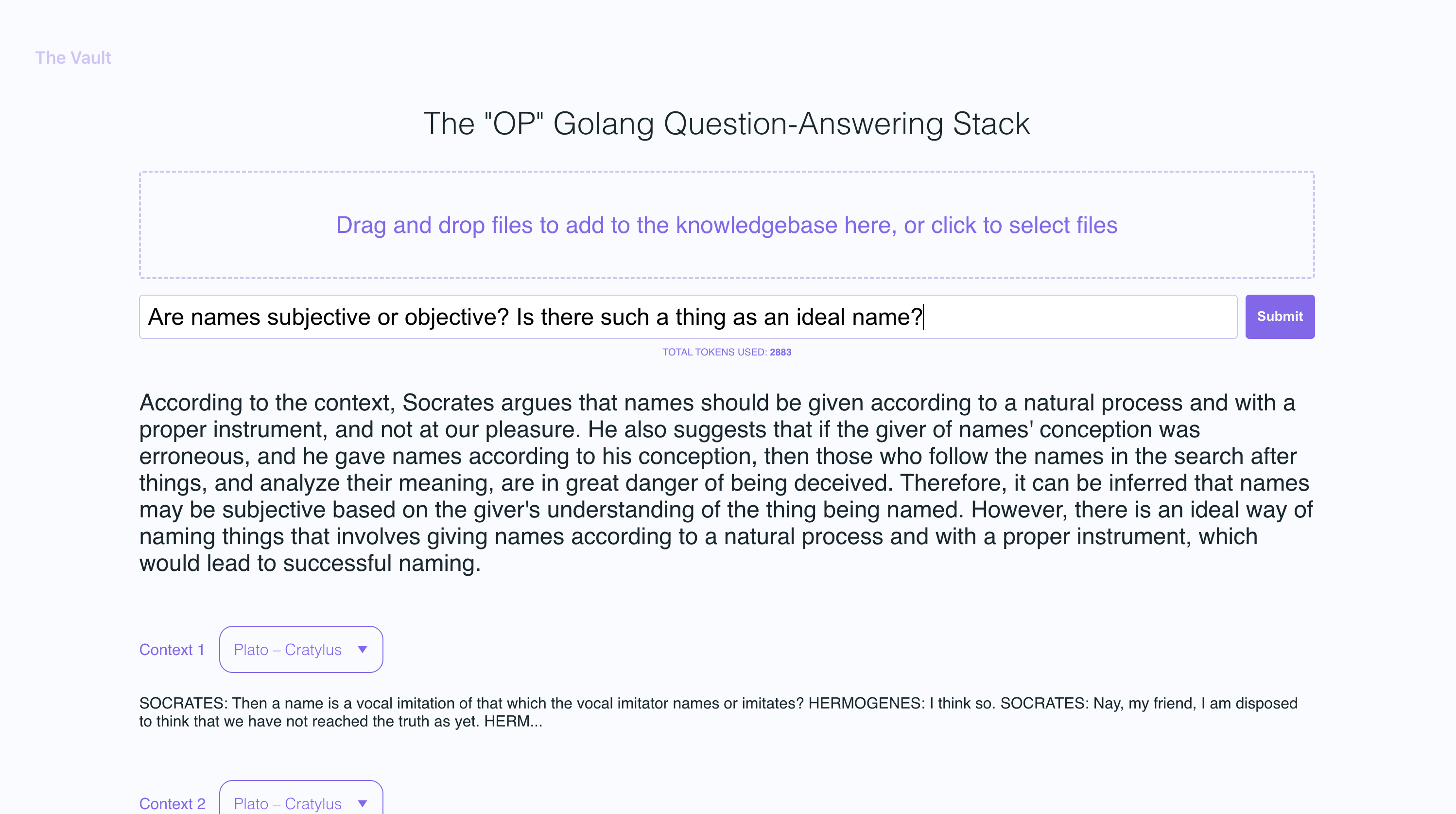
What can you do with OP Vault?
With The Vault, you can:
- Upload a variety of popular document types via a simple react frontend to create a custom knowledge base
- Retrieve accurate and relevant answers based on the content of your uploaded documents
- See the filenames and specific context snippets that inform the answer
- Explore the power of the OP Stack (OpenAI + Pinecone Vector Database) in a user-friendly interface
- Load entire libraries' worth of books into The Vault
Manual Dependencies
- node: v19
- go: v1.18.9 darwin/arm64
- poppler
Setup
Install manual dependencies
- Install go:
- Install node v19
- Install poppler
sudo apt-get install -y poppler-utils on Ubuntu, or brew install poppler on Mac
Set up your API keys and endpoints in the secret folder
- Create a new file
secret/openaiapikeyand paste your OpenAI API key into it:
echo "youropenaiapikeyhere" > secret/openaiapikey
- Create a new file
secret/pineconeapikeyand paste your Pinecone API key into it:
echo "yourpineconeapikeyhere" > secret/pineconeapikey
When setting up your pinecone index, use a vector size of 1536 and keep all the default settings the same.
- Create a new file
secret/pineconeapiendpointand paste your Pinecone API endpoint into it:
echo "https://example-50709b5.svc.asia-southeast1-gcp.pinecone.io" > secret/pineconeapiendpoint
Running the development environment
- Install javascript package dependencies:
npm install
- Run the golang webserver (default port
:8100):
npm start
- In another terminal window, run webpack to compile the js code and create a bundle.js file:
npm run dev
- Visit the local version of the site at http://localhost:8100
Screenshots:
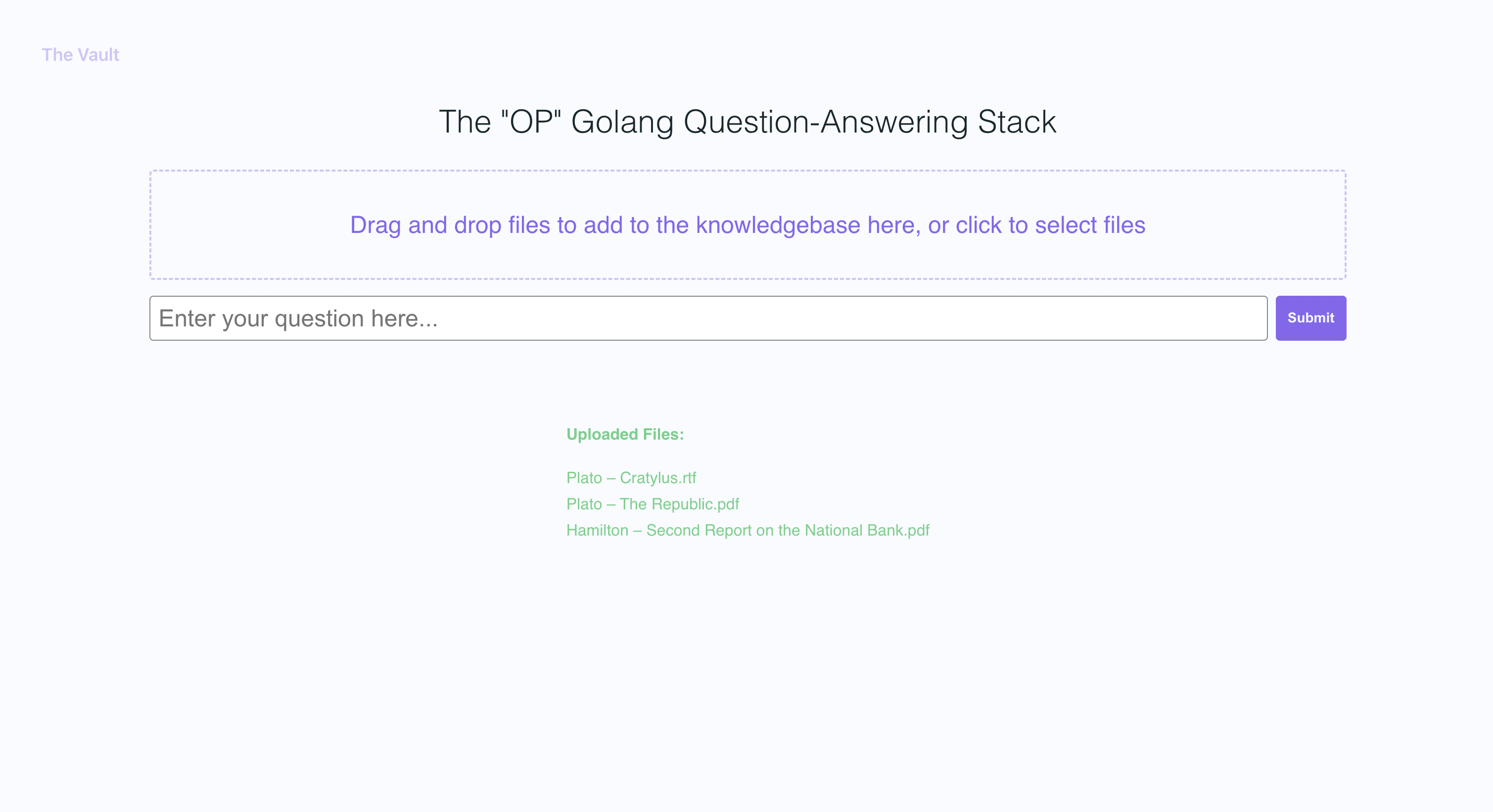
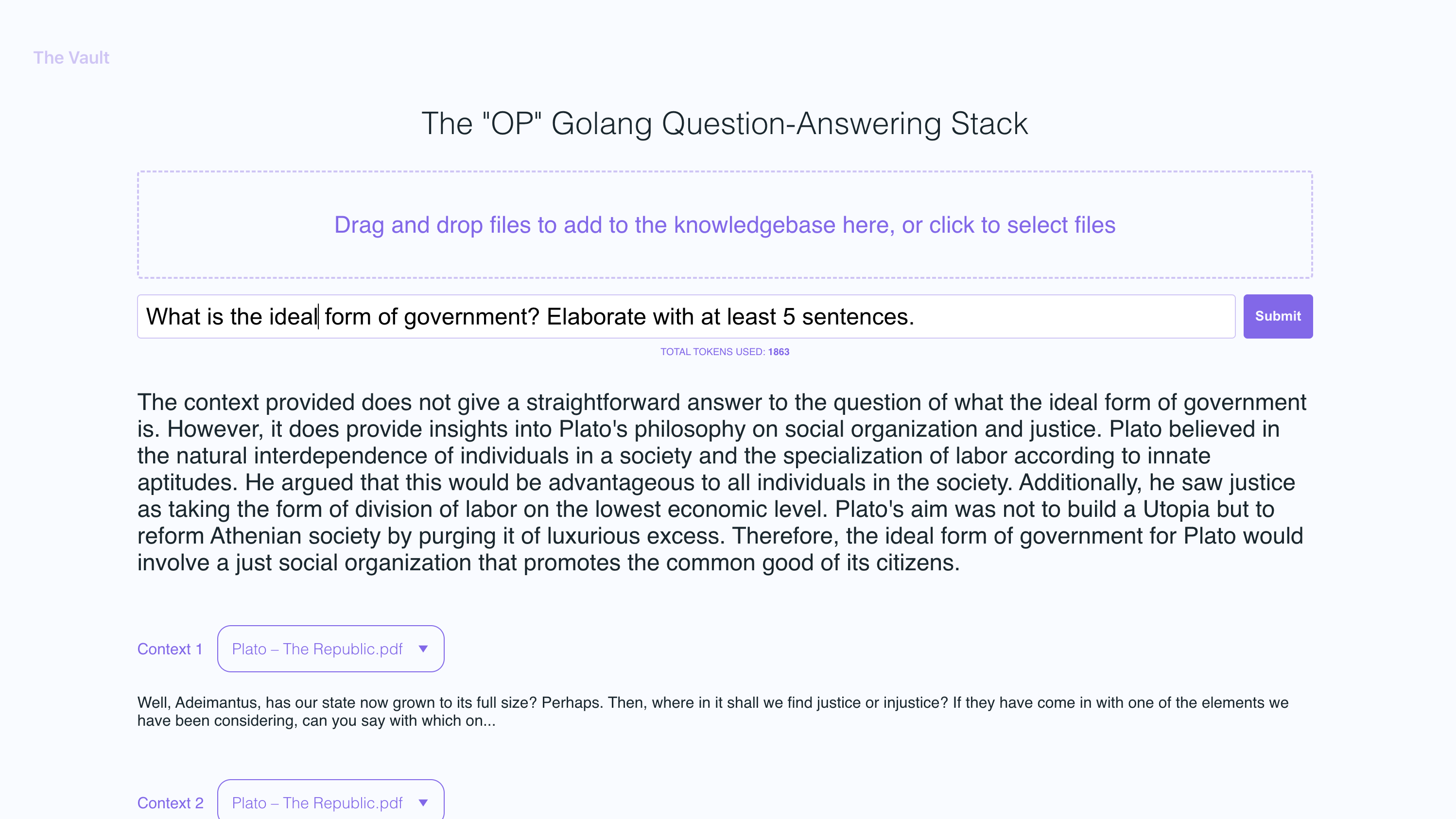
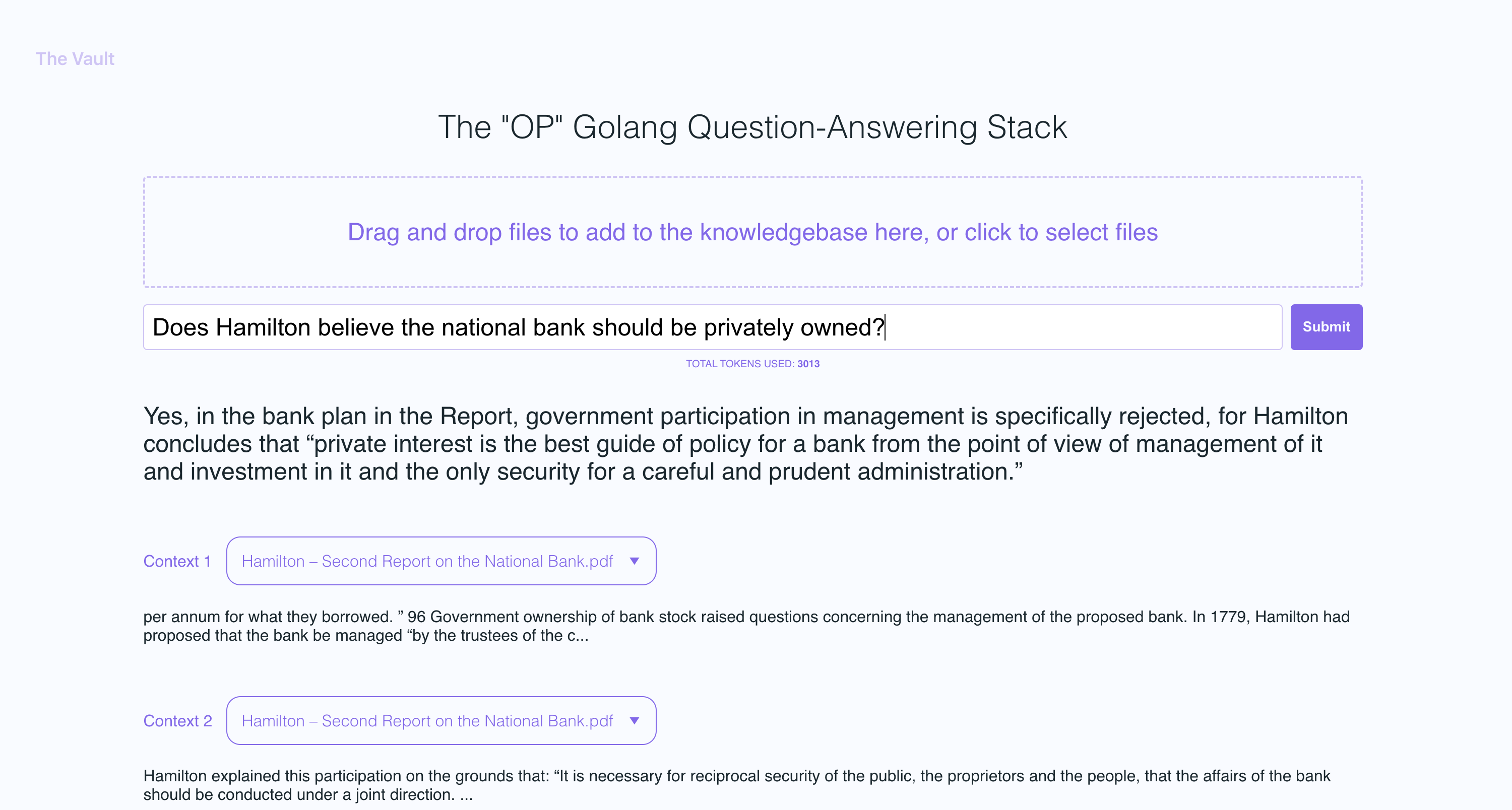
In the example screenshots, I uploaded a couple of books by Plato and some letters by Alexander Hamilton, showcasing the ability of OP Vault to answer questions based on the uploaded content.
Uploading files

Asking questions
Under the hood
The golang server uses POST APIs to process incoming uploads and respond to questions:
-
/uploadfor uploading files
-
/api/questionfor answering questions
Uploading files and processing them into embeddings
The vault-web-server/postapi/fileupload.go file contains the UploadHandler logic for handling incoming uploads on the backend. The UploadHandler function in the postapi package is responsible for handling file uploads (with a maximum total upload size of 300 MB) and processing them into embeddings to store in Pinecone. It accepts PDF, epub, .docx, and plain text files, extracts text from them, and divides the content into chunks. Using OpenAI API, it obtains embeddings for each chunk and upserts (inserts or updates) the embeddings into Pinecone. The function returns a JSON response containing information about the uploaded files and their processing status.
- Limit the size of the request body to MAXTOTALUPLOAD_SIZE (300 MB).
- Parse the incoming multipart form data with a maximum allowed size of 300 MB.
- Initialize response data with fields for successful and failed file uploads.
- Iterate over the uploaded files, and for each file:
- Return a JSON response containing information about the uploaded files and their processing status.
Storing embeddings into Pinecone db
After getting OpenAI embeddings for each chunk of an uploaded file, the server stores all of the embeddings, along with metadata associated for each embedding in Pinecone DB. The metadata for each embedding is created in the upsertEmbeddingsToPinecone function, with the following keys and values:
-
file_name: The name of the file from which the text chunk was extracted. -
start: The starting character position of the text chunk in the original file. -
end: The ending character position of the text chunk in the original file. -
title: The title of the chunk, which is also the file name in this case. -
text: The text of the chunk.
Answering questions
The QuestionHandler function in vault-web-server/postapi/questions.go is responsible for handling all incoming questions. When a question is entered on the frontend and the user presses "search" (or enter), the server uses the OpenAI embeddings API once again to get an embedding for the question (a.k.a. query vector). This query vector is used to query Pinecone db to get the most relevant context for the question. Finally, a prompt is built by packing the most relevant context + the question in a prompt string that adheres to OpenAI token limits (the go tiktoken library is used to estimate token count).
Frontend info
The frontend is built using React.js and less for styling.
Generative question-answering with long-term memory
If you'd like to read more about this topic, I recommend this post from the pinecone blog:
- https://www.pinecone.io/learn/openai-gen-qa/
Uploading larger files
I currently have the max individual file size set to 3MB. If you want to increase this limit, edit the MAXFILESIZE and MAXTOTALUPLOADSIZE constants in fileupload.go.
Supported Filetypes
PDFs, .txt, .rtf, .docx, .epub, and plaintext.
New Pinecone Free Tier Restrictions
Recently, Pinecone limited the use of namespaces for free tier users. If you're on a newly created free tier, these restrictions will apply to you.


