
Zsh Fuzzy Marks
zfm - Zsh Fuzzy Marks
zfm is a command line bookmark manager for Zsh built on top of fzf. It lets you bookmark files and directories in your system and rapidly access them.
It's intended to be a less intrusive alternative to z, autojump or fasd that doesn't pollute your prompt command (PS1) or create bookmarks behind the scenes: you have full control over what gets bookmarked and when, like bookmarks on a web browser.
Installation
Install fzf
zfm is built on top of fzf so you must install that first. Follow the instructions here.
Install zfm
Oh My Zsh
- Clone the repo in Oh My Zsh's plugin directory:
git clone https://github.com/pabloariasal/zfm ${ZSH_CUSTOM:-~/.oh-my-zsh/custom}/plugins/zfm}- Activate the plugin in your
.zshrc:
plugins=(zfm)Antigen
Add this to your .zshrc:
antigen bundle pabloariasal/zfmManual (Git Clone)
- Clone the repo
git clone https://github.com/pabloariasal/zfm ~/.zsh/zfm- Add the following to your
.zshrc:
source ~/.zsh/zfm/zfm.zshUsage
Bookmark files and directories
$ zfm add ~/Downloads ~/Documents/wallpaper.pngList bookmarks
$ zfm list
/home/pablo/Downloads                [d]
/home/pablo/Documents/wallpaper.png  [f]
list only bookmarked files:
$ zfm list --files
/home/pablo/Documents/wallpaper.png [f]$ zfm list --dirs
/home/pablo/Downloads [d]Enter a bookmark into the current command line buffer
To enter a bookmark into the current command line buffer, press ctrl+o. This will open a selection menu with all your bookmarks:
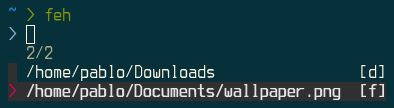
and enter your selection(s) into the current command line buffer:

cd into a bookmarked directory
Off course you can cd into a bookmarked directory, just press ctrl+p.
This will open a selection menu with all your bookmarked directories:
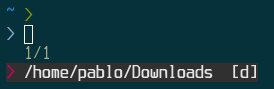
and directly jump to the directory you have selected:

Alternatively, you can type f followed by a pattern to directly jump to the directory matching the pattern (like autojump):
$ f down
/home/pablo/Downloads$Use in custom scripts
You can use zfm in scripts and aliases.
Example: Open a bookmarked file in Vim
For example, you can create an alias to open a bookmarked file with vim by adding this to your.zshrc:
alias of='vim $(zfm select --files --multi)'of will open a selection menu with all bookmarked files and directly open the selection in vim.
The option --multi allows you to select multiple entries.
Example: Open a bookmarked file using dmenu
You can create a script that opens a bookmarked file in dmenu:
#!/usr/bin/env zsh
selection=$(zfm list --files | dmenu | awk '{print $1}') gvim "$selection" or open in vim inside a terminal emulator alacritty -e vim "$selection"
Edit Bookmarks
You can edit your bookmarks (add, delete, reorder) with:
zfm editThis will open your bookmarks in a text editor (as defined by EDITOR) and let you manually edit, remove or reorder your bookmarks.
Commands
| Command | Description | Extra Options | --- | --- | --- | zfm list | List bookmarks | --files, --dirs | zfm add <path> [<path>...] | Add bookmarks | | zfm select | Open bookmarks in FZF and print selection to stdout. | --files, --dirs, --multi | zfm query <pattern> | Print bookmark matching pattern to stdout. FZF selection menu will open if match is ambiguous. | --files, --dirs | zfm edit | Manually edit bookmarks in editor (respects EDITOR) | | zfm fix | Remove bookmarked entries that no longer exist in the filesystem | | zfm clear | Remove all bookmarks | | f <pattern> | Jump to bookmark directory matching pattern, open selection if ambiguous |
Options
| Option | Description | Available for | | --- | --- | --- | | --files | Restrict to just files | query, list, select | | --dirs | Restrict to just dirs | query, list, select | | --multi | Allow selecting multiple items | select |
Key Bindings
| Key Binding | Description | | --- | --- | | ctrl+o | Select one or multiple bookmarks and insert them into the current command line | | ctrl+p | jump to selected directory |
Variables
ZFMNOBINDINGS
Per default, zfm creates two key bindings, ctrl-p and ctrl-o. To disable the creation of key bindings, you can set the environment variable ZFMNOBINDINGS in your zshrc:
export ZFMNOBINDINGS=1or if you wish so, you can rebind them to something else, see F.A.Q.
ZFMBOOKMARKSFILE
Sets the bookmarks file. Defaults to ~/.zfm.txt
export ZFMBOOKMARKSFILE='~/.my_bookmarks.txt'F.A.Q
Why not autojump, z, fasd and others?
Because explicit is better than implicit. I don't want every single directory I visit to be bookmarked, I know which directories I visit the most and which files I need rapid access to.
I don't like the default key bindings, can I change them?
Sure, you can set the ZFMNOBINDINGS environment variable to disable keybindings or manually unbind them by putting this on your zshrc:
bindkey -r '^P'
bindkey -r '^O'
You can also rebind them to something more suitable to you:
bindkey -r '^P'
bindkey -r '^O'
bindkey '^A' zfm-cd-to-bookmark
bindkey '^E' zfm-insert-bookmarkctrl+v on your terminal window to display escape sequences of key bindings.
Contributing
If you change anything make sure to run the tests, bonus points if you enhance them:
Running the Tests
NOTE: you must have python 3.5 or higher installed
1) Install pipenv:
pip install --user pipenv2) Run the tests
cd zfm pipenv run pytest -q test


