
h-m-m, or Hackers Mind Map, is a simple, fast, keyboard-centric terminal-based tool for working with mind maps.
h-m-m (hackers mind map)
h-m-m (pronounced like the interjection "hmm") is a simple, fast, keyboard-centric terminal-based tool for working with mind maps.
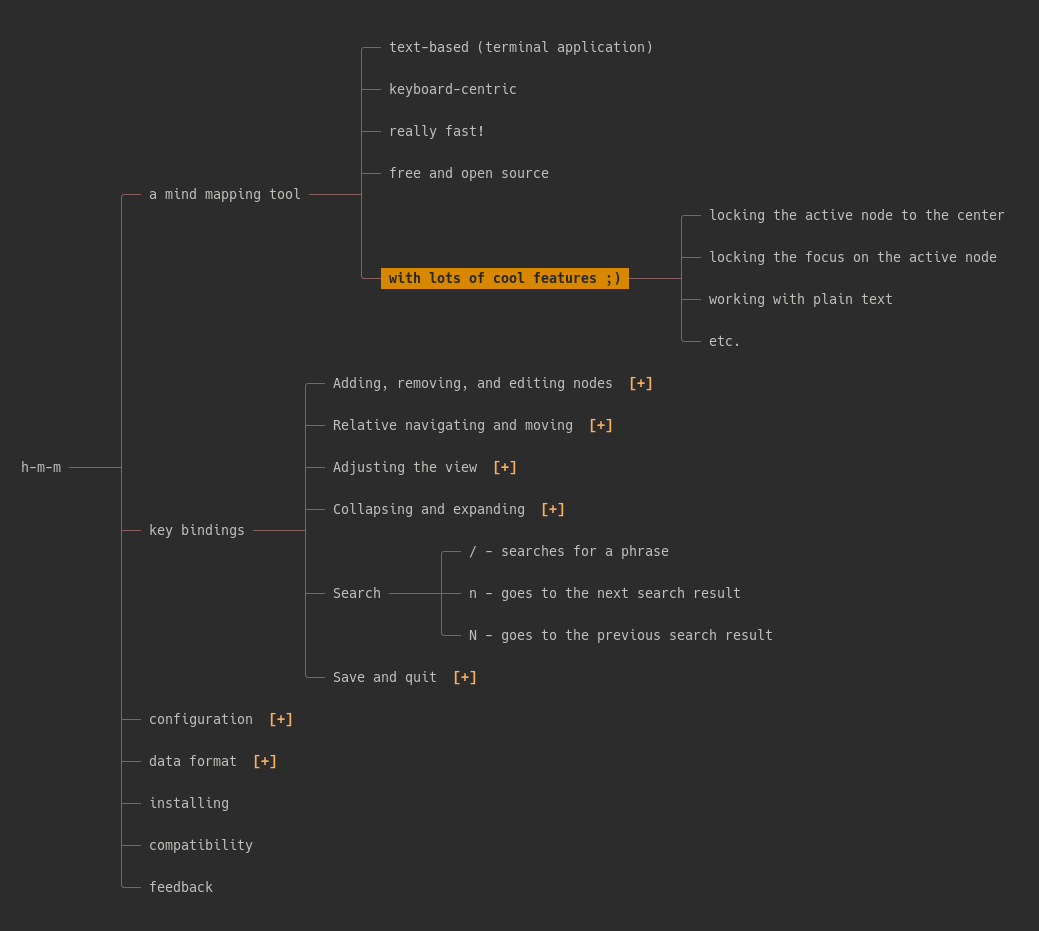
Default key bindings
Adding, removing, and editing nodes:
oorEnter- create a new sibling to the active nodeOorTab- create a new child for the active nodey- yanks (copies) the active node and its descendantsY- yanks (copies) the descendants of the active noded- deletes (cuts) the active node and its descendantsD- deletes (cuts) the descendants of the active nodeDelete- deletes the active node and its descendants without putting them in the clipboardp- pastes as descendants of the active nodeP- pastes as siblings of the active nodeCtrl+p- appends the clipboard text at the end of the active node's titlee,i, ora- edits the active nodeE,I, orA- edits the active node, ignoring the existing textu- undo
t- toggles '✓ ', '✗ ', and '' (or your custom symbols) at the beginning of the title#- adds or removes sequential numbers at the beginning of the titles of a node and its siblings=- increases the positive ranking+- decreases the positive ranking-- increases the negative ranking_- decreases the negative rankingalt+up- adds a staralt+down- removes a starH- toggles the hidden flag
hor←- activates the parent of the previously active nodelor→- activates the middle child of the previously active nodejor↓- activates the lower sibling (or the nearest lower node if there's no lower sibling)kor↑- activates the higher sibling (or the nearest higher node if there's no higher sibling)J- moves the current node down among its siblingsK- moves the current node up among its siblingsT- sorts the siblings of the active node
ctrl+up- moves the viewpoint upctrl+down- moves the viewpoint downctrl+left- moves the viewpoint leftctrl+right- moves the viewpoint rightc- centers the active node on the screenC- locks/unlocks active nodes on the center~orm- activate the root elementg- goes to the highest elementG- goes to the lowest elementw- increases the maximum node widthW- decreases the maximum node widthz- decreases line spacingZ- increases line spacing|- enables/disables aligned levelsctrl+h- hides/views hidden nodes
Space- toggles the active nodev- collapses everything other than the first-level nodesV- collapses all the children of the active nodeb- expands all nodes1to9- collapse the nth level and expand those beforef- focuses by collapsing all, but the ancestors and descendants of the active nodeF- locks focus as the active node changes (try it with the center lock)r- collapses all the first level items except for the one that contains the active nodeR- collapses the children of the active node
/orCtrl+f- searches for a phrasen- goes to the next search resultN- goes to the previous search result
s- saves with the previous file name (or asks for one if there's none)S- saves with a new file namex- export as an HTML fileX- export as a text map into clipboardq- quits (if the changes were already saved)Q- quits, ignoring the changesCtrl+o- open the active node as a file or URL using xdg-open
?- show the key bindings
↓orCtrl-eorCtrl-n- moves the cursor to the end of the line↑orCtrl-porCtrl-aorCtrl-p- moves the cursor to the beginning of the line←orHomeorCtrl-b- moves the cursor to the left→orEndorCtrl-f- moves the cursor to the rightCtrl+LeftorShift+LeftorAlt-b- moves cursor to the previous wordCtrl+RightorShift+rightorAtl-f- moves cursor to the next wordDelete- deletes characterCtrl+DeleteorAlt-d- deletes wordBackspace- deletes previous characterctrl+Backspace,ctrl+w- deletes previous wordCtrl-k- deletes everything to the right of the cursorCtrl-u- deletes everything to the left of the cursorCtrl+vorCtrl+Shift+v- pasteEsc- cancels editingEnter- wanna guess? ;)
Configuration
The following are the settings in h-m-m:
maxparentnode_width = 25 maxleafnode_width = 55 line_spacing = 1 align_levels = 0 initial_depth = 1 center_lock = false focus_lock = false maxundosteps = 24 activenodecolor = \033[38;5;0m\033[48;5;172m\033[1m message_color = \033[38;5;0m\033[48;5;141m\033[1m clipboard = os clipboard_file = /tmp/h-m-m clipboardincommand = "" clipboardoutcommand = "" postexportcommand = "" symbol1 = ✓ symbol2 = ✗ auto_save = false
The colors are ASCII escape codes.
You can also change key bindings with a bind x = command syntax. The following are the defaults:
bind a = editnodeappend bind A = editnodereplace bind b = expand_all bind c = centeractivenode bind C = togglecenterlock bind ctrl_c = quit bind d = delete_node bind D = delete_children bind del = deletenodewithout_clipboard bind e = editnodeappend bind E = editnodereplace bind f = focus bind F = togglefocuslock bind g = gototop bind G = gotobottom bind h = go_left bind H = toggle_hide bind ctrlh = toggleshow_hidden bind i = editnodeappend bind I = editnodereplace bind j = go_down bind J = movenodedown bind k = go_up bind K = movenodeup bind l = go_right bind m = gotoroot bind ~ = gotoroot bind n = nextsearchresult bind N = previoussearchresult bind o = insertnewsibling bind O = insertnewchild bind ctrlo = openlink bind p = pasteaschildren bind P = pasteassiblings bind ctrl_p = append bind q = quit bind Q = shutdown bind ctrlq = quitwith_debug bind r = collapseotherbranches bind R = collapse_inner bind s = save bind S = save_as bind t = toggle_symbol bind T = sort_siblings bind # = toggle_numbers bind u = undo bind v = collapse_all bind V = collapse_children bind w = increasetextwidth bind W = decreasetextwidth bind x = export_html bind X = export_text bind y = yank_node bind Y = yank_children bind z = decreaselinespacing bind Z = increaselinespacing bind enter = insertnewsibling bind tab = insertnewchild bind space = toggle_node bind arrdown = godown bind arrup = goup bind arrright = goright bind arrleft = goleft bind altarrup = add_star bind altarrdown = remove_star bind ctrlarrup = moveviewportdown bind ctrlarrdown = moveviewportup bind ctrlarrleft = moveviewportright bind ctrlarrright = moveviewportleft bind 1 = collapselevel1 bind 2 = collapselevel2 bind 3 = collapselevel3 bind 4 = collapselevel4 bind 5 = collapselevel5 bind 6 = collapselevel6 bind 7 = collapselevel7 bind 8 = collapselevel8 bind 9 = collapselevel9 bind | = toggle_align bind ? = help bind / = search bind ctrl_f = search bind equal = increasepositiverank bind + = decreasepositiverank bind - = increasenegativerank bind = decreasenegative_rank
Keys can be x, X (shift+x), ctrlx, altx, or special keys: arrdown, arrleft, arrright, arrup, backspace, ctrlarrleft, ctrlarrright, ctrlbackspace, ctrldel, del, end, enter, equal, esc, home, shiftarrleft, shiftarrright, space, tab
Note: Not every possible key is defined because I'm going to replace this whole system with one that supports key sequences.
Key bindings can only be set in a config file. There are 3 ways of changing settings:
- Pass them as arguments when running the program; e.g.,
h-m-m --focus-lock=true --line-spacing=0 filename - Set them as environment variables with
hmmas prefix; e.g.,hmmline_spacing=0 - Store them in a config file. You can pass the location of the config file when running the application like
h-m-m --config=/path/file, or use the default location:
Both underscores and dashes are accepted for the setting keys.
When multiple values exist, the highest priority goes to the command line arguments and the lowest to the config file.
Clipboard
The normal os clipboard works fine for most users, but some users may need other options:
--clipboard=osuses the global clipboard via xclip and similar tools.--clipboard=internaluses an internal variable as the clipboard (won't exchange text with external applications).--clipboard=fileuses/tmp/h-m-mby default, or another file set by the--clipboard_file=/path/filenamesetting as the clipboard.--clipboard=commanduses--clipboardincommand="command %text%"to send content to a shell command and--clipboardoutcommand="command"to read content.
Exporting
You can export an HTML version of the map using the x key binding. This is useful for sending the file to someone who may not have h-m-m or a similar mind mapping application. To make the process easier, you can set a sell command to run after exporting the map; e.g., upload it to a server and copy the link to clipboard: --post-export-command="upload.sh %filename% &>/dev/null".
Data format
Mind maps are stored in plain text files (with hmm file extension by default) without metadata. The tree structure is represented by tab indentations; e.g.,
root (level 0) item A (level 1) item B (level 1) item Ba (level 2) item Bb (level 2) item Bc (level 2) item BaX (level 3) item BaY (level 3) item Bd (level 2) item C (level 1)
When you yank (copy) or delete (cut) a subtree, the data will be put into your clipboard with a similar structure, and when pasting, the data will be interpreted as such.
Most mind mapping applications use a similar format for copying and pasting. As a result, if you want to import a map from another application, you can probably select everything in that application, copy it, come to h-m-m, and paste it. The same usually works well when copying from HTML/PDF/Doc lists, spreadsheets (e.g., Calc and Excel), etc.
Installing
Note: A few issues should be solved before h-m-m can be run in Windows. Until then, Windows users can probably use Windows Subsystem for Linux to run it.
1. Manual installation
h-m-m is a single php file. You can download it from here, or clone it on your computer using git and add a scheduled job to update it once a day or week.
You also need to have the following installed for h-m-m to work:
- php
mbstring package (e.g., php7.2-mbstring)
xclip,xsel,wl-clipboard, orklipperin Linux. (Windows and Mac don't need it)
php h-m-m in your terminal to run the program with a blank map or php h-m-m filename to open an existing file. Note: You don't need to set up a "web server" to run it because it's not a web application, but rather a terminal application that works like those written in Python, Bash, etc.
Optionally, you can make the file executable by running the chmod +x h-m-m in your terminal, and afterward, you can run it as h-m-m filename (assuming that h-m-m is in your path).
2. Installation for Arch Linux
In Arch Linux, you can use the h-m-m-git AUR package to install it.
3. Installation script for Linux (and Mac?)
You can run the following command to install h-m-m:
wget -q -O - 'https://raw.githubusercontent.com/nadrad/h-m-m/main/install.sh' | shThis command downloads and runs the install.sh script, which in turn downloads h-m-m, copies it to /usr/local/bin, checks the dependencies, and makes it executable.
After installing, you can run h-m-m from anywhere in your terminal to run the application with an empty map, or h-m-m filename to open an existing file.
4. Installation with Docker
It's also possible to execute h-m-m through docker (or podman):
# Build the image
docker build -t hmm .
Run it (mount $pwd for file access, X11 & DISLAY for clipboard access)
docker run --rm -it -v $(pwd):/app/ -v /tmp/.X11-unix:/tmp/.X11-unix -e DISPLAY=$DISPLAY hmm
Convinience
alias hmm='docker run --rm -it -v $(pwd):/app/ -v /tmp/.X11-unix:/tmp/.X11-unix -e DISPLAY=$DISPLAY hmm'
5. Installation with Nix/NixOS
with flakes (NixOS)
Below is a fragment of a NixOS configuration that add h-m-m to system packages.
{
  description = "Simple NixOS configurations";
  inputs = {
    nixpkgs.url = "github:NixOS/nixpkgs/nixos-unstable";
    h-m-m = {
      url = "github:nadrad/h-m-m";
      # Optional but recommended to limit the size of your system closure.
      inputs.nixpkgs.follows = "nixpkgs";
    };
  };
  outputs = { nixpkgs, h-m-m, ... }: {
    nixosConfigurations = {
      yourHost = nixpkgs.lib.nixosSystem {
        system = "x86_64-linux";
        modules = [
          # ...
          {
            nixpkgs.overlays = [ h-m-m.overlays.default ];
          }
          # add h-m-m to your system
          ({ pkgs, ... }: {
            environment.systemPackages = [ pkgs.h-m-m ];
          });
        ];
      };
    };
  };
}
with
nix profile
You can also install it using the imperative method
$ nix profile install github:nadrad/h-m-mwith
nix shell / nix run
If you don't want to install it on your system, you can try it with nix run or nix shell.
$ nix run github:nadrad/h-m-m -- <args>
or
$ nix shell github:nadrad/h-m-m
$ h-m-m <args>
Feedback
Programming is not my career, but rather a hobby, and I developed h-m-m because I wanted to have something like this application and couldn't find one. Therefore, what I've done here may have a lot of room for improvement. If you see an embarrassing problem in the program or have an idea for improvement, feel free to contact me; I'd be happy to receive your feedback.
Why php? It's simple: I only have a rusty knowledge of Pascal and a little familiarity with php. I thought about learning another language for this project (Nim is my top choice at this moment), but I didn't have time to do it. I'll probably do it later and convert it into a language I can compile :)
Contributions
All kinds of human contributions are very welcome:
- If you'd like to contribute a major feature, it's a good idea to create an issue for it first and talk about it a little before you start programming.
- Please only contribute code that you've written yourself, not one that an LLM has written, even if you've fully reviewed it.
Related resources
A few people have published software/content about or related to h-m-m; these are the ones I know:
- hmm... (an app for hackers): A YouTube video by We Deserve Less
- hmmgood: A TUI menu/launcher for h-m-m


