
USENET-inspired, uncensorable, decentralized internet discussion system running on IPFS & OrbitDB (https://codeberg.org/mrus/superhighway84)
Superhighway84


NOTE
With go-orbit-db's decline in activity and the issues arising from trying to keep up with IPFS Kubo, Superhighway84 is pretty much dead in the water_. While it is perfectly usable in its current state, it depends on obsolete versions of IPFS Kubo and its dozens of dependencies.
If you are looking for a spiritual successor to Superhighway84, check out Neon Modem Overdrive. NMO_ is a TUI client for Discourse, Lemmy, Lobsters and Hacker News, featuring similar aesthetics. However, NMO does not (yet?) offer an implementation for a decentralized community like Superhighway84.
===============================================================================
                        INTERACTIVE ASYNC / FULL DUPLEX
===============================================================================
Dial Up To 19.2 Kbps                                                                          with
                                                     _    /  / / // / /    / /  () / /       ( _ )/ / /   \ \\\\\ \/ // /  \/ -) /  \/ /  \/  \ |/|/ /  \/ // /   /  /  /  / / // //\,/ ./\// /////\, ////,/\,/\, /\/ /_/                    //                  //                /_/
::: UNCENSORABLE USENET-INSPIRED DECENTRALIZED INTERNET DISCUSSION SYSTEM :::
The V.H.S. (Very High Speed) Superhighway84 platform is more than just the   fastest decentralized, uncensorable, USENET-inspired communications platform           available. It is also the first one to be based on the latest                          IPFS technology available today!
Superhighway84 offers the most spectacular features under the Spectrum.                                                                      100% Error Protection                          Data and Character Compression                          Alternate Bell Compatible Mode                          Long Haul Satellite Operation                               Network Diagnostics                                  Fallback Mode                                    And More!
The Superhighway84 modern, uncensorable,                     decentralized internet discussion system.                        It should cost a lot more than $0.
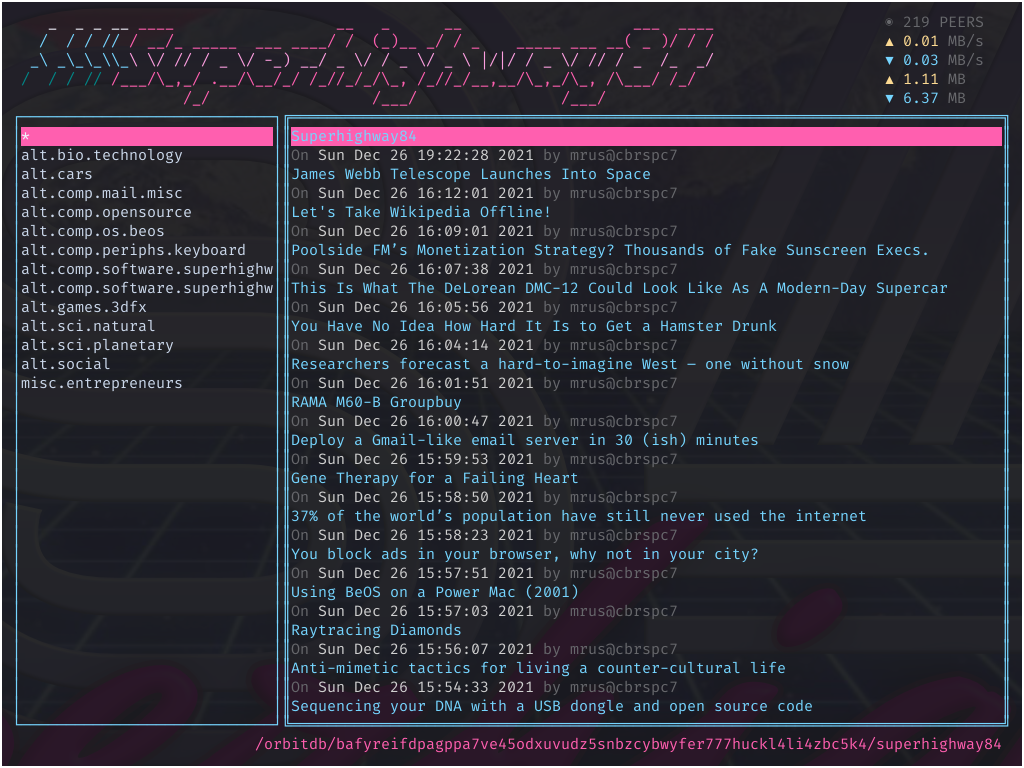
Superhighway84 is an open source, terminal-based, IPFS-powered, USENET-inspired, uncensorable, decentralized peer-to-peer internet discussion system with retro aesthetics.
Installation
Prerequisites
Download the kubo 0.16 release and unpack it:
$ tar -xzf ./kubo_*.tar.gzIf you haven't used IPFS so far, initialize the IPFS repository using the following command:
$ ./kubo/ipfs initIf you had used IPFS an already have an IPFS repository in place, either (re)move it from ~/.ipfs or make sure to export IPFS_PATH before running the ipfs init command, e.g.:
$ export IPFS_PATH=~/.ipfs-sh84
$ ./go-ipfs/ipfs init
From Release
Download the latest release and unpack it:
$ tar -xzf ./superhighway84_*.tar.gz
$ ./superhighway84
If you initialized the IPFS repo under in a custom location, you need to prefix IPFS_PATH:
$ IPFS_PATH=~/.ipfs-sh84 ./superhighway84The binary superhighway84 can be moved wherever you please.
From Source
Clone this repository
- from GitHub
$ git clone git@github.com:mrusme/superhighway84.git- from
$ rad clone rad:z4JkpNjyUemfCeU85iqssNEukoBn1Then cd into the cloned directory and run:
$ go build .The binary will be available at ./superhighway84 and can be moved wherever you please.
Running
First, check ulimit -n and verify that it's at a reasonable amount. IPFS requires it to be large enough (>= 2048) in order to work properly over time.
Second, if your hardware shouldn't be a beefy computer but instead one of those flimsy MacBooks, older hardware, a Raspberry or a low-memory VPS it is advisable to set the previously created IPFS repository to the lowpower profile.
$ ipfs config profile apply lowpowerThis should help with CPU usage, file descriptors and the amount of network connections. While during the startup period you might still see peers peaking between 1k and 3k, connections should ultimately settle somewhere between 100 and 300 peers.
Afterwards you can simply launch the binary:
$ superhighway84A setup wizard will help you with initial configuration. Please make sure to have at least HOME and EDITOR exported in your environment.
In case you're intending to run the official IPFS daemon and Superhighway84 in parallel, be sure to adjust the ports in their respective IPFS repos (e.g. ~/.ipfs and ~/.ipfs-sh84) so that they won't utilize the same port numbers. The ports 4001, 5001 and 8080 are relevant and should be adjusted to something other for every new repo/IPFS node that will run in parallel, e.g.:
"Addresses": {
  "Swarm": [
    "/ip4/0.0.0.0/tcp/4002",
    "/ip6/::/tcp/4002",
    "/ip4/0.0.0.0/udp/4002/quic",
    "/ip6/::/udp/4002/quic"
  ],
  "Announce": [],
  "NoAnnounce": [],
  "API": "/ip4/127.0.0.1/tcp/5002",
  "Gateway": "/ip4/127.0.0.1/tcp/8081"
},NOTE: When running Superhighway84 for the first time it might seem like it's "hanging" at the command prompt. Usually it isn't hanging but rather searching for peer it can connect to in order to synchronize the database. Depending on how many people are online, this process might take some time, please be patient.
Connectivity
If you're having trouble connecting to the IPFS network that might be due to your network setup. Please try the IPFS AutoRelay feature in such a case:
$ ipfs config --json Swarm.RelayClient.Enabled trueMore information on this can be found here: https://github.com/ipfs/kubo/blob/master/docs/experimental-features.md#autorelay
Configuration
Superhighway84 will guide you through the basic configuration on its first run. The configuration is stored at the path that you specified in the setup wizard. After it was successfully created, it can be adjusted manually and will take effect on the next launch of Superhighway84.
Configuration options that might be of interest:
ArticlesListView =
  The view to be used for the articles lit. Possible values:
  0 - threaded view, latest thread at the top
  1 - list view, latest article at the top
[Profile]   From =     The identifier that is being shown when posting an article, e.g. your name,     username or email that you'd like to display
Organization =     An optional organization that you'd like to display affiliation with
[Shortcuts]   The shortcuts for navigating Superhighway84, can be reset to its defaults by   simply removing the whole [Shortcuts] block and launching Superhighway84
The structure is as following:
<key code> = "event"
The key codes can be looked up under the following link:
https://pkg.go.dev/github.com/gdamore/tcell/v2#Key
For simple ASCII characters use their ASCII code, e.g. 114 for the character    r.
Usage
The default keyboard shortcuts are:
C-r: Refresh
     C-h: Focus groups list
C-l, C-k: Focus articles list
     C-j: Focus preview pane
     C-q: Quit
       k: Move up in list
       j: Move down in list
       h: Move left in list
       l: Move right in list
       g: Move to the beginning of list/text
       G: Move to the end of list/text
      CR: Select item in list
       n: Publish new article
       r: Reply to selected article
However, you are free to customize these within your configuration file, under the section Shortcuts.
Submit Article
When submitting a new article or a reply to an article, the $EDITOR is launched in which a document with a specific structure will be visible. This structure consists of the HEADER, a SEPARATOR and the BODY and looks like this:
Subject: This is the subject of the article
Newsgroup: test.sandbox
= = = = = =
This is the multiline
body of the article
The HEADER contains all headers that are required for an article to be submitted. These are:
Subject:\
Newsgroup:\
The SEPARATOR contains of 6 equal signs and 5 spaces, alternating each other, followed by a new line.
The BODY can contain of multiline text.
Known Limitations
- The OrbitDB that Superhighway84 uses is a public database, meaning everyone
- Superhighway84 is bound to the version of IPFS that Berty decides to support
- If you have a newer IPFS version installed than the one used by
> panic: Your programs version (11) is lower than your repos (12).If this should be the case, please follow the instructions provided here:
https://github.com/mrusme/superhighway84/issues/42#issuecomment-1100582472
- If you encounter the following issue your IPFS repo version might be older
> panic: ipfs repo needs migrationIn this case you might want to follow the IPFS migration guide here:
https://github.com/ipfs/fs-repo-migrations/blob/master/run.md
Alternatively use the same IPFS version as used by Superhighway84 to initialize a dedicated Superhighway84 repository. Please refer to the INSTALLATION part for how to do so.
Credits
- Superhighway84 name, code and graphics by mrusme
- Logo backdrop by


