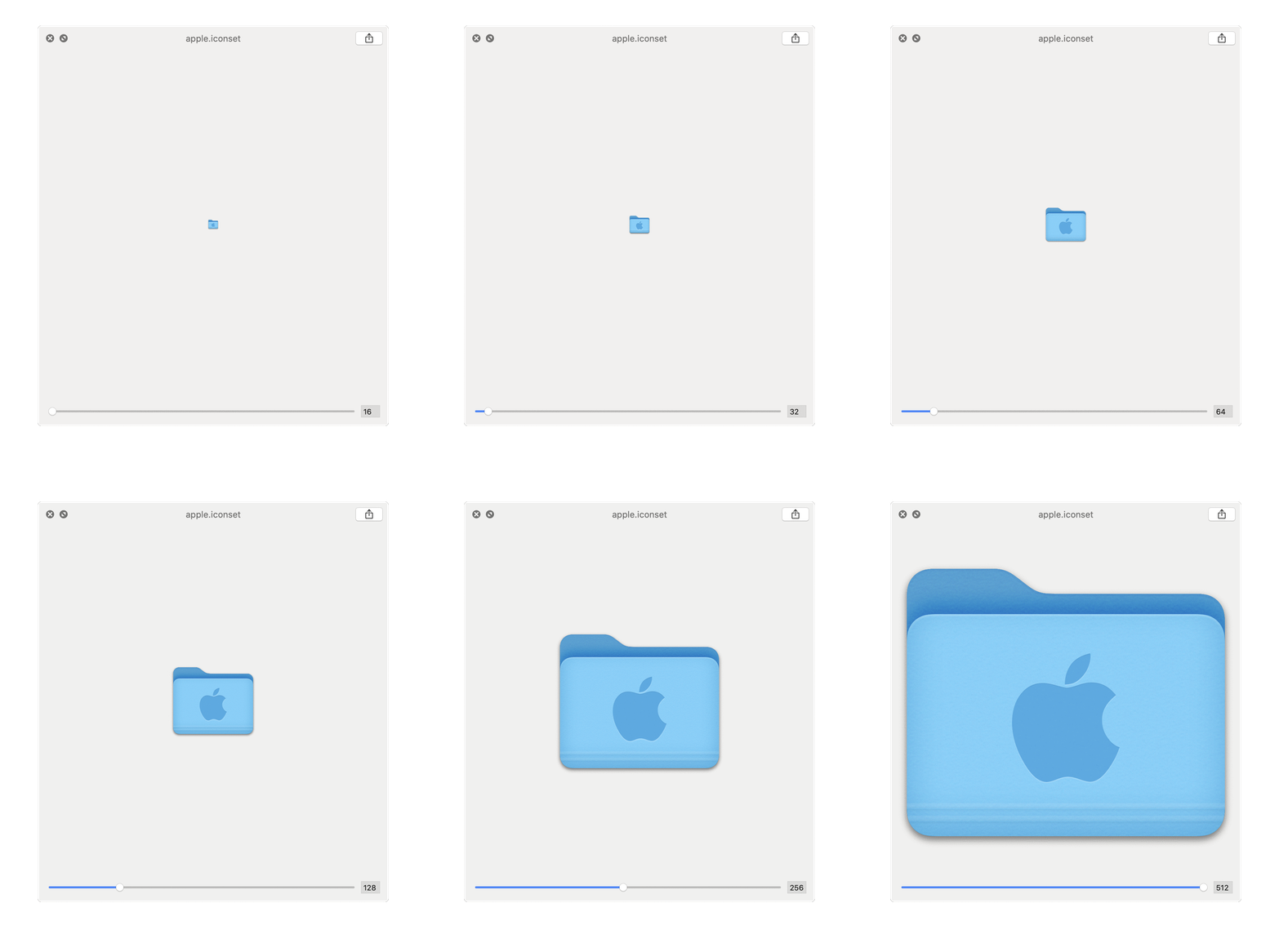
:file_folder: Generate pixel-perfect macOS folder icons in the native style. (Now with support for macOS 26 Tahoe!)
folderify
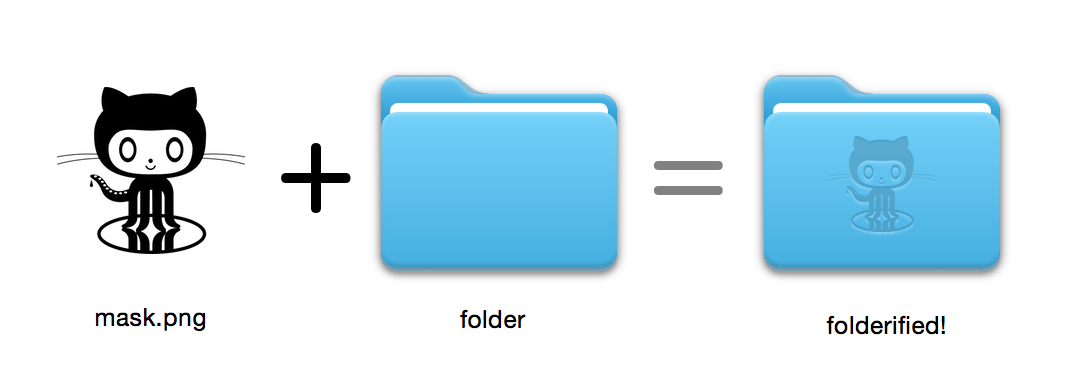
Generate pixel-perfect macOS folder icons in the native style (including for macOS 26 Tahoe).
- Automatically includes all icon sizes from
16x16through512x512@2x. - Light or dark mode (automatically selected by default).
folderify? Let me know or let me know and I'd love to feature some real-world uses!
Install
Install folderify using Homebrew:
brew install folderifyHomebrew install is recommended, and automatically installs folderify argument completions for your shell.
See below for other installation options.
Usage
Use a mask to assign an icon to a folder:
folderify mask.png /path/to/folderGenerate mask.icns and mask.iconset files:
folderify mask.pngBy default, folderify uses your system's current light/dark mode. Use --color-scheme to override this:
folderify --color-scheme dark mask.pngNote:
- There is currently no simple way to set an icon that will automatically switch between light and dark when you switch the entire OS. You can only assign one version of an icon to a folder.
Tips
For best results:
- Use a
.pngmask. - Use a solid black design over a transparent background.
- Make sure the corner pixels of the mask image are transparent. They are used for empty margins.
- Pass the
--no-trimflag and use a mask:
OS X (macOS 10)
Folder styles from OS X / macOS 10 are no longer supported by folderify as of v3:
- Leopard-style (OS X 10.5 to OS X 10.9)
- Yosemite-style (OS X 10.10 to macOS 10.15)
folderify v2. For example:
# Using uvx: https://docs.astral.sh/uv/guides/tools/
uvx --from folderify folderify-v2 --macOS 10.5 path/to/icon.png
Using pip
pip3 install folderify
python3 -m folderify --macOS 10.5 path/to/icon.png
Other installation options
If you don't have Homebrew but you already have ImageMagick (the magick binary) on your system, you can use the following:
Install using Rust
cargo install folderifyFrom source
Or download the code directly:
git clone https://github.com/lgarron/folderify && cd folderify
Run directly
cargo run -- --reveal examples/src/folder_outline.png .
Install (assuming the cargo bin is in your path)
cargo install --path .
folderify --reveal examples/src/folder_outline.png .
The repository folder should now have a custom icon.
# bash
for file in examples/src/*.png; do cargo run -- $file; done
open examples/src/
You should see a bunch of new .iconset folders and .icns files that were automatically generated from the .png masks.
Dependencies
- ImageMagick - for image processing (you should be able to run
magickandidentifyon the commandline). - Included with macOS:
iconutil
- Optional:
fileicon
- sips, DeRez, Rez, SetFile (You need Xcode command line tools for some of these.)
Full options
text help
Generate a native-style macOS folder icon from a mask file.
Usage: folderify [OPTIONS] [MASK] [TARGET]
Arguments:   [MASK]           Mask image file. For best results:           - Use a .png mask.           - Use a solid black design over a transparent background.           - Make sure the corner pixels of the mask image are transparent. They are used for empty margins.           - Make sure the non-transparent pixels span a height of 384px, using a 16px grid.           If the height is 384px and the width is a multiple of 128px, each 64x64 tile will exactly align with 1 pixel at the smallest folder size.
[TARGET]           Target file or folder. If a target is specified, the resulting icon will           be applied to the target file/folder. Else (unless --output-icns or           --output-iconset is specified), a .iconset folder and .icns file will be           created in the same folder as the mask (you can use "Get Info" in Finder           to copy the icon from the .icns file).
Options:       --output-icns <ICNS_FILE>           Write the .icns file to the given path.           (Will be written even if a target is also specified.)
--output-iconset <ICONSET_FOLDER>           Write the .iconset folder to the given path.           (Will be written even if a target is also specified.)
-r, --reveal           Reveal either the target, .icns, or .iconset (in that order of preference) in Finder
--macOS <MACOS_VERSION>           Version of the macOS folder icon, e.g. "14.2.1". Defaults to the version currently running
--empty-folder           Render the folder as empty
--color-scheme <COLOR_SCHEME>           Color scheme — auto matches the current system value                      [default: auto]           [possible values: auto, light, dark]
--no-trim           Don't trim margins from the mask.           By default (i.e. without this flag), transparent margins are trimmed from all 4 sides.
--no-progress           Don't show progress bars
--badge <BADGE>           Add a badge to the icon. Currently only supports one badge at a time                      [possible values: alias, locked]
-v, --verbose           Detailed output. Also sets --no-progress
--completions <SHELL>           Print completions for the given shell (instead of generating any icons).           These can be loaded/stored permanently (e.g. when using Homebrew), but they can also be sourced directly, e.g.:                       folderify --completions fish | source # fish            source <(folderify --completions zsh) # zsh                      [possible values: bash, elvish, fish, powershell, zsh]
-h, --help           Print help (see a summary with '-h')
-V, --version           Print version</code></pre>
Example
Example generated from the Apple logo: