
Homemade Pwnbox :rocket: / Rogue AP :satellite: based on Raspberry Pi — WiFi Hacking Cheatsheets + MindMap :bulb:
Pi-PwnBox :rocket: -RogueAP :satellite: ===============================================================================
Homemade (headless) PwnBox / RogueAP based on Raspberry Pi & Alfa WiFi USB Adapters.
WiFi Hacking Cheatsheets & Mind Map :bulb:
Designed to be used for:
- On-site Red Team engagements,
- WiFi Security assessments,
- WiFi Attacks practice.
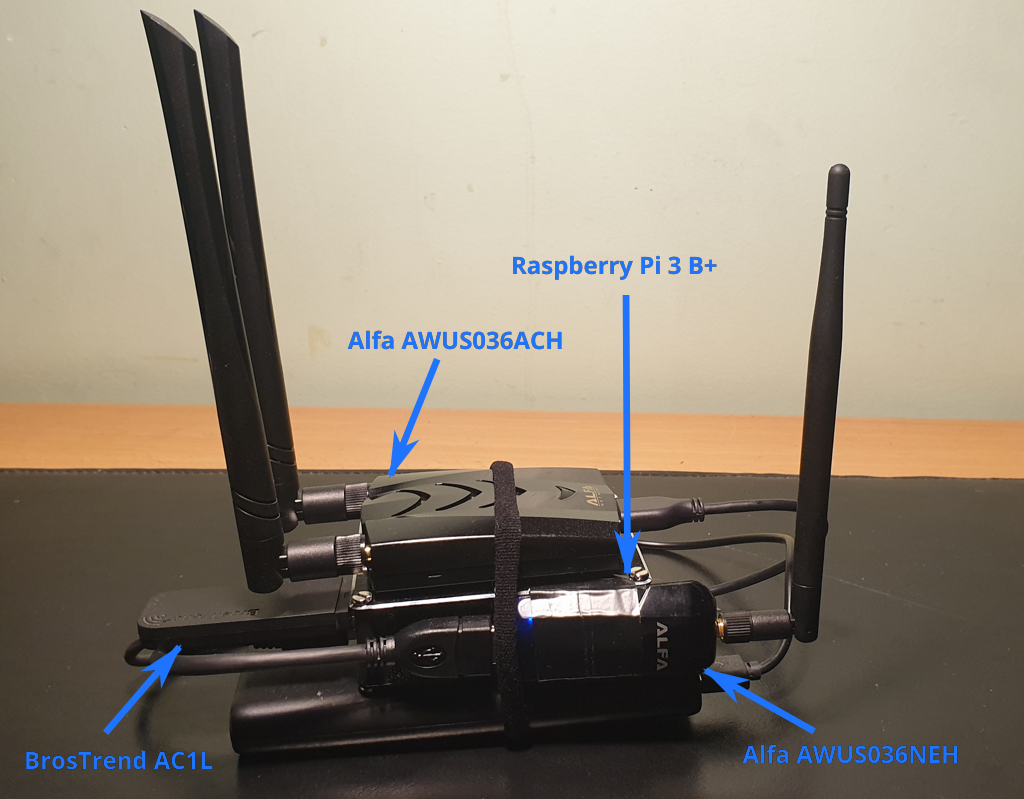
Table of Contents =================
- Pi-PwnBox-RogueAP
- Equipment used
- WiFi USB Adapters Overview
- Requirements & Compatibility
- Installation
- PwnBox Network Configuration
Equipment used
- Raspberry Pi 3 Model B+, Pi 4 or Pi 5
- Micro SD Memory Card 64 GB (class 10 or better, UHS-I recommended)
- Raspberry Pi Case (with passive/active cooling for Pi 4/5)
- Alfa WiFi USB Adapter AWUS036NEH
- Alfa WiFi USB Adapter AWUS036ACH
- BrosTrend WiFi USB Adapter AC1L AC1200 (can be replaced by any adapter supporting AP mode)
- USB cable Male to Female
- Rii Mini Wireless Keyboard (optional)
- Powerbank (minimum 2.5A for Pi 3, 3A+ for Pi 4/5)
WiFi USB Adapters Overview
| Device | Chipset | Usage | 802.11 | 2.4 Ghz | 5 Ghz | Kali out-of-box | Mon. Mode | Injec-tion | AP | |----------|--------|--------|--------|------|-------------------------|--------------|-----------|---------|--------| | Built-in Raspberry Pi 3 B+ WiFi chip | Broadcom 43430 | Connection to Internet (auto-start at boot if WiFi key added in config) | 802.11 b/g/n/ac | Y | Y | Y | N | N | Y | | BrosTrend AC1L AC1200 | Realtek RTL8812AU | Acces Point for Remote Access (auto-start at boot) | 802.11 a/b/g/n/ac | Y | Y | N | Y | N | Y | | Alfa AWUS036NEH | Ralink RT2870/3070 | WiFi Attacks | 802.11 b/g/n | Y | N | Y | Y | Y | Y | | Alfa AWUS036ACH | Realtek RTL8812AU | WiFi Attacks | 802.11 a/b/g/n/ac | Y | Y | Y | Y | Y | Y |
\* would require nexmon patch to enable monitor mode and injection support on built-in Broadcom chip (but we do not need it for its usage here).
Requirements & Compatibility
- OS: Kali Linux ARM for Raspberry Pi (64-bit recommended for Pi 4/5).
- Internet: During installation the PwnBox must have access to the Internet.
- Root: Install script must be run as
root. - Note for Pi 4/5: The 64-bit Kali ARM image is highly recommended. All tools work on
arm64, but some older precompiled binaries may requirebox64or manual compilation.
Installation
- Download Kali Linux ARM Image for Raspberry Pi: https://www.kali.org/get-kali/#kali-arm
- Flash Kali Linux ARM Image for Raspberry Pi onto Micro SD Card (use Raspberry Pi Imager or
dd). - Boot Raspberry Pi, log in (default kali/kali) and make sure it has Internet connection.
- Download install scripts/configurations on the PwnBox:
git clone https://github.com/koutto/pi-pwnbox-rogueap.git- Important: Edit install script configuration at the top of
scripts/install-system.shfile:
GUACAMOLEPASSWORD, GUACAMOLEMYSQL_PASSWORD).
- Set WiFi interfaces persistent names based on their MAC addresses: wlxaabbccddeeff for a device with MAC address aa:bb:cc:dd:ee:ff.
- Set MAC addresses of eth0 & wlan0 (built-in interfaces).
- Set WiFi connection settings (WIFISSID, WIFIPASSPHRASE).
- Run install script (will pause at the end of each step in order to allow for manual inspection of command outputs)
cd pi-pwnbox-rogueap/scripts
./install-system.sh- Reboot & check correct configuration of network interfaces:
ip a
iwconfigeth0 and wlan0 respectively.
- WiFi USB Adapters should use persistent naming (modern naming convention wlx*).
- AP (PWNBOX_ADMIN) should be started on appropriate wlx* interface.
- Configure VNC-over-HTTP on Guacamole:
pwnbox-vnc
- Location = ROOT
- Protocol = VNC
- Maximum number of connections = 3
- Maximum number of connections = 3
- Guacamole Proxy Hostname = 127.0.0.1
- Guacamole Proxy Port = 4822
- Network Hostname = 127.0.0.1
- Network Port = 5901
- Authentication Password = (password chosen at install when running install-system.sh)
- Color depth = True color (32-bit)
- Change default credentials:
passwd kali)
- Guacamole credentials (via http://<ip_pwnbox>:8080/guacamole/#/manage/mysql/users/guacadmin)
PwnBox Network Configuration
Wireless Dedicated Administration Network
When booting, PwnBox automatically spawns an AP on one interface to allow for easy remote access:
- SSID =
PWNBOX_ADMIN(Hidden SSID) - WPA2 Passphrase (PSK) =
Koutto!PwnB0x! - IP AP = 10.0.0.1 (when connected to this network, PwnBox can be accessed at this IP)
- Network range = 10.0.0.1/24
LAN Network (Wireless or Wired)
When booting, PwnBox automatically connects to:
- Wired network if Ethernet port is connected.
- WiFi network (using built-in Raspberry Pi chip) if there is available wireless network with saved connection settings (in
/etc/wpa_supplicant.conf). If you want to connect to a new WiFi network (not saved into PwnBox), it is necessary to add WPA passphrase of the network before:
- Use wireless dedicated administration network (most convenient approach), - Use wired network, - Use monitor + (wireless) keyboard. 2. Add WPA passphrase to PwnBox local configuration:
wpapassphrase <SSID> <passphrase> >> /etc/wpasupplicant.confwpasupplicant -B -i wlan0 -c /etc/wpasupplicant.conf dhclient -v wlan0 ping 8.8.8.8PwnBox Remote Access
PwnBox can be controlled through:
- SSH Service (22/tcp):
ssh kali@<ip_pwnbox>- VNC-over-HTTP with Guacamole (8080/tcp):
http://<ip_pwnbox>:8080/guacamolePwnBox's IP depends on the network you want to access it from:
- Via Wireless Dedicated Administration Network (i.e. connected to hidden SSID
PWNBOX_ADMIN): IP is always10.0.0.1. - Via LAN Network (wireless or wired): IP depends on the value allocated by DHCP server. IP can be found using
netdiscoverfor example.
stop-guacamole.sh script.
Usage
- Most of the time, only SSH access is necessary. (CLI tools).
- Additional tools are installed into /usr/share.
- Tools with GUI or requiring spawning of multiple xterm (e.g. airgeddon) can be run through Guacamole.
- Tools with Web UI (e.g. Kismet, Bettercap) can be started and accessed remotely.
WiFi Hacking Cheatsheets & Mind Map

Troubleshooting
Slow boot when Ethernet cable is unplugged
Because/etc/network/interfaces uses auto eth0, the system waits for a DHCP lease during boot. If you frequently run the PwnBox without Ethernet and experience slow boots, edit /etc/network/interfaces and change:
auto eth0
allow-hotplug eth0allow-hotplug eth0auto eth0 line.)
DHCP service conflict warning
isc-dhcp-server is installed because some tools (e.g., Fluxion) require it, but it is disabled by default to avoid a port 67/udp conflict with dnsmasq (which serves the PWNBOX_ADMIN AP). If you need isc-dhcp-server, stop dnsmasq first:
systemctl stop dnsmasq
systemctl start isc-dhcp-server
Guacamole / Tomcat service fails to start
Newer Kali/Debian releases ship Tomcat 10 instead of Tomcat 9. Thestart-guacamole.sh and stop-guacamole.sh scripts auto-detect the installed Tomcat version. If Guacamole does not work after install, check:
systemctl list-unit-files | grep tomcat
systemctl status guacd
systemctl status mysql
Then start manually with correct tomcat version, e.g.:
systemctl start tomcat10
BrosTrend AC1L driver issues
If the vendor installer (deb.trendtechcn.com) is offline, build the driver manually:
sudo apt-get install -y bc git build-essential dkms
sudo git clone https://github.com/cilynx/rtl88x2bu.git /usr/src/rtl88x2bu-5.8.7
sudo dkms add -m rtl88x2bu -v 5.8.7
sudo dkms autoinstall
VNC server does not start
Make sure you ranvncpasswd during install to create the password file:
vncpasswd
systemctl restart vncserver
Python 2 tools no longer work
Python 2 has been removed from modern Kali. The install script now uses Python 3 only. If you have old custom Python 2 tools, migrate them to Python 3 or run them in a dedicated Docker container.No Internet after disabling NetworkManager
The install script disables NetworkManager in favor of classic/etc/network/interfaces. If you need to temporarily re-enable NM:
systemctl start NetworkManager
systemctl enable NetworkManager
Wireless interface names changed after reboot
Check that your MAC addresses ininstall-system.sh match reality:
ip link show/etc/udev/rules.d/70-persistent-net.rules manually.
Possible Upgrade
- Add 4G USB dongle for remote access to PwnBox using 4G cell network.
- Replace BrosTrend AC1L with a dual-band AP-capable adapter supporting 802.11ax (WiFi 6) for better performance.
- Add GPS USB module for wardriving with Kismet.


