
Azure Terrafy Import Walkthrough
Importing resources with Azure Terrafy
Public GitHub repo hosting Azure Terrafy - https://github.com/Azure/aztfy
Authors
- Kevin Evans - GitHub: @kevinevans1 - Twitter: https://twitter.com/thekevinevans
Useful Links
Azure-terrafy-walkthrough
Welcome to the Azure Terrafy guide for importing your existing Azure infrastructure under Terraform management. The installation steps in this guide focus on a Windows deployment, but the import steps are consistent across all environments (MacOS,Unix,Linux,BSD)Deployment Steps
## Dependencies- Visual Studio Code (VS Code)
- GIT
- Azure CLI
- Terraform
- aztfy
- Windows Terminal
- Azure Subscription
Instructions
- Download and install prerequisites
- Configure Terraform \ Azure Terrafy (Extract Terraform executable to "c:\terraform", extract Azure Terrafy to "c:\aztfy")
- Click on the Start menu and search for Settings. Open the Settings app. - Select the System icon, then on the left menu, select the About tab. Under Related settings on the right, select Advanced system settings. - On the System Properties window, select Environment Variables. - Select the PATH variable, then click Edit. - Click the New button, then type in the path where the Terraform & Terrafy executable is located.
- Clone this git repo to your local machine
git clone https://github.com/kevinevans1/azure-terrafy-walkthroughThe following steps are completed from the CLI (Windows Terminal)
Authenticate to Azure
We need to authenticate to Azure in order for Terrafy to read our target subscriptions \ resource groupsAzure Subscription Configuration:
Azure CLI
1. az login (login)
- set azure subscription reference "az account set --subscription <my sub>"
Azure Terrafy
Create a new directory for the tool to use a working directory. example:- mkdir aztfynetrunnerdemo
- cd aztfynetrunnerdemo (This selects our newly created Azure Terrafy working directory)Terraform Demo Plan Config Example
See below an example terraform state list that was outputted from the demo terraform configuration files included in this repo. We will use the below state list to verify our imported Azure configuration into Terraform state using Azure Terrafy.Run "terraform state list" in your working directory after a successful "Terraform apply" to your Azure environment. This will output a similar resource list below for cross-reference.azurermnetworkinterface.vm_nic
azurermnetworksecuritygroup.vmsubnet_nsg
azurermresourcegroup.vmresourcegroup
azurermsubnet.vmsubnet
azurermsubnetnetworksecuritygroupassociation.vmsubnetnsgassociation
azurermvirtualnetwork.vm_vnet
azurermwindowsvirtualmachine.vm01aztfy "your Azure external resource group name"
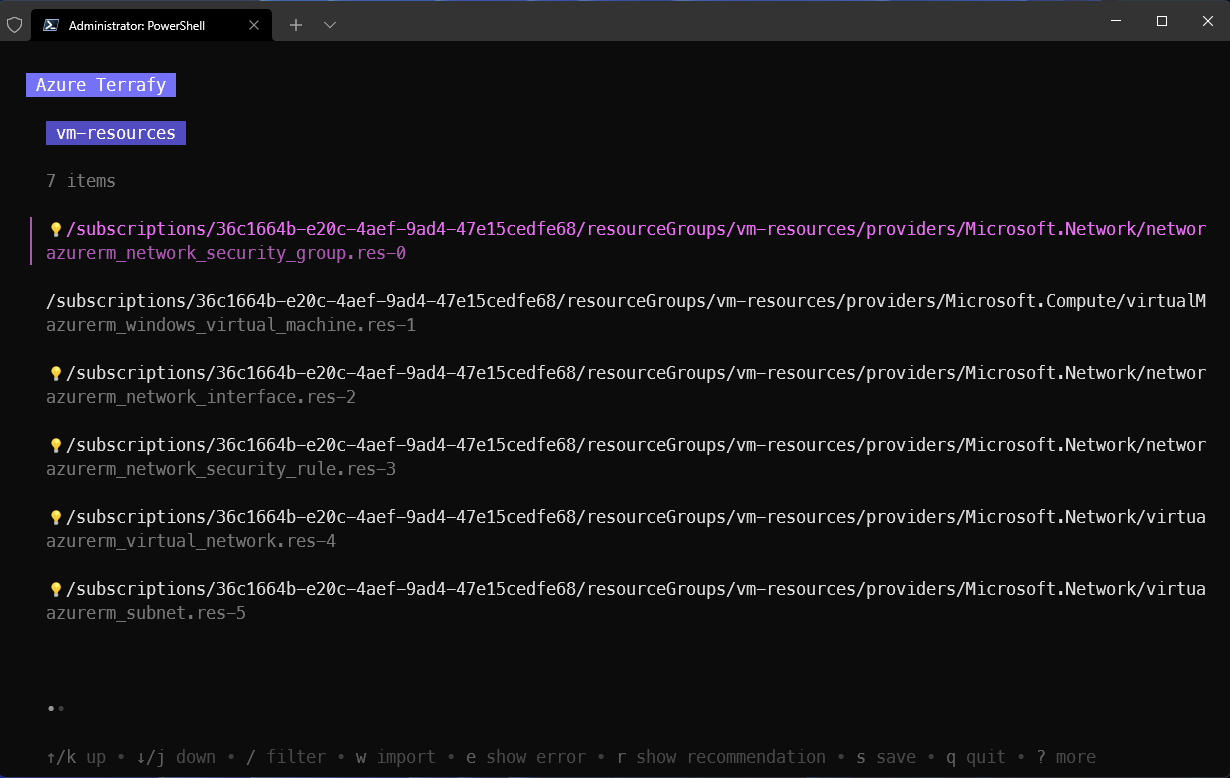
Accept the defaults, in this example which included all of the resources.
Exception: You will see that res-1, will be detected as a unknown resource by the aztfy tool. In this instance amend the line with the resource type deployed.In this instance this would be "azurermwindowsvirtual_machine"
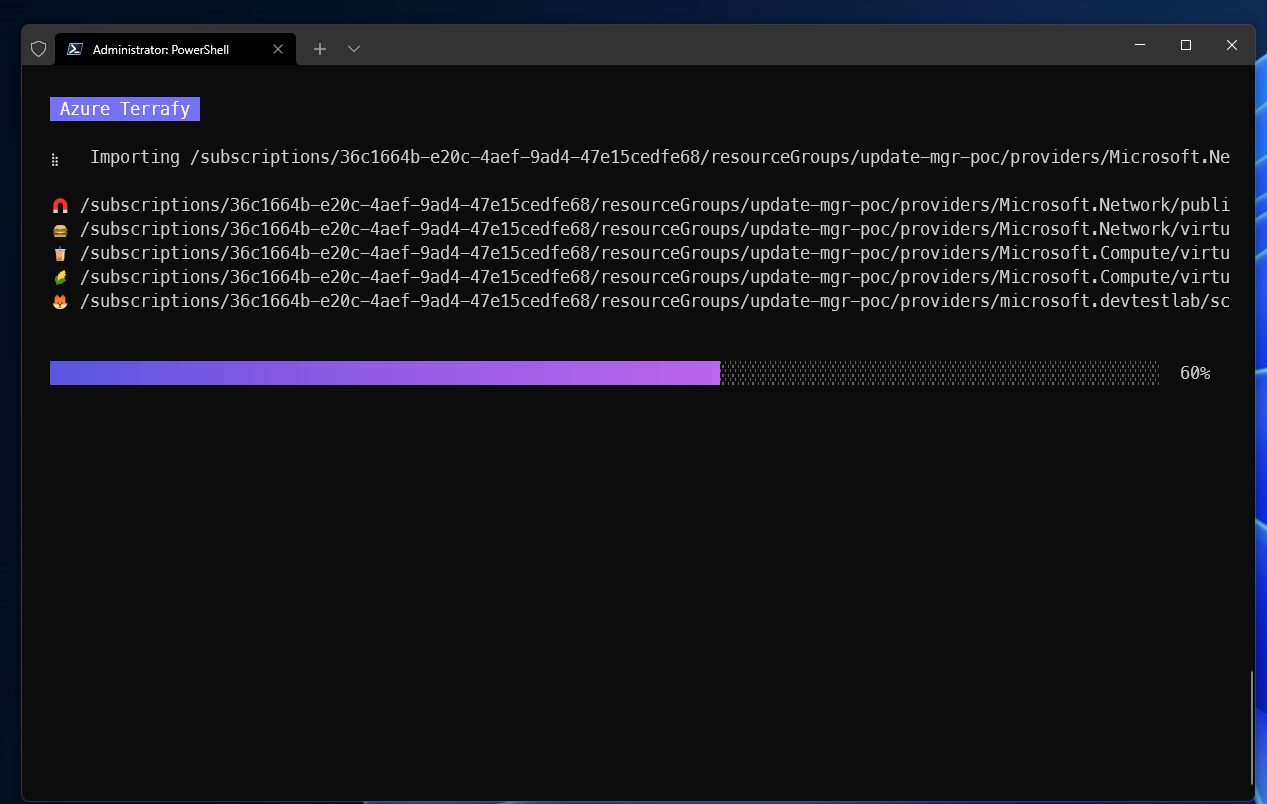
The import process will begin as depicted here:
Once the process is complete you will be greeted with a similar message's below:
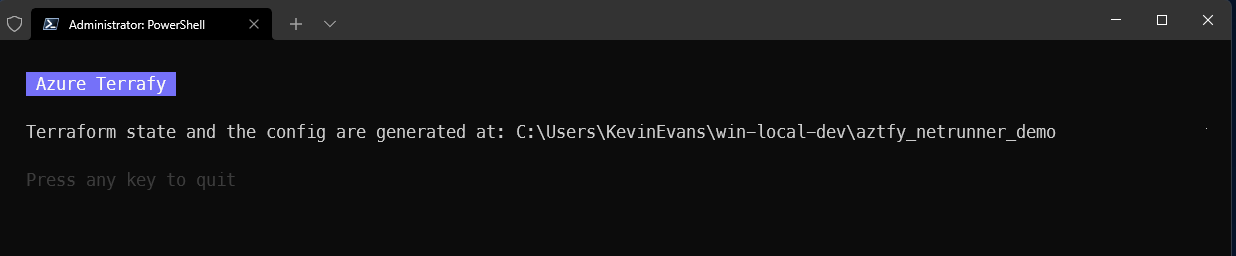
Azure Terrafy
Terraform state and the config are generated at: C:\Users\KevinEvans\win-local-dev\aztfynetrunnerdemoMode LastWriteTime Length Name
---- ------------- ------ ----
d---- 18/04/2022 18:35 .terraform
-a--- 18/04/2022 18:39 1071 .aztfyResourceMapping.json
-a--- 18/04/2022 18:35 1108 .terraform.lock.hcl
-a--- 18/04/2022 18:39 1983 main.tf
-a--- 18/04/2022 18:35 181 provider.tf
-a--- 18/04/2022 18:39 10208 terraform.tfstate
-a--- 18/04/2022 18:39 9291 terraform.tfstate.backupThe provider.tf file contains the Terraform block and provider block:
terraform {
  backend "local" {}
  required_providers {
    azurerm = {
      source = "hashicorp/azurerm"
      version = "3.0.2"
    }
  }
}
provider "azurerm" {   features {} }
The main.tf file contains definitions for 7 different resources which make up the demo VM deployment:
resource "azurermnetworksecurity_rule" "res-3" {
  access                      = "Allow"
  destinationaddressprefix  = "*"
  destinationportrange      = "*"
  direction                   = "Inbound"
  name                        = "rdp"
  networksecuritygroup_name = "acceptanceTestSecurityGroup1"
  priority                    = 100
  protocol                    = "Tcp"
  resourcegroupname         = "vm-resources"
  sourceaddressprefix       = "*"
  sourceportrange           = "*"
  depends_on = [
    azurermnetworksecurity_group.res-0,
  ]
}
resource "azurermvirtualnetwork" "res-4" {
  address_space       = ["10.0.0.0/16"]
  location            = "westeurope"
  name                = "iaas-network"
  resourcegroupname = "vm-resources"
  depends_on = [
    azurermnetworksecurity_group.res-0,
  ]
}
resource "azurerm_subnet" "res-5" {
  name                 = "internal"
  resourcegroupname  = "vm-resources"
  virtualnetworkname = "iaas-network"
  depends_on = [
    azurermvirtualnetwork.res-4,
    azurermnetworksecurity_group.res-0,
  ]
}
resource "azurermresourcegroup" "res-6" {
  location = "westeurope"
  name     = "vm-resources"
}
resource "azurermnetworksecurity_group" "res-0" {
  location            = "westeurope"
  name                = "acceptanceTestSecurityGroup1"
  resourcegroupname = "vm-resources"
  tags = {
    environment = "Production"
  }
  depends_on = [
    azurermresourcegroup.res-6,
  ]
}
resource "azurermwindowsvirtual_machine" "res-1" {
  admin_password        = null # sensitive
  admin_username        = "adminuser"
  custom_data           = null # sensitive
  location              = "westeurope"
  name                  = "vm-01"
  networkinterfaceids = ["/subscriptions/resourceGroups/vm-resources/providers/Microsoft.Network/networkInterfaces/vm01-nic"]
  resourcegroupname   = "vm-resources"
  size                  = "Standard_F2"
  os_disk {
    caching              = "ReadWrite"
    storageaccounttype = "Standard_LRS"
  }
  sourceimagereference {
    offer     = "WindowsServer"
    publisher = "MicrosoftWindowsServer"
    sku       = "2019-Datacenter"
    version   = "latest"
  }
  depends_on = [
    azurermnetworkinterface.res-2,
  ]
}
resource "azurermnetworkinterface" "res-2" {
  location            = "westeurope"
  name                = "vm01-nic"
  resourcegroupname = "vm-resources"
  ip_configuration {
    name                          = "internal"
    privateipaddress_allocation = "Dynamic"
    subnet_id                     = "/subscriptions/resourceGroups/vm-resources/providers/Microsoft.Network/virtualNetworks/iaas-network/subnets/internal"
  }
  depends_on = [
    azurerm_subnet.res-5,
  ]
}
Terraform plan seal test:
lets run a terraform plan on our recently imported terraform configuration (vm-resources) to verify the import was a success, hopefully you will be greeted by the below message. Don't forget to run terraform init and terraform plan against imported resource group working directory.No changes. Your infrastructure matches the configuration.Thanks for taking time to read this Azure Terrafy guide for Windows.


