
Tool to export Juice Shop challenges and hints in data format compatible with CTFd, RootTheBox or FBCTF
 OWASP Juice Shop CTF Extension








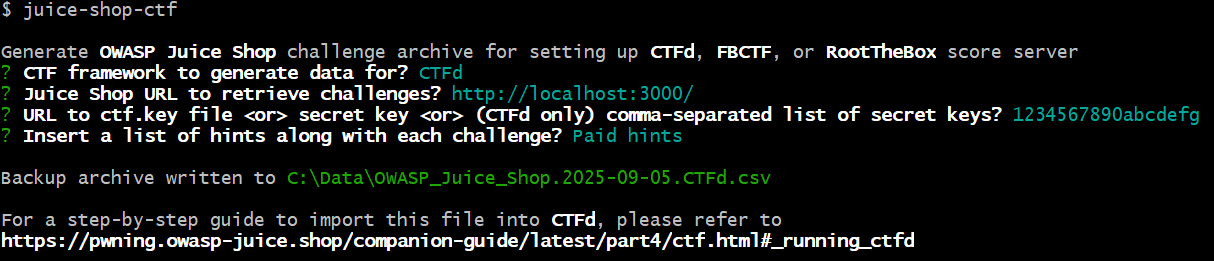
The Node package juice-shop-ctf-cli helps you to prepare Capture the Flag events with the OWASP Juice Shop challenges for different popular CTF frameworks. This interactive utility allows you to populate a CTF game server in a matter of minutes.
Supported CTF Frameworks
The following open source CTF frameworks are supported by juice-shop-ctf-cli:
- CTFd (3.7 or higher)
- RootTheBox (3.3 or higher)
- FBCTF
Setup 



npm install -g juice-shop-ctf-cliUsage
Interactive Mode
Open a command line and run:
juice-shop-ctfThen follow the instructions of the interactive command line tool.
Configuration File
Instead of answering questions in the CLI you can also provide your desired configuration in a file with the following format:
ctfFramework: CTFd | FBCTF | RootTheBox
juiceShopUrl: https://juice-shop.herokuapp.com
ctfKey: https://raw.githubusercontent.com/bkimminich/juice-shop/master/ctf.key # can also be actual key or comma-separated list of keys (CTFd only) instead of URL
insertHints: none | free | paid
countryMapping: https://raw.githubusercontent.com/juice-shop/juice-shop/master/config/fbctf.yml # ignored for CTFd and RootTheBox
You can then run the generator with:
juice-shop-ctf --config myconfig.ymlOptionally you can also choose the name of the output file:
juice-shop-ctf --config myconfig.yml --output challenges.outYou can ignore certificate warnings like this:
juice-shop-ctf --ignoreSslWarningsDocker Container 




Share your current directory with the /data volume of your bkimminich/juice-shop-ctf Docker container and run the interactive mode with:
docker run -ti --rm -v $(pwd):/data bkimminich/juice-shop-ctfAlternatively you can provide a configuration file via:
docker run -ti --rm -v $(pwd):/data bkimminich/juice-shop-ctf --config myconfig.ymlChoosing the name of the output file is also possible:
docker run -ti --rm -v $(pwd):/data bkimminich/juice-shop-ctf --config myconfig.yml --output challenges.outOn Windows cmd.exe you have to use %cd% instead of $(pwd) to mount your current working directory.
**For detailed step-by-step instructions and examples please refer to the Hosting a CTF event_ chapter in our (free) companion guide ebook.**
Screenshots


Troubleshooting 
If you need help with the application setup please check the
Troubleshooting section below or post your specific problem or
question in the
official Gitter Chat.
- If using Docker Toolbox on Windows make sure that you also enable port
127.0.0.1:XXXX to
0.0.0.0:XXXX for TCP in the default VM's network adapter in
VirtualBox. For CTFd you need to forward port 8000.
Contributing 
Found a bug? Got an idea for enhancement? Improvement for cheating prevention?
Feel free to create an issue or post your ideas in the chat! Pull requests are also highly welcome - please refer to CONTRIBUTING.md for details.
Donations 
The OWASP Foundation gratefully accepts donations via Stripe. Projects such as Juice Shop can then request reimbursement for expenses from the Foundation. If you'd like to express your support of the Juice Shop project, please make sure to tick the "Publicly list me as a supporter of OWASP Juice Shop" checkbox on the donation form. You can find our more about donations and how they are used here:
Contributors
The OWASP Juice Shop Project Leaders are:
- Björn Kimminich aka
bkimminich - Jannik Hollenbach aka
J12934

Licensing 
This program is free software: you can redistribute it and/or modify it under the terms of the MIT license. OWASP Juice Shop CTF Extension and any contributions are Copyright © by Bjoern Kimminich & the OWASP Juice Shop contributors 2016-2026.


