
💻 A better and friendly vi(vim) mode plugin for ZSH.

💻 A better and friendly vi(vim) mode plugin for ZSH.
⚒️ Zsh Vi Mode ⚒️
ZSH plugin for Agnosticism.






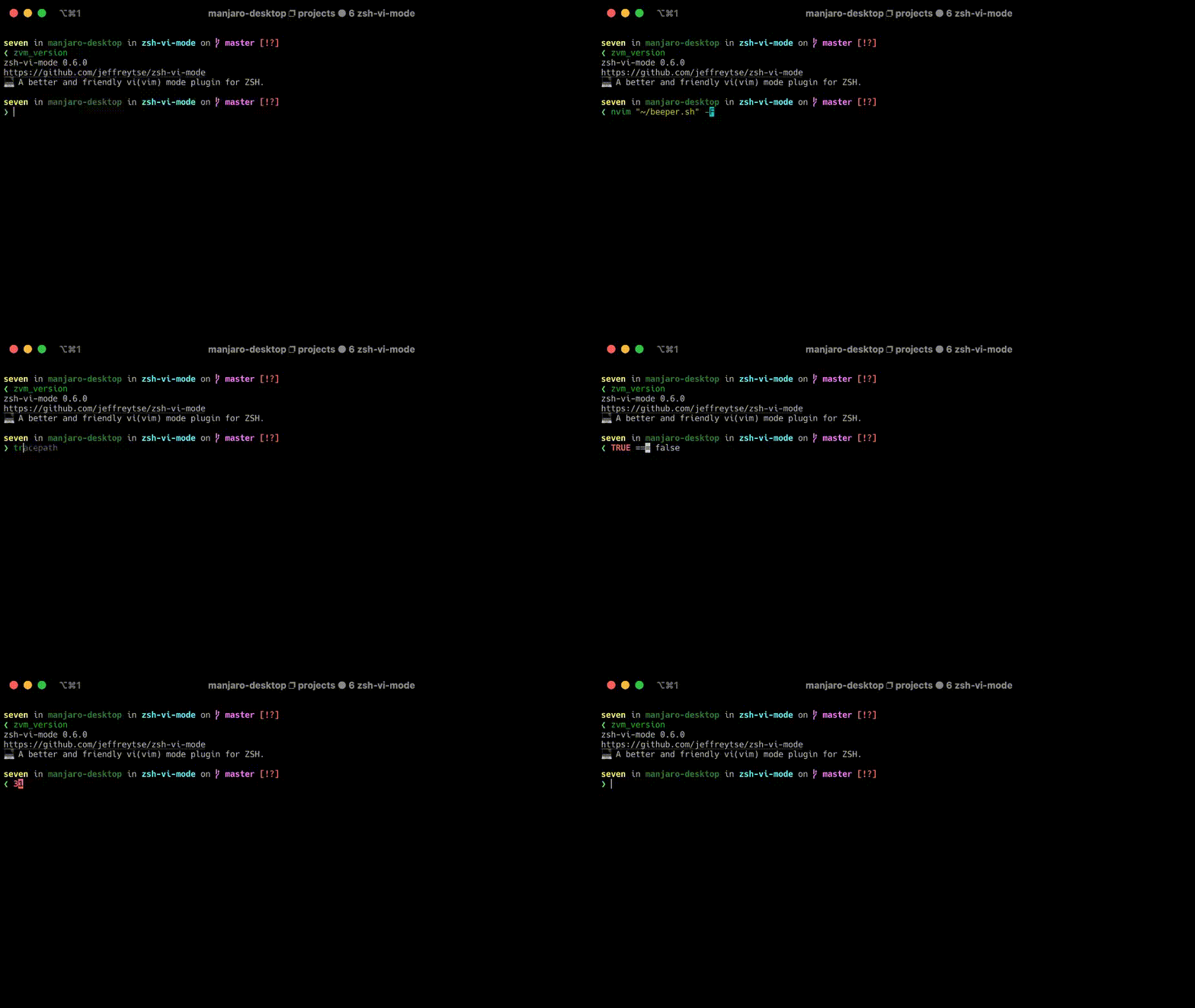
🤔 Why ZVM?
Maybe you have experienced the default Vi mode in Zsh, after turning on the default Vi mode, you gradually found that it had many problems, some features were not perfect or non-existent, and some behaviors even were different from the native Vi(Vim) mode.
Although the default Vi mode was a bit embarrassing and unpleasant, you kept on using it and gradually lost your interest on it after using for a period of time. Eventually, you disappointedly gave up.
You never think of the Vi mode for a long time, one day you accidentally discovered this plugin, you read here and realize that this plugin is to solve the above problems and make you fall in love to Vi mode again. A smile suddenly appeared on your face like regaining a good life.
If winter comes, can spring be far behind?
✨ Features
- 🌟 Pure Zsh's script without any third-party dependencies.
- 🎉 Better experience with the near-native vi(vim) mode.
- ⌛ Lower delay and better response (Mode switching speed, etc.).
- ✏️ Mode indication with different cursor styles.
- 🧮 Cursor movement (Navigation).
- 📝 Insert & Replace (Insert mode).
- 💡 Text Objects (A word, inner word, etc.).
- 🔎 Searching history.
- ❇️ Undo, Redo, Cut, Copy, Paste, and Delete.
- 🪐 Better surrounds functionality (Add, Replace, Delete, Move Around, and Highlight).
- 🧽 Switch keywords (Increase/Decrease Number, Boolean, Weekday, Month, etc.).
- ⚙️ Open under cursor URL or file path with charming
gx. - 🖋️ Edit current command line in an external editor with
vv. - 🪀 Repeating command such as
10pand4fa. - 📒 System clipboard integration (Copy/Paste).
💼 Requirements
ZSH: >= 5.1.0
🛠️ Installation
Using Antigen
Bundle zsh-vi-mode in your .zshrc
antigen bundle jeffreytse/zsh-vi-modeUsing zplug
Loadzsh-vi-mode as a plugin in your .zshrc
zplug "jeffreytse/zsh-vi-mode"Using zgen
Include the load command in your .zshrc
zgen load jeffreytse/zsh-vi-modeUsing zinit
Include the load command in your .zshrc
zinit ice depth=1
zinit light jeffreytse/zsh-vi-mode
Note: the use of depth=1 ice is optional, other types of ice are neither recommended nor officially supported by this plugin.
As an Oh My Zsh! custom plugin
Clone zsh-vi-mode into your custom plugins repo
git clone https://github.com/jeffreytse/zsh-vi-mode \
$ZSH_CUSTOM/plugins/zsh-vi-mode.zshrc
plugins+=(zsh-vi-mode)Keep in mind that plugins need to be added before oh-my-zsh.sh is sourced.
Using Antibody
Add zsh-vi-mode to your plugins file (e.g. ~/.zsh_plugins.txt)
jeffreytse/zsh-vi-modeUsing Zap
Load zsh-vi-mode as a plugin in your .zshrc
plug "jeffreytse/zsh-vi-mode"Using Zim
Load zsh-vi-mode as a plugin in your .zimrc
zmodule jeffreytse/zsh-vi-modeUsing Homebrew
For Homebrew users, you can install it through the following command
brew install zsh-vi-modeThen source it in your .zshrc (or .bashrc)
source $(brew --prefix)/opt/zsh-vi-mode/share/zsh-vi-mode/zsh-vi-mode.plugin.zshArch Linux (AUR)
For Arch Linux users, you can install it through the following command
yay -S zsh-vi-modeor the latest update (unstable)
yay -S zsh-vi-mode-gitThen source it in your .zshrc (or .bashrc)
source /usr/share/zsh/plugins/zsh-vi-mode/zsh-vi-mode.plugin.zshNix
For users of Nix, as of e7e3480530b34a9fe8cb52963ec2cf66e6707e15 you can source the plugin through the following configuration
programs = {
  zsh = {
    interactiveShellInit = ''
      source ${pkgs.zsh-vi-mode}/share/zsh-vi-mode/zsh-vi-mode.plugin.zsh
    '';
  };
};home-manager:
home-manager.users.[your username] = { pkgs, ... }: {
  programs = {
    zsh = {
      initExtra = ''
        source ${pkgs.zsh-vi-mode}/share/zsh-vi-mode/zsh-vi-mode.plugin.zsh
      '';
    };
  };
};
You can also use home-manager's built-in "plugin" feature:
home-manager.users.[your username] = { pkgs, ... }: {
  programs = {
    zsh = {
      plugins = [
        {
          name = "vi-mode";
          src = pkgs.zsh-vi-mode;
          file = "share/zsh-vi-mode/zsh-vi-mode.plugin.zsh";
        }
      ];
    };
  };
};
Gentoo Linux
Available in dm9pZCAq overlay
eselect repository enable dm9pZCAq
emerge --sync dm9pZCAq
emerge app-shells/zsh-vi-mode
Then source it in your .zshrc (or .bashrc)
source /usr/share/zsh/site-contrib/zsh-vi-mode/zsh-vi-mode.plugin.zshManually
Clone this repository somewhere ($HOME/.zsh-vi-mode for example)
git clone https://github.com/jeffreytse/zsh-vi-mode.git $HOME/.zsh-vi-mode.zshrc (or .bashrc)
source $HOME/.zsh-vi-mode/zsh-vi-mode.plugin.zshPackaging Status

📚 Usage
Use ESC or CTRL- to enter Normal mode.
But some people may like the custom escape key such as jj, jk and so on, if you want to custom the escape key, you can learn more from [here.
History
ctrl-p: Previous command in historyctrl-n: Next command in history/: Search backward in historyn: Repeat the last/
Mode indicators
Normal mode is indicated with block style cursor, and Insert mode with beam style cursor by default.
Vim edition
In Normal mode you can use vv to edit current command line in an editor (e.g. vi/vim/nvim...), because it is bound to the Visual mode.
You can change the editor by ZVMVIEDITOR option, by default it is $EDITOR.
Movement
$: To the end of the line^: To the first non-blank character of the line0: To the first character of the linew: [count] words forwardW: [count] WORDS forwarde: Forward to the end of word [count] inclusiveE: Forward to the end of WORD [count] inclusiveb: [count] words backwardB: [count] WORDS backwardt{char}: Till before [count]'th occurrence of {char} to the rightT{char}: Till before [count]'th occurrence of {char} to the leftf{char}: To [count]'th occurrence of {char} to the rightF{char}: To [count]'th occurrence of {char} to the left;: Repeat latest f, t, F or T [count] times,: Repeat latest f, t, F or T in opposite direction
Insertion
i: Insert text before the cursorI: Insert text before the first character in the linea: Append text after the cursorA: Append text at the end of the lineo: Insert new command line below the current oneO: Insert new command line above the current one
There are 2 kinds of keybinding mode for surround operating, default is classic mode, you can choose the mode by setting ZVMVISURROUND_BINDKEY option.
classicmode (verb->s->surround)
S": Add"for visual selectionys": Add"for visual selectioncs"': Change"to'ds": Delete"
s-prefix mode (s->verb->surround)
sa": Add"for visual selectionsd": Delete"sr"': Change"to'
ZVM_KEYTIMEOUT option.
How to select surround text object?
vi": Select the text object inside the quotesva(: Select the text object including the brackets
- Add surrounds for text object
vi"->S[orsa[=>"object"->"[object]"va"->S[orsa[=>"object"->["object"]
- Delete/Yank/Change text object
di(orvi(->dca(orva(->cyi(orvi(->y
In normal mode, typing ctrl-a will increase to the next keyword, and typing ctrl-x will decrease to the next keyword. The keyword can be at the cursor, or to the right of the cursor (on the same line). The keyword could be as below:
- Number (Decimal, Hexadecimal, Binary...)
- Boolean (True or False, Yes or No, On or Off...)
- Weekday (Sunday, Monday, Tuesday, Wednesday...)
- Month (January, February, March, April, May...)
- Operator (&&, ||, ++, --, ==, !==, and, or...)
- ...
- Increment
9=>10aa99bb=>aa100bbaa100bc=>aa101bc0xDe=>0xdf0Xdf=>0Xe00b101=>0b1100B11=>0B101true=>falseyes=>noon=>offT=>FFri=>SatOct=>NovMonday=>TuesdayJanuary=>February+=>-++=>--===>!=!===>===&&=>||and=>or- ...
- Decrement:
100=>99aa100bb=>aa99bb0=>-10xdE0=>0xDDF0xffFf0=>0xfffef0xfffF0=>0xFFFEF0x0=>0xffffffffffffffff0Xf=>0Xe0b100=>0b0100B100=>0B011True=>FalseOn=>OffSun=>SatJan=>DecMonday=>SundayAugust=>July/=>*++=>--===>!=!===>===||=>&&or=>and- ...
zsh-vi-mode can integrate with your system clipboard. This feature is disabled by default. Therefore, you can't automatically copy to the system clipboard when you stroke yy, yw and so on, but only allowed to paste from it. If you want to enable this feature, you can set the option:
Enable:
ZVMSYSTEMCLIPBOARD_ENABLED=trueAuto-detection:
- macOS:
pbcopyandpbpaste - Wayland:
wl-copyandwl-paste -n - X11:
xcliporxsel
ZVMCLIPBOARDCOPY_CMD='xclip -selection clipboard'
ZVMCLIPBOARDPASTE_CMD='xclip -selection clipboard -o'
Keybindings:
- Normal:
gppaste clipboard after cursor,gPbefore cursor - Visual:
gp/gPreplace selection with clipboard
p/P keep using ZLE's CUTBUFFER; gp/gP use the system clipboard.
Behavior:
- When enabled, yanks/deletes/changes that set CUTBUFFER also copy to the system clipboard.
# Using Windows clipboard
ZVMSYSTEMCLIPBOARD_ENABLED=true
ZVMCLIPBOARDCOPY_CMD='clip.exe'
ZVMCLIPBOARDPASTE_CMD='powershell.exe -NoProfile -Command Get-Clipboard'
or using win32yank:
ZVMCLIPBOARDCOPY_CMD='win32yank.exe -i --crlf'
ZVMCLIPBOARDPASTE_CMD='win32yank.exe -o --lf'
Open Under Cursor
In Normal mode, you can use gx to open the URL or file path under the cursor.
- If the word under the cursor is a URL (starting with
http://,https://,ftp://,file://), it will open in your default web browser. - If the word under the cursor is a valid file or directory path, it will open with your system's default application for that file type.
- macOS:
open - Linux:
xdg-open - Windows: You need to manually config, see below.
ZVMOPENCMD option.
Also, you can set the ZVMOPENURLCMD and ZVMOPENFILECMD options to
specify different commands for opening URLs and files respectively.
Overriding commands example:
# Override the default open command
ZVMOPENCMD='xdg-open'
Override the open command for URLs
ZVMOPENURL_CMD='firefox'
Override the open command for URLs on macOS
ZVMOPENURL_CMD='open -a "Safari"'
Override the open command for files
ZVMOPENFILE_CMD='code'  # Open files with Visual Studio Code
Override the open command for files on macOS
ZVMOPENFILE_CMD='open -a "Visual Studio Code"'
Override the open command for files on Windows
ZVMOPENFILE_CMD='powershell.exe -Command "Start-Process code"'
Override the open command for files on Windows using cmd
ZVMOPENFILE_CMD='start code'
For Windows users, you can create a script for opening on Windows, for example, a script /usr/local/bin/xdg-open with content:
#!/usr/bin/env bash
A Linux-like "xdg-open" command for WSL
Supports: http, https, ftp, ftps, file URLs, local files and directories
if [ $# -eq 0 ]; then   echo "Usage: open <file|dir|url>"   exit 1 fi
for target in "$@"; do   # If it is a URL (http, https, ftp, ftps, file)   if [[ "$target" =~ ^(https?|ftps?|file):// ]]; then     explorer.exe "$target"     continue   fi
# Otherwise, treat as regular file or directory paths   if [ -e "$target" ]; then     win_path=$(wslpath -w "$target")     explorer.exe "$win_path"   else     echo "open: $target not found"   fi done
And add executive permission:
sudo chmod +x /usr/local/bin/xdg-openThen set the ZVMOPENCMD option:
ZVMOPENCMD='/usr/local/bin/xdg-open'Or you can use cygstart if you are using Cygwin:
ZVMOPENCMD='cygstart'Or set the cygstart command as a alias as below:
# Add a open alias to your .zshrc for Windows users
open='cygstart'
Custom Escape Key
You can use below options to custom the escape key which could better match your flavor, such as jj or jk and so on.
ESC)
ZVMVIINSERTESCAPEBINDKEY: The vi escape key in insert mode (default
$ZVMVIESCAPE_BINDKEY)
ZVMVIVISUALESCAPEBINDKEY: The vi escape key in visual mode (default
$ZVMVIESCAPE_BINDKEY)
ZVMVIOPPENDESCAPEBINDKEY: The vi escape key in operator pending mode
$ZVMVIESCAPE_BINDKEY)
For example:
# Only changing the escape key to jk in insert mode, we still
keep using the default keybindings ^[ in other modes
ZVMVIINSERTESCAPEBINDKEY=jk
Readkey Engine
This plugin has supported to choose the readkey engine for reading and processing the key events. It easy to do by the ZVMREADKEYENGINEoption, currently the below engines are supported:
ZVMREADKEYENGINE_NEX: It is a better readkey engine to replace ZLE (Beta).ZVMREADKEYENGINE_ZLE: It is Zsh's default readkey engine (ZLE).ZVMREADKEYENGINE_DEFAULT: It is the default engine of this plugin
The NEX is a better engine for reading and handling the key events than the Zsh's ZLE engine, currently the NEX engine is still at beta stage, you can change back to Zsh's ZLE engine if you want.
For example:
# Change to Zsh's default readkey engine
ZVMREADKEYENGINE=$ZVMREADKEYENGINE_ZLE
You can use ZVM_KEYTIMEOUT option to adjust the key input timeout for waiting for next key, default is 0.4 seconds.
The escape key is a special case, it can be used standalone. NEX engine waits for a period after receiving the escape character, to determine whether it is standalone or part of an escape sequence. While waiting, additional key presses make the escape key behave as a meta key. If no other key presses come in, it is handled as a standalone escape.
For the NEX engine, we can use ZVMESCAPEKEYTIMEOUT option to adjust the waiting timeout for the escape key, default is 0.03 seconds.
Configuration Function
Since there are some config options relied to some variables defined in the plugin, however, some not. We need to provide an unified config entry function. The name of entry function is stored in an option called ZVMCONFIGFUNC and default value is zvm_config, you can change to others for fitting your flavor.
If this config function exists, it will be called automatically, you can do some configurations in this aspect before you source this plugin. For example:
function zvm_config() {
  ZVMLINEINITMODE=$ZVMMODE_INSERT
  ZVMVIINSERTESCAPEBINDKEY=jk
}
source ~/zsh-vi-mode.zsh
Execute Extra Commands
This plugin has provided a mechanism to execute extra commands, and now you have the below aspects for executing something:
zvmbeforeinit_commands=()
zvmafterinit_commands=()
zvmbeforeselectvimode_commands=()
zvmafterselectvimode_commands=()
zvmbeforelazykeybindingscommands=()
zvmafterlazykeybindingscommands=()
Since the default [initialization mode, this plugin will overwrite the previous key bindings, this causes the key bindings of other plugins (i.e. fzf, zsh-autocomplete, etc.) to fail.
You can solve the compatibility issue as below:
# Append a command directly
zvmafterinit_commands+=('[ -f ~/.fzf.zsh ] && source ~/.fzf.zsh')
or
# Define an init function and append to zvmafterinit_commands
function my_init() {
  [ -f ~/.fzf.zsh ] && source ~/.fzf.zsh
}
zvmafterinitcommands+=(myinit)
or
# The plugin will auto execute this zvmafterinit function
function zvmafterinit() {
  [ -f ~/.fzf.zsh ] && source ~/.fzf.zsh
}
or if you are using the zinit:
# For postponing loading fzf
zinit ice lucid wait
zinit snippet OMZP::fzf
By default, the lazy keybindings feature is enabled, all the keybindings of normal and visual mode should be executed by the zvmafterlazykeybindingscommands. For example:
# The plugin will auto execute this zvmafterlazy_keybindings function
function zvmafterlazy_keybindings() {
  bindkey -M vicmd 's' yournormalwidget
  bindkey -M visual 'n' yourvisualwidget
}
Custom widgets and keybindings
This plugin has two functions for you to define custom widgets and keybindings. In case of unnecessary problems, it is better to use them, especially when you meet the key conflicts.
To define a custom widget, you should:
# If [yourcustomwidget] were ignored, it will be the same with <yourcustomwidget>
zvmdefinewidget <yourcustomwidget> [yourcustomfunction]
To define a keybinding, you should:
zvm_bindkey <keymap> <keys> <widget>For example:
# Your custom widget
function mycustomwidget() {
  echo 'Hello, ZSH!'
}
The plugin will auto execute this zvmafterlazy_keybindings function
function zvmafterlazy_keybindings() {
  # Here we define the custom widget
  zvmdefinewidget mycustomwidget
# In normal mode, press Ctrl-E to invoke this widget   zvmbindkey vicmd '^E' mycustom_widget }
Vi Mode Indicator
This plugin has provided a ZVM_MODE variable for you to retrieve current vi mode and better show the indicator.
And currently the below modes are supported:
ZVMMODENORMAL
ZVMMODEINSERT
ZVMMODEVISUAL
ZVMMODEVISUAL_LINE
ZVMMODEREPLACE
For updating the vi mode indicator, we should add our commands to zvmafterselectvimode_commands. For example:
# The plugin will auto execute this zvmafterselectvimode function
function zvmafterselectvimode() {
  case $ZVM_MODE in
    $ZVMMODENORMAL)
      # Something you want to do...
    ;;
    $ZVMMODEINSERT)
      # Something you want to do...
    ;;
    $ZVMMODEVISUAL)
      # Something you want to do...
    ;;
    $ZVMMODEVISUAL_LINE)
      # Something you want to do...
    ;;
    $ZVMMODEREPLACE)
      # Something you want to do...
    ;;
  esac
}
Custom Cursor Style
This plugin has provided some options for users to custom the cursor style for better terminal compatibility.
- You can disable this feature by the
ZVMCURSORSTYLE_ENABLED
true)
# Disable the cursor style feature
ZVMCURSORSTYLE_ENABLED=false- You can set your cursor style for different vi mode:
# The prompt cursor in normal mode
ZVMNORMALMODE_CURSOR
The prompt cursor in insert mode
ZVMINSERTMODE_CURSOR
The prompt cursor in visual mode
ZVMVISUALMODE_CURSOR
The prompt cursor in visual line mode
ZVMVISUALLINEMODECURSOR
The prompt cursor in operator pending mode
ZVMOPPENDMODE_CURSOR- And the below cursor styles are supported:
ZVMCURSORUSER_DEFAULT
ZVMCURSORBLOCK
ZVMCURSORUNDERLINE
ZVMCURSORBEAM
ZVMCURSORBLINKING_BLOCK
ZVMCURSORBLINKING_UNDERLINE
ZVMCURSORBLINKING_BEAM- Custom your cursor style is easy as below:
ZVMINSERTMODECURSOR=$ZVMCURSOR_BEAM
ZVMNORMALMODECURSOR=$ZVMCURSOR_BLOCK
ZVMOPPENDMODECURSOR=$ZVMCURSOR_UNDERLINE- Also, custom your colorful cursor style as below:
# The plugin will auto execute this zvm_config function
zvm_config() {
  # Retrieve default cursor styles
  local ncur=$(zvmcursorstyle $ZVMNORMALMODE_CURSOR)
  local icur=$(zvmcursorstyle $ZVMINSERTMODE_CURSOR)
# Append your custom color for your cursor   ZVMINSERTMODE_CURSOR=$icur'\e\e]12;red\a'   ZVMNORMALMODE_CURSOR=$ncur'\e\e]12;#008800\a' }
We can use ZVM_TERM option to set the term type for plugin to handle terminal escape sequences, default is $TERM. It could be xterm-256color, alacritty-256color, st-256color, etc. It's important for some terminal emulators to show cursor properly.
Highlight Behavior
You can use ZVMVIHIGHLIGHTBACKGROUND, ZVMVIHIGHLIGHTFOREGROUND and ZVMVIHIGHLIGHT_EXTRASTYLE to change the highlight behaviors ( surrounds, visual-line, etc.), the color value could be a color name or a hex color value.
For example:
ZVMVIHIGHLIGHT_FOREGROUND=green             # Color name
ZVMVIHIGHLIGHT_FOREGROUND=#008800           # Hex value
ZVMVIHIGHLIGHT_BACKGROUND=red               # Color name
ZVMVIHIGHLIGHT_BACKGROUND=#ff0000           # Hex value
ZVMVIHIGHLIGHT_EXTRASTYLE=bold,underline    # bold and underline
Command Line Initial Mode
You can set the command line initial mode by the ZVMLINEINIT_MODE option.
Currently the below modes are supported:
ZVMMODELAST: Starting with last mode (Default).ZVMMODEINSERT: Starting with insert mode.ZVMMODENORMAL: Starting with normal mode.
# Always starting with insert mode for each command line
ZVMLINEINITMODE=$ZVMMODE_INSERT
Lazy Keybindings
This plugin has supported the lazy keybindings feature, and it is enabled by default. To disable it, you can set the option ZVMLAZYKEYBINDINGS to false before this plugin is loaded. This feature will postpone all the keybindings of normal and visual mode to the first time you enter the normal mode.
It can greatly improve the startup speed, especially you open the terminal and just want to execute a simple command.
Initialization Mode
In order to prevent various problems related to keybindings caused by the plugin sourcing sequence, and also keep the same functionality for this plugin, the initialization of this plugin was postponed to the first command line starting.
However, almost all plugins are initialized when the script is sourced. Therefore, this plugin provides an option ZVMINITMODE to change the initialization mode.
For example:
# Do the initialization when the script is sourced (i.e. Initialize instantly)
ZVMINITMODE=sourcing
💎 Credits
- Zsh - A powerful shell that operates as both an interactive shell and as a scripting language interpreter.
- Oh-My-Zsh - A delightful, open source, community-driven framework for managing your ZSH configuration.
- vim-surround - A vim plugin all about "surroundings": parentheses, brackets, quotes, XML tags, and more.
- vim-sandwich - A set of operator and textobject plugins to add/delete/replace surroundings of a sandwiched textobject.
🔫 Contributing
Issues and Pull Requests are greatly appreciated. If you've never contributed to an open source project before I'm more than happy to walk you through how to create a pull request.
You can start by opening an issue describing the problem that you're looking to resolve and we'll go from there.
🌈 License
This theme is licensed under the MIT license © Jeffrey Tse.


