
Local Node for DApp development and testing in TVM blockchains (Everscale, TON, Venom, etc)
Evernode Simple Emulator (SE)
Local Node with GraphQL API for DApp development and testing in TVM compatible blockchains (Everscale, Venom, TON, Gosh, etc.).
Have a question? Get quick help in our channel:

What is Evernode Simple Emulator?
Evernode Simple Emulator (SE) is a local instance of Evernode Platform that developer can run on their machine in one click to test applications locally.
At the moment we publish Evernode SE only as a docker image. But you can access non-docker builds of SE in community repos:
Use-cases
- Test your applications locally
- Test your contracts
- Run SE remotely on a server and test your application on a light local network from different devices.
How to install
Pre-requisites
- Latest Docker installed
Install via EVERDEV Development Environment
If you have EVERDEV installed globally on your machine, run this command
$ everdev se startCheckout other Evernode SE commands accessible from EVERDEV.
Install via docker command
Run this command
$ docker run -d --name local-node -e USER_AGREEMENT=yes -p80:80 tonlabs/local-nodeTo check that SE has been installed successfully check its local playground at http://0.0.0.0/graphql. For Windows, use http://127.0.0.1/graphql or http://localhost/graphql.
If you specified another port then add it to the local url http://0.0.0.0:port/graphql
Find out more about GraphQL API.
How to change the blockchain configuration
Evernode SE loads the blockchain configuration (config params) during its start from the configuration file blockchain.conf.json instead of special smart contract, which stores various config params in the real networks.
In order to change some of these params, do the following:
- Get blockchain.conf.json file and store it to the host's
/home/user/blockchain.conf.json.
- Edit the downloaded file, changing parameters you need. If one of the parameters is omitted or
- Create a new docker container, overriding its configuration file
/ton-node/blockchain.conf.json) with the file from the host's
filesystem.
Change /home/user/blockchain.conf.json to correct path pointing to the edited blockchain
configuration file:
$ docker run -d --name local-node -e USER_AGREEMENT=yes -p80:80 \
     -v /home/user/blockchain.conf.json:/ton-node/blockchain.conf.json \
tonlabs/local-node- All the subsequent config changes will require only restart of the created container.
How to work with logs
By default, Evernode SE logs the most of the information to the console, which is accessible by the next command:
$ docker logs local-nodeMore verbose logging is configured to /ton-node/log/ directory inside the running docker container. By default, there are two files: ton-node.log for all logging and tvm.log for tracing of TVM execution: code, stack, control registers, gas, etc.
Logging configuration is stored in /ton-node/log_cfg.yml file by default, but you can change this path with ton-node-config file in log_path field. In order to change the default logging verbosity of other parameters, you can configure logging in several ways:
- In the running container by changing
/ton-node/log_cfg.ymlfile:
$ docker exec -it local-node bash
bash-5.0# vi /ton-node/log_cfg.yml
(in order to exit from VI editor with saving changes press the ESC key, then type :wq and press the ENTER key)
Note: log_cfg.yml file is normally scanned for changes every 30 seconds, so all changes made to this file in running container will be applied only after the scan.
Note: after recreation of the container, all changes made in its files will be lost, so use the second way, if you need to keep them.
- Before starting of the container, download and edit a copy
docker run command:
$ docker run -d --name local-node -e USER_AGREEMENT=yes -p80:80 \
     -v /home/user/logcfg.yml:/ton-node/logcfg.yml \
     tonlabs/local-node
After starting of Evernode SE, you can edit this file in your file system without restart.
More information about log4rs configuration in the log4rs documentation.
How to connect to Evernode SE Graphql API from SDK
Attention at the moment there are a few differences in SE behaviour comparing with a real TON blockchain . Read about them before you start implemennting. Please note that we plan to upgrade the SE behaviour in the next releases so that it will work the same way as a real network.
To connect to local blockchain from your application specify SE endpoints in SDK Client network config. .
Evernode SE components
- EverX implementation of TON VM written in Rust
- ArangoDB database
- GraphQL endpoint with web playground
- Ever.live blockchain explorer
- Pre-deployed high-performance Giver, ABI v2
Ever Live explorer
Ever Live explorer runs on the same IP and port as Evernode SE, just open http://ip_address:port (e.g. http://127.0.0.1)
How to build docker image locally
In order to build and use Evernode Simple Emulator you need Docker. To build docker image, run from the repository root:
Linux/Mac:
./build.shWindows:
build.cmdMemory limits
Evernode SE needs about 1Gb of memory but it is not limited to this value. There is an instance of ArangoDB inside and GraphQL server running in NodeJS environment which can require more memory during the high load over a long period of time. If there is a need to hardly limit memory consumption then you can change default setting for these services. ArangoDB config is placed at /arango/config and GraphQL server entrypoint is at /q-server/entrypoint. There is some minimum required memory limits are preconfigured in ./memory/config for ArangoDB and ./memory/entrypoint. You can copy them to evernode-se container with the following commands
docker cp ./memory/config evernode-se:/arango/config docker cp ./memory/entrypoint evernode-se:/q-server/entrypointNote Node engine also consumes memory and can not be limited. So during the work memory consumption will be slightly increasing.
Warning Memory limitation affects Evernode SE performance so use it only if necessary
SE live control (REST API)
Evernode SE has special REST endpoint /se that allows to perform live control over running Evernode SE instance.
While the Evernode SE is running it has several properties that effect node behaviour:
gentimedelta– each time the node issues new block it sets the block'sgen_utime
now() + gentimedelta. When the node starts it sets the gentimedelta to 0.
seq_mode– if this mode is on then evernode SE produces separate block for each transaction
genutime, equals to the genutime of the previous block + 1.
SE control commands (must be sent using POST HTTP method):
/se/increase-time?delta=<seconds>– increasegentimedeltaby
/se/reset-time– resetsgentimedeltato0.
/se/time-delta– returns currentgentimedeltavalue.
/se/seq-mode-on– turns on the sequential mode./se/seq-mode-off– turns off the sequential mode./se/time– returns current node time with included time delta. If seq mode is on then returned
Note for SE Developers
This repository contains several useful tools for SE development and debugging. Dev tools resided in dev folder and requires Node.js to execute (so you have to run npm i inside this folder to prepare dev tools).
If you want to debug SE without docker you have to run evernode-se with following additional components:
- Q Server (required to communicate with ever-sdk):
ever-q-server from official repository.
- Inside ever-q-server folder run:
npm ievernode-se folder run:
node path-to-q-server/index --config ./dev/q-server.json- Arango DB (required to
ever-q-server):
node ./dev/reset-db- Evernode SE in debug mode
cargo run --release --bin evernode_se -- --workdir ./docker/ton-node --config ton-node.conf.json --blockchain-config blockchain.conf.jsonTroubleshooting
Error: connect ENOENT /var/run/docker.sock
Getting this error means docker service is not running or missing due to incorrect Docker installation, partiularly in the case of Docker Desktop. Try reinstalling Docker and making sure the daemon is running.
Ever.live at localhost isn't available
If you use certain adblockers, after you have started Evernode SE the Ever Live explorer at http://127.0.0.1/landing might fail to load (you get a rotating icon and varous warnings and errors in the console).
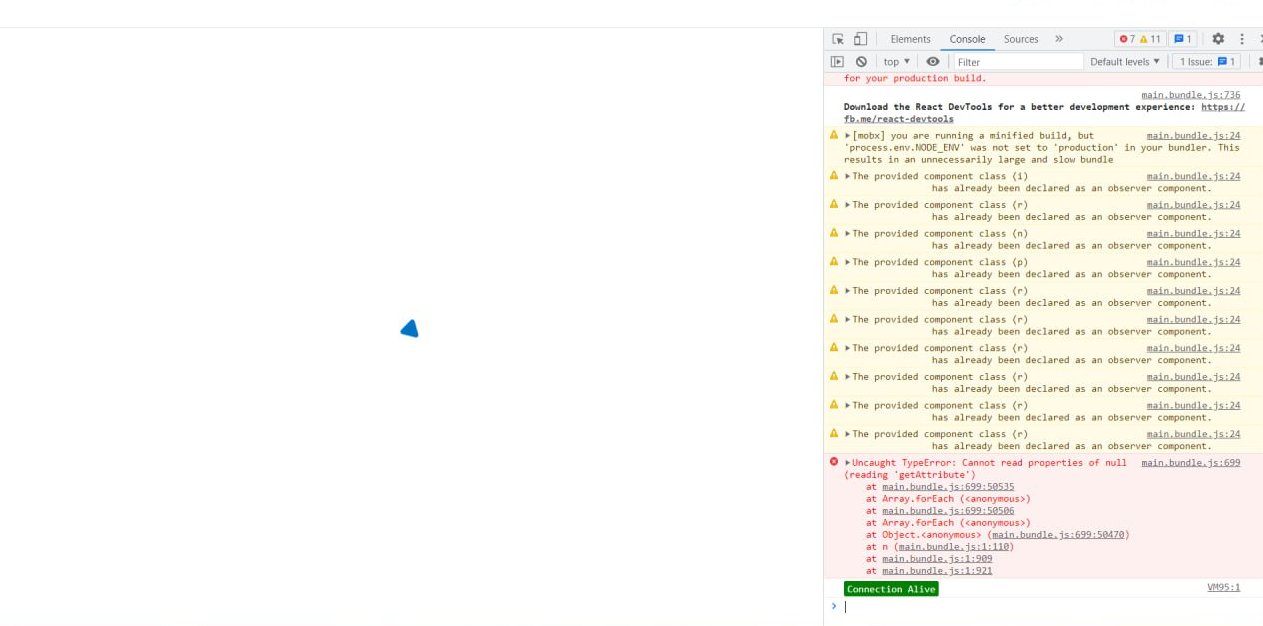
Try disabling the adblockers for the SE Ever Live explorer.


