
A simple CLI for tracking your working time.
:alarm_clock: timetrace




timetrace is a simple CLI for tracking your working time.
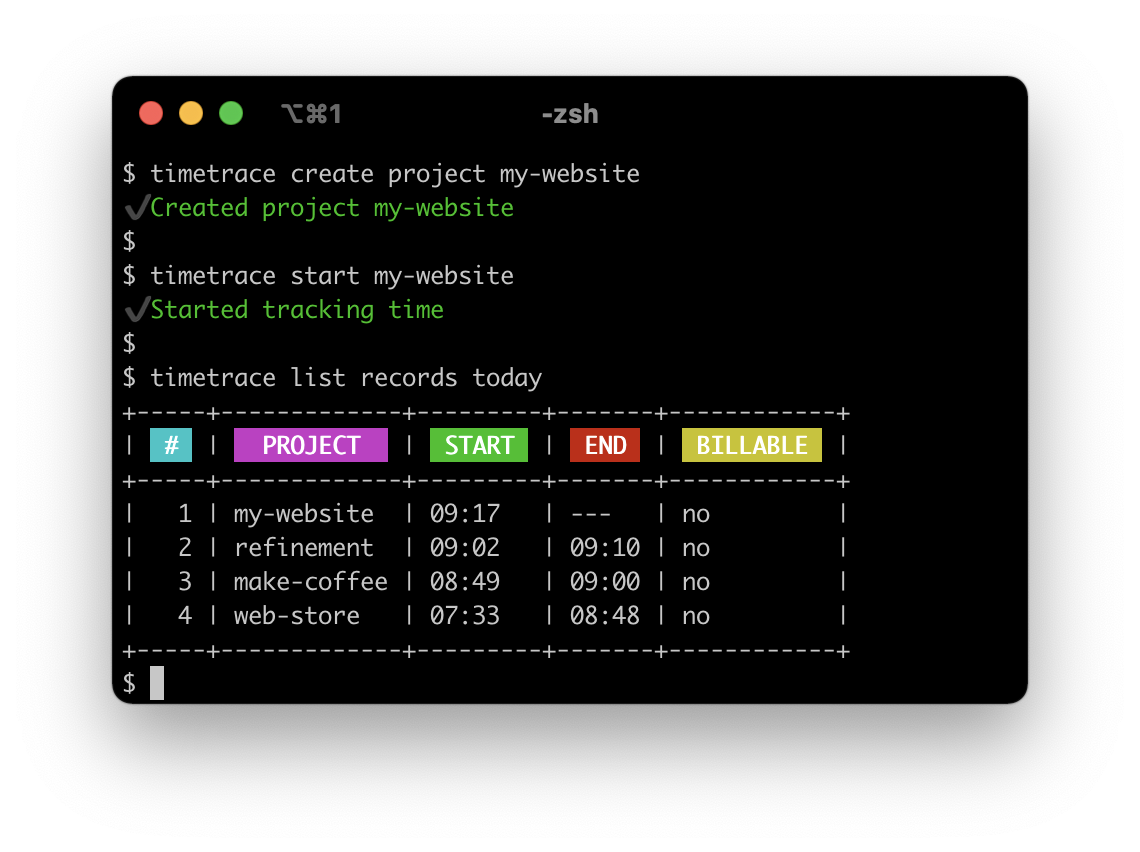
:fire: New: Add tags for records :fire: New: Use decimal hours when displaying durations :fire: New: Restore records when restoring the associated project :fire: New: Support for per-project configuration
- Homebrew - Snap - AUR - Scoop - Docker - Binary - Project modules - Starship - Start tracking - Print the tracking status - Stop tracking - Create a project - Create a record - Get a project - Get a record - List all projects - List all records from a date - Edit a project - Edit a record - Delete a project - Delete a record - [Generate a report
[beta]](#generate-a-report-beta)
- Print version information
- Prefer 12-hour clock for storing records
- Prefer decimal hours for status and reports
- Set your preferred editor
- Configure defaults for projects
Installation
Homebrew
brew tap dominikbraun/timetrace
brew install timetrace
Snap
sudo snap install timetrace --edge --devmodeAUR
yay -S timetrace-binScoop
scoop bucket add <name> https://github.com/Br1ght0ne/scoop-bucket
scoop install timetrace
Docker
The timetrace Docker image stores all data in the /data directory. To persist this data on disk, you should create a bind mount or named volume like so:
docker container run -v my-volume:/data dominikbraun/timetrace versionBinary
Download the latest release and extract the binary into a directory like /usr/local/bin or C:\Program Files\timetrace. Make sure the directory is in the PATH variable.
Usage example
First, create a project you're working for:
timetrace create project make-coffeeOnce the project is created, you're able to track work on that project.
timetrace start make-coffeeYou can obtain your currently worked time using timetrace status. When you've finished your work, stop tracking:
timetrace stopProject modules
To refine what part of a project you're working on, timetrace supports project modules. These are the exact same thing as normal projects, except that they have a key in the form <module>@<project>.
Creating a grind-beans module for the make-coffee project is simple:
timetrace create project grind-beans@make-coffeeThe new module will be listed as part of the make-coffee project:
timetrace list projects
+-----+-------------+-------------+
|  #  |     KEY     |   MODULES   |
+-----+-------------+-------------+
|   1 | make-coffee | grind-beans |
+-----+-------------+-------------+
When filtering by projects, for example with timetrace list records -p make-coffee today, the modules of that project will be included.
Shell integration
Starship
To integrate timetrace into Starship, add the following lines to $HOME/.config/starship.toml:
[custom.timetrace]
command = """ timetrace status --format "Current project: {project} - Worked today: {trackedTimeToday}" """
when = "timetrace status"
shell = "sh"
You can find a list of available formatting variables in the status reference.
Command reference
Start tracking
Syntax:
timetrace start <PROJECT KEY> [+TAG1, +TAG2, ...]Arguments:
| Argument | Description | | ------------------- | -------------------------------------------- | | PROJECT KEY | The key of the project. | | +TAG1, +TAG2, ... | One or more optional tags starting with +. |
Flags:
| Flag | Short | Description | | ---------------- | ----- | ---------------------------------------------------------------------------------------------------------- | | --billable | -b | Mark the record as billable. | | --non-billable | | Mark the record as non-billable, even if the project is billable by default. |
Example:
Start working on a project called make-coffee and mark it as billable:
timetrace start --billable make-coffeeStart working on the make-coffee project and add two tags:
timetrace start make-coffee +espresso +morningPrint the tracking status
Syntax:
timetrace statusFlags:
| Flag | Short | Description | | ---------- | ----- | ------------------------------------------------------------- | | --format | -f | Display the status in a custom format (see below). | | --output | -o | Display the status in a specific output. Valid values: json |
Formatting variables:
The names of the formatting variables are the same as the JSON keys printed by --output json.
| Variable | Description | | ---------------------- | ---------------------------------------- | | {project} | The key of the current project. | | {trackedTimeCurrent} | The time tracked for the current record. | | {trackedTimeToday} | The time tracked today. | | {breakTimeToday} | The break time since the first record. |
Example:
Print the current tracking status:
timetrace status
+-------------------+----------------------+----------------+
|  CURRENT PROJECT  |  WORKED SINCE START  |  WORKED TODAY  |
+-------------------+----------------------+----------------+
| make-coffee       | 1h 15min             | 4h 30min       |
+-------------------+----------------------+----------------+
Print the current project and the total working time as a custom string. Given the example above, the output will be Current project: make-coffee - Worked today: 3h 30min.
timetrace status --format "Current project: {project} - Worked today: {trackedTimeToday}"Print the status as JSON:
timetrace status -o jsonThe output will look as follows:
{
  "project": "web-store",
  "trackedTimeCurrent": "1h 45min",
  "trackedTimeToday": "7h 30min",
  "breakTimeToday": "0h 30min"
}
Stop tracking
Syntax:
timetrace stopExample:
Stop working on your current project:
timetrace stopCreate a project
Syntax:
timetrace create project <KEY>Arguments:
| Argument | Description | | -------- | ---------------------- | | KEY | An unique project key. |
Example:
Create a project called make-coffee:
timetrace create project make-coffeeCreate a record
:warning: You shouldn't use this command for normal tracking but only for belated records.
Syntax:
timetrace create record <PROJECT KEY> {<YYYY-MM-DD>|today|yesterday} <HH:MM> <HH:MM>Arguments:
| Argument | Description | | ------------- | -------------------------------------------------------------------------------- | | PROJECT KEY | The project key the record should be created for. | | YYYY-MM-DD | The date the record should be created for. Alternatively today or yesterday. | | HH:MM | The start time of the record. | | HH:MM | The end time of the record. |
Example:
Create a record for the make-coffee project today from 07:00 to 08:30:
timetrace create record make-coffee today 07:00 08:30Get a project
Syntax:
timetrace get project <KEY>Arguments:
| Argument | Description | | -------- | ---------------- | | KEY | The project key. |
Example:
Display a project called make-coffee:
timetrace get project make-coffeeGet a record
Syntax:
timetrace get record <YYYY-MM-DD-HH-MM>Arguments:
| Argument | Description | | ------------------ | ------------------------------------- | | YYYY-MM-DD-HH-MM | The start time of the desired record. |
Example:
By default, records can be accessed using the 24-hour format, meaning 3:00 PM is 15. Display a record created on May 1st 2021, 3:00 PM:
timetrace get record 2021-05-01-15-00This behavior can be changed.
List all projects
Syntax:
timetrace list projectsExample:
List all projects stored within the timetrace filesystem:
timetrace list projects
+---+-------------+
| # |     KEY     |
+---+-------------+
| 1 | make-coffee |
| 2 | my-website  |
| 3 | web-shop    |
+---+-------------+
List all records from a date
Syntax:
timetrace list records {<YYYY-MM-DD>|today|yesterday}Arguments:
| Argument | Description | | ------------ | ----------------------------------------------------------- | | YYYY-MM-DD | The date of the records to list, or today or yesterday. | | today | List today's records. | | yesterday | List yesterday's records. |
Flags:
| Flag | Short | Description | | ------------ | ----- | ------------------------------ | | --billable | -b | only display billable records. | | --project | -p | filter records by project key. |
Example:
Display all records created on May 1st 2021:
timetrace list records 2021-05-01
+-----+-------------+---------+-------+------------+
|  #  |   PROJECT   |  START  |  END  |  BILLABLE  |
+-----+-------------+---------+-------+------------+
|   1 | my-website  | 17:30   | 21:00 | yes        |
|   2 | my-website  | 08:31   | 17:00 | no         |
|   3 | make-coffee | 08:25   | 08:30 | no         |
+-----+-------------+---------+-------+------------+
Filter records by the make-coffee project:
timetrace list records -p make-coffee 2021-05-01
+-----+-------------+---------+-------+------------+
|  #  |   PROJECT   |  START  |  END  |  BILLABLE  |
+-----+-------------+---------+-------+------------+
|   1 | make-coffee | 08:25   | 08:30 | no         |
+-----+-------------+---------+-------+------------+
This will include records for project modules like grind-beans@make-coffee.
Edit a project
Syntax:
timetrace edit project <KEY>Arguments:
| Argument | Description | | -------- | ---------------- | | KEY | The project key. |
Flags: | Flag | Short | Description | | ---------- | ----- | ------------------------------------------------------- | | --revert | -r | Revert the project to its state prior to the last edit. |
Example:
Edit a project called make-coffee:
timetrace edit project make-coffee:fire: New: Restore the project to its state prior to the last edit:
timetrace edit project make-coffee --revertEdit a record
Syntax:
timetrace edit record {<KEY>|latest}Arguments:
| Argument | Description | | -------- | ------------------------------------------------------------------------------------------------------------------------------------------- | | KEY | The project key. YYYY-MM-DD-HH-MM by default or YYYY-MM-DD-HH-MMPM if use12hours is set. |
Flags:
| Flag | Short | Description | | ---------- | ----- | ----------------------------------------------------------------------------- | | --plus | -p | Add the given duration to the record's end time, e.g. --plus 1h 10m | | --minus | -m | Subtract the given duration from the record's end time, e.g. --minus 1h 10m | | --revert | -r | Revert the record to its state prior to the last edit. |
Example:
Edit the latest record. Specifying no flag will open the record in your editor:
timetrace edit record latestAdd 15 minutes to the end of the record created on May 1st, 3PM:
timetrace edit record 2021-05-01-15-00 --plus 15m:fire: New: Restore the record to its state prior to the last edit:
timetrace edit record 2021-05-01-15-00 --revertTip: You can get the record key 2021-05-01-15-00 using timetrace list records.
Delete a project
Syntax:
timetrace delete project <KEY>Arguments:
| Argument | Description | | -------- | ---------------- | | KEY | The project key. |
Flags:
| Flag | Short | Description | | ------------------- | ----- | --------------------------------------------------------------------------------------------------------------------------------------- | | --revert | -r | Restore a deleted project. | | --exclude-records | -e | Exclude associated project records from the deletion. If used together with --revert, excludes restoring project records from backup. |
Example:
Delete a project called make-coffee. Note that submodules will be deleted along with the parent project:
timetrace delete project make-coffee:fire: New: Restore the project to its pre-deletion state. Submodules will be restored along with the parent project:
timetrace delete project make-coffee --revertDelete a record
Syntax:
timetrace delete record <YYYY-MM-DD-HH-MM>Arguments:
| Argument | Description | | ------------------ | ------------------------------------- | | YYYY-MM-DD-HH-MM | The start time of the desired record. |
| Flag | Short | Description | | ---------- | ----- | --------------------------- | | --yes | | Do not ask for confirmation | | --revert | -r | Restore a deleted record. |
Example:
Delete a record created on May 1st 2021, 3:00 PM:
timetrace delete record 2021-05-01-15-00:fire: New: Restore the record to its pre-deletion state:
timetrace delete record 2021-05-01-15-00 --revertGenerate a report [beta]
Syntax:
timetrace reportFlags:
| Flag | Short | Description | | ----------------------- | ----- | ------------------------------------------------------------------------------------------------------------------------------------------------------------------ | | --billable | -b | Filter report for only billable records. | | --non-billable | | Filter report for non-billable records. | | --start <YYYY-MM-DD> | -s | Filter report from a specific point in time (start is inclusive). | | --end <YYYY-MM-DD> | -e | Filter report to a specific point in time (end is inclusive). | | --project <KEY> | -p | Filter report for only one project. | | --output <json> | -o | Write report as JSON to file. | | --file path/to/report | -f | Write report to a specific file
(if not given will use config report-dir
if config not present writes to $HOME/.timetrace/reports/report-<time.unix>). |
Print version information
Syntax:
timetrace versionExample:
Print your installed timetrace version:
timetrace versionConfiguration
You may provide your own configuration in a file called config.yaml within $HOME/.timetrace.
Prefer 12-hour clock for storing records
If you prefer to use the 12-hour clock instead of the default 24-hour format, add this to your config.yaml file:
# config.yml
use12hours: true
This will allow you to view a record created at 3:00 PM as follows:
timetrace get record 2021-05-14-03-00PMPrefer decimal hours for status and reports
If your prefer to use decimal hours for durations, e.g. 1.5h instead of 1h 30m, add this to your config.yaml file:
useDecimalHours: "On"To display durations in both formats at the same time, use:
useDecimalHours: "Both"Examples with durations in different formats:
default (useDecimalHours = "Off")
+-------------------+----------------------+----------------+----------+
|  CURRENT PROJECT  |  WORKED SINCE START  |  WORKED TODAY  |  BREAKS  |
+-------------------+----------------------+----------------+----------+
| make-coffee       | 1h 8min              | 3h 8min        | 0h 11min |
+-------------------+----------------------+----------------+----------+
Decimal Hours (useDecimalHours = "On") +-------------------+----------------------+----------------+----------+ |  CURRENT PROJECT  |  WORKED SINCE START  |  WORKED TODAY  |  BREAKS  | +-------------------+----------------------+----------------+----------+ | make-coffee       | 1.2h                 | 3.2h           | 0.2h     | +-------------------+----------------------+----------------+----------+
Both (useDecimalHours = "Both") +-------------------+----------------------+----------------+---------------+ |  CURRENT PROJECT  |  WORKED SINCE START  |  WORKED TODAY  |    BREAKS     | +-------------------+----------------------+----------------+---------------+ | make-coffee       | 1h 8min 1.2h         | 3h 8min 3.2h   | 0h 11min 0.2h | +-------------------+----------------------+----------------+---------------+
Set your preferred editor
By default, timetrace will open the editor specified in $EDITOR or fall back to vi. You may set your provide your preferred editor like so:
# config.yml
editor: nano
Configure defaults for projects
To add a configuration for a specific project, use the projects key which accepts a map with the project key as key and the project configuration as value.
Each project configuration currently has the following schema:
billable: boolFor example, always make records for the make-coffee project billable:
# config.yml
projects:
    make-coffee:
        billable: true
Credits
This project depends on the following packages:


