
Cross-Desktop cheatsheet manager for Linux with native support for GNOME, KDE, XFCE, Windows and more. Access your Markdown command references instantly from your panel or menu.
📒 DevToolbox Cheats — Universal Linux Cheatsheet Manager
Cross-Desktop cheatsheet manager for Linux with native support for GNOME, KDE, XFCE, and more. Access your Markdown command references instantly from your panel or menu.






🌐 Online version available at cheats.alteron.net
Overview
[!IMPORTANT]
Batteries Included! This repository is not just a menu engine; it comes pre-packed with a comprehensive collection of over 100+ production-ready cheatsheets for sysadmins, DevOps, and developers.
If you like this project, consider supporting me on Buy Me a Coffee ☕️
Example Screenshots
Screenshots from GNOME ARGOS
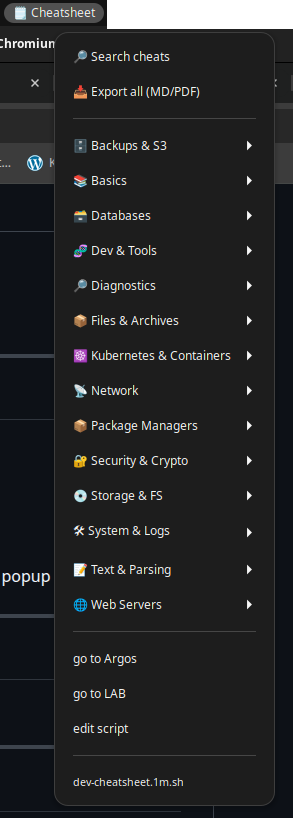
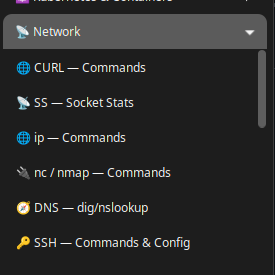
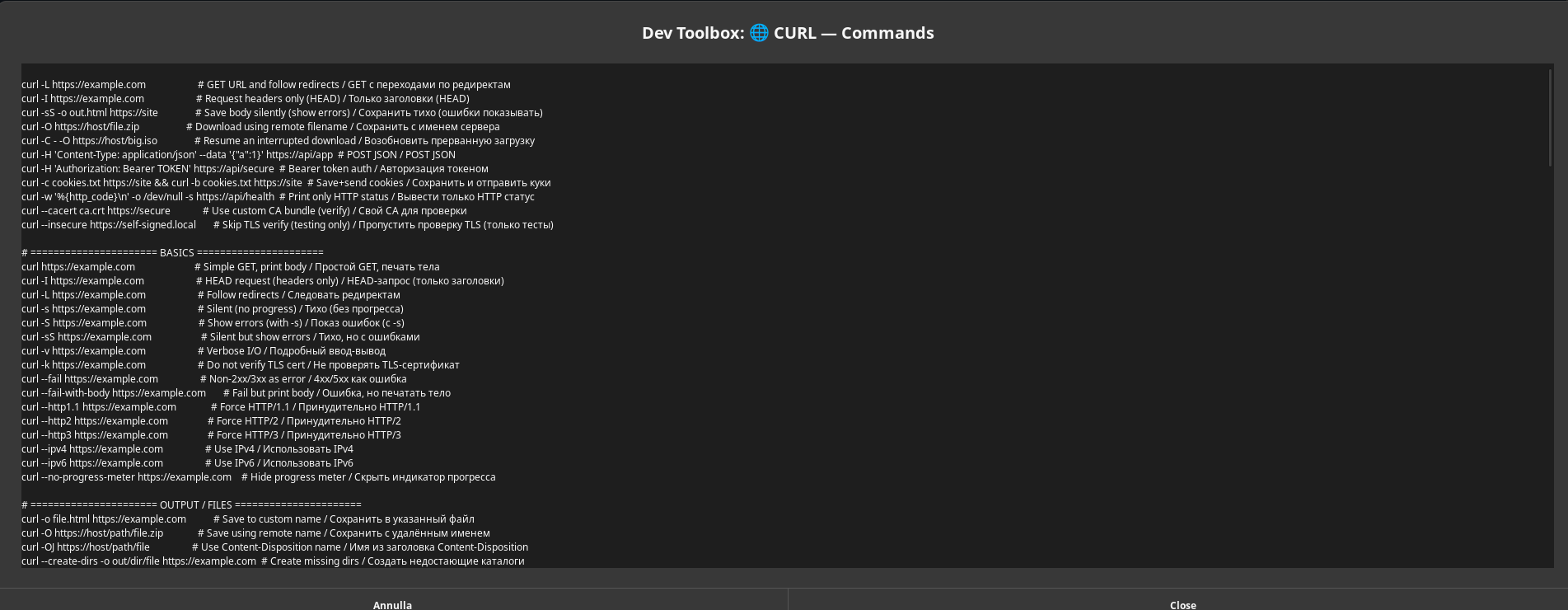
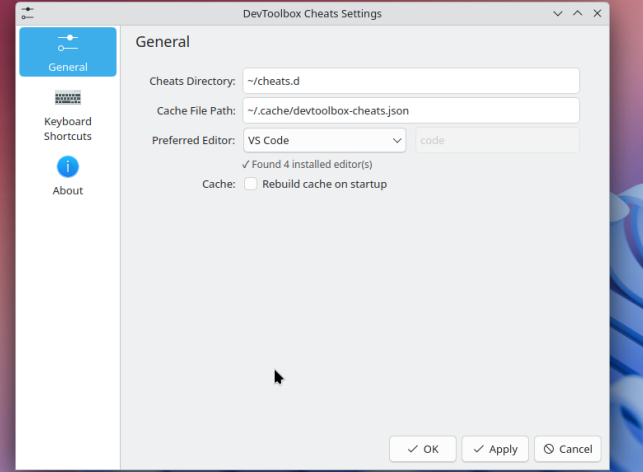
Screenshots from KDE Plasma 5/6
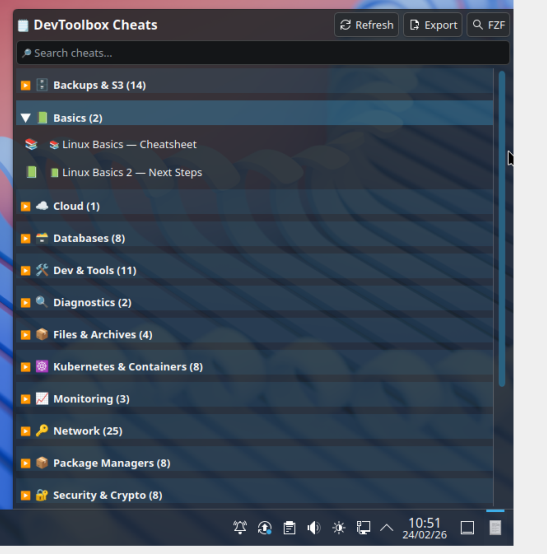
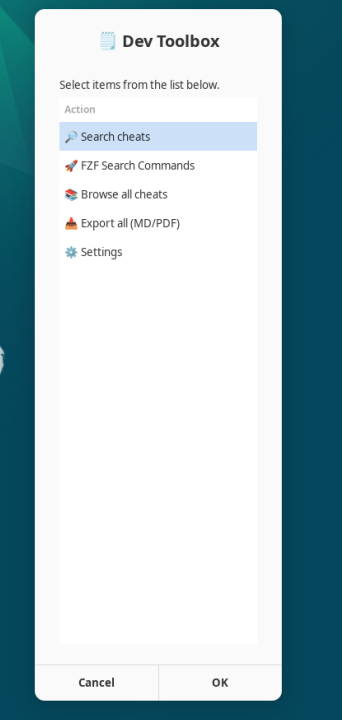
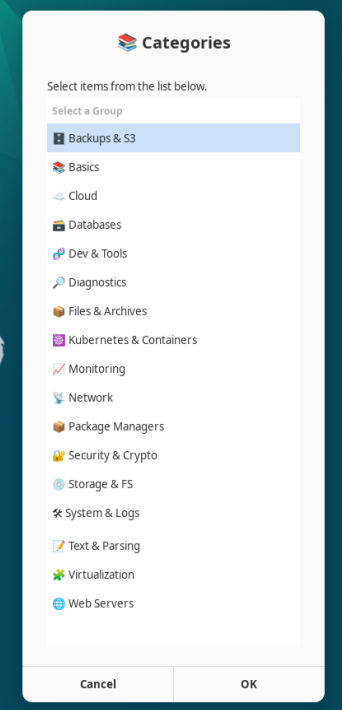
Screenshots from universal Zenity (XFCE, MATE, Cinnamon, LXQt, LXDE, Budgie, Pantheon, Deepin)
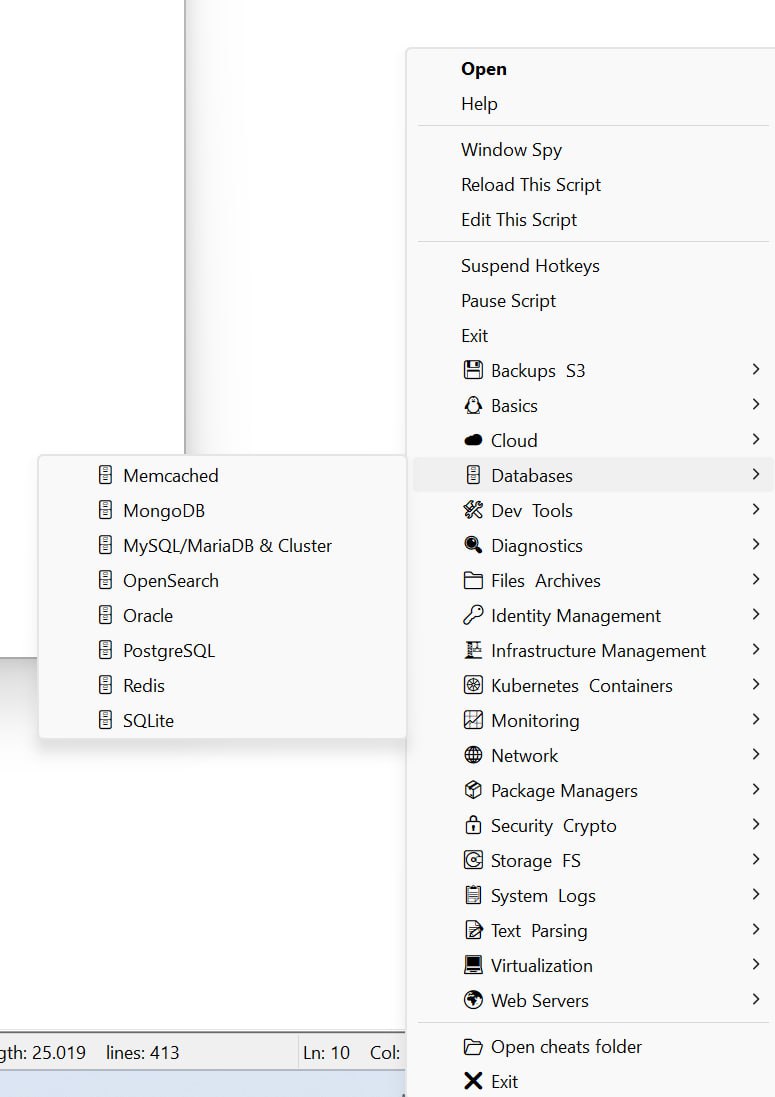
Screenshots from Windows (Native Tray App)
✨ Features
🌍 Universal Desktop Support
- GNOME - Native Argos panel menu with dropdown
- KDE Plasma 5/6 - Native widget with full UI
- XFCE / MATE / Cinnamon - Dialog-based menus (zenity/yad)
- LXQt / LXDE - Lightweight dialog menus
- Budgie / Pantheon / Deepin - Dialog-based menus with auto-detection
- Tiling WMs - Terminal-based with FZF (i3, sway, bspwm, hyprland)
- Windows (BETA) - Native tray application via AutoHotkey with full autodiscovery & search support (View Guide)
- Auto-Detection - Detects your DE and adapts automatically
🚀 Performance
- Instant Loading - Smart caching loads 100+ cheats in <100ms
- Fast Category Toggle - Optimized for instant expand/collapse (KDE widget)
- Auto Cache Invalidation - Rebuilds only when files change
🎯 Core Features
- Category Organization - Group cheats by topic with emoji icons
- Live Search - Filter cheats as you type
- Copy to Clipboard - One-click copy (wl-clipboard/xclip)
- Open in Editor - Launch any editor (auto-detected or custom)
- Export - Save individual or all cheats to Markdown/PDF
- FZF Integration - Powerful fuzzy search in terminal with syntax highlighting
- TLDR Generation - Compile authored Markdown cheats into external TLDR pages
🔧 Generated Outputs
- Source of Truth - Authored cheats remain in
~/cheats.d - Native TLDR Staging Output - Generated TLDR pages go to
~/cheats.d-gen/tldr/pages/common - External NAVI Path Reserved - Planned NAVI output path is
~/cheats.d-gen/navi - TLDR Cache Install - Generated pages are also copied into
~/.cache/tldr/pages/commonby default - Runtime Isolation - Generated outputs stay outside
CHEATS_DIR, so Argos, KDE, dialog DEs, and terminal mode are unaffected
🛠️ TLDR Generator
# Generate native TLDR pages and merge them into the local tldr cache
./generate-tldr.sh
Preview without writing files
./generate-tldr.sh --dry-run
Verify staging output and cache pages are current
./generate-tldr.sh --check
Skip cache installation and only populate the staging tree
./generate-tldr.sh --no-cache-install
Replace existing cached TLDR pages instead of merging into them
./generate-tldr.sh --overwrite-existing
After generation, test a page with the regular client:
tldr grep
tldr openssl
🎨 Smart Features (KDE Widget)
- Editor Auto-Detection - Scans for 16+ popular editors
- Editor Dropdown - Quick selection with ✓ marks for installed
- Auto-Fallback - Uses first available editor if preferred missing
- Custom Icons - Emoji or system icons per category/cheat
- Safe Install - No crashes, works in VMs
📦 Installation
Choose Your Desktop Environment
🪟 Windows (Native Tray App)
DevToolbox Cheats is fully supported on Windows using an automated PowerShell installer and AutoHotkey.
See the dedicated Windows Setup Guide for full details.
Quick Automated Install
- Open PowerShell (do not run as Administrator).
- Navigate to the repository's
Windows-betadirectory:
cd "C:\path\to\devtoolbox-cheats\Windows-beta"- Run the installer:
powershell.exe -ExecutionPolicy Bypass -File .\install-devtoolbox.ps1- Double-click the generated
cheats.exeto run the app.
🟠 GNOME (Argos Extension)
1. Install Argos Extension
From extensions.gnome.org or GitHub2. Install Dependencies
# Debian/Ubuntu
sudo apt install zenity xclip fzf bat pandoc
Fedora
sudo dnf install zenity xclip fzf bat pandoc
Arch
sudo pacman -S zenity xclip fzf bat pandoc
3. Clone and Install
git clone https://github.com/dominatos/devtoolbox-cheats.git
cd devtoolbox-cheats
./install.sh
4. Restart Argos
Disable and re-enable the Argos extension, or pressAlt+F2 → r → Enter
Result: 🗒️ icon appears in your top panel with dropdown menu. (Note: The installer also adds devtools.1m.sh to provide an additional tools menu in your panel).
🔵 KDE Plasma 5/6 (Native Widget)
Quick Install
# Clone repository
git clone https://github.com/dominatos/devtoolbox-cheats.git
cd devtoolbox-cheats
Run universal installer (auto-detects Plasma version)
./install.sh
The installer will:
- ✅ Install widget to
~/.local/share/plasma/plasmoids/ - ✅ Clear QML cache (ensures config shows correctly)
- ✅ Deploy 133 example cheatsheets to
~/cheats.d - ✅ Install dependencies (fzf, bat, wl-clipboard, fonts)
- ✅ Prompt for safe Plasma Shell restart
After Install
- Add to Panel:
- Configure:
~/cheats.d
- Cache File - Default: ~/.cache/devtoolbox-cheats.json
- Usage:
🟢 XFCE / MATE / Cinnamon
1. Install Dependencies
# Debian/Ubuntu
sudo apt install zenity xclip fzf bat pandoc
Fedora
sudo dnf install zenity xclip fzf bat pandoc
For Wayland sessions, use wl-clipboard instead of xclip
2. Clone Repository
git clone https://github.com/dominatos/devtoolbox-cheats.git
cd devtoolbox-cheats
./install.sh
3. Run Manually or Add to Panel
Run manually:
devtoolbox-cheats-menu menuAdd to panel (XFCE):
- Install Genmon plugin:
sudo apt install xfce4-genmon-plugin - Right-click panel → Add New Items → "Generic Monitor"
- Right-click the new monitor → Properties:
devtoolbox-cheats-menu menu - Period (s): 30
Add to panel (MATE):
- Right-click panel → "Add to Panel..."
- Select "Custom Application Launcher" → Add
- Configure properties:
devtoolbox-cheats-menu menu - Icon: 🗒️ (click to select icon)
Add to panel (Cinnamon):
- Right-click the Menu applet → Configure → Menu → "Open the menu editor"
- Select a category (e.g., Accessories) → "New Item"
- Configure properties:
devtoolbox-cheats-menu menu - Icon: 🗒️ (click to select icon) - Save and close the menu editor.
- Open the Cinnamon Menu, search for "DevToolbox Cheats", right-click it, and select "Add to panel".
🟣 LXQt / LXDE (Lightweight)
1. Install Dependencies
# Debian/Ubuntu (LXQt)
sudo apt install zenity xclip fzf bat pandoc
Lubuntu (LXQt)
sudo apt install zenity xclip fzf bat pandoc
LXDE
sudo apt install zenity xclip fzf bat pandoc
Arch
sudo pacman -S zenity xclip fzf bat pandoc
2. Clone Repository
git clone https://github.com/dominatos/devtoolbox-cheats.git
cd devtoolbox-cheats
./install.sh
3. Add to Panel
LXQt Panel:
- Right-click panel → "Manage Widgets" → "Add Widgets"
- Select "Custom command" → Add
- Right-click the Custom command widget → Configure
- Click "+" to add new launcher:
devtoolbox-cheats-menu menu - Click command: devtoolbox-cheats-menu menu - Icon: Click to browse and select a suitable icon (e.g., accessories-text-editor) - Click OK and close
- Right-click panel → "Add / Remove Panel Items"
- Select "Application Launch Bar" → Add
- Click "Application Launch Bar" → Preferences
- Click "+" to add application:
devtoolbox-cheats-menu menu - Close preferences
Result: Clicking launches dialog menu with all cheats
🟡 Budgie Desktop
1. Install Dependencies
# Ubuntu Budgie / Solus
sudo apt install zenity xclip fzf bat pandoc
Arch (with Budgie)
sudo pacman -S zenity xclip fzf bat pandoc
3. Install and Launch
git clone https://github.com/dominatos/devtoolbox-cheats.git
cd devtoolbox-cheats
./install.sh
Find in Budgie Menu:
- Open Budgie Menu and type "DevToolbox"
- Drag the shortcut to your Favorites or panel.
- Optional: Right-click any icon in Plank dock → Preferences, and drag from the applications menu.
🔷 Pantheon (elementary OS)
1. Install Dependencies
# elementary OS
sudo apt install zenity xclip fzf bat pandoc
3. Install and Launch
git clone https://github.com/dominatos/devtoolbox-cheats.git
cd devtoolbox-cheats
./install.sh
4. Add to Dock
- Press
Super(Windows key) to open Applications - Search for "DevToolbox Cheats"
- Right-click → "Add to Dock"
- Open System Settings → Keyboard → Shortcuts → Custom
- Click "+" to add:
devtoolbox-cheats-menu menu
- Shortcut: Press keys (e.g., Super+C)
Result: Elegant zenity dialog matching elementary OS design language
🔵 Deepin Desktop
1. Install Dependencies
# Deepin OS / UbuntuDDE
sudo apt install zenity xclip fzf bat pandoc
Arch with Deepin
sudo pacman -S zenity xclip fzf bat pandoc
3. Install and Launch
git clone https://github.com/dominatos/devtoolbox-cheats.git
cd devtoolbox-cheats
./install.sh
4. Add to Dock or Control Center
- Open Launcher (click grid icon in dock)
- Find "DevToolbox Cheats" in Applications
- Right-click → "Send to Desktop" or "Pin to Dock"
- Open Control Center → Keyboard and Language → Shortcuts → Custom Shortcuts
- Click "+" to add:
devtoolbox-cheats-menu menu
- Shortcut: Click "None" and press keys (e.g., Ctrl+Alt+C)
Result: Beautiful dialog matching Deepin's aesthetic with blur effects
🚀 Cosmic (Pop!_OS - NEW 2025)
1. Install Dependencies
# Pop!_OS with Cosmic
sudo apt install zenity fzf bat pandoc wl-clipboard
Cosmic uses Wayland by default
3. Install and Launch
git clone https://github.com/dominatos/devtoolbox-cheats.git
cd devtoolbox-cheats
./install.sh
4. Add Keyboard Shortcut
- Open Settings → Keyboard → View and Customize Shortcuts → Custom Shortcuts
- Click "+" to add:
devtoolbox-cheats-menu menu
- Shortcut: Press keys (e.g., Super+C)
Or add to Cosmic Dock:
- Press
Super+/to open Launcher - Type "DevToolbox Cheats"
- Right-click → "Pin to Dock"
⚫ Tiling WMs (i3, sway, bspwm, hyprland)
1. Install Dependencies
# X11 Window Managers (i3, bspwm, awesome)
sudo apt install fzf bat xclip pandoc zenity
Wayland Compositors (sway, hyprland, river)
sudo apt install fzf bat wl-clipboard pandoc wofi
Arch (X11)
sudo pacman -S fzf bat xclip pandoc zenity rofi
Arch (Wayland)
sudo pacman -S fzf bat wl-clipboard pandoc wofi
2. Clone Repository
git clone https://github.com/dominatos/devtoolbox-cheats.git
cd devtoolbox-cheats
./install.sh
3. Add Keybinding
i3 config (~/.config/i3/config):
bindsym $mod+c exec --no-startup-id devtoolbox-cheats-menu menusway config (~/.config/sway/config):
bindsym $mod+c exec devtoolbox-cheats-menu menubspwm config (~/.config/sxhkd/sxhkdrc):
super + c devtoolbox-cheats-menu menuhyprland config (~/.config/hypr/hyprland.conf):
bind = SUPER, C, exec, devtoolbox-cheats-menu menuawesome wm config (~/.config/awesome/rc.lua):
awful.key({ modkey }, "c", function () awful.spawn.with_shell("devtoolbox-cheats-menu menu") end, {description = "open devtoolbox cheats", group = "launcher"})dwm config (config.h - requires recompile):
static const char *cheatcmd[] = { "/bin/sh", "-c", "devtoolbox-cheats-menu menu", NULL }; { MODKEY, XK_c, spawn, {.v = cheatcmd } },4. Add to Launcher Menu (Optional)
rofi (X11):
# Add this alias to ~/.bashrc or ~/.zshrc alias cheats='devtoolbox-cheats-menu menu'
Or integrate directly with rofi
bindsym $mod+c exec "rofi -show run -run-command 'bash -c devtoolbox-cheats-menu menu'"
wofi (Wayland):
# Add to sway/hyprland config bindsym $mod+c exec devtoolbox-cheats-menu menu | wofi --dmenuResult: Opens dialog menu (if zenity/rofi installed) or FZF terminal search
📋 Requirements
Core (All Platforms)
- Bash 4.0+
find,grep,sed,awk
Desktop-Specific
| Desktop | Required | Optional | |---------|----------|----------| | GNOME | Argos extension | zenity, xclip, fzf, bat | | KDE Plasma | kdialog, wl-clipboard | fzf, bat, noto-fonts-emoji | | XFCE/MATE/Cinnamon | zenity, xclip | fzf, bat | | LXQt/LXDE | zenity, xclip | fzf, bat | | Budgie | zenity, xclip | fzf, bat | | Pantheon | zenity, xclip | fzf, bat | | Deepin | zenity, xclip | fzf, bat | | Cosmic | zenity, wl-clipboard | fzf, bat | | Wayland | wl-clipboard | zenity, fzf, bat | | X11 | xclip | zenity, fzf, bat | | Terminal/Tiling WM | fzf | bat, zenity, rofi, wofi |
Supported Editors (Auto-Detected)
- VS Code (
code), VS Codium (codium) - Kate (
kate), KWrite (kwrite) - Geany (
geany), Gedit (gedit) - Sublime Text (
subl), Atom (atom) - Vim (
vim), Neovim (nvim) - Emacs (
emacs), Nano (nano) - Mousepad (
mousepad), Pluma (pluma) - XED (
xed), Notepadqq (notepadqq) - Custom - Any command
📚 Creating Cheatsheets
[!TIP]
Want to add your own custom cheatsheets, create new categories, or change the default directory? Check out our dedicated guide: 📂 Managing Custom Cheatsheets.
File Structure
Cheatsheets are Markdown files organized in category subfolders under ~/cheats.d/.
Directory structure:
~/cheats.d/ ├── databases/ │ ├── mysqlcheatsheet.md │ ├── mongodbcheatsheet.md │ ├── postgrescheatsheet.md │ └── redisprodcheatsheet.md ├── kubernetes-containers/ │ ├── docker-basics.md │ ├── docker-compose.md │ └── kubernetes-commands.md ├── network/ │ ├── nginx-config.md │ ├── ssh-tunneling.md │ └── firewall-basics.md └── security-crypto/ ├── ssl-certificates.md ├── gpg-basics.md └── openssl-commands.mdEach Markdown file contains metadata in the first 80 lines:
Title: MySQL Queries
Group: Databases
Icon: 🗄️
Order: 1
MySQL Commands
Basic Queries
Show databases
mysql -u root -p -e "SHOW DATABASES;"Create database
mysql -u root -p -e "CREATE DATABASE mydb;"### Metadata Fields
- Title: (Required) Display name for the cheat
- Group: (Required) Category name (matches subfolder or custom)
- Icon: (Optional) Emoji (🐳) or system icon name (
docker)
- Order: (Optional) Sort order within group (1-999)
Icon Options
Emoji:
System Icons:### Result in Menu
Categories are auto-detected from subfolders:
- 🗄️ Databases → MySQL Queries, MongoDB Basics, PostgreSQL, Redis
- 🐳 Kubernetes & Containers → Docker Basics, Docker Compose, Kubernetes Commands
- 🌐 Network → Nginx Config, SSH Tunneling, Firewall Basics
- 🔒 Security & Crypto → SSL Certificates, GPG Basics, OpenSSL Commands
🎯 Usage
GNOME (Argos)
- Click 🗒️ icon in top panel
- Dropdown menu appears with:
- 🛠 DevToolbox Functions (Submenu containing Search, Export, Settings, Layout Switcher, etc.)
- Categories (auto-adaptive layout — see below)
- Click cheat name to copy & view
- Content copied to clipboard automatically
Argos Layout Options:
You can switch layouts directly from the Argos menu (🛠 DevToolbox Functions → 🔄 Layout) without editing any files.
- Standard (default): Categories expand inline as native Argos submenus. Fastest for quick browsing without extra windows.
- Zenity (dialog cheat list): Categories are shown at the root level. Clicking a category opens a popup Zenity dialog listing all cheats for that category. Excellent for small screens or when you prefer isolated windows.
- Drill-down (category→cheats): Clicking a category replaces the entire Argos menu with that category's cheats inline. Click
◀ Back to return to the category list.
Auto-adaptive category layout (Standard Mode):
The menu dynamically calculates how many category groups can safely fit on screen.
- If categories exceed the safe limit (e.g. 19 groups on 1080p), they are grouped under 📂 Browse by Category ▶ to prevent submenus from being clipped off-screen.
- On larger screens (≥1440p with fewer categories) categories are listed directly at the top level.
- On small screens (≤1368×768) the compact flat menu is shown instead.
KDE Widget
- Click widget in panel
- Full window opens with:
- Search field at top
- Category list with counts
- Action buttons: Copy, Open, Export, FZF
- Browse: Click category to expand
- Search: Type in search field
- Copy: Click cheat → copied to clipboard
- Open: Click cheat name → opens in editor
- Export: Button to save all as Markdown
- FZF: Opens terminal fuzzy search
Other DEs (Dialog Menu)
- Launch script (panel button, keybinding, or manually)
- Dialog appears with options:
- 🔎 Search cheats
- 🚀 FZF Search Commands
- 📚 Browse all cheats
- 📥 Export all (MD/PDF)
- 🌐 Online Version
- 🐙 GitHub Repository
- ⚙️ Settings
- ── Categories ──
- 📚 Basics
- 📡 Network
- ... (all your categories listed directly)
- Search: Type query → select from results
- Browse: Select a category directly from the list → select cheat
- FZF: Opens terminal with fuzzy search
Terminal / FZF Search
Direct FZF search
devtoolbox-cheats-menu fzfSearchOr from menu → FZF Search Commands
- Start typing to filter
- Preview shows file with syntax highlighting (bat)
- Press
Enter to open in editor at exact line
Esc to cancel
⚙️ Configuration
Environment Variables
Override cheats directory (default: ~/cheats.d)
export CHEATS_DIR=~/my-cheatsOverride cache file
export CHEATS_CACHE=~/.cache/my-cheats.cacheForce cache rebuild on every run (for debugging)
export CHEATS_REBUILD=1Force specific desktop environment
export DEVTOOLBOX_DE=kde # kde, gnome, xfce, lxqt, budgie, terminalSet preferred viewers (space-separated, tried in order)
export CHEAT_VIEWERS="code codium antigravity windsurf subl kate kwrite geany gedit mousepad pluma xed notepadqq zenity"### GNOME Argos: Adaptive Menu Layout
The Argos menu automatically adapts to your screen resolution and number of cheatsheet categories:
| Screen | Categories ≤ threshold | Categories > threshold | |--------|------------------------|------------------------| | ≥1440p | Expanded (categories at top level) | Collapsed (📂 Browse by Category) | | 1080p | Expanded | Collapsed (19 groups trigger this) | | ≤768p | Compact flat menu (no inline categories) | Same |
The threshold is calculated as: (screen_height − 30px panel) / 28px per item × 60%
KDE Widget Settings
Right-click widget → Configure:
- Cheats Directory - Where your
.md files are stored
- Cache File - JSON cache for fast loading
- Preferred Editor - Dropdown with auto-detected editors (✓ mark)
- Auto-Rebuild Cache - Force rebuild on widget load
Custom Integration
Add to i3/sway config:
Add to polybar:Add to waybar:---
🔄 Auto-Updater
Keep your cheatsheets in sync with the latest upstream version using the built-in updater.
Commands
After installation, cheats-updater is available in your PATH (~/.local/bin/):
Check what changed upstream
cheats-updater checkDownload / update all official cheatsheets
cheats-updater updateList all available cheatsheets
cheats-updater listBehavior:
- Only changed files are overwritten (
cmp diff check)
- Custom cheatsheets you add to
~/cheats.d/ are never touched
- Automatic backup is created before every update at
~/.local/share/devtoolbox-cheats/backups/
Automatic Daily Updates (systemd)
The installer sets up a systemd user timer that runs %h/.local/bin/cheats-updater update once per day.
Check timer status
systemctl --user status devtoolbox-cheats-updater.timerView update logs
journalctl --user -u devtoolbox-cheats-updater.serviceTrigger a manual run via systemd
systemctl --user start devtoolbox-cheats-updater.serviceDisable automatic updates
systemctl --user disable --now devtoolbox-cheats-updater.timerRe-enable automatic updates
systemctl --user enable --now devtoolbox-cheats-updater.timer### Manual Setup (if not using install.sh)Symlink the executable to PATH
mkdir -p ~/.local/bin ln -sf ~/devtoolbox-cheats/cheats-updater.sh ~/.local/bin/cheats-updaterSymlink units and enable timer
mkdir -p ~/.config/systemd/user ln -sf ~/devtoolbox-cheats/systemd/devtoolbox-cheats-updater.service ~/.config/systemd/user/ ln -sf ~/devtoolbox-cheats/systemd/devtoolbox-cheats-updater.timer ~/.config/systemd/user/ systemctl --user daemon-reload systemctl --user enable --now devtoolbox-cheats-updater.timer### Environment VariablesOverride target directory (default: ~/cheats.d)
CHEATS_DIR=/custom/path ./cheats-updater.sh update---
🔧 Troubleshooting
GNOME: Icon Not Showing
Cause: Argos not detecting script
Solution:
Check script name matches pattern
ls ~/.config/argos/*.shShould be: something.30s.sh (30 seconds refresh)
Restart Argos: disable/enable extension
### KDE: Widget Not Showing
Cause: QML cache not cleared
Solution:
Clear QML cache
rm -rf ~/.cache/plasmashell/qmlcache rm -rf ~/.cache/plasma-plasmashell/qmlcache rm -rf ~/.cache/qt6/qmlcacheRestart Plasma Shell
systemctl --user restart plasma-plasmashell.service### KDE: Config Page Not Showing
Solution: Reinstall with cache clearing
Choose option 2 for automatic restart
### KDE: Editor Not Found
Behavior: Widget auto-falls back to first available editor
Fix: Right-click → Configure → Select different editor from dropdown
Any DE: Copy Not Working
Cause: Missing clipboard tool
Solution:
For Wayland (Cosmic, sway, hyprland, Plasma 6 Wayland)
sudo apt install wl-clipboardFor X11 (most traditional DEs)
sudo apt install xclip### Dialog Menu Not Showing
Cause: Missing dialog tool
Solution:
Install zenity (universal, works with all DEs)
sudo apt install zenityOr kdialog (KDE only)
sudo apt install kdialogOr yad (advanced dialogs, more features)
sudo apt install yad### FZF Search Not Working
Cause: Missing fzf or terminal
Solution:
Install fzf and bat
sudo apt install fzf batEnsure terminal is installed
sudo apt install konsole # KDE sudo apt install gnome-terminal # GNOME sudo apt install xfce4-terminal # XFCE sudo apt install lxterminal # LXDE/LXQt sudo apt install mate-terminal # MATE sudo apt install io.elementary.terminal # Pantheon/elementary sudo apt install deepin-terminal # Deepin sudo apt install alacritty # Cosmic/modern compositors### Budgie/Pantheon/Deepin: Script Not Launching
Cause: Desktop file permissions or path issue
Solution:
Verify the script is in your PATH and executable
devtoolbox-cheats-menu menuUpdate desktop database
update-desktop-database ~/.local/share/applications---
🚀 Performance
Benchmark Results
Test System: 133 cheatsheets, 15 categories
| Operation | Time | Platform | |-----------|------|----------| | First Load | ~1-2s | All (builds cache) | | Cached Load | <100ms | KDE Widget / Script | | Category Toggle | <10ms | KDE Widget (optimized) | | Search Filter | <50ms | KDE Widget | | FZF Search | Instant | Terminal (fzf) | | Copy to Clipboard | <200ms | All |
Cache System
- Format: TSV index with metadata
- Location:
~/.cache/devtoolbox-cheats.idx (script) or .json (widget)
- Invalidation: Auto-detects file changes via mtime
- Rebuild: Only when needed or forced
🛠 Development
Project Structure
### Testing
Test Universal Script:
Force specific DE
DEVTOOLBOX_DE=kde ./devtoolbox-cheats.30s.sh menu DEVTOOLBOX_DE=gnome ./devtoolbox-cheats.30s.sh DEVTOOLBOX_DE=lxqt ./devtoolbox-cheats.30s.sh menu DEVTOOLBOX_DE=terminal ./devtoolbox-cheats.30s.sh menuTest FZF search
./devtoolbox-cheats.30s.sh fzfSearchTest KDE Widget:View logs
journalctl --user -f | grep DevToolbox ``
Contributing
Pull requests welcome! Please:
- Fork the repository
- Create feature branch:
git checkout -b feature/amazing Test on your DE Commit changes: git commit -m 'Add amazing feature' Push to branch: git push origin feature/amazing Open Pull Request to main` branch 📝 Changelog
Please see CHANGELOG.md for release history.
Included categories
- 📚 Basics
- 📡 Network
- 💿 Storage & FS
- 🗄️ Backups & S3
- 📦 Files & Archives
- 📝 Text & Parsing
- ☸️ Kubernetes & Containers
- 🛠 System & Logs
- 🌐 Web Servers
- 🗃️ Databases
- 📦 Package Managers
- 🔐 Security & Crypto
- 🧬 Dev & Tools
- 🧩 Misc
- 🔎 Diagnostics
- ☁️ Cloud
- 📈 Monitoring
- 🔧 Infrastructure Management
- 🪪 Identity Management
- 🖥️ Virtualization
Included cheats (full list)
This repository includes ready-to-use cheatsheets for popular tools, organized by category:
Backups & S3
- 🗄️ aws-cli — AWS S3 Backups
- 🗄️ azcopy — Azure Blob Storage
- 🗄️ Bareos/Bacula — Enterprise Backup
- 🗄️ BorgBackup — Deduplicating Backups
- 🗄️ Commvault v11 — Enterprise Backup
- 🗄️ Complete Server Clone & Backup Cheatsheet — Linux
- 🗄️ Duplicity — Encrypted Incremental Backups
- 🗄️ gsutil — Google Cloud Storage
- 🗄️ rclone — Remotes/S3
- 🗄️ MinIO — S3 Compatible Storage
- 🗄️ restic — Backups
- 🗄️ Snapshots — LVM/ZFS/Btrfs
- 🗄️ tar + GPG — Classic Encrypted Backups
- 🗄️ Veeam Agent — Linux Backup
- 🗄️ Veritas InfoScale
- 🗄️ SSH Chroot Backup Server
Basics
Cloud
Databases
- 🗃️ Memcached — Sysadmin Cheatsheet
- 🍃 MongoDB — Cheatsheet
- 🗃️ MySQL/MariaDB
- 🔎 OpenSearch — Cheatsheet
- 🗃️ Oracle Database
- 🐬 Percona XtraDB Cluster (PXC)
- 🗃️ PostgreSQL — psql/pgdump
- 🔀 ProxySQL — MySQL Proxy
- 🗃️ Redis — Production Cheatsheet
- 🗃️ SQLite
- 🐬 MySQL Galera Cluster
- 🗄️ PMM — Disaster Recovery
Dev & Tools
- 🛠️ Ansible
- 🛠️ Apache Kafka
- 🛠️ Apache Zookeeper
- 🛠️ Build — Make/CMake
- 🧬 Git — Advanced
- 🧬 Git — Basics
- 🛠️ Jenkins CI/CD
- 🟢 Node — nvm/npm/yarn
- 🐍 Python — venv/pip/pipx
- 🛠️ Terraform
- 🧷 tmux — Commands
- 🔍 Meld (Merge & Diff)
- 🛠️ Debezium CDC — Sysadmin
Diagnostics
Files & Archives
- 🔁 diff / patch — File Comparison
- 📦 TAR — Archive Commands
- 📦 TAR + Zstandard (zstd) — Compression
- 📦 ZIP / 7z / ZSTD — Archive Tools
Kubernetes & Containers
- 🐳 Docker — Commands
- ⛏ Helm — Commands
- 🎛 k9s — Hotkeys
- ☸️ KUBECTL — Commands
- ☸️ KUBECTL — JSONPath
- ☸️ Kustomize — kustomization.yaml
- ☸️ OpenShift (OCP)
- 🫙 Podman / nerdctl — Commands
Infrastructure Management
Identity Management
Monitoring
- 🧠 Cerebro (Elasticsearch Admin)
- 📈 CheckMK
- ✅ Checkmk Agent
- 📊 Filebeat
- 📈 Nagios Core
- 📡 SNMPD
- 📈 Telegraf
- 📈 VictoriaMetrics
- 📈 Zabbix Server
Network
- 🔁 autossh — Resilient tunnels
- 🌐 CURL — Commands
- 🧭 DNS — dig/nslookup
- 🚓 Fail2Ban — Commands
- 🔥 firewalld — Commands
- 🌐 ip — Commands
- 🔥 iptables — Commands
- 🔁 iptables → nftables — Mapping
- 🔌 nc / nmap — Commands
- 🛰️ Network diag — mtr/traceroute/iperf3
- 📡 Network Backend Detection
- 🌐 nmcli — NetworkManager CLI
- 🌐 NetworkManager — Commands
- 🌐 Netplan — Configuration
- 🌐 systemd-networkd — Configuration
- 🌐 VPN Plugins — NetworkManager
- 🕸 nftables — Commands
- resolvectl — DNS/Network
- RSYNC — Commands
- SCP — Commands
- 📡 SS — Socket Stats
- 🔑 SSH / VPN / Port Forwarding
- SSH — Commands & Config
- 🧱 UFW — Commands
- WireGuard — Quickstart
Package Managers
- 📦 Package Managers
- 📦 APT — Debian/Ubuntu
- 📦 DNF — RHEL/Fedora
- 🟢 Pacman — Arch Linux
- 🟢 Zypper — OpenSUSE
- 📦 Snap — Universal Packages
- 📦 Flatpak — Application Sandboxes
- 📦 AppImage — Portable Apps
Security & Crypto
- 🛡️ AIDE — File Integrity Checker
- 🔬 Cerbero Suite — File Analysis & RE
- 🛡️ CrowdSec — Intrusion Prevention
- 🔐 GPG / age — Encryption
- 🔐 htpasswd — Basic Auth
- 🔐 OpenSSL — Commands
- 🔐 Git Secret Leak Detection
- 🔑 SSH Keys & Access Management
- 🔐 OpenSSL — CSR with SAN
- 🔐 pass — Password Store
- 🍯 SSH Honeypot & CrowdSec
Storage & FS
- 💿 ACL — Access Control Lists
- 💿 Chroot — System Recovery
- 💿 Grow Disk (Cloud EXT4/XFS)
- 💿 LVM — Basics
- 💿 Partition & Mount
- 💿 SMART & mdadm RAID
System & Logs
- ⏰ cron / at — Commands
- 📅 date / TZ — Commands
- 💽 du/df/lsof/ps — Commands
- 📜 Ionice / Nice — Priority
- 📜 journalctl — Basics
- 📜 journalctl — Commands
- 📜 Kibana
- 📜 Kernel-panic — RHEL/CentOS
- 🌀 logrotate — Basics
- � VPS Optimization — Ubuntu/Debian
- �🛡️ SELinux / AppArmor — Basic diag
- 🛠 systemctl — Commands
- 🕰️ systemd timers — Basics
- 🧩 systemd unit — template
- 💾 Swap — Management
Text & Parsing
- 🦾 AWK — Commands
- 🔪 cut/sort/uniq — Commands
- 🗃 FIND — Commands
- ⚡ fzf — Fuzzy Finder
- 🔎 GREP — Commands
- 🧩 JQ — Commands
- 🌀 Bash — Loops
- ⚡ modern-cli — ripgrep / fd / bat / eza
- ✂️ SED — Commands
- 🌳 Tree — Cheatsheet
- 🔤 tr/head/tail/watch — Commands
- ✍️ vim — Quickstart
- 🧪 yq — YAML processor
Web Servers
- 🪶 Apache HTTPD — Cheatsheet
- 🔒 Caddy — Cheatsheet
- 🌀 HAProxy — Cheatsheet
- 🌐 Nginx — Cheatsheet
- 🌐 WebLogic Server
- 🐱 Tomcat — Cheatsheet
- 🦅 WildFly (JBoss)
Virtualization
📄 License
MIT License - See LICENSE file
🙏 Credits
- Developer: Sviatoslav (@dominatos)
- Inspired by: DevHints, tldr, cheat.sh, Argos
- Icons: Noto Color Emoji
- Tested on: GNOME, KDE Plasma, XFCE, MATE, Cinnamon, LXQt, Budgie, Pantheon, i3, sway
🔗 Links
- Repository: https://github.com/dominatos/devtoolbox-cheats
- Issues: https://github.com/dominatos/devtoolbox-cheats/issues
- Releases: https://github.com/dominatos/devtoolbox-cheats/releases
- Argos Extension: https://github.com/p-e-w/argos
⭐ Support
If you find this useful:
- ⭐ Star the repository
- 🐛 Report bugs via Issues
- 💡 Suggest features
- 🍴 Fork and contribute
- 💬 Share with the Linux community
If you like this project, consider supporting me on Buy Me a Coffee ☕️
Made with ❤️ for the Linux community
[oss icon]: https://img.shields.io/badge/Open--Source-Software-blue.svg


