
Display images and gifs in your terminal.
Imgcat



Display images and gifs in your terminal emulator.
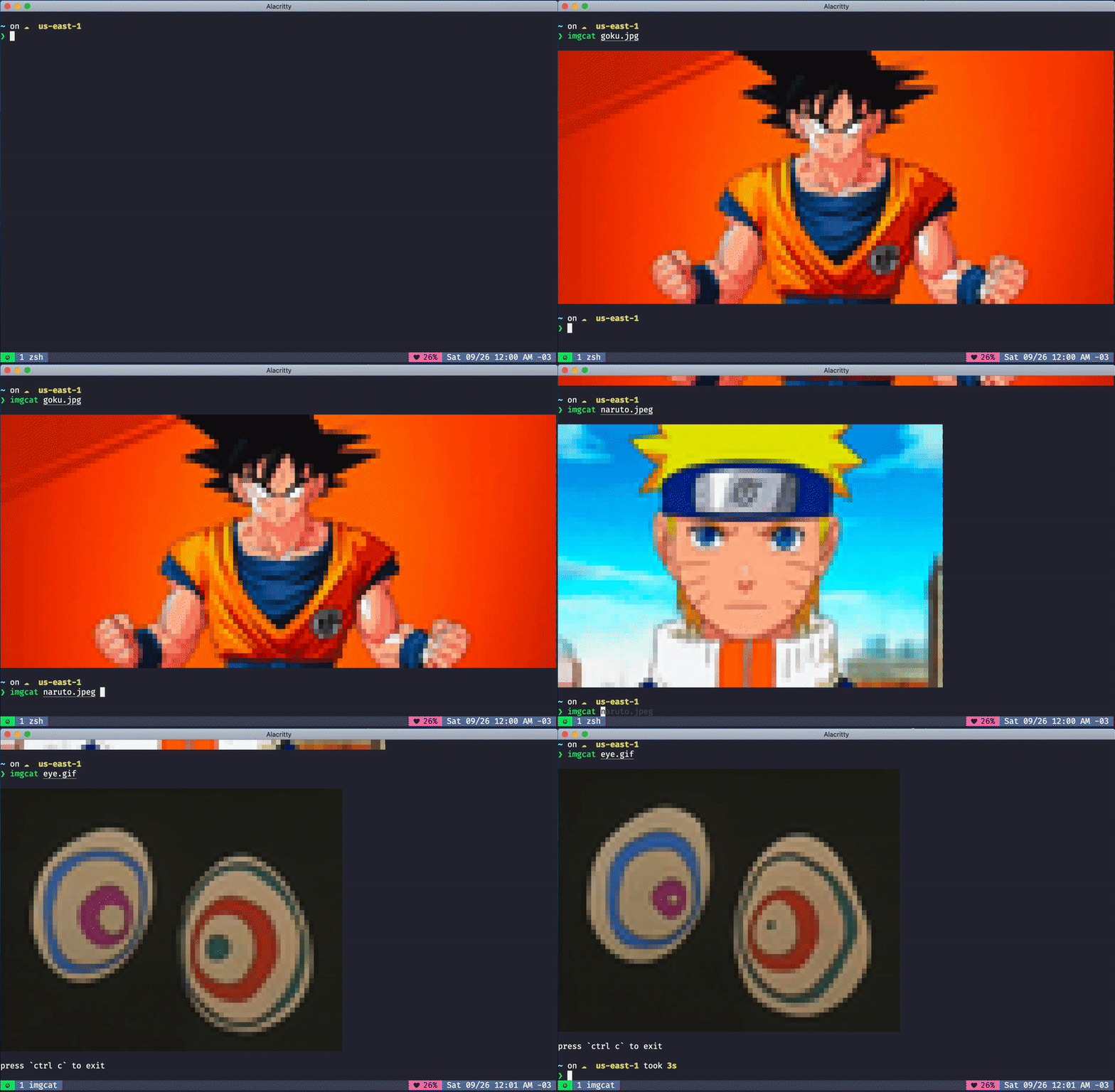
Features
- Animated GIF support
- Accept media through stdin
- Transparency
Installation
MacOS
brew install danielgatis/imgcat/imgcatWindows
First, install scoop.
scoop bucket add scoop-imgcat https://github.com/danielgatis/scoop-imgcat.git
scoop install scoop-imgcat/imgcat
Download binaries
Alternatively, you can download a pre-built binary here.
Build from source
First, install Go.
Next, fetch and build the binary.
go install github.com/danielgatis/imgcat@latestor, if you use pre-1.17 Go version, use the go get command:
go get -u github.com/danielgatis/imgcatUsage
Display a remote image
curl -s http://input.png | imgcatDisplay a local image
imgcat path/to/image.pngOptions
-h,-help: Show help message-interpolation: Set interpolation method (default:lanczos)
nearest: Fastest resampling filter, no antialiasing.
- lanczos: A high-quality resampling filter for photographic images yielding sharp results.
-type: Image resize type. Options: fit, resize (default:fit)-cols: Number of terminal columns to use for rendering the image (default: terminal width)-rows: Number of terminal rows to use for rendering the image (default: terminal height)-top-offset: Offset from the top of the terminal to start rendering the image (default: 1)-silent: Hide exit message (default: false)
Requirements
Your terminal emulator must be support true color and use a monospaced font that includes the lower half block unicode character (▄ U+2584).
Checking truecolor support
Run the following command to verify if your terminal supports 24-bit color:
echo $COLORTERMThe output should be truecolor or 24bit. If it is empty or shows 256color, imgcat output will appear garbled or incorrect.
Using inside tmux
tmux does not forward truecolor by default. Add the following lines to your ~/.tmux.conf:
set -g default-terminal "tmux-256color"
set -ga terminal-overrides ",*:Tc"
Then restart tmux or reload the config with tmux source ~/.tmux.conf.
Using inside screen
GNU Screen has limited truecolor support. Start it with:
screen -T xterm-truecolorOr add the following to your ~/.screenrc:
term xterm-truecolorNote: older versions of screen may still not render colors correctly even with this setting. Upgrading to screen 4.6+ or switching to tmux is recommended.
License
Copyright (c) 2020-present Daniel Gatis
Licensed under MIT License
Buy me a coffee
Liked some of my work? Buy me a coffee (or more likely a beer)


