
Web-based SQLite database browser written in Python

sqlite-web is a web-based SQLite database browser written in Python.
Project dependencies:
Installation
$ pip install sqlite-webUsage
$ sqlite_web /path/to/database.dbIf you have multiple databases:
$ sqlite_web /path/to/db1.db /path/to/db2.db /path/to/db3.dbOr run with docker:
$ docker run -it --rm \
    -p 8080:8080 \
    -v /path/to/your-data:/data \
    ghcr.io/coleifer/sqlite-web:latest \
    db_filename.db
Or run with the high-performance gevent WSGI server (requires gevent):
$ sqlite_wsgi /path/to/db.dbThen navigate to http://localhost:8080/ to view your database.
Features
- Works with your existing SQLite databases, or can be used to create new databases.
- Add or drop:
- Export data as JSON or CSV.
- Import JSON or CSV files.
- Browse table data.
- Insert, Update or Delete rows.
- Load and unload databases at run-time (see
--enable-loador--enable-filesystem)
Screenshots
The index page shows some basic information about the database, including the number of tables and indexes, as well as its size on disk:

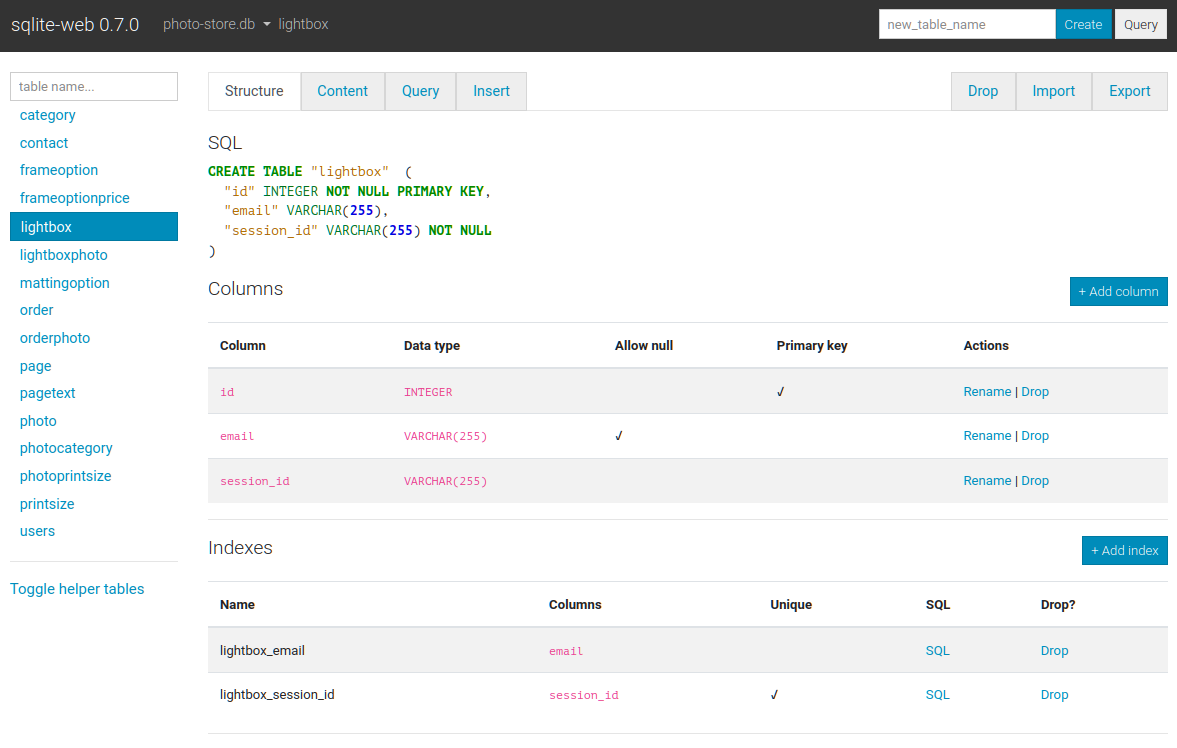
The structure tab displays information about the structure of the table, including columns, indexes, triggers, and foreign keys (if any exist). From this page you can also create, rename or drop columns and indexes.
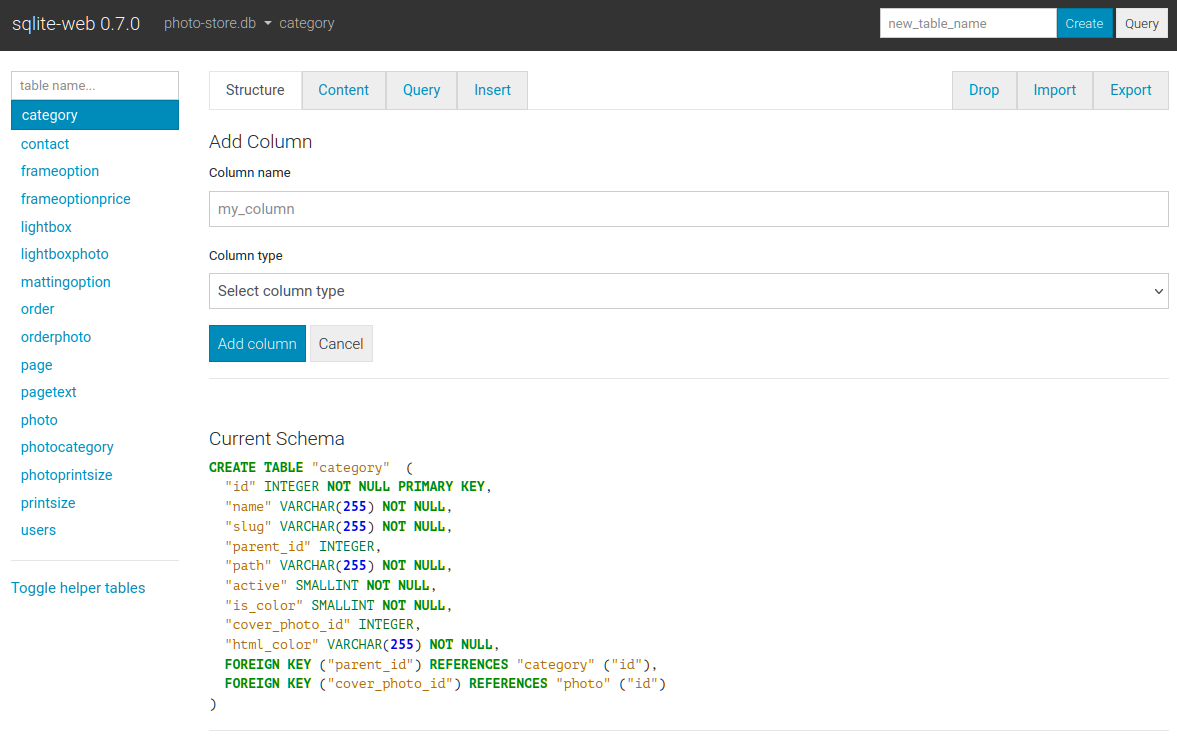
Columns are easy to add, drop or rename:
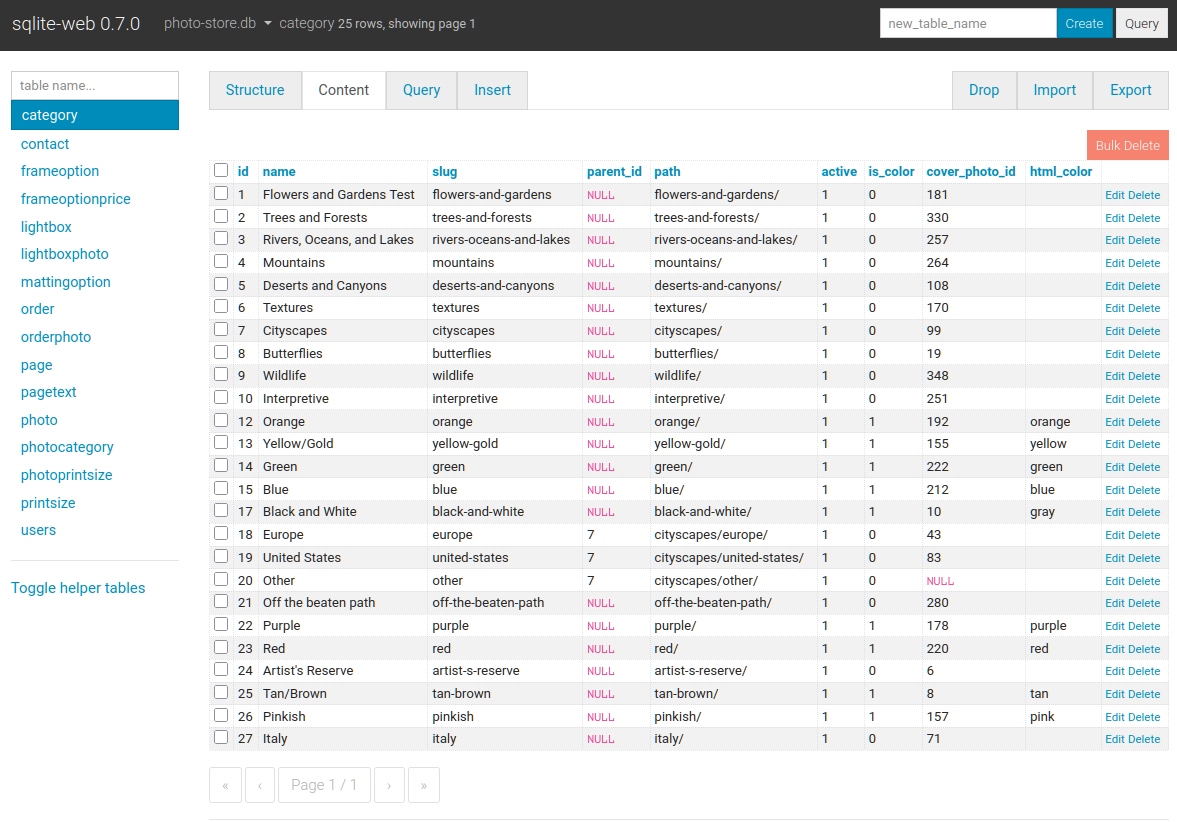
The content tab displays all the table data. Links in the table header can be used to sort the data:
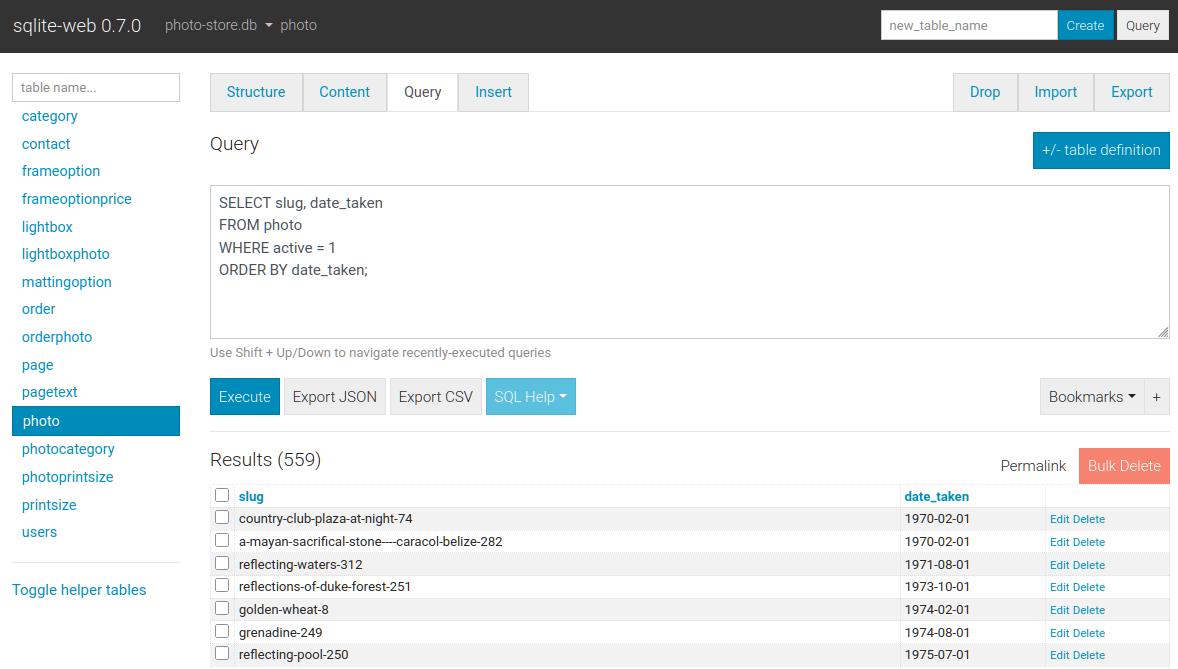
The query tab allows you to execute arbitrary SQL queries on a table. The query results are displayed in a table and can be exported to either JSON or CSV:
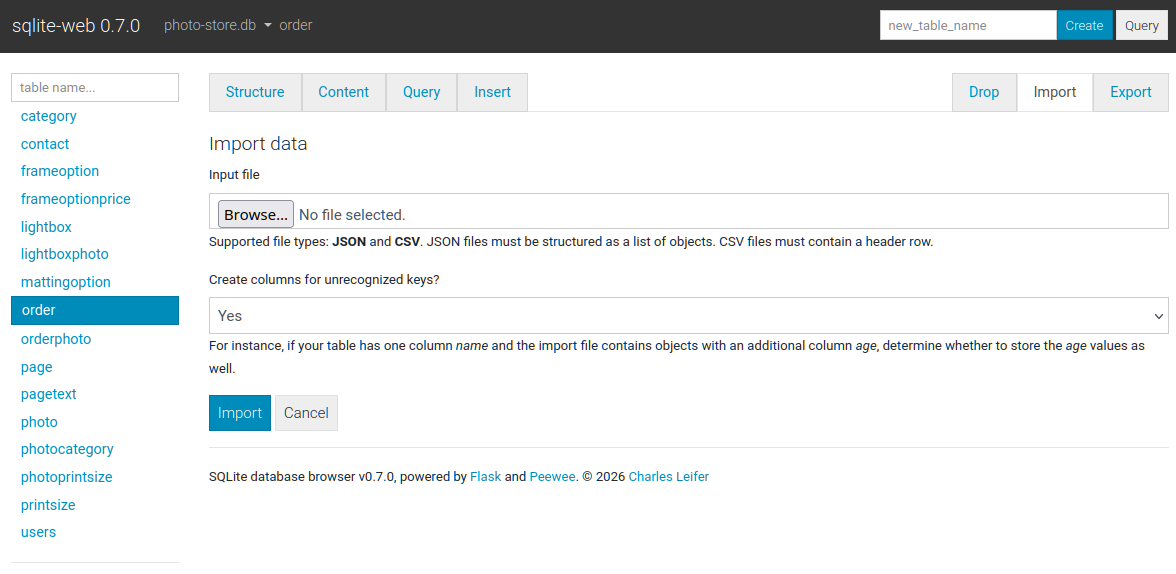
The import tab supports importing CSV and JSON files into a table. There is an option to automatically create columns for any unrecognized keys in the import file:
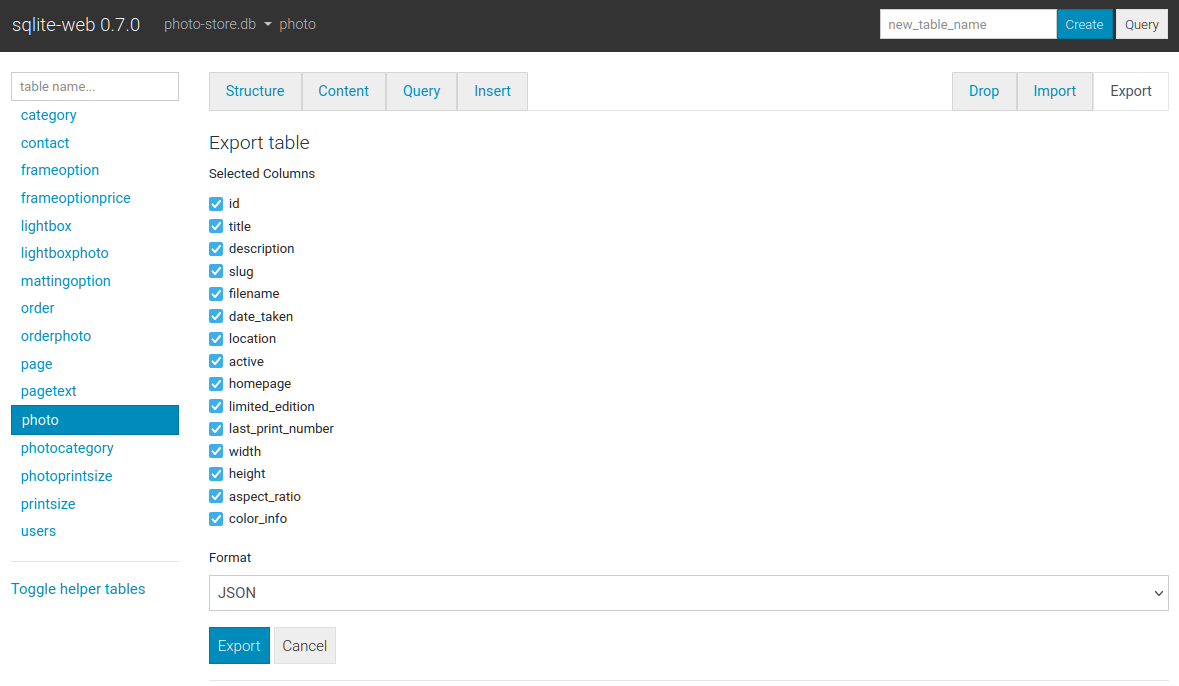
The export tab supports exporting all, or a subset, of columns:
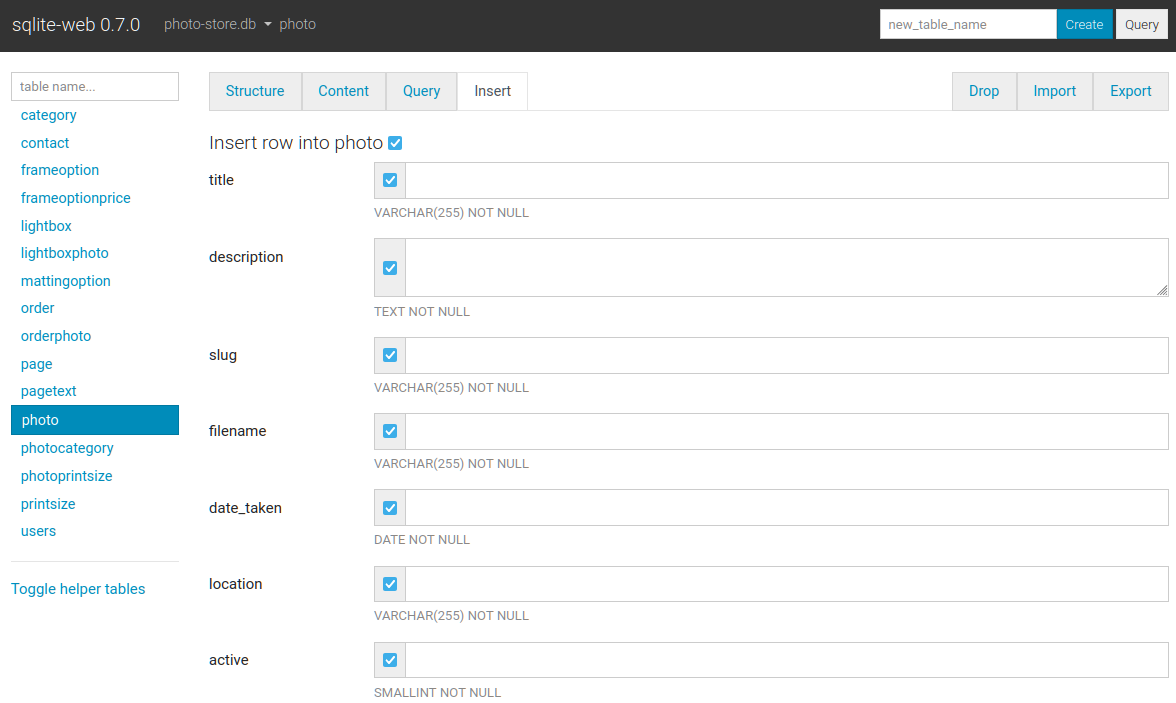
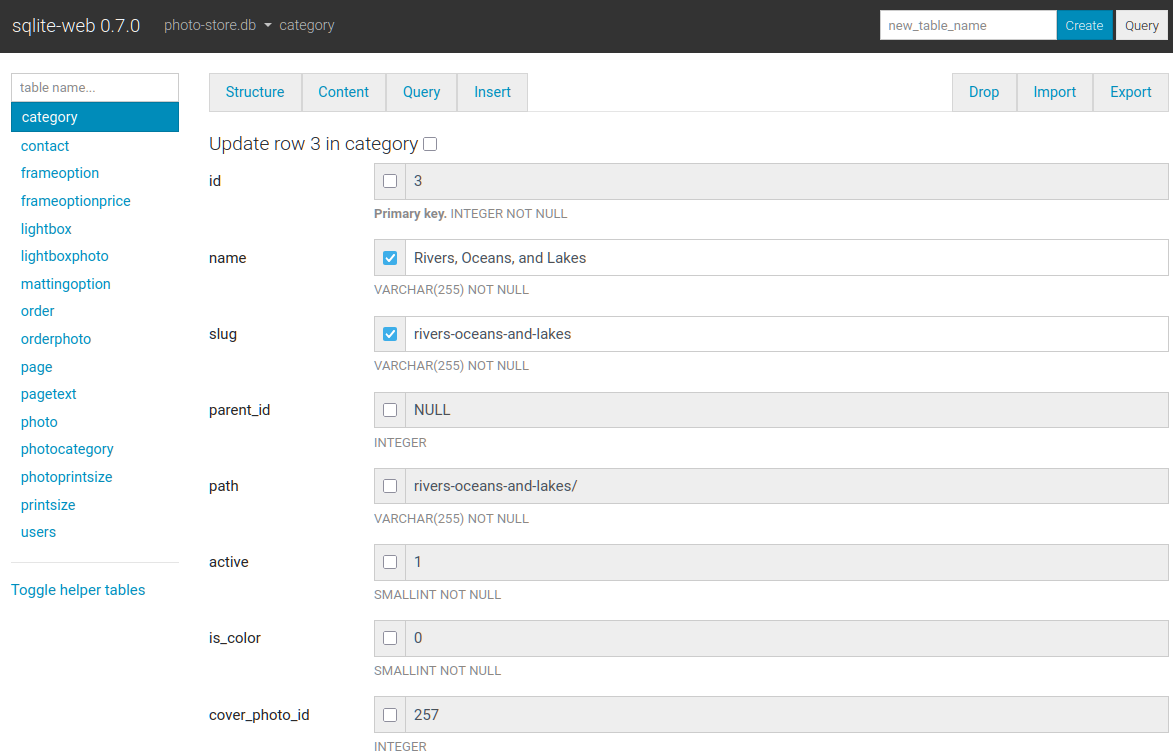
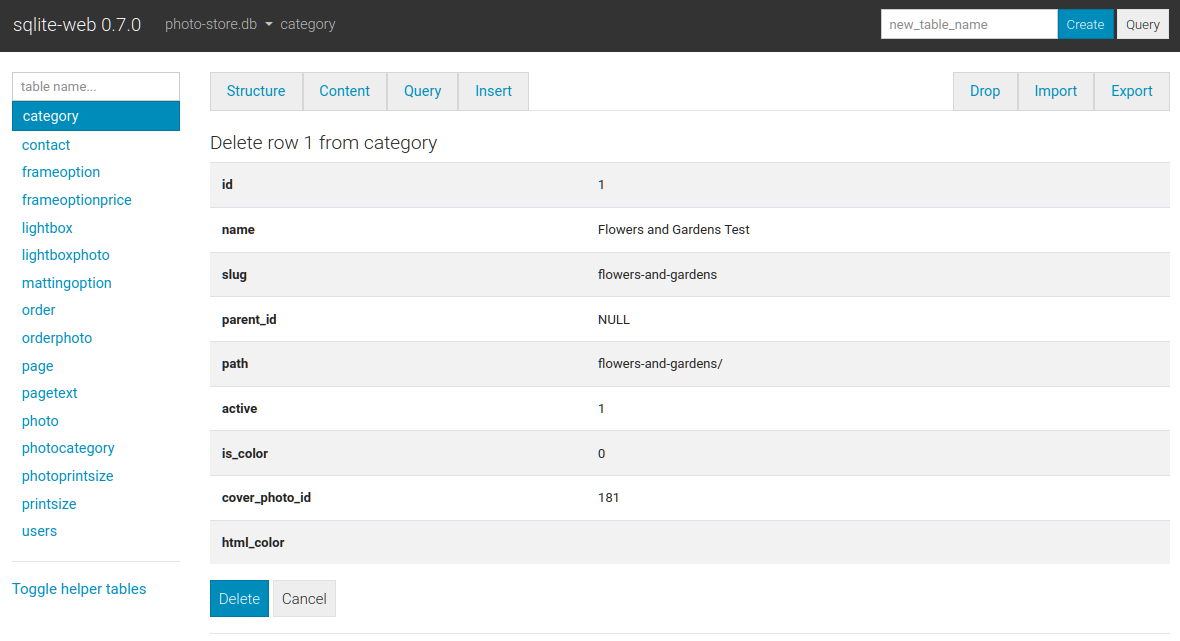
Basic INSERT, UPDATE and DELETE queries are supported:
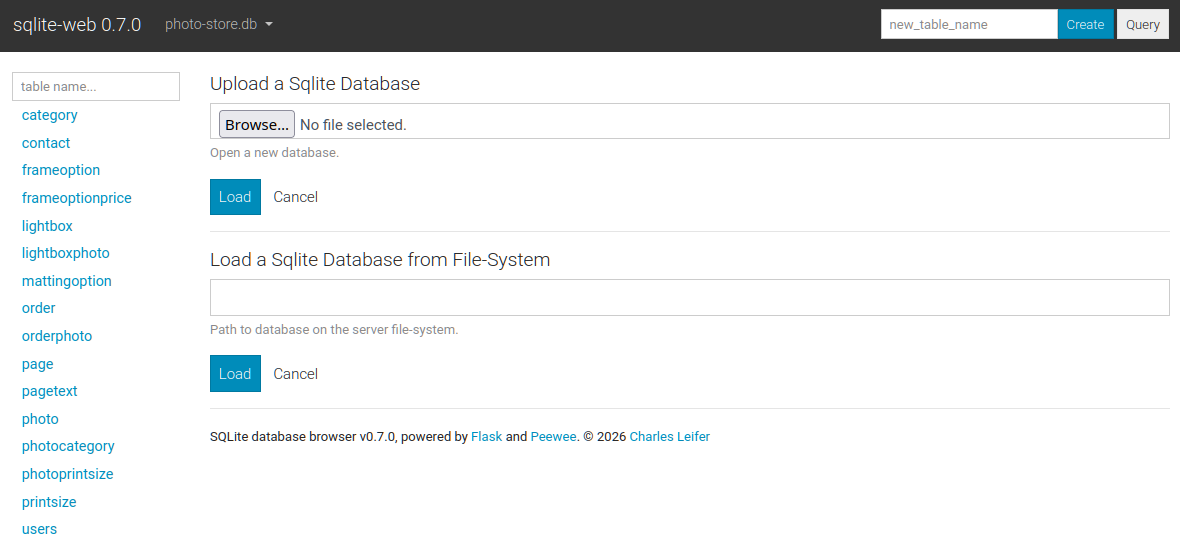
When configured with --enable-load or --enable-filesystem additional databases can be loaded or unloaded at run-time:
Command-line options
The syntax for invoking sqlite-web is:
$ sqlite_web [options] /path/to/database.db /path/to/another.dbThe following options are available:
-p,--port: default is 8080-H,--host: default is 127.0.0.1-d,--debug: default is false-l,--log-file: filename for application logs.-q,--quiet: only log errors.-b,--browser: open a web-browser when sqlite-web starts.-x,--no-browser: do not open a web-browser when sqlite-web starts.-P,--password: prompt for password to access sqlite-web.
-r,--read-only: open database in read-only mode.-R,--rows-per-page: set pagination on content page, default 50 rows.-Q,--query-rows-per-page: set pagination on query page, default 1000 rows.-T,--no-truncate: disable ellipsis for long text values. If this option
-B,--base64: BLOB data as base64 (default is hex).-e,--extension: path or name of loadable extension(s). To load
-e [path] for each extension.
-s, --startup-hook: path to a startup hook used to initialize the
connection before each request, e.g. my.module.some_callable. Should
accept one parameter, the SqliteDatabase instance.
-f, --foreign-keys: enable foreign-key constraint pragma.
-u, --url-prefix: URL prefix for application, e.g. "/sqlite-web".
-L, --enable-load: Enable loading additional databases at runtime (upload
only). For adding local databases use --enable-filesystem.
-U, --upload-dir: Destination directory for uploaded database (-L). If
not specified, a system tempdir will be used.
-F, --enable-filesystem: Enable loading additional databases by
specifying on-disk path at runtime. Be careful with this.
-c, --cert and -k, --key - specify SSL cert and private key.
-a, --ad-hoc - run using an ad-hoc SSL context.
Using docker
A Dockerfile is provided with sqlite-web. To use:
<pre><code class="lang-console">#
Use GitHub container registry:
#
$ docker run -it --rm \ -p 8080:8080 \ -v /path/to/your-data:/data \ ghcr.io/coleifer/sqlite-web:latest \ db_filename.db
#
OR build the image yourself:
#
$ cd docker/ # Change dirs to the dir containing Dockerfile $ docker build -t coleifer/sqlite-web . $ docker run -it --rm \ -p 8080:8080 \ -v /path/to/your-data:/data \ coleifer/sqlite-web db_filename.db</code></pre>
Command-line options can be passed in when running via Docker. For example, if you want to run it at a separate URL prefix, for example
/sqlite-web/:
<pre><code class="lang-">$ docker run -it --rm \ -p 8080:8080 \ -v /path/to/your-data:/data \ ghcr.io/coleifer/sqlite-web:latest \ db_filename.db \ --url-prefix="/sqlite-web/"</code></pre>
High-performance WSGI Server
To run sqlite-web with a high-performance gevent WSGI server, you can run
sqlitewsgi instead of sqliteweb`:
$ sqlite_wsgi /path/to/db.dbMore complete example:
$ sqlite_wsgi -p 8000 -H '0.0.0.0' /path/to/db1.db /path/to/db2.db


