
📃 White paper for Backend developers
This repository is a visual cheatsheet on the main topics in Backend-development. All material is divided into chapters that include different topics. There are three main parts to each topic:
- Visual part - various images/tables/cheatsheets for better understanding (may not be available). All pictures and tables are made from scratch, specifically for this repository.
- Summary - A very brief summary with a list of key terms and concepts. The terms are hyperlinked to the appropriate section on Wikipedia or a similar reference resource.
- References to sources - resources where you may find complete information on a particular issue (they are hidden under a spoiler, which opens when clicked). If possible, the most authoritative sources are indicated, or those that provide information in as simple and comprehensible language as possible.
🌐 Available translations:EnglishРусский
🤝 If you want to help the project, feel free to send your issues or pull requests.
🌙 For better experience enable dark theme.
Contents
Network & Internet
Internet is a worldwide system that connects computer networks from around the world into a single network for storing/transferring information. The Internet was originally developed for the military. But soon it began to be implemented in universities, and then it could be used by private companies, which began to organize networks of providers that provide Internet access services to ordinary citizens. By early 2020, the number of Internet users exceeded 4.5 billion.
- ### How the Internet works
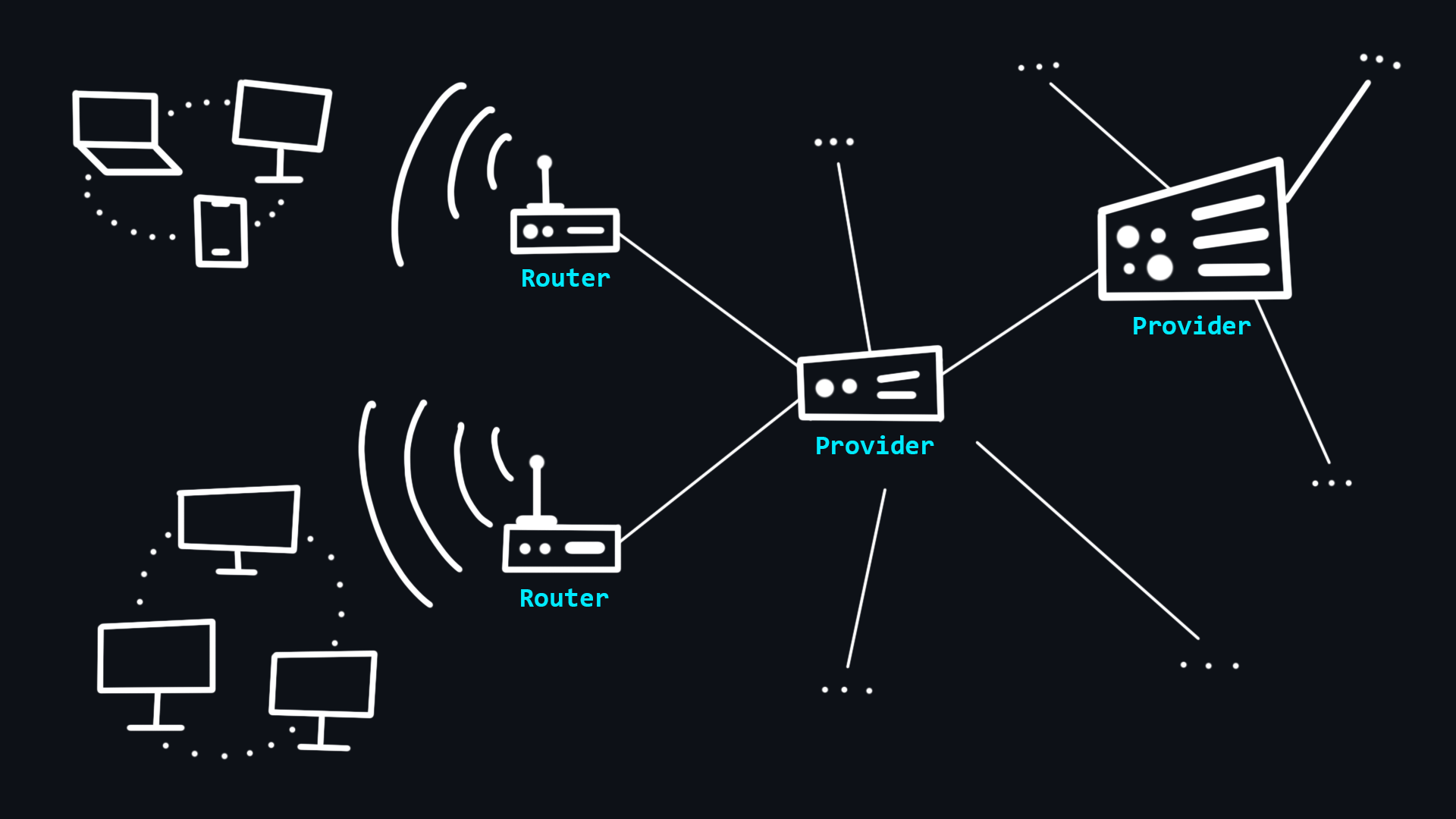
Your computer does not have direct access to the Internet. Instead, it has access to your local network to which other devices are connected via a wired (Ethernet) or wireless (Wi-Fi) connection. The organizer of such a network is a special minicomputer - router>). This device connects you to your Internet Service Provider (ISP), which in turn is connected to other higher-level ISPs. Thus, all these interactions make up the Internet, and your messages always transit through different networks before reaching the final recipient.
- Host>) > Any device that is on any network. - Server>) > A special computer on the network that serves requests from other computers.
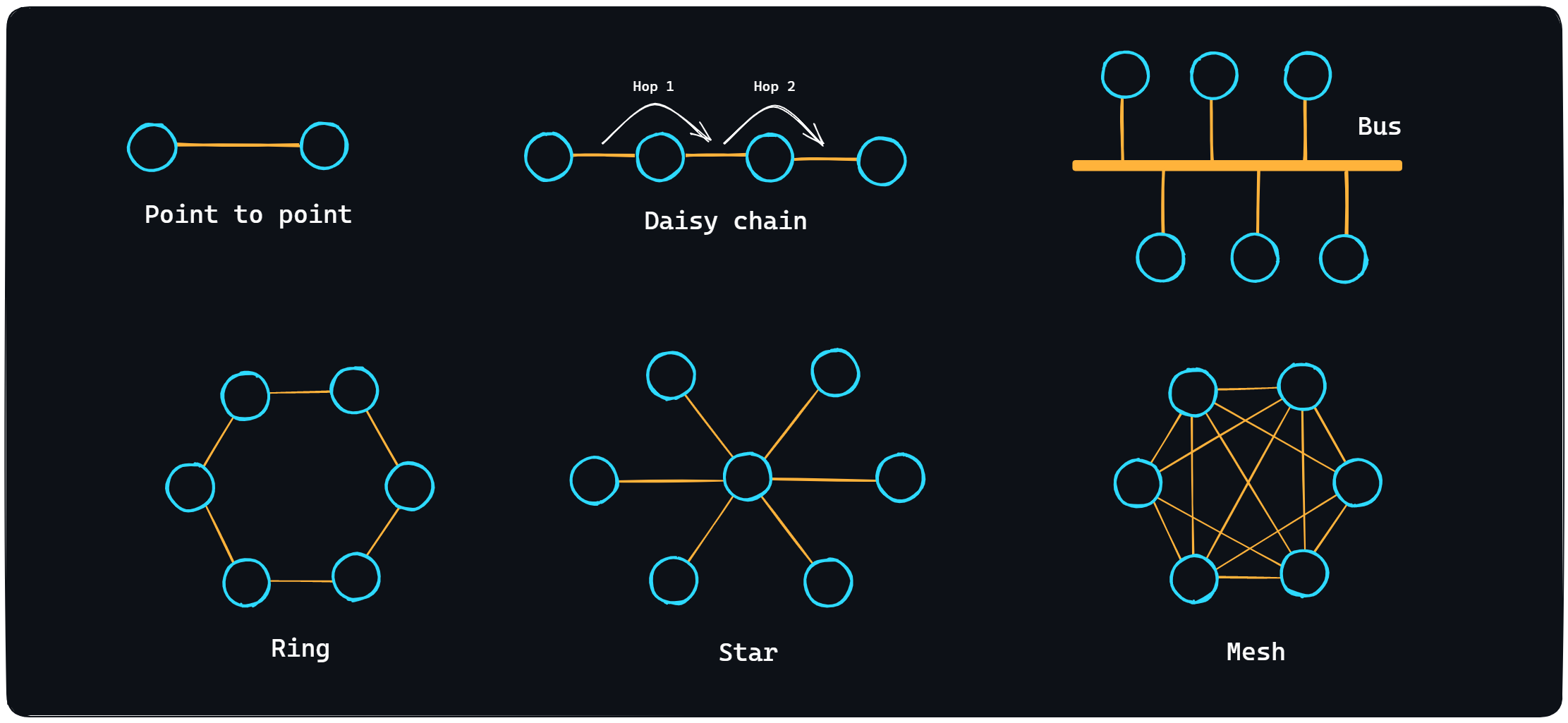
- Network topologies > There are several topologies (ways of organizing a network): Point to point>), Daisy chain>), Bus, Ring, Star and Mesh. The Internet itself cannot be referred to any one topology, because it is an incredibly complex system mixed with different topologies.
🔗 References
- 📄 How does the Internet work? – MDN
- 📺 How does the internet work? (Full Course) – YouTube
- 📺 What is a Server? Servers vs. Desktops Explained – YouTube
- 📺 Network Topology – YouTube
- 📺 Network Topologies (Star, Bus, Ring, Mesh, Ad hoc, Infrastructure, & Wireless Mesh Topology) – YouTube
- ### What is a domain name
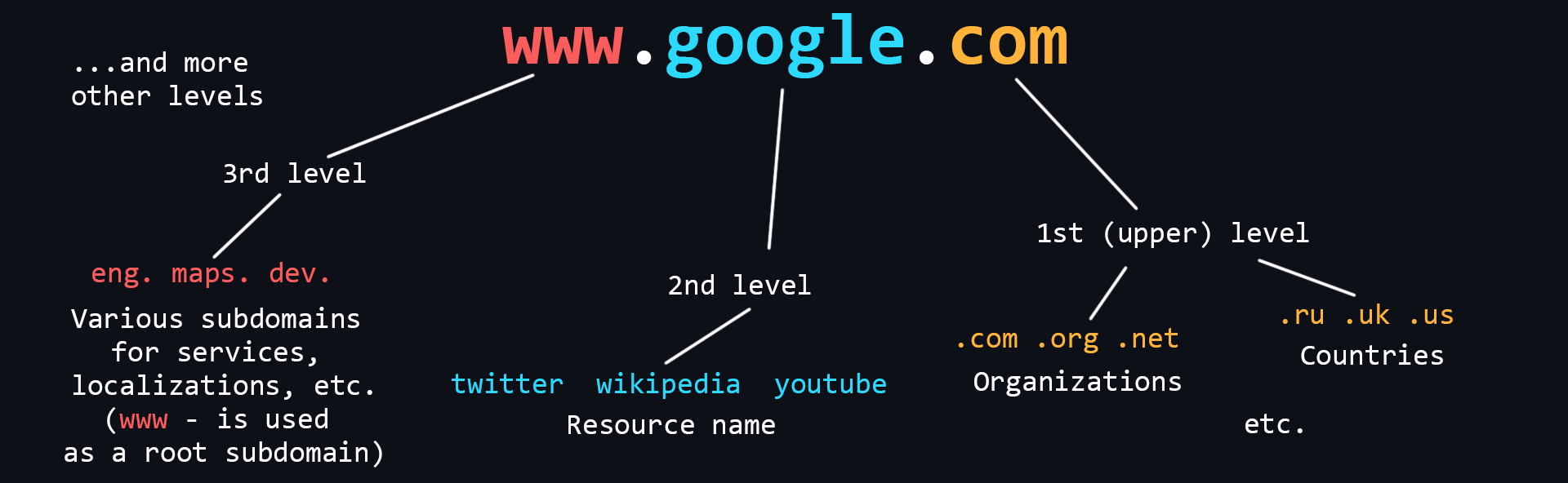
Domain Names are human-readable addresses of web servers available on the Internet. They consist of parts (levels) separated from each other by a dot. Each of these parts provides specific information about the domain name. For example country, service name, localization, etc.
- Who owns domain names > The ICANN Corporation is the founder of the distributed domain registration system. It gives accreditations to companies that want to sell domains. In this way a competitive domain market is formed. - How to buy a domain name > A domain name cannot be bought forever. It is leased for a certain period of time. It is better to buy domains from accredited registrars (you can find them in almost any country).
🔗 References
- ### IP address

IP address is a unique numeric address that is used to recognize a particular device on the network.
- Levels of visibility > - External and publicly accessible IP address that belongs to your ISP and is used to access the Internet by hundreds of other users. > - The IP address of your router in your ISP's local network, the same IP address from which you access the Internet. > - The IP address of your computer in the local (home) network created by the router, to which you can connect your devices. Typically, it looks like 192.168.XXX.XXX. > - The internal IP address of the computer, inaccessible from the outside and used only for communication between the running processes. It is the same for everyone - 127.0.0.1 or just localhost. - Port>) > One device (computer) can run many applications that use the network. In order to correctly recognize where and which data coming over the network should be delivered (to which of the applications) a special numerical number - a port is used. That is, each running process on a computer which uses a network connection has its own personal port. - IPv4 > Version 4 of the IP protocol. It was developed in 1981 and limits the address space to about 4.3 billion (2^32) possible unique addresses. - IPv6 > Over time, the allocation of address space began to happen at a much faster rate, forcing the creation of a new version of the IP protocol to store more addresses. IPv6 is capable of issuing 2^128 (is huge number) unique addresses.
🔗 References
- 📺 IP addresses. Explained – YouTube
- 📺 Public IP vs. Private IP and Port Forwarding (Explained by Example) – YouTube
- 📺 Network Ports Explained – YouTube
- 📺 What is IP address and types of IP address - IPv4 and IPv6 – YouTube
- 📺 IP Address - IPv4 vs. IPv6 Tutorial – YouTube
- 📄 IP Address Subnet Cheat Sheet – freeCodeCamp
- ### What is DNS
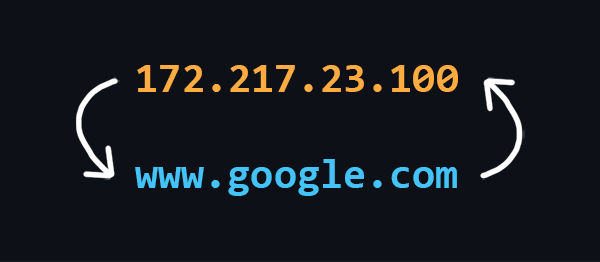
DNS (Domain Name System) is a decentralized Internet address naming system that allows you to create human-readable alphabetical names (domain names) corresponding to the numeric IP addresses used by computers.
- Structure of DNS > DNS consists of many independent nodes, each of which stores only those data that fall within its area of responsibility. - DNS Resolver > A server that is located in close proximity to your Internet Service Provider. It is the server that searches for addresses by domain name, and also caches them (temporarily storing them for quick retrieval in future requests). - DNS record types > - A record - associates the domain name with an IPv4 address. > - AAAA record - links a domain name with an IPv6 address. > - CNAME record - redirects to another domain name. > - and others - MX record, NS record, PTR record, SOA record.
🔗 References
- 📄 What is DNS? Domain Name System explained – freeCodeCamp
- 📺 DNS (Domain Name System) explained. Types of Domain Name Servers – YouTube
- 📺 DNS as Fast As Possible – YouTube
- 📄 All about DNS records – Cloudflare
- 📺 DNS records explained (playlist) – YouTube
- ### Web application design
The tasks of the Frontend are:
- Implementation of the user interface (appearance of the application) > - A special markup language HTML is used to create web pages. > - CSS style language is used to style fonts, layout of content, etc. > - JavaScript programming language is used to add dynamics and interactivity.
> As a rule, these tools are rarely used in their pure form, as so-called frameworks and preprocessors exist for more convenient and faster development.
- Creating functionality for generating requests to the server > These are usually different types of input forms that can be conveniently interacted with. - Receives data from the server and then processes it for output to the client
Tasks of the Backend:
- Handling client requests > Checking for permissions and access, all sorts of validations, etc. - Implementing business logic > A wide range of tasks can be implied here: working with databases, information processing, computation, etc. This is, so to speak, the heart of the Backend world. This is where all the important and interesting stuff happens. - Generating a response and sending it to the client
🔗 References
- 📄 Front-End vs. Back-End explained
- 📺 Everything You NEED to Know About WEB APP Architecture – YouTube
- ### Browsers and how they work
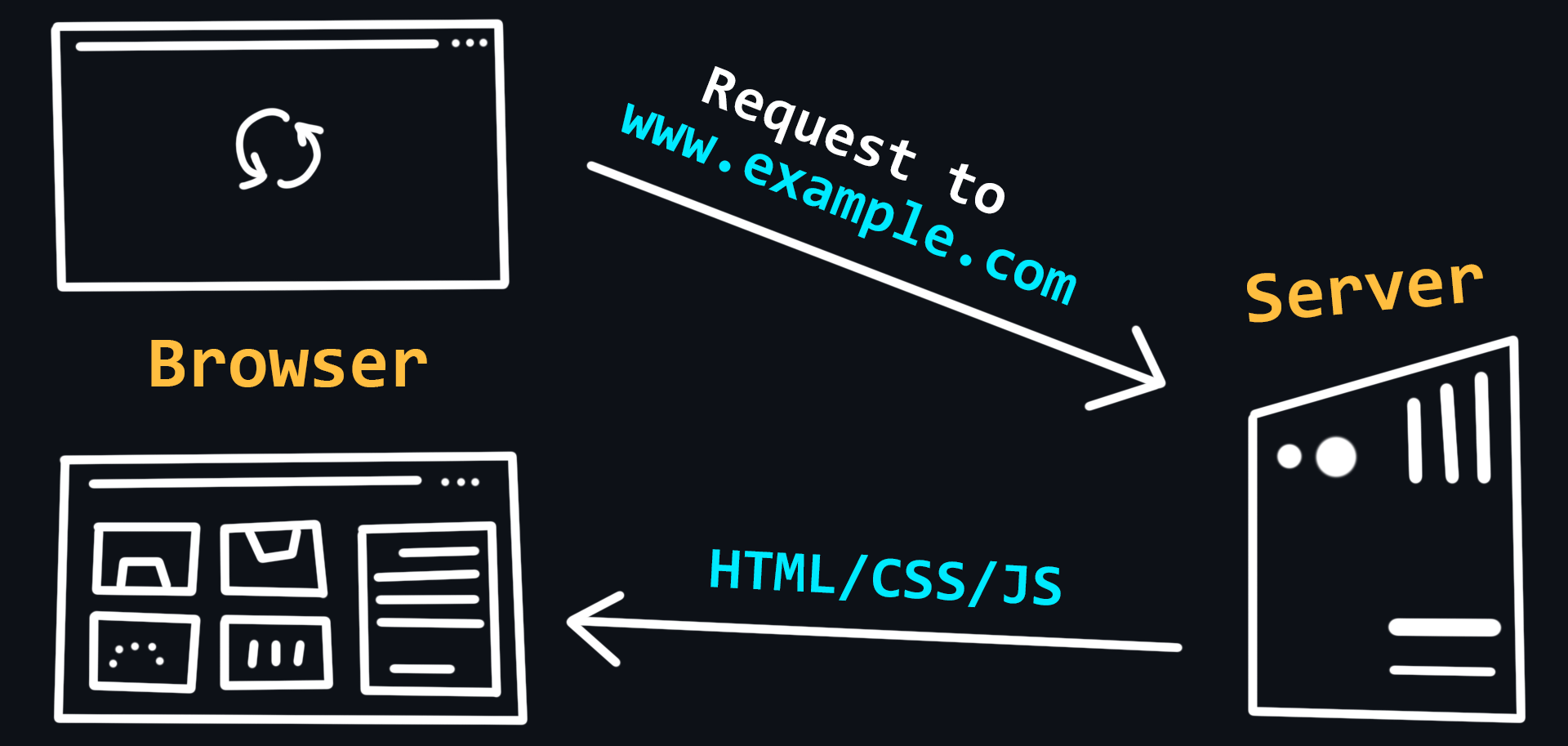
Browser is a client which can be used to send requests to a server for files which can then be used to render web pages. In simple terms, a browser can be thought of as a program for viewing HTML files, which can also search for and download them from the Internet.
- Working Principle > Query handling, page rendering, and the tabs feature (each tab has its own process to prevent the contents of one tab from affecting the contents of the other). - Extensions > Allow you to change the browser's user interface, modify the contents of web pages, and modify the browser's network requests. - Chrome DevTools > An indispensable tool for any web developer. It allows you to analyze all possible information related to web pages, monitor their performance, logs and, most importantly for us, track information about network requests.
🔗 References
- 📄 How browsers work – MDN
- 📄 How browsers work: Behind the scenes of modern web browsers – web.dev
- 📄 Inside look at modern web browser – Google
- 📺 What is a web browser? – YouTube
- 📺 Anatomy of the browser 101 (Chrome University 2019) – YouTube
- 📺 Chrome DevTools - Crash Course – YouTube
- 📺 Demystifying the Browser Networking Tab in DevTools – YouTube
- 📺 21+ Browser Dev Tools & Tips You Need To Know – YouTube
- ### VPN and Proxy
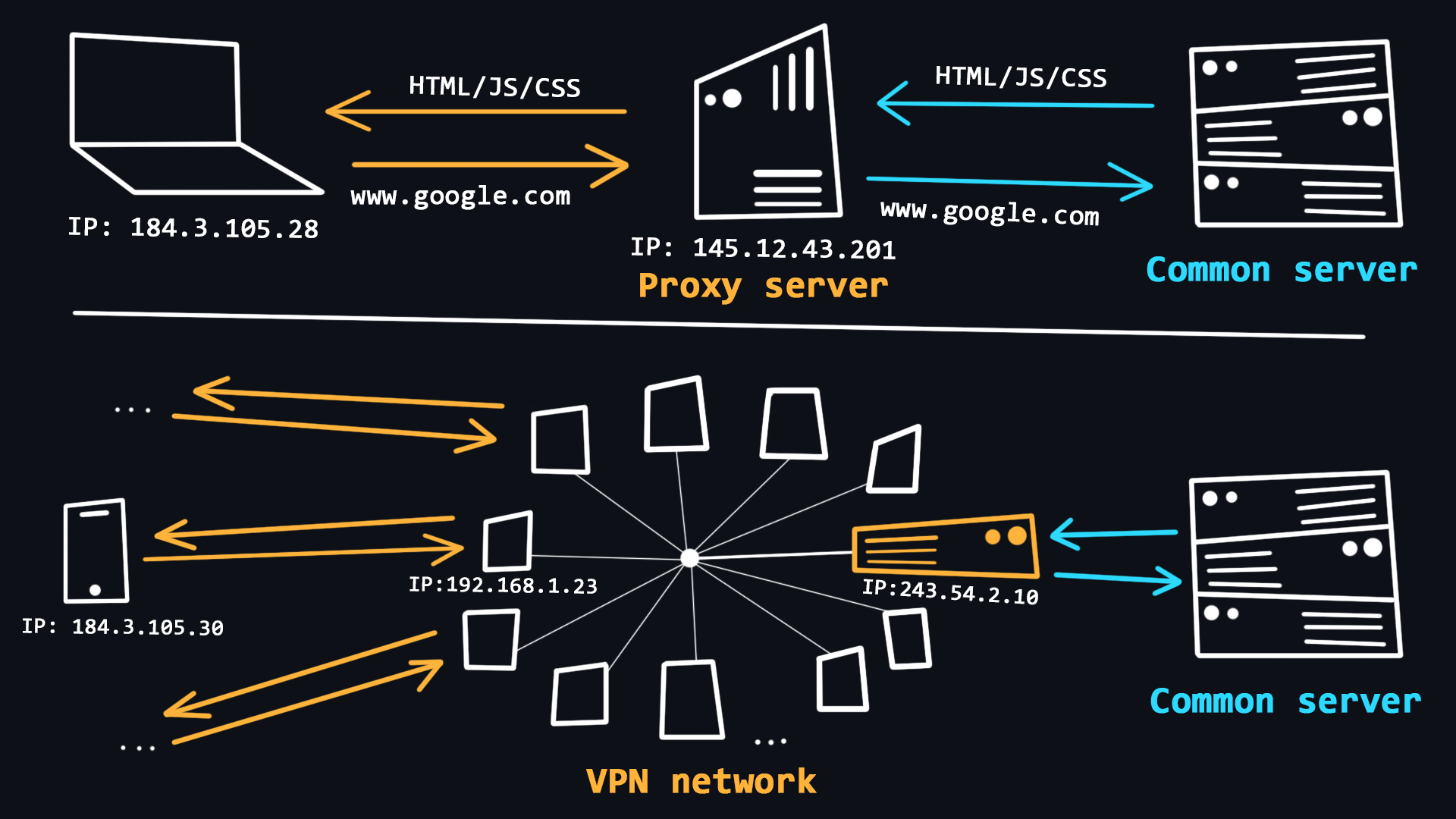
The use of VPNs and Proxy is quite common in recent years. With the help of these technologies, users can get basic anonymity when surfing the web, as well as bypass various regional blockages.
- VPN (Virtual Private Network) > A technology that allows you to become a member of a private network (similar to your local network), where requests from all participants go through a single public IP address. This allows you to blend in with the general mass of requests from other participants.
> > - Simple procedure for connection and use.
> - Reliable traffic encryption.
> - There is no guarantee of 100% anonymity, because the owner of the network knows the IP-addresses of all participants.
> - VPNs are useless for dealing with multi-accounts and some programs because all accounts operating from the same VPN are easily detected and blocked.
> - Free VPNs tend to be heavily loaded, resulting in unstable performance and slow download speeds.
- Proxy (proxy server) > A proxy is a special server on the network that acts as an intermediary between you and the destination server you intend to reach. When you are connected to a proxy server all your requests will be performed on behalf of that server, that is, your IP address and location will be substituted.
> > - The ability to use an individual IP address, which allows you to work with multi-accounts.
> - Stability of the connection due to the absence of high loads.
> - Connection via proxy is provided in the operating system and browser, so no additional software is required.
> - There are proxy varieties that provide a high level of anonymity.
> - The unreliability of free solutions, because the proxy server can see and control everything you do on the Internet.
🔗 References
- 📄 What is VPN? How It Works, Types of VPN – kaspersky.com
- 📺 VPN (Virtual Private Network) Explained – YouTube
- 📺 What Is a Proxy and How Does It Work? – YouTube
- 📺 What is a Proxy Server? – YouTube
- 📺 Proxy vs. Reverse Proxy (Explained by Example) – YouTube
- 📺 VPN vs. Proxy Explained Pros and Cons – YouTube
- ### Hosting
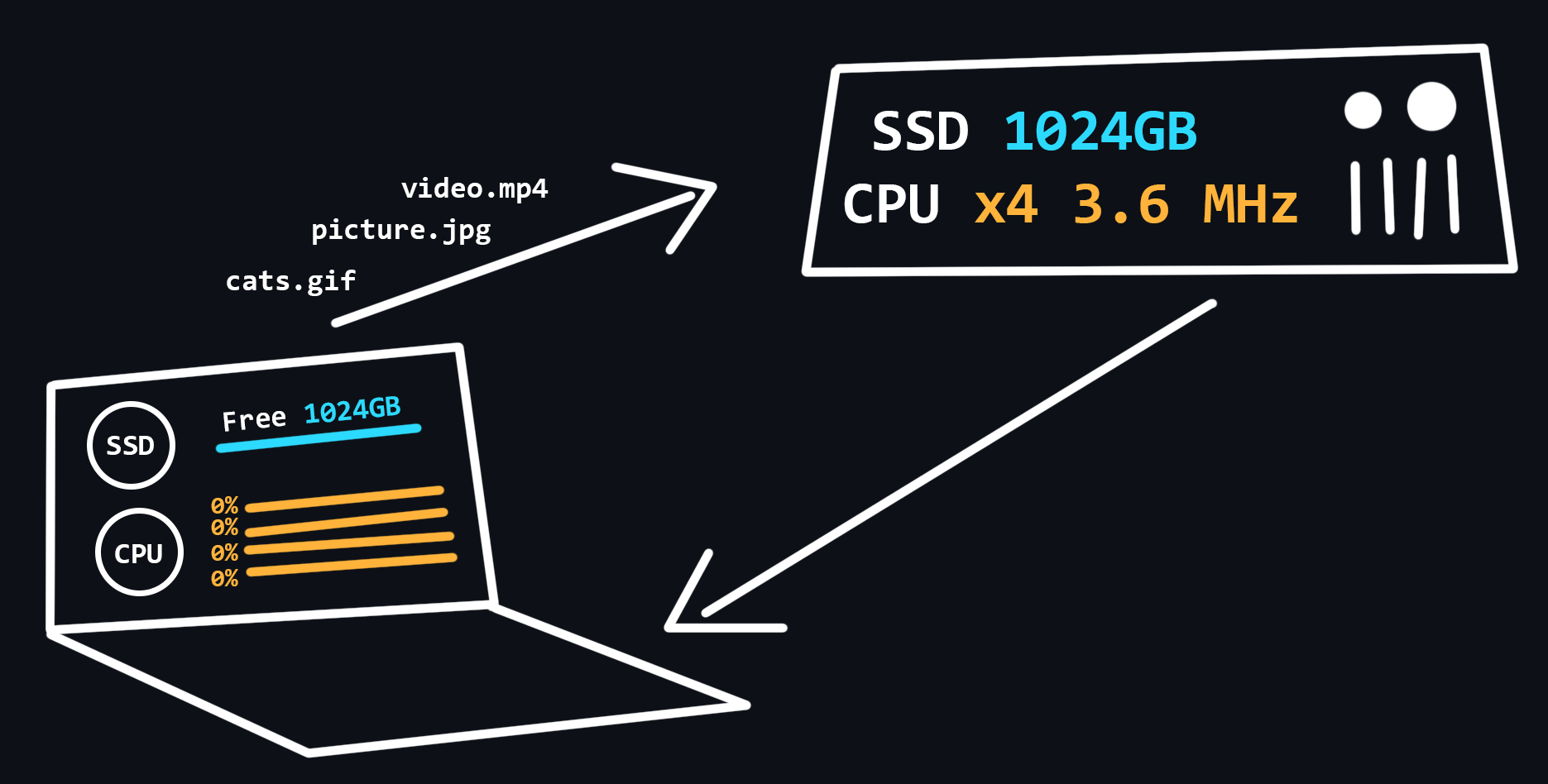
Hosting is a special service provided by hosting providers, which allows you to rent space on a server (which is connected to the Internet around the clock), where your data and files can be stored. There are different options for hosting, where you can use not only the disk space of the server, but also the CPU power to run your network applications.
- Virtual hosting > One physical server that distributes its resources to multiple tenants. - VPS/VDS > Virtual servers that emulate the operation of a separate physical server and are available for rent to the client with maximum privileges. - Dedicated server > Renting a full physical server with full access to all resources. As a rule, this is the most expensive service. - Cloud hosting > A service that uses the resources of several servers. When renting, the user pays only for the actual resources used. - Colocation > A service that gives the customer the opportunity to install their equipment on the provider's premises.
🔗 References
- 📄 What is Web Hosting? – namecheap.com
- 📺 What is Web Hosting and How Does It Work? – YouTube
- 📺 Different Hosting Types Explained – YouTube
- 📄 Awesome Hosting – GitHub
- ### OSI network model
OSI (The Open Systems Interconnection model) is a set of rules describing how different devices should interact with each other on the network. The model is divided into 7 layers, each of which is responsible for a specific function. All this is to ensure that the process of information exchange in the network follows the same pattern and all devices, whether it is a smart fridge or a smartphone, can understand each other without any problems.
- Physical layer > At this level, bits (ones/zeros) are encoded into physical signals (current, light, radio waves) and transmitted further by wire (Ethernet) or wirelessly (Wi-Fi). - Data link layer > Physical signals from layer 1 are decoded back into ones and zeros, errors and defects are corrected, and the sender and receiver MAC addresses are extracted. - Network layer > This is where traffic routing, DNS queries and IP packet generation take place. - Transport layer > The layer responsible for data transfer. There are two important protocols:
> > - TCP is a protocol that ensures reliable data transmission. TCP guarantees data delivery and preserves the order of the messages. This has an impact on the transmission speed. This protocol is used where data loss is unacceptable, such as when sending mail or loading web pages.
> - UDP is a simple protocol with fast data transfer. It does not use mechanisms to guarantee the delivery and ordering of data. It is used e.g., in online games where partial packet loss is not crucial, but the speed of data transfer is much more important. Also, requests to DNS servers are made through UDP protocol. - Session layer > Responsible for opening and closing communications (sessions) between two devices. Ensures that the session stays open long enough to transfer all necessary data, and then closes quickly to avoid wasting resources. - Presentation layer > Transmission, encryption/decryption and data compression. This is where data that comes in the form of zeros and ones are converted into desired formats (PNG, MP3, PDF, etc.) - Application layer > Allows the user's applications to access network services such as database query handler, file access, email forwarding.
🔗 References
- 📄 Layers of OSI Model – geeksForGeeks
- 📺 The OSI Model - Explained by Example – YouTube
- 📺 TCP vs. UDP Crash Course – YouTube
- ### HTTP Protocol
- Structure of HTTP messages > HTTP messages consist of a header section containing metadata about the message, followed by an optional message body containing the data being sent.
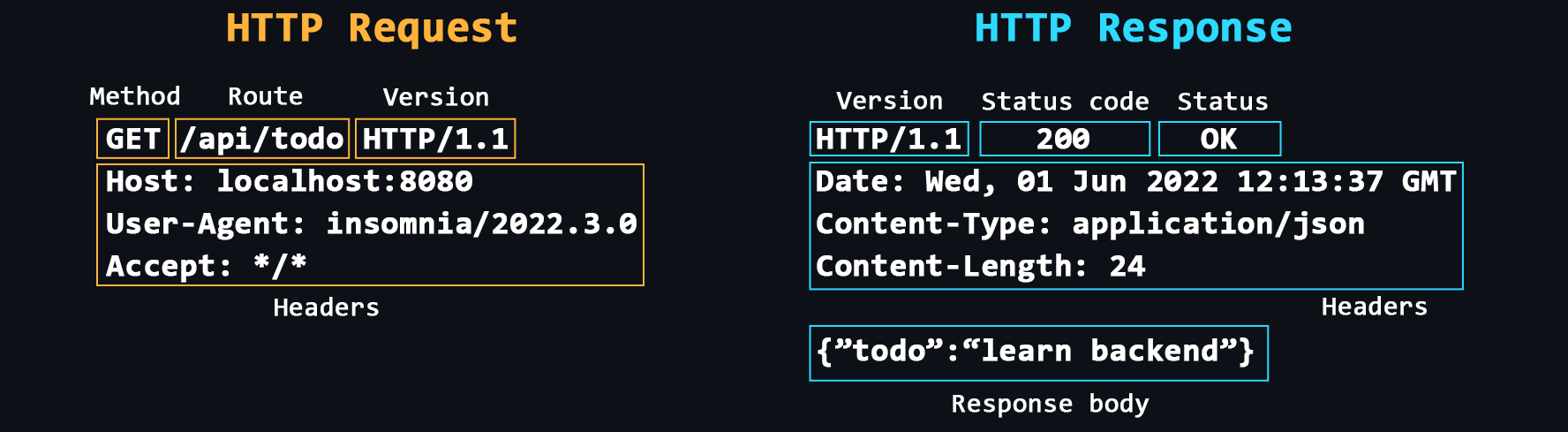
- Headers > Additional service information that is sent with the request/response.
> Common headers: Host, User-Agent, If-Modified-Since, Cookie, Referer, Authorization, Cache-Control, Content-Type, Content-Length, Last-Modified, Set-Cookie, Content-Encoding. - Request methods > Main: GET, POST, PUT, DELETE.
Others: HEAD, CONNECT, OPTIONS, TRACE, PATCH. - Response status codes > Each response from the server has a special numeric code that characterizes the state of the sent request. These codes are divided into 5 main classes: > - 1хх - Service information > - 2хх - Successful request > - 3хх - Redirect to another address > - 4хх - Client side error > - 5хх - Server side error - HTTPS > Same HTTP, but with encryption support. Your apps should use HTTPS to be secure. - Cookie > The HTTP protocol does not provide the ability to save information about the status of previous requests and responses. Cookies are used to solve this problem. Cookies allow the server to store information on the client side that the client can send back to the server. For example, cookies can be used to authenticate users or to store various settings. - CORS (Cross origin resource sharing) > A technology that allows one domain to securely receive data from another domain. - CSP (Content Security Policy) > A special header that allows you to recognize and eliminate certain types of web application vulnerabilities. - Evolution of HTTP > - HTTP/1.0: Uses separate connections for each request/response, lacks caching support, and has plain text headers. > - HTTP/1.1: Introduces persistent connections, pipelining, the Host header, and chunked transfer encoding. > - HTTP/2: Supports multiplexing, header compression, server push, and support a binary data. > - HTTP/3: Built on QUIC, offers improved multiplexing, reliability, and better performance over unreliable networks.
🔗 References
- 📄 How HTTP Works and Why it's Important – freeCodeCamp
- 📄 Hypertext Transfer Protocol (HTTP) – MDN
- 📺 Hyper Text Transfer Protocol Crash Course – YouTube
- 📺 Full HTTP Networking Course (5 hours) – YouTube
- 📄 HTTP vs. HTTPS – What's the Difference? – freeCodeCamp
- 📺 HTTP Cookies Crash Course – YouTube
- 📺 Cross Origin Resource Sharing (Explained by Example) – YouTube
- 📺 When to use HTTP GET vs. POST? – YouTube
- 📺 How HTTP/2 Works, Performance, Pros & Cons and More – YouTube
- 📺 HTTP/2 Critical Limitation that led to HTTP/3 & QUIC – YouTube
- 📺 304 Not Modified HTTP Status (Explained with Code Example and Pros & Cons) – YouTube
- 📺 What is the Largest POST Request the Server can Process? – YouTube
- ### TCP/IP stack
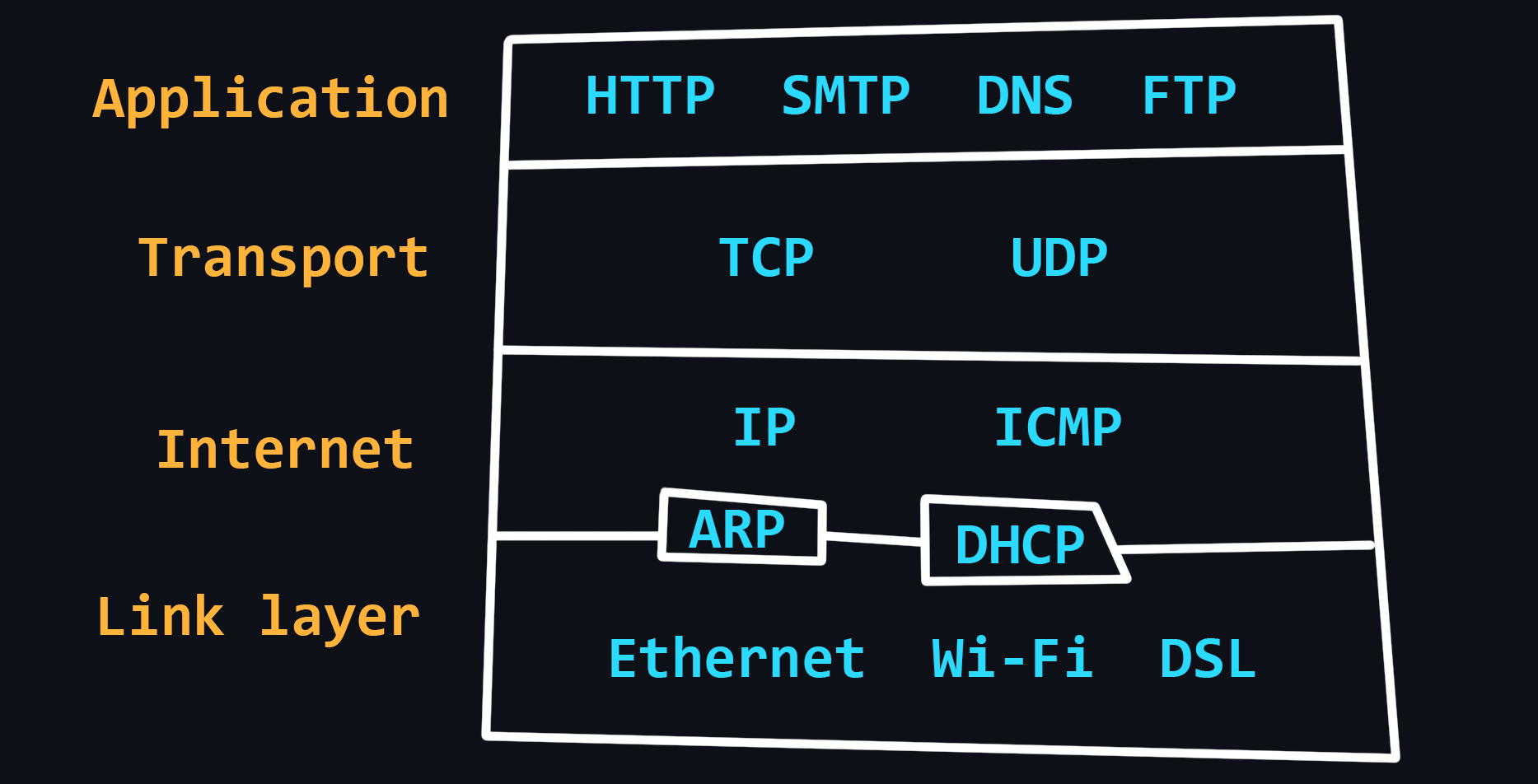
Compared to the OSI model, the TCP/IP stack has a simpler architecture. In general, the TCP/IP model is more widely used and practical, and the OSI model is more theoretical and detailed. Both models describe the same principles, but differ in the approach and protocols they include at their levels.
- Link layer > Defines how data is transmitted over the physical medium, such as cables or wireless signals.
> Protocols: Ethernet, Wi-Fi, Bluetooth, Fiber optic. - Internet Layer > Routing data across different networks. It uses IP addresses to identify devices and routes data packets to their destination.
> Protocols: IP, ARP, ICMP, IGMP - Transport Layer > Data transmission between two devices. It uses protocols such as TCP - reliable, but slow and UDP - fast, but unreliable. - Application Layer > Provides services to the end user, such as web browsing, email, and file transfer. It interacts with the lower layers of the stack to transmit data over the network.
> Protocols: HTTP, FTP, SMTP, DNS, SNMP.
🔗 References
- 📄 What is the TCP/IP Model? Layers and Protocols Explained – freeCodeCamp
- 📺 What is TCP/IP? – YouTube
- 📺 How TCP really works. Three-way handshake. TCP/IP Deep Dive – YouTube
- ### Network problems

The quality of networks, including the Internet, is far from ideal. This is due to the complex structure of networks and their dependence on a huge number of factors. For example, the stability of the connection between the client device and its router, the quality of service of the provider, the power, and performance of the server, the physical distance between the client and the server, etc.
- Latency > The time it takes for a data packet to travel from sender to receiver. It depends more on the physical distance. - Packet loss > Not all packets traveling over the network can reach their destination. This happens most often when using wireless networks or due to network congestion. - Round Trip Time (RTT) > The time it takes for the data packet to reach its destination + the time to respond that the packet was received successfully. - Jitter > Delay fluctuations, unstable ping (for example, 50ms, 120ms, 35ms...). - Packet reordering > The IP protocol does not guarantee that packets are delivered in the order in which they are sent.
🔗 References
- 📄 Understanding latency – MDN
- 📺 What is latency? What affects latency? – YouTube
- 📺 Basics of network bandwidth, latency, and jitter – YouTube
- 📺 Round Trip Time (RTT) – YouTube
- 📺 What Causes Packet Loss and How to Eliminate It In Your Network – YouTube
- ### Network diagnostics
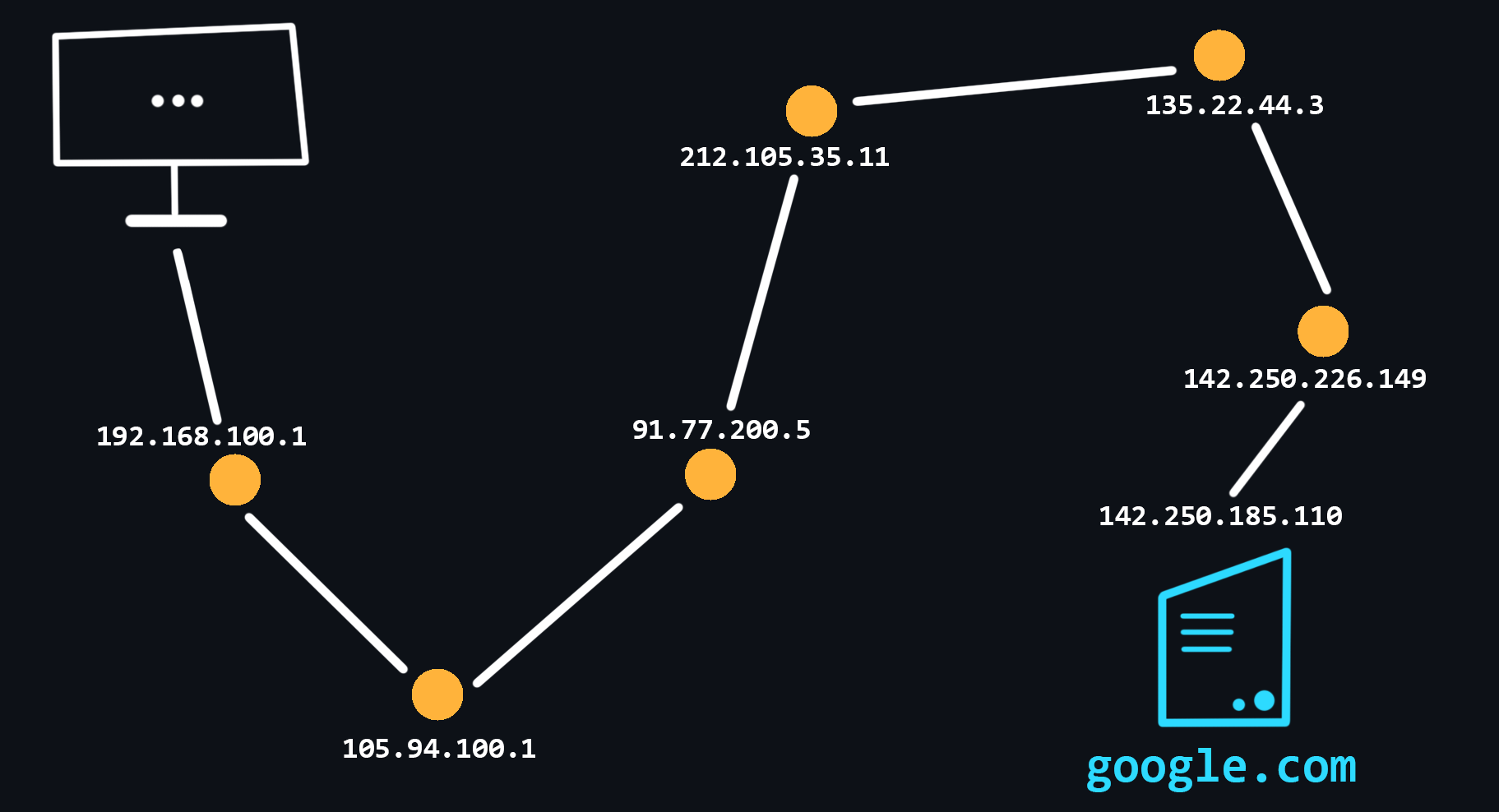
- Traceroute > A procedure that allows you to trace to which nodes, with which IP addresses, a packet you send before it reaches its destination. Tracing can be used to identify computer network related problems and to examine/analyze the network. - Ping scan>) > The easiest way to check the server for performance. - Checking for packet loss > Due to dropped connections, not all packets sent over the network reach their destination. - Wireshark > A powerful program with a graphical interface for analyzing all traffic that passes through the network in real time.
🔗 References
- 📺 How does traceroute work? – YouTube
- 📺 Traceroute (tracert) Explained - Network Troubleshooting – YouTube
- 📺 Nmap - Host Discovery With Ping Sweep – YouTube
- 📺 Internet Troubleshooting - Pathping Packet Loss – YouTube
- 📺 Wireshark crash course (playlist) – YouTube
PC device
- ### Main components (hardware)
Built-in graphics card is a graphics card built into the processor. It is suitable for daily work. - Network card > A device that receives and transmits data from other devices connected to the local network. - Sound card > A device that allows you to process sound, output it to other devices, record it with a microphone, etc. - Power supply unit>) > A device designed to convert the AC voltage from the mains to DC voltage.
🔗 References
- 📄 Everything You Need to Know About Computer Hardware
- 📄 Putting the "You" in CPU: explainer how your computer runs programs, from start to finish
- 📺 What does what in your computer? Computer parts Explained – YouTube
- 📺 Motherboards Explained – YouTube
- 📺 The Fetch-Execute Cycle: What's Your Computer Actually Doing? – YouTube
- 📺 How a CPU Works in 100 Seconds // Apple Silicon M1 vs. Intel i9 – YouTube
- 📺 Arm vs. x86 - Key Differences Explained – YouTube
- ### Operating system design
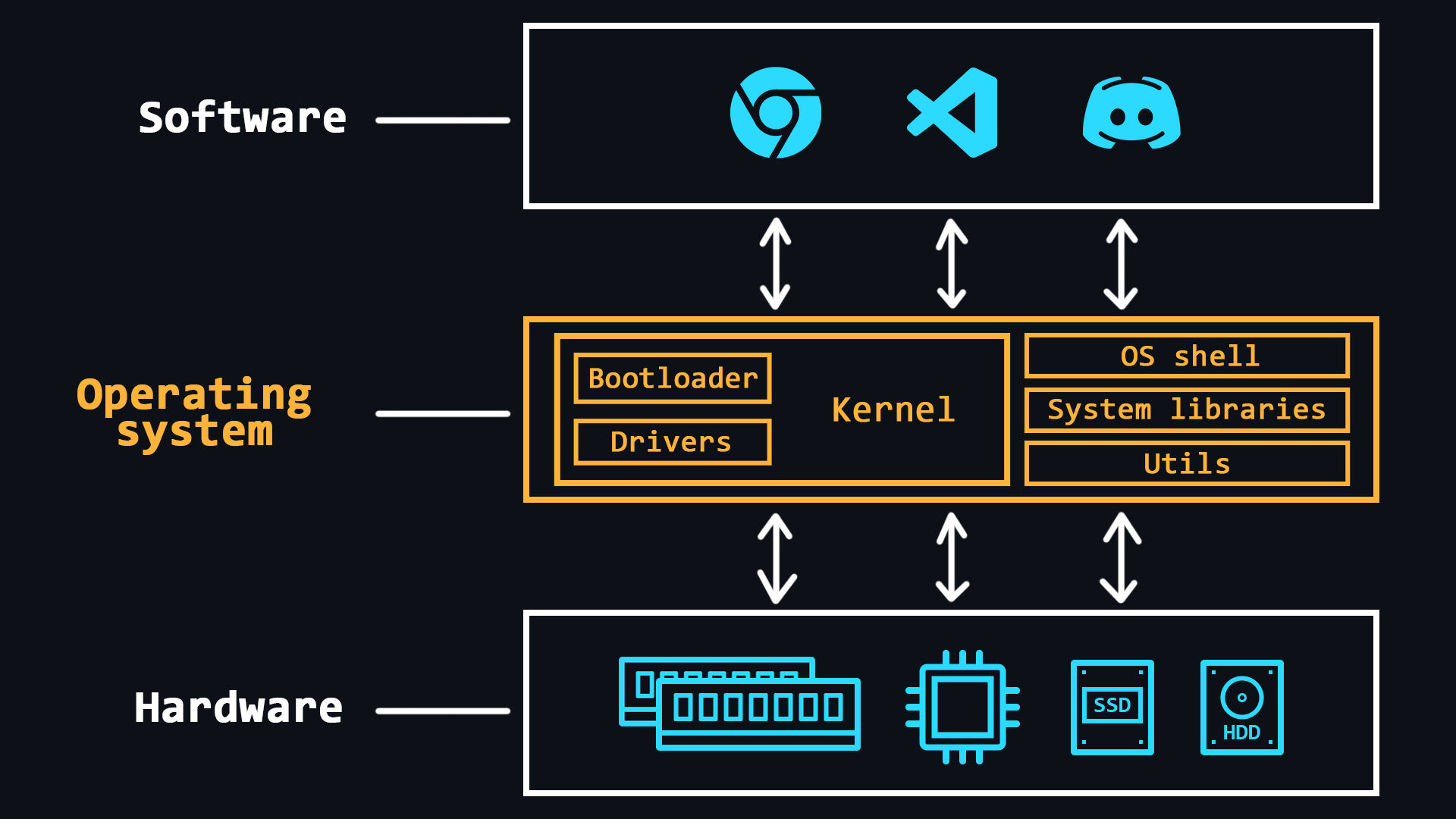
Operating system (OS) is a comprehensive software system designed to manage a computer's resources. With operating systems, people do not have to deal directly with the processor, RAM, or other parts of the PC.
OS can be thought of as an abstraction layer that manages the hardware of a computer, thereby providing a simple and convenient environment for user software to run.
- Main features > - RAM management (space allocation for individual programs) > - Loading programs into RAM and their execution > - Execution of requests from user's programs (inputting and outputting data, starting and stopping other programs, freeing up memory or allocating additional memory, etc.) > - Interaction with input and output devices (mouse, keyboard, monitor, etc.) > - Interaction with storage media (HDDs and SSDs) > - Providing a user's interface (console shell or graphical interface) > - Logging of software errors (saving logs) - Additional functions (may not be available in all OSs) > - Organize multitasking (simultaneous execution of several programs) > - Delimiting access to resources for each process > - Inter-process communication (data exchange, synchronisation) > - Organize the protection of the operating system itself against other programs and the actions of the user > - Provide multi-user mode and differentiate rights between different OS users (admins, guests, etc.) - OS kernel>) > The central part of the operating system which is used most intensively. The kernel is constantly in memory, while other parts of the OS are loaded into and unloaded from memory as needed. - Bootloader > The system software that prepares the environment for the OS to run (puts the hardware in the right state, prepares the memory, loads the OS kernel there and transfers control to it (the kernel). - Device drivers > Special software that allows the OS to work with a particular piece of equipment.
🔗 References
- 📄 What is an OS? Operating System Definition for Beginners – freeCodeCamp
- 📄 Windows vs. macOS vs. Linux – Operating System Handbook – freeCodeCamp
- 📺 Operating Systems: Crash Course Computer Science – YouTube
- 📺 Operating System Basics – YouTube
- 📺 Operating System in deep details (playlist) – YouTube
- 📄 Awesome Operating System Stuff – GitHub
- ### Processes and threads
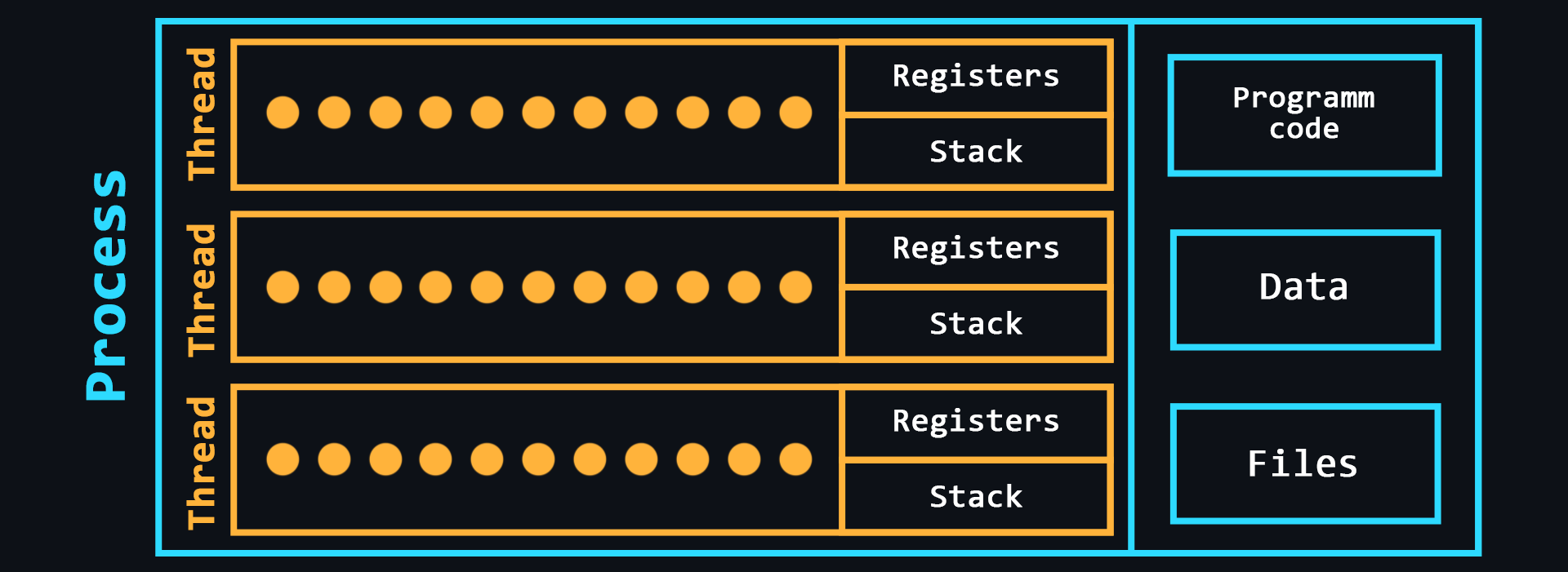
- Process>) > A kind of container in which all the resources needed to run a program are stored. As a rule, the process consists of: > > - Executable program code
> - Input and output data
> - Call stack (order of instructions for execution)
> - Heap (a structure for storing intermediate data created during the process)
> - Segment descriptor
> - File descriptor
> - Information about the set of permissible powers
> - Processor status information - Thread>) > An entity in which sequences of program actions (procedures) are executed. Threads are within a process and use the same address space. There can be multiple threads in a single process, allowing multiple tasks to be performed. These tasks, thanks to threads, can exchange data, use shared data or the results of other tasks.
🔗 References
- 📺 Difference Between Process and Thread – YouTube
- 📺 How Do CPUs Use Multiple Cores – YouTube
- 📺 What is Hyper Threading Technology – YouTube
- ### Concurrency and parallelism
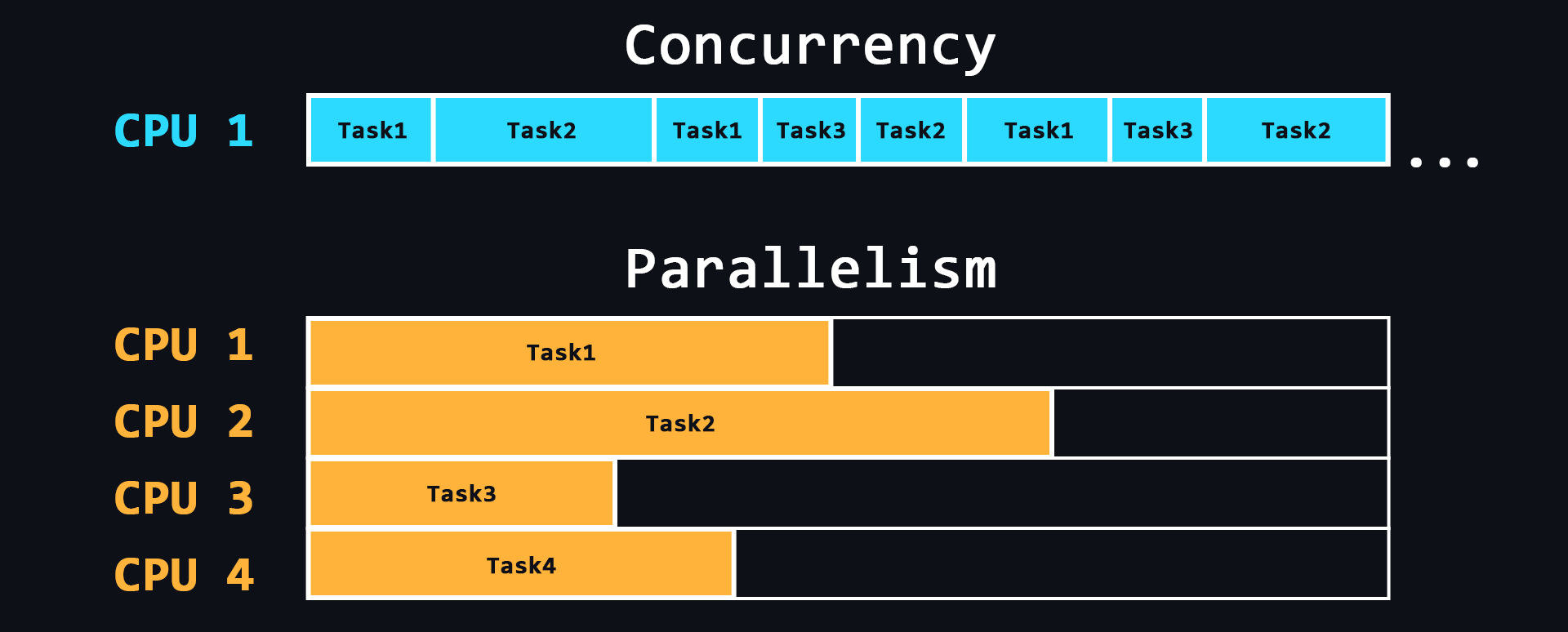
- Parallelism > The ability to perform multiple tasks simultaneously using multiple processor cores, where each individual core performs a different task. - Concurrency>) > The ability to perform multiple tasks, but using a single processor core. This is achieved by dividing tasks into separate blocks of commands which are executed in turn, but switching between these blocks is so fast that for users it seems as if these processes are running simultaneously.
🔗 References
- 📄 Concurrency, parallelism, and the many threads of Santa Claus – freeCodeCamp
- 📺 Concurrency vs. Parallelism – YouTube
- 📺 Concurrency is not Parallelism by Rob Pike – YouTube
- ### Inter-process communication
- File > The easiest way to exchange data. One process writes data to a certain file, another process reads the same file and thus receives data from the first process. - Signal (IPC)>) > Asynchronous notification of one process about an event which occurred in another process. - Network socket > In particular, IP addresses and ports are used to communicate between computers using the TCP/IP protocol stack. This pair defines a socket (socket corresponding to the address and port). - Semaphore>) > A counter over which only 2 operations can be performed: increasing and decreasing (and for 0 the decreasing operation is blocked). - Message passing & Message queue - Pipelines>) > Redirecting the output of one process to the input of another (similar to a pipe).
🔗 References
- 📄 Interprocess Communications – Microsoft
- 📺 Interprocess Communication – YouTube
- 📺 Inter Process Communication – YouTube
Linux Basics
Operating systems based on Linux kernel are the standard in the world of server development, since most servers run on such operating systems. Using Linux on servers is profitable because it is free and open source, secure and works fast on cheap hardware.
There are a huge number of Linux distributions (preinstalled software bundles) to suit all tastes. One of the most popular is Ubuntu. This is where you can start your dive into server development.
Install Ubuntu on a separate PC or laptop. If this is not possible, you can use a special program Virtual Box where you can run other OS on top of the main OS. You can also run Docker Ubuntu image container (Docker is a separate topic that is exists in this repository).
- ### Working with shell
- Basic commands for navigating the file system
ls # list directory contents cd [PATH] # go to specified directory cd .. # move to a higher level (to the parent directory) touch [FILE] # create a file cat > [FILE] # enter text into the file (overwrite) cat >> [FILE] # enter text at the end of the file (append) cat/more/less [FILE] # to view the file contents head/tail [FILE] # view the first/last lines of a file pwd # print path to current directory mkdir [NAME] # create a directory rmdir [NAME] # delete a directory cp [FILE] [PATH] # copy a file or directory mv [FILE] [PATH] # moving or renaming rm [FILE] # deleting a file or directory find [STRING] # file system search du [FILE] # output file or directory size grep [PATTERN] [FILE] # print lines that match patternsman [COMMAND] # allows you to view a manual for any command apropos [STRING] # search for a command with a description that has a specified word man -k [STRING] # similar to the command above whatis [COMMAND] # a brief description of the commandsudo [COMMAND] # executes a command with superuser privileges🔗 References
- 📄 31 Linux Commands Every Ubuntu User Should Know
- 📄 The Linux Command Handbook – freeCodeCamp
- 📄 A to Z: List of Linux commands
- 📺 The 50 Most Popular Linux & Terminal Commands – YouTube
- 📺 Nano Editor Fundamentals – YouTube
- 📺 Vim Tutorial for Beginners – YouTube
- 📄 Awesome Terminals – GitHub
- 📄 Awesome CLI-apps – GitHub
- ### Package manager
Linux distributions can be divided into several groups, depending on which package manager they use: apt>) (in Debian based distributions), RPM (the Red Hat package management system) and Pacman (the package manager in Arch-like distributions)
Ubuntu is based on Debian, so it uses apt (advanced packaging tool) package manager.
- Basic commands
apt install [package] # install the package apt remove [package] # remove the package, but keep the configuration apt purge [package] # remove the package along with the configuration apt update # update information about new versions of packages apt upgrade # update the packages installed in the system apt list --installed # list of packages installed on the system apt list --upgradable # list of packages that need to be updated apt search [package] # searching for packages by name on the network apt show [package] # package informationREADME truncated. View on GitHub


