
A system that performs algorithmic trading
NextTrade - Plan your next trade
A system to create, test, optimize, and deploy algorithmic trading strategies.
For a better, faster, cloud-based platform, check out NexusTrade. If you want to learn about algorithmic trading and financial research from a community of data-driven investors, join our free Discord channel!
NexusTrade is a AI-Powered platform that streamlines the configuration of trading strategies. It's faster, more configurable, and more feature-rich than NextTrade. It features a powerful AI Chat Assistant tool as an entry point to many of its features.
Some improvements include: - Enhanced configurability: Can essentially express any trading idea you can imagine - AI-Powered Research Tools: Perform in-depth company analysis and compare companies between each other - Powerful stock screener: Use natural language to find stocks in over 130 industries and 30+ indicators
- Read More about NextTrade
- Comparing NextTrade to NexusTrade Part 1
- Comparing NextTrade to NexusTrade Part 2
NextTrade Features
- Combine conditions to form compound conditions. Combine compound conditions and create trading strategies.
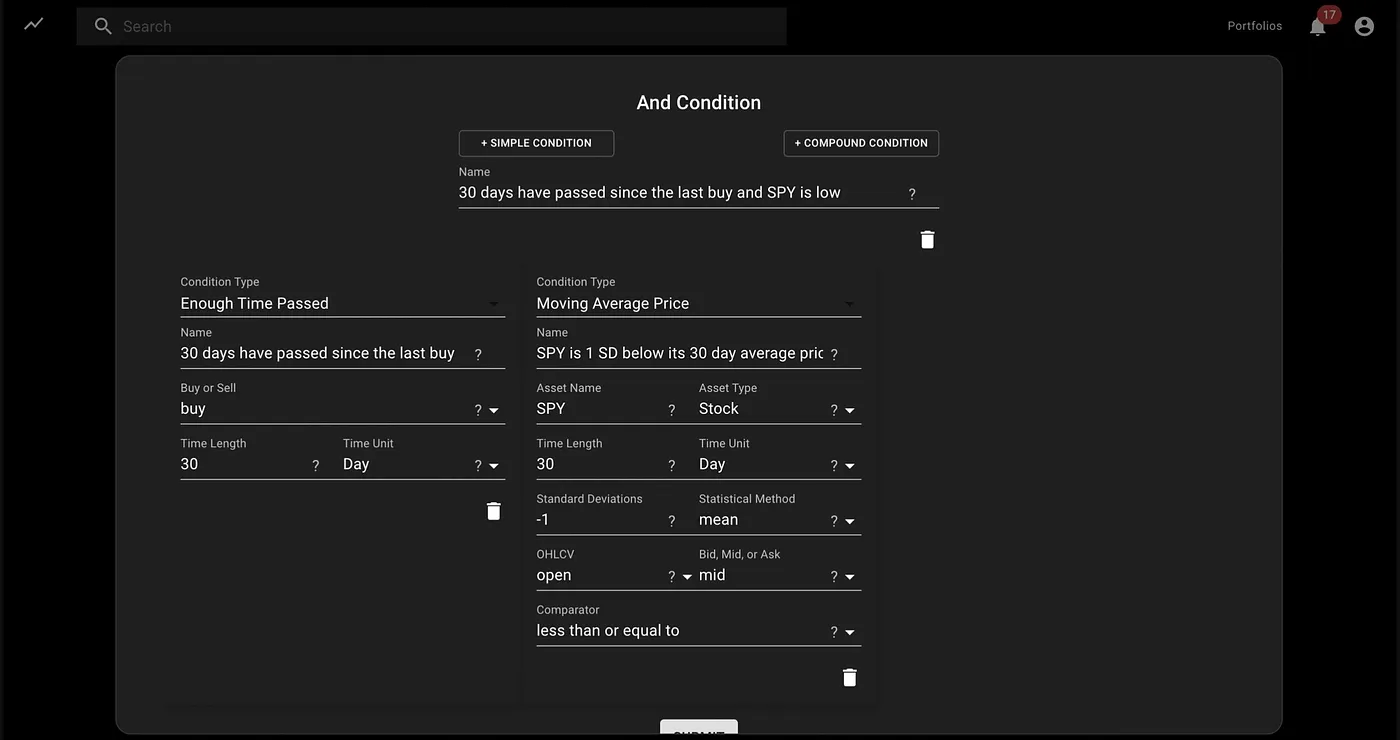 - For example:
- Condition A: QQQ stock is 1 SD below its 5-day mean price
- Condition B: Buying power is above $8,000.
- Condition C: Condition A and condition B
- Strategy: If condition C, buy $3000 of SPY
- For example:
- Condition A: QQQ stock is 1 SD below its 5-day mean price
- Condition B: Buying power is above $8,000.
- Condition C: Condition A and condition B
- Strategy: If condition C, buy $3000 of SPY
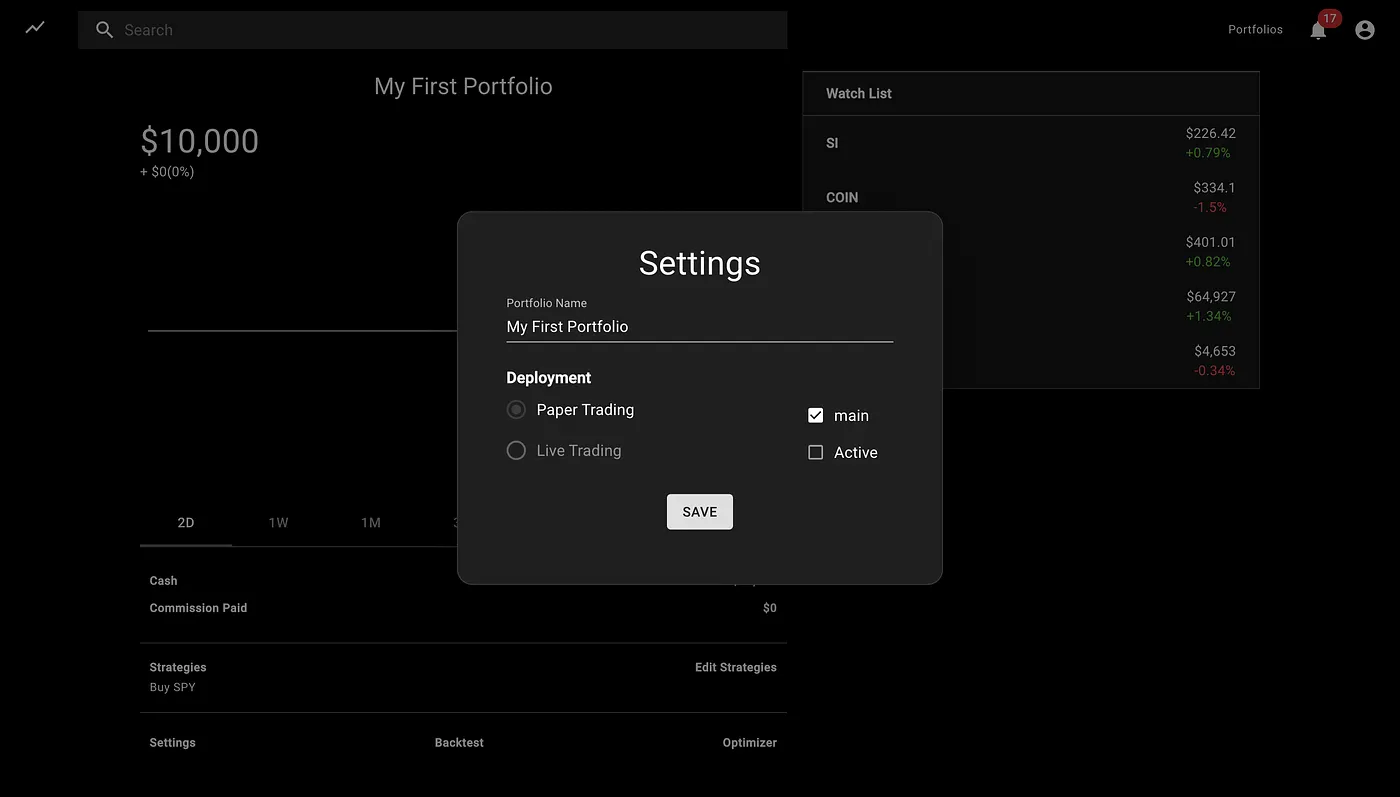
- Create unlimited portfolios with different combinations of strategies
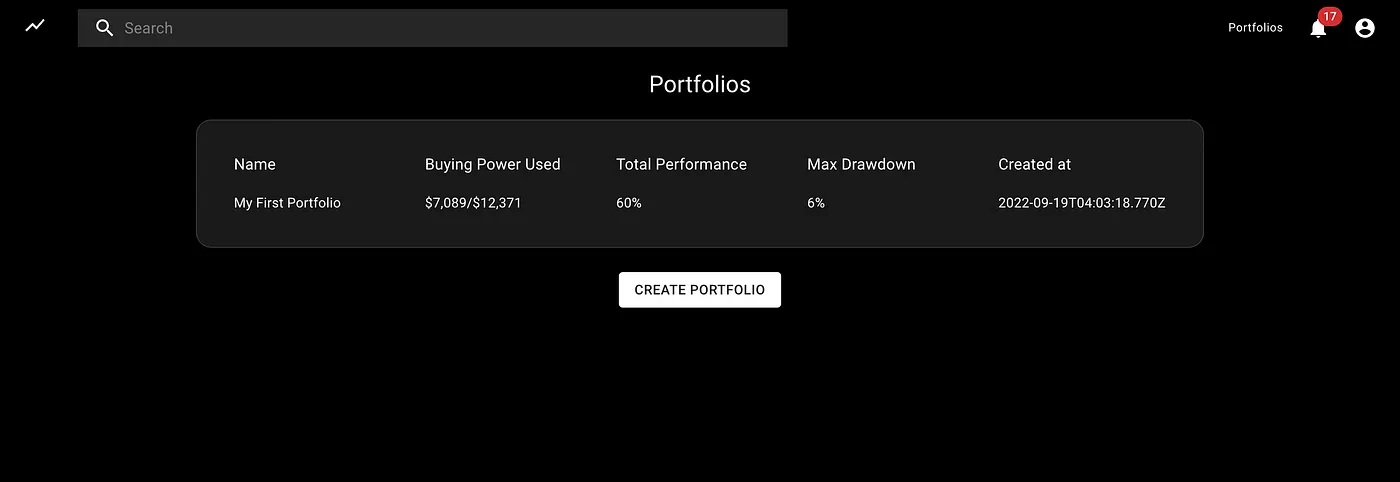
- Backtest those strategies using historical data.
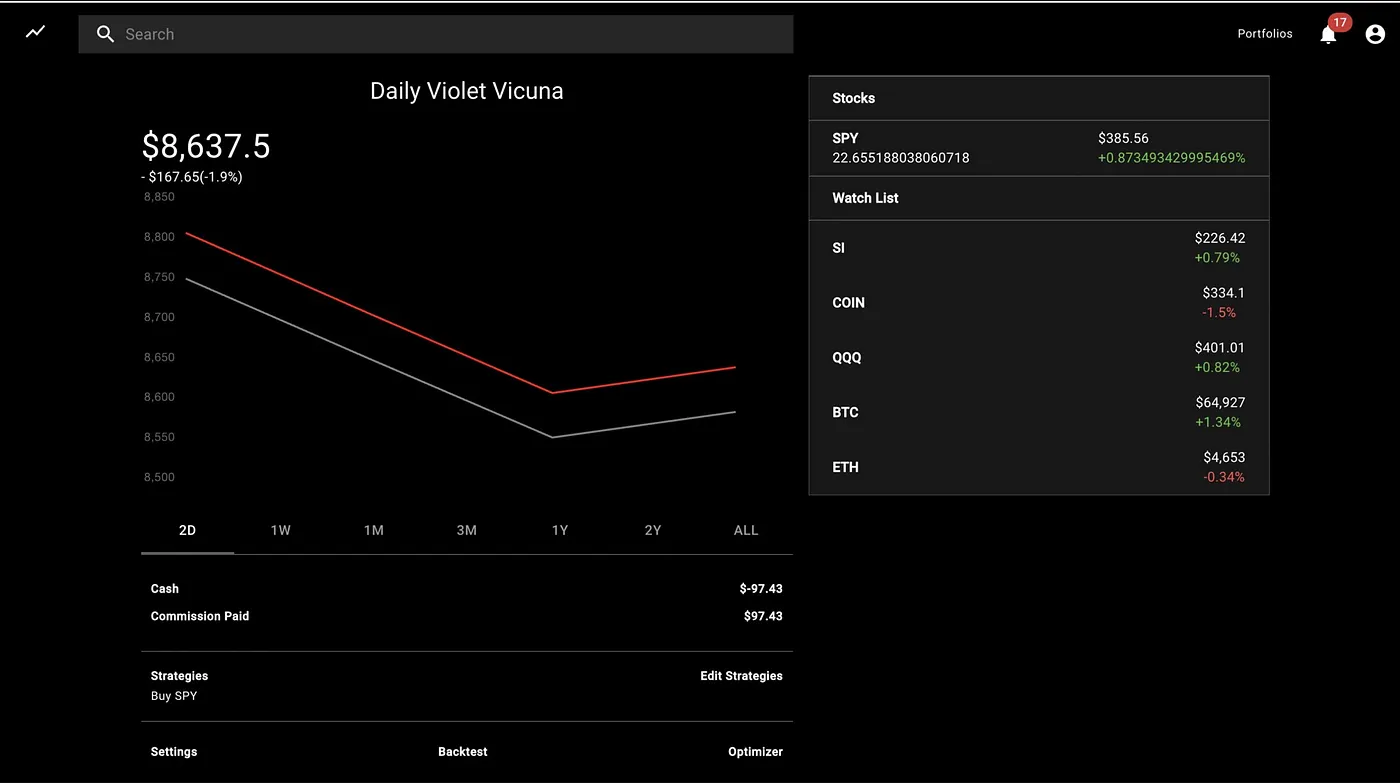 - Only stocks are currently supported, but cryptocurrency and options support is baked into the architecture
- Optimize the strategy's parameters using a genetic algorithm
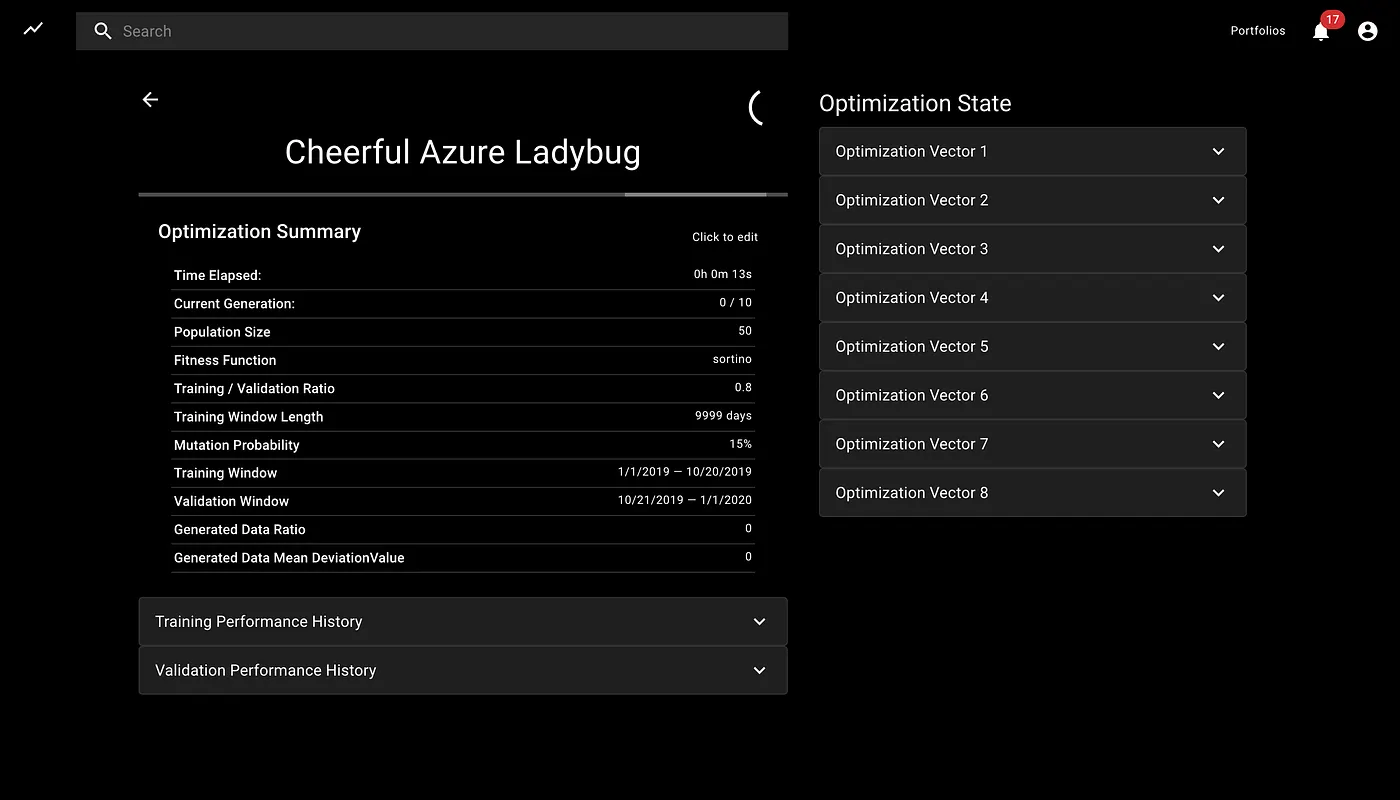 - Choose hyperparameters like mutation rate, training period, validation period, and population size
- Choose to optimize percent gain, sortino ratio, sharpe ratio, or max drawdown
- Choose hyperparameters like mutation rate, training period, validation period, and population size
- Choose to optimize percent gain, sortino ratio, sharpe ratio, or max drawdown
- Deploy the strategies live and see how it performs in real-time
System Architecture and Design
Some architectural artifacts can be found at this link: https://drive.google.com/drive/folders/1TgZNGPd7TBWi47dWh0TI2nZ9WUhvP_?usp=sharing
Local Installation
Prerequisites
- Mac, Linux or WSL2 preferred
- Tradier Account (with at least a free sandbox token; additional brokers TBD)
Mac Setup
- Clone the repository.
- Install MongoDB community edition and enable it.
- Install the dependencies:
npm run install-all - Make sure all tests pass:
cd app && npm t && cd .. - Add your Tradier token to the
./app/envfile and rename the file to .env
Linux/WSL2 setup (tested on Ubuntu 20.04)
- If needed, install Node.js. NVM Option:
curl -o- https://raw.githubusercontent.com/nvm-sh/nvm/master/install.sh | bash
2. Exit and restart the terminal session.
3. nvm install --lts
- Install MongoDB community edition and enable. For Ubuntu 20.04:
curl -fsSL https://www.mongodb.org/static/pgp/server-4.4.asc | sudo apt-key add -
2. echo "deb [ arch=amd64,arm64 ] https://repo.mongodb.org/apt/ubuntu focal/mongodb-org/4.4 multiverse" | sudo tee /etc/apt/sources.list.d/mongodb-org-4.4.list
3. sudo apt update
4. sudo apt install mongodb-org
5. Linux/Ubuntu specific:
1. sudo systemctl status mongod (verify it's running)
2. sudo systemctl enable mongod (to auto-start at boot)
6. WSL2 specific:
1. sudo mkdir -p /data/db
2. ` sudo chown -R id -un /data/db
3. wget -O mongod.sh https://raw.githubusercontent.com/mongodb/mongo/master/debian/init.d
4. sudo mv ./mongod.sh /etc/init.d/mongod
5. sudo chmod +x /etc/init.d/mongod
6. sudo service mongod start
         - Auto-start options for WSL2 on Win11
      7.
sudo service mongod status (verify it's running)
7. mongo --eval 'db.runCommand({ connectionStatus: 1 })' (verify it's working)
- Clone the NextTrade repository:
cd ~ && git clone https://github.com/austin-starks/NextTrade && cd NextTrade
Install the dependencies: npm run install-all
Copy the sample config file to .env cp ./app/env ./app/.env
Add your Tradier token to the ./app/.env file
Make sure all tests pass: cd app && npm t; cd ..
Turning on the system
Manually managed
Development environment
- Open two terminal windows.
- In a terminal instance, turn on the client:
cd client; npm start
In another terminal instance, turn on the server: cd app; npm start
Once started, load the app: http://localhost:3000

PM2 Managed
Setup
npm install pm2@latest -g
cd ~/NextTrade/client && pm2 start npm --name "NextTrade-Client" -- start
cd ~/NextTrade/app && pm2 start npm --name "NextTrade-App" -- start
pm2 save
Running (assuming no other PM2 apps)
- To start the client+app:
pm2 start all
To stop the client+app: pm2 stop all
Other Useful commands: pm2 status, pm2 logs, pm2 monit` See PM2 Quickstart for more.


