
🤖 AI-powered Gmail assistant that automatically analyzes emails and drafts responses using Google's Gemini AI
AI-got-this-gmail-delegator 🤖
AI-powered Gmail assistant that automatically analyzes emails and drafts responses using Google's Gemini AI


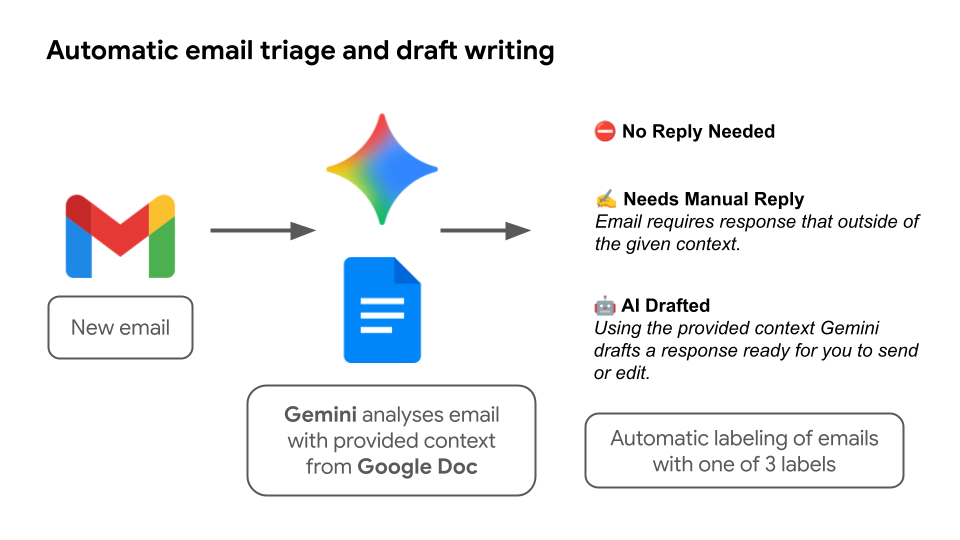
🎯 What This Does
This Google Apps Script transforms your Gmail into an AI-powered email assistant that:
- 🔍 Automatically analyzes incoming emails using Google's Gemini AI
- 🤖 Generates smart draft replies for emails that need responses
- 🏷️ Intelligently categorizes emails (AI-drafted, manual review, no reply needed)
- 📊 Logs everything to Google Sheets for tracking and analytics
- 🧹 Manages Gmail labels automatically to keep your inbox organized
✨ Key Features
- 🎯 Smart Decision Making: AI determines if emails need replies, can be auto-drafted, or require manual attention
- 📝 Custom Writing Style: Uses your personal writing style and knowledge base from Google Docs
- 🔄 Dual AI Support: Works with both AI Studio API (API key) and Vertex AI (service account)
- 📈 Comprehensive Logging: Tracks all decisions and actions in Google Sheets
- 🏷️ Label Management: Automatic Gmail label organization with cleanup
- 🛡️ Error Handling: Robust error handling and retry logic
- ⚡ Performance Optimized: Lazy loading and caching for efficiency
🚀 Quick Start
Prerequisites
- Google Workspace account
- Access to Google Apps Script
- Gemini AI credentials (API key or service account)
- Google Doc for knowledge base/context
- Google Sheet for logging
1. 📋 Setup Gmail Labels
Create these labels in your Gmail:
🆕 New-Email- For emails to be processed🤖 AI-Drafted- For emails with AI-generated drafts✍️ Needs-Manual-Reply- For emails requiring manual review⛔️ No-Reply-Needed- For emails that don't need responses
2. 🔄 Create Gmail Filter
Create a Gmail filter to automatically assign the "🆕 New-Email" label to incoming messages:
- Open Gmail and click the gear icon → "See all settings"
- Go to "Filters and Blocked Addresses" tab
- Click "Create a new filter"
- Set the filter criteria:
-youremail@gmail.com (replace with your actual Gmail address)
- Has the words: Leave empty
- Doesn't have: Leave empty
- Click "Create filter"
- Select these actions:
- Click "Create filter"
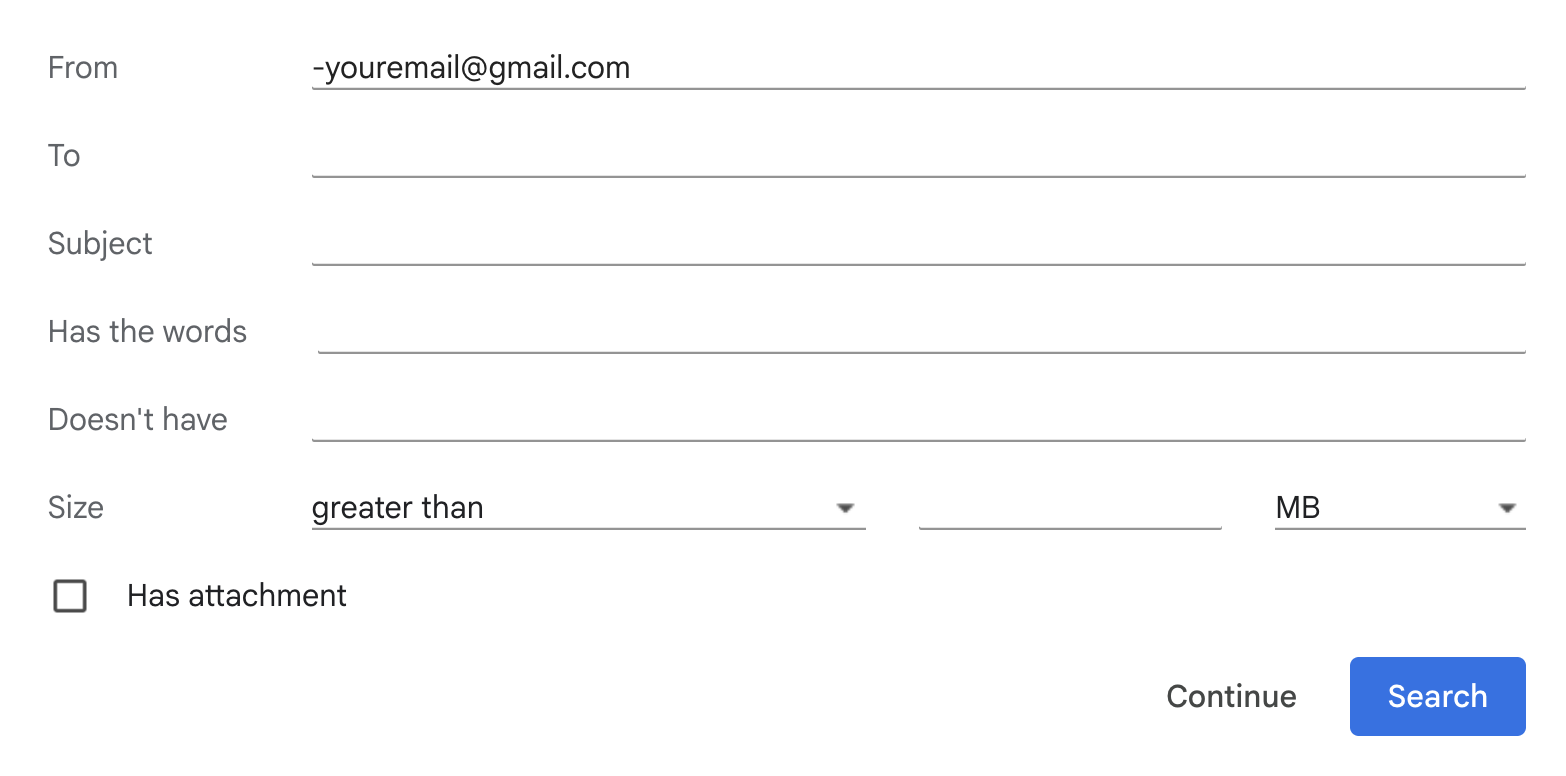
🎯 Pro Tip: You can also create more specific filters for different types of emails (e.g., only work emails, only emails from certain domains, etc.) by adjusting the "From" field criteria.
3. 🔧 Configure the Script
- Open Google Apps Script and create a new project
- Copy the files from this repository:
Code.gs - Main application logic
- Auth.gs - Authentication configuration
- Gemini.gs - AI integration
- appsscript.json - Project configuration
- Update configuration in
Code.gs:
const CONTEXTDOCID = "your-google-doc-id"; // Knowledge base document
   const LOGGINGSHEETID = "your-google-sheet-id"; // Logging spreadsheet
const MYWRITINGSTYLE = "Your personal writing style here...";- Configure AI credentials in
Auth.gs:
// Option A: AI Studio API Key
   const CREDENTIALS = "your-api-key-here";
// Option B: Vertex AI Service Account    const CREDENTIALS = {      type: "service_account",      project_id: "your-gcp-project-id",      // ... rest of service account JSON    };
4. 🎯 Set Up Your Knowledge Base
Create a Google Doc with:
- Your role and responsibilities
- Common email scenarios and responses
- Company policies and procedures
- Personal preferences and writing style
- Any specific context the AI should know
5. 📊 Create Logging Spreadsheet
Create a Google Sheet with these columns:
- Timestamp
- Email Link
- Subject
- Sender
- Label
- Reasoning
- Thread ID
6. ⚡ Set Up Triggers
- Manual trigger: Run
processNewEmails()to test - Automatic trigger: Set up a time-based trigger to run every 60 minutes, or however frequently you wish.
🔧 Configuration Options
AI Model Settings
const GEMINI_MODEL = "gemini-2.0-flash"; // or "gemini-2.5-flash"Writing Style
const MYWRITINGSTYLE =
Write in a clear, concise, and helpful tone.
Be professional and friendly.
Sign off with "Cheers, Zack".
;
Label Names
const NEWEMAILLABEL_NAME = "🆕 New-Email";
const DRAFTEDLABELNAME = "🤖 AI-Drafted";
const MANUALREPLYLABEL_NAME = "✍️ Needs-Manual-Reply";
const NOREPLYNEEDEDLABELNAME = "⛔️ No-Reply-Needed";
📖 How It Works
1. 📧 Email Detection
- Monitors Gmail for emails with the "🆕 New-Email" label
- Processes the most recent message in each thread
2. 🧠 AI Analysis
- Loads your knowledge base from Google Docs
- Sends email content to Gemini AI for analysis
- AI determines if the email needs a response
3. 🎯 Decision Making
- AI Draft: Generates a draft reply using your writing style
- Manual Review: Flags for your attention
- No Reply: Marks as not needing a response
4. 🏷️ Label Management
- Applies appropriate labels based on AI decision
- Removes the "New-Email" label
- Cleans up any existing process labels
5. 📊 Logging
- Records all decisions and actions to Google Sheets
- Includes reasoning and metadata for tracking
🛠️ Available Functions
Main Functions
processNewEmails()- Main function to process all new emailstestGemini()- Test the AI integrationreset()- Reset authorization state
Utility Functions
getCachedContext()- Load knowledge base with cachinganalyzeEmailWithAI()- AI analysis of email contentcreateDraftReply()- Generate Gmail draftlogEmailProcessing()- Log to spreadsheet
🔍 Troubleshooting
Common Issues
❌ "Label does not exist"
- Create the required Gmail labels manually
- Check label names match configuration
- Verify Google Doc ID is correct
- Check document permissions
- Verify API key is valid
- Check API quotas and limits
- Verify service account permissions
- Check GCP project configuration
Debug Mode
The script includes comprehensive logging with emojis:
- 🚀 Process start
- 📧 Email analysis
- ✅ Success actions
- ❌ Error conditions
- 🧹 Cleanup operations
📈 Monitoring & Analytics
Google Sheets Log
Track email processing with columns:
- Timestamp: When the email was processed
- Email Link: Direct link to the email
- Subject: Email subject line
- Sender: Who sent the email
- Label: What action was taken
- Reasoning: AI's reasoning for the decision
- Thread ID: Gmail thread identifier
Performance Metrics
- Processing time per email
- Success/failure rates
- AI decision distribution
- Label usage statistics
🔒 Security & Privacy
- No data storage: Emails are processed in memory only
- Google's security: Runs on Google's secure infrastructure
- API security: Uses official Google APIs with proper authentication
- Logging control: You control what gets logged to Sheets
🤝 Contributing
- Fork the repository
- Create a feature branch
- Make your changes
- Test thoroughly
- Submit a pull request
🙏 Acknowledgments
- Google Apps Script for the platform
- Google Gemini AI for the intelligence
- Gmail API for email integration
- Google Sheets API for logging
📞 Support
If you encounter issues:
- Check the troubleshooting section
- Review the Google Apps Script logs
- Verify your configuration
- Test with
testGemini()function


