
A curated set of modern CLI/TUI tools and AI coding assistants in a container. Batteries included.
🟧📦 squarebox
A curated set of modern CLI/TUI tools and AI coding assistants in a container. Batteries included.
*For developers who live in the terminal but need to work across multiple platforms and devices.*
squarebox packages a complete terminal-based development environment into a single container (Docker; Podman experimental): modern CLI tools, AI coding assistants, language SDKs, and an opinionated set of shell aliases. Run the same box anywhere (desktop, VPS, or Codespace) and SSH in from your laptop, tablet, or phone (please don't).
The goal is to make modern terminal tooling easy and accessible. One-line install, interactive first-run setup, sensible defaults (thanks omarchy).
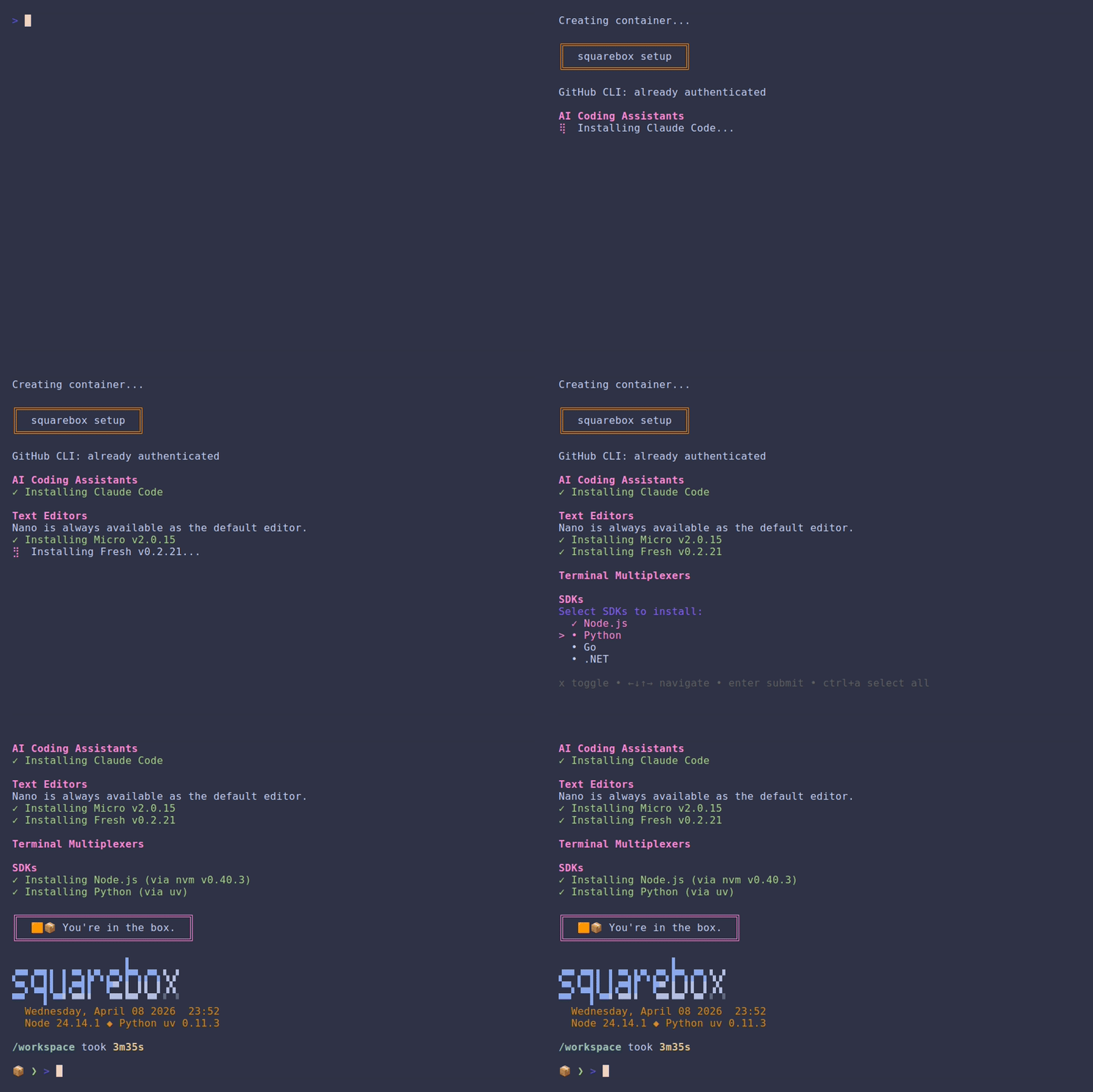 (Actual setup may involve more staring at the screen.)
Prerequisites
- Docker or Podman (experimental — see one-line install below if you don't have either)
- Git - on Windows, install Git for Windows
SQUAREBOX_RUNTIME=docker or
SQUAREBOX_RUNTIME=podman.
Podman (Experimental): Docker is the primary tested runtime; Podman may
have rough edges around volume mounts, SSH agent forwarding, or rebuild
flows — please file an issue if you hit one.
Don't have Docker or Podman? One-line install
macOS (via Homebrew):
brew install --cask docker-desktop
Linux (official convenience script - inspect it first at get.docker.com):
curl -fsSL https://get.docker.com | sh && sudo usermod -aG docker $USER
Log out and back in (or run newgrp docker) so your shell picks up the new group.
Windows (via winget, in PowerShell 7+):
winget install --id Docker.DockerDesktop -e
On macOS and Windows, start Docker Desktop once after install so the daemon is running before you continue.
Install
These commands install squarebox and drop you into the container (if possible). By default they pull a prebuilt image from GHCR — no local Docker build, no build toolchain — then clone the repo into ~/squarebox for the config files and the sqrbx helper commands. On first login, a setup script runs automatically to configure git (pulling your name and email from the host's global git config if available), optionally sign in to GitHub CLI, your choice of AI coding assistant, and language SDKs.
Stable
curl -fsSL https://github.com/SquareWaveSystems/squarebox/releases/latest/download/install.sh | bash
Edge
curl -fsSL https://github.com/SquareWaveSystems/squarebox/releases/latest/download/install.sh | bash -s -- --edge
Stable pulls the prebuilt image for the latest tagged release (pre-release tags like -rc are skipped). Edge builds from the latest commit on main — no image is published for unreleased commits, so edge always builds from source. To build the released version from source instead of pulling, pass --build. The install script itself is published as a release asset, so the URL is pinned to a tagged version of the script — pushes to main won't break new installs until a release is cut.
If the install fails or you want to see the full build/pull and git output, re-run with --verbose.
Advanced install options (flags & environment variables)
Flags: --build (build from source instead of pulling), --edge (latest main), --verbose.
| Variable | Default | Purpose | |----------|---------|---------| | SQUAREBOX_DIR | ~/squarebox | Install location (repo + workspace). Point at durable storage on hosts where $HOME is volatile — e.g. Unraid /mnt/user/appdata/squarebox. | | SQUAREBOXWORKSPACE | $SQUAREBOXDIR/workspace | Host path mounted as /workspace. | | SQUAREBOX_TAG | matched release / latest | Image tag to pull (e.g. v1.0.0-rc1 to test a pre-release). | | SQUAREBOX_IMAGE | ghcr.io/squarewavesystems/squarebox | Image repository to pull from. | | SQUAREBOX_BUILD | 0 | 1 is equivalent to --build. | | PUID / PGID | 1000 / 1000 | Host uid/gid that should own bind-mounted files. Unraid/NAS: 99 / 100. | | SQUAREBOX_RUNTIME | auto | Force docker or podman. | | SQUAREBOXHOMEVOLUME | squarebox-home | Name of the named volume backing /home/dev. | | SQUAREBOX_EDGE | 0 | 1 is equivalent to --edge. |
Non-interactive provisioning — set any of these to a comma-separated list to pre-select a toolset and install it without prompts (handy for servers and scripted installs). Values use the same keys as sqrbx-setup:
| Variable | Selects | |----------|---------| | SQUAREBOX_AI | AI assistants (claude,copilot,gemini,codex,opencode,pi,paseo) | | SQUAREBOX_SDKS | language SDKs (node,python,go,dotnet,rust) | | SQUAREBOX_EDITORS | editors (micro,edit,fresh,nvim) | | SQUAREBOX_TUIS | TUI tools (lazygit,gh-dash,yazi) | | SQUAREBOX_MULTIPLEXERS | multiplexers (tmux,zellij) | | SQUAREBOXGITNAME / SQUAREBOXGITEMAIL | git identity (when no host gitconfig) |
Example: SQUAREBOXAI=claude SQUAREBOXSDKS=node,python curl -fsSL …/install.sh | bash
Windows (PowerShell 7+)
Windows users can install directly from PowerShell - no Git Bash required. This handles clone, build, container creation, and PowerShell aliases (sqrbx, squarebox, etc.) natively:
irm https://github.com/SquareWaveSystems/squarebox/releases/latest/download/install.ps1 | iex
Once installed, you can re-run or pass flags from the local copy:
.\install.ps1 # re-install / update .\install.ps1 -Edge # latest main instead of latest release .\install.ps1 -Verbose # show full build output
Note: irm ... | iex does not support flags - PowerShell interprets them
as arguments to Invoke-Expression, not the script. Use the local
.\install.ps1form for-Edgeor-Verbose.
Start
squarebox # or: sqrbx
These are shell functions wrapping docker start -ai squarebox (or podman start -ai squarebox), added automatically for Bash, Zsh, and PowerShell 7+.
The container is persistent: it suspends on exit and resumes on start, keeping installed packages, config, and shell history intact between sessions. Your code lives on the host at ~/squarebox/workspace (bind-mounted), and per-user state — shell history, GitHub CLI auth, claude-code data, mise toolchains — lives in a named Docker volume (squarebox-home) that survives container recreation. Image-managed config like .bashrc is bind-mounted from the repo so updates flow through to the running container.
Run as a long-lived server (Unraid / NAS / VPS)
The curl | bash installer is built around an interactive desktop shell. To run squarebox as a persistent server container you attach into on demand — on Unraid, a NAS, or a VPS — use the prebuilt image directly with the bundled docker-compose.yml:
cp .env.example .env # set PUID/PGID, the workspace path, and a tag docker compose up -d docker compose exec -u dev squarebox bash
Set PUID/PGID in .env to match your host so files squarebox writes to the workspace mount are owned correctly — on Unraid that's 99 / 100. The -u dev on exec is needed because the container starts as root (to apply PUID/PGID) then drops to the dev user; exec bypasses that, so -u dev lands you where you want to be.
Per-user state (shell history, gh auth, mise toolchains, AI-assistant state) lives in the squarebox-home named volume and survives image updates; your code lives on the host at the workspace path. To update, pull a newer tag and docker compose up -d. The published image is multi-arch (amd64 + arm64), so it also runs on ARM NAS/VPS hosts.
Unraid note: the host's /root is tmpfs and wiped on reboot, so a raw
curl | bash install there won't persist. Either use compose (above) with theworkspace path under /mnt/user/appdata, or run the installer with
SQUAREBOXDIRandSQUAREBOXWORKSPACEpointed at appdata.
What's included
CLI Tools
| Name | Language | Description | |------|----------|-------------| | bat | Rust | Cat clone with syntax highlighting | | curl | C | URL data transfer | | delta | Rust | Syntax-highlighting pager for git diffs | | difftastic | Rust | Syntax-aware structural diff tool (difft) | | eza | Rust | Modern ls replacement | | fd | Rust | Fast, user-friendly find alternative | | fzf | Go | Fuzzy finder | | gh | Go | GitHub CLI | | glow | Go | Terminal markdown renderer | | gum | Go | Tool for shell scripts and dotfiles | | jq | C | JSON processor | | just | Rust | Command runner / modern make alternative | | nano | C | Default text editor | | ripgrep | Rust | Fast recursive grep | | starship | Rust | Cross-shell prompt | | xh | Rust | Friendly HTTP client | | yq | Go | YAML/JSON/XML processor | | zoxide | Rust | Smarter cd command |
What's optional
Selected during first-run setup. Choose any combination, all, or none. Selections are saved under /workspace/.squarebox (on the host workspace bind mount) and reused automatically on container rebuilds. They can also be pre-selected non-interactively via the SQUAREBOXAI/SQUAREBOXSDKS/… env vars (see Advanced install options above).
AI Coding Assistants
| Name | Language | Description | |------|----------|-------------| | Claude Code | TypeScript | AI coding assistant | | GitHub Copilot CLI | TypeScript | GitHub Copilot in the terminal * | | Google Gemini CLI | TypeScript | Google Gemini in the terminal * | | OpenAI Codex CLI | TypeScript | OpenAI Codex in the terminal * | | opencode | Go | AI coding TUI | | Pi Coding Agent | TypeScript | Minimal terminal coding harness (Earendil) * | | Paseo | TypeScript | Remote control for AI CLI agents * |
\* Requires Node.js (auto-installed if needed).
Text Editors
Nano is always available as the default editor.
| Name | Language | Description | |------|----------|-------------| | micro | Go | Modern, intuitive terminal editor | | edit | Rust | Terminal text editor (Microsoft) | | fresh | Rust | Modern terminal text editor | | helix | Rust | Modal editor (Kakoune-inspired) - coming soon | | nvim | C/Lua | Neovim |
Selecting nvim offers to install the LazyVim starter config to ~/.config/nvim, turning Neovim into a preconfigured IDE. Plugins sync on first launch and persist in the squarebox-home volume. A Nerd Font in your terminal is recommended for icons; the starter is skipped if ~/.config/nvim already exists, so your own config is never overwritten.
TUI Tools
Installed during first-run setup. Choose any combination:
| Name | Language | Description | |------|----------|-------------| | lazygit | Go | Git terminal UI | | gh-dash | Go | GitHub dashboard for the terminal | | yazi | Rust | Terminal file manager |
Terminal Multiplexers
Installed during first-run setup. Choose either, both, or neither:
| Name | Description | |------|-------------| | tmux | Classic terminal multiplexer | | zellij | Friendly terminal workspace |
Shell (Experimental)
By default, squarebox uses Bash. During first-run setup you can opt in to Zsh or Fish instead.
Zsh installs:
| Name | Description | |------|-------------| | zsh | Z shell (via apt) | | Oh My Zsh | Community framework for managing zsh config | | zsh-autosuggestions | Fish-like history-based suggestions | | zsh-syntax-highlighting | Inline command syntax highlighting |
The generated ~/.zshrc mirrors the default bashrc — same aliases, starship prompt, zoxide, and AI/editor/SDK sourcing — layered on top of Oh My Zsh.
Fish installs fish (via apt), which ships with autosuggestions and syntax highlighting built in. The generated ~/.config/fish/config.fish mirrors the default bashrc in fish-native syntax; AI/editor/TUI/SDK selections are translated from their bash files into ~/.config/fish/conf.d/squarebox-selections.fish at setup time.
Experimental: the marker file ~/.squarebox-use-zsh (or
~/.squarebox-use-fish) causes~/.bashrctoexecthe chosen shell on
every interactive login, so the next shell start picks up the new shell.
SetSQUAREBOXNOZSH=1orSQUAREBOXNOFISH=1to force bash for a single
session, or re-run sqrbx-setup shell to switch back permanently. Tooling
is primarily tested against bash, so a few edge cases may need polish —
please file an issue if you hit one. SDK shims are wired into all three
shells via mise activate {bash,zsh,fish}.
SDKs
All SDKs are managed by mise — a single polyglot version manager. Selections are written to ~/.config/mise/config.toml and mise activate wires up shims and PATH automatically across bash, zsh, and fish.
| SDK | mise tool | |-------|-----------| | Node.js | node | | Python | python | | Go | go | | .NET | dotnet | | Rust | rust |
Learning mode (beta)
Optional. When enabled during first-run setup (or via sqrbx-setup learn), the container ships an interactive guide to every tool in the toolkit — history, why-it-exists, and skill-level-adapted "try it" examples.
sqrbx-learn # open the menu sqrbx-learn rg # jump straight to a tool's lesson sqrbx-learn ask "..." # one-shot toolkit question to your AI CLI sqrbx-learn explain '...' # explain a command flag-by-flag sqrbx-learn recap # review the commands your agent has been running sqrbx-learn --progress # show what you've completed sqrbx-learn --reset # wipe progress AND skill level
The top menu entry, Learn hands-on with your AI agent, launches your configured AI CLI — Claude Code, OpenCode, Gemini CLI, or Codex CLI — in a coaching mode for the session: instead of doing the work for you, it explains each step, hands you the exact command and the reason for the tool choice, and asks you to run it yourself. Say "just do it" at any point to let it take over. Claude Code gets the coaching persona via --append-system-prompt; the others receive it as a session-opening instruction. Either way it's session-scoped and never touches your workspace's own CLAUDE.md/AGENTS.md. (No AI CLI yet? Add one with sqrbx-setup ai.)
ask and explain use the same AI CLI non-interactively: ask answers a toolkit question with the exact command to run, and explain breaks down a command flag-by-flag (defaulting to the last one in your shell history) and suggests the modern squarebox equivalent when you fed it a legacy tool. Both run on your own agent auth and cost tokens, so they only fire on demand.
recap reverses the direction — learn from what your agent does. After sqrbx-learn recap --enable registers a Claude Code PostToolUse hook, every squarebox toolkit command the agent runs while working is logged to /workspace/.squarebox/agent-tool-log. sqrbx-learn recap then shows per-tool counts with real examples from your own tasks, and can hand the recent log to your AI CLI for a debrief of what those commands actually did. recap --disable removes the hook.
The first launch asks for a skill level (beginner / intermediate / expert) to scale both the examples and the agent's coaching; you can change it later from the menu. Lessons render through glow when available so the markdown bodies display properly.
Getting help
Run sqrbx-help inside the container for a one-screen overview of the sqrbx- commands plus the fzf (Ctrl+R/Ctrl+T/Alt+C/*<Tab>) and zoxide (z/zi) keyboard shortcuts. The MOTD points to it on every shell start.
Reconfiguring
Re-run the first-run wizard at any time from inside the container with sqrbx-setup. With no arguments it walks every section; pass one or more section names to reconfigure just those: git, github, ai, editors, tuis, multiplexers, sdks, shell, learn. sqrbx-setup --list shows your current selections and sqrbx-setup --help the usage.
Aliases
| Alias | Command | Description | |-------|---------|-------------| | ls | eza --icons | Modern ls with icons | | ll | eza -la --icons | Long listing with icons | | lsa | ls -a (resolves to eza --icons -a) | List all including hidden files | | lt | eza --tree --level=2 --long --icons --git | Tree view with git status | | lta | lt -a | Tree view including hidden files | | cat | bat --paging=never | Syntax-highlighted cat | | ff | fzf --preview 'bat ...' | Fuzzy find with preview | | eff | $EDITOR "$(ff)" | Fuzzy find and edit | | .. | cd .. | Go up one directory | | ... | cd ../.. | Go up two directories | | .... | cd ../../.. | Go up three directories | | c | first selected AI tool | Launch selected AI assistant | | g | git | Git shorthand | | gcm | git commit -m | Commit with message | | gcam | git commit -a -m | Stage all and commit | | gcad | git commit -a --amend | Stage all and amend | | lg | lazygit | Launch lazygit (if installed) | | claude-yolo | claude --dangerously-skip-permissions | Claude without prompts | | opencode-yolo | opencode --dangerously-skip-permissions | OpenCode without prompts |
Multiplexer Keybindings (Experimental)
Both tmux and zellij ship with Omarchy-inspired defaults and matching keybindings:
| Feature | Tmux | Zellij | |---------|------|--------| | Config path | ~/.config/tmux/tmux.conf | ~/.config/zellij/config.kdl | | Prefix | Ctrl+Space | Ctrl+Space (Tmux mode) | | Pane navigation | Ctrl+Alt+Arrow | Ctrl+Alt+Arrow | | Pane resizing | Ctrl+Alt+Shift+Arrow | Ctrl+Alt+Shift+Arrow | | Tab/window select | Alt+1-9 | Alt+1-9 | | Tab/window cycle | Alt+Left/Right | Alt+Left/Right | | Split horizontal | prefix h | prefix h | | Split vertical | prefix v | prefix v | | Scrollback | 50,000 lines | 50,000 lines | | Copy mode | Vi keys | Vi-style scroll | | Theme | Blue accent, top bar | Blue accent, compact layout |
Update
Quick update (from inside the container)
sqrbx-update
Checks all GitHub-released tools against latest versions and updates them in-place. No rebuild required. Your container state, SDKs, and config are preserved.
sqrbx-update # show available updates (dry run) sqrbx-update --apply # download and install all updates sqrbx-update lazygit # update a single tool sqrbx-update --list # list all tools and current versions
Full rebuild (from the host)
sqrbx-rebuild
Pulls the latest changes, rebuilds the image, and replaces the container. Your code in ~/squarebox/workspace is safe since it lives on the host. Most in-container state (shell history, GitHub auth, SDK toolchains) survives because /home/dev is backed by the squarebox-home named Docker volume. Manually installed apt packages are still lost, since the image is rebuilt.
What survives a rebuild
| Survives | Lost | |----------|------| | Code in ~/squarebox/workspace (host bind mount) | Manually installed apt packages | | /home/dev (squarebox-home named volume): shell history, GitHub CLI auth, claude-code data, mise toolchains | | | Starship, lazygit, .bashrc (bind-mounted from repo, picks up updates) | | | AI tool / editor / SDK selections (in /workspace/.squarebox) | | | SSH keys (on host, forwarded via agent) | |
To wipe per-user state and start fresh, remove the named volume: docker volume rm squarebox-home.
Tip: Use sqrbx-update from inside the container to update tools without
rebuilding. Only use sqrbx-rebuild when the base image itself needs to
change (new apt packages, new base tools, Dockerfile changes).
Disk usage
The base image (CLI tools only, no optional components) is ~370 MB on disk.
First-run selections add to that:
| Component | Adds | |-----------|------| | Claude Code | ~300 MB | | GitHub Copilot CLI | ~50 MB | | Google Gemini CLI | ~50 MB | | OpenAI Codex CLI | ~50 MB | | OpenCode | ~30 MB | | Pi Coding Agent | ~50 MB | | lazygit / gh-dash / yazi | ~10 / ~10 / ~10 MB | | micro / edit | ~12 / ~7 MB | | fresh / nvim | ~10 / ~45 MB | | Node.js | ~90 MB | | Python | ~50 MB | | Go | ~500 MB | | .NET | ~800 MB |
A typical setup (Claude Code + Node.js + one editor) lands around ~800 MB. Sizes are approximate and will vary as tools are updated.
Security
Base image tools are pinned to specific versions and verified against SHA256 checksums when the Docker image is built, so docker build is reproducible.
Optional tools selected during first-run setup (editors, TUIs, OpenCode, zellij) install the latest upstream release at the time you run setup. The trust model is the same as running each tool's installer yourself: HTTPS downloads from the project's official GitHub release (or upstream server). You get new features without waiting for a squarebox release, at the cost of build-time pinning for that tier.
SDKs (Node, Python, Go, .NET, Rust) are installed by mise, which is itself a Dockerfile-tier pinned binary. mise downloads each SDK toolchain from its upstream over HTTPS using its own integrity checks. npm-based AI tools (Copilot CLI, Gemini CLI, Codex CLI, Pi) use npm's built-in integrity verification.
For the full trust model (what install.sh does on your machine, how each layer is verified, and how to inspect the script before running it) see SECURITY.md.
Devcontainer / Codespaces
Open this repo in VS Code with the Dev Containers extension, or launch it in GitHub Codespaces. The included .devcontainer/devcontainer.json builds the full squarebox image automatically and opens the cloned repo at /workspaces/<repo>.
The interactive first-run wizard can't run in devcontainer mode (no TTY at create time), so a default toolset — Claude Code + Node.js — is installed non-interactively by postCreateCommand. Override the defaults with these container environment variables (set to an empty string to opt out of a tier):
| Variable | Default | Selects | |----------|---------|---------| | SQUAREBOXDCAI | claude | AI assistants (claude,copilot,gemini,codex,opencode,pi) | | SQUAREBOXDCSDKS | node | SDKs (node,python,go,dotnet,rust) | | SQUAREBOXDCEDITORS | (none) | Editors (micro,edit,fresh,nvim) | | SQUAREBOXDCTUIS | (none) | TUI tools (lazygit,gh-dash,yazi) |
To add or change tools after the fact, run sqrbx-setup from the integrated terminal.
You can also attach to a running codespace directly from your local terminal using gh codespace ssh.
Uninstall
sqrbx-uninstall
Removes the container, image, and shell integration but keeps ~/squarebox (including workspace/) and the squarebox-home named volume (shell history, gh auth, mise toolchains) so your code and per-user state are safe by default. Pass --purge to also remove both:
sqrbx-uninstall --purge
A second confirmation is required if ~/squarebox/workspace is non-empty. Pass -y (or -Yes on PowerShell) to skip all prompts for scripting. Idempotent: safe to re-run once uninstalled.
Windows (PowerShell 7+):
sqrbx-uninstall # keep ~/squarebox sqrbx-uninstall -Purge # also remove ~/squarebox sqrbx-uninstall -Yes # skip confirmations
Broken-state recovery (e.g. shell functions are missing, or after partial install): run the script directly from the install directory:
~/squarebox/uninstall.sh # Linux / macOS / Git Bash ~/squarebox/uninstall.ps1 # Windows PowerShell
Start a new shell afterwards (or exec bash / exec zsh) so the sqrbx and squarebox functions are dropped from the current session.
Make it your own
squarebox is meant to be a starting point, not a finished product. Fork it, swap out tools, add your own dotfiles, change the theme - build the dev environment that fits the way you work. The Dockerfile is intentionally straightforward and the tool registry (scripts/lib/tools.yaml) makes it easy to add or remove tools. Use it as a base, take what's useful, and make it yours.


