
A Mass Image Processing tool for Windows
Last updated Mar 22, 2026
89
Stars
16
Forks
1
Issues
0
Stars/day
Attention Score
20
Topics
Language breakdown
C# 95.9%
Smalltalk 4.1%
▸ Files
click to expand
README
Batch Image Processor #
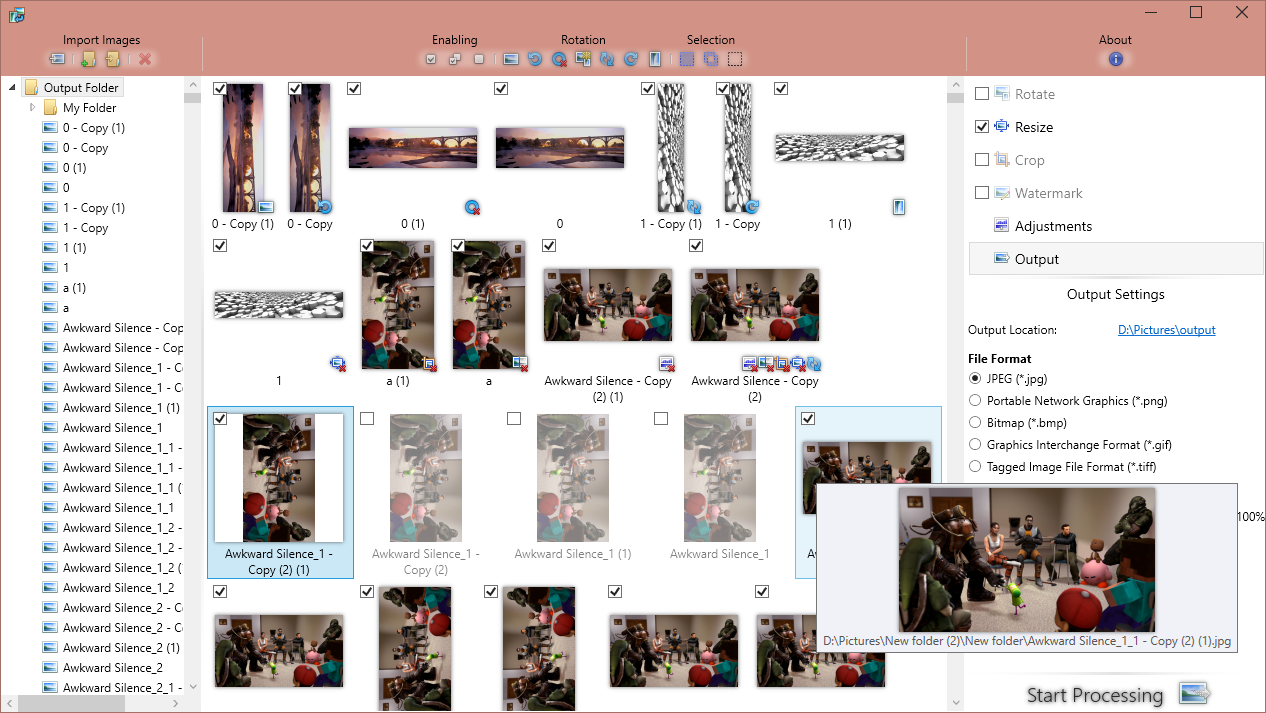
What does it Do? ##
Import hundreds of photos and perform various manipulations on them!
- Rotate
- Resize
- Crop
- Watermarks
- Adjustments
- Rename
CLI ##
Now includes a complete CLI interface! Usage:
bipcli.exe [flags] [file0 file1 ... fileX]
Including files in the command will process each file listed. For large numbers of files, it may be easier to use a manifest file (see --man).
CLI Flags: ###
Batch Image Processor CLI uses flags to specify options. Short flags, like-c and -w, can be combined as -cw. The last short flag can be o, followed by the output path, e.g. -cwo="C:\Output" Mode flags, e.g. --option=(Option1|Option2) are not case sensitive.
Generic Options #####
*--man="file": Specify a manifest file (a plain text document containing a raw list of files).
* -? or --help: Display the help info (similar to this page).
Rotate Options #####
*--rotate=#: A rotation transform.
* 0 = None (Default)
* 1-3 = Clockwise rotation in 90-degree increments.
* 4 = Auto-Portrait Orientation.
* 5 = Auto-Landscape Orientation.
Resize Options #####
*--resize=(None|Smaller|Larger|Exact): A resize transform.
* None = No resize (Default)
* Smaller = Resize the image to be smaller than the specified by rwidth and rheight.
* Larger = Resize the image to be larger than the specified by rwidth and rheight.
* Exact = Resize the image to be the exact size specified by rwidth and rheight.
* --rwidth=#: Width parameter for the resize option.
* --rheight=#: Height parameter for the resize option.
* -a or --noaspect: Disable automatic aspect ratio matching when resizing.
Crop Options #####
*-c or --crop: Enable cropping.
* --cwidth=#: Width parameter for the crop option.
* --cheight=#: Height parameter for the crop option.
* --calign=#: Crop alignment.
* 0 1 2
* 3 4 5
* 6 7 8
Watermark Options #####
*-w or --watermark: Enable watermarking.
* --wtype=(Text|Image): Specifies the watermark type. Case sensitive.
* Text = A text watermark. Additional options:
* Image = An image watermark. Additional options:
* --wcolor: Image watermarks in color (instead of default grayscale)
* --wfile="file": A path to the image to watermark with
* --wf: Specify the watermark font.
* --wsize=#.#: Specify the point-size of the watermark font.
* --wtext="Text": The text to overlay.
* --wopac=#.#: Watermark opacity as a decimal. E.g. --wopac=0.4 = 40%
* --walign=#: Watermark alignment.
* 0 1 2
* 3 4 5
* 6 7 8
Adjustments #####
*--brightness=#.#: Adjust image brightness as a decimal.
* --contrast=#.#: Adjust image contrast as a decimal.
* --gamma=#.#: Adjust image gamma as a decimal.
* Minimum 0.1, maximum 5.0
* --smode=(Saturation|Greyscale|Sepia): Saturation mode.
* Saturation = Adjust saturation by value --saturation (Default)
* Greyscale = Complete greyscale adjustment
* Sepia = Complete sepia adjustment
* --saturation=#.#: Adjust image saturation as a value. --saturation=0 is the same as --smode=1
Output Options #####
*--output="dir": Specify the output directory. If one is not specified files will be output to the current working directory.
* --naming=(Original|Numbered|Custom): Output filename mode.
* Original = The original filename.
* Numbered = Sequential numbering.
* Custom = Uses --customname as a pattern.
* --customname="pattern": The custom naming pattern when --naming=Custom
* Uses identifiers, e.g.: "{o} - {w}x{h}" could result in DSCF001 - 800x600.jpg
* {o} = The original filename.
* {w} = Output image width.
* {h} = Output image height.
* --format=(Jpg|Png|Bmp|Gif|Tiff): Specify the output filetype. Case sensitive. Default is Jpg.
* --jquality=#.#: Jpeg output quality as a decimal. E.g.: --jquality=0.8 would be quality 80%. Default value is 0.95.
GUI Flags ####
In addition to CLI flags, there are also some GUI flags:BatchImageProcessor.exe [flags]
-sor--noshaders: Disable the drop shadow and blur shaders used in the GUI-eor--noaero: Disable the Windows Aero extensions


