
A Dockerized Android emulator supporting multiple CPU architectures (x86 and arm64) with native performance and seamless ADB & Scrcpy Web access.
Dockerify Android
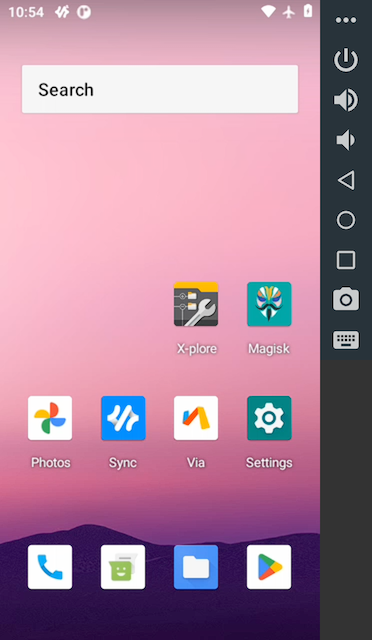




Dockerify Android is a Dockerized Android emulator supporting multiple CPU architectures (x86 and ARM/ARM64 apps via ndk_translation) with native performance and seamless ADB & Web access. It allows developers to run Android virtual devices (AVDs) efficiently within Docker containers, facilitating scalable testing and development environments.
🔥 Key Feature: Web Interface Access 🌐
Access and control the Android emulator directly in your web browser with the integrated scrcpy-web interface! No additional software needed - just open your browser and start using Android.
Benefits of Web Interface:
- No extra software to install
- Access from any computer with a web browser
- Full touchscreen and keyboard support
- Perfect for remote work or sharing the emulator with team members
🏠 Homepage


📜 Table of Contents
- Using Web Interface - Using ADB - Using Desktop scrcpy - Customizing Device Screen- First Boot Process
- Container Logs
- Versioning and Releases
- Roadmap
- Troubleshooting
- Contributing
- License
- Contact
🔧 Features
- 🌐 Web Interface: Access the emulator directly from your browser with the integrated scrcpy-web interface.
- 🔄 ARM Translation Support: Run ARM/ARM64 native applications on x8664 emulator using ndktranslation layer. This allows installation of modern Android apps that ship only with ARM native libraries (arm64-v8a, armeabi-v7a).
- Root and Magisk Preinstalled: Comes with root access and Magisk preinstalled for advanced modifications.
- PICO GAPPS Preinstalled: Includes PICO GAPPS for essential Google services.
- Seamless ADB Access: Connect to the emulator via ADB from the host and other networked devices.
- scrcpy Support: Mirror the emulator screen using scrcpy for a seamless user experience.
- Optimized Performance: Utilizes native CPU capabilities for efficient emulation.
- Multi-Architecture Support: Runs natively on both x86 and arm64 CPU architectures.
- Docker Integration: Easily deploy the Android emulator within a Docker container.
- Easy Setup: Simple Docker commands to build and run the emulator.
- Supervisor Management: Manages emulator processes with Supervisor for reliability.
- Unified Container Logs: All emulator and boot logs are redirected to Docker's standard log system.
🛠️ Prerequisites
Before you begin, ensure you have met the following requirements:
- Docker: Installed on your system. Installation Guide
- Docker Compose: For managing multi-container setups. Installation Guide
- KVM Support: Ensure your system supports KVM (Kernel-based Virtual Machine) for hardware acceleration.
egrep -c '(vmx|svm)' /proc/cpuinfoA non-zero output indicates KVM support.
🚀 Installation
To simplify the setup process, you can use the provided docker-compose.yml file.
- Clone the Repository:
git clone https://github.com/shmayro/dockerify-android.git
cd dockerify-android- Run Docker Compose:
docker compose up -d> Note: This command launches the Android emulator and web interface. First boot takes some time to initialize. Once ready, the device will appear in the web interface at http://localhost:8000.
📡 Usage
🌐 Use the Web Interface to Access the Emulator
The quickest and easiest way to interact with the Android emulator is through your web browser:
- Open your browser and go to
http://localhost:8000 - You should see the device listed as "dockerify-android:5555" automatically connected
- Select one of the available streaming options:

Note: First boot may take some time as the Android emulator needs to fully initialize. When everything is ready, the device will appear in the web interface as shown in the screenshot above.
Connect via ADB
If you need direct ADB access to the emulator:
adb connect localhost:5555
adb devices
Expected Output:
connected to localhost:5555
List of devices attached
localhost:5555	device
Use scrcpy to Mirror the Emulator Screen
For a native desktop experience, you can use scrcpy:
scrcpy -s localhost:5555Note: Ensure scrcpy is installed on your host machine. Installation Guide
⚙️ Environment Variables
| Variable | Description | Default | | --- | --- | --- | | DNS | Private DNS server used inside the emulator | one.one.one.one | | RAM_SIZE | RAM in megabytes allocated to the emulator | 4096 | | SCREEN_RESOLUTION | Screen size in WIDTHxHEIGHT format (e.g. 1080x1920) | device default | | SCREEN_DENSITY | Screen pixel density in DPI | device default | | ROOT_SETUP | Set to 1 to enable rooting and Magisk. Can be turned on after the first start but cannot be undone without recreating the data volume. | 0 | | GAPPS_SETUP | Set to 1 to install PICO GAPPS. Can be turned on after the first start but cannot be undone without recreating the data volume. | 0 | | ARMTRANSLATION | Set to 1 to enable ARM translation (ndktranslation) for running ARM/ARM64 apps on x86_64. Can be turned on after the first start but cannot be undone without recreating the data volume. | 0 |
🔄 First Boot Process
The first time you start the container, it will perform a comprehensive setup process that includes:
- AVD Creation: Creates a new Android Virtual Device running Android 30 (Android 11)
- PICO GAPPS Installation (when
GAPPS_SETUP=1): Adds essential Google services. - Rooting the Device (when
ROOT_SETUP=1): Performs multiple reboots to:
- ARM Translation Installation (when
ARMTRANSLATION=1): Installs ndktranslation ARM translation layer to enable running ARM/ARM64 native apps on x86_64:
ro.product.cpu.abilist = x86_64,x86,arm64-v8a,armeabi-v7a,armeabi
- Extras Copied: Pushes everything from the
extrasdirectory to/sdcard/Downloadso files like APKs or Magisk modules are ready for manual installation on the device. - Configuring optimal device settings
ROOTSETUP, GAPPSSETUP, and ARM_TRANSLATION are checked on every start. If you enable them after the first boot, the script installs the requested components once and marks them complete so they won't run again. Removing them later requires recreating the data volume.
Important: The first boot can take 10-15 minutes to complete. You'll know the process is finished when you see the following log output:
> Success !! > 2025-04-22 13:45:18,724 INFO exited: first-boot (exit status 0; expected) >> Broadcast completed: result=0
Note: If the Android emulator has restarted for any reason, it's recommended to restart the Docker container to reapply optimizations:
>> docker compose restart
This ensures the following optimizations are applied:
- Disabled animations for better performance
- Screen timeout set to 15 seconds
- Disabled rotation
- Custom DNS settings
- Airplane mode enabled (with WiFi still active)
- Data connection disabled
After the first boot completes, a file marker is created to prevent running the initialization again on subsequent starts.
📋 Container Logs
All logs from the emulator and boot processes are redirected to Docker's standard log system. To view all container logs:
docker logs -f dockerify-androidThis includes:
- Supervisor logs
- Android emulator stdout/stderr
- First-boot process logs
🏷️ Versioning and Releases
Dockerify Android uses GitHub Releases as the source of truth for stable project versions. Publishing a release such as v1.2.3 creates matching Docker image tags: 1.2.3, 1.2, 1, and latest.
Builds from the main branch are published as development images using edge and sha-<short-sha> tags.
🚧 Roadmap
- [ ] Support for additional Android versions
- [x] Integration with CI/CD pipelines
- [x] ARM Translation support (ndktranslation) for running ARM64 apps on x8664
- [x] PICO GAPPS installation
- [x] Support Magisk
- [x] Adding web interface of scrcpy
- [x] Redirect all logs to container stdout/stderr
🐞 Troubleshooting
- ADB Connection Refused:
adb start-server -a5555 is open on your server.
- Check Emulator Status: Ensure the emulator has fully booted by checking logs.
docker logs dockerify-android- First Boot Taking Too Long:
docker logs -f dockerify-android
- ARM/ARM64 Apps Still Not Installing:
ARM_TRANSLATION=1 is set in your docker-compose.yml or environment variables
- Check that the first boot completed successfully with docker logs dockerify-android | grep -i "ARM translation"
- Verify ARM ABIs are available:
adb shell getprop ro.product.cpu.abilistx86_64,x86,arm64-v8a,armeabi-v7a,armeabi
- If you enabled ARM_TRANSLATION after the first boot, restart the container to run the install step
- Emulator Not Starting:
docker logs dockerify-android- KVM Not Accessible:
lsmod | grep kvm/dev/kvm.
🤝 Contributing
Contributions are welcome! To contribute:
- Fork the Repository
- Create a Feature Branch:
git checkout -b feature/YourFeature- Commit Your Changes:
git commit -m "Add Your Feature"- Push to the Branch:
git push origin feature/YourFeature- Open a Pull Request
📄 License
This project is licensed under the MIT License.
📫 Contact
- Haroun EL ALAMI
- Email: haroun.dev@gmail.com
- GitHub: shmayro
- Twitter: @HarounDev


