
Terminal Markdown previewer — GUI-like experience.

Terminal Markdown previewer — GUI-like experience.
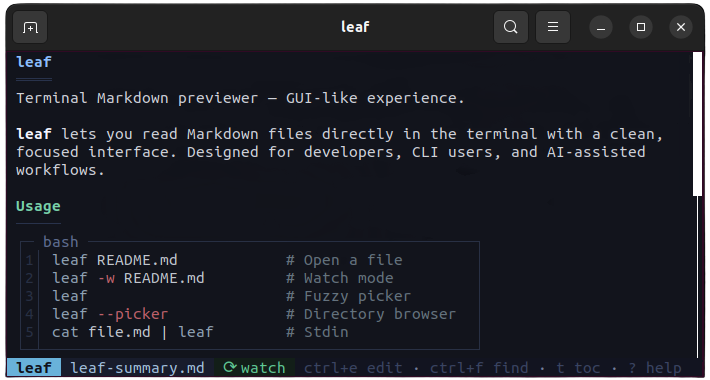
See more screenshots in the features demo
Install
Install the latest published binary.
macOS / Linux / Android / Termux:
curl -fsSL https://raw.githubusercontent.com/RivoLink/leaf/main/scripts/install.sh | shWindows:
irm https://raw.githubusercontent.com/RivoLink/leaf/main/scripts/install.ps1 | iexnpm:
npm install -g @rivolink/leafArchLinux (AUR):
Use an AUR helper, such as yay:
yay -S leaf-markdown-viewerVerify the installation:
leaf --versionUpdate
Update an existing installation to the latest published release.
Self:
leaf --updateleaf --update downloads the matching published asset, verifies it against the published checksums.txt SHA256, and then installs it.
On Windows, if replacing the running .exe is blocked by the OS, rerun the PowerShell installer from the install section.
npm:
npm update -g @rivolink/leafUsage
# Open a Markdown file
leaf TESTING.md
Watch mode — reloads automatically on save
leaf --watch TESTING.md
leaf -w TESTING.md
Open the fuzzy Markdown picker
leaf
Open the classic directory browser picker
leaf --picker
Open the fuzzy Markdown picker, then watch the selected file
leaf -w
Open the classic directory browser picker, then watch the selected file
leaf -w --picker
Open a dash-prefixed filename
leaf -- -notes.md
Stream Markdown from another CLI tool
claude "explain Rust lifetimes" | leaf
Preview a local file through stdin
cat TESTING.md | leaf
Inline Mode
Render Markdown directly to stdout without the interactive TUI:
# Render to terminal with colors
leaf --inline README.md
Force plain text, no ANSI codes (no colors)
leaf --inline plain README.md
Force ANSI colors even when piping
leaf --inline ansi README.md
Set a specific width
leaf --inline 60 README.md
leaf --inline ansi:60 README.md
Pipe from stdin
cat README.md | leaf --inline
Use as a fzf preview
fzf --preview 'leaf --inline ansi {}'
fzf --preview 'leaf --inline ansi:$FZFPREVIEWCOLUMNS {}'
Shell Completions
Enable Tab completion for all arguments:
leaf --auto-completeSupports bash, zsh, fish, and PowerShell. Restart your shell to activate.
Vim Integration
Add the following to your~/.vimrc to preview the current Markdown file in a vertical split:
" Preview the current Markdown file in a vertical split using leaf
nnoremap <Leader>md :vertical botright terminal leaf -w %<CR>
Once added, use \md to open a live preview. To switch focus back to the Markdown buffer, press Ctrl+w,h.
Configuration
Set default values for theme, editor, watch mode and extra file types via config.toml:
leaf --configThis opens the configuration file in your editor. If the file does not exist yet, leaf creates it with documented defaults.
theme = "ocean"          # arctic, forest, ocean, solarized-dark, or a custom theme file
editor = "nano"          # any editor in PATH
watch = false            # auto-reload when opening a file
extras = ["txt", "rs"]   # extra file types shown in the picker
To reset the configuration to defaults:
leaf --config resetAll settings are optional. CLI arguments always take priority. See config.toml for details.
Open in Editor
Press Ctrl+E to open the current file in the configured editor.
Use {$line} in editor to open at the line currently visible in leaf:
editor = 'nano +{$line}'
editor = 'nvim +{$line} +"normal! zz"'
For further customization, {$path} is also available for the file path:
editor = 'code -g {$path}:{$line}'Without {$line}, the editor opens at the top of the file.
Extra Files
Non-Markdown files can be listed in the file picker by adding their extensions to config.toml:
extras = ["txt", "csv", "rs", "java", "json", "yaml"]Code files get syntax highlighting; text files are rendered as plain Markdown.
Any file can also be opened directly from the command line, regardless of the extras setting:
leaf main.rsBrowse and preview code files with fzf:
find . -name '*.rs' | fzf --preview 'leaf --inline ansi {}'Custom Themes
Create a .toml file that inherits from a built-in theme and overrides specific colors:
theme = "/path/to/custom-theme.toml"Relative paths are resolved from the config file directory.
# custom-theme.toml
base = "ocean"
syntax = "base16-ocean.dark"
[ui] content_bg = "#282828" toc_accent = "#fe8019"
[markdown] text = "#ebdbb2" heading_1 = "#fabd2f"
See gruvbox.toml for a complete example with all available color keys.
Keybindings
| Key | Action | Key | Action | |---|---|---|---| | j / ↓ | Scroll down | ? | Show help popup | | k / ↑ | Scroll up | t | Toggle TOC sidebar | | d / PgDn | Page down (20 lines) | Shift+L | Toggle line numbers | | u / PgUp | Page up (20 lines) | Shift+T | Open theme picker | | g / Home | Top | Shift+E | Open editor picker | | G / End | Bottom | Shift+P | Open file browser | | Ctrl+L | Go to line | Ctrl+P | Open fuzzy picker | | Ctrl+F / / | Find | Ctrl+E | Open in editor | | n / N | Next / prev match | Ctrl+Click | Open link | | w | Toggle watch mode | Double-Click | Copy link | | r | Force reload (watch mode) | Shift+Drag | Select text | | q | Quit | Option+Drag | Select text (iTerm2) |
Features
- Live preview : Watch mode with automatic reload and visual feedback.
- File picker : Fuzzy Markdown picker, directory browser, and watch after selection.
- Editor integration : Open the current file in your preferred editor.
- Frontmatter support : YAML frontmatter rendered as a table (horizontal or vertical based on key count).
- Rich Markdown rendering : Tables, lists, blockquotes, rules, bold, italic, and strikethrough.
- GitHub extras : Alert callouts, task list checkboxes, and
==mark==text highlighting. - Extra file types : Open any file; code files get syntax highlighting, text files render as Markdown.
- Syntax highlighting : Common aliases like
py,cpp,json,toml,ps1,dockerfile. - Line numbers : Toggle display with
Shift+L, jump to a line withCtrl+L. - LaTeX support : Inline, block, and
latex/texcode blocks rendered as formulas. - Mermaid diagrams :
mermaidcode blocks rendered as ASCII diagrams. - Clickable links :
Ctrl+Clickto open, double-click to copy, hover feedback. - Navigation : TOC sidebar, active section tracking, heading jumps, and search.
- Terminal UX : Theme picker, help popup, file path popup, mouse and keyboard support.
- Custom themes : TOML theme files inheriting from built-in presets with color overrides.
- Inline mode : Render to stdout with
--inlinefor pipes and fzf previews. - Shell completions : Tab completion for bash, zsh, fish, and PowerShell via
leaf --auto-complete. - CLI friendly : stdin support and
leaf --updatewith SHA256 verification.
Typical AI Workflow
# Terminal 1: generate the file
aichat "..." > notes.md
Terminal 2: live watch
leaf --watch notes.md
Troubleshooting
Windows: missing Visual C++ runtime
If leaf.exe does not start on Windows or reports a missing MSVC runtime, install the latest supported Microsoft Visual C++ Redistributable from Microsoft Learn:
- https://learn.microsoft.com/fr-fr/cpp/windows/latest-supported-vc-redist?view=msvc-170
- https://aka.ms/vc14/vc_redist.x64.exe
leaf-windows-x86_64.exe, the relevant package is the latest supported X64 Visual C++ v14 Redistributable.
Windows: update or file replacement error
If leaf --update fails on Windows with an error about replacing, renaming, or writing leaf.exe, the running executable was likely locked by the OS.
Close any terminal session still running leaf, then rerun the PowerShell installer from the install section:
irm https://raw.githubusercontent.com/RivoLink/leaf/main/scripts/install.ps1 | iexWindows: auto-complete execution policy error
If PowerShell reports that running scripts is disabled on this system after leaf --auto-complete, allow local scripts and restart PowerShell:
Set-ExecutionPolicy RemoteSigned -Scope CurrentUserUninstall
macOS / Linux / Android / Termux:
rm -f ~/.local/bin/leafWindows:
Remove-Item "$env:LOCALAPPDATA\Programs\leaf\leaf.exe" -Forcenpm:
npm uninstall -g @rivolink/leafContributors
Thanks to all contributors.
Support
Contributions are welcome. Feel free to open an issue or submit a pull request.
See the CONTRIBUTING.md file for details.
If you like leaf, consider giving the project a star ⭐
License
This project is licensed under the MIT License.
See the LICENSE file for details.


