
A multimodal RAG dashboard and interactive 3D Knowledge Graph. Process documents locally with Ollama or via Cloud APIs, powered by LightRAG, RAG-Anything and Neo4j.
The Brain - Multimodal RAG


The Brain is a Retrieval-Augmented Generation (RAG) dashboard and 3D Knowledge Graph visualizer. It is designed to ingest multimodal documents (text, images, tables, equations) and provide an interactive interface for querying and exploring the resulting knowledge base.
The system is built on top of the LightRAG and RAG-Anything frameworks. It supports fully offline execution via local models or cloud-based execution via any OpenAI-compatible API.
https://github.com/user-attachments/assets/fee7508f-98a0-407b-84b5-4300738b4b29
Architecture
- Backend: Python, FastAPI, Uvicorn, Server-Sent Events (SSE) for real-time log streaming.
- RAG Pipeline: LightRAG and RAG-Anything.
- Document Parser: MinerU (handles PDF layout detection, OCR, and multimodal extraction).
- Databases: Neo4j (Knowledge Graph) and NanoVectorDB (Vector Storage).
- Reranker: Default
BAAI/bge-reranker-v2-m3(Downloaded and loaded into memory automatically on the first application startup). Can be changed to external if needed
Settings
Engine
Different engines are supported and easily configurable. You can set the base URLs for multiple engines inside the compose file and swap between them just by changing the LLM_ENGINE variable.
| VARIABLE | VALUE | | ---------- | -------------------------------------------------- | | LLM_ENGINE | ollama, llamacpp, vllm, lmstudio, openai |
Provider
Set the value to your service endpoint, these are just placeholders| PROVIDER | VARIABLE | VALUE | | --------- | ------------------ | ------------------------------------------------ | | Ollama | OLLAMABASEURL | http://localhost:11434 | | LM Studio | LMSTUDIOBASE_URL | http://localhost:1234/v1 | | VLLM | VLLMBASEURL | http://localhost:8000/v1 | | llama.cpp | LLAMACPPBASE_URL | http://localhost:8080/v1 | | OpenAI | OPENAIBASEURL | https://api.openai.com/v1 | | | RERANKERBASEURL | Optional: set if you want custom a reranker |
API Key
Remember to set a "dummy" API key if you are using a provider based on OpenAI| VARIABLE | VALUE | | -------------- | ----------------- | | OPENAIAPIKEY | sk-local-test-key |
Models & Settings
Models to use
With these variables you are defining what models to use| VARIABLE | EXAMPLE | INFO | | --------------- | ------------------- | ----------------------------------------------------------------------- | | LLM_MODEL | qwen3.5:9b | The text model used for entity extraction and querying. | | VISION_MODEL | qwen2.5vl:latest | The multimodal model used for processing images, tables, and equations. | | EMBEDDING_MODEL | qwen3-embedding:8b | The model used for vectorizing text. | | RERANKER_MODEL | qwen3-reranker-0.6b | Optional: The model useid for reranking query results. |
Settings
These are the variables you can set to control context size for example. You need to look up what settings are best suited for your setup.LLM
| VARIABLE | EXAMPLE | INFO | | ------------- | ------- | ----------------------------------------------------------------------- | | LLMNUMCTX | 32768 | Context window. Max tokens the LLM can process in a single request | | LLM_TIMEOUT | 300 | Maximum time (in seconds) to wait for an LLM response before canceling. | | LLMMAXASYNC | 1 | Max number of concurrent requests allowed to the LLM. |
Embedding
| VARIABLE | EXAMPLE | INFO | | ------------------- | ------- | ---------------------------------------------------------------------------------------------------- | | EMBEDDING_DIM | 4096 | The output vector size of your chosen embedding model. Must exactly match your model's architecture! | | MAXEMBEDTOKENS | 8192 | The maximum context window of your embedding model. | | EMBEDDING_TIMEOUT | 300 | Maximum time (in seconds) to wait for the embedding API to return vectors. | | EMBEDDINGMAXASYNC | 1 | Max concurrent requests to the embedding model. |
Chunks
| VARIABLE | EXAMPLE | INFO | | ------------------ | ------- | ------------------------------------------------------ | | CHUNK_SIZE | 600 | The target number of tokens per document slice. | | CHUNKOVERLAPSIZE | 100 | The number of tokens shared between sequential chunks. |
Storage
All knowledge graph data is stored in two named volumes| Volume | Info | | ------------------- | ----------------------------------------- | | thebrain_data | vector DBs, upload history, parsed output | | lightragneo4jdata | Neo4j graph |
Quick Start
Prerequisites
- Docker and Docker Compose
- An LLM provider (Local or External)
1 Create your compose file
services:
  the-brain:
    image: ghcr.io/hastur-hp/the-brain:latest
    containername: thebrain
    restart: unless-stopped
    network_mode: "host"
    environment:
      # Active engine provider
      # Options: ollama, openai, vllm, lmstudio, llamacpp
      - LLM_ENGINE=llamacpp
# Provider URLs       - OLLAMABASEURL=http://localhost:11434       - LMSTUDIOBASE_URL=http://localhost:1234/v1       - VLLMBASEURL=http://localhost:8000/v1       - LLAMACPPBASE_URL=http://localhost:8080/v1       - OPENAIBASEURL=https://api.openai.com/v1
# API key       - OPENAIAPIKEY=sk-local-test-key
# Models       - LLM_MODEL=qwen3.5:9b       - EMBEDDING_MODEL=qwen3-embedding:8b       - VISION_MODEL=qwen2.5vl:latest
# Reranker config       # If not set, the default model inside container will be used       #- RERANKERBASEURL=       #- RERANKER_MODEL=
# Model Settings & Tuning       - LLMNUMCTX=32768       - LLM_TIMEOUT=7200       - LLMMAXASYNC=1
- EMBEDDING_DIM=4096       - MAXEMBEDTOKENS=8192       - EMBEDDING_TIMEOUT=300       - EMBEDDINGMAXASYNC=1
# Document Chunking       - CHUNK_SIZE=600       - CHUNKOVERLAPSIZE=100
# Neo4j       - NEO4J_URI=bolt://localhost:7687       - NEO4J_USERNAME=neo4j       - NEO4JPASSWORD=${NEO4JPASSWORD}       - NEO4J_DATABASE=neo4j
# Internal paths (mapped to volume)       - WORKINGDIR=/app/data/ragstorage       - UPLOAD_DIR=/app/data/uploads       - OUTPUT_DIR=/app/data/output       - PARSER=mineru     volumes:       - thebrain_data:/app/data       - thebrainminerumodels:/root/.cache/huggingface     depends_on:       neo4j:         condition: service_healthy
# Neo4j   neo4j:     image: neo4j:5     containername: lightragneo4j     restart: unless-stopped     environment:       - NEO4JAUTH=neo4j/${NEO4JPASSWORD}       - NEO4J_PLUGINS=["apoc"]     ports:       - "7474:7474"       - "7687:7687"     volumes:       - neo4j_data:/data       - neo4j_plugins:/plugins     healthcheck:       test:         [           "CMD",           "cypher-shell",           "-u",           "neo4j",           "-p",           "${NEO4J_PASSWORD}",           "RETURN 1",         ]       interval: 10s       timeout: 5s       retries: 10
volumes:   neo4j_data:     name: lightragneo4jdata   neo4j_plugins:     name: lightragneo4jplugins   thebrain_data:     name: thebrain_data   thebrainminerumodels:     name: thebrainminerumodels
2. Set DB Password
Set a new password for neo4j inside your.env file with the variable NEO4J_PASSWORD
3. Start the Stack
docker compose up -d4. Open the UI
Access the application athttp://localhost:8100.
Web UI
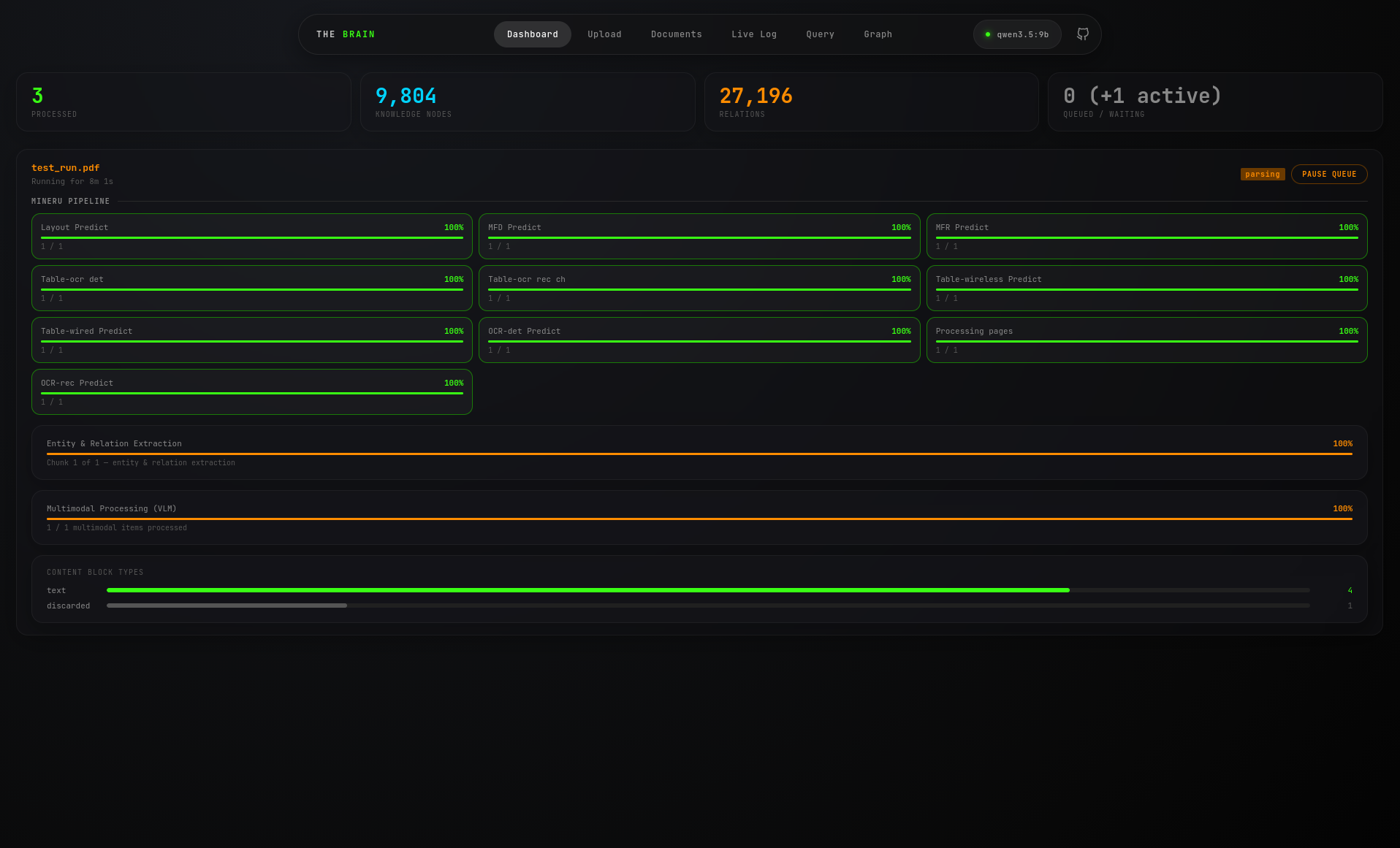
Dashboard
- View global counts of processed documents, total knowledge nodes, and relationships.
- Monitor the granular progress of the currently active document in the queue.
- Track specific pipeline stages, including OCR layout detection (MinerU), LLM entity extraction, and Multimodal/VLM processing.
- Use the "Pause Queue" button to gracefully halt processing after the active document finishes.
Documents
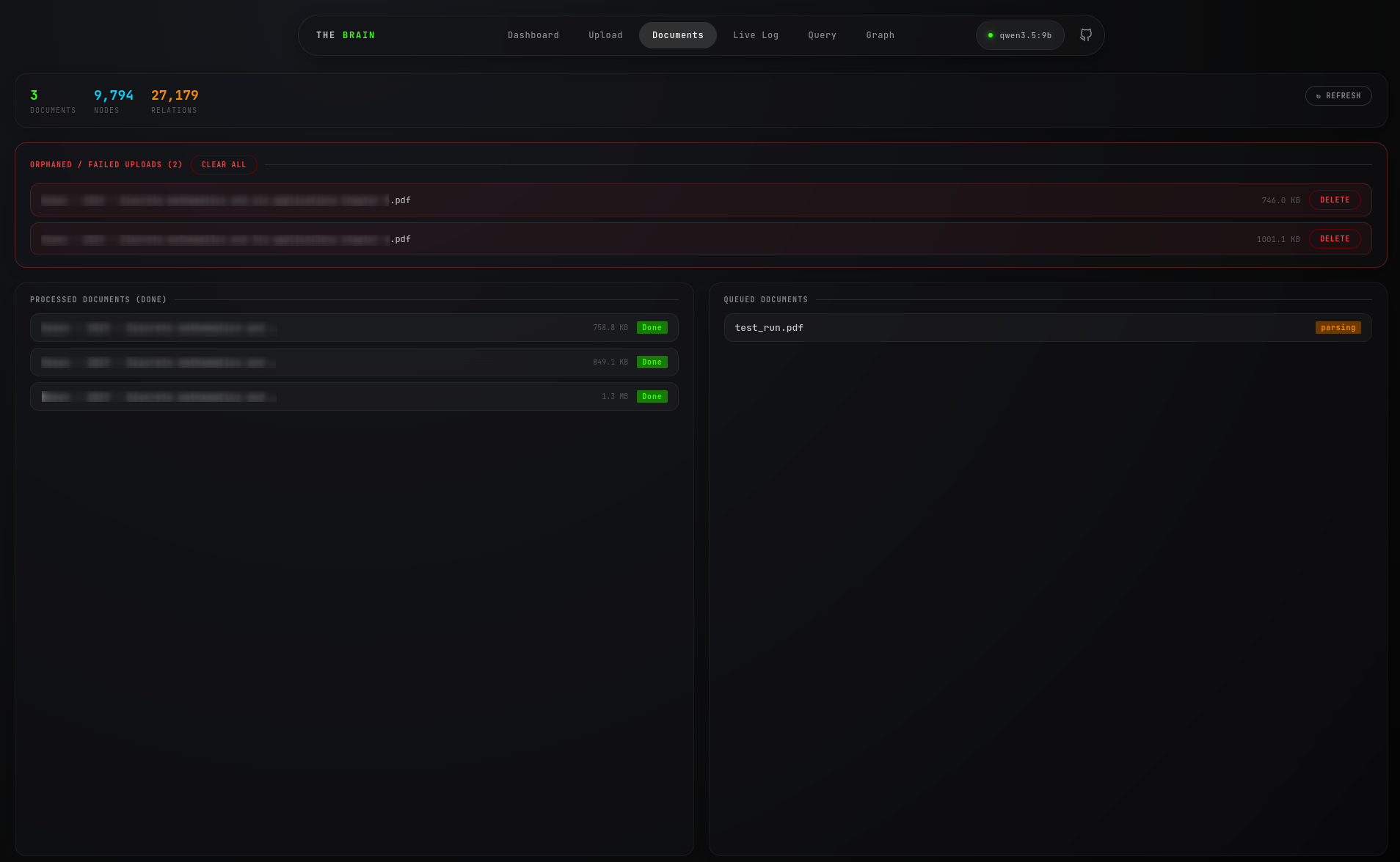
- Review the size and status of successfully processed documents.
- Track the exact state of queued files waiting for extraction.
- Identify orphaned or failed uploads that crashed during processing (e.g., due to API rate limits).
- Use the "Delete" buttons to clear failed attempts from the system storage.
Live Log
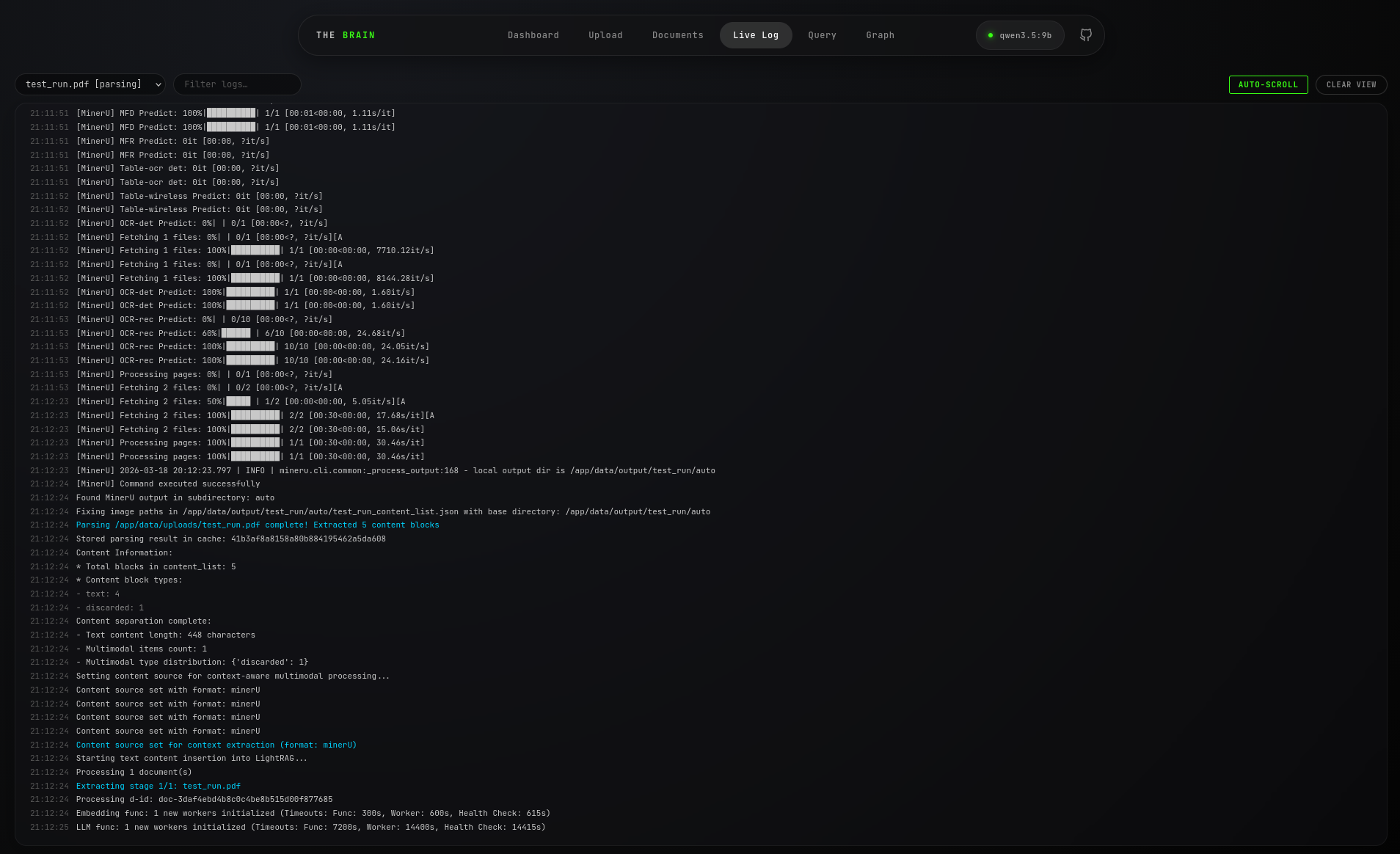
- Select a specific active or historical job from the top-left dropdown to view its processing logs.
- Type in the filter box to isolate specific events (e.g., isolating "error" or "extracting" logs).
- Use the "Auto-Scroll" toggle to follow the live feed, or "Clear View" to reset the terminal output.
Query
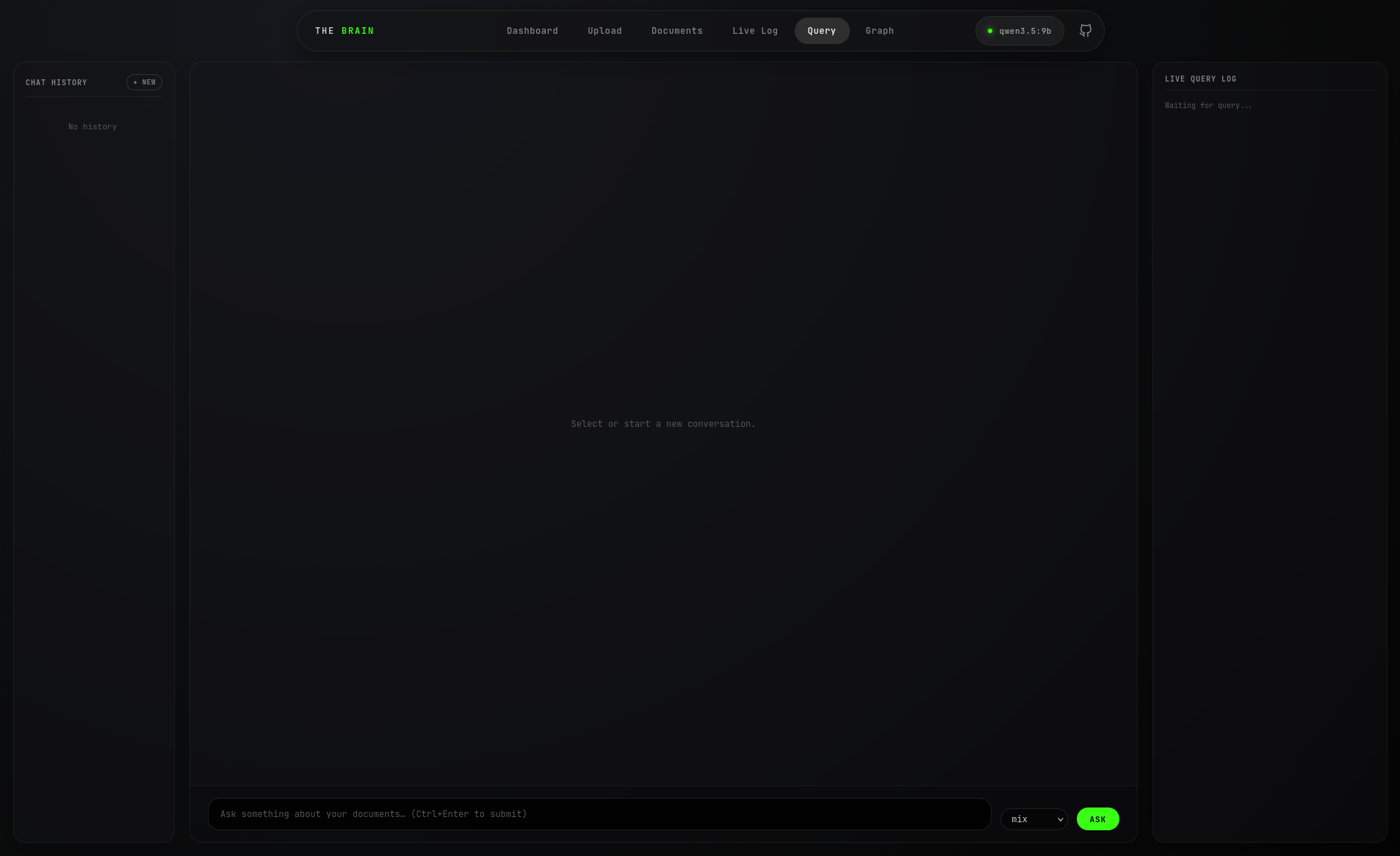
- Submit test queries about your documents in the bottom input field.
- Select the retrieval mode (e.g., "mix") from the dropdown to dictate how the RAG engine traverses the vector and graph databases.
- Access past conversations using the left history sidebar.
- Monitor the right-hand "Live Query Log" sidebar to see which graph entities and chunks the LLM is retrieving to formulate its answer.
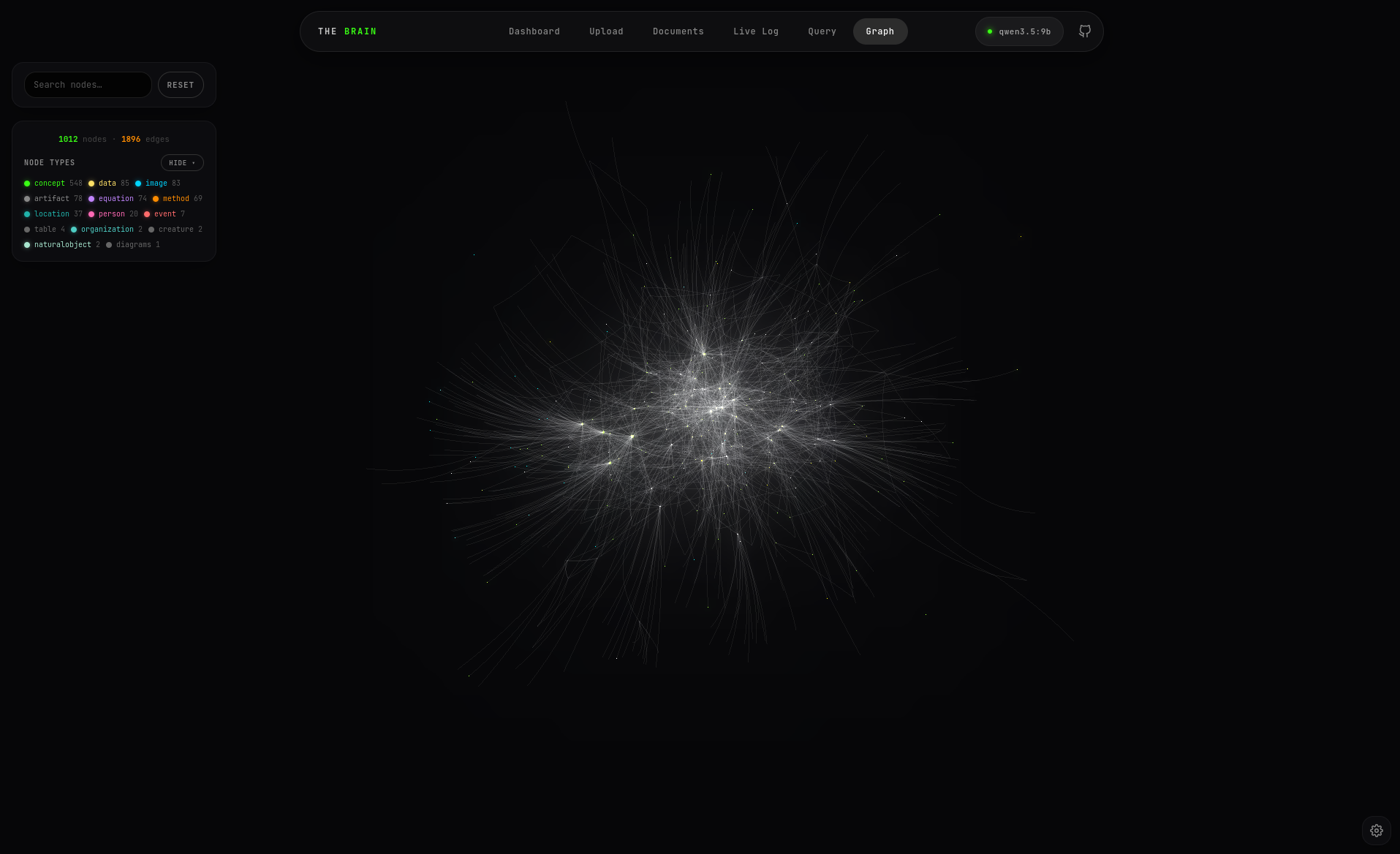
Graph
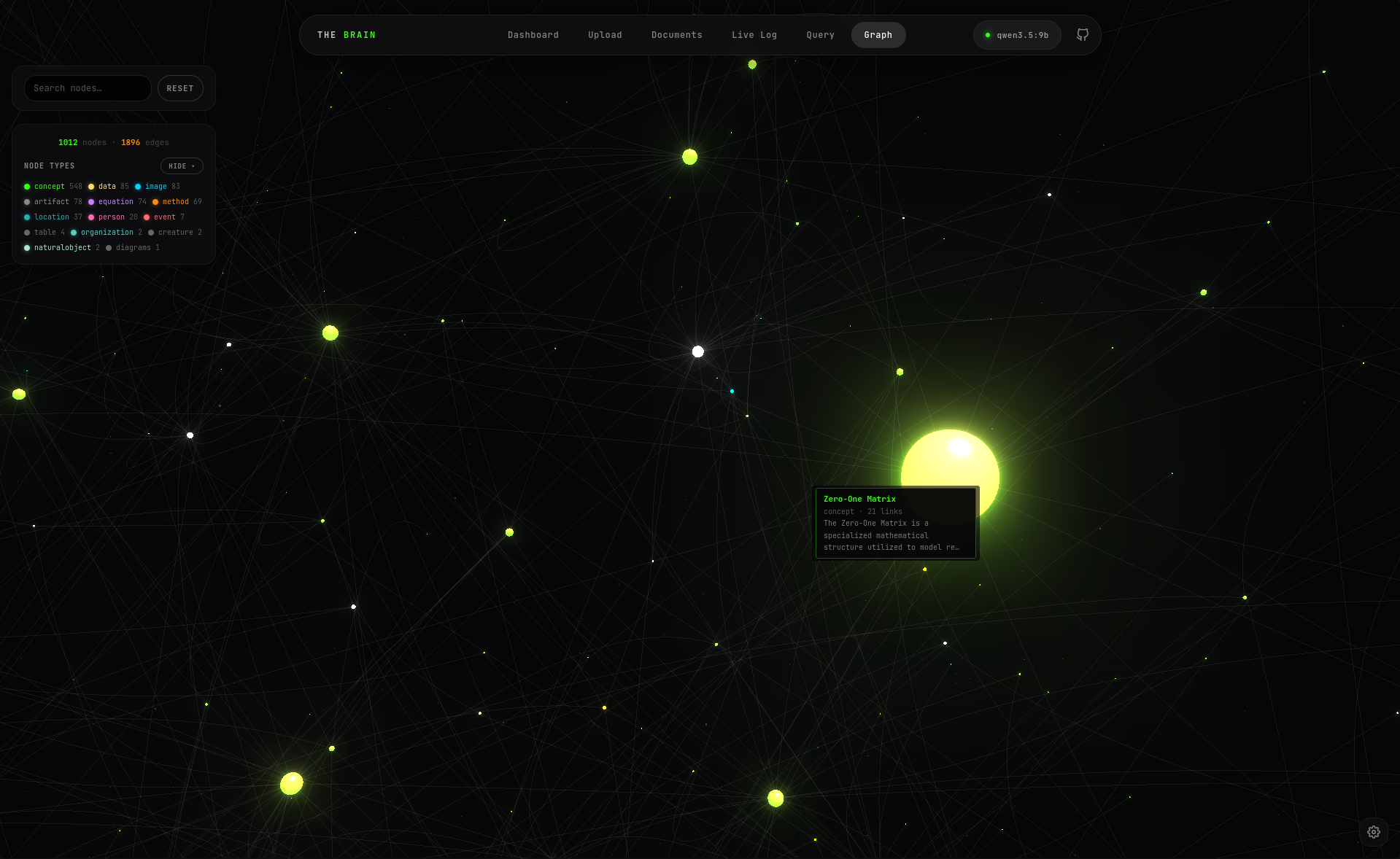
- Click and drag to rotate
- Use the left control panel to search for specific nodes by name.
- Toggle the visibility of specific entity types (e.g., hide "concept" nodes to isolate "image".
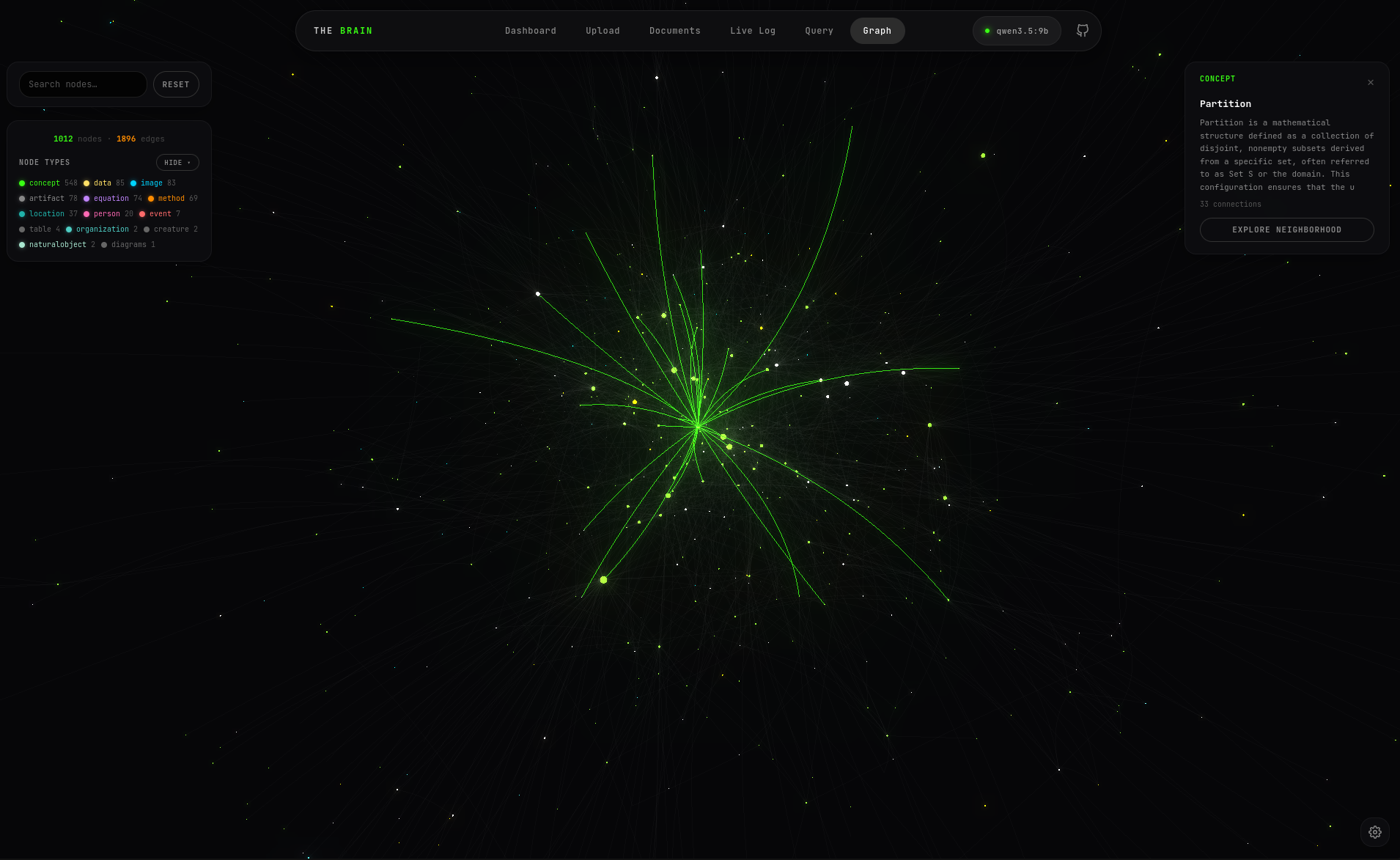
- Click on any node to open the right-hand details panel, which displays its full text description and connection count.
- Click "Explore Neighborhood" to isolate the view to only that node and its direct 1-hop and 2-hop relationships.
Environment Variable Configuration
The application dynamically routes requests based on the provided environment variables.
Acknowledgements
This project relies heavily on the open-source research and engineering from the HKUDS (HKU Data Science Lab) team.


