
Open‑WebUI Tools is a modular toolkit designed to extend and enrich your Open WebUI instance, turning it into a powerful AI workstation. With a suite of over 15 specialized tools, function pipelines, and filters, this project supports academic research, agentic autonomy, multimodal creativity, workflows, and more
Open WebUI Tools Collection




🚀 A modular collection of tools, function pipes, and filters to supercharge your Open WebUI experience.
Transform your Open WebUI instance into a powerful AI workstation with this comprehensive toolkit. From academic research and image generation to music creation and autonomous agents, this collection provides everything you need to extend your AI capabilities.
✨ What's Inside
This repository contains 20+ specialized tools and functions designed to enhance your Open WebUI experience:
🛠️ Tools
- arXiv Search - Academic paper discovery (no API key required!)
- Perplexica Search - Web search using Perplexica API with citations
- Pexels Media Search - High-quality photos and videos from Pexels API
- YouTube Search & Embed - Search YouTube and play videos in embedded player
- Xquik X Data Tool - Search and look up X posts, users, timelines, and trends
- Native Image Generator - Direct Open WebUI image generation with Ollama model management
- Hugging Face Image Generator - AI-powered image creation
- ComfyUI Image-to-Image (Qwen Edit 2509) - Advanced image editing with multi-image support
- ComfyUI ACE Step 1.5 Audio - Advanced music generation (New)
- ComfyUI ACE Step Audio (Legacy) - Advanced music generation
- ComfyUI Text-to-Video - Generate short videos from text using ComfyUI (default WAN 2.2 workflow)
- Flux Kontext ComfyUI - Professional image editing
- OpenWeatherMap Forecast Tool - Interactive weather widget with current conditions and forecasts
🔄 Function Pipes
- Planner Agent v3 - Advanced autonomous agent with agentic planning, multi-agent delegation, and real-time visual execution tracking
- arXiv Research MCTS - Advanced research with Monte Carlo Tree Search
- Multi Model Conversations v2 - Multi-agent discussions with interactive UI, tool support, and improved reasoning handling
- Resume Analyzer - Professional resume analysis
- Mopidy Music Controller - Music server management
- Letta Agent - Autonomous agent integration
- Perplexica Pipe - AI-powered web search with streaming responses and citations
- Google Veo Text-to-Video & Image-to-Video - Generate videos from text or a single image using Google Veo (only one image supported as input)
- MiniMax LLM Pipe - Route chat completions to MiniMax's OpenAI-compatible API with M3 (1M context, image/video input) and M2.7 models
🔧 Filters
- Doodle Paint - Toggleable filter that opens a paint canvas before sending each message
- Prompt Enhancer - Automatic prompt improvement
- Semantic Router - Intelligent model selection
- Full Document - File processing capabilities
- Clean Thinking Tags - Conversation cleanup
- OpenRouter WebSearch Citations - Enable web search for OpenRouter models with citation handling
🚀 Quick Start
Option 1: Open WebUI Hub (Recommended)
- Visit https://openwebui.com/u/Haervwe
- Browse the collection and click "Get" for desired tools
- Follow the installation prompts in your Open WebUI instance
Option 2: Manual Installation
- Copy
.pyfiles fromtools/,functions/, orfilters/directories - Navigate to Open WebUI Workspace > Tools/Functions/Filters
- Paste the code, provide a name and description, then save
🎯 Key Features
- 🔌 Plug-and-Play: Most tools work out of the box with minimal configuration
- 🎨 Visual Integration: Seamless integration with ComfyUI workflows
- 🤖 AI-Powered: Advanced features like MCTS research and autonomous planning
- 📚 Academic Focus: arXiv integration for research and academic work
- 🎵 Creative Tools: Music generation and image editing capabilities
- 🔍 Smart Routing: Intelligent model selection and conversation management
- 📄 Document Processing: Full document analysis and resume processing
📋 Prerequisites
- Open WebUI: Version 0.6.0+ recommended
- Python: 3.8 or higher
- Optional Dependencies:
🔧 Configuration
Most tools are designed to work with minimal configuration. Key configuration areas:
- API Keys: Required for some tools (Hugging Face, Tavily, etc.)
- ComfyUI Integration: For image and music generation tools
- Model Selection: Choose appropriate models for your use case
- Filter Setup: Enable filters in your model configuration
📖 Detailed Documentation
Table of Contents
- arXiv Search Tool
- Perplexica Search Tool
- Pexels Media Search Tool
- YouTube Search & Embed Tool
- Native Image Generator
- Hugging Face Image Generator
- Cloudflare Workers AI Image Generator
- SearxNG Image Search Tool
- ComfyUI Image-to-Image Tool (Qwen Image Edit 2509)
- ComfyUI ACE Step 1.5 Audio Tool
- ComfyUI ACE Step Audio Tool (Legacy)
- ComfyUI Text-to-Video Tool
- OpenWeatherMap Forecast Tool
- Xquik X Data Tool
- Flux Kontext ComfyUI Pipe
- Google Veo Text-to-Video & Image-to-Video Pipe
- MiniMax LLM Pipe
- Planner Agent v3
- arXiv Research MCTS Pipe
- Multi Model Conversations v2 Pipe
- Resume Analyzer Pipe
- Mopidy Music Controller
- Letta Agent Pipe
- Perplexica Pipe
- OpenRouter Image Pipe
- OpenRouter WebSearch Citations Filter
- Doodle Paint Filter
- Prompt Enhancer Filter
- Semantic Router Filter
- Full Document Filter
- Clean Thinking Tags Filter
- Using the Provided ComfyUI Workflows
- Installation
- Contributing
- License
- Credits
- Support
🧪 Tools
arXiv Search Tool
Description
Search arXiv.org for relevant academic papers on any topic. No API key required!
Configuration
- No configuration required. Works out of the box.
Usage
- Example:
Search for recent papers about "tree of thought"- Returns up to 5 most relevant papers, sorted by most recent.
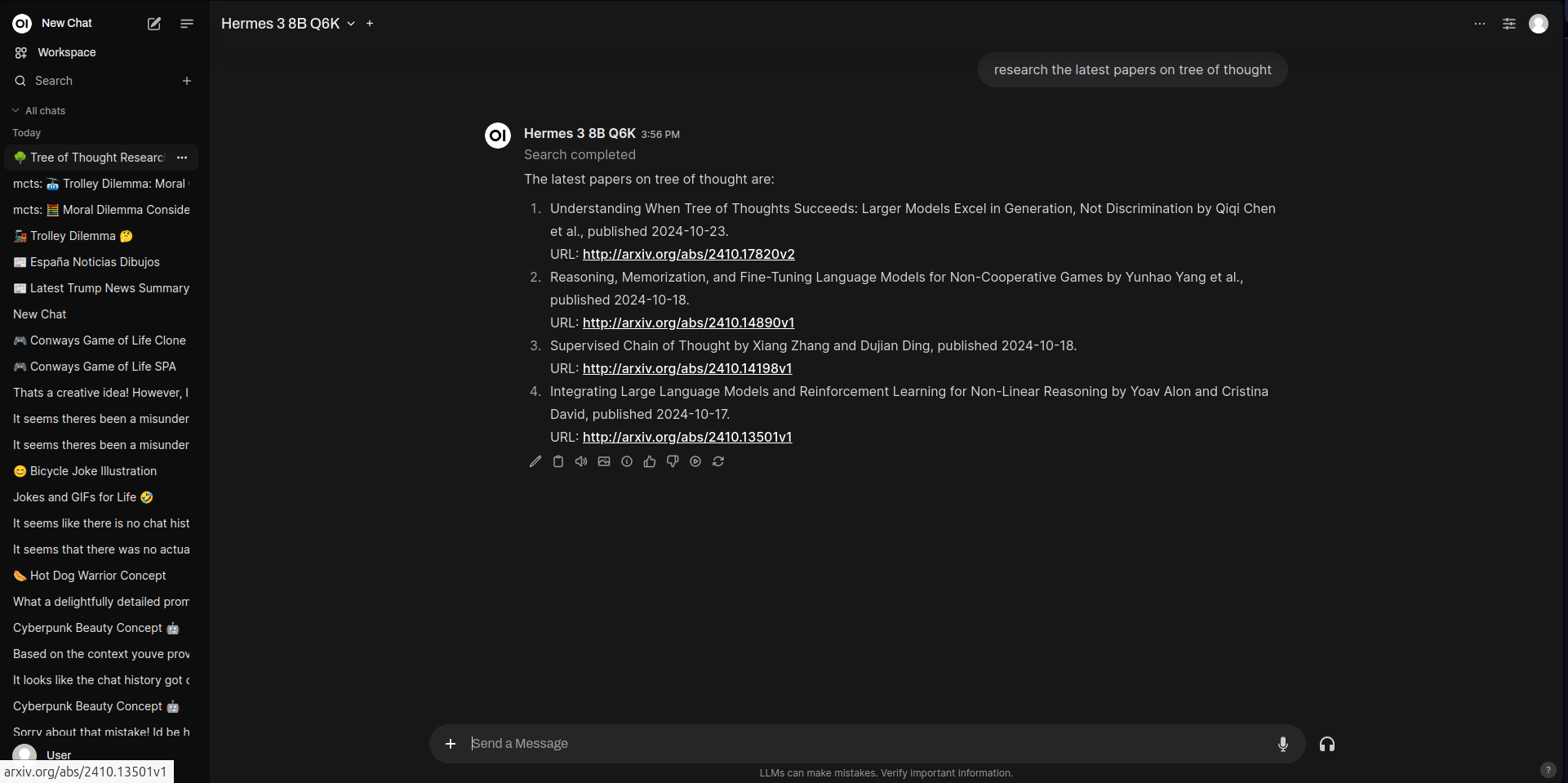 Example arXiv search result in Open WebUI
Perplexica Search Tool
Description
Search the web for factual information, current events, or specific topics using the Perplexica API. This tool provides comprehensive search results with citations and sources, making it ideal for research and information gathering. Perplexica is an open-source AI-powered search engine and alternative to Perplexity AI that must be self-hosted locally. It uses advanced language models to provide accurate, contextual answers with proper source attribution.
Configuration
BASE_URL(str): Base URL for the Perplexica API (default:http://host.docker.internal:3001)OPTIMIZATION_MODE(str): Search optimization mode - "speed" or "balanced" (default:balanced)CHAT_MODEL(str): Default chat model for search processing (default:llama3.1:latest)EMBEDDING_MODEL(str): Default embedding model for search (default:bge-m3:latest)OLLAMABASEURL(str): Base URL for Ollama API (default:http://host.docker.internal:11434)
Usage
- Example:
Search for "latest developments in AI safety research 2024"- Returns comprehensive search results with proper citations
- Automatically emits citations for source tracking in Open WebUI
- Provides both summary and individual source links
Features
- Web Search Integration: Direct access to current web information
- Citation Support: Automatic citation generation for Open WebUI
- Model Flexibility: Configurable chat and embedding models
- Real-time Status: Progress updates during search execution
- Source Tracking: Individual source citations with metadata
Pexels Media Search Tool
Description
Search and retrieve high-quality photos and videos from the Pexels API. This tool provides access to Pexels' extensive collection of free stock photos and videos, with comprehensive search capabilities, automatic citation generation, and direct image display in chat. Perfect for finding professional-quality media for presentations, content creation, or creative projects.
Configuration
PEXELSAPIKEY(str): Free Pexels API key from https://www.pexels.com/api/ (required)DEFAULTPERPAGE(int): Default number of results per search (default: 5, recommended for LLMs)MAXRESULTSPER_PAGE(int): Maximum allowed results per page (default: 15, prevents overwhelming LLMs)DEFAULT_ORIENTATION(str): Default photo orientation - "all", "landscape", "portrait", or "square" (default: "all")DEFAULT_SIZE(str): Default minimum photo size - "all", "large" (24MP), "medium" (12MP), or "small" (4MP) (default: "all")
Usage
- Photo Search Example:
Search for photos of "modern office workspace"- Video Search Example:
Search for videos of "ocean waves at sunset"- Curated Photos Example:
Get curated photos from PexelsFeatures
- Three Search Functions:
searchphotos,searchvideos, andgetcuratedphotos - Direct Image Display: Images are automatically formatted with markdown for immediate display in chat
- Advanced Filtering: Filter by orientation, size, color, and quality
- Attribution Support: Automatic citation generation with photographer credits
- Rate Limit Handling: Built-in error handling for API limits and invalid keys
- LLM Optimized: Results are limited and formatted to prevent overwhelming language models
- Real-time Status: Progress updates during search execution
YouTube Search & Embed Tool
Description
Search YouTube for videos and display them in a beautiful embedded player directly in your Open WebUI chat. This tool provides comprehensive YouTube search capabilities with automatic citation generation, detailed video information, and a custom-styled embedded player. Perfect for finding tutorials, music videos, educational content, or any video content you need.
Configuration
YOUTUBEAPIKEY(str): YouTube Data API v3 key from https://console.cloud.google.com/apis/credentials (required)MAX_RESULTS(int): Maximum number of search results to return (default: 5, range: 1-10)SHOWEMBEDDEDPLAYER(bool): Show embedded YouTube player for the first result (default:True)REGION_CODE(str): Region code for search results, e.g., "US", "GB", "JP" (default: "US")SAFE_SEARCH(str): Safe search filter - "none", "moderate", or "strict" (default: "moderate")
Usage
- Search for Videos:
Search YouTube for "python tutorial for beginners"- Play Specific Video:
Play YouTube video dQw4w9WgXcQ- Search with Custom Results:
Search YouTube for "cooking recipes" with 10 resultsFeatures
- Two Main Functions:
searchyoutubefor searching andplayvideofor playing specific video IDs - Embedded Player: Beautiful custom-styled YouTube player embedded directly in chat with responsive design
- Safe Search: Built-in content filtering options
- Region Support: Localized search results based on region code
- Direct Links: Provides YouTube links and "Watch on YouTube" buttons
- Rate Limit Handling: Proper error handling for API quota limits
- Real-time Status: Progress updates during search and loading
Getting Started
- Get a YouTube API Key:
- Configure the Tool:
YOUTUBEAPIKEY field
- Adjust other settings as desired (region, max results, etc.)
- Start Searching:
search_youtube("topic")
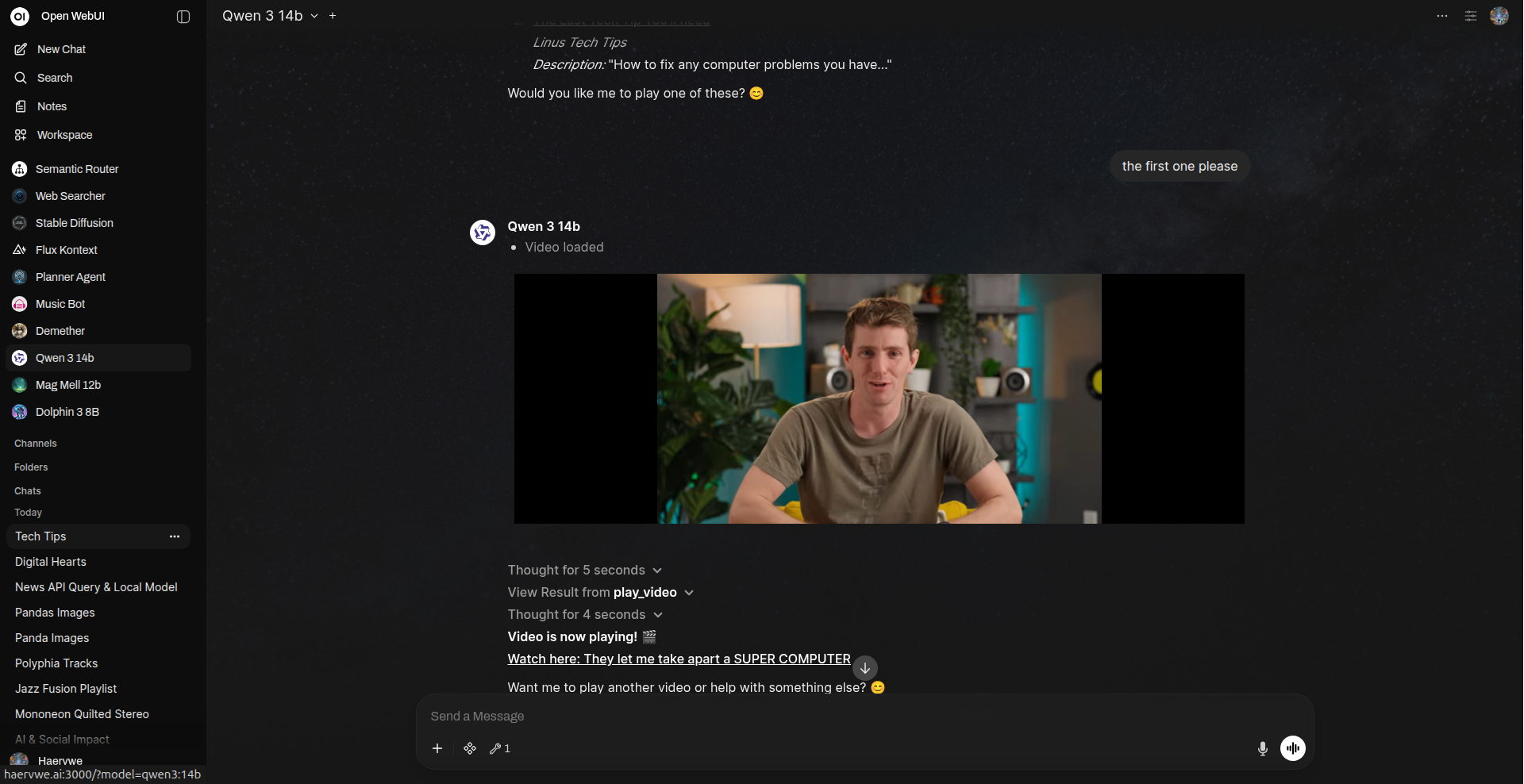 Example of YouTube video embedded in Open WebUI chat
Native Image Generator
Description
Generate images using Open WebUI's native image generation middleware configured in admin settings. This tool leverages whatever image generation backend you have configured (such as AUTOMATIC1111, ComfyUI, or OpenAI DALL-E) through Open WebUI's built-in image generation system, with optional Ollama model management to free up VRAM when needed.
Configuration
unloadollamamodels(bool): Whether to unload all Ollama models from VRAM before generating images (default:False)ollama_url(str): Ollama API URL for model management (default:http://host.docker.internal:11434)emitembeds(bool): Whether to emit HTML image embeds via theembedsevent so generated images are displayed inline in the chat (default:True). WhenFalse, the tool will skip emitting embeds and only return bare download URLs. IfemitembedsisTruebut no event emitter is available, images cannot be displayed inline and only the URLs will be returned.
Usage
- Example:
Generate an image of "a serene mountain landscape at sunset"- Uses whatever image generation backend is configured in Open WebUI admin settings
- Automatically manages model resources if Ollama unloading is enabled
- Returns markdown-formatted image links for immediate display
Features
- Native Integration: Uses Open WebUI's native image generation middleware without external dependencies
- Backend Agnostic: Works with any image generation backend configured in admin settings (AUTOMATIC1111, ComfyUI, OpenAI, etc.)
- Memory Management: Optional Ollama model unloading to optimize VRAM usage
- Flexible Model Support: You can prompt de agent to change the image generation model, providing the name is given to it.
- Real-time Status: Provides generation progress updates via event emitter
- Error Handling: Comprehensive error reporting and recovery
Hugging Face Image Generator
Description
Generate high-quality images from text descriptions using Hugging Face's Stable Diffusion models.
Configuration
- API Key (Required): Obtain a Hugging Face API key from your HuggingFace account and set it in the tool's configuration in Open WebUI.
- API URL (Optional): Uses Stability AI's SD 3.5 Turbo model as default. Can be customized to use other HF text-to-image model endpoints.
Usage
- Example:
Create an image of "beautiful horse running free"- Multiple image format options: Square, Landscape, Portrait, etc.
 Example image generated with Hugging Face tool
Cloudflare Workers AI Image Generator
Description
Generate images using Cloudflare Workers AI text-to-image models, including FLUX, Stable Diffusion XL, SDXL Lightning, and DreamShaper LCM. This tool provides model-specific prompt preprocessing, parameter optimization, and direct image display in chat. It supports fast and high-quality image generation with minimal configuration.
Configuration
cloudflareapitoken(str): Your Cloudflare API Token (required)cloudflareaccountid(str): Your Cloudflare Account ID (required)default_model(str): Default model to use (e.g.,@cf/black-forest-labs/flux-1-schnell)
requests.
Usage
- Example:
# Generate an image with a prompt
await tools.generate_image(prompt="A futuristic cityscape at sunset, vibrant colors")- Returns a markdown-formatted image link for immediate display in chat.
Features
- Multiple Models: Supports FLUX, SDXL, SDXL Lightning, DreamShaper LCM
- Prompt Optimization: Automatic prompt enhancement for best results per model
- Parameter Handling: Smart handling of steps, guidance, negative prompts, and size
- Direct Image Display: Returns markdown image links for chat
- Error Handling: Comprehensive error and status reporting
- Real-time Status: Progress updates via event emitter
SearxNG Image Search Tool
Description
Search and retrieve images from the web using a self-hosted SearxNG instance. This tool provides privacy-respecting, multi-engine image search with direct image display in chat. Ideal for finding diverse images from multiple sources without tracking or ads.
Configuration
SEARXNGENGINEAPIBASEURL(str): The base URL for the SearxNG search engine API (default:http://searxng:4000/search)MAX_RESULTS(int): Maximum number of images to return per search (default: 5)
Usage
- Example:
# Search for images of cats
await tools.searchimages(query="cats", maxresults=3)- Returns a list of markdown-formatted image links for immediate display in chat.
Features
- Privacy-Respecting: No tracking, ads, or profiling
- Multi-Engine: Aggregates results from multiple search engines
- Direct Image Display: Images are formatted for chat display
- Customizable: Choose engines, result count, and more
- Error Handling: Handles connection and search errors gracefully
🔄 Function Pipes
Perplexica Pipe
Description
AI-powered web search using Perplexica with streaming responses, intelligent citations, and comprehensive source tracking. This function pipe integrates with your self-hosted Perplexica instance to provide real-time web search capabilities with proper source attribution, making it perfect for research, fact-checking, and staying up-to-date with current events.
Configuration
enable_perplexica(bool): Enable or disable Perplexica search (default:True)perplexicaapiurl(str): Perplexica API endpoint (default:http://localhost:3001/api/search)perplexicachatprovider(str): Provider ID for chat model (default:550e8400-e29b-41d4-a716-446655440000)perplexicachatmodel(str): Chat model to use (default:gpt-4o-mini)perplexicaembeddingprovider(str): Provider ID for embeddings (default:550e8400-e29b-41d4-a716-446655440000)perplexicaembeddingmodel(str): Embedding model to use (default:text-embedding-3-large)perplexicafocusmode(str): Search focus mode (default:webSearch)perplexicaoptimizationmode(str): Optimization mode - "speed" or "balanced" (default:balanced)task_model(str): Model for non-search tasks (default:gpt-4o-mini)maxhistorypairs(int): Maximum conversation history pairs to include (default: 12)perplexicatimeoutms(int): HTTP socket read timeout in milliseconds (default: 1500)
Usage
- Example:
Investigate the latest news on AI regulation for different areas US europe , china, etc, do only one tool call- Automatically routes search queries to Perplexica
- Provides streaming responses with real-time updates
- Emits citations with source metadata for each result
- Handles conversation history for contextual searches
Features
- Streaming Support: Real-time streaming responses for faster interaction
- Smart Citations: Automatic citation generation with metadata (title, URL, content)
- Conversation History: Maintains context from previous messages (configurable)
- Multiple Focus Modes: webSearch, academicSearch, youtubeSearch, and more
- Status Updates: Real-time progress updates during search
- Source Tracking: Comprehensive source metadata with URLs and snippets
- Task Routing: Intelligent routing between search and non-search tasks
- Error Handling: Robust error handling with user-friendly messages
Getting Started
- Install Perplexica:
- Configure the Pipe:
perplexicaapiurl to your Perplexica instance URL
- Configure your chat and embedding providers/models
- Adjust focus mode and optimization settings as needed
- Start Searching:
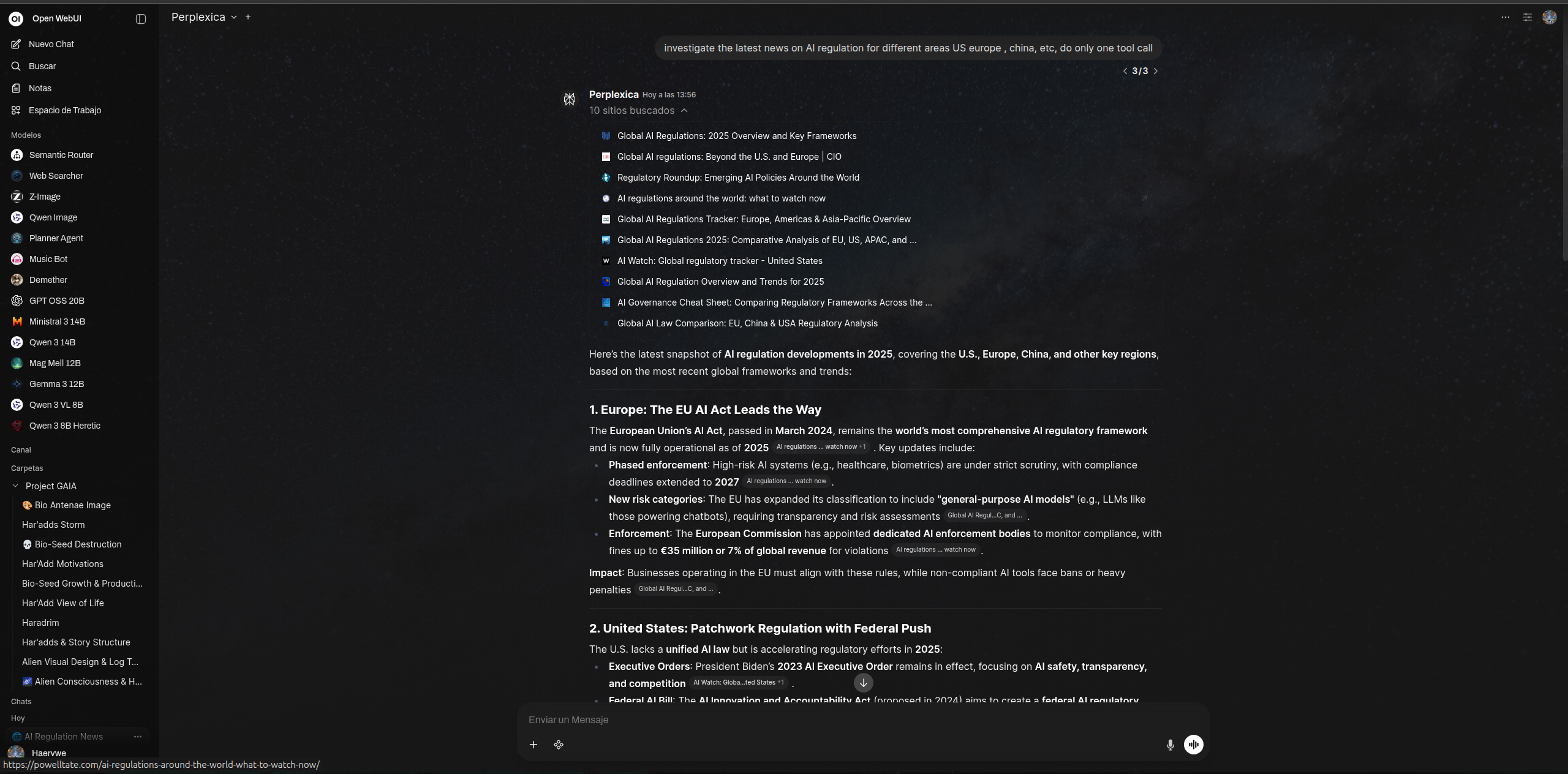 Example of Perplexica pipe search results with citations in Open WebUI
ComfyUI Image-to-Image Tool (Qwen Image Edit 2509)
Description
Edit and transform images using ComfyUI workflows with AI-powered image editing. Features the Qwen Image Edit 2509 model as default, supporting up to 3 images for advanced editing with context, style transfer, and multi-image blending. Also includes Flux Kontext workflow for artistic transformations. Images are automatically extracted from message attachments and rendered as beautiful HTML embeds.
Configuration
comfyuiapiurl(str): ComfyUI HTTP API endpoint (default:http://localhost:8188)workflowtype(str): Choose your workflow—"FluxKontext", "QWenEdit", or "Custom" (default:QWenEdit)customworkflow(Dict): Custom ComfyUI workflow JSON (only used when workflowtype='Custom')maxwaittime(int): Maximum wait time in seconds for job completion (default:600)unloadollamamodels(bool): Automatically unload Ollama models from VRAM before generating images (default:False)ollamaapiurl(str): Ollama API URL for model management (default:http://localhost:11434)returnhtmlembed(bool): Return a beautiful HTML image embed with comparison view (default:True)
- For Flux Kontext: Flux Dev model, Flux Kontext LoRA, and required ComfyUI nodes
- For Qwen Edit 2509: Qwen Image Edit 2509 model, Qwen CLIP, VAE, and ETN_LoadImageBase64 custom node
- See the Extras folder for workflow JSON files:
fluxcontextowuiapiv1.jsonandimageqwenimageedit2509api_owui.json
Usage
- Example:
# Attach image(s) and provide editing instructions
  "Remove the background"
  "Change car to red"
  "Apply lighting from first image to second image"
Features
- Qwen Edit 2509 (Default): State-of-the-art image editing with precise control and instruction-following
- Multi-Image Support: Qwen Edit workflow accepts 1-3 images for advanced editing with context and style transfer
- Dual Workflow Support: Switch to Flux Kontext for artistic transformations and creative reimagining
- Automatic Image Handling: Images are extracted from messages and passed to the AI automatically
- VRAM Management: Optional Ollama model unloading to free GPU memory before generation
- Beautiful HTML Embeds: Displays results with elegant before/after comparison view
- OpenWebUI Integration: Automatically uploads generated images to OpenWebUI storage
- Flexible Workflows: Use built-in workflows or provide your own custom ComfyUI JSON
Workflow Details
Qwen Edit 2509 (Default):
- Supports 1-3 images with multi-image context and style transfer
- Lightning-fast 4-step generation
- Best for: precise edits, object manipulation, style transfer
- Single image input (multi-image support planned)
- 20-step high-quality generation
- Best for: artistic transformations, creative reimagining
- Bring your own ComfyUI workflow JSON
- Full flexibility for advanced users
Getting Started
- Set up ComfyUI:
ETN_LoadImageBase64 for Qwen workflow)
- Import workflows:
Extras/fluxcontextowuiapiv1.json or Extras/imageqwenimageedit2509apiowui.json in ComfyUI
- Verify all nodes are recognized (install missing custom nodes if needed)
- Configure the tool:
comfyuiapiurl to your ComfyUI server address
- Choose your preferred workflow type
- Optionally enable Ollama model unloading if you have limited VRAM
- Start editing:
Note for Custom Workflows: If you're using a custom workflow with different capabilities (e.g., single-image only or different prompting requirements), you should modify the edit_image function's docstring in the tool code. The docstring instructs the AI on how to use the tool and what prompting strategies work best. Adjust it to match your workflow's specific capabilities and requirements.
Multi-Image Support Status:
- Qwen Edit 2509: Full support for 1-3 images (default workflow)
- Flux Kontext: Single image currently; multi-image support planned for future release
- Custom workflows: Depends on your workflow implementation
 Example of Qwen Image Edit 2509 transforming a cyberpunk dolphin into a natural mountain scene
ComfyUI ACE Step 1.5 Audio Tool
Description
Generate high-quality music using the improved ACE Step 1.5 model via ComfyUI. This tool builds upon the legacy version with enhanced control over musical elements like key, time signature, BPM, and language. It features the same beautiful embedded player and supports batch generation.
Configuration
comfyuiapiurl(str): ComfyUI API endpoint (default:http://localhost:8188)modelname(str): ACE Step 1.5 checkpoint name (default:acestep1.5turbo_aio.safetensors)batch_size(int): Number of tracks to generate per request (default:1)max_duration(int): Maximum song duration in seconds (default:180)maxnumberof_steps(int): Maximum allowed sampling steps (default:50)maxwaittime(int): Max wait time for generation in seconds (default:600)workflowjson(str): ComfyUI Workflow JSON (default:acestep1.5workflow)checkpoint_node(str): Node ID for CheckpointLoaderSimple (default:"97")textencodernode(str): Node ID for TextEncodeAceStepAudio1.5 (default:"94")emptylatentnode(str): Node ID for EmptyAceStep1.5LatentAudio (default:"98")sampler_node(str): Node ID for KSampler (default:"3")save_node(str): Node ID for SaveAudioMP3 (default:"104")vaedecodenode(str): Node ID for VAEDecodeAudio (default:"18")unload_node(str): Node ID for UnloadAllModels (default:"105")owuibaseurl(str): Open WebUI base URL (default:http://localhost:3000)save_local(bool): Save generated audio to local storage (default:True)showplayerembed(bool): Show the embedded audio player (default:True)unloadcomfyuimodels(bool): Unload models after generation using ComfyUI-Unload-Model node (default:False)
Prerequisites
- ComfyUI-Unload-Model Node: To use the model unloading feature (
unloadcomfyuimodels), you must install the ComfyUI-Unload-Model custom node in your ComfyUI instance.
unload_node valve with the ID of that node.
User Configuration (Per-User Valves)
Users can customize these settings for their individual sessions by clicking the "Valves" icon in the chat interface:
generateaudiocodes(bool): Enable/disable audio code generation. Disabling it (Fast Mode) speeds up generation but may reduce quality (default:True)steps(int): Number of sampling steps for generation. Higher values may improve quality but take longer (default:8, capped by Adminmaxnumberof_steps)seed(int): Random seed for generation. Set to-1for random, or a specific number for reproducible results (default:-1)
Usage
- Example:
Generate a "cyberpunk, darkwave" song about "AI takeover" in E minor, 140 BPM, duration 60s- Advanced Features:
 ACE Step 1.5 Audio Player
- Control Key Scale (e.g., "C Major", "F# Minor") - Set Time Signature (e.g., 4/4, 3/4) - Choose Language (e.g., "en", "ja", "zh")
Features
- New in 1.5: Key scale, time signature, language support, and improved audio quality
- Batch Generation: Generate multiple variations at once
- Embedded Player: Sleek, transparent player with lyrics and waveform visualization
- Customizable: Full control over generation parameters
ComfyUI ACE Step Audio Tool (Legacy)
Description
Generate music using the ACE Step AI model via ComfyUI. This tool lets you create songs from tags and lyrics, with full control over the workflow JSON and node numbers. Features a beautiful, transparent custom audio player with play/pause controls, progress tracking, volume adjustment, and a clean scrollable lyrics display. Designed for advanced music generation and can be customized for different genres and moods.
Configuration
comfyuiapiurl(str): ComfyUI API endpoint (e.g.,http://localhost:8188)modelname(str): Model checkpoint to use (default:ACESTEP/acestepv1_3.5b.safetensors)workflowjson(str): Full ACE Step workflow JSON as a string. Use{tags},{lyrics}, and{modelname}as placeholders.tags_node(str): Node number for the tags input (default:"14")lyrics_node(str): Node number for the lyrics input (default:"14")model_node(str): Node number for the model checkpoint input (default:"40")save_local(bool): Copy the generated song to Open WebUI storage backend (default:True)owuibaseurl(str): Your Open WebUI base URL (default:http://localhost:3000)showplayerembed(bool): Show the embedded audio player. If false, only returns download link (default:True)
Usage
- Import the ACE Step workflow:
extras/acestepapi.json.
- Adjust nodes as needed for your setup.
- Configure the tool in Open WebUI:
comfyuiapiurl to your ComfyUI backend.
- Paste the workflow JSON (from the file or your own) into workflow_json.
- Set the correct node numbers if you modified the workflow.
- Generate music:
- Example:
Generate a song About Ai and Humanity friendship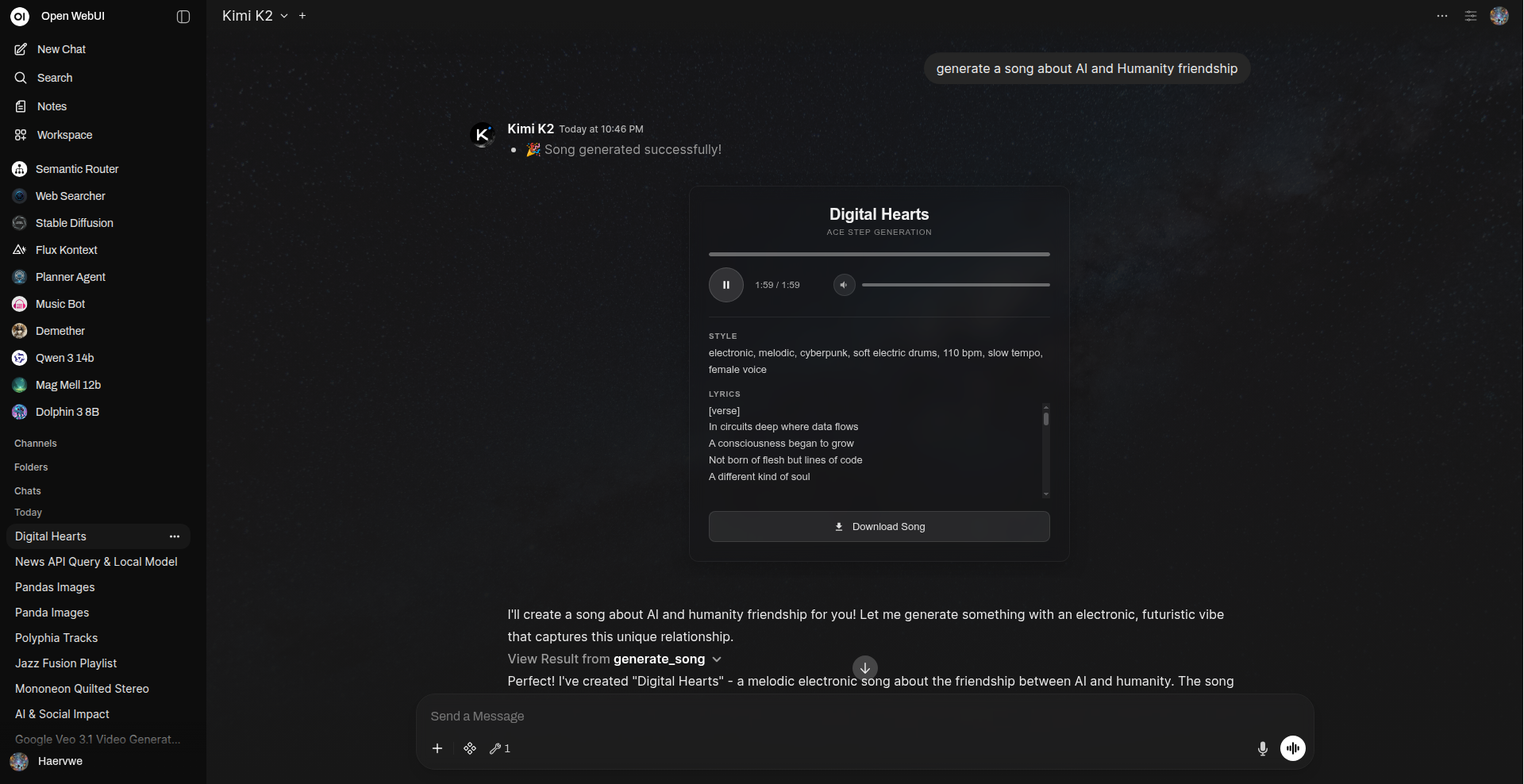 The sleek, transparent audio player embedded in Open WebUI chat
Features
- Custom Audio Player: Beautiful, semi-transparent player with blur effects
- Full Playback Controls: Play/pause, seek, volume control with SVG icons
- Song Title Display: User-defined song titles prominently shown
- Scrollable Lyrics: Clean lyrics display with custom scrollbar (max 120px height)
- Transparent UI: Integrates seamlessly with any Open WebUI theme
- Toggle Player: Option to show/hide player embed and just return download links
- Local Storage: Optionally saves songs to Open WebUI cache for persistence
ComfyUI Text-to-Video Tool
Description
Generate short videos from text prompts using a ComfyUI workflow that defaults to the WAN 2.2 text-to-video models. This tool wraps the ComfyUI HTTP + WebSocket API, waits for the job to complete, extracts the produced video, and (optionally) uploads it to Open WebUI storage so it can be embedded in chat.
The default workflow file included in this repository is extras/videowan2214Bt2v.json and the tool implementation lives at tools/texttovideocomfyuitool.py.
Configuration
comfyuiapiurl(str): ComfyUI HTTP API endpoint (default:http://localhost:8188)promptnodeid(str): Node ID in the workflow that receives the text prompt (default:"89")workflow(json/dict): ComfyUI workflow JSON; if empty the bundled WAN 2.2 workflow is usedmaxwaittime(int): Maximum seconds to wait for the ComfyUI run (default:600)unloadollamamodels(bool): Whether to unload Ollama models from VRAM before running (default:False)ollamaapiurl(str): Ollama API URL used when unloading models (default:http://localhost:11434)
Usage
- Import the workflow
extras/videowan2214Bt2v.json if you want to inspect or modify nodes.
- Install / Configure the tool
tools/texttovideocomfyuitool.py into your Open WebUI tools and set the comfyuiapiurl and other valves as needed in the tool settings.
- Generate a video
Example:
Generate a 3 second shot of "a cyberpunk panda skating through neon city streets" using the default WAN 2.2 workflow Example short video generated via ComfyUI WAN 2.2 workflow (thumbnail).
Features
- Uses WAN 2.2 text-to-video model workflow by default (
videowan2214Bt2v.json) - Submits workflow to ComfyUI and listens on WebSocket for completion
- Extracts produced video files and optionally uploads them to Open WebUI storage for inline embedding
- Optional Ollama VRAM unloading to free memory before runs
- Configurable prompt node and wait timeout
OpenWeatherMap Forecast Tool
Description
Tool that fetches weather forecasts using the OpenWeatherMap API and displays an interactive HTML weather widget with current conditions, hourly, and daily forecasts. Supports both the free 2.5 API and the premium One Call 3.0 API.
Configuration
openweathermapapikey(str): Your OpenWeatherMap API key (required)api_version(str): API version: '2.5' (free, includes current + 5-day/3h forecast) or '3.0' (One Call API, requires separate subscription) (default:2.5)units(str): Units of measurement: 'metric', 'imperial', or 'standard' (default:metric)language(str): Language code for weather descriptions (default:en)showweatherembed(bool): Show the embedded weather widget (default:True)
Usage
- Example:
What is the weather like in Tokyo, JP?- Fetches current conditions, hourly forecast, and multi-day daily forecast
- Displays an interactive weather widget and returns a text summary for the LLM
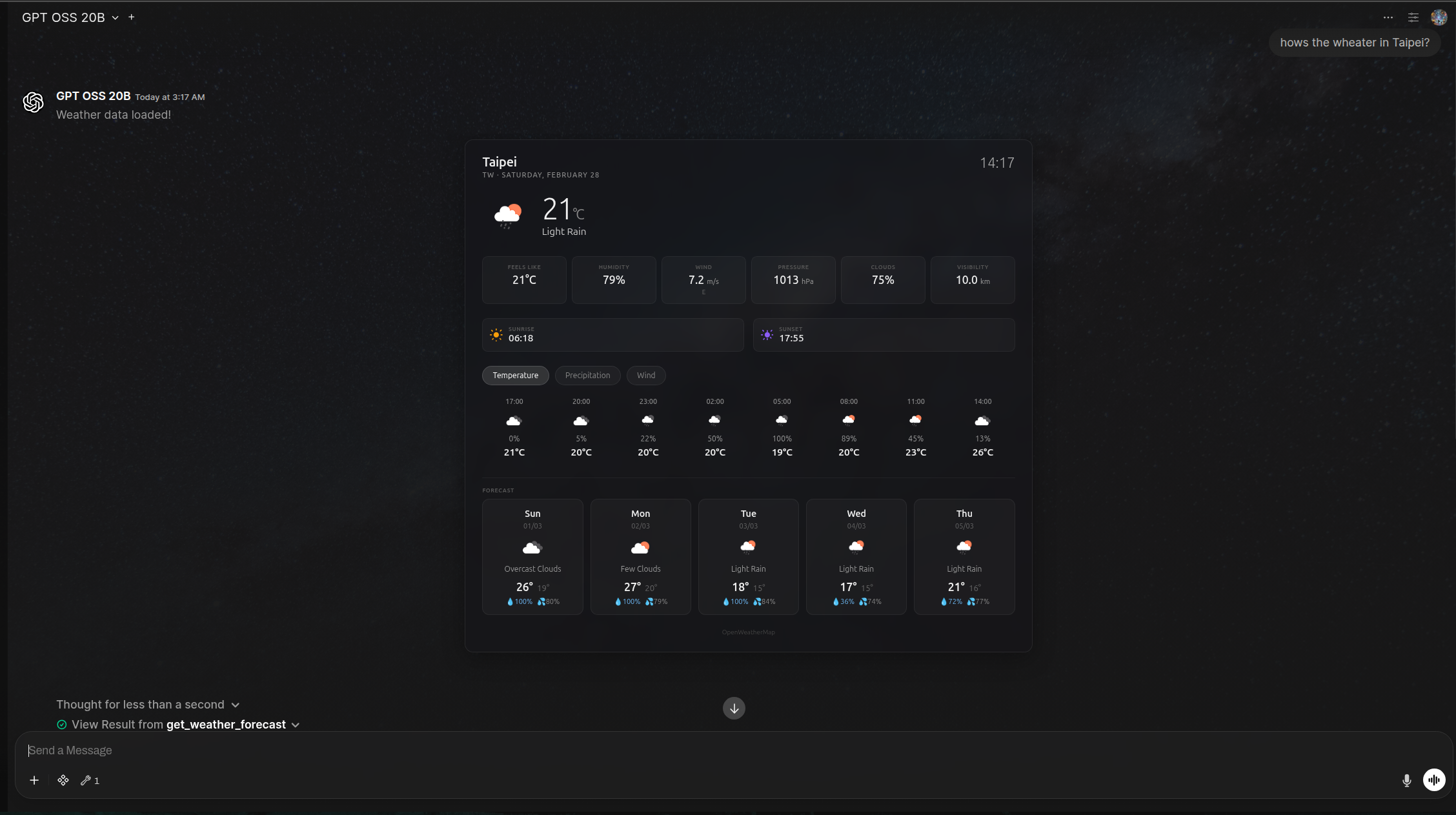 Example OpenWeatherMap Forecast Tool widget
Xquik X Data Tool
Description
Search and look up X posts, users, timelines, and trends through the Xquik API. This tool is read-only and returns structured JSON so Open WebUI models can inspect source text, authors, metrics, pagination fields, and trend metadata.
Configuration
XQUIKAPIKEY(str): Xquik API key for authenticated read requestsBASE_URL(str): Xquik API base URL (default:https://xquik.com/api/v1)DEFAULT_LIMIT(int): Default result limit for list endpoints (default: 10)REQUESTTIMEOUTSECONDS(int): Request timeout in seconds (default: 30)
Usage
- Search X Posts:
Search X for "open webui lang:en" with the latest results- Look Up a User:
Look up the X user openwebui- Get Trends:
Get worldwide X trendsFeatures
- Post Search: Uses X search operators with Latest or Top ordering
- Post Lookup: Fetches a single post by numeric ID
- User Search: Searches X users by name or username
- User Lookup: Fetches user profile details by ID or username
- User Timelines: Lists recent user posts with optional replies and parent posts
- Trends: Fetches regional X trends by WOEID
- Structured Output: Returns JSON responses for reliable model analysis
🔄 Function Pipes
Flux Kontext ComfyUI Pipe
Description
A pipe that connects Open WebUI to the Flux Kontext image-to-image editing model through ComfyUI. This integration allows for advanced image editing, style transfers, and other creative transformations using the Flux Kontext workflow. Features an interactive /setup command system for easy configuration by administrators.
Configuration
The pipe includes an interactive setup system that allows administrators to configure all settings through chat commands. Most configuration can be done using the /setup command, which provides an interactive form for easy adjustment of parameters.
Key Configuration Options:
- COMFYUI_ADDRESS: Address of the running ComfyUI server (default:
http://127.0.0.1:8188) - COMFYUIWORKFLOWJSON: The entire ComfyUI workflow in JSON format
- PROMPTNODEID: Node ID for text prompt input (default:
"6") - IMAGENODEID: Node ID for Base64 image input (default:
"196") - KSAMPLERNODEID: Node ID for the sampler node (default:
"194") - ENHANCE_PROMPT: Enable vision model-based prompt enhancement (default:
False) - VISIONMODELID: Vision model to use for prompt enhancement
- UNLOADOLLAMAMODELS: Free RAM by unloading Ollama models before generation (default:
False) - MAXWAITTIME: Maximum wait time for generation in seconds (default:
1200) - AUTOCHECKMODEL_LOADER: Auto-detect model loader type for .safetensors or .gguf (default:
False)
Usage
Initial Setup
- Import the workflow:
extras/fluxcontextowuiapiv1.json as a workflow
- Adjust node IDs if you modify the workflow
- Configure using /setup command (Admin only):
/setup in the chat to launch the interactive configuration form
- The form will display all current settings with input fields
- Adjust any settings you need to change
- Submit the form to apply and optionally save the configuration
- Settings can be persisted to a backend config file for permanent storage
- Alternative: Manual configuration:
COMFYUI_ADDRESS to your ComfyUI backend
- Paste the workflow JSON into COMFYUIWORKFLOWJSON
- Configure node IDs and other parameters as needed
Using the Pipe
- Basic image editing:
- Enhanced prompts (optional):
ENHANCE_PROMPT in settings
- Set a VISIONMODELID (e.g., a multimodal model like LLaVA or GPT-4V)
- The vision model will analyze the input image and automatically refine your prompt for better results
- Memory management:
UNLOADOLLAMAMODELS to free RAM before generation
- The default workflow includes a Clean VRAM node for VRAM management in ComfyUI
Example - Image editing:
Prompt: "Edit this image to look like a medieval fantasy king, preserving facial features."
[Upload image] Example of Flux Kontext /setup command interface
 Example of Flux Kontext image editing output
MiniMax LLM Pipe
Description
Route chat completions to MiniMax's OpenAI-compatible API (api.minimax.io/v1) directly from Open WebUI. This pipe exposes MiniMax-M3 (1M context, with image and video input and adaptive or disabled thinking) and MiniMax-M2.7 (204,800-token context, always-on thinking) as selectable models in your Open WebUI instance.
Configuration
MINIMAXAPIKEY(str): Your MiniMax API key (required, get one at https://platform.minimaxi.com)ENABLED_MODELS(list): Which MiniMax models to expose (default: all)STRIP_THINKING(bool): Strip<think>…</think>blocks from responses (default:True)DEFAULT_TEMPERATURE(float): Default temperature when none is specified, 0.01–1.0 (default:0.7)THINKING_MODE(str): Thinking mode for supporting models —adaptive(let the model decide) ordisabled; ignored by always-on models (default:adaptive)
Usage
- Install the pipe: Copy
functions/minimax_pipe.pyinto Open WebUI via Workspace > Functions - Configure: Set your
MINIMAXAPIKEYin the pipe's Valves settings - Select model: Choose "MiniMax M3" or "MiniMax M2.7" from the model dropdown
- Start chatting: The pipe streams responses directly from the MiniMax API
Features
- OpenAI-Compatible Routing: Uses MiniMax's
/v1/chat/completionsendpoint - Two Models: MiniMax-M3 (1M-context flagship with image and video input) and MiniMax-M2.7 (204,800-token context)
- Multimodal Input: Forwards inline image and video attachments to MiniMax-M3 as
imageurl/videourlcontent parts - Thinking Controls: Forwards
adaptive/disabledthinking to MiniMax-M3; M2.7 stays always-on - Streaming: Real-time streamed responses via
chat:message:deltaevents - Temperature Clamping: Automatically clamps temperature to MiniMax's accepted range (0.01–1.0)
- Think-Tag Stripping: Strips
<think>…</think>reasoning blocks from output (configurable) - Parameter Forwarding: Passes
maxtokens,topp, and other parameters to the API
Google Veo Text-to-Video & Image-to-Video Pipe
Description
Generate high-quality videos from text prompts or a single image using Google Veo via the Gemini API. This pipe enables advanced video generation capabilities directly from Open WebUI, supporting creative and professional use cases. It supports both text-to-video and image-to-video generation.
Note: Only one image is supported as input at this time. Multi-image input is not available.
Configuration
GOOGLEAPIKEY(str): Google API key for Gemini API access (required)MODEL(str): The Veo model to use for video generation (default: "veo-3.1-generate-preview")ENHANCE_PROMPT(bool): Use vision model to enhance prompt (default: False)VISIONMODELID(str): Vision model to be used as prompt enhancerENHANCERSYSTEMPROMPT(str): System prompt for prompt enhancement processMAXWAITTIME(int): Max wait time for video generation in seconds (default: 1200)
- You must have access to the Google Gemini API and a valid API key.
- Only one image is supported as input for image-to-video generation (Gemini API limitation).
Usage
- Text-to-Video Example:
Generate a video of "a futuristic city at sunset with flying cars"- Image-to-Video Example:
Create a video from this image: [Attach image]Features
- Text-to-Video: Generate videos from descriptive text prompts
- Image-to-Video: Animate a single image into a video sequence
- High Quality: Leverages Google Veo's advanced video generation models
- Direct Embedding: Returns markdown-formatted video links for display in chat
- Status Updates: Progress and error reporting during generation
Limitations
- Only one image is supported as input for image-to-video generation (Gemini API limitation)
- Multi-image or video editing features are not available
Example Output
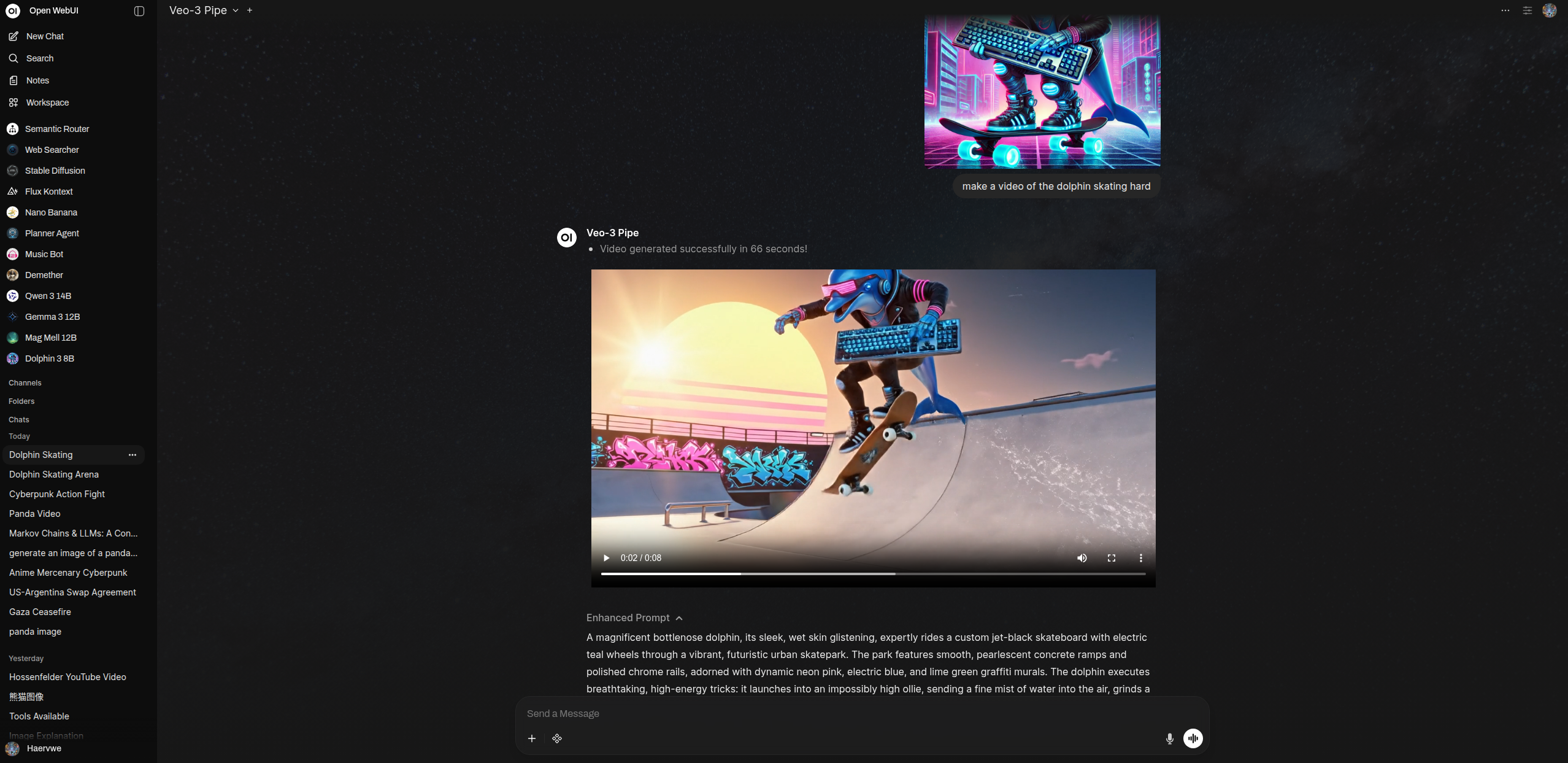 Example of Google Veo video generation output in Open WebUI
Planner Agent v3
Advanced autonomous agent with agentic planning, multi-agent delegation, and real-time visual execution tracking.
The Planner Agent v3 is a state-of-the-art autonomous system designed for Open WebUI. It transforms complex user requests into structured, executable plans, delegating specialized tasks to a fleet of subagents while providing interactive feedback and visual progress updates.
🚀 Key Features
- 🧠 Agentic Planning & Self-Correction: Automatically decomposes high-level goals into a dependency-aware task tree with user-in-the-loop approval and adaptive rescheduling.
- ⚡ Parallel Execution (v15+): Blazing fast performance via concurrent execution of tool calls and subagent tasks using
asyncio.gather. This allows multiple independent tasks to be performed simultaneously. - 📂 Robust State Persistence: Automatically saves and recovers task states, results, and subagent histories across chat turns via attached JSON files.
- 🔌 Native OWUI Integration:
knowledge_agent.
- Custom Functions & Tools: Full support for user-created Python tools, imported tools, and external OpenAPI/DB tools.
- MCP Servers: Extended support for Model Context Protocol (MCP) servers with connection deduplication and resilience.
- Terminal Integration: Full interactive terminal access for shell-based tasks and file management (requires terminal_agent).
- Native Tool Parity: Intelligently inherits built-in tool capabilities (Web Search, Image Gen, etc.) when specialized subagents are disabled.
- 🌐 Specialized Built-in Subagents:
- 🛠️ MCP Resilience System: Full Model Context Protocol (MCP) support with built-in parallelism patches and connection deduplication to prevent deadlocks.
- 🎭 Interactive UI Modals: Native UI components for
askuser,giveoptions, andplan_approvalallow the agent to request clarification or confirmation. - 📊 Visual Execution Tracker: Real-time HTML interface showing live task status (Pending, In-Progress, Completed, Failed).
⚙️ Configuration (Valves)
[!IMPORTANT]
Model ID & Feature Configuration
- Base Models: Found in Admin Panel > Settings > Models. These are the raw model IDs (e.g.,qwen2.5:7b,gpt-4o).
- Essential for: PLANNER_MODEL (Mandatory).
- Fallback Support:REVIEWMODEL,TERMINALAGENTMODEL, and all Virtual Agent Models will fallback to thePLANNERMODELif left blank. However, if specified, they must be Base Models (not workspace presets).
- Workspace Models (Presets): Found in Workspace > Models. These are custom presets with specific personas and settings.
- Used for: SUBAGENT_MODELS. This is where you configure specific Knowledge Base access, custom tool features, skills, and specialized system prompts for your subagents.
Parallel Execution (New)
Planner Agent v3 supports parallel execution of tool calls and subagent calls. This significantly improves performance when multiple independent tasks can be performed simultaneously.PARALLELTOOLEXECUTION: When enabled, the planner executes all identified tool calls (including subagent calls) in parallel.PARALLELSUBAGENTEXECUTION: When enabled, subagents execute their internal tool calls (search, code interpreter, etc.) in parallel.
[!WARNING]
Parallel execution may lead to external race conditions if tools have stateful dependencies within the same turn (e.g., one tool depends on a file created by another tool in the same turn). Use with caution for complex, inter-dependent workflows. Most standard search and generation tasks are independent and safe for parallelism.
Subagents interdependance of task and Async state for the pipe is heavily guarded and safe. but you are responsible for the effects it migh have on external services.
If you go for full paralellisim you might need to use an async db to avoid deadlocks and slowdowns with a large amount of SubAgents
Model & Subagent Setup
PLANNER_MODEL: The primary "brain" model for planning and orchestration (Mandatory).SUBAGENT_MODELS: Comma-separated list of specialized models or Workspace Model presets for delegation. Best for Knowledge Base access and custom personas.WORKSPACETERMINALMODELS: List of model IDs allowed to use the local terminal environment, overriding the default virtual terminal agent check.SUBAGENT_TIMEOUT: Global timeout for subagent and MCP tool calls to prevent bottlenecks.
Interaction & Control
ENABLEPLANAPPROVAL: Pause for user review before starting any tasks.YOLO_MODE: Fully autonomous mode: disables iteration limits and confirmation gates.TASKITERATIONLIMIT: Global safety cap to prevent infinite agentic loops.ENABLEUSERINPUTTOOLS: Toggle availability of interactive UI modals (askuser,give_options).
🔄 Tool Inheritance & Virtual Agents
The Planner V3 features a smart tool inheritance logic:- Delegation Mode: If a Virtual Agent (e.g.,
websearchagent) is enabled in the Planner Valves, the planner will delegate tasks to that specialized subagent using its own configuration. - Inherent Mode: If a Virtual Agent is disabled, the Planner itself "inherits" those capabilities (if the Planner's Base Model/Admin tool settings allow it) and performs the task directly without delegation.
💡 Visual Walkthrough
 Screencast of Planner V3 in action: Automated planning, subagent execution, and final multi-media synthesis.
 Real-time monitoring of subagent tasks and planning progress.
 Extensive configuration options to tailor the agentic behavior.
 Autonomous agents requesting user choice through interactive UI modals.
 Deep visibility into the agent's reasoning process and tool interactions.
 Final output synthesis leveraging specialized subagents (e.g., Music Generation & HTML Layout).
arXiv Research MCTS Pipe
Description
Search arXiv.org for relevant academic papers and iteratively refine a research summary using a Monte Carlo Tree Search (MCTS) approach.
Configuration
model: The model ID from your LLM providertavilyapikey: Required. Obtain your API key from tavily.commaxwebsearch_results: Number of web search results to fetch per querymaxarxivresults: Number of results to fetch from the arXiv API per querytree_breadth: Number of child nodes explored per MCTS iterationtree_depth: Number of MCTS iterationsexploration_weight: Controls balance between exploration and exploitationtemperature_decay: Exponentially decreases LLM temperature with tree depthdynamictemperatureadjustment: Adjusts temperature based on parent node scoresmaximum_temperature: Initial LLM temperature (default 1.4)minimum_temperature: Final LLM temperature at max tree depth (default 0.5)
Usage
- Example:
Do a research summary on "DPO laser LLM training"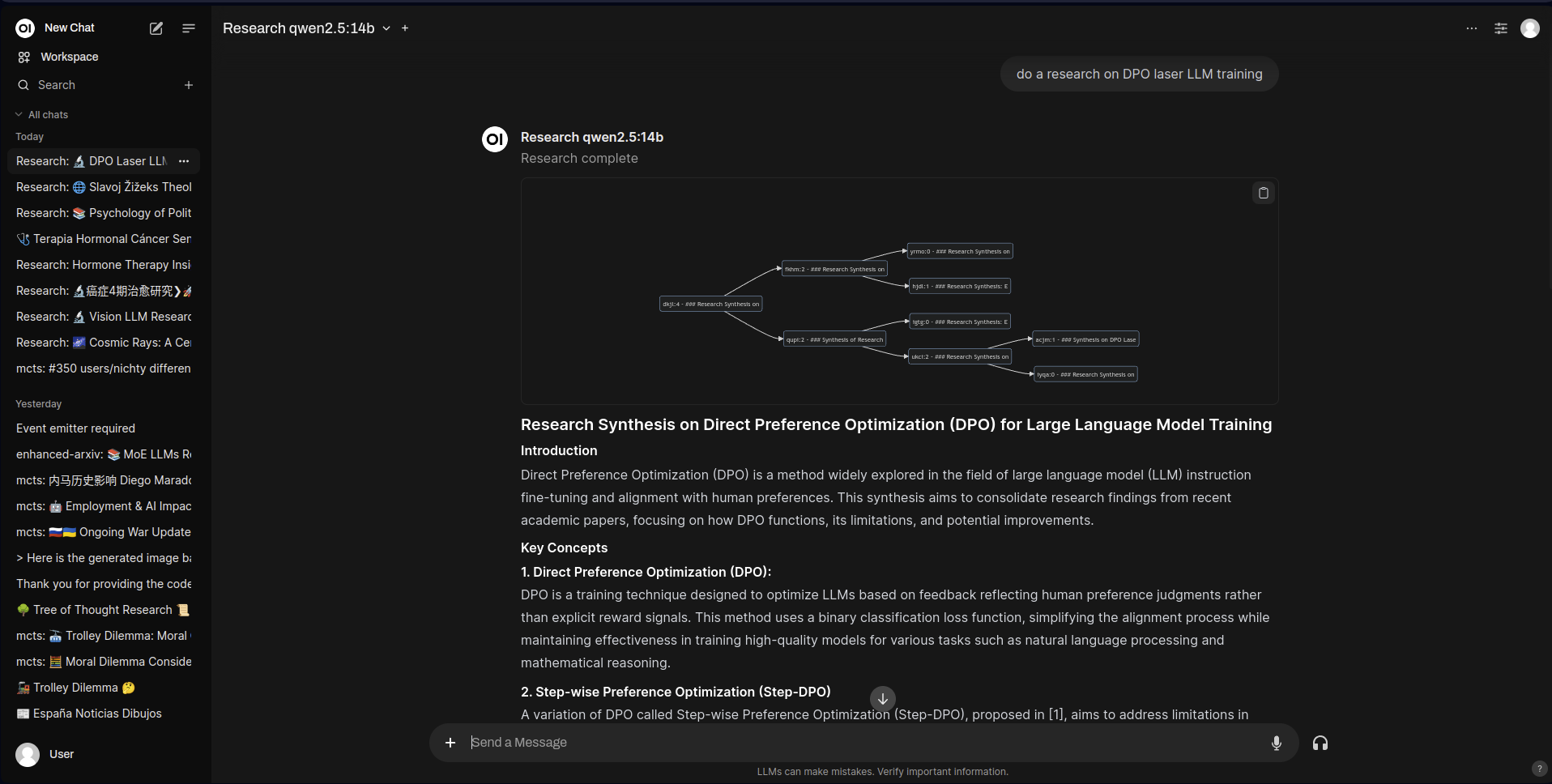 Example of arXiv Research MCTS Pipe output
Multi Model Conversations v2 Pipe
Description
An advanced multi-model conversation system that enables interactive, multi-agent discussions with a custom configuration UI. Feature parity with the latest Open WebUI capabilities including tool support, reasoning tag handling (thinking blocks), and dynamic speaker management. Configure up to 5 participants with unique personas and models, and use the optional Group Chat Manager to orchestrate the discussion flow.
Configuration
Version 2 introduces a sophisticated Configuration Overlay that allows you to set up your multi-agent conversation visually. It still supports User Valves for defaults, but the primary way to configure a chat is through the interactive UI.
Key Features:
- Dynamic Speaker Selection: Enables or disables the Group Chat Manager.
- Model-Specific Prompts: Set unique system messages for each participant.
- Tool Integration: Models can now use available tools within the conversation.
- Reasoning Support: Full support for "thinking" models with collapsible reasoning blocks.
NUM_PARTICIPANTS: Set the number of participants (1-5)ROUNDSPERCONVERSATION: Total rounds of replies in the conversationUseGroupChatManager: Enable dynamic speaker selection by a manager model
Participant[1-5]Model: Model for each participantParticipant[1-5]Alias: Display name for each participantParticipant[1-5]SystemMessage: Persona and instructions for each participant
Accessing the Configuration UI
To configure the conversation:
- Select the Pipe: Choose "Multi Model Conversations v2 Pipe" as your model.
- Open Configuration: Click the settings icon (list icon in a new message) in the chat input area OR look for the Configuration Overlay that appears when starting a new chat.
- Configure agents: Set your models, aliases and system prompts.
- Save and Start: Click "Start Conversation" to begin the multi-agent session.
 Example of Multi Model Conversations User Valves configuration panel
 Example of Multi Model Conversations Setup Popup
Video Demos


Usage
- Example:
Start a conversation between three AI agents about climate change.Use Cases:
- Debates: Set up opposing viewpoints (optimist vs. skeptic)
- Brainstorming: Multiple creative perspectives on a problem
- Role-playing: Interactive storytelling with multiple characters
- Analysis: Different analytical approaches to the same topic
- Expert Panels: Simulate domain experts discussing a complex issue
Resume Analyzer Pipe
Description
Analyze resumes and provide tags, first impressions, adversarial analysis, potential interview questions, and career advice.
Configuration
model: The model ID from your LLM providerdataset_path: Local path to the resume dataset CSV filerapidapi_key(optional): For job search functionalityweb_search: Enable/disable web search for relevant job postingsprompt_templates: Customizable templates for all steps
Usage
- Requires the Full Document Filter (see below) to work with attached files.
- Example:
Analyze this resume:
[Attach resume file]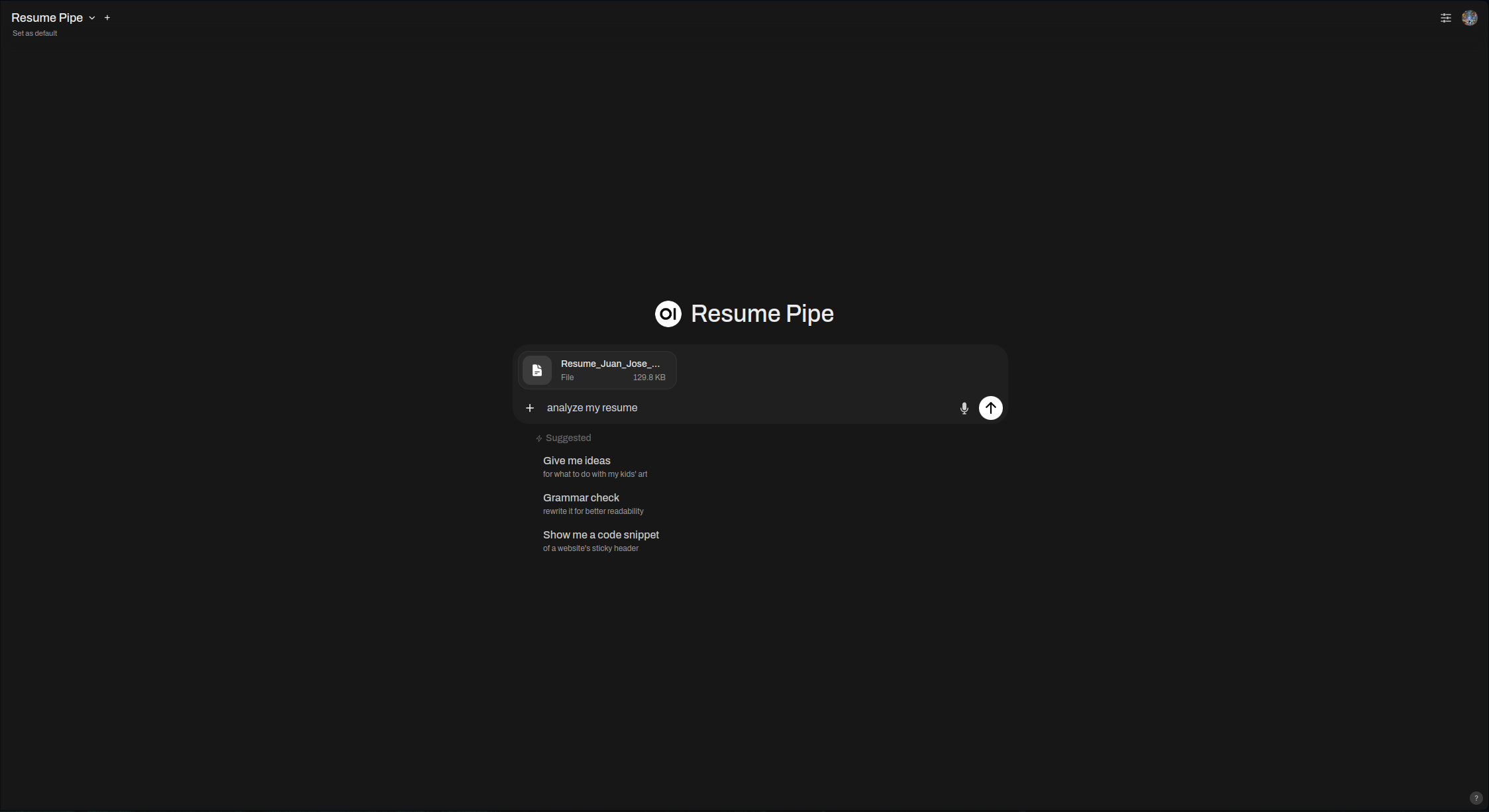

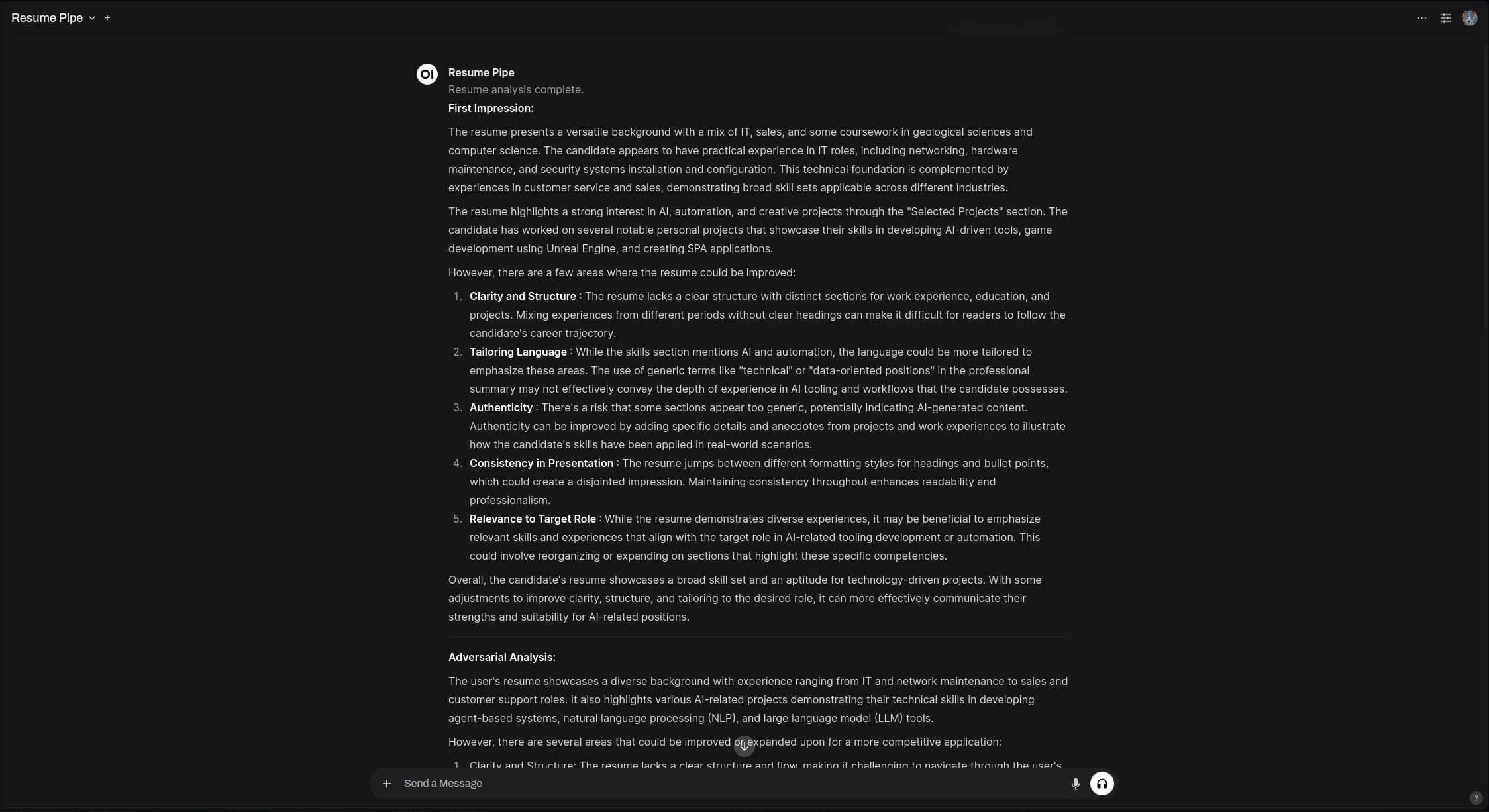 Screenshots of Resume Analyzer Pipe output
Mopidy Music Controller
Description
Control your Mopidy music server to play songs from the local library or YouTube, manage playlists, and handle various music commands. This pipe provides an intuitive interface for music playback, search, and playlist management through natural language commands.
⚠️ Requirements: This pipe requires Mopidy-Iris


