
Tools with a graphical interface to create fictitious viewers on your live streams
Last updated Jun 15, 2026
84
Stars
14
Forks
0
Issues
0
Stars/day
Attention Score
21
Language breakdown
No language data available.
▸ Files
click to expand
README
Twitch Viewer Bot ( BROKEN due to twitch security )
A modern web application for generating Twitch views using proxies, built with a Flask backend and React frontend.
Disclaimer
⚠️ This tool is provided for educational purposes only ⚠️
Using this software to artificially inflate viewer counts may violate Twitch's Terms of Service. The developers are not responsible for any consequences resulting from the misuse of this application.
Table of Contents
- Standard Installation - Development Installation - For End Users - For DevelopersFeatures
- 🚀 Multi-threading system supporting up to 1000 simultaneous threads
- 🔄 Automatic proxy rotation and management
- 🌐 Support for HTTP, SOCKS4, and SOCKS5 proxies
- 📊 Real-time statistics dashboard
- 🔒 SSL/HTTPS support
- 📱 Responsive web interface
Requirements
- Python 3.9+
- Modern web browser
- Internet connection
- (Optional) Custom proxy list
Installation
Standard Installation
- Download the executable from the releases page
- Launch the application
- Login or register an account
- Configure your settings
- Start the bot
Development Installation
- Clone the repository:
git clone https://github.com/H1B0B0/twitch-Viewerbot.git- Navigate to the project directory:
cd twitch-Viewerbot- Install the required Python packages:
pip install -r requirements.txt- Build the static Frontend:
./build.ps1Linux / macOS
./build.sh- Launch the backend:
python ./backend/main.py --devUsage
For End Users
- Open your web browser and navigate to
https://velbots.shop - Enter the number of threads you want to run
- Enter the name of the Twitch channel you want to generate views for
- (Optional) Upload your custom proxy list
- Click the "Start bot" button to begin generating views
For Developers
- The
--devflag enables development mode - Check the console for logs and debugging information
- Frontend code is located in the
frontenddirectory - Backend API endpoints are defined in
backend/main.py
macOS Installation Guide
- Download the application from the release page
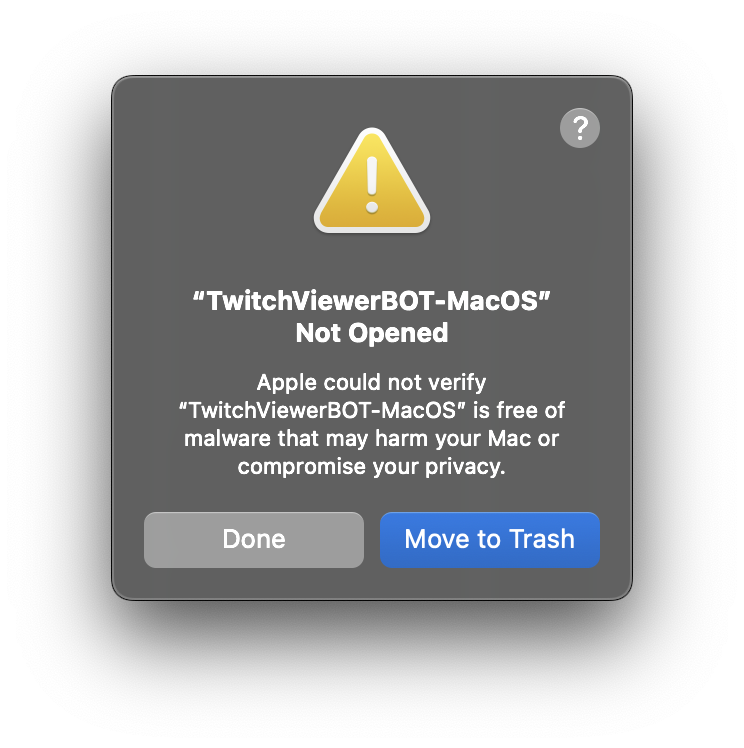
- If macOS blocks the application, open System Settings and go to Privacy & Security
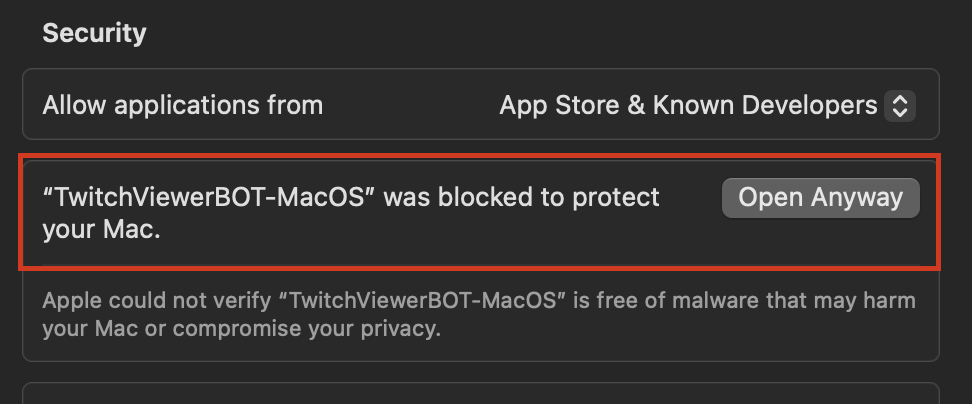
- Under the Security tab, locate the message about the blocked application and click Open Anyway
- Confirm that you want to open the application by clicking Open Anyway in the dialog
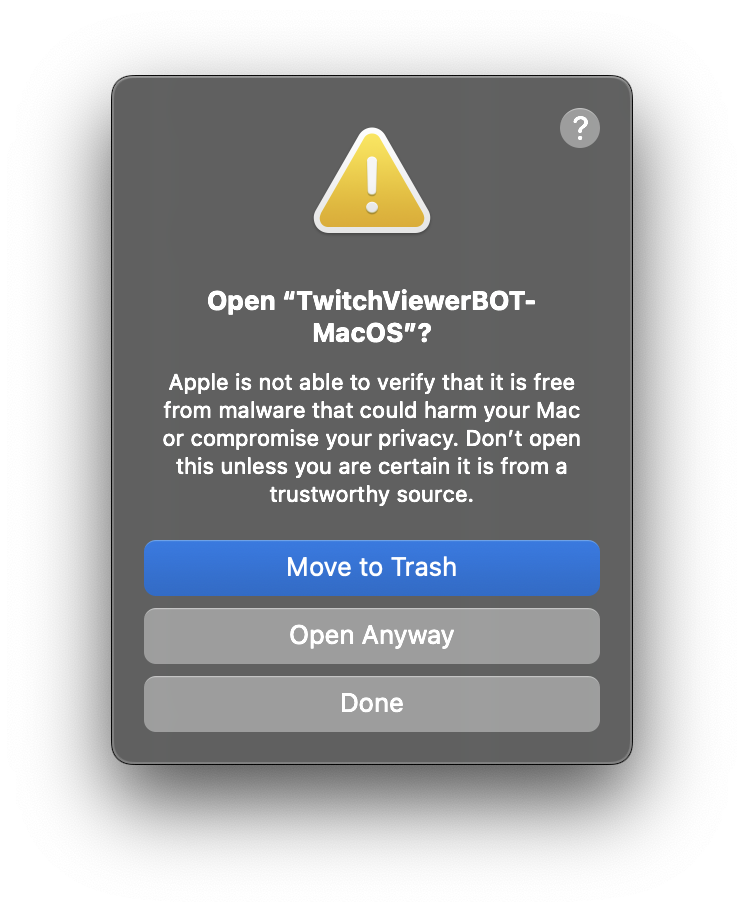
- The application will now launch and is ready to use 🚀
Screenshots
License
This project is licensed under the MIT License. See the LICENSE file for details.


