
This solution provides an automated, serverless way to redact sensitive data from PDF files using Google Cloud Services like Data Loss Prevention (DLP), Cloud Workflows, and Cloud Run.
Solution Guide
This solution provides an automated, serverless way to redact sensitive data from PDF files using Google Cloud Services like Data Loss Prevention (DLP), Cloud Workflows, and Cloud Run.Solution Architecture Diagram
The image below describes the solution architecture of the pdf redaction process.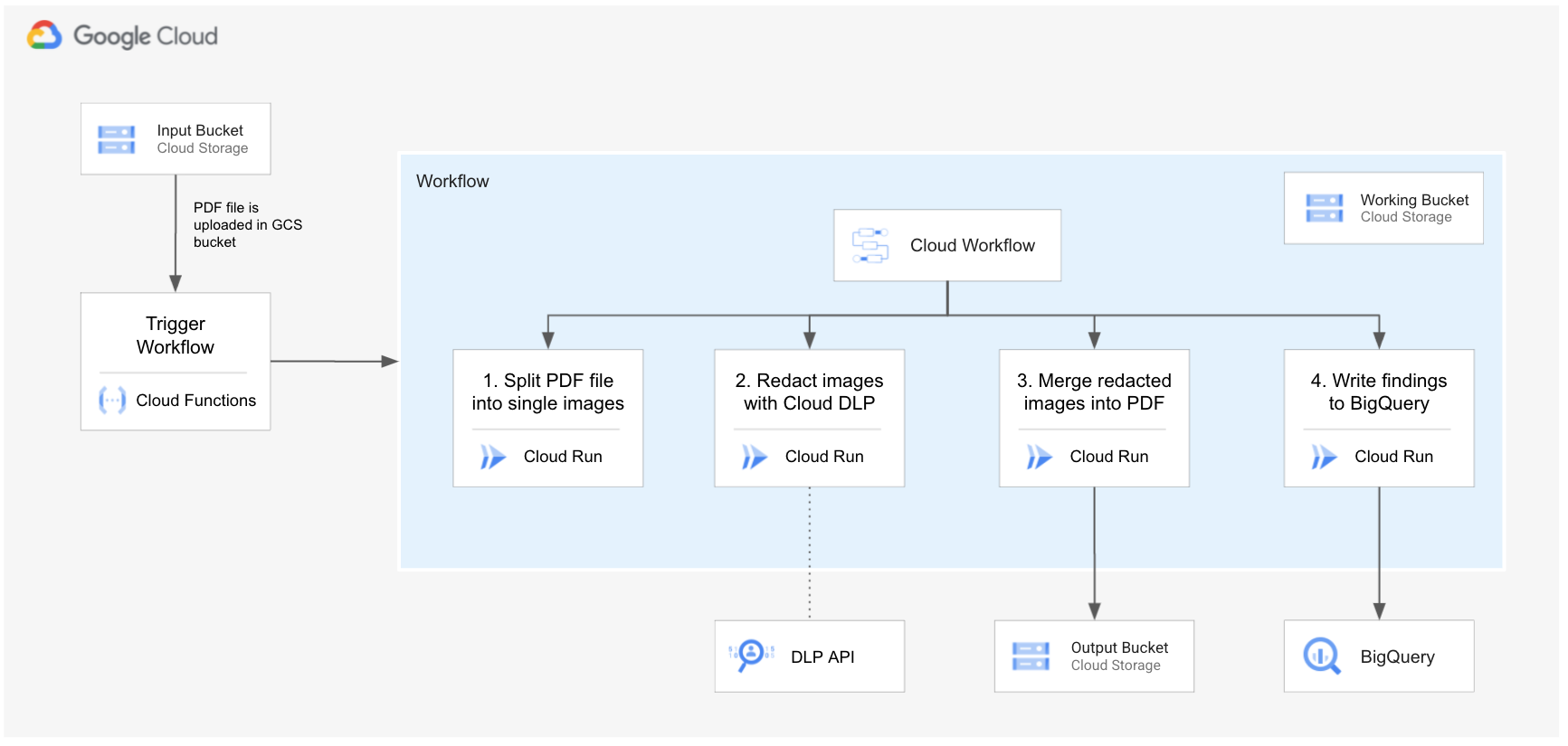
Workflow Steps
The workflow consists of the following steps:- The user uploads a PDF file to a GCS bucket
- A Workflow is triggered by EventArc. This workflow orchestrates the PDF file redaction consisting of the following steps:
Deploy PDF Redaction app
Theterraform folder contains the code needed to deploy the PDF Redaction application.
What resources are created?
Main resources:- Workflow
- CloudRun services for each component with its service accounts and permissions
pdf-spliter - Split PDF into single-page image files
1. dlp-runner - Runs each page file through DLP to redact sensitive information
1. pdf-merger - Assembles back the pages into a single PDF
1. findings-writer - Writes findings into BigQuery
- Cloud Storage buckets
- DLP template where InfoTypes and rules are specified. You can modify the
dlp.tffile to specify your own INFOTYPES and Rule Sets (refer to terraform documentation for dlp templates) - BigQuery dataset and table where findings will be written
How to deploy?
The following steps should be executed in Cloud Shell in the Google Cloud Console.1. Create a project and enable billing
Follow the steps in this guide.2. Get the code
Clone this github repository go to the root of the repository.git clone https://github.com/GoogleCloudPlatform/dlp-pdf-redaction
cd dlp-pdf-redaction3. Build images for Cloud Run
You will first need to build the docker images for each microservice.PROJECTID=[YOURPROJECT_ID]
PROJECTNUMBER=$(gcloud projects list --filter="PROJECTID=$PROJECTID" --format="value(PROJECTNUMBER)")
REGION=us-central1
DOCKERREPONAME=pdf-redaction-docker-repo
CLOUDBUILDSERVICE_ACCOUNT=cloudbuild-sa
Enable required APIs
gcloud services enable cloudbuild.googleapis.com artifactregistry.googleapis.com --project $PROJECT_ID
Create a Docker image repo to store apps docker images
gcloud artifacts repositories create $DOCKERREPONAME --repository-format=docker --description="PDF Redaction Docker Image repository" --project $PROJECT_ID --location=$REGION
Create Service Account for CloudBuild and grant required roles
gcloud iam service-accounts create $CLOUDBUILDSERVICE_ACCOUNT \
--description="Service Account for CloudBuild created by PDF Redaction solution" \
--display-name="CloudBuild SA (PDF Readaction)"
gcloud projects add-iam-policy-binding $PROJECT_ID \
--member="serviceAccount:$CLOUDBUILDSERVICEACCOUNT@$PROJECTID.iam.gserviceaccount.com" \
--role="roles/cloudbuild.serviceAgent"
gcloud projects add-iam-policy-binding $PROJECT_ID \
--member="serviceAccount:$CLOUDBUILDSERVICEACCOUNT@$PROJECTID.iam.gserviceaccount.com" \
--role="roles/storage.objectUser"
Build docker images of the app and store them in artifact registry repo
gcloud builds submit \
--config ./build-app-images.yaml \
--substitutions REGION=$REGION,DOCKERREPONAME=$DOCKERREPONAME \
--service-account=projects/$PROJECTID/serviceAccounts/$CLOUDBUILDSERVICEACCOUNT@$PROJECT_ID.iam.gserviceaccount.com \
--default-buckets-behavior=regional-user-owned-bucket \
--project $PROJECT_IDThe above command will build 4 docker images and push them into Google Container Registry (GCR). Run the following command and confirm that the images are present in GCR.
gcloud artifacts docker images list $REGION-docker.pkg.dev/$PROJECTID/$DOCKERREPO_NAME4. Deploy the infrastructure using Terraform
This terraform deployment requires the following variables.
- projectid = "YOURPROJECT_ID"
- region = "YOURREGIONREGION"
- dockerreponame = "DOCKERREPONAME"
- wfregion = "YOURWORKFLOW_REGION"
export TFVARprojectid=$PROJECTID
export TFVARregion=$REGION
export TFVARwf_region=$REGION
export TFVARdockerreponame=$DOCKERREPONAME
terraform -chdir=terraform init terraform -chdir=terraform apply -auto-approve
Notes: * If you get an error related to eventarc or worklflows provisioning, just give it a few seconds and rerun the terraform -chdir=terraform apply -auto-approve command. Explanation: Terraform enables some services like eventarc an workflows that might take a couple of minutes to finish provisioning resources and configuring permissions, simply re-runing the apply command should fix the issue. * Region and Workflow region both default to us-central1. If you wish to deploy the resources in a different region, specify the region and the wfregion variables (ie. using TFVARregion and TFVARwfregion). Cloud Workflows is only available in specific regions, for more information check the documentation. * If you come across an issue please check the Issues section. If your issue is not listed there, please report it as a new issue.
5. Take note of Terraform Outputs
Once terraform finishes provisioning all resources, you will see its outputs. Please take note of inputbucket and outputbucket buckets. Files uploaded to the inputbucket bucket will be automatically processed and the redacted files will be written to the outputbucket bucket. If you missed the outputs from the firs run, you can list the outputs by running
terraform -chdir=terraform output6. Test
Use the command below to upload the test file into the inputbucket. After a few seconds, you should see a redacted PDF file in the outputbucket.
gcloud storage cp ./testfile.pdf [INPUTBUCKETFROMOUTPUT e.g. gs://pdf-input-bucket-xxxx]If you are curious about the behind the scenes, try:
- Checkout the Redacted file in the
output_bucket.
gcloud storage ls [OUTPUTBUCKETFROM_OUTPUT e.g. gs://pdf-output-bucket-xxxx]- Download the redacted pdf file, open it with your preferred pdf reader, and search for text in the PDF file.
- Looking into Cloud Workflows in the GCP web console. You will see that a workflow execution was triggered when you uploaded the file to GCS.
- Explore the
pdfredactionxxxxdataset in BigQuery and check out the metadata that was inserted into thefindingstable.


