
A TUI and CLI for managing *arr servers. Built with 🤎 in Rust
managarr - A TUI and CLI to manage your Servarrs









Managarr is a TUI and CLI to help you manage your HTPC (Home Theater PC). Built with 🤎 in Rust!
What Servarrs are supported?


Try Out the Demo
To try out Managarr before linking it to your HTPC, you can use the purpose built managarr-demo repository. Simply run the following command to start a demo:curl https://raw.githubusercontent.com/Dark-Alex-17/managarr-demo/main/managarr-demo.sh > /tmp/managarr-demo.sh && bash /tmp/managarr-demo.shAlternatively, you can try out the demo container without downloading anything by visiting the Managarr Demo site.
Installation
Cargo
If you have Cargo installed, then you can install Managarr from Crates.io:cargo install managarr
If you encounter issues installing, try installing with '--locked'
cargo install --locked managarrDocker
Run Managarr as a docker container by mounting yourconfig.yml file to /root/.config/managarr/config.yml. For example:
docker run --rm -it -v /home/aclarke/.config/managarr/config.yml:/root/.config/managarr/config.yml darkalex17/managarr:latestYou can also clone this repo and run just build-docker to build a docker image locally and run it using the above command.
Please note that you will need to create and populate your configuration file first before starting the container. Otherwise, the container will fail to start.
Note: If you run into errors using relative file paths when mounting the volume with the configuration file, try using an absolute path.
Homebrew (Mac and Linux)
To install Managarr from Homebrew, install the Managarr tap. Then you'll be able to install Managarr:brew tap Dark-Alex-17/managarr
brew install managarr
If you need to be more specific, use the following:
brew install Dark-Alex-17/managarr/managarrTo upgrade to a newer version of Managarr:
brew upgrade managarrNix (Externally Maintained)
To install Managarr on NixOS, you can use the following command:nix-env --install managarr
Alternatively, for non-NixOS users, you can spawn a temporary shell with Managarr available like so:
nix-shell -p managarrChocolatey (Windows)
The Managarr Chocolatey package is located here. Please note that validation of Chocolatey packages take quite some time, and thus the package may not be available immediately after a new release.choco install managarr
Some newer releases may require a version number, so you can specify it like so:
choco install managarr --version=0.7.0To upgrade to the latest and greatest version of Managarr:
choco upgrade managarr
To upgrade to a specific version:
choco upgrade managarr --version=0.7.0
Manual
Binaries are available on the releases page for the following platforms:| Platform | Architecture(s) | |----------------|----------------------------| | macOS | x86_64, arm64 | | Linux GNU/MUSL | x86_64,armv6,armv7,aarch64 | | Windows | x86_64,aarch64 |
Windows Instructions
To use a binary from the releases page on Windows, do the following:- Download the latest binary for your OS.
- Use 7-Zip or TarTool to unpack the Tar file.
- Run the executable
managarr.exe!
Linux/MacOS Instructions
To use a binary from the releases page on Linux/MacOS, do the following:- Download the latest binary for your OS.
cdto the directory where you downloaded the binary.- Extract the binary with
tar -C /usr/local/bin -xzf managarr-<arch>.tar.gz(Note: This may requiresudo) - Now you can run
managarr!
Features
Key:| Symbol | Status | |--------|-----------| | ✅ | Supported | | ❌ | Missing | | 🕒 | Planned | | 🚫 | Won't Add |
Radarr
| TUI | CLI | Feature | |-----|-----|----------------------------------------------------------------------------------------------------------------| | ✅ | ✅ | View your library, downloads, collections, and blocklist | | ✅ | ✅ | View details of a specific movie including description, history, downloaded file info, or the credits | | ✅ | ✅ | View details of any collection and the movies in them | | 🚫 | ✅ | View your host and security configs from the CLI to programmatically fetch the API token, among other settings | | ✅ | ✅ | Search your library or collections | | ✅ | ✅ | Add movies to your library | | ✅ | ✅ | Delete movies, downloads, and indexers | | ✅ | ✅ | Trigger automatic searches for movies | | ✅ | ✅ | Trigger refresh and disk scan for movies, downloads, and collections | | ✅ | ✅ | Manually search for movies | | ✅ | ✅ | Edit your movies, collections, and indexers | | ✅ | ✅ | Manage your tags | | ✅ | ✅ | Manage your root folders | | ✅ | ✅ | Manage your blocklist | | ✅ | ✅ | View and browse logs, tasks, events queues, and updates | | ✅ | ✅ | Manually trigger scheduled tasks |
Sonarr
| TUI | CLI | Feature | |-----|-----|--------------------------------------------------------------------------------------------------------------------| | ✅ | ✅ | View your library, downloads, blocklist, episodes | | ✅ | ✅ | View details of a specific series, or episode including description, history, downloaded file info, or the credits | | 🚫 | ✅ | View your host and security configs from the CLI to programmatically fetch the API token, among other settings | | ✅ | ✅ | Search your library | | ✅ | ✅ | Add series to your library | | ✅ | ✅ | Delete series, downloads, indexers, root folders, and episode files | | ✅ | ✅ | Trigger automatic searches for series, seasons, or episodes | | ✅ | ✅ | Trigger refresh and disk scan for series and downloads | | ✅ | ✅ | Manually search for series, seasons, or episodes | | ✅ | ✅ | Edit your series and indexers | | ✅ | ✅ | Manage your tags | | ✅ | ✅ | Manage your root folders | | ✅ | ✅ | Manage your blocklist | | ✅ | ✅ | View and browse logs, tasks, events queues, and updates | | ✅ | ✅ | Manually trigger scheduled tasks |
Lidarr
| TUI | CLI | Feature | |-----|-----|----------------------------------------------------------------------------------------------------------------| | ✅ | ✅ | View your library, downloads, blocklist, tracks | | ✅ | ✅ | View details of a specific artists, albums, or tracks including description, history, downloaded file info | | 🚫 | ✅ | View your host and security configs from the CLI to programmatically fetch the API token, among other settings | | ✅ | ✅ | Search your library | | ✅ | ✅ | Add artists to your library | | ✅ | ✅ | Delete artists, downloads, indexers, root folders, and track files | | ✅ | ✅ | Trigger automatic searches for artists or albums | | ✅ | ✅ | Trigger refresh and disk scan for artists and downloads | | ✅ | ✅ | Manually search for full artist discographies or albums | | ✅ | ✅ | Edit your artists and indexers | | ✅ | ✅ | Manage your tags | | ✅ | ✅ | Manage your root folders | | ✅ | ✅ | Manage your blocklist | | ✅ | ✅ | View and browse logs, tasks, events queues, and updates | | ✅ | ✅ | Manually trigger scheduled tasks |
Readarr
- [ ] Support for Readarr
Whisparr
- [ ] Support for Whisparr
Bazarr
- [ ] Support for Bazarr
Prowlarr
- [ ] Support for Prowlarr
Tautulli
- [ ] Support for Tautulli
Themes
Managarr ships with a few themes out of the box. Here's a few examples:Default

Dracula

Watermelon Dark

You can also create your own custom themes as well. To learn more about what themes are built-in to Managarr and how to create your own custom themes, check out the Themes README.
The Managarr CLI
Managarr can be used in one of two ways: As a TUI, or as a CLI for managing your Servarrs.All management features available in the TUI are also available in the CLI. However, the CLI is equipped with additional features to allow for more advanced usage and automation.
The CLI can be helpful for automating tasks or for use in scripts. For example, you can use the CLI to trigger a search for a movie, or to add a movie to your Radarr library.
To see all available commands, simply run managarr --help:
$ managarr --help
managarr 0.7.0
Alex Clarke <alex.j.tusa@gmail.com>
A TUI and CLI to manage your Servarrs
Usage: managarr [OPTIONS] [COMMAND]
Commands:   radarr       Commands for manging your Radarr instance   sonarr       Commands for manging your Sonarr instance   lidarr       Commands for manging your Lidarr instance   completions  Generate shell completions for the Managarr CLI   tail-logs    Tail Managarr logs   config-path  Print the full path to the default configuration file.                This file can be changed to another location using the '--config-file' flag   help         Print this message or the help of the given subcommand(s)
Options:   -h, --help     Print help   -V, --version  Print version
Global Options:       --disable-spinner              Disable the spinner (can sometimes make parsing output                                      challenging) [env: MANAGARRDISABLESPINNER=]       --config-file <CONFIG_FILE>    The Managarr configuration file to use; defaults to the                                      path shown by 'managarr config-path' [env:                                      MANAGARRCONFIGFILE=]       --themes-file <THEMES_FILE>    The Managarr themes file to use [env:                                      MANAGARRTHEMESFILE=]       --theme <THEME>                The name of the Managarr theme to use [env:                                      MANAGARR_THEME=]       --servarr-name <SERVARR_NAME>  For multi-instance configurations, you need to specify                                      the name of the instance configuration that you want to                                      use.                                                                            This is useful when you have multiple instances of the                                      same Servarr defined in your config file.                                      By default, if left empty, the first configured Servarr                                      instance listed in the config file will be used.
All subcommands also have detailed help menus to show you how to use them. For example, to see all available commands for Sonarr, you would run:
$ managarr sonarr --help
Commands for manging your Sonarr instance
Usage: managarr sonarr [OPTIONS] <COMMAND>
Commands:   add                          Commands to add or create new resources within your Sonarr instance   delete                       Commands to delete resources from your Sonarr instance   edit                         Commands to edit resources in your Sonarr instance   get                          Commands to fetch details of the resources in your Sonarr instance   download                     Commands to download releases in your Sonarr instance   list                         Commands to list attributes from your Sonarr instance   refresh                      Commands to refresh the data in your Sonarr instance   manual-search                Commands to manually search for releases   trigger-automatic-search     Commands to trigger automatic searches for releases of different resources in your Sonarr instance   clear-blocklist              Clear the blocklist   mark-history-item-as-failed  Mark the Sonarr history item with the given ID as 'failed'   search-new-series            Search for a new series to add to Sonarr   start-task                   Start the specified Sonarr task   test-indexer                 Test the indexer with the given ID. Note that a successful test returns an empty JSON body; i.e. '{}'   test-all-indexers            Test all Sonarr indexers   toggle-episode-monitoring    Toggle monitoring for the specified episode   toggle-season-monitoring     Toggle monitoring for the specified season that corresponds to the specified series ID   toggle-series-monitoring     Toggle monitoring for the specified series corresponding to the given series ID   help                         Print this message or the help of the given subcommand(s)
Options:   -h, --help  Print help
Global Options:       --disable-spinner              Disable the spinner (can sometimes make parsing output challenging) [env: MANAGARRDISABLESPINNER=]       --config-file <CONFIGFILE>    The Managarr configuration file to use [env: MANAGARRCONFIG_FILE=]       --themes-file <THEMESFILE>    The Managarr themes file to use [env: MANAGARRTHEMES_FILE=]       --theme <THEME>                The name of the Managarr theme to use [env: MANAGARR_THEME=]       --servarr-name <SERVARR_NAME>  For multi-instance configurations, you need to specify the name of the instance configuration that you want to use.                                                                            This is useful when you have multiple instances of the same Servarr defined in your config file.                                      By default, if left empty, the first configured Servarr instance listed in the config file will be used.
Pro Tip: The CLI is even more powerful and useful when used in conjunction with the jq CLI tool. This allows you to parse the JSON response from the Managarr CLI and use it in your scripts; For example, to extract the movieId of the movie "Ad Astra", you would run:
$ managarr radarr list movies | jq '.[] | select(.title == "Ad Astra") | .id'
277
Configuration
Managarr assumes reasonable defaults to connect to each service (i.e. Radarr is on localhost:7878), but all servers will require you to input the API token. This means that for each Servarr you configure, if you define only theapi_token, Managarr will assume the Servarr is running on localhost and on the
default port for that respective service. That is:
| Servarr | Default Host | Default Port | |---------|--------------|--------------| | Radarr | localhost | 7878 | | Sonarr | localhost | 8989 | | Lidarr | localhost | 8686 |
[!TIP]
In general, all Servarrs store their API tokens under Settings -> General -> Security -> API Key in their web UIs.
Minimum Configuration Requirements
The following configuration file will connect to each Servarr running on localhost with their default ports. The only requirement for each is the specification of an API token.radarr:
# Connect to Radarr running on localhost:7878
- api_token: <your-radarr-api-token-here>
sonarr: # Connect to sonarr running on localhost:8989 - api_token: <your-sonarr-api-token-here>
lidarr: # Connect to lidarr running on localhost:8686 - api_token: <your-lidarr-api-token-here>
Configuration File Location
The configuration file is located somewhere different for each OS, so run the following command to print out the default location of the managarr configuration file for your system:
managarr config-pathSpecify Which Configuration File to Use
It can sometimes be useful to specify the configuration file you wish to use. This is useful in cases where you may have more than one instance of a given Servarr running. Thus, you can specify the config file using the--config flag:
managarr --config-file /path/to/config.ymlExample Configuration:
theme: default
radarr:
  - host: 192.168.0.78
    port: 7878
    api_token: someApiToken1234567890
    sslcertpath: /path/to/radarr.crt # Use the specified SSL certificate to connect to this Servarr
                                       # Enables SSL regardless of the value of the 'ssl'
                                       # See the SSL Configuration section below for more information
- host: 192.168.0.79     port: 7878     api_token: someApiToken1234567890     ssl: true # Use SSL to connect to this Servarr               # This will assume that you have the SSL certificate installed to your system trust store               # See the SSL Configuration section below for more information        - uri: http://htpc.local/radarr # Example of using the 'uri' key instead of 'host' and 'port'     api_token: someApiToken1234567890
sonarr:   - host: 192.168.0.89     port: 8989     apitokenfile: /root/.config/sonarrapitoken # Example of loading the API token from a file instead of hardcoding it in the configuration file
- name: Anime Sonarr # An example of a custom name for a secondary Sonarr instance     host: 192.168.1.89     port: 8989     api_token: someApiToken1234567890
lidarr:   - host: 192.168.0.86     port: 8686     apitoken: ${MYLIDARRAPITOKEN} # Example of configuring using environment variables     monitoredstoragepaths: # Filter which Root Folders or Disk Storage you want displayed in the UI's 'Stats' block       # Note: Setting these values does not affect what shows up in the 'Root Folders' tab of the UI.       - /nfs    # An example disk (i.e. '<servarr> list disk-space' command) you want displayed in the UI under 'Storage:'       - /media  # An example root folder you want displayed in the UI                 # Root folders collapse up to the super-directory to reduce duplication in the UI. For example:                 # if you have root folders '/media/tv', '/media/cartoons' and '/media/reality', and you set this                 # monitored path, the UI will show '/media/[tv,cartoons,reality]' under Root Folders
- host: 192.168.1.86     port: 8686     api_token: someApiToken1234567890     sslcertpath: /path/to/lidarr_1.crt     custom_headers: # Example of adding custom headers to all requests to the Servarr instance       traefik-auth-bypass-key: someBypassKey1234567890       SOME-OTHER-CUSTOM-HEADER: ${MYCUSTOMHEADER_VALUE}
SSL Configuration
If your Servarr is using SSL or self-signed certificates, you may need to specify additional configuration options to connect without issues.If your Servarr's domain CA is installed in the system's trust store: Then you can simply specify ssl: true and Managarr will be able to connect to your Servarr:
radarr:
  - host: 192.168.0.78
    port: 7878
    api_token: yourApiTokenHere
    ssl: true
If your Servarr's domain CA is not installed: You'll either need to specify the path to the certificate via the sslcertpath property, or you'll need to install the certificate into your system store.
To acquire the cert for your Servarr's domain, you can use the following command:
openssl s_client -show-certs -connect <your-servarr-domain.com>:<port> </dev/null |\ sed -n -e '/-.BEGIN/,/-.END/ p' > /path/to/your/servarr.pemNow, you can either specify sslcertpath: /path/to/your/servarr.pem:
Example configuration with a certificate that's not installed to the system trust store:
radarr: - host: 192.168.0.78 port: 7878 api_token: yourApiTokenHere sslcertpath: /path/to/your/certificate.crtOr install the certificate into your system's trust store.
For example, if you're on a Debian-based system and have ca-certificates installed (sudo apt install ca-certificates):
sudo mv /path/to/your/servarr.pem /usr/local/share/ca-certificates/servarr.pem sudo update-ca-certificatesExample configuration with a certificate that is installed to the system trust store:
radarr: - host: 192.168.0.78 port: 7878 api_token: yourApiTokenHere ssl: trueExample Multi-Instance Configuration:
theme: default
radarr:
  - host: 192.168.0.78 # No name specified, so this instance's name will default to 'Radarr 1'
    port: 7878
    api_token: someApiToken1234567890
    sslcertpath: /path/to/radarr.crt

  - name: International Movies
    host: 192.168.0.79
    port: 7878
    api_token: someApiToken1234567890
sonarr:
  - name: Anime
    weight: 1 # This instance will be the first tab in the TUI
    uri: http://htpc.local/sonarr
    api_token: someApiToken1234567890
- name: TV Shows     weight: 2 # This instance will be the second tab in the TUI     host: 192.168.0.89     port: 8989     api_token: someApiToken1234567890
In this configuration, you can see that we have multiple instances of Radarr and Sonarr configured. The weight key is used to specify the order in which the tabs will appear in the TUI. The lower the weight, the further to the left the tab will appear. If no weight is specified, then tabs will be ordered in the order they appear in the configuration file.
When no name is specified for a Servarr instance, the name will default to the name of the Servarr with a number appended to it. For example, if you have two Radarr instances and neither has a name, they will be named Radarr 1 and Radarr 2, respectively.
In this example configuration, the tabs in the TUI would appear as follows:
Anime | TV Shows | Radarr 1 | International Movies
Specify Which Servarr Instance to Use in the CLI
If you have multiple instances of the same Servarr running, you can specify which instance you want to use by using the--servarr-name flag:
managarr --servarr-name "International Movies"Environment Variables
Managarr supports using environment variables on startup so you don't have to always specify certain flags:| Variable | Description | Equivalent Flag | |-----------------------------------------|--------------------------------------------------------------------------------|----------------------------------| | MANAGARRCONFIGFILE | Set the path to the config file | --config | | MANAGARRDISABLESPINNER | Disable the CLI spinner (this can be useful when scripting and parsing output) | --disable-spinner |
Screenshots
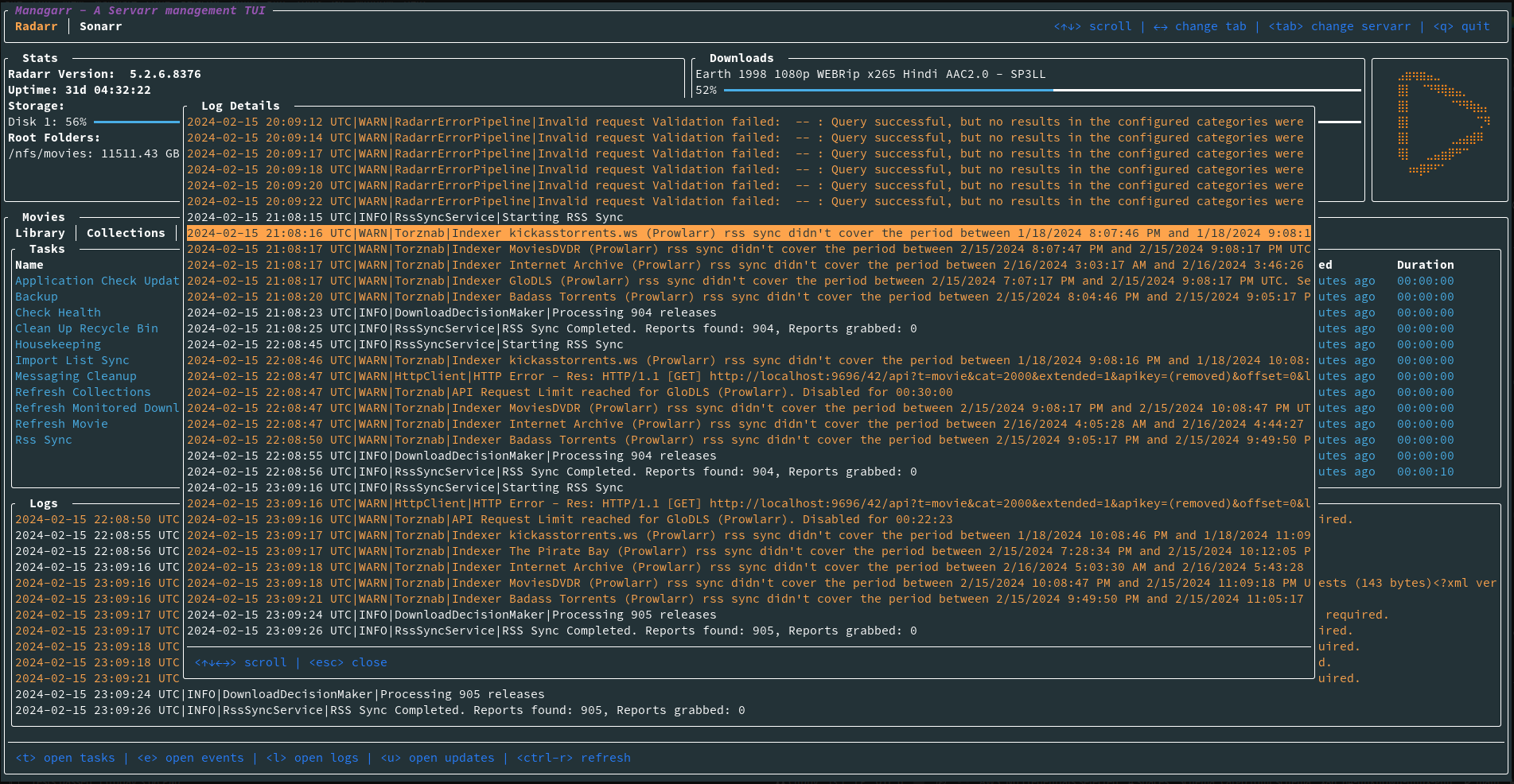
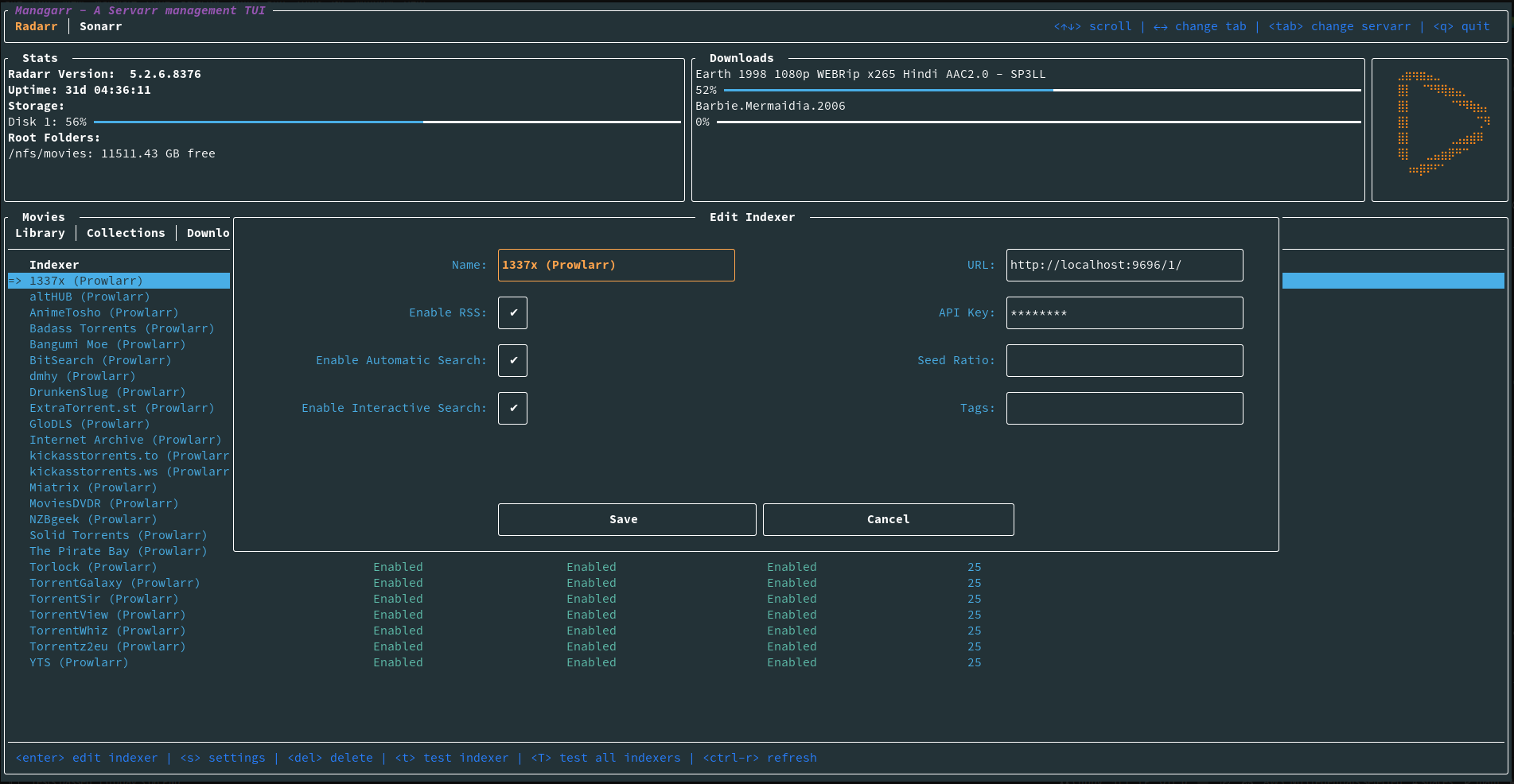
Radarr


Sonarr


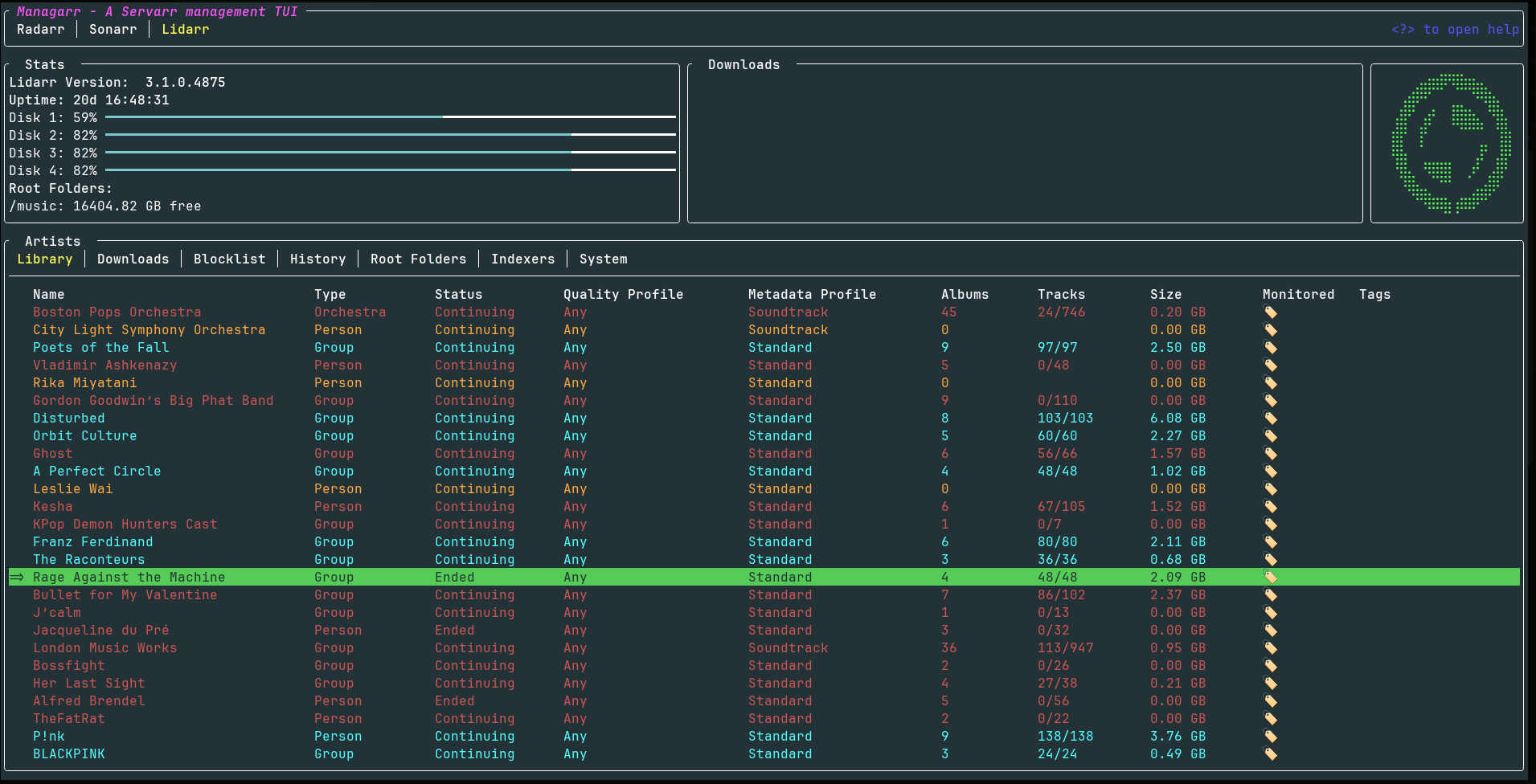
Lidarr


General
Dependencies
Servarr Requirements
- Radarr >= 5.3.6.8612
- Sonarr >= v4
- Lidarr v1
- Readarr v1
- Whisparr >= v3
- Prowlarr v1
- Bazarr v1.1.4
- Tautulli >= v2


