
Simple read-only comand-line interface to your Things 3 database
Things 3 CLI
Overview
Simple read-only comand-line interface to your Things 3 database (incl. CSV export). Since Things uses a SQLite database (which should come pre-installed on your Mac) we can simply query it straight from the command line. We only do read operations since we don't want to mess up your data.
Note that I've migrated this bash based version to a python based fork.


Installation
You can use brew to install and later update the script:
- Prepare:
tap AlexanderWillner/tap - Install:
install things.sh - Upgrade:
upgrade - Bash autocompletion:
. Then add toinstall bash-completion
:~/.bashrc
if [ -f $(brew --prefix)/etc/bash_completion ]; then
      . $(brew --prefix)/etc/bash_completion
fi- Zsh autocompletion: copy the file
to a location you like, and add.zshcompletion.sh
to your/path/to/things.zshcompletion.sh~/.zshrc
brew uninstall things.sh.
Example Graphs
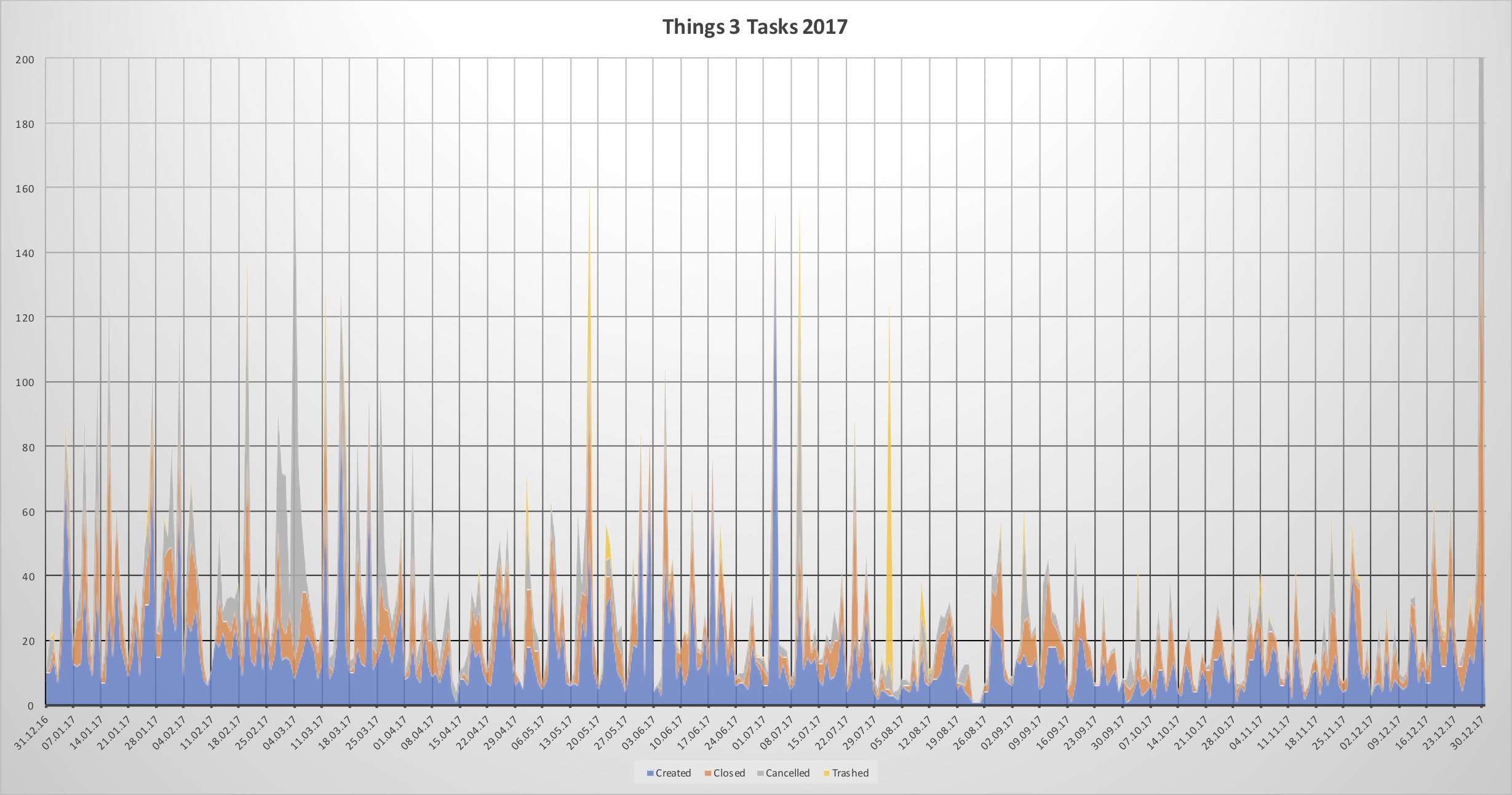
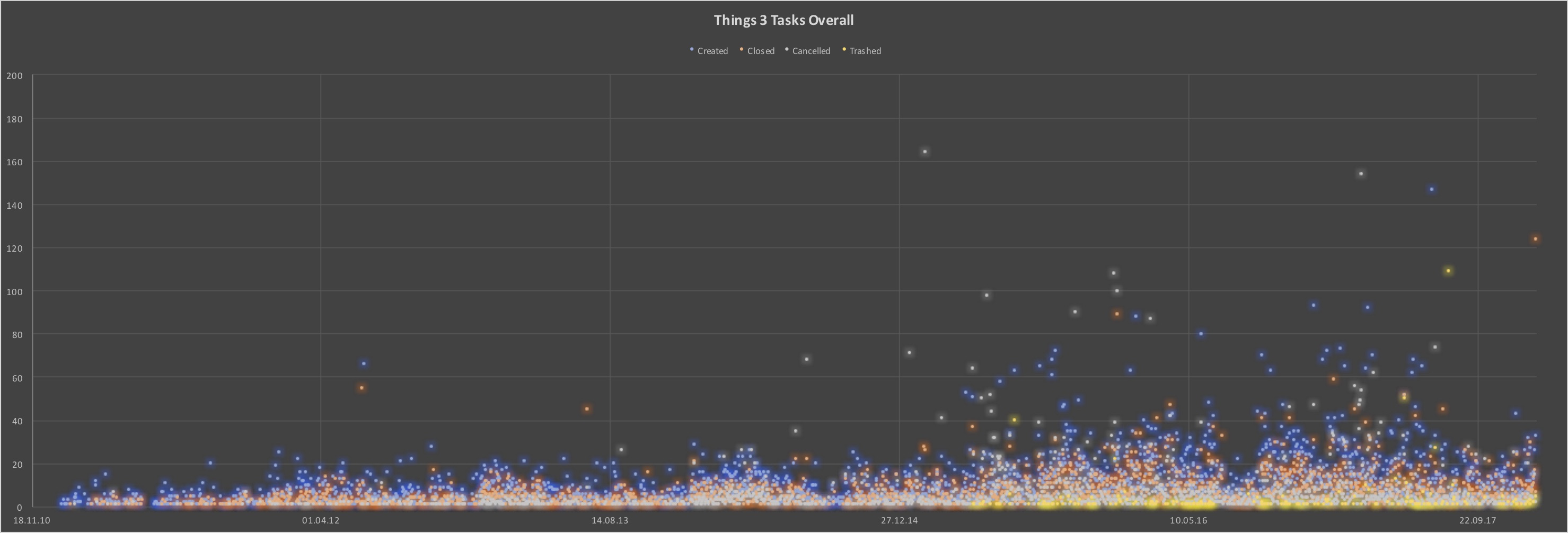
These graphs have been generated based on the CSV export. For example:
.sh -r '-14 days' statcsv > lastTwoWeeks.csv && open lastTwoWeeks.csvColumn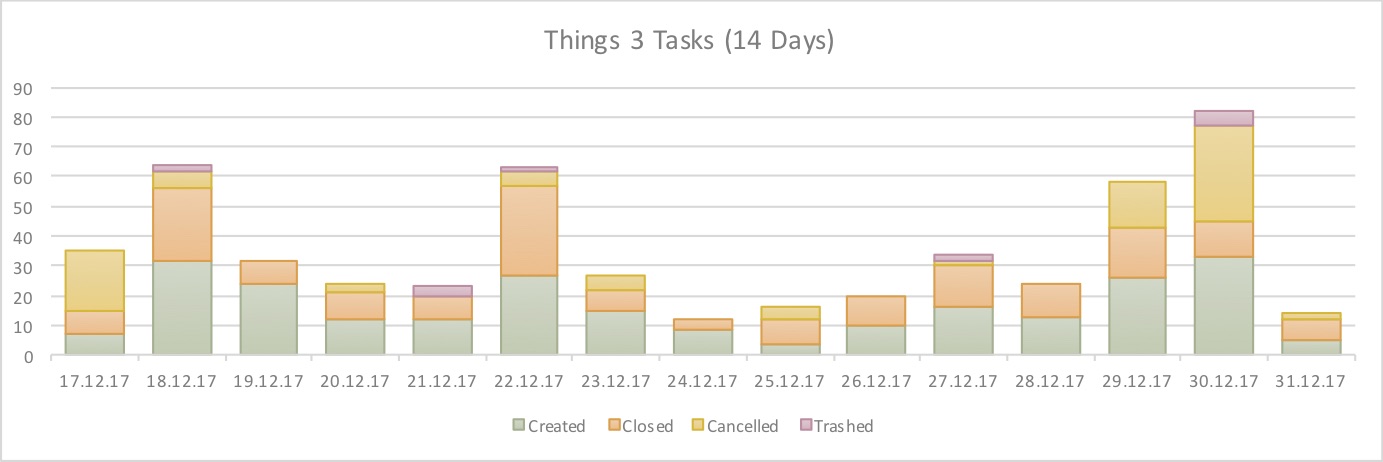
Instructions
Note that you could override the location of the database used by setting the THINGSDB environment variable. For usage information, run the script with no arguments or with "help":
$ things.sh --limitBy 5 help
usage: things.sh <OPTIONS> [COMMAND]
OPTIONS:   -l|--limitBy <number>    Limit output by <number> of results   -w|--waitingTag <tag>    Set waiting/filter tag to <tag>   -o|--orderBy <column>    Sort output by <column> (e.g. 'userModificationDate' or 'creationDate')   -s|--string <string>     String <string> to search for   -r|--range <string>      Limit CSV statistic export by <string>   -e|--event <filename>    Event: <filename> that contains a list of tasks   -t|--start <date>        Event: starts at <date>   -d|--duration <days>     Event: ends after <days>
COMMANDS:   inbox                    Shows 5 inbox tasks ordered by creationDate   today                    Shows 5 todays tasks ordered by index   upcoming                 Shows 5 upcoming tasks ordered by date   next                     Shows 5 next tasks ordered by creationDate   someday                  Shows 5 someday tasks ordered by creationDate   completed                Shows 5 completed tasks ordered by creationDate   cancelled                Shows 5 cancelled tasks ordered by cancel date   trashed                  Shows 5 trashed tasks ordered by creationDate   feedback                 Opens the feedback web page to request and propose changes   all                      Shows 5 tasks ordered by creationDate   csv                      Exports all tasks as semicolon seperated values incl. notes and Excel friendly   due                      Shows 5 tasks ordered by due date   headings                 Shows 5 headings ordered by creationDate   mostClosed               Shows 5 days on which most tasks were closed   mostCancelled            Shows 5 days on which most tasks were cancelled   mostTrashed              Shows 5 days on which most tasks were trashed   mostCreated              Shows 5 days on which most tasks were created   mostTasks                Shows 5 projects that have most tasks   mostCharacters           Shows 5 tasks that have most characters   nextish                  Shows 5 nextish tasks ordered by creationDate   old                      Shows 5 old tasks ordered by creationDate   projects                 Shows 5 projects ordered by creationDate   repeating                Shows 5 repeating tasks ordered by creationDate   schedule                 Schedule an event by creating a number of related tasks   search                   Searches for a specific task   stat                     Provides a number of statistics about all tasks   statcsv                  Exports some statistics as semicolon separated values for -1 year   subtasks                 Shows 5 subtasks ordered by creationDate   tag                      Shows 5 tasks with the tag "Waiting for" ordered by "creationDate"   tags                     Shows 5 tags ordered by their usage   waiting                  Shows 5 tasks with the tag "Waiting for" ordered by "creationDate"
Examples
CSV export and open with Excel
.sh csv > Things3Export.csv && open Things3Export.csvNote that this command generates a standards compliant file. If you have problems opening it using Microsoft Excel, you might want to change some parameters. E.g.,
=";" ENCODING="WINDOWS-1252//TRANSLIT" ./things.sh csv > Things3Export.csvStatistics
$ things.sh stat
Inbox     : 0
Today     : 7
Upcoming  : 156
Next      : 15
Someday   : 822
Completed : 11976 Cancelled : 9250 Trashed   : 545
Tasks     : 968 Subtasks  : 56 Waiting   : 111 Projects  : 89 Repeating : 89 Nextish   : 146 Headings  : 53
Oldest    : 2010-09-28|XXX|XXX Farest    : 2021-01-04|XXX|XXX Longest   : 167|XXXXXXXXXXXXXX Largest   : 128|XXXXXXXXXXXXXX
Created   : 147|2017-07-04 Closed    : 124|2017-12-30 Cancelled : 324|2017-12-30 Trashed   : 109|2017-08-02 Days/Task : 41.0
Create Scheduled Event
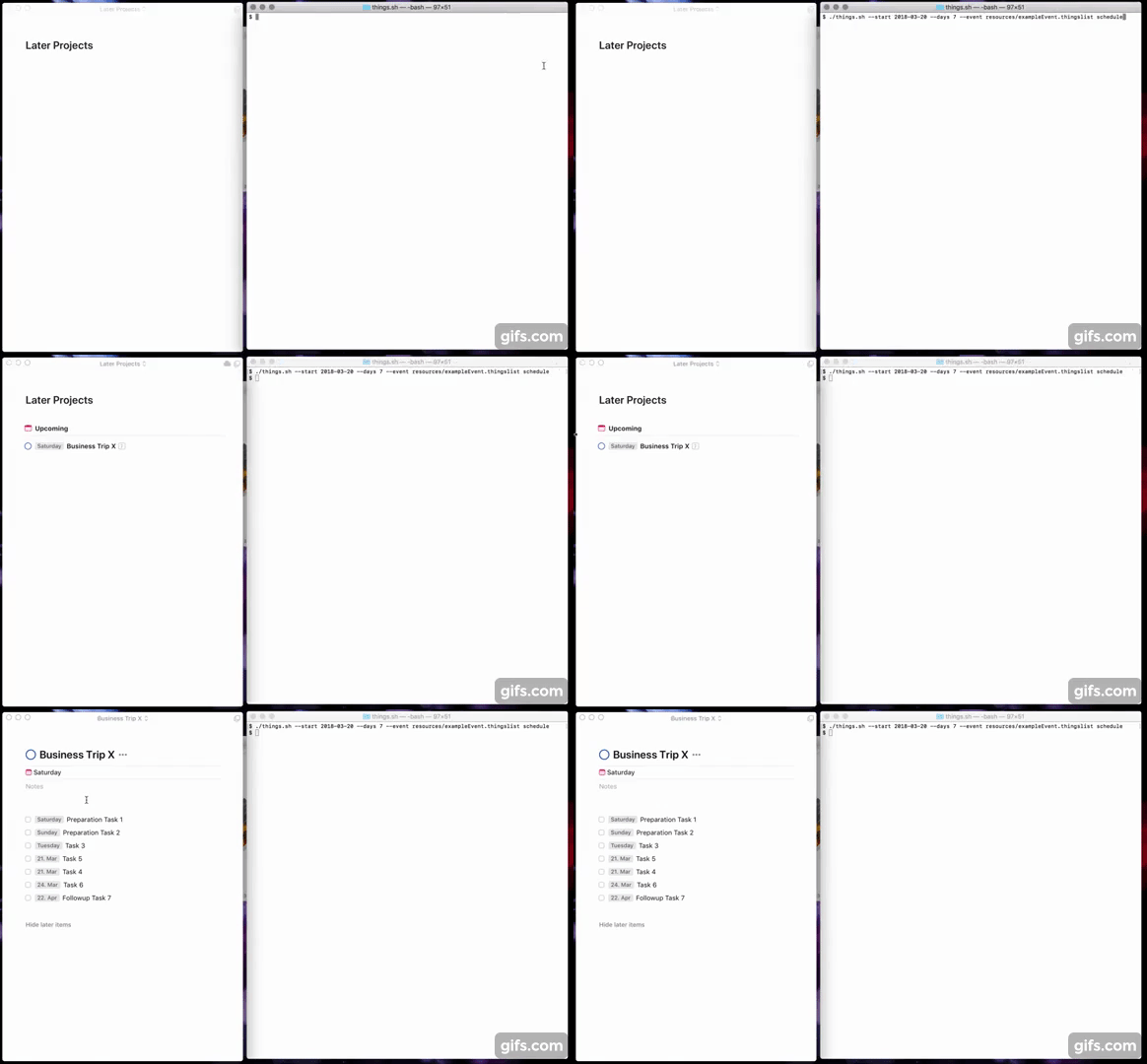
In case you have regularly to create projects based on a template (e.g., a business trip or family vacation), this can be automated using the following command:
$ things.sh --start 2018-03-20 --days 7 --event resources/exampleEvent.thingslist scheduleNote that you might have to
Things URLsOther Information
Things URL Helper
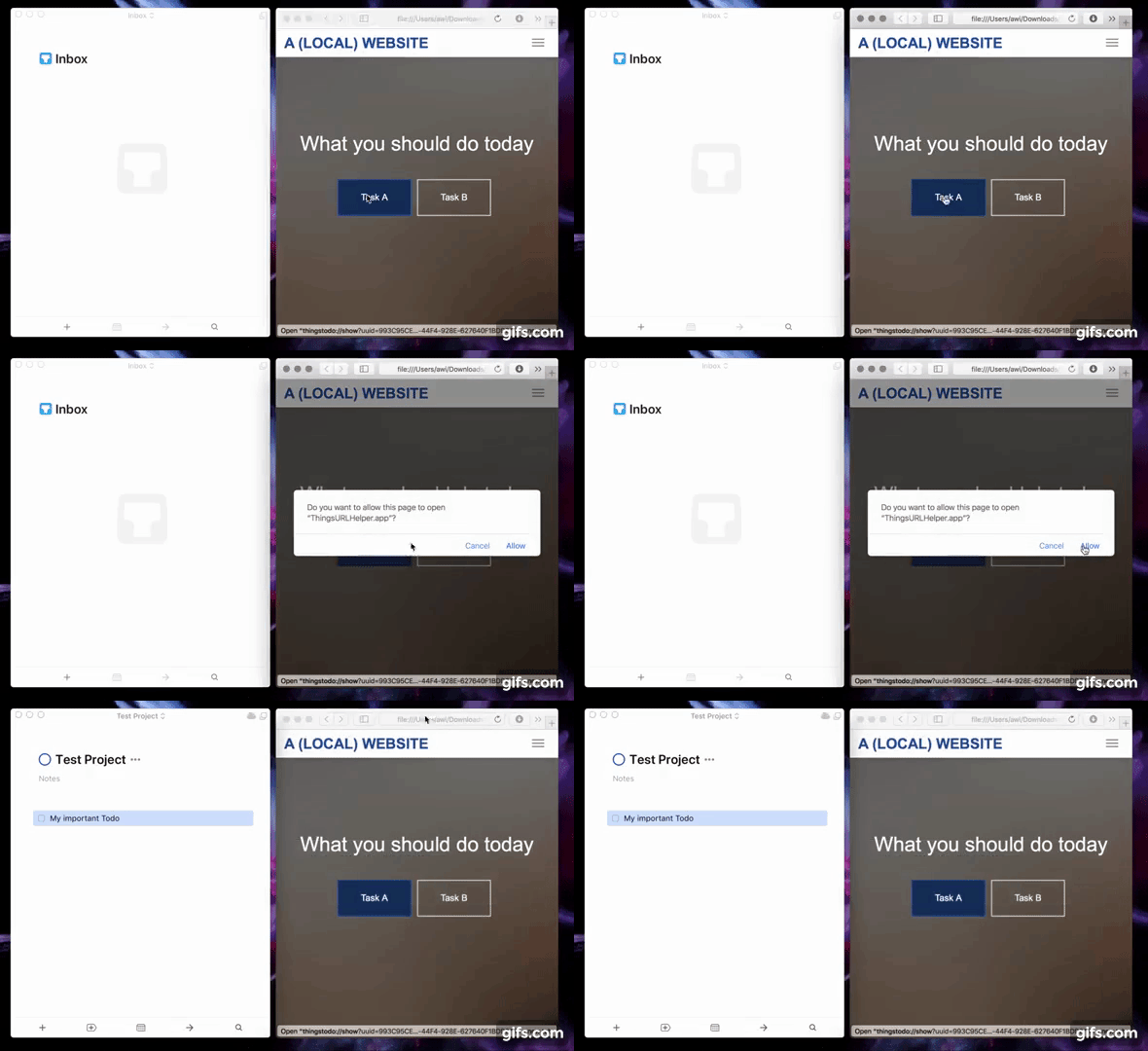
Since Version 3.4 Things.app has its own URL Scheme. It replaces the application
.app.sh csvMarkdown Clipboard to Things Workflow
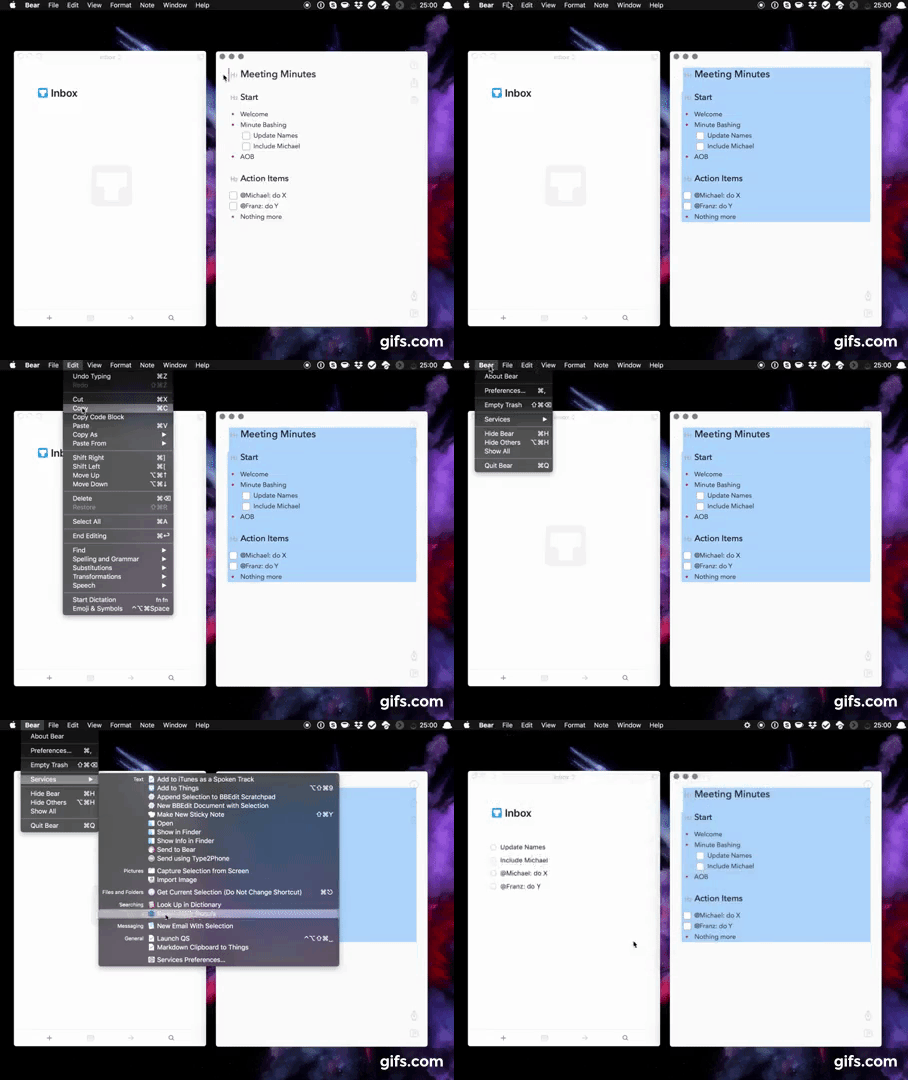
You can use the service/workflow in the folder
- Alfred Workflow: Download and double click on the workflow file
- macOS Service: Download, unzip and copy the workflow file to ~/Library/Services (you may need to enable the service under System Preferences > Keyboard > Shortcuts > Services > General > Markdown Clipboard to Things)
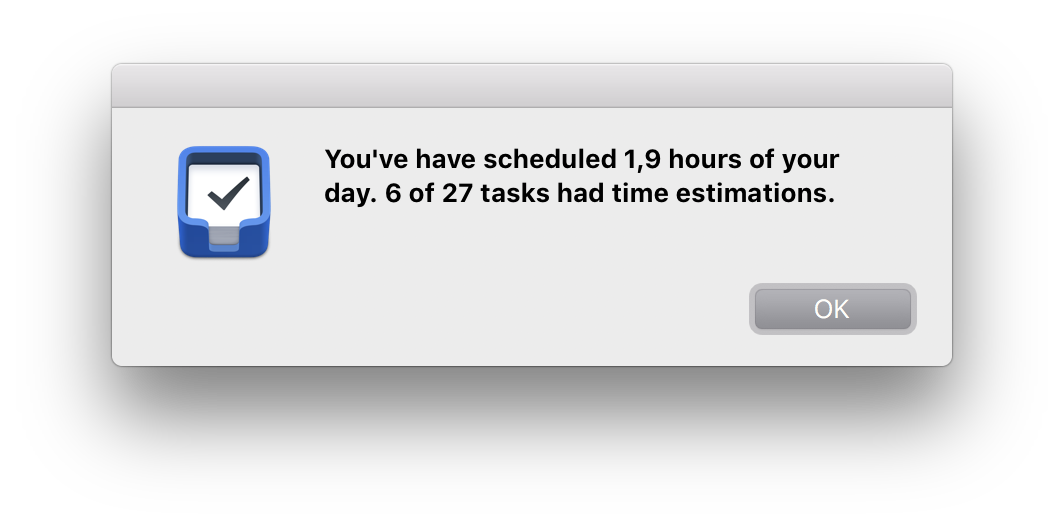
Count Minutes Planned Today
It has some benefits to use time estimates in your to-do list. In case you're using tags like
CREDITS
- Author : Arjan van der Gaag (script for Things 2)
- Author : Alexander Willner (updates for Things 3, complete rewrite)
- License : Whatever. Use at your own risk.
- Source : https://github.com/AlexanderWillner/things.sh
- Shell checker : https://github.com/koalaman/shellcheck
- Shell cleanup : https://github.com/mvdan/sh/
- Shell tips : https://dev.to/thiht/shell-scripts-matter
- Shell tips : https://google.github.io/styleguide/shell.xml
- Shell tips : https://kvz.io/blog/2013/11/21/bash-best-practices/
- Shell tips : https://github.com/progrium/bashstyle


