Control Minecraft server and more with Python Discord bot.
Last updated Jul 2, 2026
69
Stars
21
Forks
0
Issues
0
Stars/day
Attention Score
26
Topics
Language breakdown
Python 100.0%
▸ Files
click to expand
README
Control Minecraft server with Discord bot.
- Configure depending on if bot is on the same computer as server, or using RCON for remote control.
- Interface with server using RCON, Tmux/Screen or subprocess. Some features are disabled if using RCON or Subprocess.
xp command with a randomly generated number so the bot can read the output properly.
- NOTE: This is disabled when using RCON.
- If you have better ways so it doesn't clog up the logs, lmk!
- Basic commands: say, kick, teleport, save, weather, and gamemode.
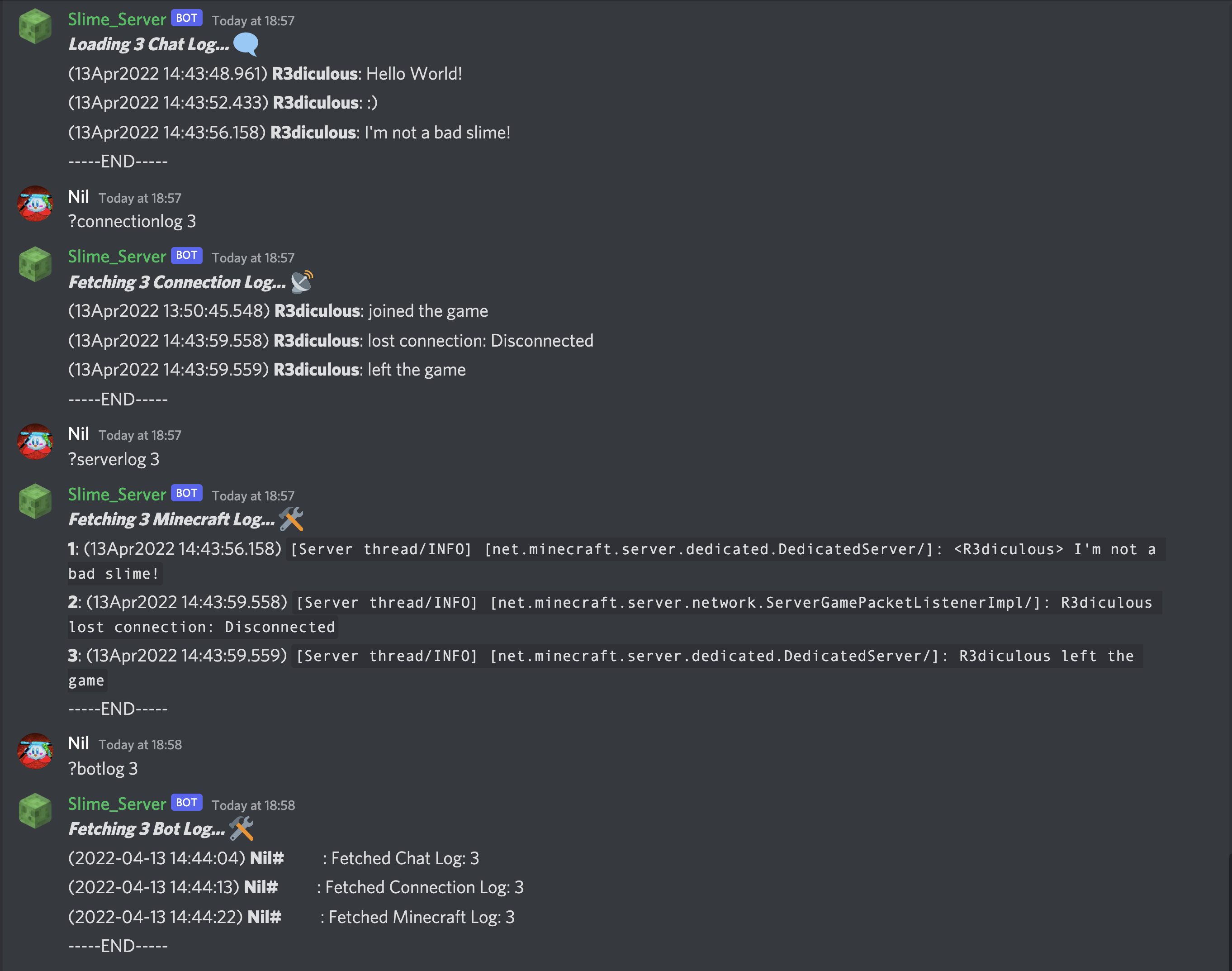
- Show connection history, chat log, online players, banned, OP list, and whitelist.
- World save backup and restore system. Also has server folder backup/restore feature. These features need direct access to server files.
- Server autosave, start, stop, status, version, log, update server.jar (only with Vanilla or PaperMC), and edit server.properties.
- See releases (may not have latest code): https://github.com/0n1udra/slime_server/releases
- Download latest commit (.zip): https://github.com/0n1udra/slime_server/archive/refs/heads/master.zip
- Jump to: Guide, Screenshots, Support me
TODO List
- Discord user and role specific permissions for certain commands and/or command groups.
- Be able to setup and change bot and server settings without having to edit user_config.json file.
- Show command usage for more commands.
Requirements
- Python 3.8+
- Java 64bit (If bot starting Minecraft server)
- Tmux/Screen (Optional)
- WSL (Optional if on Windows)
Python Modules
- discord.py 2.0
- asyncio
- file-read-backwards (Needed for reading server log file (for now))
- mctools (If using RCON)
- subprocess, requests, datetime, fileinput, random, gzip, json, csv, sys, os, re
- beautifulsoup4 (For
?serverupdatefeature)
Setup
- Create Discord bot in Discord Developer Portal. Scroll down for instructions or click here
- Setup Python venv (if using) and install libraries. Scroll down for instructions or click here.
- Update settings by editing
user_config.jsonvariables. Scroll down for more or click here
example server config entry.
- Run
python3 run_bot.py help, shows commands to setup tmux and/or run bot.
python3 run_bot.py makefolders - Create required folders if starting from scratch.
- python3 run_bot.py startbot - Starts bot.
- python3 run_bot.py attachbot - Attach to tmux/screen if using.
- python3 run_bot.py startbot attachtmux
- Use
?setchannelor?sccommand to set channel id. This is optional, any command issued to the bot will update the channel_id, however you may not see an output for that command until reissued. - Read through the help pages with
?helpor?help2in Discord. - Optionals:
?serverscan command to add servers you manually put in the 'servers' folder.
- You can use ?update to download latest .jar file (Downloads latest PaperMC by default, more details in slime_vars.py comments, line 63)
Commands
?help,?help2- Help pages. First one is my custom embed layout, second one is default discord.py format.?start,?stop,?restart- Start/stop Minecraft server.?check- Check if server is online, and if console is reachable, if able.?status- Server information: status, version, motd, address/IP, players online, etc.?players- Show names of online players.?playerpanel- Common bot commands and functionality using discord.py components.?teleportpanel- Easy to use teleport panel. Includes return button to return teleported player to previous position.?playerlocate- Get xyz coords of player.?serverproperties- Show or edit properties in server.properties file.?worldbackup,?worldrestore,?serverbackup,?serverrestore- Manage world and server backups.?serverlog,?chatlog,?connectionlog,?botlog- Show logs for: server, just player chats, server connections and bot.?update- Update server .jar file.
papermc is in the server description, it'll get the latest PaperMC jar from official site.
- Currently working: vanilla, papermc
?botupdate- Uses Git CLI to pull the latest update from Master branch.
git restore . in source folder.
User Configs
File Structure:
- Either use
python3 run_bot.py makefoldersto create these folders or create your own and update the paths in configs.
Games folder in your home directory if it doesn't exist. Then Minecraft, servers, worldbackups, and serverbackups inside.
Example folder structure:
Home (home_path, e.g. ~/ or C:\Users\0n1udra)
└─ Games
    └─ Minecraft (mc_path)
       ├─ servers (servers_path)
       │  ├─ papernc (server_path, e.g. ~/Games/Minecraft/servers/papermc)
       │  │  └─ server.jar
       │  └─ vanilla
       │     └─ server.jar
       ├─ server_backups
       │  ├─ papermc (serverbackupspath)
       │  └─ vanilla
       └─ world_backups
          ├─ papermc (worldbackupspath)
          └─ vanilla
Bot Configs:
usepyenv,pyenvactivate_command- If using python virtual environment.botlaunchcommand- Set custom arguments when launching bot.showsensitiveinfo- Show or hide sensitive info in launch banner.disabled_commands- Disable specific commands. Must put original command name not aliases if you want to completely disable it.bottokenfilepath- Path to Discord token file.commandprefix,caseinsensitive- Discord command prefix, and command case insensitivity.playerscustomstatus,customstatusinterval- Show players online and server ping in bot's custom status section.
usecustompingaddress, customping_address - Set a custom address for the ping section.
botusetmux,bottmuxname,bottmuxpane- Run bot in a Tmux session.
bottmuxname and servertmuxname to the same to run them both in the same session.
currently only supports the bot and one Minecraft server.
botusescreen,botscreenname- Run bot in a Screen session.homepath,botsourcepath,mcpath,servers_path- Used for setting default configs for bot and servers.userconfigfilepath,botlogfilepath- Miscellaneous variables needed for bot.windows_compatibility- Bot will automatically detect if running on Windows system.
windowscmdlinestart- Bot will prefix this toserverlaunchcommandto start server.selected_server,init- More miscellaneous configs needed for bot functionality.
Server Configs:
servername,serverdescription,server_version- Basic server info.
serveraddress,serverport- Server domain/IP and port. Not needed, but some features may not work properly.serveruseessentialsx- EssentialX plugin compatibility.
pong command instead of xp. See statuscheckercommand below for more.
serverfilesaccess- If you are running the bot on the same system as the server, and it can access server files.
serverusercon,rconpass,rconport- RCON configs. Usesserver_address.serverusetmux,servertmuxname,servertmuxpane- Run server in a Tmux session.serverusescreen,serverscreenname- Run server using Screen.serverusesubprocess- Run server using Python's subprocess module.
serverlaunchcommand- Command used to start server.serverlaunchpath- Optionally set a custom path to the server executable (usually a.jarfile).startupwaittime- This is just used to send a Discord message notifying how long the server takes to start.saveworldwait_time- Set how long it takes for the server to save the world after sending asave-allcommand.checkbeforecommand- Only used ifserverfilesaccessis true. Sends a command to the server to check if it's reachable before sending actual command.
statuscheckercommand" - The command that will be sent to server with a random number, then bot will check server logs to see if it was received.
E.g. xp 0.123463246.
commandbuffertime- The time it takes for the server to run commands. Change this if your server is slower.enableautosave,autosaveinterval- Sendsave-allcommand at specified minutes interval.loglineslimit- Set limit to how many log lines bot can read for some commands, like?chatlog.serverpath,worldbackupspath,serverbackupspath,serverlogspath,serverlogfilepath,serverpropertiesfilepath- Bot will automatically set these based onmcpath.
world_folders- Specify what world folders to backup.useful_websites- For?linkscommand, which shows a Discord embed of these links.serverip- Bot will automatically set this ifserveraddressis set.
Create Discord bot
1. Go to: https://discord.com/developers/applications. 2. Create New App:Using Virtualenv or venv
Install Python3 venv:sudo apt install python3-venv -ypython -m venv ~/pyenvs/slime_serversource ~/pyenvs/slime_server/bin/activatepip install -r requirements.txtScreenshots